WordPress permalinks not working: effective steps to resolve 404 errors
Sep 18, 2026
/
By Domantas G.
/
3 min Read
WordPress Permalinks not working is one of the main causes of the 404: Not Found error. Fixing it immediately is important as it can negatively affect user experience. Furthermore, it can prevent search engines from crawling your site, damaging your search engine optimization (SEO) efforts.
There are various solutions to this problem – from a simple permalink reset to a WordPress core file replacement. This article will guide you through three practical steps to resolve broken permalinks in WordPress.
Download all-in-one WordPress cheat sheet
What Triggers Broken Permalinks in WordPress?
The most common issue you’ll notice with broken permalinks is 404: Not Found error in WordPress when accessing a page on your website. Various causes may trigger broken permalinks on your website.
- New plugin installation. The new plugins you install may interfere with your .htaccess file.
- Restoring a backup or migrating WordPress. You recently restored a backup or moved your WordPress site to a new domain or server.
- Updates. Problems with incompatibility after updating plugins, themes, or WordPress core.
- Changes in .htaccess file. Updating, or altering your .htaccess file incorrectly.
How to Fix Broken Permalinks in WordPress?
Here are several methods on how you can fix broken permalinks in WordPress.
Prefer to follow along visually? This video walks through all three fixes below — plus how to set up a redirect if your content has simply moved:


1. Resetting Permalinks Structure
The simplest way to deal with this problem is by resetting the permalinks structure:
- Login to your WordPress Dashboard. Go to Settings → Permalinks.
- Select an alternative permalinks structure → Save Changes. For instance, if you’re currently using the Day and name settings. Change it to something else, like Post name.
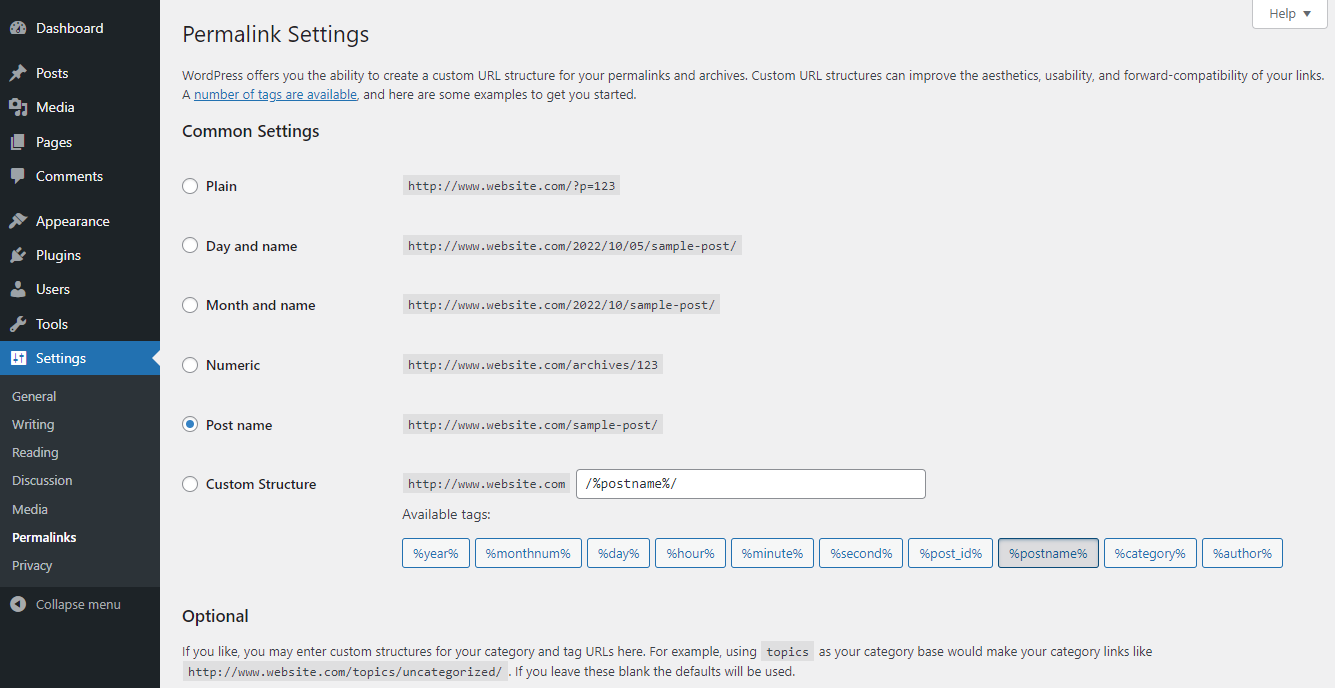
- Once done, change it back to your standard structure and hit Save Changes once again.
If you’re still getting a “404 Page Not Found” error, let’s try other remaining methods.
2. Disabling Plugins
Deactivate the most-recently installed or updated plugin that might be triggering the error. Otherwise, you can also remove all the installed plugins altogether:
- Go to the Plugins menu in your WordPress dashboard → Installed Plugins.
- Click the Deactivate button next to the plugin’s name.
- Once finished, reset the permalinks structure using the previous method.
3. Replacing .htaccess File
In case none of the options solved your broken permalinks issue, the issue can be related to your .htaccess file’s configuration. Thus, you should replace your current .htaccess file with the default WordPress .htaccess code.
In this example, we’ll be using Hostinger’s File Manager:
- Navigate to Hostinger dashboard → File Manager.
- Select your domain and press Go to File Manager.
- Choose the .htaccess file in the public_html folder.
- Right-click and select Rename. Then, change the file name (e.g., .htaccess-error).
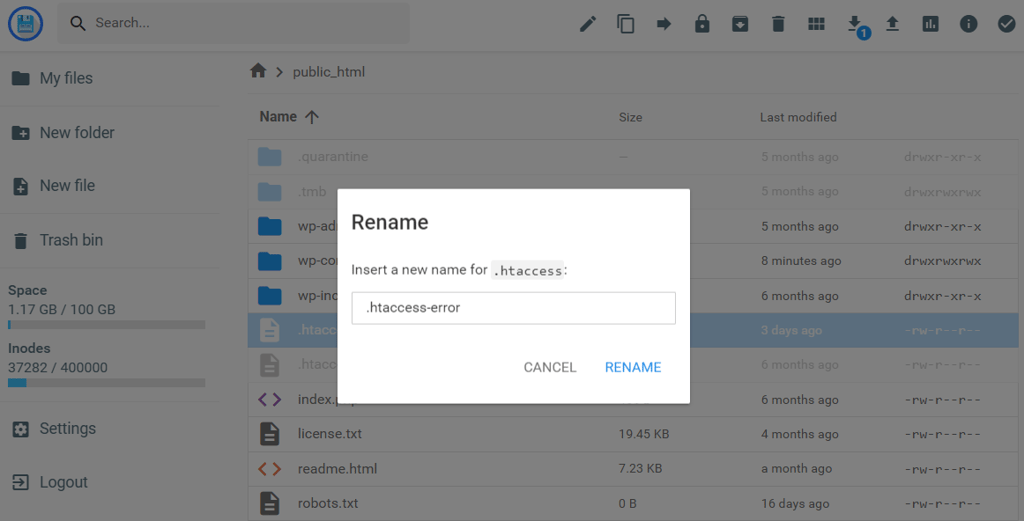
- Next, click the New File icon at the top of the page. Don’t forget to name it .htaccess.
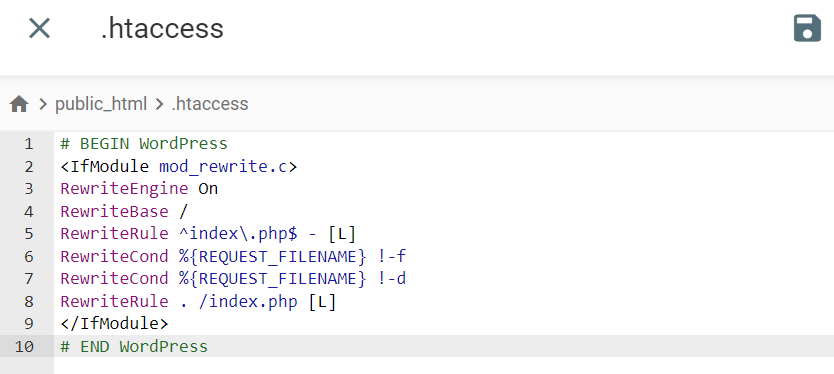
- Paste the code below in your new .htaccess file.
# BEGIN WordPress <IfModule mod_rewrite.c>
RewriteEngine On
RewriteBase / RewriteRule ^index.php$ - [L]
RewriteCond %{REQUEST_FILENAME} !-f
RewriteCond %{REQUEST_FILENAME} !-d
RewriteRule . /index.php [L]
</IfModule>
# END WordPress - Once all is done, click the Save button.
Alternatively, you can also run this process by using an FTP client, like FileZilla
If the problem is not solved, try to remember what actions you’ve taken before the error occurred. If it happened after performing a specific update, then restoring a backup might be a reliable option to get your site up and running.

Conclusion
There are plenty of reasons why you can get a broken permalinks issue in WordPress. The bad news is, your website will be inaccessible and will display a “404 Page Not Found” error.
Fortunately, you can effortlessly handle this problem using these three simple methods:
- Resetting permalinks structure – configure your built-in permalink settings on the WordPress dashboard.
- Disabling plugins – deactivate the installed plugins in a few clicks.
- Replacing .htaccess file – replace the .htaccess file from Hostinger dashboard or using an FTP client.
We hope that this step-by-step tutorial will help you fix broken permalinks on your WordPress website. If you have any more questions, let us know in the comments section below.
Learn How to Solve Other WordPress Errors
How to Fix "Briefly Unavailable for Scheduled Maintenance" Error
How to Fix Missed Schedule Error in WordPress
How to Fix Mixed Content on WordPress
How to Fix Broken Links on WordPress
How to Fix White Screen of Death on WordPress
How to Solve WordPress Not Sending Emails
How to Solve "Link You Followed has Expired"
WordPress Permalinks Not Working FAQ
Learn more information about WordPress permalinks not working below.
Do Permalinks Expire?
No, permalinks do not expire. They are permanent links that are intended to remain unchanged and accessible for the lifetime of the content they point to. However, changing permalinks on a live site can result in broken links and negative impacts on SEO.
Can I Change My WordPress Permalink After Publishing?
Yes, you can change your WordPress permalink after publishing by going to Settings → Permalinks in the WordPress dashboard, selecting the new permalink structure, and clicking Save Changes. However, changing permalinks can impact SEO and result in broken links if not properly redirected.
This article is a localized version of WordPress permalinks not working: effective steps to resolve 404 errors, originally published in English.

Domantas leads the content and SEO teams forward with fresh ideas and out of the box approaches. Armed with extensive SEO and marketing knowledge, he aims to spread the word of Hostinger to every corner of the world. During his free time, Domantas likes to hone his web development skills and travel to exotic places.