How to create a web app using Hostinger Horizons
Mar 05, 2025
/
Aris S. & Ariffud M.
/
7 min Read

Hostinger Horizons is an AI-powered tool that lets you create web applications without writing a single line of code. Whether you need a fitness app for personalized workout plans or a volunteer management tool for a nonprofit, simply enter your prompts, and Hostinger Horizons will handle the rest.
It’s an excellent choice for first-time web app creators without coding experience. Solopreneurs on a limited budget can also benefit, as they can create fully functional apps without hiring developers.
In this guide, you’ll learn how to create a web app using Hostinger Horizons, from setting up your first project to launching it for public access. You’ll find out how to refine your prompts for better results, use key features effectively, and optimize your app’s functionality to suit your needs.
Create a web app in seven steps with Hostinger Horizons
To better illustrate the process of creating a web app with Hostinger Horizons, in this tutorial, we’ll create a fitness web app that generates personalized workout and diet plans based on user data (such as age, height, weight, activity level, and existing health conditions).
If you’re working on a different type of web app, feel free to adjust the prompts and features accordingly.
1. Sign up and start a new project
Begin by visiting Hostinger Horizons’ official page and choosing a plan that fits your needs. Starting at 0/month, all our plans offer the same web app-building features and one month of free hosting. The difference lies in the monthly message limits, which go up to 1,000 messages.
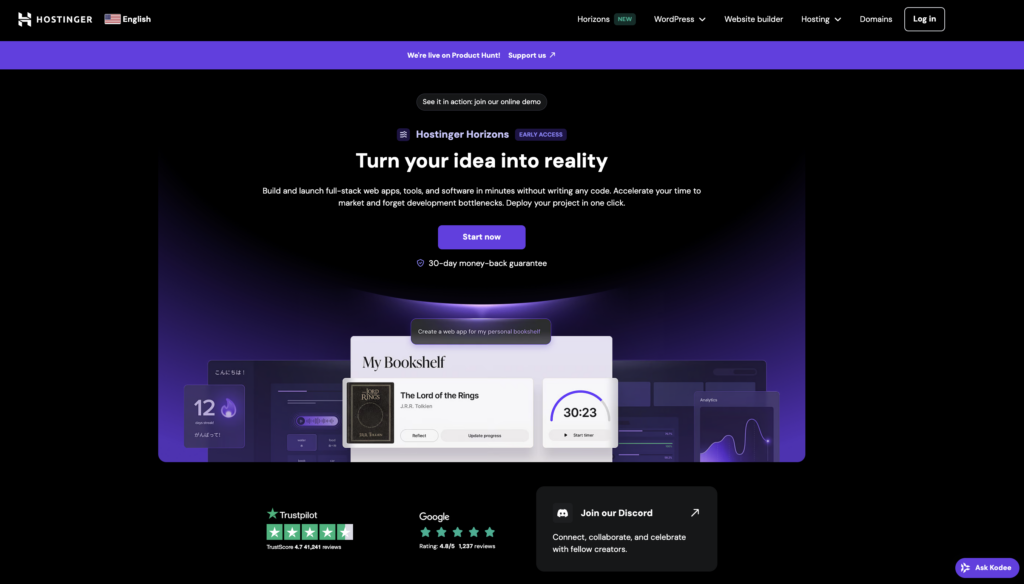
Please note that Hostinger Horizons is currently in its early access stage, so you may occasionally encounter errors while using it. But don’t worry – there’s a 30-day money-back guarantee, which lets you cancel anytime if you change your mind.
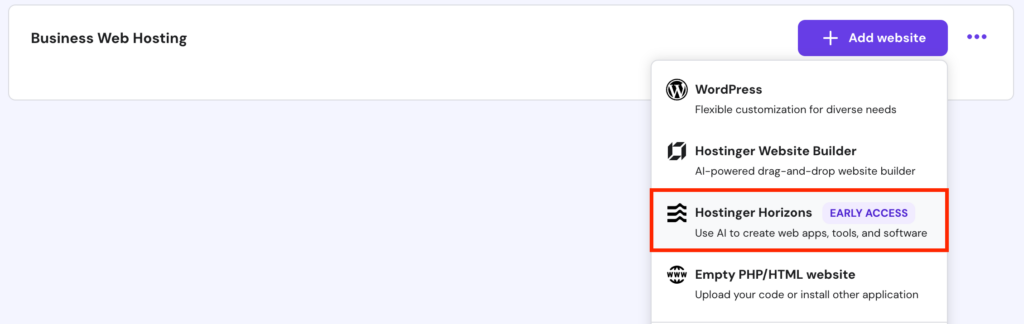
After completing your payment, head to the hPanel dashboard and select Websites → Websites list in the left sidebar. Then, click Add Website and choose Hostinger Horizons.
2. Navigate the tool’s interface
It’s time to get started with Hostinger Horizons.
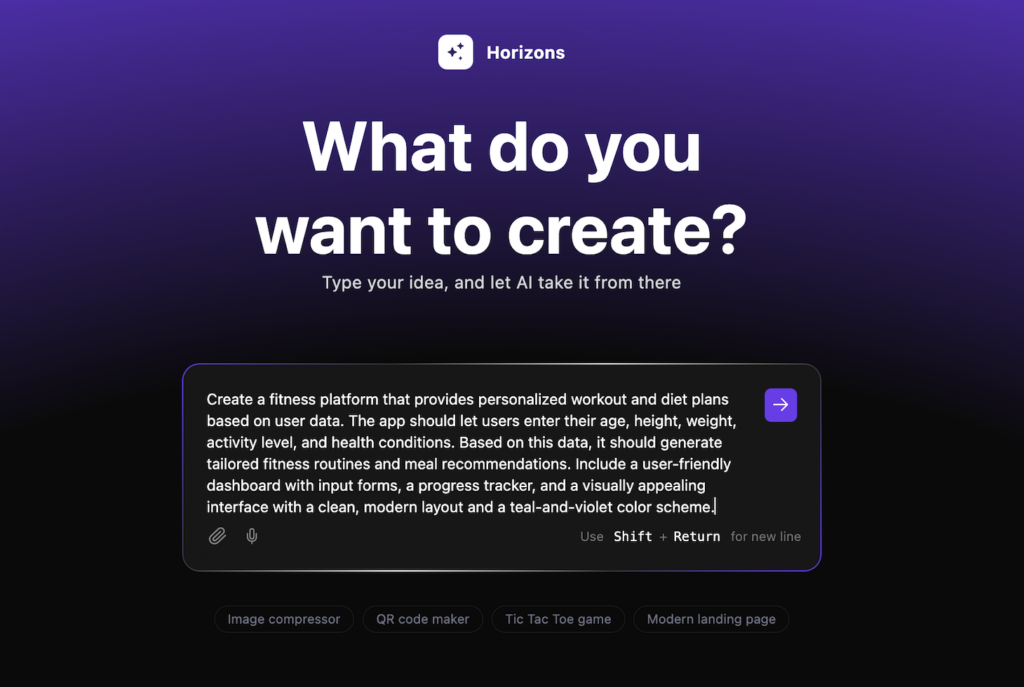
You’ll see a text field where you can write your prompt in more than 80 languages. After describing your web app, press Enter.
Hostinger Horizons will take a few moments to process your prompt. Once ready, the dashboard will split into two panes:
- Left pane – enter additional prompts here to add more features or refine your web app. Underneath the prompt field, you can find the number of message credits left in your plan.
- Right pane – shows a real-time preview of your app as you make adjustments. You can interact with the elements to test their functionality.
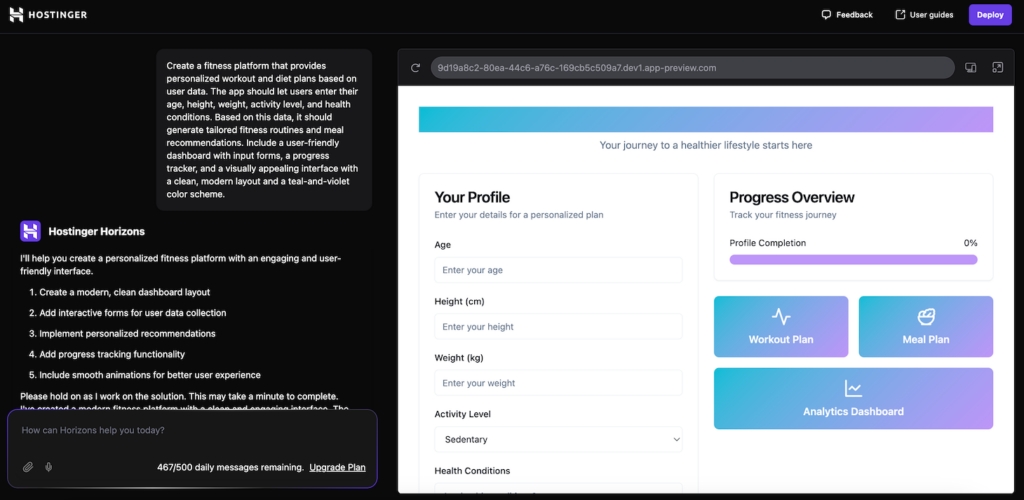
In the top-right corner of the dashboard, you’ll find the Deploy button to launch your web app and make it publicly accessible.
3. Define your web app’s purpose
Hostinger Horizons relies on well-structured prompts to generate the web app you envision. So, the more precise your prompts, the better the results.
When defining your web app’s purpose, include these key details so that Hostinger Horizons understands your idea:
- App purpose – clearly state the problem your web app solves, for example, “helping users track fitness progress.”
- Core features – list essential functions you want to include, such as user login, forms, dashboards, or reports.
- UI preferences – be specific about design elements like layout, color scheme, and overall aesthetics.
Here’s a prompt example for a fitness platform that generates personalized workout and diet plans:
Create a fitness platform that provides personalized workout and diet plans based on user data. The app should let users enter their age, height, weight, activity level, and health conditions. Based on this data, it should generate tailored fitness routines and meal recommendations. Include a user-friendly dashboard with input forms, a progress tracker, and a visually appealing interface with a clean, modern layout and a teal-and-violet color scheme.
Like any other AI tool, Hostinger Horizons’s first output might not be perfect regardless of how detailed your initial prompt was. We can build upon this first iteration of the app by entering follow-up prompts.
4. Customize your project’s design
The next step is customizing the application’s design. In addition to making your app more visually appealing, this process involves adding important elements for navigation and functionality.
Here are some of the important front-end components to include in your application:
- Menus – areas like a sidebar, tab, or drop-down menu that contain shortcuts to different pages.
- Forms – fields that let users input data, such as an email address or image.
- Pages – full-screen windows containing different settings and information.
- Buttons – elements that will perform certain actions, like submitting data or navigating to another page.
If you have a wireframe detailing the application’s layout and element placements, you can upload it to Hostinger Horizons as a prompt. This will result in a more accurate output.
Otherwise, use a text-based prompt, like this example:
Create a login page where users can access their account. Here, include a button that redirects users to the sign-up page where they can create a new account if they don’t have one.
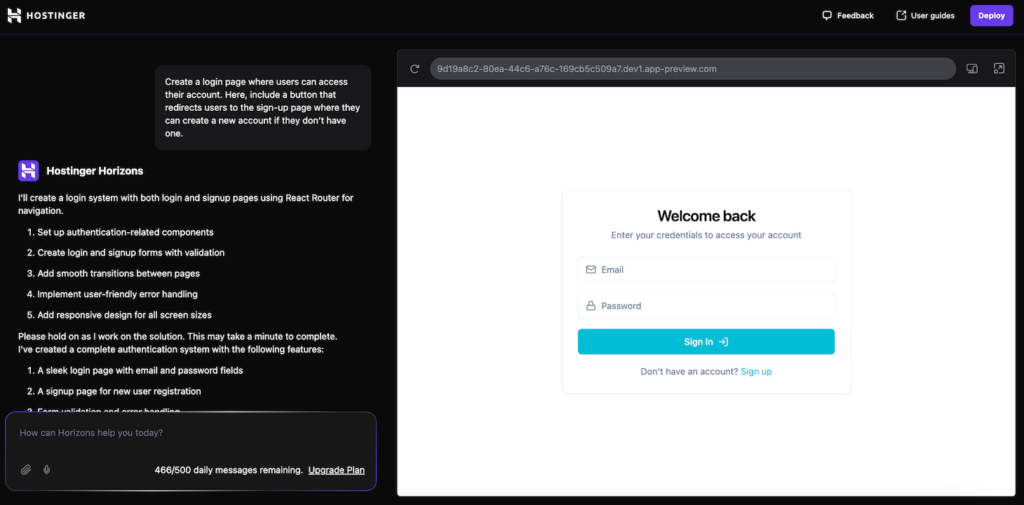
Remember to add more details about your application design, such as colors, text size, and font style. For inspiration and guidance, check out our web design tips tutorial.
5. Refine the logic and structure
Now that you have the design laid out, let’s refine the app’s functionality. The process remains the same: you provide follow-up prompts on aspects you want to improve.
During this stage, the areas for improvement are usually related to the logic and features of your application. Some of the most common ones are:
- Business logic – the underlying rules of your application. For example, your fitness app should give different recommendations according to the health data you input.
- Decision tree – the flow of your application based on users’ decisions. For example, if a user selects a certain menu, a pre-determined page should pop up.
- Event handling – the reaction to user actions, such as clicks, swipes, and keypresses. For instance, a toggle should switch when clicked.
- Data flow – the handling of user data when passed through forms, validated, or uploaded. For example, a user password must be a string of text that matches the database entry.
When writing prompts for Hostinger Horizons, make sure you clearly describe the logic or feature you want to improve. Giving the AI more context helps it produce a more accurate output.
Here’s a prompt example for refining the data flow:
Check the email address and password fields on the sign-in page. Make sure they only accept strings of texts that correspond to existing database entries.

If the inputted data doesn’t match any database entry, return an error message saying, “Invalid email or password.” If the given information is valid, redirect the user to the main dashboard.
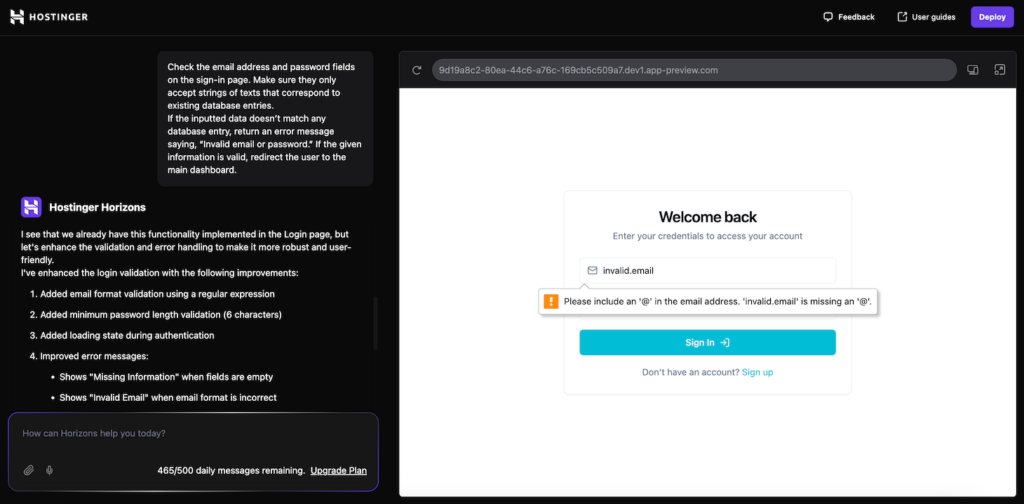
Then, check whether Hostinger Horizons has properly configured your application’s logic and functionality by testing them in the preview. This will also help you identify if any feature is missing.
Pro tip
To get the best and most accurate results, refine one aspect of your application at a time.
6. Connect your app to a database (optional)
A database enables your web application to collect and store user data. This is essential if your app has features like user registration.
Hostinger Horizons lets you easily configure a database for your application using Supabase.
To do so, head to the Supabase’s registration page and create a new account. Create a new organization and select a plan – the free one is sufficient for a basic, small-scale app. Then, make a new project by entering its name, database password, and region.
You should be redirected to the new project page. From this menu, copy your Project URL and API key, which we will use to connect the database to your application.
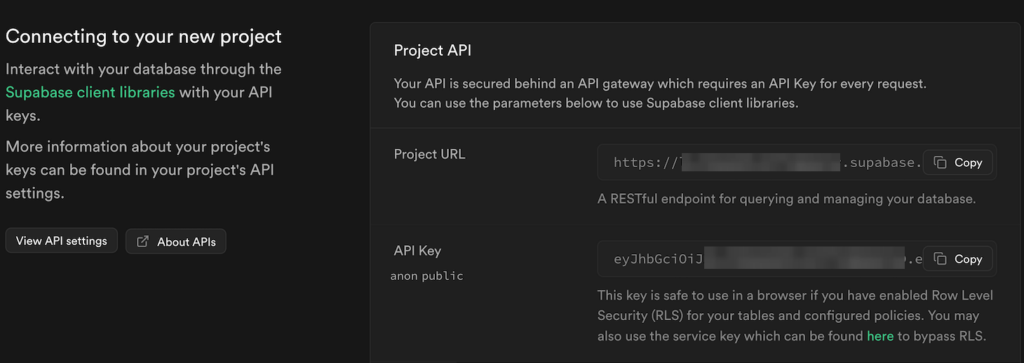
Next, ask Hostinger Horizons to set up your application’s back end using the credentials you copied from Supabase. Here’s an example of the prompt:
Connect the application with my Supabase database. Here are the credentials:

Project URL: your-project-URL

API key: your-API-key
Then, create the necessary tables and connect them to the corresponding fields in the application.
Important!
Since connecting a database and developing your application’s logic are complex tasks, you will most likely need to give follow-up prompts.
Always refine your instruction and retest the changes to make sure your application works properly.
7. Test and deploy your web app
At this point, your application should be fully developed and functional. Before finalizing it, check all the features and navigation to make sure they work properly.
In Hostinger Horizons, you can check and interact with your application directly from the preview menu on the right pane.
Here’s a checklist of what you should check during web application testing:
- Functionality – all the features should work properly in the live environment. This includes the ability to perform CRUD database operations and business logic.
- Navigation – the flow of your app and the functionality of the navigational elements. For example, if you click Log in, you should be redirected to the main dashboard.
- Visibility – the appearance of your web application on mobile and desktop. Make sure all elements are scaled properly and usable.
Now, let’s deploy the application. Since Hostinger Horizons comes with our Business web hosting plan, you can immediately publish your web app to the public by simply clicking on the Deploy button at the top right.
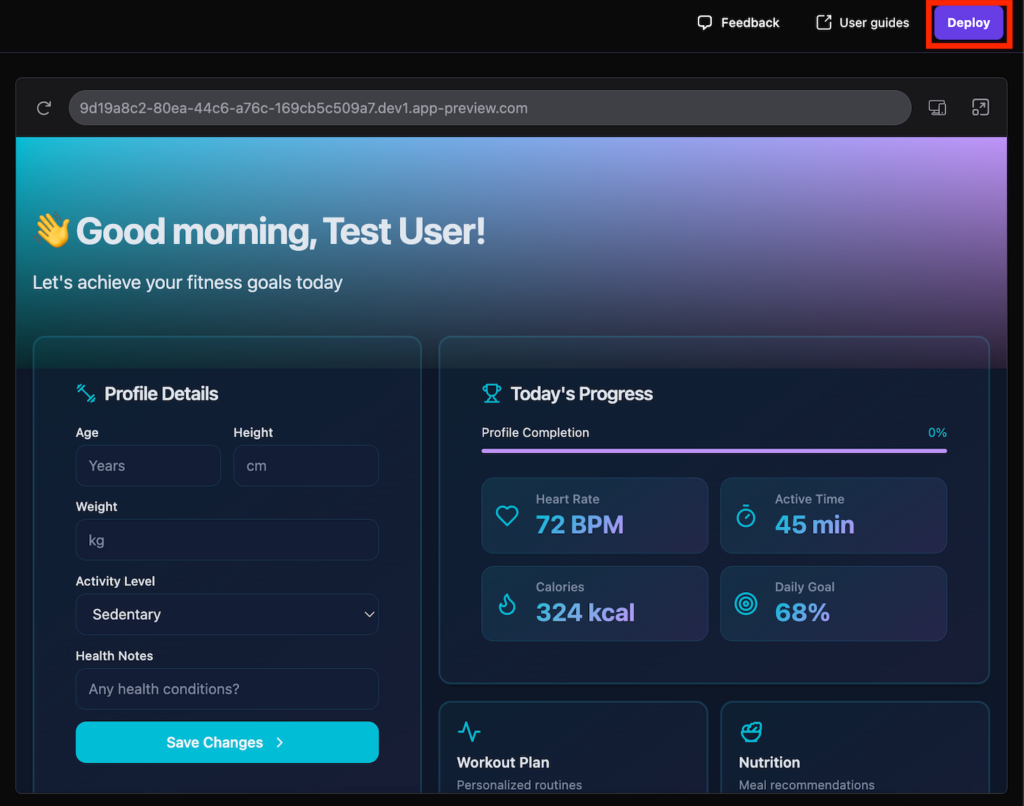
Hostinger Horizons will publish your project using a temporary domain. Before connecting your own domain, let’s complete a few more additional tests.
Start by verifying cross-browser compatibility. To do so, access your application on different web browsers and devices to see if any issues arise.
Then, check its performance and loading speed using a benchmark tool like GTMetrix. If the result is suboptimal, ask Hostinger Horizons to optimize the code.
If everything looks good, return to the Websites menu in hPanel to connect your domain to the web application.
That’s it! Congratulations, you’ve created and published a web app using Hostinger Horizons.
Conclusion
Hostinger Horizons is an AI-powered platform that lets you develop a full-stack web application without coding. Simply enter prompts, and this tool will create any application you have in mind.
In this article, we’ve explained the general steps of creating a web application using Hostinger Horizons. Here’s the recap:
- Sign up to Hostinger Horizons and start a new project via the hPanel dashboard.
- Familiarize yourself with the tool’s user interface.
- Enter the initial prompt to define your web application’s main purpose.
- Customize your project’s layout, design, and front-end components.
- Refine your application’s business logic and structure to ensure smooth functionality.
- (Optional) If you want to collect user data, create a Supabase database and ask Hostinger Horizons to connect it with your application.
- Test your application and deploy it to the public using Hostinger’s Business web hosting plan. Then, connect your web app to a proper domain address.
Simple, right? Go ahead and try to develop your own web app using Hostinger Horizons.
Join our Discord channel for more tips and inspiration on making the most of Hostinger Horizons. Connect with the community, get expert advice, and stay updated on the latest features!
All of the tutorial content on this website is subject to Hostinger's rigorous editorial standards and values.

Aris is a Content Writer specializing in Linux and WordPress development. He has a passion for networking, front-end web development, and server administration. By combining his IT and writing experience, Aris creates content that helps people easily understand complex technical topics to start their online journey. Follow him on LinkedIn.

Ariffud is a Technical Content Writer with an educational background in Informatics. He has extensive expertise in Linux and VPS, authoring over 200 articles on server management and web development. Follow him on LinkedIn.