What are WordPress post formats? different format types and how to use them
Dec 02, 2025
/
Nadia D.
/
4 min Read

WordPress is a flexible platform. It lets you customize how your content looks with post formats. Depending on the article type, it can be helpful to use specific formatting to display your posts appropriately. For example, you can add an image gallery when choosing the gallery post format.
As a beginner, you might wonder how WordPress post formats work exactly and how they differ from post types.
With this in mind, we will cover what post formats are and how you can use different types of formats on your WordPress website.
Download all-in-one WordPress cheat sheet
What Are WordPress Post Formats?
WordPress post formats are optional features used to apply different types of blog post layouts on your site. This post format option was introduced in WordPress 3.1, but not all themes include this feature nowadays. However, you can still find older themes supporting post formats.
WordPress Post Format Types
There are ten types of post formats, but you may not find all of them in a single WordPress theme. For example, Astra provides up to 9 options, and GeneratePress only has seven different formats.
In this section, we will list all the formats to help you decide which ones to use.
Standard
The standard post format allows you to publish blog posts in the WordPress default setting. Set the standard post format option if you want to use your theme’s built-in post layout without customization. Doing so will also let you add other elements like images and videos to your post.
Gallery
With the gallery format, you can add images to your post in a gallery style. There will be a gallery shortcode on your post with image attachments, so you will be able to show multiple photos in your post at once.
Image
The image post format lets you add a single image to your WordPress posts. In short, you can directly upload pictures to your post.
Aside
This format enables you to add a quick note, like a reference link, without having to write a separate post in a regular blog entry style.
Link
Using the link post format, you can add links to other websites. Therefore, you won’t need to create a new post in the standard layout when you just want to share an external link.
Video
The video post format allows you to attach a single video or a playlist from third-party websites, like YouTube and Vimeo. This format functions like a plugin where you can embed video on your post. Alternatively, you can add a URL to your post that will refer to the video URL.
Audio
The audio post format will let you upload an audio file or playlist from third-party services to your blog entries. This audio format supports various types, including music and podcast, to help you create more engaging content.
Quote
By enabling the quote format, you can share a quote you want to highlight on your blog page without having to write a full regular post.
Status
The status format allows you to create a simple one-line status update with no entry title, similar to a status post on Twitter.
Chat
This post format type will display as a chat transcript.
How to Use WordPress Post Formats
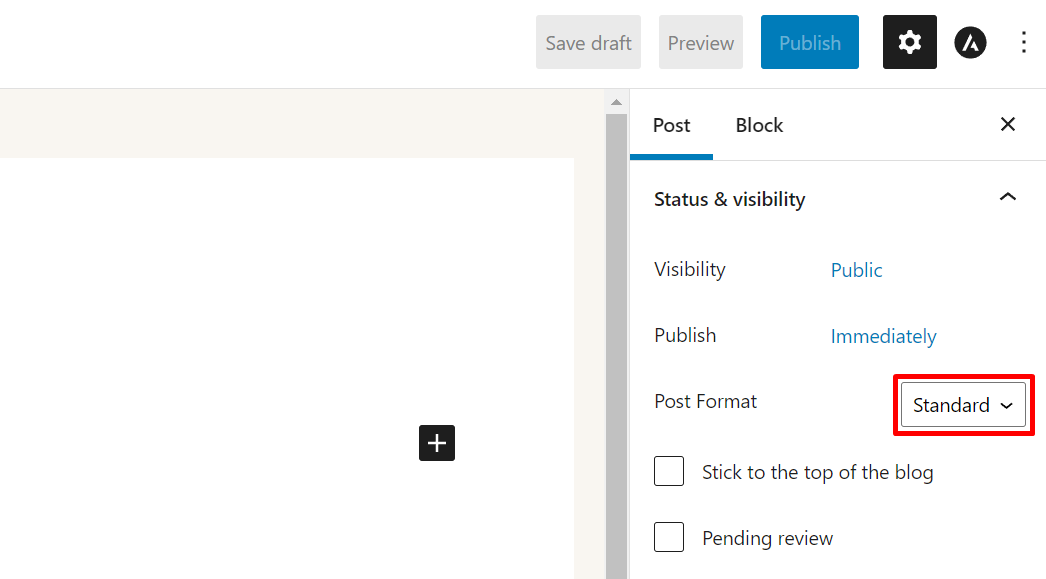
When you navigate your WordPress dashboard to edit or add a post, you will see the Settings tab on the right side of your block editor. Then, under the Status & visibility menu, you can find the Post Format feature.
If you click on the dropdown menu for Post Format, you will see several options, including Standard as the default setting.
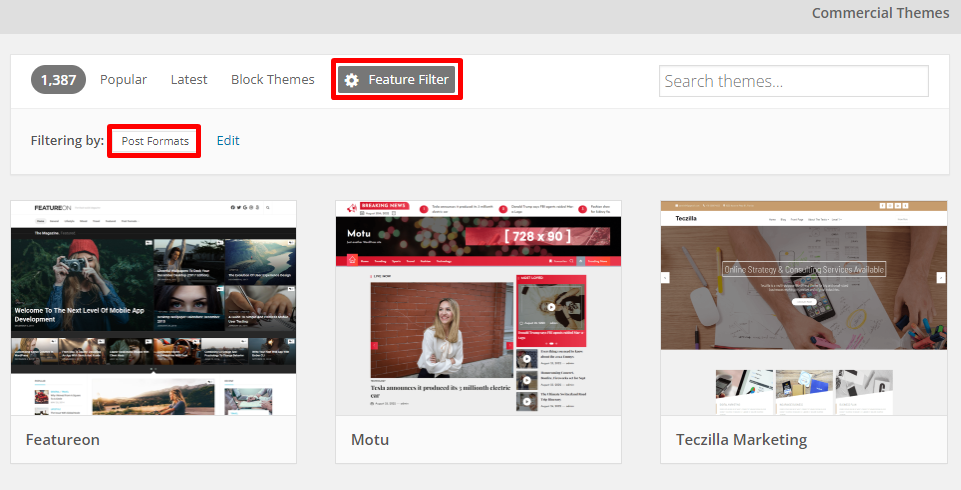
To find a theme that supports post formats, filter your search on the WordPress theme directory. To do so, simply click Feature Filter -> Post Formats -> Apply Filter.
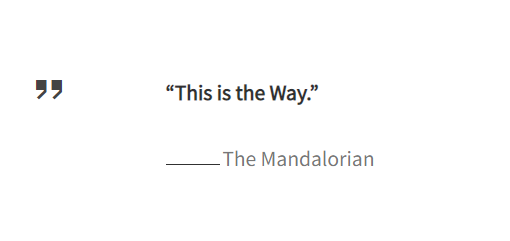
As an example, we will use post formats with the Customizr theme. When you set the quote format, this is how your post will show on the page.
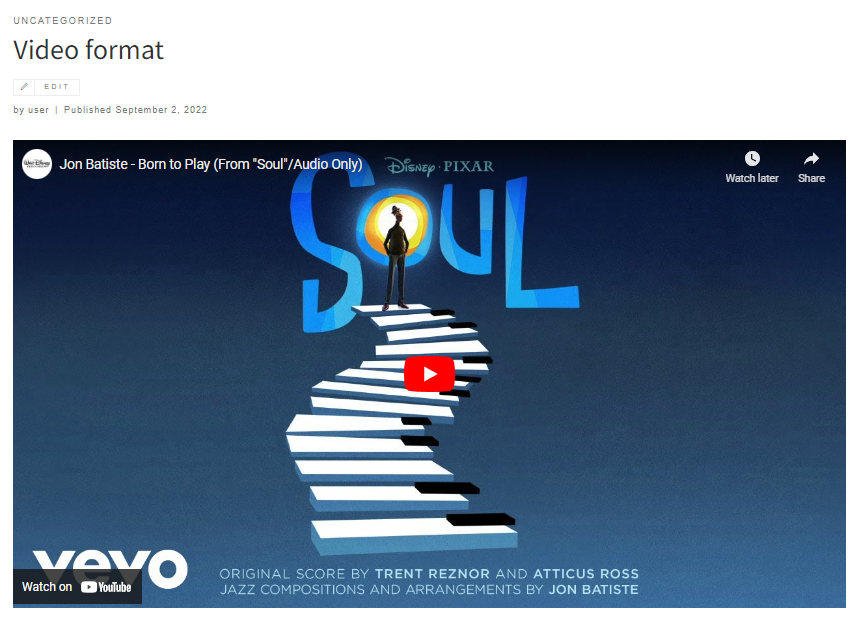
And here’s how a video format will look on your blog from the Preview mode.
Unfortunately, the latest WordPress themes like Puskar don’t support post formats, meaning you won’t find the options under their Settings tab.
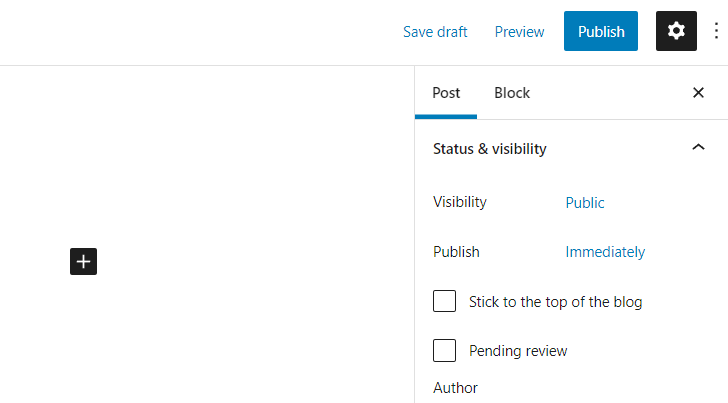
However, you can still customize your post layout by manually adding post formats using a child theme or editing the functions.php file in your parent theme.
However, as this manual method may require more advanced technical knowledge, we don’t recommend it for beginner WordPress users.
Conclusion
WordPress post formats are features you can apply to enable certain layout formatting to your blog post.
There are ten different post formats for specific use:
- Standard – write a default post format.
- Gallery – attach multiple images to a single post.
- Image – include a featured image to your entry.
- Aside – create a short note on your blog post.
- Link – add links to a post.
- Video – embed videos from third-party websites.
- Audio – upload various audio files to a single post page.
- Quote – show a quotation without writing a post.
- Status – add a sentence as a status update.
- Chat – include a chat transcript.
We hope this article has helped you understand WordPress post formats and how to use them on the block editor.
Learn What Else You Can Do With WordPress
Guide to WordPress Security
How to Change Username in WordPress
What is a WordPress Slug
WordPress Post Template Guide
How to Install WordPress
Guide to WordPress Widgets
How to Login to WordPress
How to Use SMTP in WordPress to Send Emails
How to Make a WordPress Site Live
How to Add a Post to a Page in WordPress
WordPress Post Formats FAQ
To learn more about the custom post formats feature, check out our answers to the most frequently asked questions.
What Is the Difference Between WordPress Post Formats and WordPress Post Types?
In fact, post formats and post types are entirely different features. While post format is a theme feature, post type refers to various kinds of content you can create on WordPress. By default, WordPress has seven post types – posts, pages, attachments, revisions, navigation menus, custom CSS, and changesets.
Should You Use Post Formats in WordPress on Your Website?
Yes, if your chosen WordPress theme supports them. However, most themes, particularly the latest ones, don’t support post formats. Luckily, with the introduction of the Gutenberg block editor in WordPress 5.0, users have more flexibility to customize their pages with the block editor.

Nadia is a curious thinker that enjoys sharing her IT and digital marketing knowledge through written pieces and helping people success online. In her free time, she spends time in the streets or cafes learning about architecture and culture through urban sketching.


