What is a WordPress favicon and how to add one: 4 quick methods
Mar 10, 2026
/
Aris S.
/
6 min Read
A favicon is a small image shown in the web browser tab when a user accesses your WordPress website. It helps users quickly recognize your site when several tabs are open, notably if your site title is not visible.
This tutorial will explain what a WordPress favicon is, its importance, and how to create one. We will also explore different ways of adding one to your website so you can choose one based on your preferences.
What is favicon?
A favicon is an image, commonly a logo, that specifies your WordPress site. It generally has a rectangular aspect ratio, low resolution, and incorporates your website’s visual identity, such as its color palette. You can create one using graphic software such as Photoshop, web tools, or WordPress’ built-in feature.
A favicon helps users manage multiple tabs and boosts your website’s visibility on search engine results pages (SERPs). This icon accompanies your site’s URL, allowing users to identify the web page quickly.

This image also shows up on users’ phone home screens as an app icon when they bookmark your webpage on their device. A distinct favicon not only makes your site appear more professional but also helps build branding.
How to generate a favicon image
To create a WordPress favicon, you can use any graphic design software or an online tool such as Real Favicon Generator. Your choice depends on your experience level with visual design concepts and your ability to navigate these tools.
So, consider the following:
- Resolution. Since your icon only appears on SERPs and browser tabs, an overly high-resolution image might not be necessary. The ideal WordPress favicon size is 512 x 512 pixels.
- Aspect ratio. Favicon on your WordPress site must display properly in a 1:1 aspect ratio. Otherwise, it might get cropped or warped, hurting the web page’s appearance.
- Color palette. Using a transparent background will make your favicon stand out more, especially if you use white elements or icons. Just remember to use the same palette as your brand to maintain a consistent site identity.
- File format. PNG format is necessary if your WordPress site’s favicon file contains a transparent background. Otherwise, you can use extensions like ICO, JPEG, or GIF that WordPress supports.
- Search engine requirements. Your WordPress website icon must adhere to Google’s favicon guidelines to display correctly on SERPs.
The steps to create WordPress favicons vary greatly depending on your graphic software and the desired image. If you want a simpler solution, use Hostinger AI Logo Generator to help generate the image for free!
Pro tip
We recommend not changing your WordPress favicon too often, as it is a key part of your site's identity. Frequent changes can prevent visitors from forming a strong brand association.
Ways to add favicon to WordPress
This section will teach four common ways to add a custom favicon to your WordPress website. Since they have the same outcome, choose one based on your preferences and needs.
1. Use the Gutenberg block editor
The simplest way to add a favicon to your WordPress site is by using the Gutenberg editor. Note that this feature is only available for block themes and WordPress 5.9 or recent releases.
Here’s how to get it done:
- Log in to your WordPress dashboard → Appearance → Editor.
- Hover over the area where you want to put the icon and click the plus (+) icon. While you can place it anywhere, we recommend one of the corners of the header.
- Search and select the Site Logo block.
- Hover over the block and click the Upload icon.
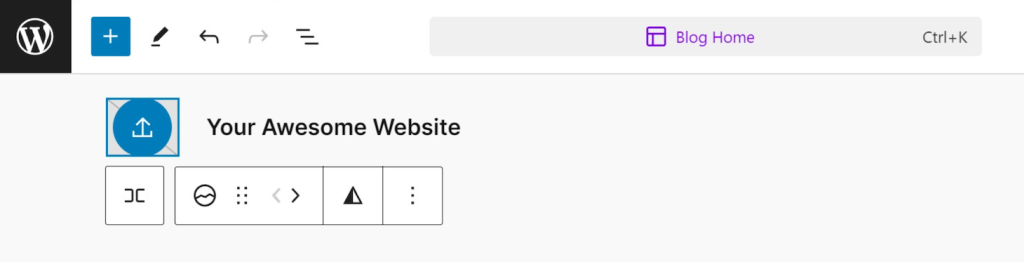
- Upload your favicon file or select one from your WordPress Media Library. Hit Select to confirm.
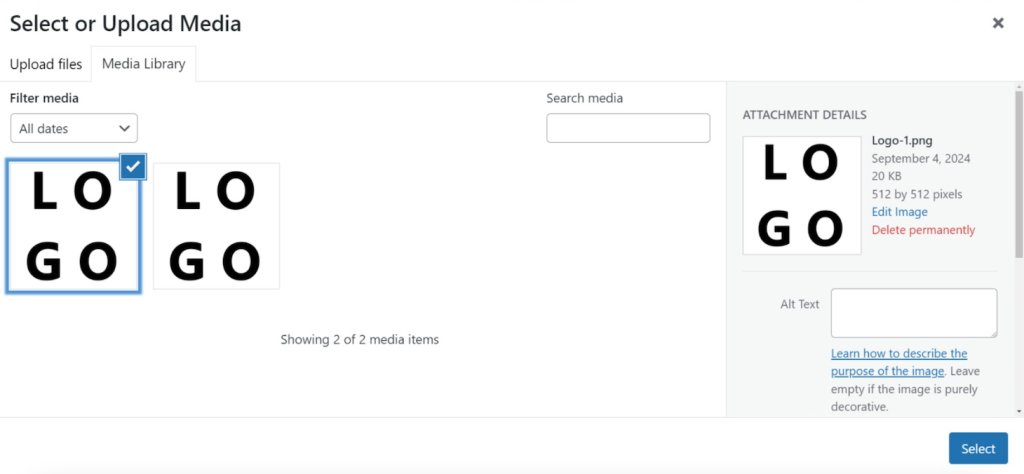
- Click the favicon and navigate to the block settings section on the right sidebar. If you don’t see the option, click the Settings button on the top right of your screen.
- From the sidebar, turn on the Use as site icon feature.
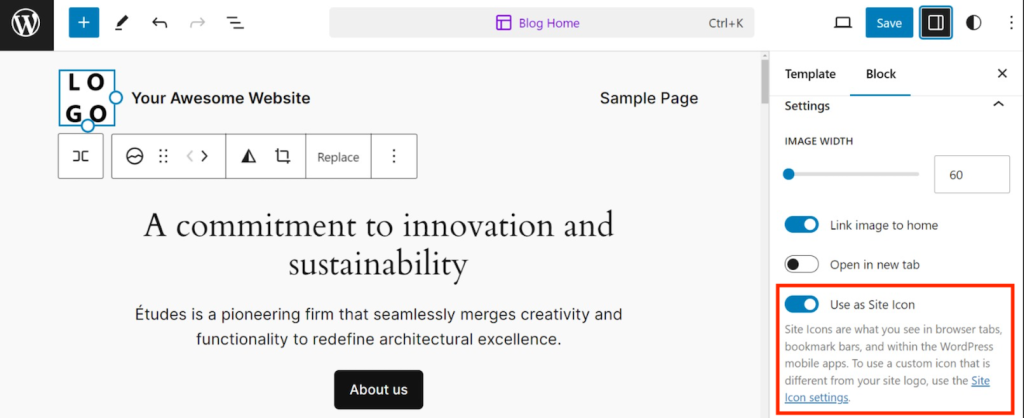
- Click Save on the top right to apply the changes.
When you visit your website, you should see the new favicon in place of the default WordPress logo.
2. Access and configure through the WordPress Customizer
For classic theme users, add a favicon using the WordPress Customizer feature. This method is only possible if you use WordPress 4.3 or later. Here’s how to do so:
- From your WordPress dashboard, go to Appearance → Customizer. If you can’t see the option, add wp-admin/customize.php to your website URL to open it manually.
- Navigate to the left sidebar → Site Identity. Click the Select site icon button.

- Upload your image or select from the Media Library. Hit Select to confirm.
- Adjust the favicon dimension to your needs and click Crop image. To use the default settings, select Skip cropping.
- Now, you should see the preview of your website favicon under the sidebar’s Site Icon section. To save the changes, click Publish.
3. Utilize RealFaviconGenerator plugin
If you want more customization options and previews, use a third-party plugin to set up a favicon in WordPress. There are several options, but we recommend Favicon by RealFaviconGenerator since it is the most widely used option.
After installing and activating the plugin, follow these steps to create and add a new favicon:
- From your WordPress admin dashboard, navigate to Appearance → Favicon.
- Click Select from the Media Library and upload a new image, or select an existing one from your WordPress library.
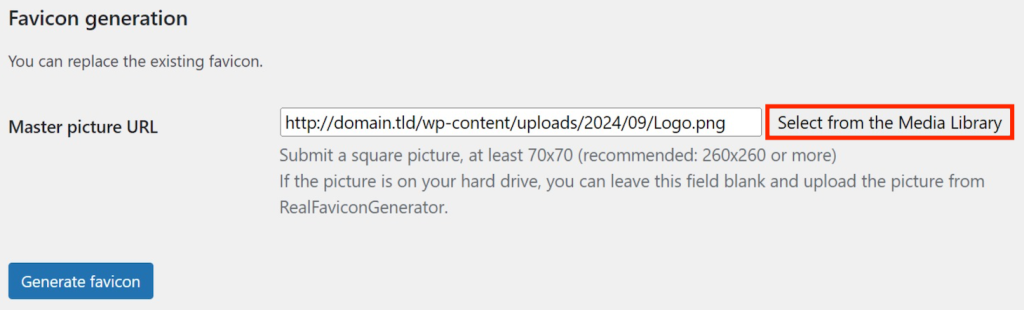
- Click Generate favicon, and the plugin will redirect you to a separate page.
- If you wish to keep the default image, select the Use the original image as is option. Otherwise, adjust settings like the backdrop color, radius, and image size.

- Scroll down to the Favicon Generator Options and click Generate your Favicons and HTML code to confirm.
That’s it! You will be redirected back to the Favicon menu in the WordPress dashboard. Click the Check your favicon button to check if your site icon works properly. To replace the current one, simply repeat the steps above.
Remember that this plugin must remain running to display the favicon. If you deactivate or uninstall it, your website icon will no longer be displayed.
Regularly update the plugin to avoid security risks and bugs. To simplify the task, Hostinger managed WordPress hosting users can enable the auto-update feature in hPanel.

4. Manually edit theme files
You can add a favicon by manually uploading the image to the WordPress root folder and editing your theme file. Since this method can be a bit complex, we suggest it for developers or those with coding experience.
Important! Ideally, you should check code snippets in a WordPress staging environment before adding them to the live site. This step ensures the new additions won’t cause potential serious errors.
Before doing so, create and activate a child theme to ensure your favicon code remains intact after an update. Then, follow these steps:
- Open the Real Favicon Generator website, click Select your Favicon image, and upload the favicon file from your computer.
- Scroll to the Favicon Generator Options section and click the Path tab. Choose where you want to put the favicon image. Ideally, you should pick the root directory.
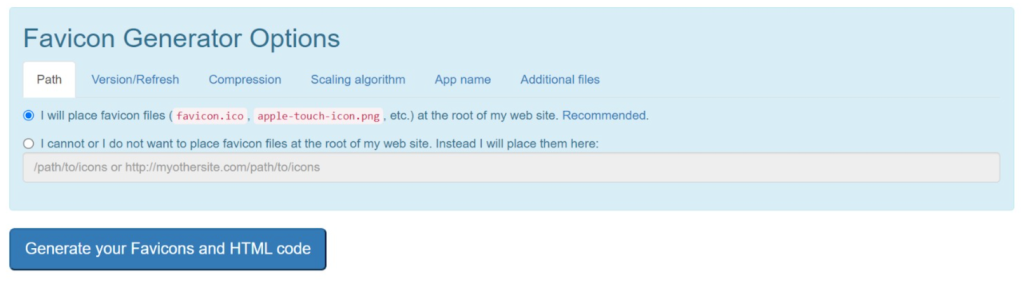
- Click Generate your Favicons and HTML code.
- You will get redirected to the installation manual page. Click the Favicon package button to download the favicon files.
- Copy the code snippet and keep it safe, For example, a TXT file. Alternatively, keep this tab open since we’ll need it later.
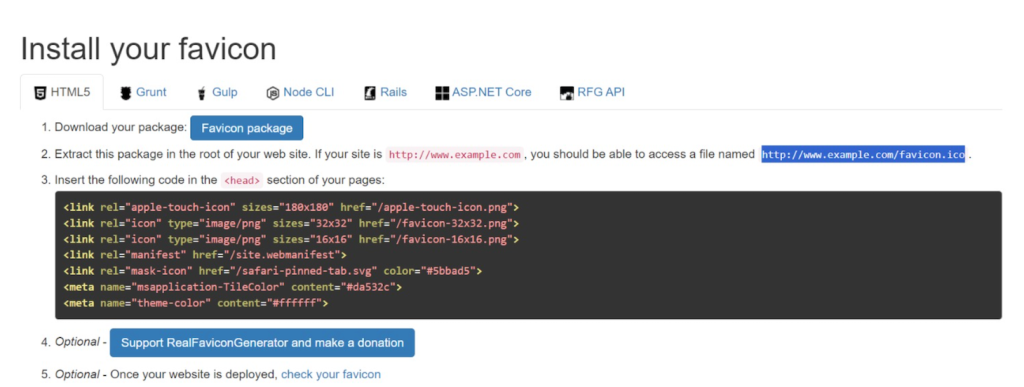
Now that the files and code are ready, add them to your WordPress site. Here’s how to do so:
- Access your WordPress website’s public_html root directory using a File Transfer Protocol (FTP) client like FileZilla or your hosting provider’s file manager.
- Upload and extract the downloaded archive into the public_html directory. Remember, public_html should contain only the favicon files, not the folder.
- Enter the following URL in your web browser to confirm that WordPress can read your favicon. Replace domain.tld with your actual domain name:
domain.tld/favicon.ico
- Open your WordPress dashboard and navigate to Tools → Theme File Editor.
- From the Theme Files menu on the right, select header.php. If your theme doesn’t have it, edit the functions.php file instead.
- Add the HTML code from Real Favicon Generator at the bottom of your file after the ?> tag. In our case, the snippet looks like this:
<link rel="apple-touch-icon" sizes="180x180" href="/apple-touch-icon.png">

<link rel="icon" type="image/png" sizes="32x32" href="/favicon-32x32.png">

<link rel="icon" type="image/png" sizes="16x16" href="/favicon-16x16.png">

<link rel="manifest" href="/site.webmanifest">

<link rel="mask-icon" href="/safari-pinned-tab.svg" color="#5bbad5">

<meta name="msapplication-TileColor" content="#da532c">

<meta name="theme-color" content="#ffffff">
- Click Update File to save the changes.
To remove the custom favicon, delete the code from your theme file and remove the image files from the WordPress root directory.
Conclusion
A WordPress favicon is a small image that appears on a user’s browser tab when they access your website. It helps them distinguish between tabs and builds brand recognition.
You can create a favicon using graphic design software or a web tool like Real Favicon Generator. Remember, the image must be square, at least 512 x 512 pixels, and adhere to search engine guidelines.
The easiest way to add a favicon to your website is to use the Website icon block in the Gutenberg editor. If you use classic themes, use the WordPress Customizer feature in the Appearance menu.
Alternatively, you can use a plugin like Real Favicon Generator and upload the image via the Appearance setting. Developers can also do so manually by uploading the icon to the WordPress root directory and adding HTML code to the theme’s PHP file.
Want to improve your WordPress site appearance?
Check out our other tutorials on customizing WordPress:
How to add WordPress featured images
How to add custom fonts to WordPress
How to add images to WordPress
WordPress favicon FAQ
How to remove the default WordPress favicon?
While you can’t remove the default WordPress favicon, you can replace it with another image. You can do so using the built-in site editor, theme customizer, a plugin, or the header.php file. If you remove the new icon, the default WordPress favicon will reappear.
How can I make the favicon transparent in WordPress?
To make a transparent WordPress favicon background, save the image in an extension that supports transparency, like PNG. If your icon is in another format, you must remove the backdrop using graphic design software and save it as a new file.
What is the purpose of a favicon?
WordPress favicon helps users distinguish between websites when opening multiple tabs in their web browsers. It also boosts visibility on the search engine result pages and build brand recognition.
What is the difference between a favicon and a site icon in WordPress?
A favicon is a small image on users’ browser tabs next to your website title. Meanwhile, a site icon is typically larger and found in multiple areas of your web page. It is a more detailed representation of your brand identity.

Aris is a Content Writer specializing in Linux and WordPress development. He has a passion for networking, front-end web development, and server administration. By combining his IT and writing experience, Aris creates content that helps people easily understand complex technical topics to start their online journey. Follow him on LinkedIn.



Comments
May 11 2022
Thanks a million and please keep your good work.
September 27 2022
Hi, even I added the icon using the wordpress customizer, when i search in my mobile, it is only showing wordpress logo. Could you provide a solution for this
September 30 2022
If you add a favicon to your site, it may not appear because your browser has saved it as one without a favicon or in this cased cached the default WordPress icon. You must either clear your browser's cache or use a different browser. If that does not help, you can also refer to this forum to check if the favicon linked properly to the link tag.