What is website caching and how does it work?
Mar 10, 2026
/
Aris S.
/
7 min Read
Website caching is a method of improving page load time by storing temporary, ready-to-use copies of web content in a more easily accessible location. Its primary purpose is to minimize data transfer and reduce the load on the website’s host server.
Without caching, a visitor’s browser must request content like HTML, CSS, JavaScript, and images from the website’s host server each time they visit. Caching speeds up this process by storing these resources closer to their location so that the browser doesn’t need to redownload all the required data from the host.
Website cache can be client- or server-side. Client-side caches are located in the user’s local device’s web browser, while the server-side ones are on a server specifically used for storing temporary data, like a content delivery network (CDN).
While important for website performance, caches can cause errors if not managed properly. Regularly purging them on the client and server sides will help avoid issues while keeping optimal page responsiveness.
Dive deeper into website caching, how it works, why it is important for your site, and how to properly clear it to avoid errors.
How does website caching work?
Caching makes a website more efficient by reducing the need to repeatedly fetch data from the server. The general process of serving cached pages involves several steps:
- Initial request. When a user’s web browser first visits a site, it sends an HTTP request to the origin server for all the necessary resources. The server processes this request and builds the page.
- Cache storage. The server or browser then stores a copy of the downloaded resources in a cache. A validity interval or time-to-live (TTL) is set to determine how long the content remains cached.
- Subsequent requests. When the user revisits the same page, the browser checks its local cache first before sending a new request to the server. This leads to one of two outcomes:
- Cache hit. If the requested data is in the cache and still valid (within its TTL), the browser immediately serves the cached copy.
- Cache miss. A cache miss occurs if the data is not in the cache or its TTL has expired. The browser or server then fetches the resources directly from the origin server and caches them for future use.
- Validity check. To ensure up-to-date content, the browser may send an HTTP request with an entity tag specifying the cache version. If the cache is outdated, the origin server sends the updated resources.
This system of hits and misses ensures that a website can serve pages quickly while still being able to update content when necessary.
How are cached pages served?
Cached pages are served faster because the browser or server doesn’t need to request data directly from the origin server.
Instead of going through the entire process of retrieving and assembling a page from scratch with every visit, caching allows the website to load quickly by reusing previously stored data. This is especially impactful for static pages that rarely change.
For a user’s web browser, this means retrieving a page’s elements from their own computer’s local disk, which is significantly faster than waiting for a response from a remote server.
In addition to local storage, caches can reside in a CDN, a remote proxy server located close to the users.
Why is website caching important?
Website caching is a critical part of a website optimization strategy because it directly impacts performance, user experience (UX), and even search engine rankings. It helps websites load faster and more efficiently, benefiting both the site owner and the visitor.
Here’s why caching is important:
- Faster page loading times. Caching provides data from a local, temporary storage location, eliminating the need to fetch it from the origin server. This simplifies and speeds up the page loading process.
- Lower server load and greater scalability. Since the site content is fetched from another source, the origin server has fewer requests to process. This frees up its resources and allows it to handle more traffic.
- Reduced bandwidth consumption. Caches allow the website’s host to transfer less data to users. On the client side, this saves visitors’ mobile data, while the site owner can lower bandwidth consumption.
- Improved UX. A fast website creates a more pleasant browsing experience and reduces abandonment rates. This encourages return visits and helps retain customers.
- Enhanced search engine optimization (SEO). Google considers page loading speed to be a critical factor in its ranking algorithms. An optimized site with efficient caching can lead to better search engine rankings.
- Increased conversion rates. Faster websites can lead to higher conversion rates, especially for ecommerce sites. Faster sites are more trustworthy and efficient in addressing users’ concerns, prompting them to convert.
- Content availability. Users can still access the cached versions of your page even if the original site or web server is temporarily offline or unreachable.
Given its benefits, caching has become an essential feature of a website.
Types of website caching
Depending on the storage location, there are different types of website cache, each useful in different situations and implemented at various points within a website’s delivery pipeline. In general, they fall into two broad categories: client-side and server-side.
Browser cache (Client-side caching)
Client-side caches store elements like HTML pages, CSS stylesheets, images, and multimedia content on the visitor’s local machine. They are also referred to as browser caches because they reside and are managed in the web browser.
Web browsers often automatically flush these caches to ensure you have the most up-to-date data about the visited website, but users can also manually purge them as needed.
Website owners can also manage them through server-side cache storage settings and HTTP headers like Expires and Cache-Control. Using versioning, like styles-3.css or /app-1a32c159b.js, site admins can force browsers to download new files even with long cache durations.
The main issue with browser caching is the potential for outdated content if assets have changed, but the client still stores the old temporary data. Also, storage space on the user’s device is limited.
Server cache (Server-side caching)
Server cache is an umbrella term covering various caching types that store content on a remote location, such as the website’s host or a proxy server. Website owners control server cache without end-user input.
This caching type can store static content, such as HTML pages and images, and dynamic content generated by databases.
There are subtypes of caching that fall into the server cache category:
- CDN cache. CDNs like Cloudflare cache website resources in proxy servers located closer to the users’ geographical location. This reduces latency and delivers content faster, especially for a global audience.
- Object caching. This stores the results of database queries or other complex operations in the host’s memory, using tools like Redis, to minimize server load for subsequent requests.
- Opcode caching. This cache stores the compiled code of a scripting language like PHP to avoid re-compiling it with each request, speeding up the execution of server-side functionality.
- Full-page caching. The origin server stores a complete copy of a dynamically generated web page. This allows it to send the page immediately without recompiling resources for each request, which is ideal for sites that appear similar to most visitors.
- Fragment caching. The host stores specific static elements or parts of a website, such as titles or widgets. The server compiles and sends less data since the cache already serves some resources.
How to clear your website’s cache
Clearing your website’s cache is vital to ensure users see the most up-to-date version of your site. While caching is designed to speed up loading speed, outdated data can sometimes cause visitors to see old versions of your website or issues like inaccessibility.
How to clear WordPress cache
For WordPress websites, you typically clear the cache using a caching plugin like LiteSpeed Cache, WP Rocket, or WP Super Cache.
The steps to clear WordPress cache differ depending on the plugin you use. Typically, you can do this by accessing the plugin’s settings menu on the WordPress admin dashboard and selecting the type of cache you want to purge.
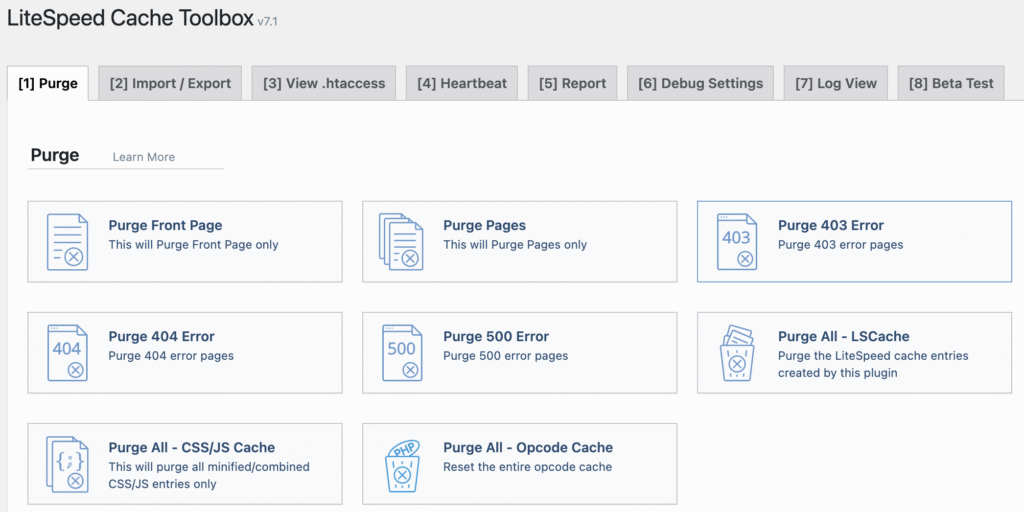
Commonly, you have the option to purge all caches or temporary data of specific pages or posts. For a more detailed guide, check out our tutorial on how to clear WordPress cache.
How to clear cache on non-WordPress websites
For non-WordPress sites, you can often clear the cache directly through your hosting control panel.
The steps for clearing your cache differ depending on your hosting provider and control panel. For example, cPanel users can do this by opening their websites’ data using the File Manager feature and deleting the cache folder, typically named tmp or cache.
Meanwhile, Hostinger web hosting solution users can use hPanel’s built-in Cache Manager feature:
- Log in to hPanel and go to the sidebar → Websites → Website list.
- Find the website you want to clear the cache of and click Dashboard.

- On the Overview page, click Clear cache.
- Hit Clear cache on the pop-up window to confirm the deletion.

If you wish to clear a specific page’s cache on your Hostinger website, follow these steps:
- On the website management dashboard, go to the sidebar → Advanced → Cache Manager.
- Toggle the Automatic cache setting if you haven’t already.
- Enter the web page URL into the designated field and hit Purge.
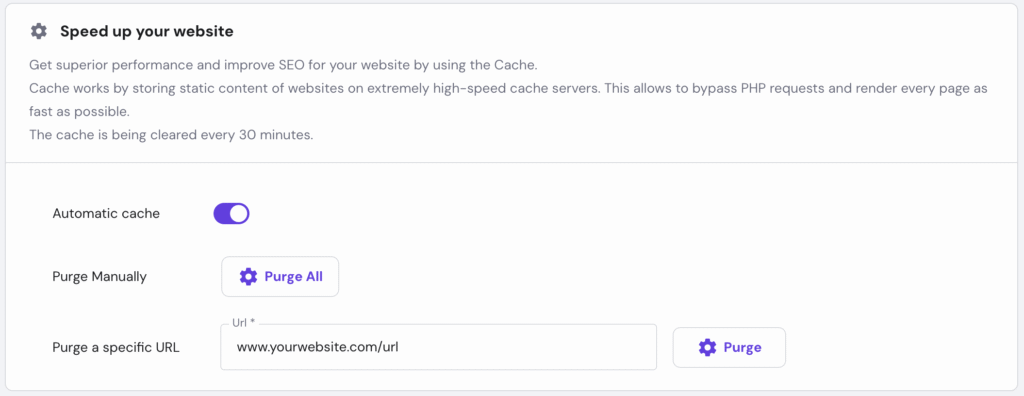
After enabling the Automatic cache feature, you won’t need to manually purge your website’s cache since our system will do it every 30 minutes. It ensures your pages remain up-to-date and helps avoid errors.

How to clear browser cache
If updates aren’t showing, the culprit can often be the visitor’s cached files, not your server. Therefore, you may need to ask them to clear their own browser caches.
Visitors can clear their browser’s cache manually through its settings, typically from the History menu. You can find a complete guide in our How to clear browser cache tutorial.
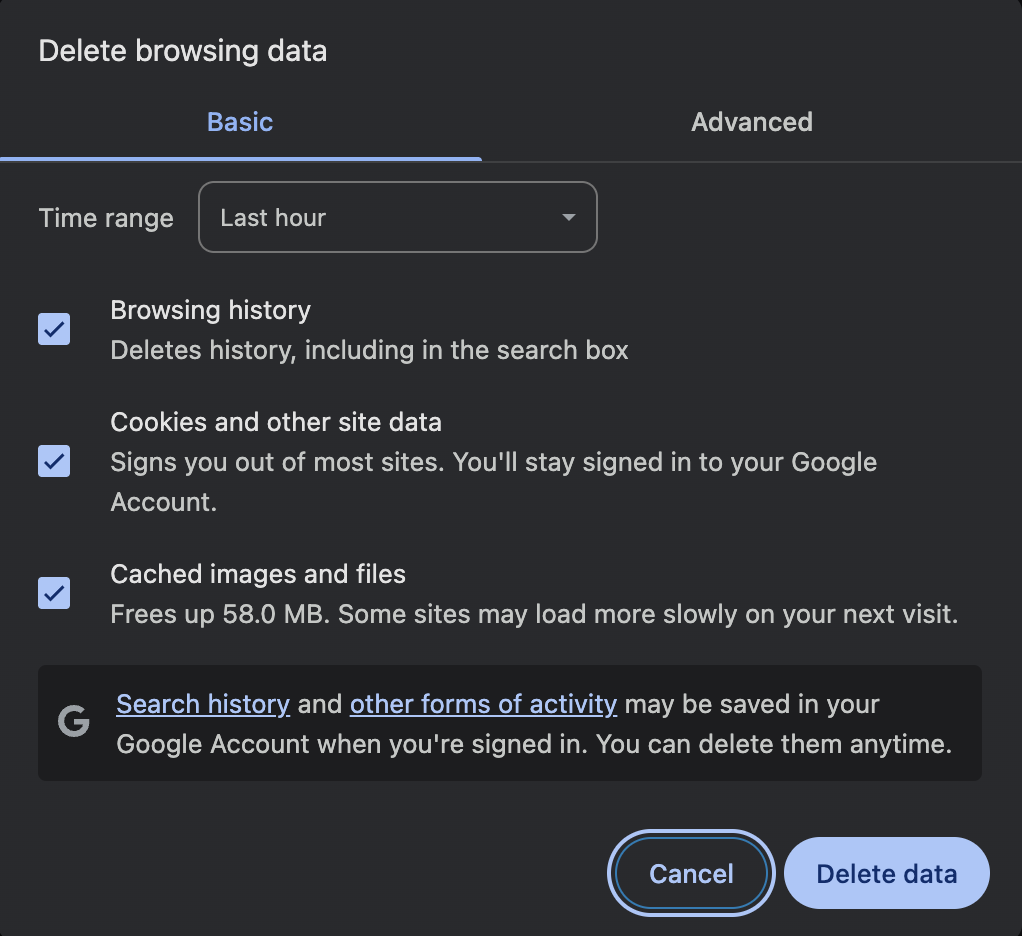
Alternatively, users can perform a hard reset to force the browser to load the visited web page directly from its origin server.
To try it out, open your web browser and press Ctrl + F5 if you use Windows or Cmd + Shift + R if you use macOS.
What is the impact of caching on website speed?
Caching delivers faster load times, stronger SEO signals, better UX, and higher conversion rates. Treat it as a base layer in your optimization plan, then measure the difference.
To see the direct impact of caching, you can use a website speed test tool like GTmetrix or Google PageSpeed Insights. Try running a test before and after clearing your site’s cache to see the difference in load times and other key metrics.
Caching won’t fix a bloated site by itself, but it will give you instant, compounding gains. However, caching is a key component of a broader strategy in building a fast and user-friendly website.
Beyond caching, other strategies can further optimize your site’s performance and offer bigger benefits. For example, optimizing images and assets on your page enables visitors’ web browsers to load them quickly.
Also, minify your site’s CSS and JavaScript to allow the host server to serve user requests more efficiently. In addition, store and distribute static data using a CDN to speed up your website for global audiences.
Make caching your first move for speed, as it delivers quick, measurable wins. Then keep the momentum: test, tune, and layer in image optimization, leaner scripts, and a CDN for sustained gains in SEO, UX, and conversions.

Aris is a Content Writer specializing in Linux and WordPress development. He has a passion for networking, front-end web development, and server administration. By combining his IT and writing experience, Aris creates content that helps people easily understand complex technical topics to start their online journey. Follow him on LinkedIn.



Comments
August 03 2020
Please, which hosting plan is ideal for a multivendor E-Commerce startup which is building from scratch.
September 06 2020
Hey there! :) Glad to hear you are looking into our hosting plans! I'd recommend any of our Cloud Hosting plans :)
October 17 2020
is that possible to prevent website cache from server end
February 02 2021
Hi there! It's not recommended to not have any website cache, as it helps your website load much faster and smoother - making it more attractive to your visitors! If you're looking to clear cache for your Wordpress website, check out this article here.
August 09 2021
Hey there, which is the best caching plugin for shared hosting from hostinger? I can also go with the paid ones if they are worth it like wp-rocket.
September 17 2021
Hi Varun, as Hostinger supports LiteSpeed, we suggest using LiteSpeed Cache Plugin for the best results :)
October 08 2021
Please help me proper for build a website... tutorial link please ....
October 12 2021
Hey, I'd suggest to start by looking at our make a website guide :)
January 10 2023
If I transfer my website from google cloud hosting to Hostinger, will the SEO of the site be affected ? , knowing that the site is at the top of the search results? Will there be a problem if I transfer!
January 13 2023
Hey! If you wish to migrate your website to Hostinger, there are a couple of things to be aware of SEO wise, once the migration is complete, you would need to check and fix for any broken links, as well as setup a 301 redirect from the old site and update your Google Search Console. You can check this article for more information.
October 16 2023
Is there a way to force clear/optimise the server cache in the Hostinger web builder websites? I can't seem to access it in HPanel because I don't have access to to Hpanel as far as I can see. I have 2 images that are being uploaded on a set interval with the same url but the new images are not being refreshed on the web page. I have tried adding java script to append date/time to addresses to force a refresh but this is not working, I have tried embedding set interval code to try to get it to update but still no luck...I'm clearing the cache on my browser but the old images remain, which makes me think it must be the server cache and not my browser that is preventing the refresh. I'm not very confident with web site building hence why I am using the web builder but it is extremely frustrating not being able to access hpanel. Is there a way to override the server cache for these 2 images? any help greatly appreciated! ;-)
October 30 2023
Hello there! To clear the server cache on a Hostinger Web Builder website, you can use the Cache Manager available in hPanel. However, if you don't have access to hPanel, you can try clear the cache in your browser. In addition, you can also try changing the URL of uploaded images by adding a unique parameter, such as a timestamp, every time the image is updated. This way, every time the image is updated, the URL will be different and the server cache will treat it as a new image. If you have additional questions, please contact our Customer Success team and we will help you out ?