How to manage multiple WordPress sites: 6 tools to make the management easier
Dec 02, 2025
/
Nadya A. & Marco C.
/
11 min Read

Whether you manage multiple WordPress sites for your clients or have your own, this process might be complicated and time-consuming. You will have to log in to each site to ensure it is up-to-date, secure, and runs optimally.
This is where a WordPress management tool can come in handy.
With it, you can access multiple websites from one single dashboard. As a result, you will streamline site management tasks and work more efficiently.
In this article, we will list the six best tools to help manage multiple WordPress sites. We’ll review each plugin and walk you through its features so you can choose the right WordPress management tool for your needs and budget.
Download WordPress security checklist
Why use a WordPress management tool to manage multiple sites
There are two ways to streamline WordPress website management. First, you can activate the WordPress Multisite feature, which enables you to run multiple WordPress sites under the same installation and server.
However, this option is only suitable for managing websites that share the same WordPress core files. Installing a plugin on one client site will make it available for the other sites on the network, so you can’t customize the plugins for different clients.
If you want more flexibility, opt for a dedicated WordPress management tool.
Much like WordPress Multisite, such a tool lets you manage multiple websites from a single dashboard that is outside of WordPress.
Since it doesn’t share the same WordPress core files, your clients don’t need to use the same plugin.
Moreover, as the websites don’t share the same server resources, a sudden spike of traffic in one site won’t negatively impact the whole network’s performance.
Thus, using a WordPress management tool will save you time and effort as well as help scale your business.
Learn more about WordPress
What to look for in a WordPress management tool
When compiling our list of the five best tools, our WordPress experts were looking for the following features to help manage multiple sites:
- One-click login. You should be able to access multiple sites from one single dashboard.
- Bulk updates. These include updating themes, plugins, and WordPress core files.
- Backups. In case of an emergency, a reliable tool should include manual or automatic backups.
Furthermore, we paid attention to additional features such as security scans, uptime monitoring, SEO audits, analytics reporting, and user management. However, most of these features are available in premium versions only.
Moreover, all of the following tools for managing multiple WordPress sites are compatible with the latest CMS updates.
If you have a lot of websites, you can also manage them all using Hostinger’s hPanel. Thanks to its user-friendly dashboard, you can perform these tasks with absolute ease:
- Migrating existing WordPress sites to Hostinger in a few clicks.
- Creating and customizing new WordPress websites.
- Tracking website performance.
- Removing vulnerable WordPress themes and plugins.
- Managing multiple domains.

Top 6 tools to manage multiple WordPress websites
Here are the five best tools to manage multiple WordPress websites:
1. WP Umbrella
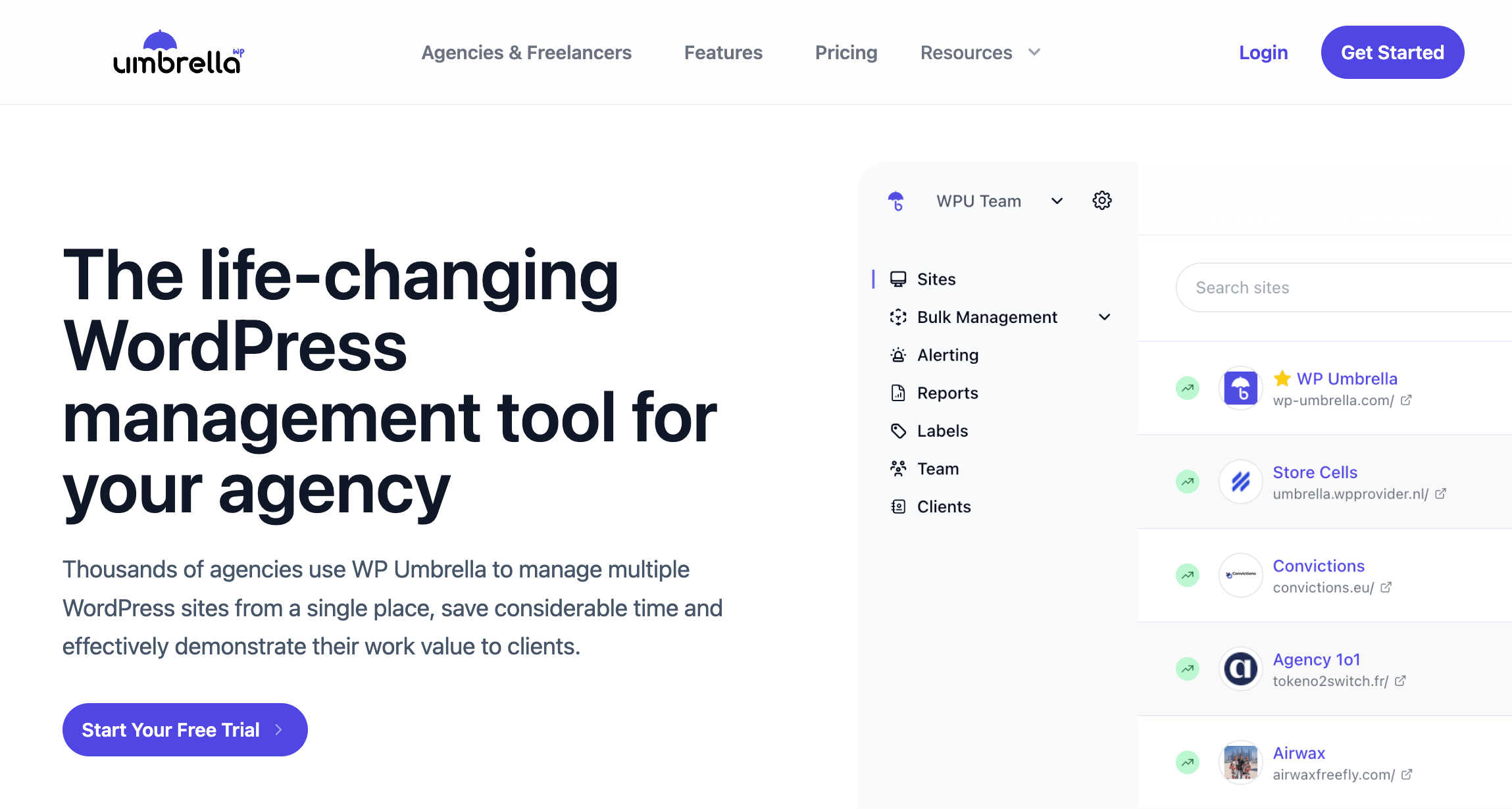
WP Umbrella stats:
- Best for: users prioritizing backups, uptime monitoring, bulk management, and automated client reporting
- Price: $1.99/month for one site
WP Umbrella is an all-in-one WordPress management tool designed to streamline the process of managing multiple websites. It provides automatic backup, monitoring for uptime, performance, and security, plus easy bulk management for updates and reporting – all in one user-friendly platform.
One of WP Umbrella’s key features is its powerful bulk management capability. This allows you to update plugins, themes, and even WordPress core across all your sites with just a few clicks.
In addition to bulk management, WP Umbrella excels in real-time vulnerability monitoring. It continuously scans your websites for potential security risks and sends instant alerts if any vulnerabilities are detected. This helps you respond quickly to threats and maintain a secure website environment.
To start using WP Umbrella, create an account and follow the instructions. This includes copying the API key and installing the plugin. You can access the WP Umbrella dashboard once the plugin is connected to your website.
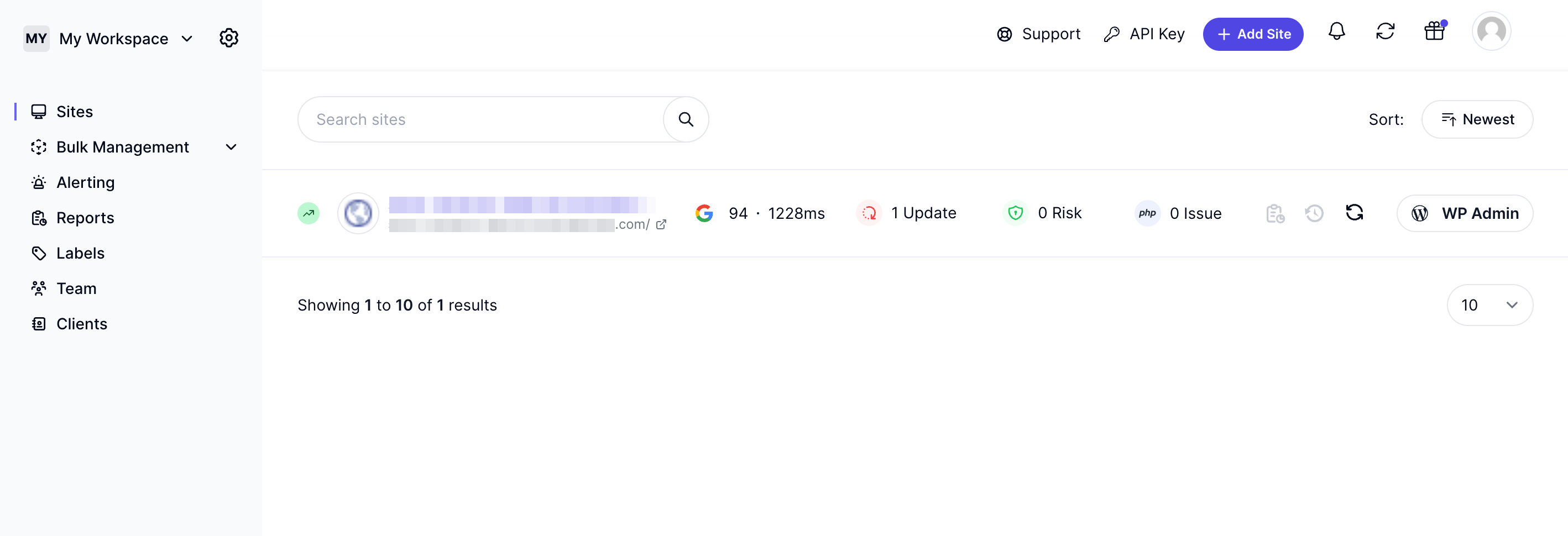
The dashboard offers a clear overview of all your sites, making it easy to track uptime and handle updates efficiently.
As for pricing, WP Umbrella costs $1.99/month per site. This single pricing applies to all their features, making it a great value for money. Additionally, they offer a 14-day free trial for you to test out their services.
Key features
- Bulk management. Manage multiple WordPress sites simultaneously. This allows you to update plugins, themes, and WordPress core across all sites in just a few clicks.
- Intuitive dashboard. The WP Umbrella dashboard is designed to be user-friendly, providing easy navigation and a clear overview of all your websites. You can monitor uptime, performance, and security from a single, centralized location.
- One-click restoration. Instantly restore your websites to a previous state, making recovery from issues quick and simple. Backups are encrypted and stored for 50 days.
- Safe updates. Run safe update processes with automated backups and visual regression testing, protecting your sites from unexpected downtime.
- Automated client reports. Automatically generate and send detailed performance reports to clients, keeping them informed with minimal effort.
- Sites notes and tags. Organize and categorize your websites with custom notes and tags for easy tracking and management.
- Vulnerability monitoring. Get real-time alerts on potential security risks, enabling quick action to protect your sites.
2. MainWP
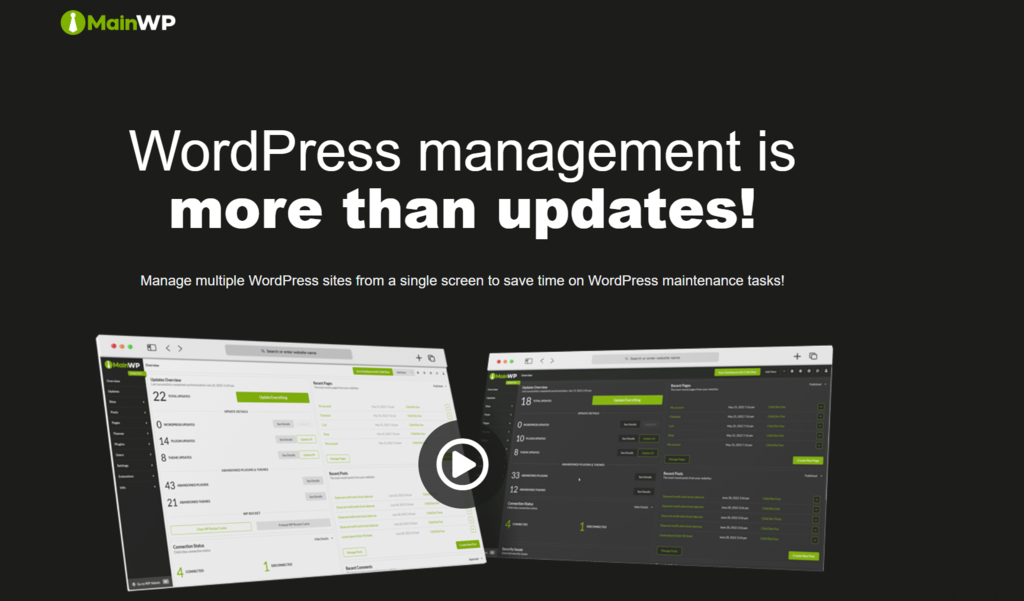
MainWP stats:
- Best for: tech-savvy users looking to have more control over their WordPress management tool
- Price: freemium, starting at $29/month
MainWP is a powerful plugin to help users manage multiple WordPress sites from one dashboard, including those using different web hosts and servers.
With its one-click access to the connected sites, users can easily manage plugins and theme installations, check for their updates, and remove unused ones.
Furthermore, it is open-source and highly customizable. Besides putting its source code on GitHub, MainWP offers API hooks, making it ideal for developers looking to have more control over their plugins.
To use this tool, WordPress users need to download two plugins. First, install the MainWP Dashboard plugin on an admin site – a new WordPress website without additional plugins or themes.
Then, install the MainWP Child plugin to the sites you want to manage and connect them to the admin site.
Once done, you will be able to track and manage all your Child sites from the admin site’s dashboard.
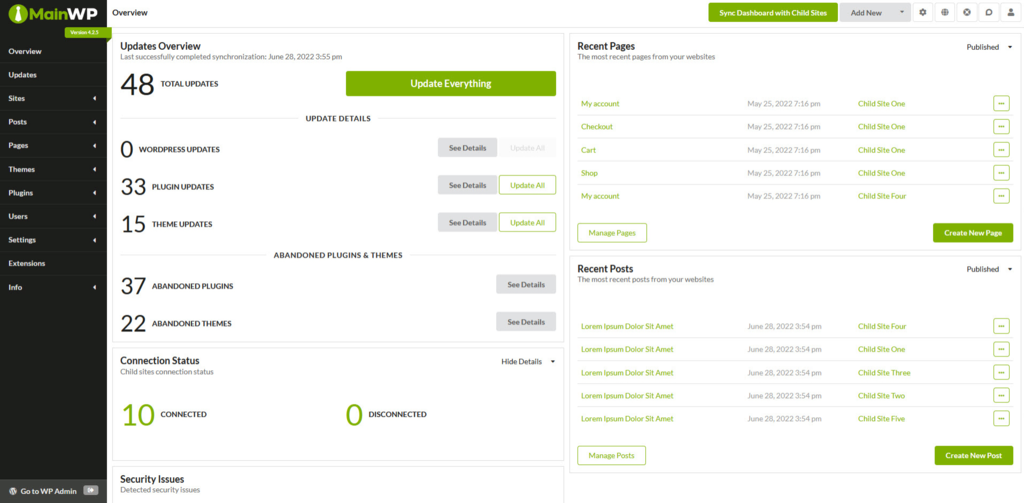
With its free version, you can manage unlimited websites. It also offers essential site management features, including security checks, uptime monitoring, updates management, and regular backups.
However, to access its full features, you need to get the premium plan, starting at 29/month for unlimited sites. Alternatively, get its lifetime license for $499.
The premium version provides access to more than 30 premium extensions to optimize the MainWP dashboard.
These include third-party extensions for Google Analytics integration, content management, page speed monitoring, white labeling, scheduled backups, WordPress cloning, and web caching.
MainWP also provides users with comprehensive documentation, a knowledge base, and a supportive community to help set up the tool and troubleshoot issues.
Key features
- Custom dashboard. Choose from a variety of built-in themes. Alternatively, tweak existing themes, font, colors, or button placement on the MainWP dashboard by adding code to the WordPress site.
- Dashboard lock. Add extra protection by managing access to the MainWP dashboard. You can also limit access to the wp-admin pages and wp-login.php for specific IP addresses.
- WooCommerce shortcuts. Quickly access the WooCommerce pages on your Child sites, such as product pages, orders, coupons, and shipping settings – all from the MainWP dashboard.
- Bulk content management. Write, publish, edit, and delete multiple posts and pages straight from the MainWP dashboard without logging into each site separately.
- Updates management. Set up automatic or bulk updates and get alerts when they’re done. This includes WordPress core, plugins, themes, and translation updates. In addition, the plugin detects outdated plugins or themes.
- WP compress integration. Reduce file sizes across all your websites easily to improve their page load time. It also entails image resizing and bulk optimization using various compression modes.
3. InfiniteWP
InfiniteWP stats:
- Best for: anyone looking for a secure WordPress management tool
- Price: freemium, starting at $147/year
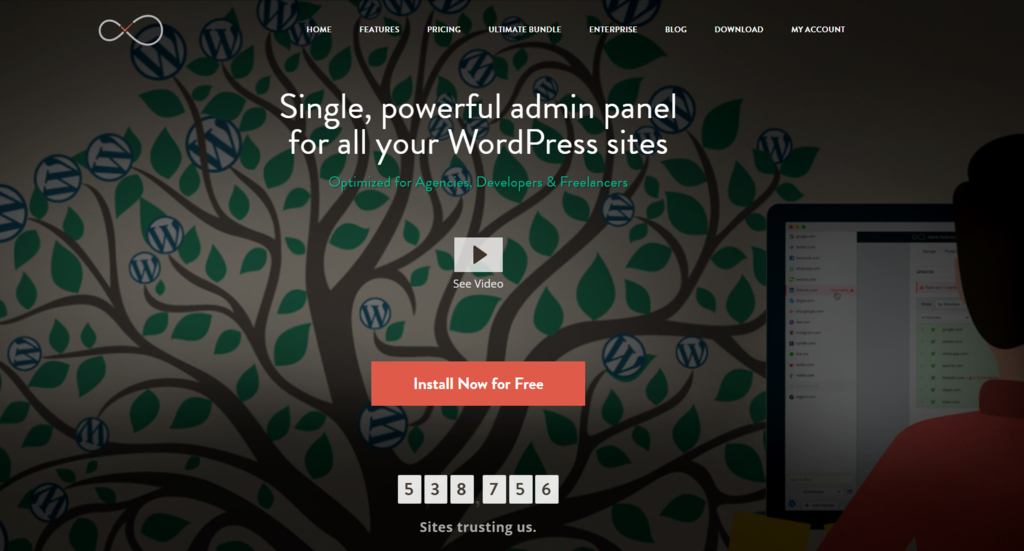
Similar to MainWP, InfiniteWP is a secure WordPress management tool. It also requires one WordPress site as the hub for managing all the other connected websites from InfiniteWP’s admin panel.
To secure your admin panel, InfiniteWP offers multiple layers of protection, including IP address restriction, two-factor authentication, a password-protected folder, and an HTTPS support layer.
There are three methods to install it – via an installer plugin, a control panel, or manually uploading the plugin to your server.
Once set up, simply add the WordPress websites you want to manage.
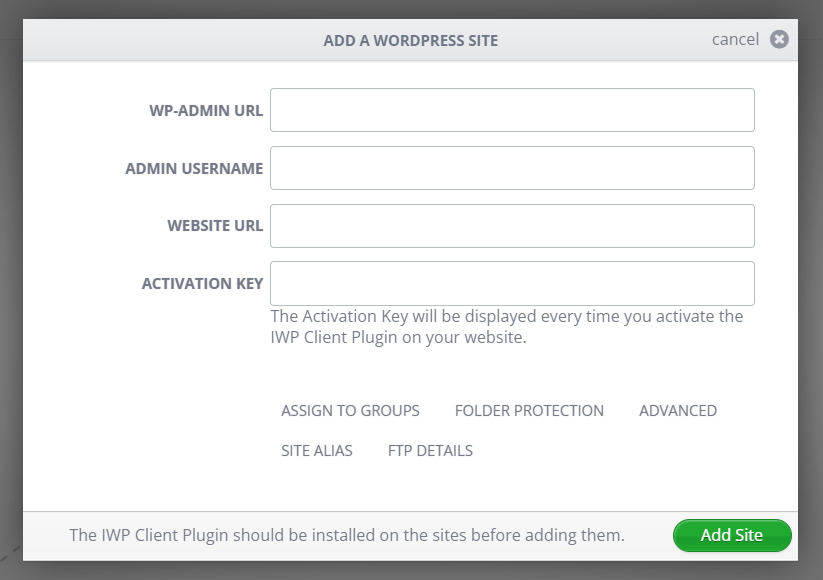
Although the initial installation can be challenging, and the interface is slightly outdated, the plugin is easy to use once set up.
To support users during the installation and troubleshooting, the tool is well-equipped with tutorials, forums, a knowledge base, and ticket support. However, its response time varies depending on the purchased plan, from four days for the free plan to up to 12 hours for the Enterprise.
InfiniteWP’s free version is limited to one-click access to the main dashboard, generating and restoring backups, and performing updates for all connected sites.
To unlock its premium features, consider opting for one of its paid plans starting at $147/year for up to ten sites.
Its premium plans come with security scans and various add-ons for site analytics, maintenance, and reporting.
Key features
- WordPress staging. Create a copy of your site to test updates, modify plugins, and employ other changes without affecting the live website.
- Migration. Safely migrate an existing site to a new location. The tool will automatically redirect all links to prevent error pages.
- One-click update. Run bulk updates for plugins, themes, and translations for individual or multiple sites with a single click. Users can also monitor an activity log.
- Cloud and scheduled backups. Set up daily, weekly, or monthly automatic backups and save them to cloud storage like DropBox and Google Drive.
- Various security measures. Protect your WordPress websites against malware and other cyber threats by integrating security plugins like WordFence, Google Safe Browsing, and iThemes Security. Should an attack occur, users will get immediate notifications via email.
- Client reporting. Choose from simple to professional report templates for your clients to present insights into their businesses.
- Uptime Monitoring. Includes keyword, port access, and ping monitoring. In addition to notifying users when the site goes down, InfiniteWP also explains its possible causes.
- Broken Link Checker integration. In addition to detecting broken links, this WordPress plugin allows users to remove or modify the links straight from the InfiniteWP dashboard.
- WP Maintenance integration. Manage spam comments, optimize database tables, clear post revisions, and auto-draft posts.
4. Modular DS

Modular DS stats:
- Best for: web agencies and freelancers managing multiple WordPress sites for clients
- Price: freemium, starting at €29/month
Modular DS revolutionizes the way WordPress sites are managed by providing a unified dashboard for comprehensive site maintenance.
It’s ideal for web professionals and agencies that maintain multiple client websites, offering a tool that centralizes and automates time-consuming tasks such as updates, backups, and security checks.
Modular DS can also help professionals sell maintenance services. Its automated client reports, which includes maintenance tasks and statistics from Google Analytics, Search Console and PageSpeed Insights are a great for making clients understand the value of maintenance services.
With a clean and modern interface, adding a website to Modular is a quick, two-minute process. The tool is constantly improving and adding new features, with a public roadmap where users can see what’s next.
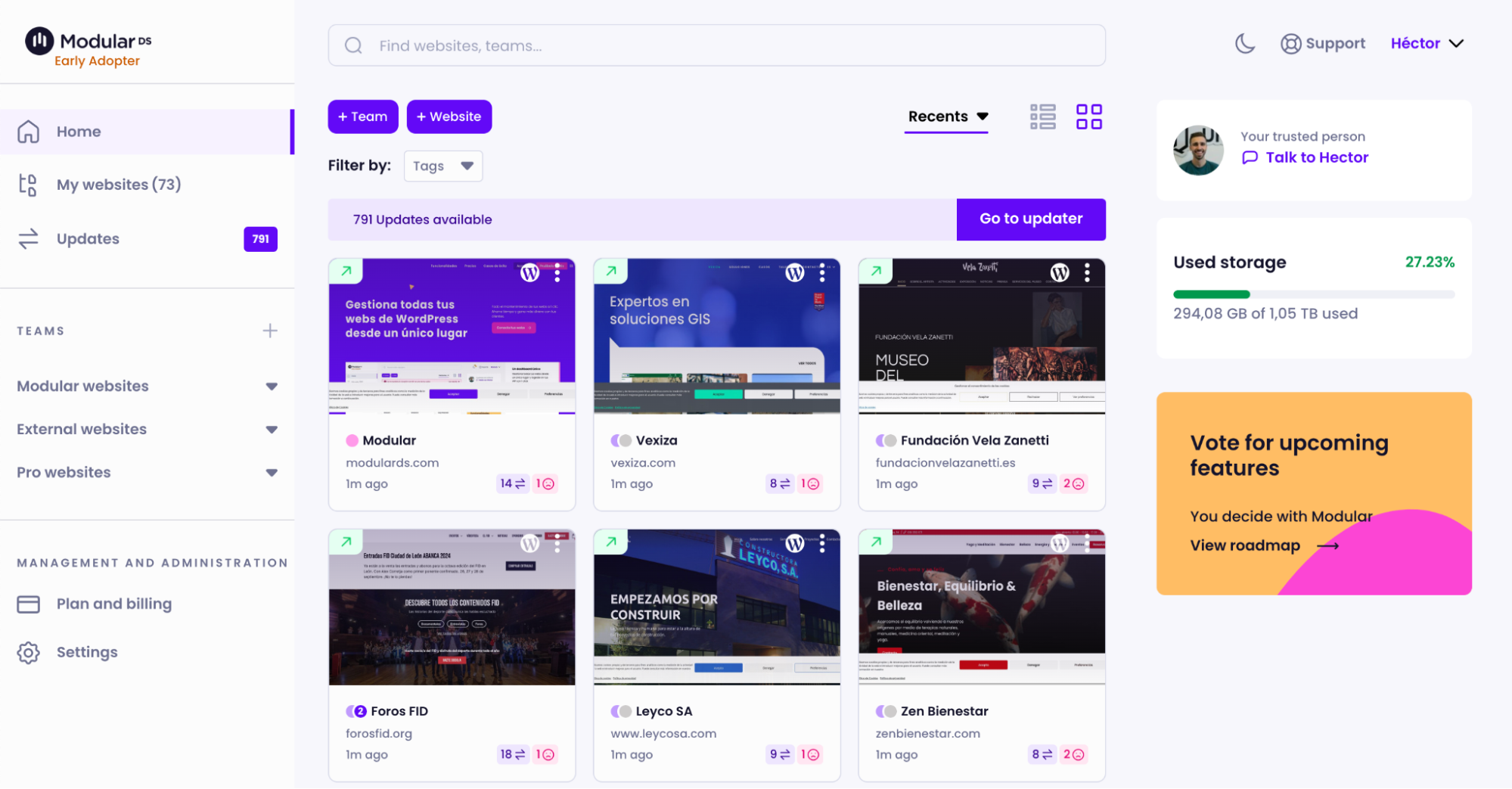
It has a free plan for up to five websites with a basic version of all the features. The PRO plans increases the website limit to 50 and starts at €29/month.
Key features
- Bulk updates or management. Perform updates for WordPress core, themes, and plugins across multiple sites with just a few clicks. You can also quickly upload, activate or delete anything on all your websites.
- Automated backups. Schedule automatic backups to ensure data integrity and provide a safety net in case of data loss. Backups are stored in secure, off-site locations in the EU to comply with GDPR rules.
- Vulnerability checks. Receive alerts when any of the plugins, themes or core versions you have installed on your sites have a known security vulnerability. You’ll be able to take action instantly.
- Client reports. Generate, automate and send detailed reports on maintenance activities and site performance to keep clients informed and demonstrate the value of your services.
- One-click login. Access any of your managed WordPress sites directly from the dashboard without needing to remember multiple login credentials.
- Uptime and performance checks. Monitor site speed and uptime, and receive alerts if a site goes down, allowing for quick issue resolution.
- Multi-language support. Available in English and Spanish to accommodate diverse user bases.
5. ManageWP
ManageWP stats:
- Best for: web agencies
- Price: free, with premium add-ons starting at $1/site
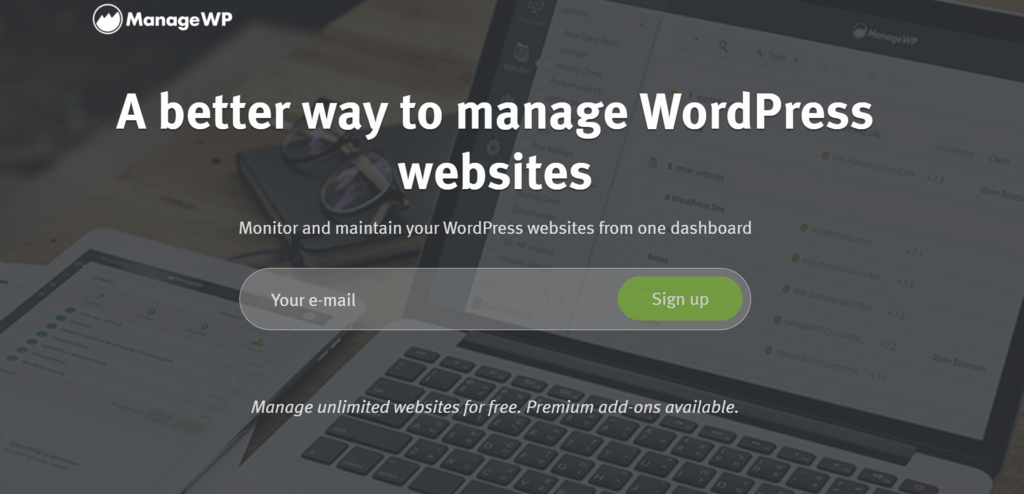
Another one on the list, ManageWP is a simple WordPress plugin that helps you manage multiple WordPress websites. To start using it, simply go to its official site and sign up for a new account.
Then, install the ManageWP worker plugin on the sites you want to manage and connect them to the ManageWP dashboard by entering the WordPress admin login credentials.
From the main dashboard, users can perform essential site management tasks, like running one-click updates to plugins, themes, and WordPress core files.
You can also run security checks and track how your site performs with its widget that integrates with Google Analytics.
One of the biggest advantages of this tool is that it offers support both for free and premium users. Moreover, there is a comprehensive user guide, forums, and ticket support.
While ManageWP offers a free version for unlimited sites, advanced features are only accessible as premium add-ons, starting at $1/site/month.
For example, the free monthly backup includes scheduled backup, off-site storage, and one-click restore. To access automated and on-demand backups, get the premium Backup add-on.
As you choose from many upgrades, this tool is ideal for web agencies managing client websites with different needs.
Moreover, for those managing over 25 websites, ManageWP offers a bundle package applicable to up to 100 websites. Users can pay a flat monthly fee of $25/add-on.
However, the complex pricing for advanced features can add up over time. Meanwhile, other tools offer a more cost-effective option for the same features.
Key features
- Customizable client reports. Tweak colors, fonts, header, footer, and cover page, as well as localize the content in multiple languages. Premium access offers white labeling, scheduling, bulk reporting, and sending the report from your email address.
- SEO ranking. Integrated into the client reports, the tool shows your main competitors, keyword ranking history, and website visibility.
- Code snippets. Tech-savvy users can write and execute their own code from the ManageWP Dashboard for further customization. This includes customizing plugin settings, editing content, or updating widgets.
- Maintenance mode. Provides customizable templates to inform visitors when the website is inaccessible due to maintenance.
- Safe updates. Schedule updates during the lowest traffic. Automatically generate backups before every plugin and theme update. If an error occurs during the updates, you will be able to retrieve the backup.
- Smart clone. Bundled with the premium Backup add-on, users can clone the website to a WordPress staging environment or a new web hosting service. The tool compares the source and destination files and skips the duplicate ones, saving time in the process.
- Collaboration tool. Streamlines collaboration with teams and clients by providing access to maintenance operations. All it requires is entering their email addresses, then simply switching between the different accounts.
- Link monitor. Checks every link on the managed sites daily and alerts users of broken links or unresponsive pages. Then, users can edit the link, unlink texts, or add a nofollow tag straight from the ManageWP dashboard.
6. WPRemote
WP Remote stats:
- Best for: users who want a simple WordPress management tool
- Price: freemium, starting at $29/month
For those looking for a simple tool to manage multiple WordPress installations, WPRemote might be what you need.
Equipped with a user-friendly interface, users can conveniently update the WordPress core files, create backups, and scan multiple client sites for malware without having to log in to each site.
You can also add a new WordPress plugin or theme straight from the main WP Remote dashboard.
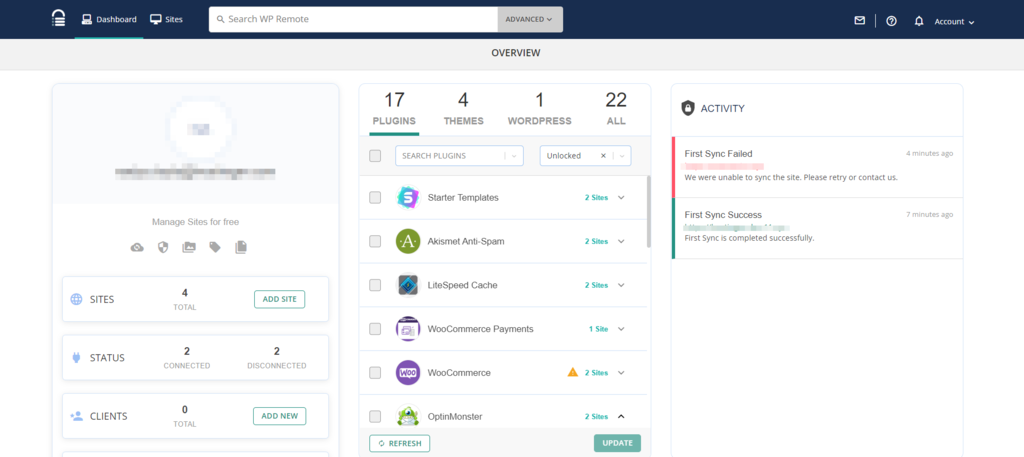
To get started, create an account at the official site, which hosts the main WP Remote dashboard. Then, install the free WPRemote plugin on each client site to connect it to the dashboard.
There are two methods of installation – manual and automatic. The latter allows users to install the plugin on client sites without having to leave the main WPRemote dashboard. Simply enter your site’s URL and WordPress admin login credentials to do so.
Although you can use the tool for free, accessing its complete features requires upgrading to one of its premium plans. WP Remote’s pricing for each category also varies depending on how many sites you’re managing.
For example, the basic plan starts at $29/month for five sites and goes up to $99/month for 20 sites.
Furthermore, WP Remote has an active forum, a comprehensive knowledge base, and email support.
Key features
- Visual testing. Preview how the site looks before going live with the new changes. That way, you can ensure the new code changes will not disrupt the site’s usability.
- Staging environment. Create staging sites with a single click. The tool automatically disables Google indexing, preventing the website from appearing on search results and hurting the live site’s SEO.
- Regular backups. Schedule automatic backups or generate them anytime you make a change. It keeps your backup history for a year in case of data loss.
- Advanced client reports. Automatically generate personalized reports for backups, updates, website performance, uptime, or security issues you’ve handled. Schedule weekly, monthly, or one-time reports in multiple languages.
- Instant malware removal. Identify malware before it takes over the entire site and clean it with a single click.
- Smart web application firewall. Protect the site against malicious network traffic and unauthorized remote access.
- Site monitoring. Keep track of client sites’ speed and performance. Once a website is down, this tool will immediately notify you via Slack or email.
Conclusion
Using a tool that helps you manage multiple WordPress sites from a single dashboard can improve productivity and efficiency.
With the many WordPress management tools available, it’s important to consider your budget and needs before choosing one.
We recommend the following tools to manage multiple WordPress websites:
- WP Umbrella. Recommended for users prioritizing backups, uptime monitoring, bulk management, and automated client reporting.
- MainWP. Best for users looking to have more functionality and customization over WordPress sites, as it’s open source and offers API hooks.
- InfiniteWP. Ideal for users who prioritize website security features since it offers multiple layers of protection to their main dashboard.
- Modular DS. Best for agencies and freelancers who want an easy-to-use tool to centralize the management of all their websites and show their work to their clients.
- ManageWP. Recommended for website agencies, as it allows individual upgrades for each client’s website and has a more cost-effective bundle pricing.
- WPRemote. Suitable for users looking for a simple, user-friendly tool to manage multiple WordPress sites.
After learning about several WordPress management tools, it’s time to pick the most suitable one to scale your business. If you’re still unsure, try out the free versions and upgrade according to your needs.
Manage multiple WordPress sites FAQ
In this section, we’ll answer some commonly asked questions about managing multiple WordPress sites.
What are WordPress management tools?
These tools help users manage multiple WordPress websites from one dashboard. Their functions include performing updates, generating backups, managing content, removing malware, and bulk plugin installations.
Which tool is best for managing multiple WordPress websites?
The best WordPress management tool depends on your budget and needs. We recommend MainWP for its ease of use and ManageWP for web development agencies managing multiple sites that have different needs.

Nadya has a passion for WordPress and web hosting. She wants to help people build a successful online presence, so they can make an impact in the world. When not writing, she can be found learning new languages or orchestrating a photoshoot for her cat. Nadya is always looking to learn and grow, and she hopes to help others do the same.

Marco Chiesi is the Head of WordPress at Hostinger, with over 20 years of experience as a software engineer in the web industry. He specializes in open-source technologies and the WordPress ecosystem, where he has contributed in different areas: Plugin Developer (with over 10 million downloads), WordCamp speaker and organizer, Meetup organizer, Translator, and Core Contributor. He is passionate about leading his team to create innovative solutions for Hostinger's web hosting product, which hosts over 5 million WordPress installations. Follow him on LinkedIn.


