How to list users in Linux: Commands, tools, and automation tips
Mar 10, 2026
/
Aris S. & Ariffud M.
/
5 min Read
To list users in Linux, the most common method is to read the /etc/passwd file, which stores essential information about every account on the system.
Listing users is a basic system administration task. It helps you check who’s logged in, filter accounts by ID, and automate audits to maintain strong system security.
Here’s a summary of the commands you can use to list Linux users:
- cat. Best for a quick, raw view of all local users.
- getent. Ideal for listing users from both local and network databases like LDAP.
- compgen. Useful for generating a clean list of usernames for scripting and autocompletion.
- awk and cut. Best for filtering output to show only usernames.
- who and users. Used to check which users are currently logged in.
Prerequisites for listing Linux users
Before listing users in Linux, make sure you have a terminal connection. This requirement applies whether you’re working on a local machine or managing a remote system like a virtual private server (VPS).
If you’re managing a VPS, connect through an SSH client using the following syntax:
ssh username@your_server_ip
Any user can read the /etc/passwd file and run basic listing commands. But administrative actions, such as creating, modifying, or deleting users, require root or sudo access.
How to list users using the cat command
The simplest way to list all users is to output the contents of the /etc/passwd file using the cat command. This file contains attributes for every user in the system, including system accounts and regular users.
Run the following command to display the file:
cat /etc/passwd
The output shows one line per user account.
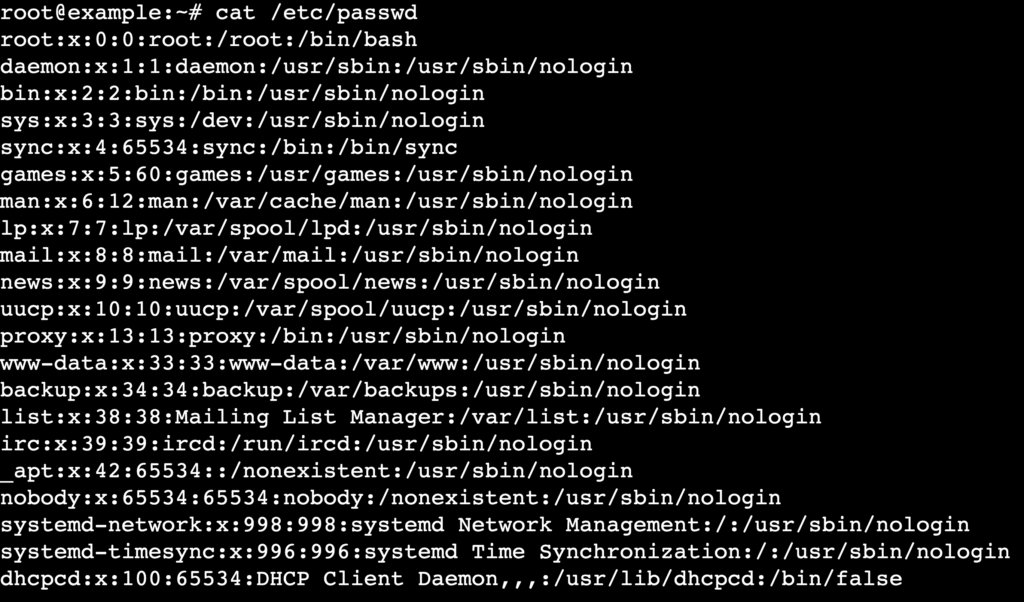
Each line follows this structure:
username:x:UID:GID:GECOS:home_directory:shell
Here’s what each field represents:
- username. The login name for the account.
- x. A placeholder indicating that the password hash is stored in /etc/shadow.
- UID. The numeric user ID.
- GID. The numeric primary group ID.
- GECOS. Optional user information, such as a full name or description.
- home_directory. The absolute path to the user’s home directory.
- shell. The program that runs when the user logs in.
Using cat on systems with hundreds of users can produce cluttered output. In this case, you can pipe the results through less for easier reading or use grep to find specific accounts.
cat /etc/passwd | less
cat /etc/passwd | grep username
Since /etc/passwd is world-readable, be mindful that it exposes user IDs and home directory paths. But passwords remain safely encrypted in /etc/shadow, which only root can read.
How to list Linux users using the getent command
The getent command fetches entries from the system’s Name Service Switch (NSS) libraries, making it ideal for systems that use network-based user directories such as LDAP or Active Directory.
Unlike cat, which only reads the local /etc/passwd file, getent queries all configured user databases as defined in /etc/nsswitch.conf.
To list all users from both local and network sources, run:
getent passwd
If you need to check the details of a specific user, append the username:
getent passwd username

The output format matches /etc/passwd, but getent shows user data from every connected service, not just local accounts.
How to use compgen to list users
The compgen command is a built-in Bash command that generates completion matches. When used with the -u option, it outputs all usernames known to the system, including both regular and system accounts.
To list all usernames, run:
compgen -u
compgen queries the same NSS databases as getent, but it outputs only usernames without any additional fields. This makes it especially useful for shell scripting or setting up autocompletion features in custom tools.
By default, compgen prints a long vertical list. To make the output easier to read, pipe it into the column command:
compgen -u | column
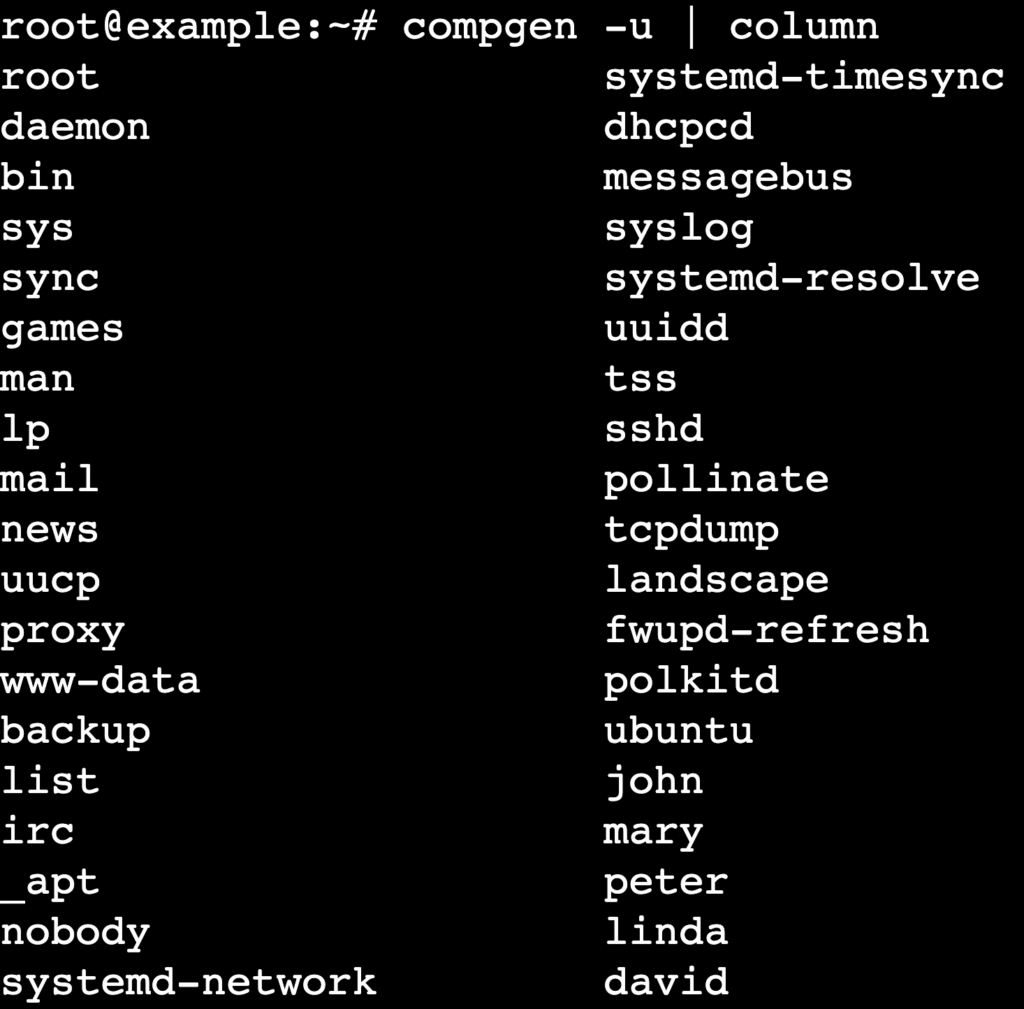
Important! Because compgen is a built-in Bash command, it isn’t available in other shells, such as sh or zsh.
How to list users with awk and cut commands for custom output
To extract only usernames or other specific fields without the clutter of IDs and directory paths, use text-processing utilities such as awk or cut.
These tools act as filters. They take the raw data from /etc/passwd and display only the fields you request.
Here’s a comparison of how to use both commands for listing users:
| Feature | awk | cut |
| Syntax | awk -F: ‘{ print $1}’ /etc/passwd | cut -d: -f1 /etc/passwd |
| Delimiter | Uses -F: to set the colon as a separator | Uses -d: to set the colon as a separator |
| Field logic | Prints $1 (the first field) | Selects -f1 (the first field) |
| Best for | Complex formatting and conditional processing | Simple, lightweight field extraction |
Use awk if you plan to apply further processing, such as filtering users by a UID range.
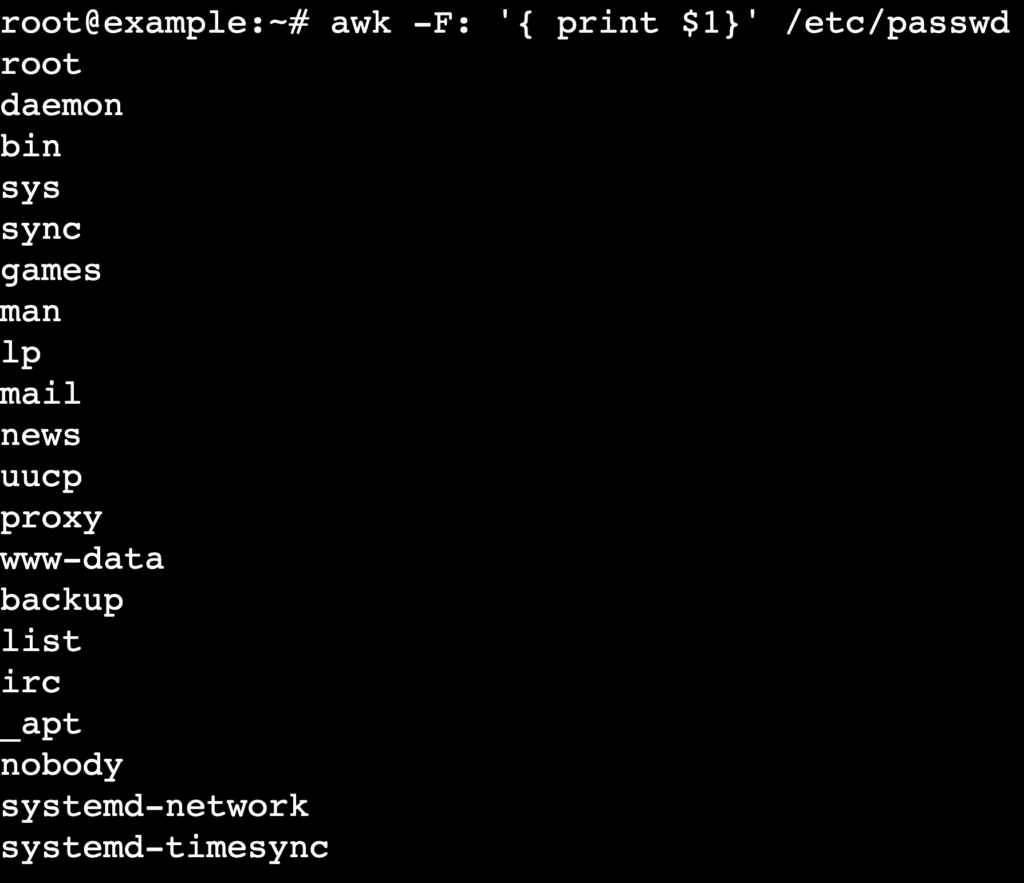
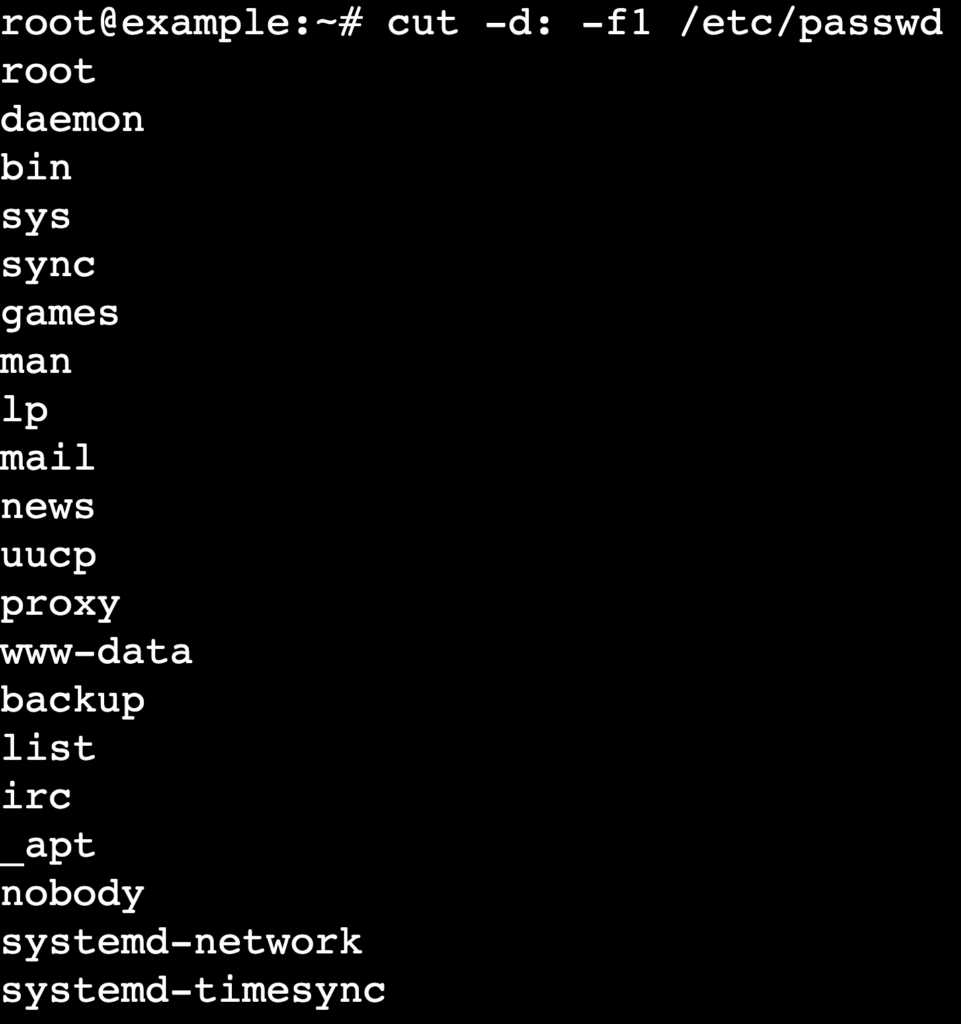
Use cut if you need a quick solution to extract only usernames.
How to check currently logged-in users
To see who is currently active in a session, rather than listing every registered account, use the who or users commands.
Listing all users with tools like cat shows everyone who can log in, while who and users show who is logged in at that moment. This distinction matters when you’re monitoring activity on multi-user servers.
- users. Displays a simple line of currently logged-in usernames.
users

- who. Provides detailed information, including the terminal line, login time, and originating IP address.

For even more detail, including idle time and running processes, use the w command:
w

What are the best practices for effective user listing?
Effective user listing involves filtering output for readability, securing user data, and automating regular checks to maintain system integrity.
Combine commands with pipes
To find specific information quickly, combine listing commands with grep. For example, to check whether a specific user exists without scrolling through the entire list:
getent passwd | grep username
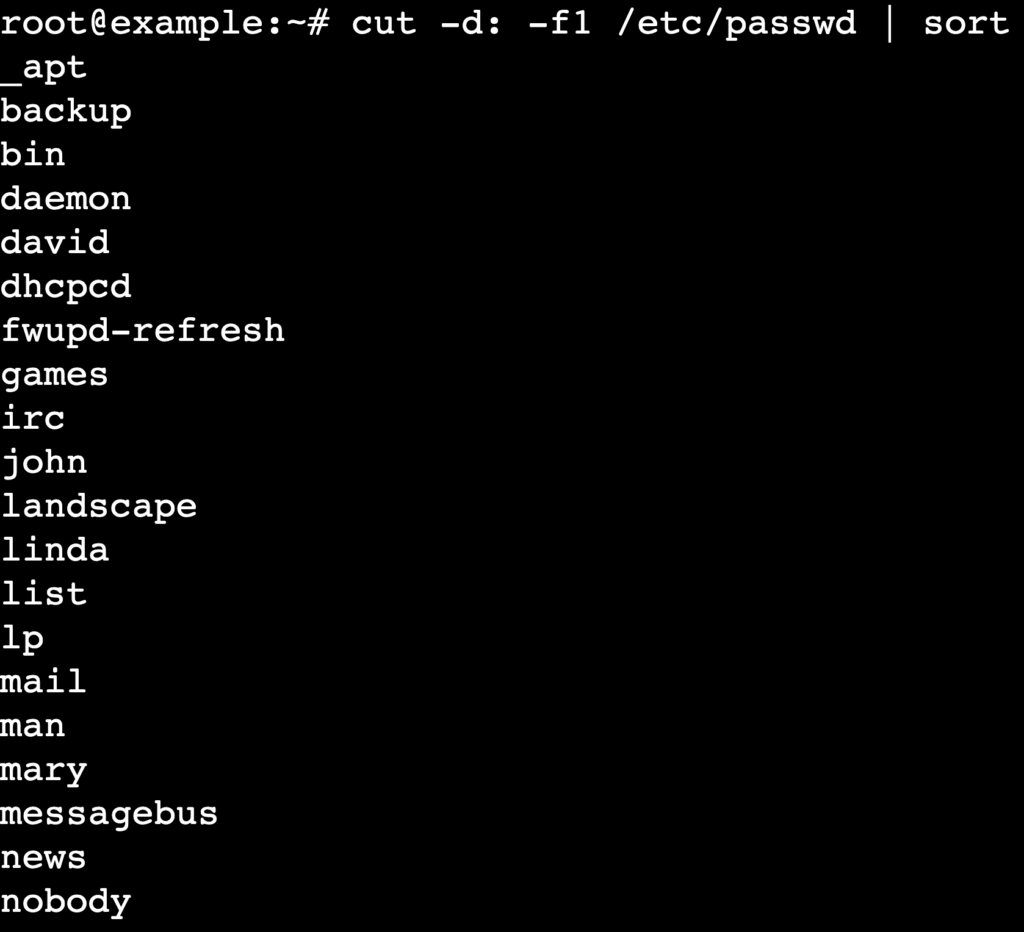
You can also sort the list alphabetically to make manual auditing easier:
cut -d: -f1 /etc/passwd | sort
Use a GUI for user management
If you prefer a visual interface over the command line, use a control panel such as Webmin or the native user manager in your desktop environment.
These tools often provide a searchable table of users, which makes it easier to view groups, IDs, and shell permissions at a glance without memorizing command syntax.
Manage user information securely
Regularly listing users is a key security habit. When reviewing the list, look for:
- Unknown accounts. Users you didn’t create.
- Unexpected UID 0 accounts. Only root should have UID 0. Any other UID 0 account has full superuser privileges.
- Shell access. Verify that system users (such as www-data or nobody) use /usr/sbin/nologin (Debian/Ubuntu), /sbin/nologin (RHEL/CentOS), or /bin/false to prevent interactive login.
How to automate user listing with Bash scripts
To automate user listing, create Bash scripts that execute commands like cut or awk and schedule them with cron.
While listing users with commands such as cat, getent, awk, cut, who, and compgen works well for quick checks, it becomes inefficient on large Linux systems because it requires repetitive, manual steps.
Creating Bash scripts lets you automate user retrieval, filter accounts based on specific criteria (such as users with sudo access), and save reports for later review. This approach ensures consistent, secure auditing across long-term server management.
You can then schedule these scripts with cron jobs to automatically catch suspicious account changes. A simple script can export all users to a timestamped text file, so you can compare results over time.
Here’s an example script that saves a user list generated with cut, with basic error handling:
#!/bin/bash
# Export user list to a timestamped file

OUTPUT_DIR="$HOME/user_audits"
OUTPUT_FILE="$OUTPUT_DIR/user_audit_$(date +%F).txt"

# Create output directory if it doesn't exist
mkdir -p "$OUTPUT_DIR"

# Generate user list
cut -d: -f1 /etc/passwd | sort > "$OUTPUT_FILE"

echo "User audit saved to $OUTPUT_FILE"
Make the script executable and schedule it with cron to run daily or weekly:
chmod +x ~/user_audit.sh
crontab -e
# Add: 0 2 * * * ~/user_audit.sh
If you’re not comfortable writing scripts from scratch, you can use Kodee, Hostinger’s AI assistant. It’s available on all VPS plans and generates automation scripts instantly. Just type a prompt describing what you want the script to do.
For more hands-on learning, explore our guide on bash script examples to see how to structure advanced automation tasks.


Aris is a Content Writer specializing in Linux and WordPress development. He has a passion for networking, front-end web development, and server administration. By combining his IT and writing experience, Aris creates content that helps people easily understand complex technical topics to start their online journey. Follow him on LinkedIn.

Ariffud is a Technical Content Writer with an educational background in Informatics. He has extensive expertise in Linux and VPS, authoring over 200 articles on server management and web development. Follow him on LinkedIn.



Comments
September 09 2020
Can u help me? which command i must type for..... LOOK ALL USERS using ubuntu 12.04? Example: Zidane, Nick Help me... Urgent to teach student
November 18 2020
Hey Madam Ida! :) You can try the following command: less /etc/passwd or cut -d : -f 1 /etc/passwd Additionally, you can check our other linux guide here.
June 11 2024
Can u help? What command Display all users in the system, categorize system user and Normal users.
June 14 2024
Hello! To display all users in the system and categorize them as system users or normal users, you can use the following command:
awk -F: '{ if ($3 >= 1000) print "Normal User: " $1; else print "System user: " $1 }' /etc/passwd | sort. This command filters users based on their user ID, labeling those with an ID number greater than or equal to 1000 as normal users and those with an ID number lower than 1000 as system users ;)