Cron job explained: Syntax, scheduling, and best use cases
Mar 10, 2026
/
Linas L. & Ariffud M.
/
7 min Read
A cron job is a time-based scheduler in Unix-like operating systems, such as Linux and macOS. It automates repetitive tasks like backups, system maintenance, and script execution.
Users define a schedule and command in a crontab file to keep critical processes running consistently in the background without manual intervention.
To use cron effectively, you need to understand its core components:
- Syntax and operators. Cron uses five timing fields (minute, hour, day of month, month, and day of week) and special characters, such as asterisks and slashes, to define intervals.
- Configuration. Users manage schedules with the crontab command or by placing scripts in specific system directories.
- Permissions. The cron.allow and cron.deny files control access and help maintain system security.
- Practical application. Common use cases include automating database backups, clearing server caches, and sending periodic email reports.
What is a cron job?
A cron job is a utility that lets Linux and Unix users run commands or scripts automatically at a specified time and date. Instead of running a command manually every day or week, you schedule it once, and the system executes it in the background at the set time.
This automation is important for server management. For example, a system administrator managing a virtual private server (VPS) cannot back up databases manually every night at 3:00 AM.
A cron job handles this task reliably, improving efficiency and reducing human error.
Common cron job use cases include:
- System maintenance. Deleting temporary files, rotating log files, or clearing cached data to free up disk space.
- Data management. Dumping MySQL databases to a backup folder or syncing files between remote servers.
- Notifications. Sending automated email digests, checking for system updates, or monitoring disk usage and alerting admins when space runs low.
- Web applications. Triggering PHP scripts for tasks such as newsletter distribution or subscription renewals.
How does a cron job work?
A cron job runs through the cron daemon (crond), a background service that runs continuously and executes commands defined in cron table (crontab) files.
Every minute, the daemon checks the configuration files and determines whether any tasks are scheduled to run at that time.
It’s important to distinguish between the two types of configuration files:
- System crontab. Located at /etc/crontab, this file handles system-wide tasks and only root users can edit it. It includes an extra field that specifies which user runs the command.
- User crontab. Each user has their own crontab file. The storage location varies by distribution, such as /var/spool/cron/crontabs/ on Debian and Ubuntu and /var/spool/cron/ on RHEL, CentOS, and Fedora. Users edit these files with the crontab -e command, and the tasks run with that user’s permissions.
Understanding crontab syntax and operators
Crontab syntax defines scheduled tasks (cron jobs) using a single line with five time-and-date fields followed by the command to execute. Special operators add flexibility when you define time intervals.
Here’s the basic format of a crontab entry:
minute hour day_of_month month day_of_week command_to_execute
The five timing fields (minute, hour, date)
The five timing fields define when a cron job runs. The system reads the schedule in the following order:
| Field | Description | Allowed values |
| Minute | The minute of the hour when the command runs. | 0–59 |
| Hour | The hour of the day in 24-hour format. | 0–23 |
| Day of month | The specific date of the month. | 1–31 |
| Month | The month of the year. | 1–12 or JAN–DEC |
| Day of week | The day of the week. | 0–6, where Sunday = 0 (or 7 on some systems) |
Important! Be careful when scheduling jobs across multiple servers in different time zones. Always check each server’s local time with the date command to confirm your configuration is correct.
Crontab operators
Crontab operators let you define complex intervals and patterns within the timing fields. Cronie and its predecessor, Vixie cron, support eight operators.
These implementations serve as the default cron tools on most Linux distributions, including Ubuntu, Debian, RHEL, CentOS, and Fedora:
- Asterisk (*). Represents all possible values. For example, an asterisk in the minute field means the job runs every minute.
- Comma (,). Specifies a list of unique values. For example, 1,5 in the day of week field runs the task on Monday and Friday.
- Hyphen (-). Defines a range of values. For example, 6-9 in the month field runs the job from June to September.
- Slash (/). Specifies step values or increments. For example, */12 in the hour field runs the command every 12 hours.
These operators are not supported by standard Linux cron. They work only in Java-based schedulers, such as Quartz and Spring Boot, or cloud services like AWS EventBridge:
- Last (L). Specifies the last day of the month or the last occurrence of a weekday.
- Weekday (W). Finds the nearest weekday (Monday–Friday) to a given date.
- Hash (#). Specifies the nth occurrence of a weekday, such as the second Monday of the month.
- Question mark (?). Indicates that the day of month or day of week does not matter.
💡 Pro tip
Most cron implementations let you combine ranges with step values. For example, 1-20/2 runs a job every two minutes during the first 20 minutes.
Cron job examples
The following examples show how to apply crontab syntax to real-world tasks.
| Cron syntax | Purpose | Explanation |
| 0 0 * * 0 /root/backup.sh | Weekly backup | Runs the backup script every Sunday at midnight. |
| 0 * * * 1 /root/clearcache.sh | Server maintenance | Clears the cache every hour, but only on Mondays. |
| 0 6,18 * * * /root/db-dump.sh | Database snapshot | Dumps the database twice a day at 6 AM and 6 PM. |
| */10 * * * * /scripts/monitor.sh | Uptime monitoring | Runs a monitoring script every 10 minutes. |
| 0 0 1,15 * * /scripts/payroll.php | Bi-monthly task | Runs a payroll script on the 1st and 15th of every month at midnight. |
| 30 2 * * * /usr/bin/apt update | System update | Checks for package updates daily at 2:30 AM, which is usually a low-traffic time. |
| * * * * /scripts/s1.sh; /scripts/s2.sh | Multiple tasks | Runs multiple commands in a single cron job by separating them with a semicolon. |
| 0 8 1-7 * * [ “$(date ‘+%u’)” = “1” ] && /scripts/report.sh | Monthly report | Generates a report at 8 AM on days 1–7 of the month, but only executes the script when it’s Monday. |
What are cron job special strings?
Special strings are shortcuts that start with @ and replace the five-field syntax. They improve readability for common schedules and reduce the risk of syntax errors.
- @reboot. Runs the command once when the cron daemon starts.
- @hourly. Runs once an hour (equivalent to 0 * * * *).
- @daily (or @midnight). Runs once a day at midnight (equivalent to 0 0 * * *).
- @weekly. Runs once a week on Sunday at midnight (equivalent to 0 0 * * 0).
- @monthly. Runs once a month on the 1st at midnight (equivalent to 0 0 1 * *).
- @yearly (or @annually). Runs once a year on January 1st (equivalent to 0 0 1 1 *).
Here are a few examples of cron jobs using special strings:
@daily /home/user/scripts/daily-cleanup.sh
@reboot /usr/local/bin/start-my-app.sh
@hourly /var/www/html/monitor.php
Important! The @reboot directive runs when the cron daemon starts, not necessarily when the system boots. If you stop and restart the cron service without rebooting the system, @reboot jobs run again.
Cron permissions
System administrators control who can schedule cron jobs using two files in the /etc/ directory: cron.allow and cron.deny.
- cron.allow. If this file exists, only the users listed in it can create, edit, or run cron jobs. The system blocks all other users.
- cron.deny. If cron.allow doesn’t exist, the system checks this file instead. Users listed here cannot use cron, while all other users can.
If neither file exists, the default behavior depends on the distribution:
- Debian and Ubuntu. All users can use cron by default.
- RHEL, CentOS, and Fedora. Only root can use cron by default.
Always check your distribution’s documentation or test cron access with a non-root user.
For example, to allow only a database administrator (dbadmin) to schedule tasks, create a cron.allow file and add dbadmin to it. This setup prevents other users from running unauthorized background tasks that consume system resources.
How to set up a cron job
To set up a cron job, open your machine’s terminal, confirm that cron is installed, create or edit a crontab file with crontab -e, and view your scheduled tasks with crontab -l.
Some jobs may require elevated or root privileges, or you may need to place scripts in system directories for recurring tasks.
1. Access the terminal or SSH
To manage cron jobs, access your server’s command line. If you use a remote server or VPS, connect through SSH with a client such as PuTTY on Windows or Terminal on macOS or Linux.
Alternatively, Hostinger VPS users can use the browser terminal feature available in the VPS dashboard of hPanel.


2. Install cron
Most Linux distributions include cron by default. To confirm that it’s installed and running, check the service status:
systemctl status cron
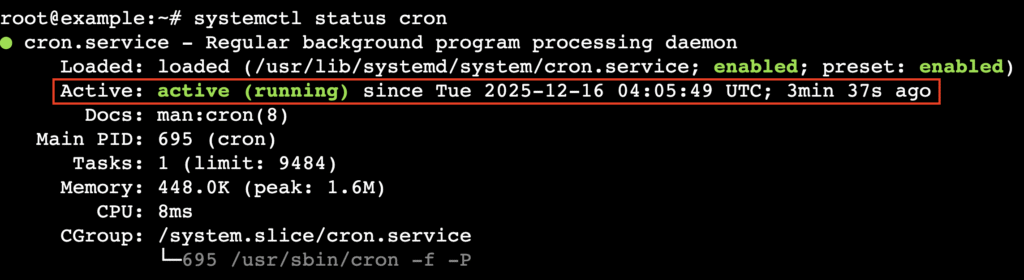
If the service is missing, install it with your package manager.
- For Ubuntu and Debian:
sudo apt update
sudo apt install cron
- For RHEL, CentOS, and Fedora:
sudo dnf install cronie
sudo systemctl enable crond
sudo systemctl start crond
3. Create or edit a crontab file
The main way to schedule tasks is with the crontab command. To create a new crontab file or edit an existing one, run:
crontab -e
If your system doesn’t already have a crontab file for your user, this command creates one automatically.
If this is your first time running the command, the system prompts you to choose a text editor, such as nano or vim. nano is usually easier for beginners.
Once the file opens, add your scheduled task on a new line.
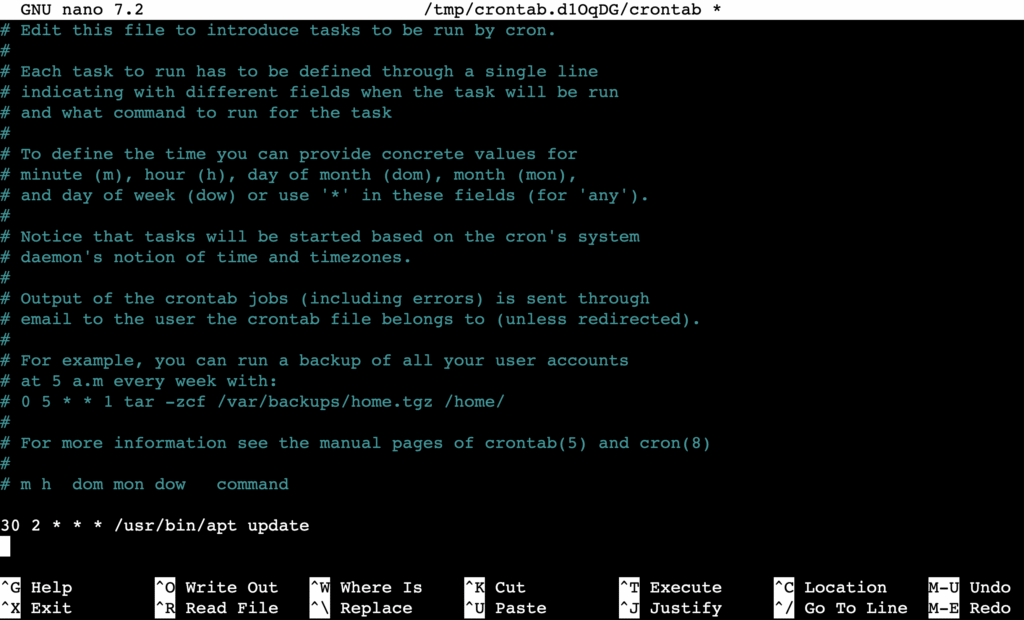
For a detailed breakdown of cron syntax, see our guide on how to write crontab commands.
💡 Pro tip
Before scheduling a cron job, test your script manually to confirm it works. Run the script directly over SSH, for example ./backup.sh. If it doesn’t run manually, it won’t run through cron either.
4. View scheduled tasks
To view the cron jobs scheduled for your user account without editing them, use the list flag:
crontab -l
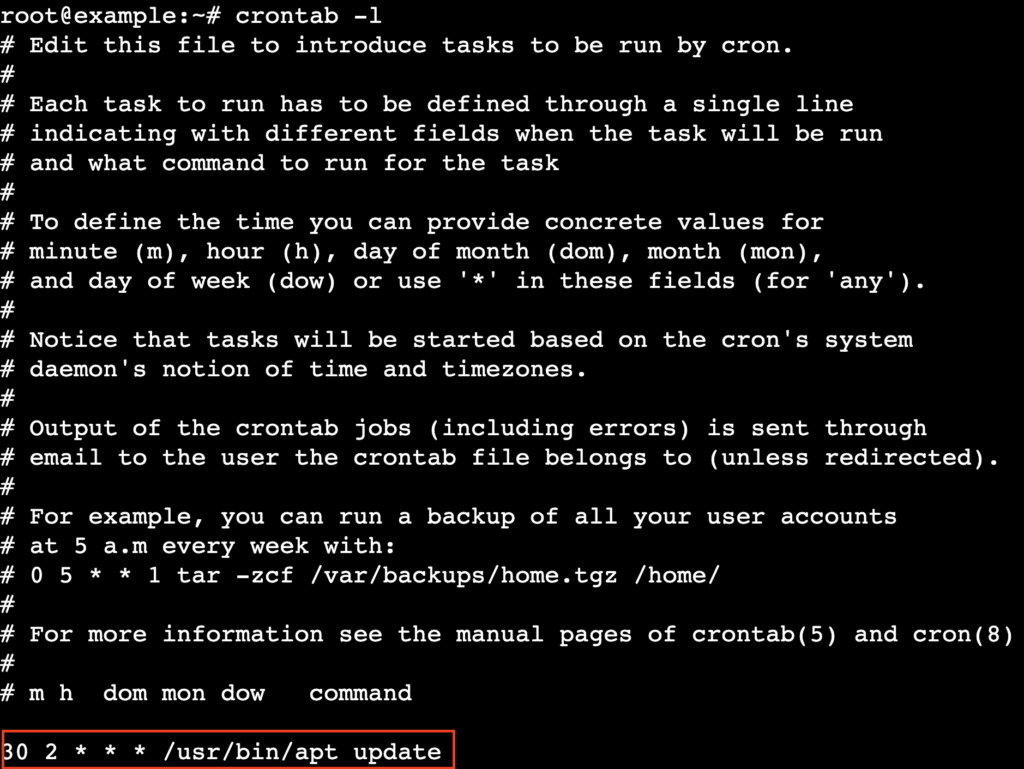
To view the cron jobs for a specific user, run the following command and replace username with the appropriate account name. Note that this requires root or elevated privileges.
sudo crontab -u username -l
5. Grant root access if needed
Some commands, such as system updates or changes to system-wide configuration files, require root privileges. The simplest way to schedule these tasks is to add them to the root user’s crontab:
sudo crontab -e
Any command in root’s crontab runs with root privileges and requires no additional configuration.
Important! Avoid running tasks as root unless necessary. If a script only needs access to specific files or directories, consider adjusting file ownership with the chown command or using a dedicated service account instead.
6. Use cron directories for recurring scripts
For general maintenance scripts that don’t need to run at a specific minute, you can place them in predefined system directories. The system automatically runs executable scripts found in these locations:
- /etc/cron.hourly/
- /etc/cron.daily/
- /etc/cron.weekly/
- /etc/cron.monthly/
To run correctly, scripts in these directories must have executable permissions and follow the run-parts naming rules:
- Filenames can include only uppercase and lowercase letters, digits, underscores (_), and hyphens (–).
- Filenames must not use file extensions. For example, a script named backup.sh will be ignored. Rename it to backup instead.
- Filenames must not contain dots (.) anywhere. For example, my.script will fail silently, which is a common source of errors.
7. Delete scheduled tasks
To remove all cron jobs for the current user, use the remove flag:
crontab -r
Because this command deletes all entries instantly, it’s safer to combine it with the interactive (-i) flag. This option asks for confirmation before removing all scheduled tasks:
crontab -ri

Important! The -i flag works only when used with -r. Running crontab -i by itself has no effect.
What’s the next step after scheduling tasks with cron?
Cron jobs automate recurring tasks by combining the cron daemon (which runs continuously), the crontab file (which sets the schedule), and the command that performs the work. This automation is essential for efficient system management and handling routine tasks without manual intervention.
However, cron jobs are only as powerful as the scripts they run. The cron daemon triggers commands at set times, but your script does the actual work. And if the script contains errors, the task will fail even if the cron job runs successfully.
Learning to write efficient Bash scripts lets you automate complex and valuable tasks via cron. Check out our Bash script tutorial to get started.

Linas started as a customer success agent and is now a full-stack web developer and Technical Team Lead at Hostinger. He is passionate about presenting people with top-notch technical solutions, but as much as he enjoys coding, he secretly dreams of becoming a rock star.

Ariffud is a Technical Content Writer with an educational background in Informatics. He has extensive expertise in Linux and VPS, authoring over 200 articles on server management and web development. Follow him on LinkedIn.


Comments
August 03 2020
when i try to update any thing on my Wordpress website a message shown on screen" the link you followed is expired please try again "
November 11 2020
Hey there Faraz! :) I think you've landed on the wrong article, but no worries, I got you covered! The error you are facing can happen due to few reasons, most common which is the file_upload_size. You can check how to increase the upload size in this amazing guide we have here on our own website! :) Let me know how it goes!
September 27 2020
Are cron schedules made in cPanel relative to European time?
November 18 2020
Hey Hannah. All server time events are in GMT time.
September 29 2021
Is there a way to implement this in django rest frameworks?
October 05 2021
Hi, for Django you'll likely need to set crontab using Python - you can check the tutorial here.
June 28 2022
How to pass parameters to crontab
July 01 2022
Hey there! If you wish to pass parameters to crontab, you can check out this great Stack Overflow thread that would explain the process on how to do it ?
April 28 2023
My Cron Job is working after discussion with Customer Service. The two problems with my original Cron Job may assist others; 1. The file directive was incorrect. Was not working using public_html/MyScript.php but worked when changed to 'domains/Your Domain address/public_html/MyScript.php 2. Cron Jobs do not like files by reference and require an absolute path. My original MyScript.php script called supporting files by reference and did not work. For instance include_once('../include/config.inc.php'); Changed this to the absolute path and Cron Job worked. In this instance include_once('domains/Your Domain address/public_html/include/config.inc.php');
May 12 2023
Hello! I'm glad you got the Crons working. Thank you for great insights.
September 05 2023
Is there a way to set-up a crib job that runs on specific months? I have the premium hosting plan and I can’t seem to figure out how.
September 08 2023
Hello. Yes it is possible, for that you will need to create a couple cron jobs that run on specific months. More information can be found here.
November 30 2023
how to set 3 minutes cron job.
December 01 2023
Hey there!The good news is, you've come to the right place! Our article actually covers how to set up cron jobs. If you run into any bumps along the way or have any questions, don't be shy! Just leave a comment below and we'll be here to help you out ?