How to Fix cURL Error 28: Connection Timed Out in WordPress – 6 Effective Solutions
May 07, 2026
/
Jordana A.
/
6 min Read
If your website runs on WordPress, you might have encountered the cURL error 28. This error message appears when WordPress REST API requests a timeout, indicating a failed data transfer between the client and the server and its corresponding databases.
cURL provides a PHP library that enables communication between your WordPress site and other websites. A failed cURL request can hurt your website’s performance and user experience, so fixing it immediately is essential. Fortunately, there are ways to debug WordPress.
This article will show you different ways to troubleshoot the cURL error 28. Let’s start by understanding what this error message means and the possible causes that trigger it on your website.
Download all-in-one WordPress cheat sheet
TL;DR
- To fix cURL error 28 in WordPress, confirm the timeout in Tools → Site Health, then troubleshoot firewall, plugin, SSL, PHP, and cURL issues.
- Start by temporarily disabling the security plugin firewall and other plugins to identify blocked or overloaded cURL requests.
- Next, reconfigure SSL, check PHP and cURL compatibility, increase PHP memory or execution limits, and contact your host if server settings still block requests.
What Is cURL Error 28: Connection Timed Out?
cURL error 28 is a WordPress REST API issue that occurs due to data transfer failure, making the site inaccessible. Common causes of the cURL timeout error include firewall issues, incorrect SSL configuration, plugin conflicts, and outdated software.
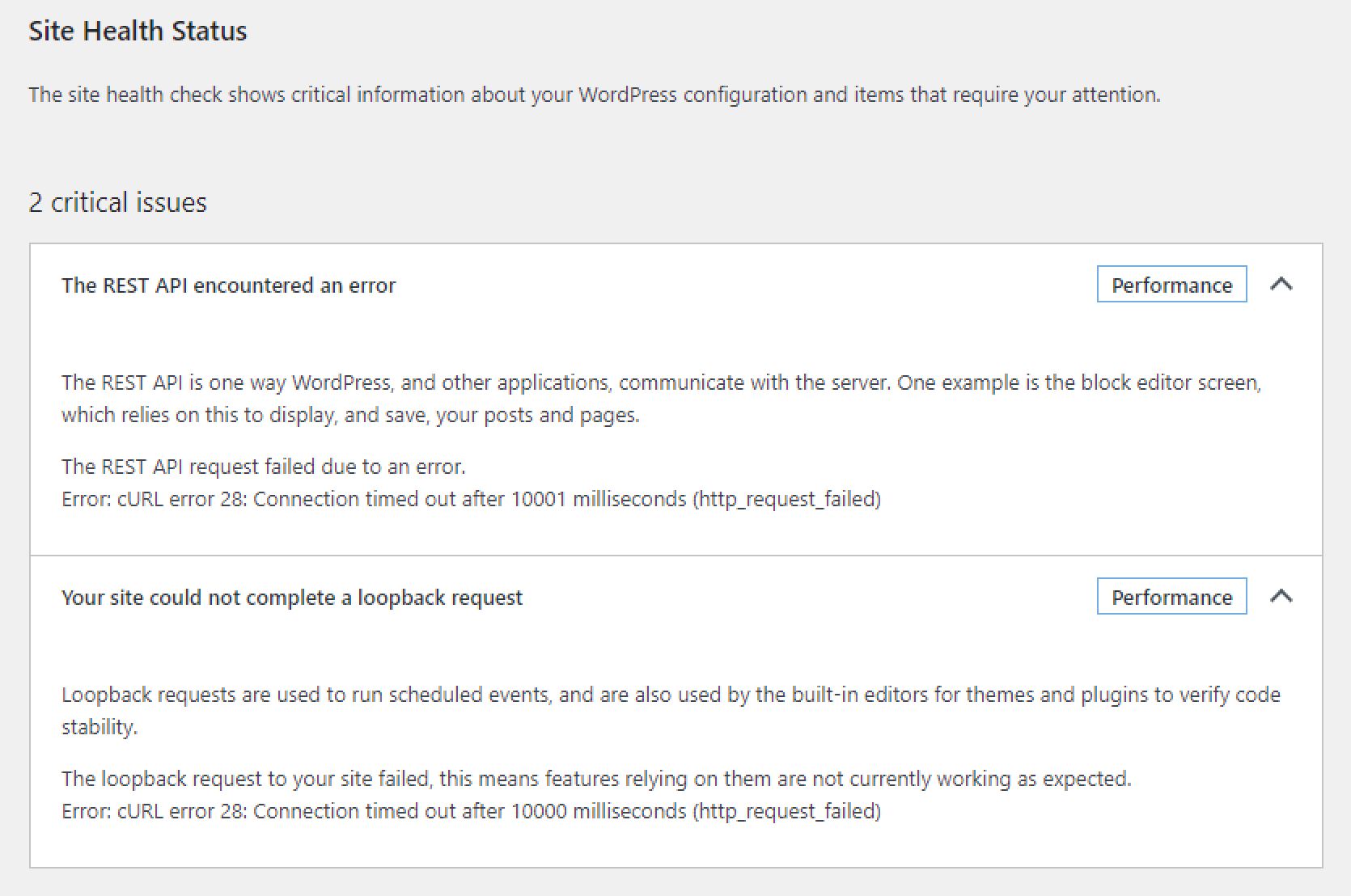
Navigate to Tools → Site Health from your WordPress admin dashboard to clarify whether or not the issue you’re encountering is the cURL error 28. Here are some variations of the WordPress cURL error 28 messages you may see in that section:
- The REST API request failed due to an error. Error: cURL error 28: Connection timed out after x milliseconds (http_request_failed)
- The loopback request to your site failed, this means features relying on them are not currently working as expected. Error: cURL error 28: Connection timed out after x milliseconds (http_request_failed)
What Causes cURL Error 28: Connection Timed Out
Common causes behind the cURL operation timed-out error message include:
- Firewall issues. The firewall feature on your WordPress website might flag a certain cURL request as suspicious, interrupting the file transfer process.
- Plugin conflicts. WordPress plugins make their cURL requests for data transfer. One might send too many requests or take too long to complete, triggering the cURL connection error in the Site Health.
- Incorrect SSL configuration. Like firewalls, your website’s SSL protocol could block valid requests to ensure secure connections.
- Outdated software. Your server configuration may not run on the latest PHP and cURL library versions, causing the operation timed-out error.
- Insufficient PHP memory limit. The timeout limit for your server may not be sufficient to complete the data transfer process.
How to Fix cURL Error 28: Connection Timed Out
We have six solutions to troubleshoot five possible culprits of the WordPress cURL error 28. We recommend going through them one at a time to see which one works best in your situation.
1. Disable Firewall in the Security Plugin
A WordPress firewall plugin provides an extra layer of security to your website, preventing bad network traffic from disrupting its performance. Sometimes, the firewall can get too cautious and flag legitimate outgoing cURL requests as suspicious, preventing them from reaching the server.
As a result, your website can’t send data to its targeted server, causing the operation timed-out error.
To check if your WordPress security plugin is causing the trouble, you can temporarily turn off its web application firewall feature or deactivate the plugin altogether.

Reactivate your firewall after a short wait. If the error reappears, try installing a different security plugin or seek help from the plugin’s developers. Some add-ons may ask you to add their IP addresses to your security modules’ allowlist to bypass their block attempt.
2. Check Other WordPress Plugins
If turning off your WordPress security plugin doesn’t solve the operation timed-out error, verify other active web software on your site. WordPress add-ons make cURL requests to run data transfer processes, so there’s a possibility that one of yours is causing the timeout issue.
Here’s how to locate the problematic plugin:
- Go to Plugins → Installed Plugins from your WordPress admin dashboard.
- Check the box on the top left corner to select all add-ons, then pick Deactivate from the Bulk actions dropdown box and click Apply.
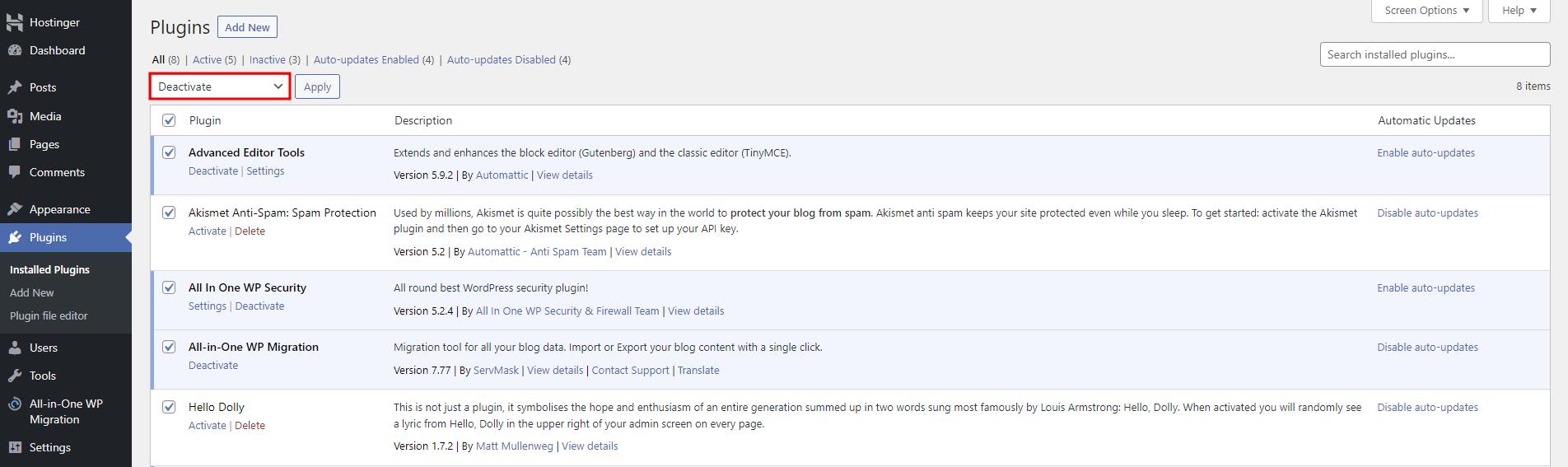
- If doing so solves the timeout error, activate your add-ons individually until you identify the culprit.
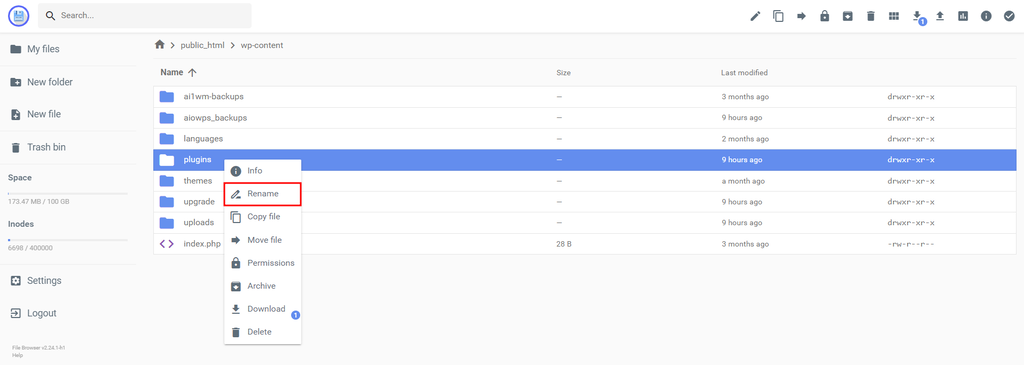
Sometimes, the error prevents users from accessing their WordPress admin dashboard. If it happens to you, use an FTP client like FileZilla or your host’s File Manager to deactivate the add-ons manually.
Locate the plugins folder in your root directory and rename it to deactivate all add-ons. Once you gain access to your site, re-activate them individually.
3. Reconfigure the SSL Certificate
An SSL certificate (Secure Sockets Layer) is a crucial security protocol that encrypts data transmitted between a user’s browser and the server. Installing an SSL certificate lets you implement the HTTPS protocol on your website, ensuring data encryption between your server and visitors’ browsers.
When your SSL certificate isn’t configured properly, it can mistake a valid cURL request as a threat and cause the cURL error code 28. Verify this possibility by running your website’s domain name through an SSL checker like Qualys.
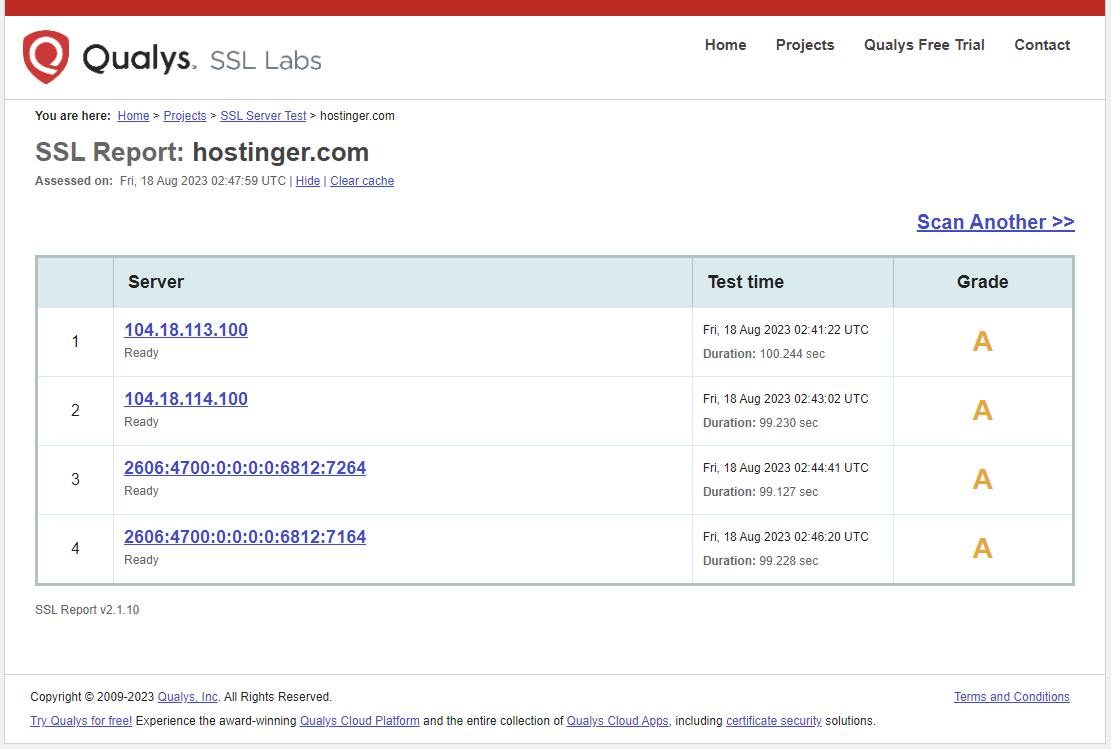
Re-install your SSL certificate If the tool detects an issue. Alternatively, contact your web host for assistance if you get free SSL as part of your hosting plan.
4. Check the cURL version
As WordPress is self-hosted, updating the core software ensures your site works optimally. Otherwise, it can cause various problems, including the cURL error 28: Operation Timed Out.
Check whether your website runs on the latest version of cURL via the Site Health page. Click on the Info tab and expand the Server section. Direct your attention to the PHP version and cURL version fields.
Refer to WordPress’s recommended extension version to ensure compatibility with your current PHP version and web software. For instance, PHP 8.0.28 works best with cURL 7.29.0 or higher.
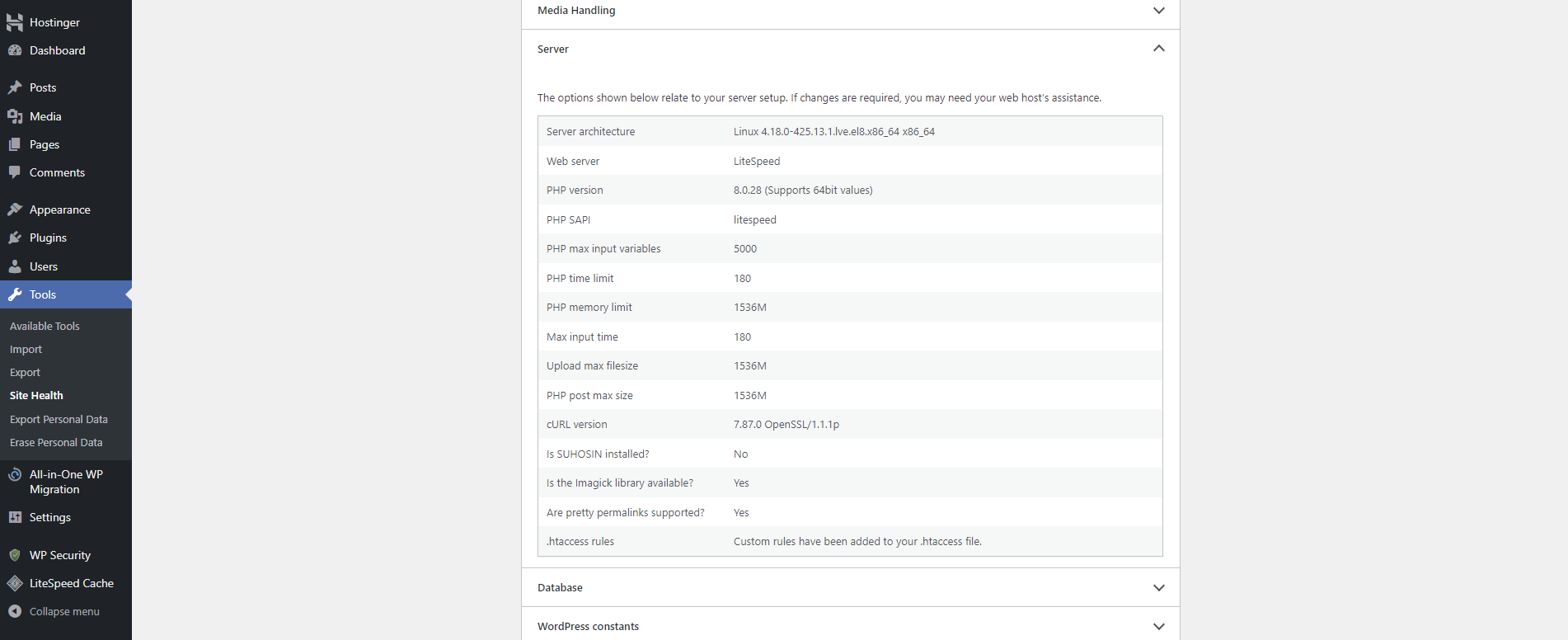
Contact your hosting company for upgrade assistance if both versions aren’t compatible.
Pro Tip
Ensuring your PHP is updated is an excellent way to keep your website secure. Our article on how to change PHP version in WordPress walks you through the update process.
5. Increase the PHP Limits
As mentioned before, WordPress plugins use cURL requests for various tasks. These tasks can be memory-intensive, especially when dealing with large datasets or complex operations. If the PHP memory limit is too low or the time limit is too short, cURL requests might fail, resulting in REST API processing timeout.
In this case, raising server limits should fix the cURL error 28.
First, check your current server limits via the Server tab on the Site Health page. While WordPress typically sets the memory limit and max execution time at 32 MB to 30 seconds, your web host might allocate higher maximum values than the default.
Either way, you should be able to increase them by modifying the .htaccess or wp-config.php file, setting it using the hPanel PHP Configuration, or upgrading your hosting plan.
Hostinger users may opt for the second method as the easiest way of the three. Here’s how:
- Navigate to Advanced → PHP Configuration from hPanel.
- Select PHP Options and locate the memoryLimit field.
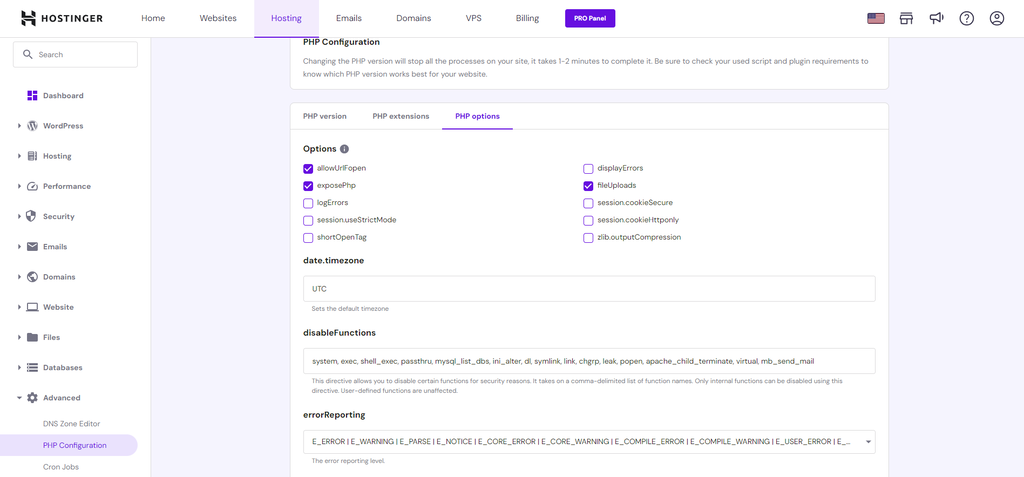
- Pick the highest amount from the dropdown box.

- Next, find the maxExecutionTime field and increase the default value as needed. Click Save once you’re done.

6. Contact Your Web Hosting Provider
If the previous methods fail, contact your hosting company for assistance. As your web host, they can help identify other issues causing the error, like conflicting security modules or server configuration problems.
Hostinger users running on our managed WordPress hosting can contact our support team for help via support@hostinger.com or live chat on hPanel. Support is available 24/7 in 10 languages.

Conclusion
Encountering the cURL error 28: Operation Timed Out in your WordPress website can be a frustrating roadblock. However, you can swiftly navigate the troubleshooting process with the right knowledge.
Let’s recap the six effective solutions we’ve explored to fix this issue:
- Turn off the security plugin’s firewall.
- Check other WordPress plugins for conflicts.
- Reconfigure the SSL certificate.
- Check the cURL version.
- Increase the PHP limits.
- Contact your hosting provider.
We hope this tutorial helped you fix the cURL error 28: Operation Timed Out. Good luck!
cURL Error 28: Connection Timed Out FAQ
This section explores the most frequently asked questions about the cURL error 28: Operation Timed Out.
How Do I Fix cURL Error 28 in WordPress?
You can try six effective solutions to resolve the cURL Connection Timed Out error in WordPress ‒ disable the firewall in your security plugin, examine other WordPress plugins for conflicts, reconfigure the SSL certificate, verify the cURL version, increase PHP limits, or contact your web host for assistance.
What Causes cURL Error 28 to Happen While Downloading?
If the error occurs during a download, it could result from a slow network connection or a low server connection timeout limit. The former is temporary, while the latter requires server limit change. If you can’t reconfigure the timeout value, reach out to your web host for assistance.
What Is the Latest Version of cURL?
As of writing this tutorial, the most recent stable version is 8.2.1. You can check the latest version of cURL on its official website.

Jordana is a Senior Content Writer with a background in Information Systems. She has over five years of experience in WordPress and is casually dabbling with PHP and MySQL. Her passion for writing and technology drives her to create tutorials for anyone wanting to build their online presence. Follow her on LinkedIn.


