How to use jQuery in WordPress: 2 methods (manually and using a plugin)
Sep 15, 2026
/
By Brian
/
4 min Read

WordPress developers use JavaScript and libraries to create interactive elements on a web page and simplify the coding process. Among the most popular options is jQuery.
What makes using jQuery in WordPress special is the extensive plugin ecosystem. Instead of writing a jQuery script from scratch, developers can save time by employing reusable code snippets to customize WordPress plugins and themes.
If you want to create engaging websites using jQuery, this article will guide you through the entire process. We’ll also discuss what jQuery is, its key advantages, and how to add jQuery to WordPress.
Download all-in-one WordPress cheat sheet
What Is jQuery?
jQuery is a JavaScript library used for creating dynamic front-end components, such as rotating sliders. Its lightweight code enables web developers to manipulate HTML elements and validate data more efficiently.
Why Use jQuery
Apart from its plugin ecosystem, other reasons to use a jQuery library in WordPress are:
- Beginner-friendly. Since it uses a simple and short text format, jQuery code is easy to read and write.
- Compactness. A jQuery file is usually smaller than plain JavaScript, letting you perform the same tasks with fewer characters.
- Cross-browser compatibility. Popular browsers that support jQuery include Google Chrome, Microsoft Edge, Mozilla Firefox, Safari, and Opera.
- AJAX support. Developers can implement AJAX to build a responsive and user-friendly website.
- Lower bandwidth usage. jQuery can execute animation effects directly on the user’s browser, resulting in lower bandwidth usage.
How to Use jQuery in WordPress
There are two ways of adding jQuery scripts to a WordPress site – manually or using a WordPress plugin.

Let’s start with the manual method.
Adding jQuery Manually
If you have experience with JavaScript and WordPress development, follow these steps:
1. Switch to the Compatibility Mode
Before you start adding your own custom jQuery scripts to WordPress, it’s crucial to understand jQuery’s compatibility mode.
By default, jQuery uses the $ sign as a shortcut:
$(document) .ready (function() {
$("button") .click (function () {
However, other JavaScript libraries on your site also implement the dollar sign in their syntax. To avoid conflicts, enter the compatibility mode by replacing the $ sign with jQuery.
Take a look at the following code:
jQuery(document) .ready (function() {
jQuery("button") .click (function () {
The only problem with this mode is, writing jQuery instead of the shortcut means incorporating more characters, leading to bloated scripts.
To solve this issue, pick a new variable name to replace the dollar sign. The most common one is $j.
Simply add this code at the top of your jQuery scripts:
var $j = jQuery.noConflict()
2. Make a Script File
After that, create a custom script file with the .js extension. Hostinger users can follow these steps:
Important! For beginners, we recommend creating a WordPress child theme first. This way, you can customize the styling, layout parameters, and scripts without changing the parent theme directory.
- Access Hostinger dashboard → Hosting → Manage.
- On the left menu, select Files → File Manager.
- Enter public_html → wp-content.
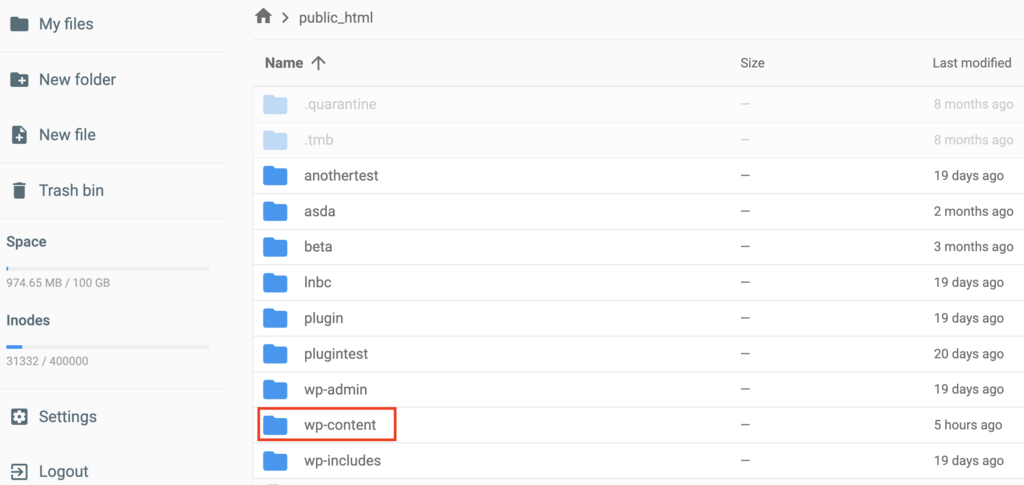
- Open the themes folder and select one of the installed themes.
- On the left menu, click New Folder and name the folder js.
- Click New File to create a new .js file – for instance: new_script.js.
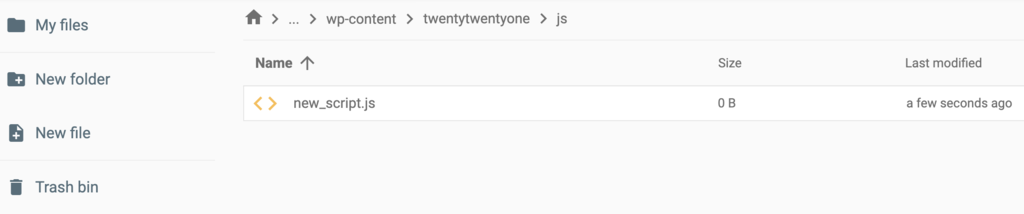
- Add jQuery scripts to the file.
- Repeat the same steps to customize WordPress plugins.
Pro Tip
If you’re unsure how to code a script, our guide What Is jQuery? A Beginner’s Introduction to the jQuery Library explains its main features.
3. Add Code Into the functions.php File
Before adding inline scripts to WordPress, locate the functions.php file in the theme’s folder.
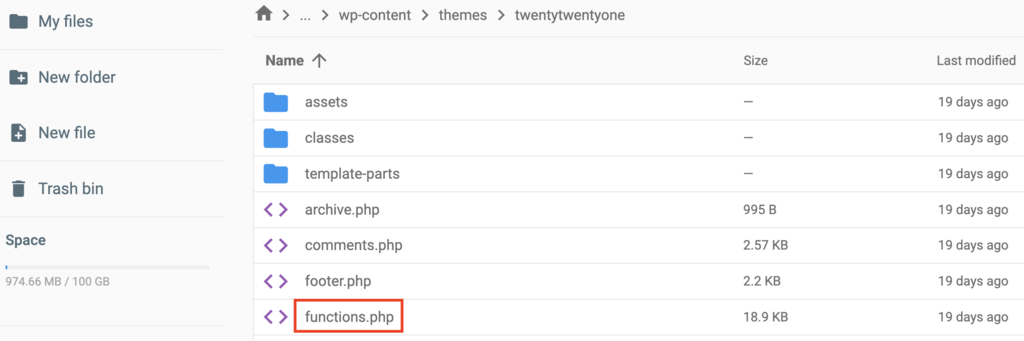
Open the file and add the following jQuery function at the top:
function add_my_scripts() {
    wp_enqueue_script( ‘new-script', get_template_directory_uri() . '/js/new_script.js', array( 'jquery' ), '1.0.0', true );
}
add_action( 'wp_enqueue_scripts', 'add_my_scripts' )
Make sure to replace new-script and new_script.js with the actual file names.
By inserting the wp_enqueue_script function into the PHP code, users can add a custom script and inform WordPress that it relies on jQuery.
It also helps WordPress locate the script file and customize the theme based on your jQuery scripts.
Adding jQuery via a WordPress Plugin
If adding scripts to WordPress manually is too technical for you, we recommend using jQuery WordPress plugins.
Here’s how:
1. Pick a Plugin
WordPress offers various plugins to create interactive websites with jQuery. Here are our top picks for different use cases:
- jQuery Updater. While jQuery comes pre-loaded with WordPress, the platform often uses an outdated version. jQuery Updater ensures that your site automatically installs the latest version of this JavaScript library.
- Advanced Custom Fields. This tool is suitable for adding custom fields to posts and pages. Some of its jQuery-based fields include Color Picker, Google Map, Date Picker, and Time Picker.
- jQuery Validation For Contact Form 7. This plugin lets you display error messages when users enter invalid data on Contact Form 7. You can create validation rules for URLs, dates, credit cards, and phone numbers.
- jQuery Post Splitter. Compatible with most WordPress themes, this plugin lets you split posts and pages into sliders.
Although installing these plugins simplifies the website designing process, you still need a basic knowledge of JavaScript and jQuery libraries to use them.
Suggested Reading
How to Add JavaScript to WordPress
WordPress Theme Editor
WordPress File Manager
Best WordPress Affiliate Plugins
WordPress jQuery Is Not Defined Error
The 7 Best WordPress Security Plugins
15 Best WordPress Project Management Plugins
Conclusion
Knowing how to use jQuery in WordPress is crucial for any site owners and developers.
jQuery offers a lightweight solution to create interactive elements, edit pages, and customize the overall look of a WordPress website.
To add jQuery to WordPress scripts manually, switch to its compatibility mode, create a script file, and customize the functions.php file in your theme’s folder.
For beginners, WordPress jQuery plugins like Advanced Custom Fields will help with the process.
We hope this article will help you develop a more unique and engaging website. Good luck.
jQuery in WordPress FAQs
Below is some additional information about jQuery in WordPress.
Is jQuery Easy to Learn?
jQuery is generally considered easy to learn for beginners due to its concise syntax and intuitive API. Its popularity has led to a wealth of documentation and community support, making it a popular choice for front-end development.
What Are Some of the Drawbacks of Using jQuery?
jQuery drawbacks include increased page load times, overreliance leading to code bloat, accessibility issues, browser feature alternatives, and modern web development trends favoring alternative solutions like native JavaScript and newer frameworks. Careful consideration of jQuery’s use is important.
How Do I Upgrade to the Latest jQuery Version?
Upgrading to a newer version of jQuery makes a website more secure and faster. Upgrading to a newer version of jQuery includes identifying where jQuery is being used, adding the new version of jQuery in a testing mode, and testing areas of the site that use jQuery for issues.
This article is a localized version of How to use jQuery in WordPress: 2 methods (manually and using a plugin), originally published in English.

Brian is a Content Writer who loves telling complex stories in a simple way. He has written all types of content, including tutorials, blog posts, landing pages, social media posts, white papers, infographics, and YouTube scripts. Follow him on LinkedIn.


