Elementor vs Beaver Builder: which page builder is best for your WordPress site?
Dec 02, 2025
/
By Domantas G. & Nadia D.
/
14 min Read

WordPress page builders offer ease of use and do not require coding, helping all kinds of users design a website without needing to hire web designers. However, finding the right page builder can be challenging with the many design tool options available.
Elementor and Beaver Builder are two of the most popular WordPress page builder plugins. While their visual editor covers similar customization options, one might be a better fit depending on the type of website you’re creating.
This article will present a detailed comparison of Elementor vs Beaver Builder to help you decide on the right solution.
What's the Difference Between Elementor and Beaver Builder
The main difference between Elementor and Beaver Builder is that Elementor has a larger user base and offers more features and widgets, making it a more versatile option. In contrast, Beaver Builder has a simpler and more streamlined interface, making it easier to use and better for beginners. Additionally, Elementor is better suited for larger and more complex websites, thanks to its wider selection of templates.
What Makes a Good Page Builder?
Before we go any further, here are a few important factors indicating a good WordPress plugin for page building:
- User-friendliness – a good WordPress page builder should be quick, efficient, and easy to use.
- Features – it should have various widgets and layouts to build specific pages for different website types, such as eCommerce and business sites.
- Design settings – choose a website builder plugin offering multiple styling options to create a truly unique website.
- Customizability – a good page builder offers users the flexibility to make a website from scratch or using pre-made themes and custom block templates.
- Responsiveness – page builders should let you build a mobile-friendly website to improve the user experience on various devices and screen sizes.
- Pricing – most plugins offer a free version along with premium plans, so look for an affordable solution covering sufficient features.
- Support – check if there is customer support in case you face issues during website development.
Suggested Reading
Elementor vs Beaver Builder: Detailed Comparison
Now that you know what makes a good WordPress page builder plugin, let’s go into more detail comparing Elementor and Beaver Builder.
| Elementor | Beaver Builder | |
| Ease of use | Features an intuitive drag-and-drop editor, keyboard shortcuts, and right-click functionality | Offers a drag-and-drop visual editor and keyboard shortcuts, with no right-click option |
| Modules | Supports multiple basic and pro widgets, but no white labeling feature | Features a range of elements with a white labeling feature in premium plans |
| Design options | Elementor Pro supports advanced design settings like motion effects | Limited advanced design options |
| Themes and templates | Provides 200+ pre-made templates and a built-in theme builder | Less pre-made template options and the theme builder requires an additional cost |
| Responsiveness | Designs made with Elementor are responsive by default | All layouts automatically adjust to different screen sizes |
| Pricing | Starts at $59/year | From $99/year |
| Support | Offers support and an extensive knowledge base | Provides a variety of support channels and learning resources |
Elementor vs Beaver Builder: Ease of Use
This section will compare the interface of both Elementor and Beaver Builder’s visual editor, so you can decide which page builder is more comfortable to use.
Elementor
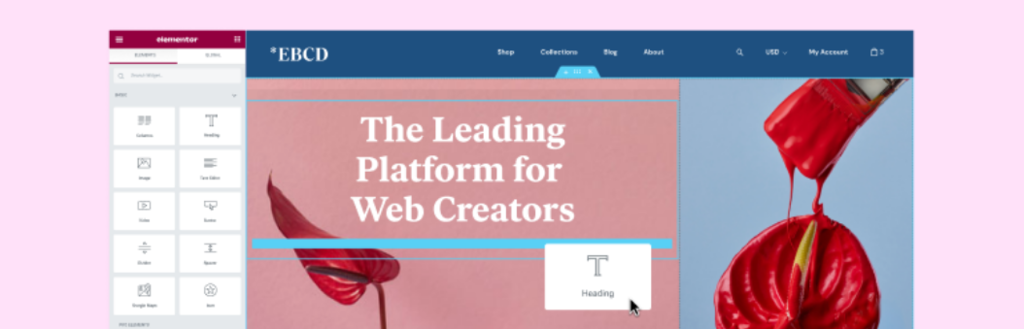
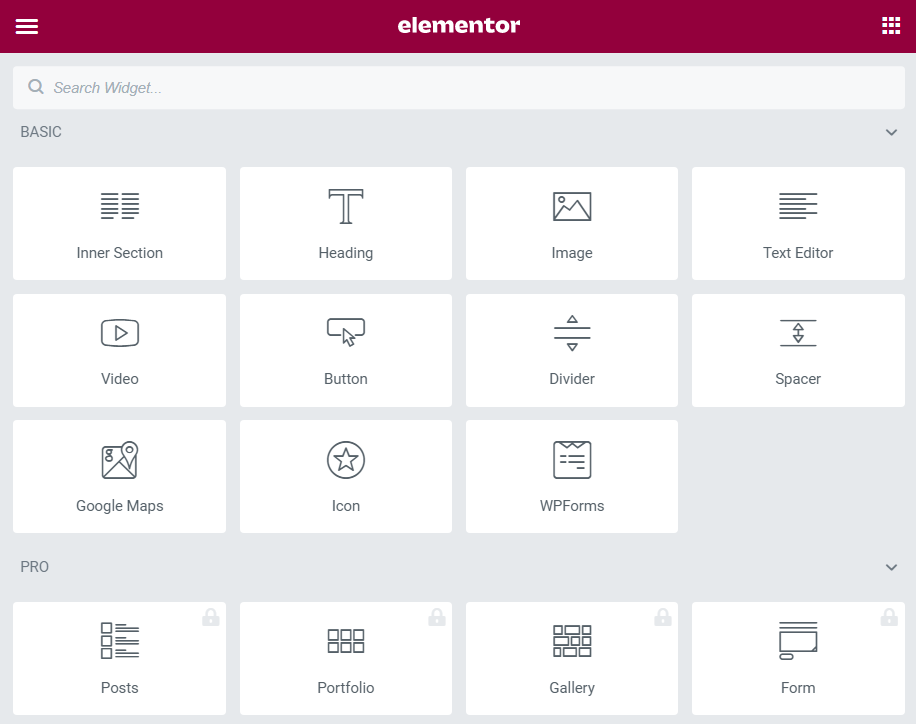
This page builder’s interface has two main parts. On the left, you will find Elementor’s editing navigation panel allowing quick access to different widgets from the basic, pro, and general categories.
On the right side is the web page you are creating. Simply drag elements from the left panel to different sections on the page. You can also add or delete columns to customize the pre-built page layout. Each section can have up to six columns, and you can place elements anywhere.
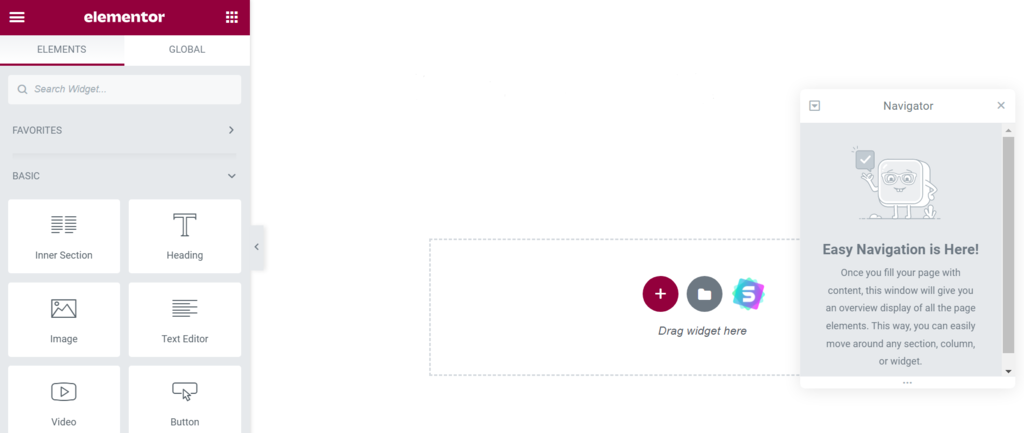
When users right-click on a section, column, or page, a pop-up menu will appear with copy-paste and duplicate options. Plus, Elementor implements keyboard shortcuts, like CTRL+Z, to undo an action.
An editing menu will appear on the panel each time you click on an element. For example, clicking on an image lets you adjust its size and alignment. Also, the Edit icon on top of each element enables you to customize the page layout quickly.
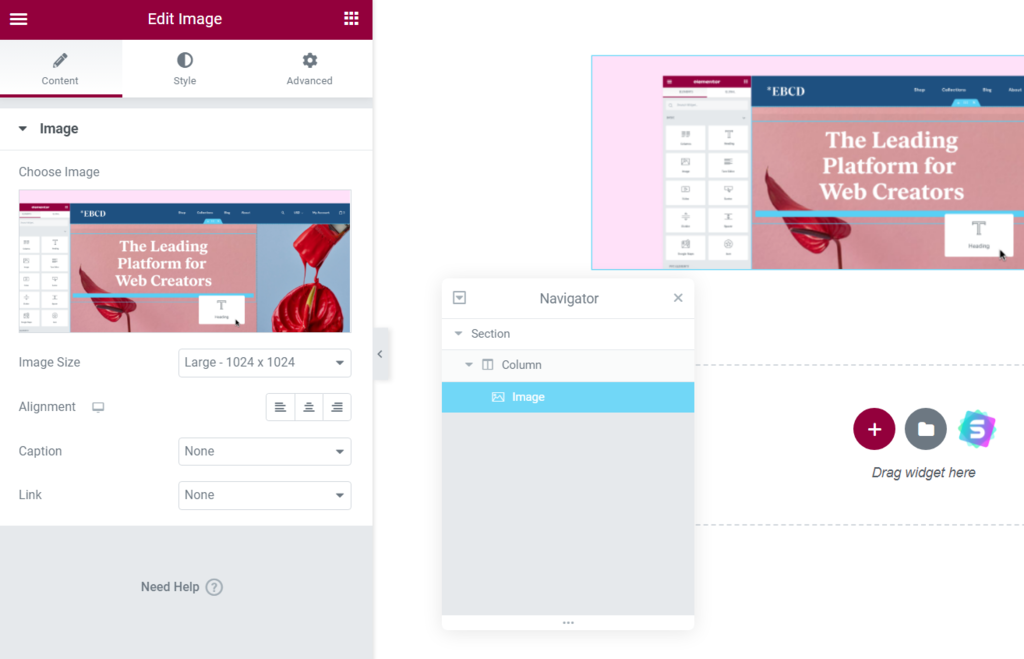
The interactive live editor previews any site changes whenever you add a new element to the page. Also, Elementor has a feature to autosave your work progress.
To go back to the widget options, you only need to click on the icon in the editing panel’s top-right corner.
Elementor’s panel includes features such as:
- Navigator – users can easily switch between sections and adjust them using the page builder’s intuitive navigation window.
- History – it keeps track of edits, enabling you to redo or undo an action at any time.
- Responsive Mode – this lets users apply settings and test them on desktop, tablet, and mobile devices.
- Preview Changes – it lets users check the page’s appearance before publishing.
Beaver Builder

When you first access the Beaver Builder interface on WordPress, there will be a quick tutorial on using the plugin, from choosing a template to adding and editing content. This is especially useful for beginners who are just starting with page builders.
Like Elementor, Beaver Builder is easy to navigate with an intuitive drag-and-drop editor. The user interface consists of a content panel and a live preview page.
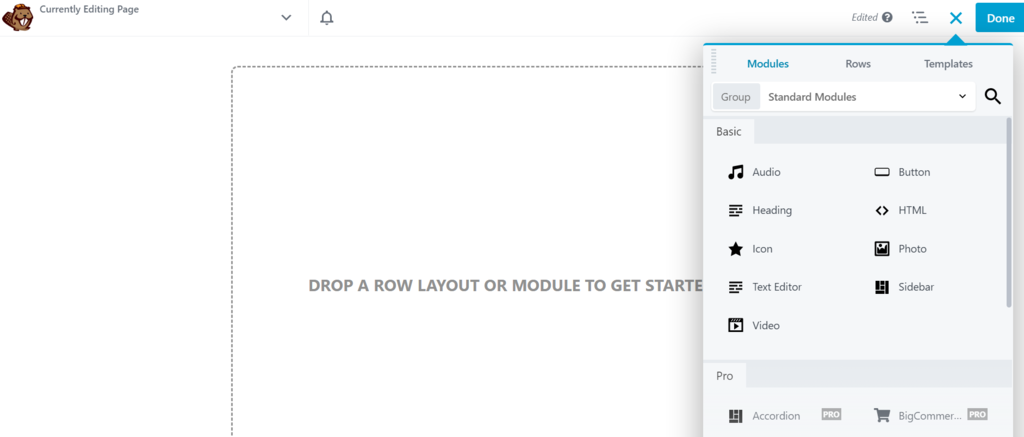
When you click the + button on the top right, a panel similar to Elementor’s will extend down. Then, a pop-up with editing options will appear as you drag a module onto the page.
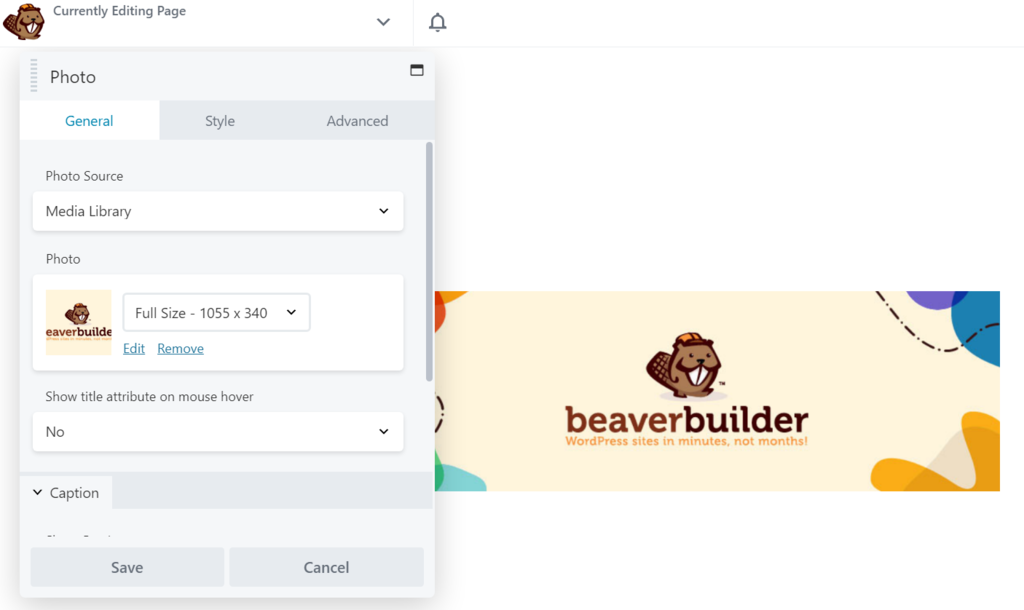
This page builder features a live preview so you can see your editing progress. Also, Beaver Builder saves any changes automatically, similar to Elementor.
Moreover, Beaver Builder offers a Tools menu on the page’s top-left corner. It allows you to preview, duplicate, and publish layouts quickly. Additionally, there’s a list of supported keyboard shortcuts and a history tab where users can easily review all their actions and spot page issues.
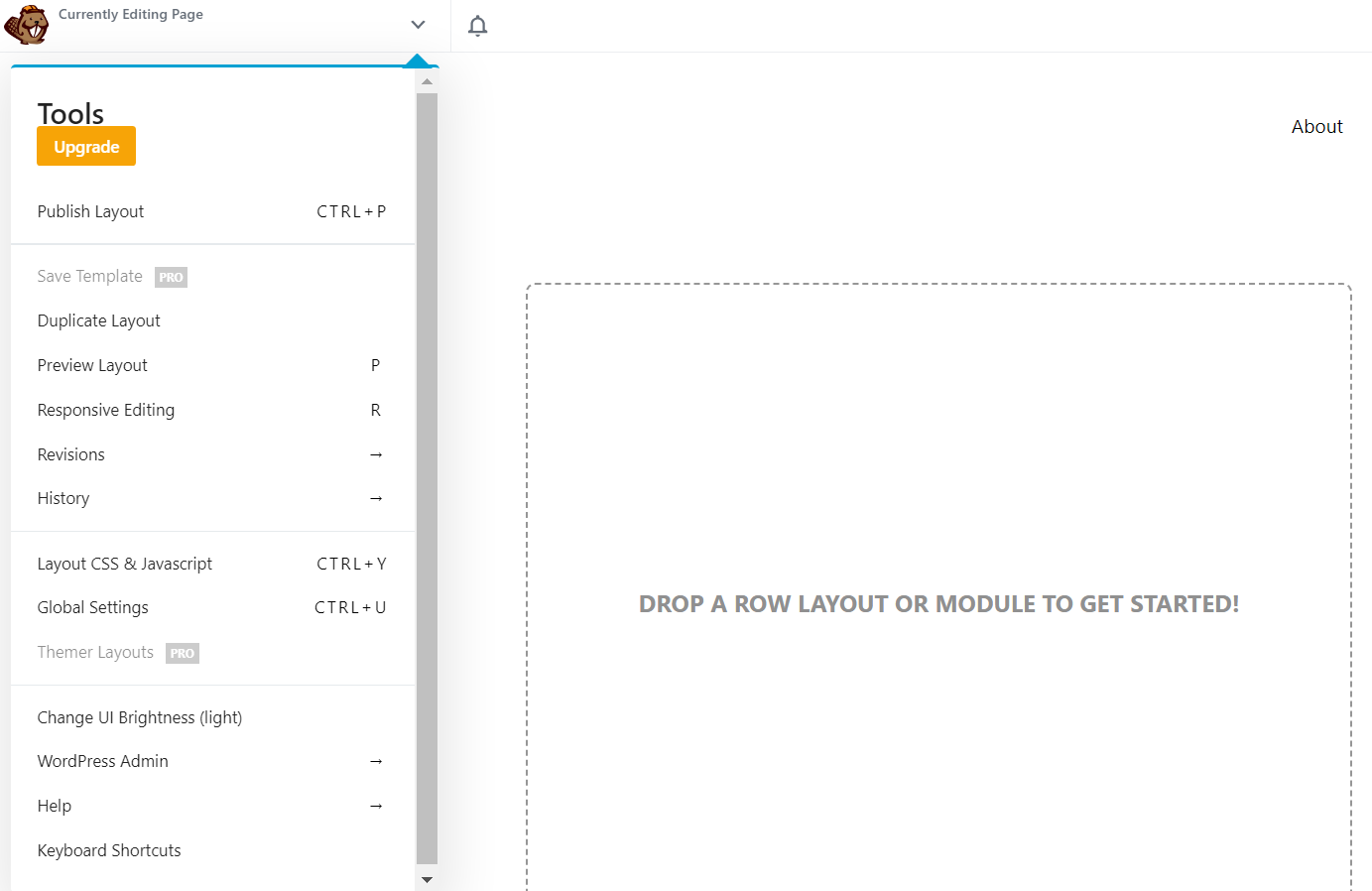
Unlike Elementor, the Beaver Builder interface doesn’t offer a right-click menu. So, users need to navigate different rows and columns to access specific settings.
The Verdict
When comparing the interfaces of Elementor vs Beaver Builder, both page builders offer easy navigation and an intuitive visual editor. Also, they both support familiar keyboard shortcuts to apply changes quickly.
However, Beaver Builder’s interface doesn’t support the right-click function to easily adjust page elements – unlike Elementor.
Elementor vs Beaver Builder: Modules
Both page builders offer extensive elements and styling options, enabling users to add unique functionalities to their WordPress pages.
Elementor
The free version of this page builder plugin offers sufficient styling options through a variety of basic widgets. These include a text editor as well as buttons, videos, images, Google Maps, and icon boxes.
Upgrading to Elementor Pro lets you access exclusive widgets such as slides, portfolios, table of contents, countdowns, pricing tables, and calls-to-action (CTAs).
This page builder also includes WooCommerce widgets, enabling users to customize product images and prices, add-to-cart buttons, and product ratings. With these elements, you can easily build an eCommerce page and design it to your preferences.
At the same time, Elementor’s theme widgets help users create single posts with elements such as the site logo, post title, author box, and post excerpt.
Furthermore, the plugin features a pop-up builder, which you can use to grow your subscriber list or inform visitors about your site’s latest news. Various templates are available, including styling options like full-screen, sliding, and fly-in pop-ups.
Beaver Builder
This page builder categorizes rows, columns, and modules into different types:
- Basic modules – include features necessary to make a standard page, such as the text editor, audio and video elements, and buttons.
- Pro modules – more comprehensive modules useful to create a business page, including contact and login forms, CTAs, and BigCommerce products.
- Reusable blocks – where you can locate your custom-made blocks.
- WordPress widgets – includes almost every widget you can find on the WordPress admin panel, like archives, categories, navigation menu, and recent comments.
Beaver Builder’s free version lets you create pages with basic widgets, while upgrading to the paid plans unlocks more than 90 professional widgets. Users can also create their own modules to enable specific functionality on their site.
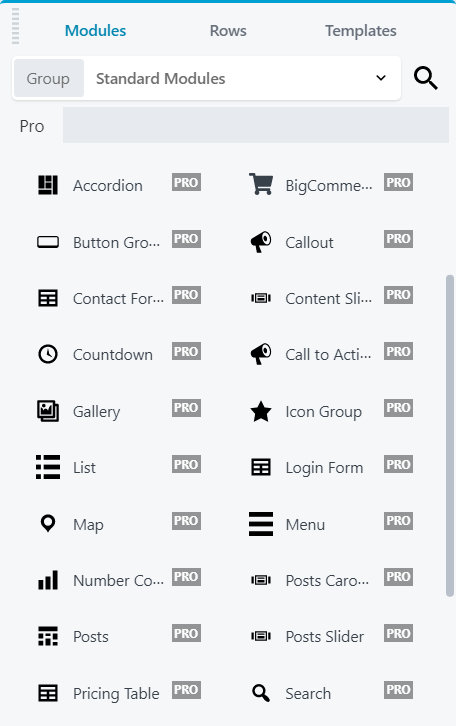
The plugin categorizes modules into standard and global types. Creating a global element will let users apply changes everywhere on their website when the element is in use.
Additionally, you can restrict the website’s user access by defining different admin roles. There are three types of front-end user access options:
- Builder access – it lets users edit pages, posts, and custom posts.
- Unrestricted editing – enables full editing access to users beyond pages and posts.
- Global rows, columns, and modules editing – allows users to customize global rows and modules.
Moreover, this page builder offers the option of white labeling. You can place your company name and logo instead of Beaver Builder’s on the site’s back-end.
The Verdict
Both Elementor and Beaver Builder cover various websites’ needs – from small companies to large eCommerce stores. Elementor lets you quickly change a page’s layout and add elements, while Beaver Builder offers you access to edit the content modules.
However, with its white labeling and front-end user access feature, Beaver Builder might be the better solution for web design agencies and developers.
Elementor vs Beaver Builder: Design Options
Both Elementor and Beaver Builder offer different design options. Let’s review what each of them enables you to control in terms of the site’s look and feel.
Elementor
With Elementor, you can easily configure the website settings, theme builder, and user preferences by clicking the icon in the upper left corner of the editing panel.
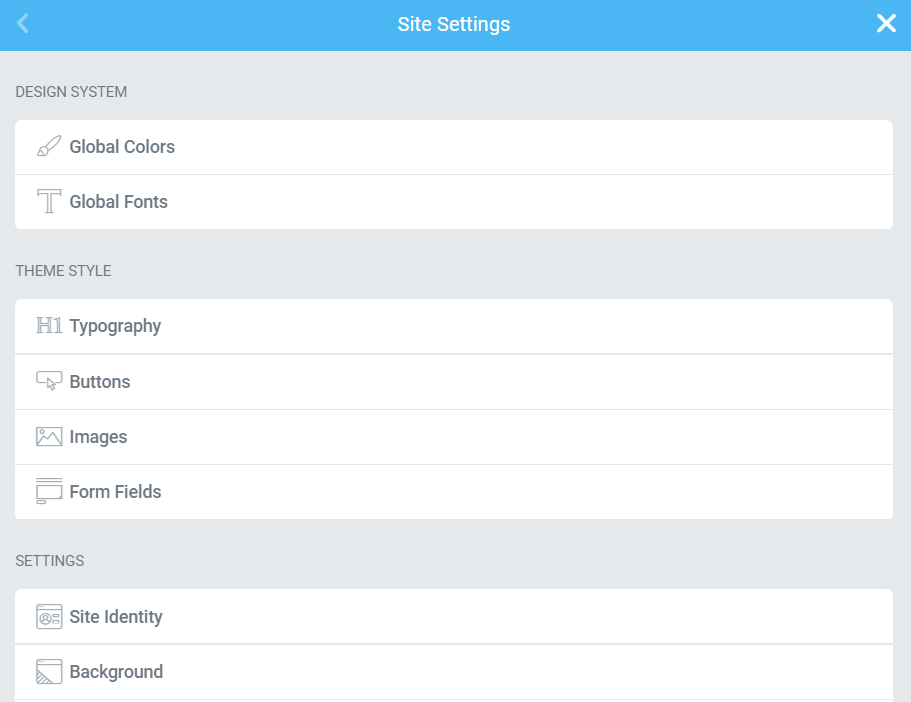
Site Settings is where you can customize design systems such as Global Colors and Global Fonts. That way, you can set predefined global and inline custom colors and edit typography styles for the whole site.
Theme Builder lets you create default style settings for HTML elements such as buttons, images, and form fields. Also, the page builder has a header and footer feature where you can adjust the appearance, width, menu, style, and background color.
Meanwhile, edit the site name, logo, and description under User Preferences. There are also additional settings for UI Theme, Panel Width, and Elementor Lightbox.
Upgrading to Elementor Pro gives you access to advanced design options, such as:
- Custom CSS – apply global custom CSS code throughout the whole site or to individual elements.
- Motion effects – create transitions or animations like parallax scrolling for a more interactive design.
- Custom positioning – use absolute positioning or drag widgets to any page area to create unique designs.
Beaver Builder
Like Elementor, this page builder offers design alternatives you can use for each module. However, there are limited advanced design options compared to Elementor Pro.
Beaver Builder lets you add custom CSS only to the entire site, unlike Elementor Pro which enables users to apply custom CSS to different elements. Also, Beaver Builder has no features such as motion effects, global colors, and custom positioning.
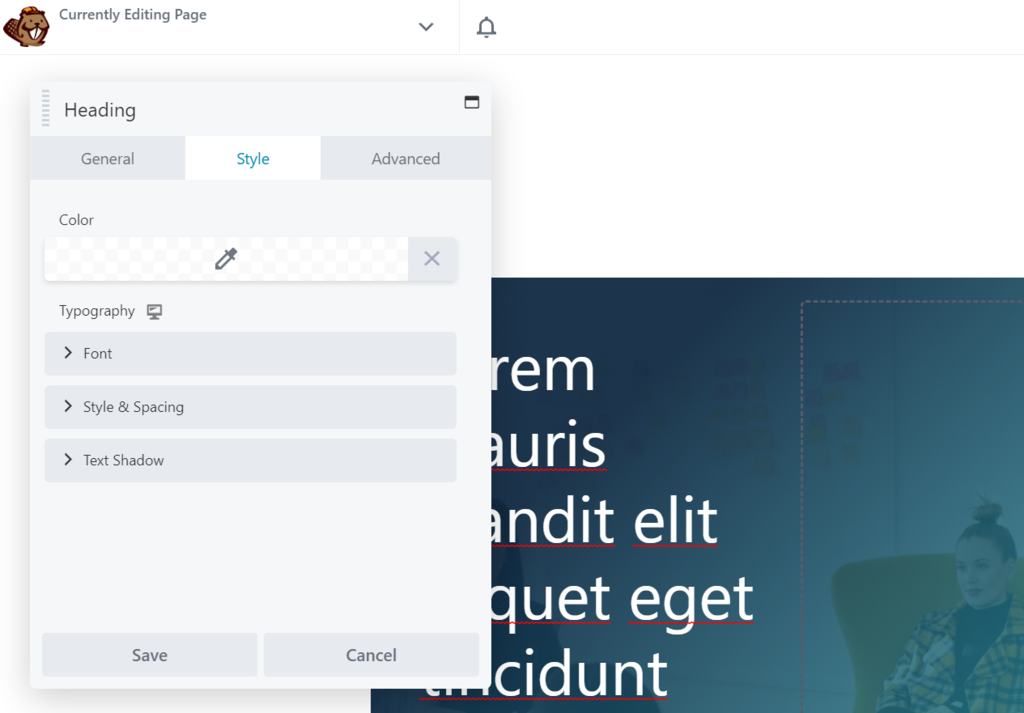
However, you can apply design settings for each row, column, and module, as well as set a base font size and default width.
The Verdict
Both Elementor and Beaver Builder offer sufficient design flexibility to create a standard website. However, Elementor outperforms with its advanced features like motion effects and custom CSS.
Elementor vs Beaver Builder: Themes and Templates
The purpose of page builders is to help users create a site using various pre-designed templates. This section will compare the customizability of themes and templates in Elementor vs Beaver Builder.
Elementor
With over 200 professionally-designed page templates in the Elementor template library, this page builder covers most niches, from business landing pages to online portfolios. So, you don’t need to start building a site from scratch.
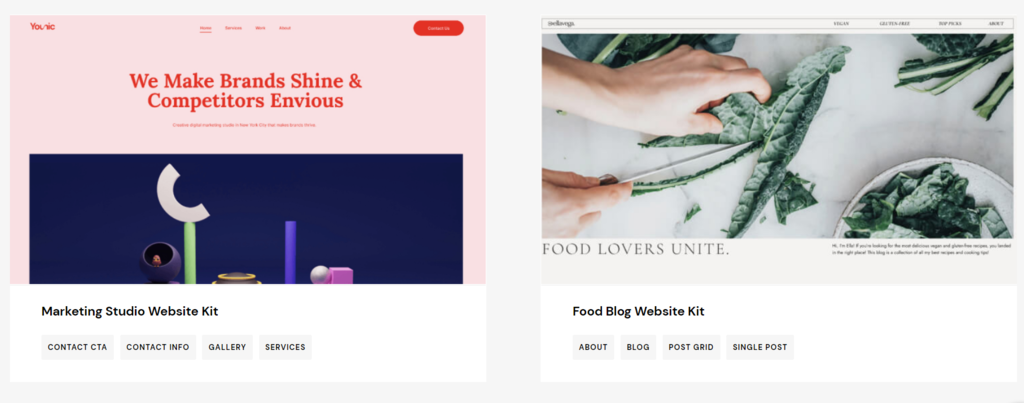
Elementor offers a few pre-made template options:
- Blocks – custom-made templates you can create for a specific section and import to a new page.
- Pages – full-page templates built to create a single page.
- Template kits – a set of templates containing different page elements to build a complete site structure.
Using designs from the Elementor template library lets users focus more on widget selection and content planning. However, you can also design a site from scratch with its built-in theme builder and save it as a template.
The Elementor Pro theme builder lets users design a website with complete control. It’s possible to customize elements such as headers and footers, 404 pages, and your online store layout.
What’s more, the theme builder’s easy website management feature allows you to edit every part of the site from a single interface.
Elementor is also compatible with almost any WordPress theme, but it recommends Hello. We have a list of the best WordPress themes for Elementor if you need one that’s optimized for the page builder.
Beaver Builder
Beaver Builder categorizes pre-made templates as follows:
- Landing page templates – includes three free designs and more than 25 premium templates for landing pages.
- Content page templates – the plugin’s free version gives access to five templates, while the pro version grants access to over 20 pre-made templates, including contact pages and newsletter subscriptions.
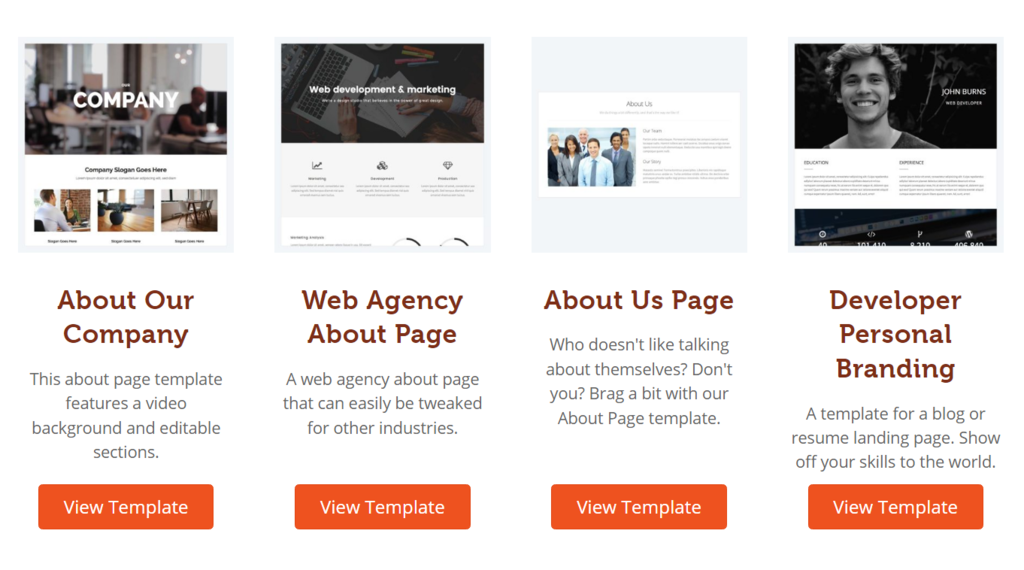
Additionally, you can save your custom-made designs to your template library and use them on any page on the site.
Beaver Builder also offers a theme builder, the Beaver Themer. However, it is an additional feature that costs $147/year, and you can only use it with the premium version of the plugin.
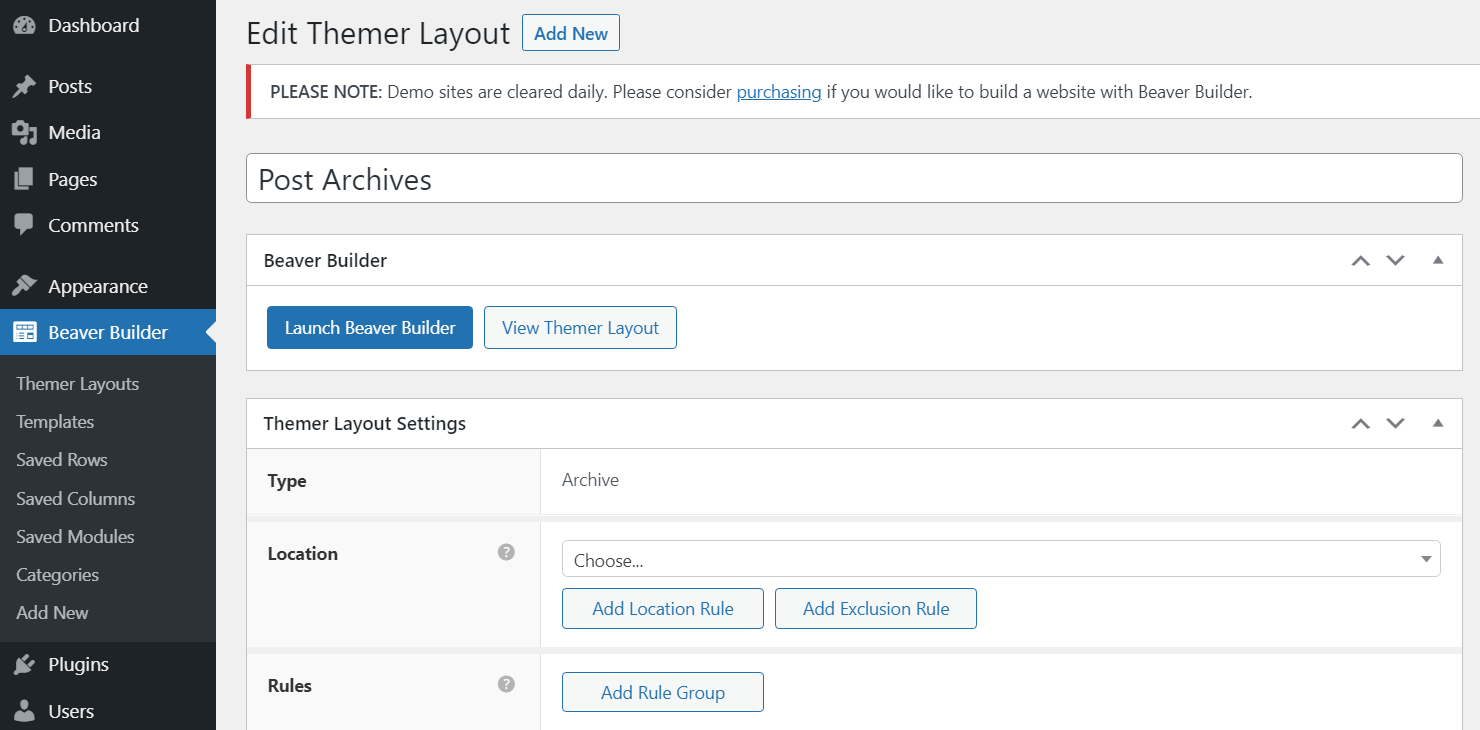
The Beaver Themer includes key customization features for elements such as:
- Post grids – create a grid or list layout to display your archive and blog design.
- Theme templates – customize layouts for 404 pages, blog archives, and WooCommerce product pages.
- Theme parts – build custom header and footer layouts, CTA rows, and announcement bars for your pages.
- Field connections – connect rows, columns, and modules to external data on your site.
In addition, the plugin’s premium plans come with the Beaver Builder Theme. It is the official Beaver Builder framework that caters to different WordPress sites with an array of styling options.
The Verdict
Elementor and Beaver Builder offer top-notch templates and styling options to create a professional-looking site. However, Elementor leads the race with over 200 template designs.
Also, you will need to purchase a theme builder separately with Beaver Builder, even if you’re a premium plan user. Comparing Beaver Builder vs Elementor in terms of value, the latter is the clear winner.
Suggested Reading
If you're looking for an easy way to elevate your website design, consider trying these WordPress website design companies' services.
Elementor vs Beaver Builder: Responsiveness
A responsive design lets you speed up a WordPress website and improve the user experience. We will compare how both page builders can help optimize your site for different screens.
Elementor
By default, all designs made with Elementor Pro are responsive and perfectly navigable on different devices.
Moreover, you can preview each page before publishing and adjust different elements by clicking the device icons – mobile, desktop, and tablet settings are available.
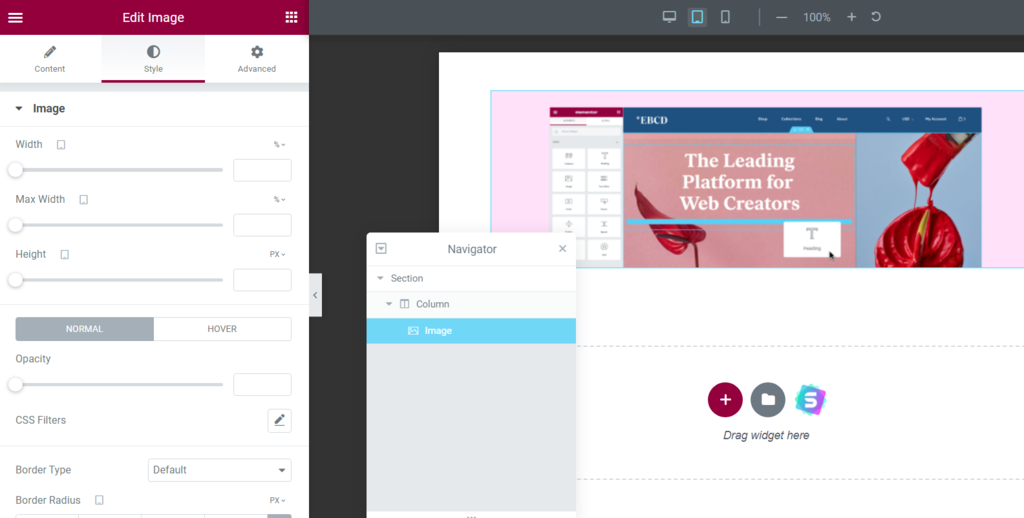
Elementor Pro also offers more customization control for creating a responsive site, including:
- Background images and borders – select different images for each device and adjust their position and size according to the display area of different screens.
- Visibility – show or hide certain elements based on the user’s device.
- Mobile and tablet breakpoints – set breakpoint values by navigating to the site settings on the widget panel.
- Columns ordering – enables users to reverse the order of columns to become more responsive.
Beaver Builder
Similar to Elementor Pro, all layouts you create with Beaver Builder automatically adjust to different screens, including desktop, tablet, and mobile devices.
Beaver Builder offers further responsive page customizations, including:
- Breakpoints – change default breakpoints to fit large, medium, and small screen sizes.
- Spacing – the auto spacing feature adjusts modules and columns for small devices by default.
- Stacking – it adapts the ordering of modules and columns as the width changes on different screen sizes.
- Visibility – hide or make any module, row, and column visible on specific devices.
- Device settings – the responsive editing mode in the Tools menu lets you make changes as you preview the page.
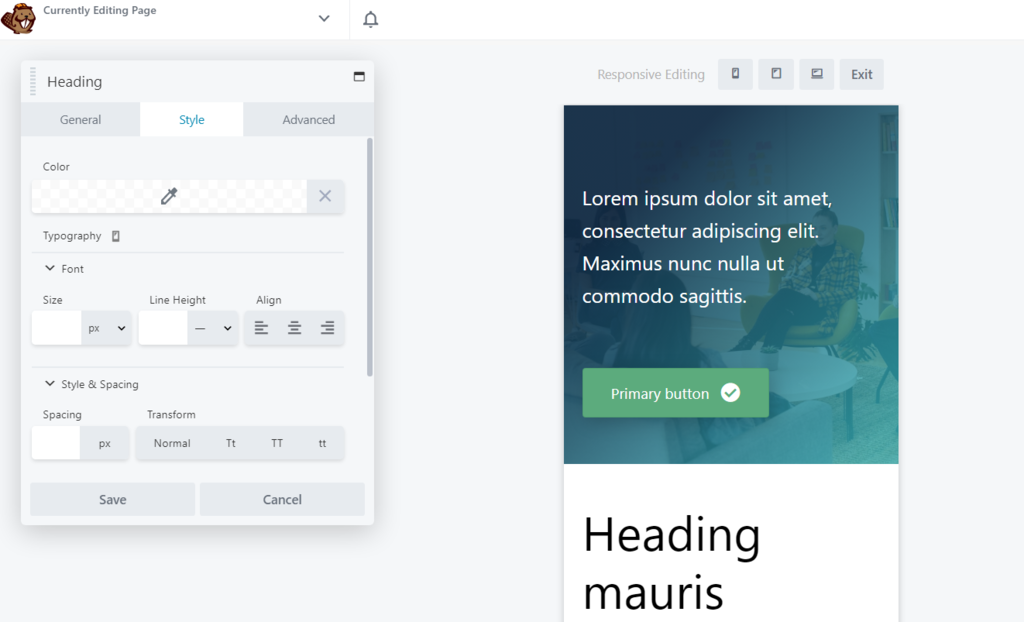
Furthermore, using the Beaver Builder Theme in the premium version lets you edit the heading and font size for Beaver Themer layouts and the Beaver Builder plugin.
The Verdict
When comparing Beaver Builder vs Elementor, both perform similarly in terms of mobile-friendliness. Designs made with each page builder are responsive by default, and users can apply specific settings to improve their site responsiveness.
However, some adjustment options for heading and font sizes in Beaver Builder are only available when you purchase a premium plan and additional theme building features, unlike in Elementor Pro.
Elementor vs Beaver Builder: Pricing
As both popular page builders offer free and paid plans, carefully consider each solution’s features and their value for money.
Elementor
Elementor’s free version lets you access enough tools to build a standard web page using all basic widgets and over 30 pre-designed page templates.
Meanwhile, Elementor Pro covers extra features and comes in four plans:
- The Essential Plan lets you use Elementor on one website for $59/year.
- The Advanced Plan supports three websites for $99/year. It is recommended for small to medium business owners looking to expand their operations.
- The most popular package, the Expert Plan, covers up to 25 websites for $199/year, perfect for professional web designers and developers.
- The Agency Plan supports up to 1,000 websites for $399/year.
All paid plans include features such as more than 100 basic and pro widgets, over 300 basic and pro templates, a theme builder, a pop-up builder, a WooCommerce store builder, marketing tools, and premium support.
The major difference between all paid Elementor packages is the number of websites you can build.
Beaver Builder
Beaver Builder Lite, the plugin’s free version, offers standard features covering basic modules and a responsive editing mode suitable for website beginners.
Meanwhile, its premium plans provide all the tools of Beaver Builder Lite with additional features:
- Beaver Builder Standard costs $99/year and grants access to all premium modules, templates, and a year of professional support.
- The Beaver Builder Pro plan costs $199/year. It includes the Beaver Builder Theme, WordPress Multisite compatibility, and all the features of the Standard plan.
- Beaver Builder Agency is available for $399/year and unlocks the white labeling feature in addition to all the capabilities of the Pro version.
- Beaver Builder Ultimate covers everything in the Agency package with an additional Beaver Themer add-on and six months of free Assistant Pro for $546/year.
The Verdict
Elementor is more affordable, considering its cheapest premium plan starts at $59/year. However, Elementor’s premium plans set a limit for the number of websites you can create, while Beaver Builder supports unlimited websites for a higher cost.
Additionally, Beaver Builder provides a unique white labeling feature that the other page builder does not offer.
Comparing the pricing and tools of Beaver Builder vs Elementor, the former’s premium solutions are a better fit for professional web designers and agencies.
Elementor vs Beaver Builder: Support
A good customer support service helps users solve problems, access official learning resources, and unlock expert insights. Let’s look at which solution offers better customer support between Elementor vs Beaver Builder.
Elementor
Elementor offers extensive customer support, including:
- Elementor academy – find videos, courses, and how-to tutorials on topics like design and layout, theme building, search engine optimization (SEO), and marketing.
- Elementor help center – look up articles covering topics such as page building, widgets, and general plugin tips and tricks.
- Elementor video tutorials – there are hundreds of videos on topics like building specific web pages, designing with the Elementor theme builder, and even building custom templates.
- Elementor community hub – this page builder provides community support through a private Facebook group run by global volunteers.
- Elementor Pro support – Elementor Pro users can enjoy 24/7 expert premium support.
Beaver Builder
Beaver Builder also offers a variety of support channels and resources to help users, such as:
- Beaver Builder knowledge base – search articles and tutorials on various topics, from installation steps to advanced guides for developers.
- Beaver Builder community forums – users are free to sign up to share their experiences and help each other solve technical issues.
- Beaver Builder video tutorials – its official YouTube channel features many tutorials from experts to help you navigate this page builder.
- Beaver Builder priority support – premium plan users can submit tickets to Beaver Builder support and have experts assist them in solving any problems.
- Beaver Builder course library – follow the learning resources and exercises to familiarize yourself with the page builder.
The Verdict
When comparing Elementor vs Beaver Builder, both page builders have you covered with excellent support, from articles and community forums to video tutorials. Users can also access priority support when purchasing the premium version of each plugin.
Who Is Elementor Best Suited For?
We recommend Elementor to those still experimenting with page builders, as you can enjoy extensive features for a lower price. The free version, although limited, still allows you to develop fully-functional pages for your WordPress site.
If you’re still deciding whether to use Elementor or stick with WordPress’s built-in editor, check out our Elementor vs WordPress comparison. It breaks down the differences in customization, performance, and scalability to help you choose the right setup for your site.
Pros
- Elementor’s interface is intuitive and beginner-friendly.
- A variety of professionally-designed templates help you quickly create a website for various purposes.
- Pro versions include a built-in theme builder at no additional cost.
- A large selection of courses and tutorials to help users navigate the interface.
- Copy-and-paste function supports faster editing.
- Straightforward and responsive to improve the mobile experience.
Cons
- eCommerce or more complex business sites may require a premium plan to unlock sufficient features.
- It does not allow white labeling.
- Each premium plan supports a limited number of websites.
Who Is Beaver Builder Best Suited For?
Overall, Beaver Builder is an excellent choice for agencies and developers. The white labeling feature makes rebranding possible, and you can activate the plugin on unlimited sites.
Pros
- White labeling lets you enhance brand credibility.
- All paid plans cover usage on unlimited sites, perfect for users working on multiple projects.
- Extensive learning resources and community to help you get started.
- Supports advanced customization options to create a responsive page.
Cons
- The interface is not as intuitive as Elementor’s.
- Limited choice of templates.
- The Beaver Themer is not available with lower-tier plans.
Conclusion
When deciding which is the best WordPress page builder for your site, it’s important to look at different aspects, including the interface, modules, design settings, pre-designed templates, responsiveness, pricing, and support.
Elementor makes a great choice for users who want to learn and experiment using a beginner-friendly page builder. It has an intuitive interface, offers a wide variety of widgets and templates, and provides a built-in theme builder.
Meanwhile, Beaver Builder is a great page builder for developers, thanks to its white labeling and Multisite network capabilities. Also, it does not limit the number of websites you can create, regardless of your chosen plan. However, the plans are more expensive than Elementor’s.
All in all, both Elementor and Beaver Builder are excellent tools for page building. The one that will work best for your project ultimately depends on your needs, preferences, and budget.

Elementor vs Beaver Builder FAQ
We’ve answered some frequently asked questions to help you learn more about two of the most popular page builder plugins.
What Are Page Builder Plugins?
WordPress page builders let you use an intuitive visual editor other than WordPress Gutenberg to create and customize websites quickly without having to code. These plugins are easy to use and generally come with drag-and-drop functionality, theme building features, and pre-designed templates.
Is Beaver Builder Faster Than Elementor?
Of the two page builders, there is no guarantee that one is faster than the other. That’s because there are other factors affecting a website’s loading speed and performance – for instance, the web hosting, theme, and total number of plugins your site uses.
Can I Switch from Beaver Builder to Elementor?
Yes, you can. However, switching between Elementor and Beaver Builder can only be done manually. So, you will need to rebuild each page in the new builder, which can be tedious and time-consuming.
Do Professional Web Developers Use Elementor?
Professional web developers commonly use Elementor due to its reliability and effectiveness. However, we suggest opting for Beaver Builder for developers handling many client sites, as this page builder supports unlimited sites and white labeling.

Domantas leads the content and SEO teams forward with fresh ideas and out of the box approaches. Armed with extensive SEO and marketing knowledge, he aims to spread the word of Hostinger to every corner of the world. During his free time, Domantas likes to hone his web development skills and travel to exotic places.

Nadia is a curious thinker that enjoys sharing her IT and digital marketing knowledge through written pieces and helping people success online. In her free time, she spends time in the streets or cafes learning about architecture and culture through urban sketching.


Comments
0 responses