Jan 21, 2026
Ariffud M.
6min Read
The “Updating failed. The response is not a valid JSON response” error usually happens when the WordPress editor fails to receive a valid response from the server, preventing you from saving or publishing changes.
The issue occurs most often when updating your website content, and can be frustrating if you don’t know how to deal with it.
In this guide, you’ll learn the common causes of this error and the step-by-step solutions to fix it. By the end, your WordPress site will function as always, and your content updates will be applied properly.
Download comprehensive JSON cheat sheet
The invalid JSON response error appears when WordPress tries to communicate with the server, expecting a valid response, but receives an invalid or unexpected one.
JavaScript Object Notation (JSON) is a data format that transmits information between the browser and the server. This error interrupts the communication process, leading to issues with saving or updating content.
Identifying the root cause of this JSON error is vital to applying the correct fix. Here are some common causes:
Here are the practical troubleshooting steps to identify and fix the invalid JSON response error. We suggest starting with the first method and moving to the next if the issue persists.
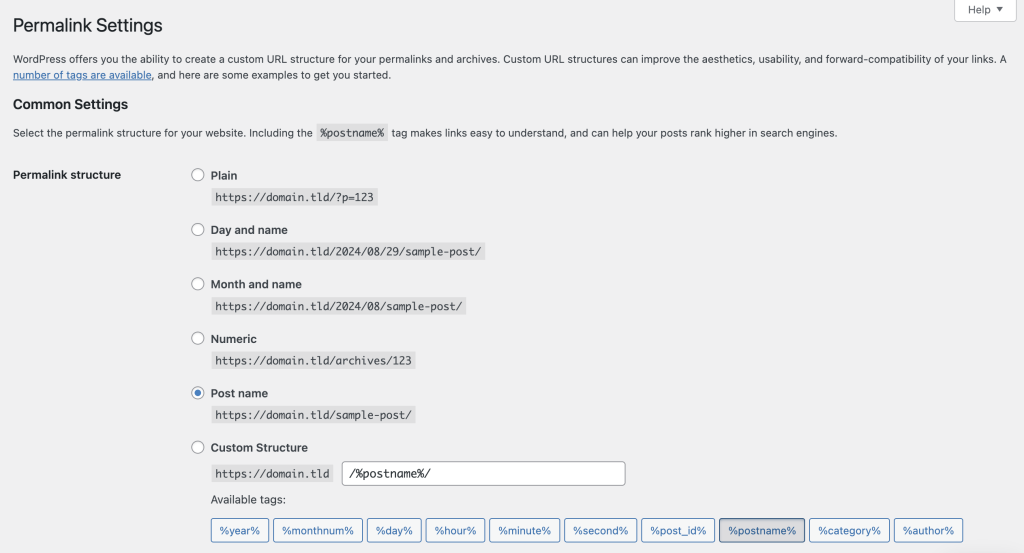
In WordPress, permalinks are the permanent URLs to your posts, pages, and other site content. They define how your URLs are structured and displayed in the browser.
Improper permalink settings can disrupt your website’s URL structure, leading to WordPress errors like the invalid JSON response. Here are the instructions to check and correct your site’s permalinks:
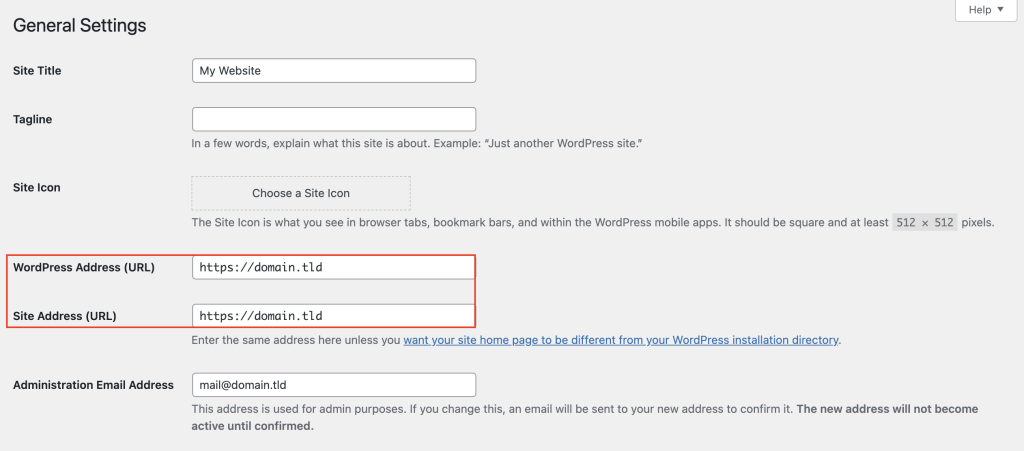
Incorrect site URL settings can also cause the JSON error on your WordPress website. This issue occurs when the WordPress Address (URL) and Site Address (URL) don’t match or are mistakenly configured.
A common cause is when you’ve recently changed your WordPress domain address but didn’t update both fields. This mismatch blocks the editor from receiving a valid JSON response, resulting in the error.
Follow these steps to verify your WordPress site address:
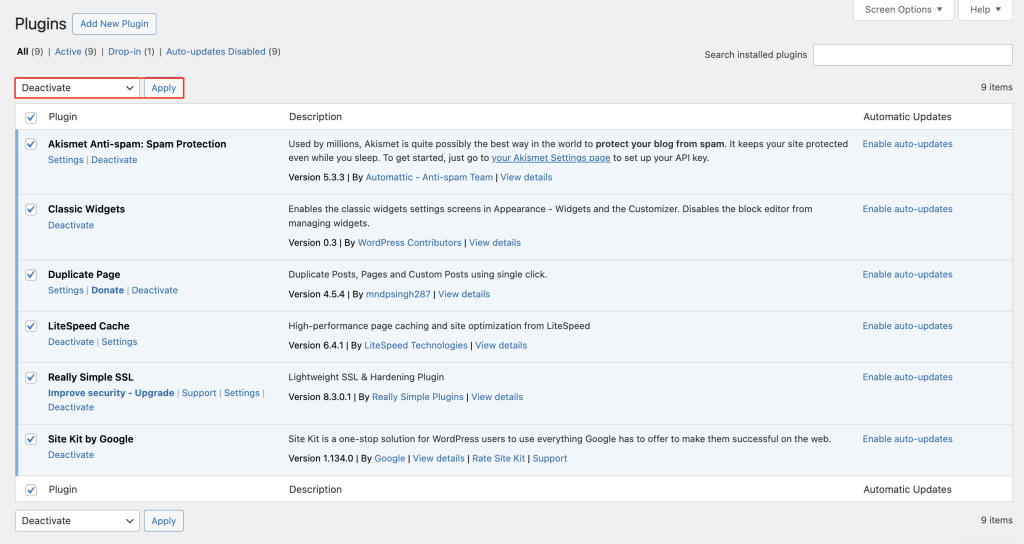
Plugin conflicts commonly cause unexpected errors in WordPress, including the invalid JSON response. A poorly coded plugin or incompatible with your current WordPress version may prevent the editor from communicating with the server properly.
Deactivating your plugins can help you identify if one of them is causing the problem. Here’s how to do it:
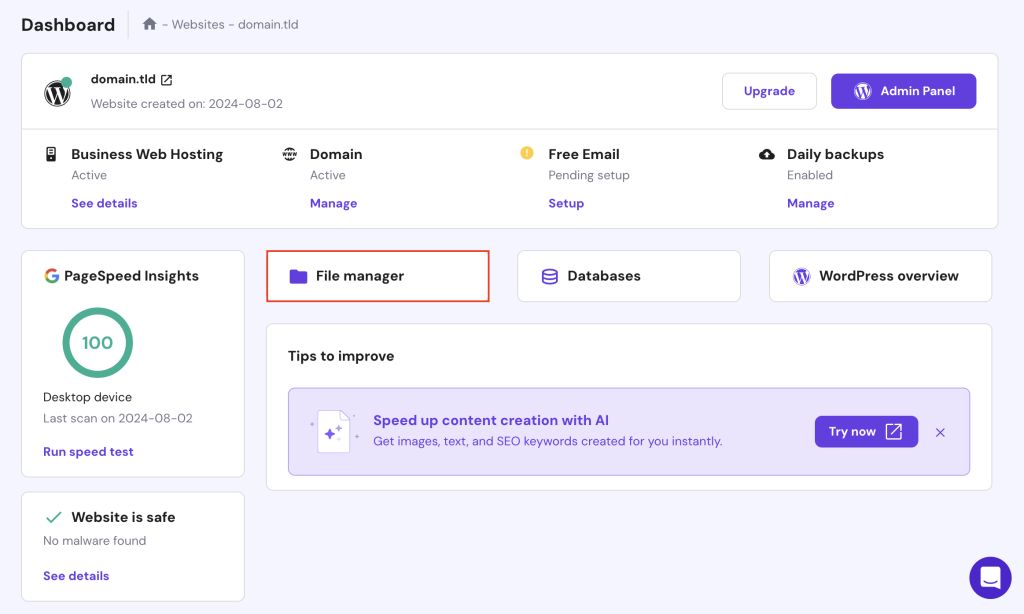
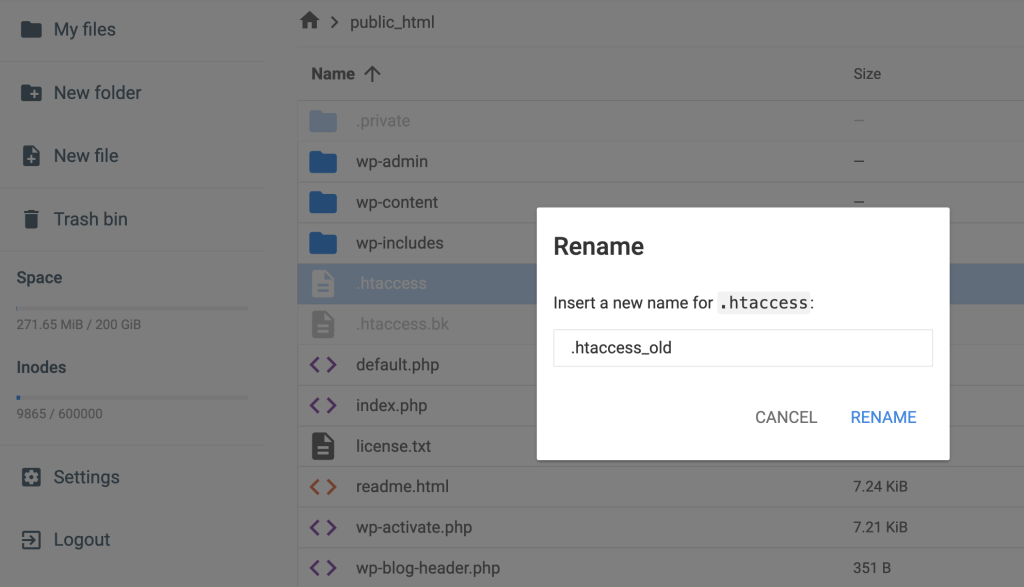
.htaccess is a configuration file web servers use to manage various settings, such as redirects, access control, and WordPress permalinks. A corrupted .htaccess file can interfere with WordPress functionalities, leading to an invalid JSON response error.
Creating a new .htaccess file can help resolve the issue by resetting your site’s configuration settings. To do this, access your website’s root folder via an FTP client like FileZilla or your hosting provider’s file manager.
If you host your WordPress site on Hostinger, here are the steps:

Mixed content occurs when a website loads HTTP and HTTPS elements, which can cause issues with security and functionality.
In WordPress, mixed content can disrupt the editor and server communication because browsers block non-secure requests on a supposedly secure page. Fixing mixed content ensures all elements are loaded securely, resolving potential JSON errors.
Here’s the guide:

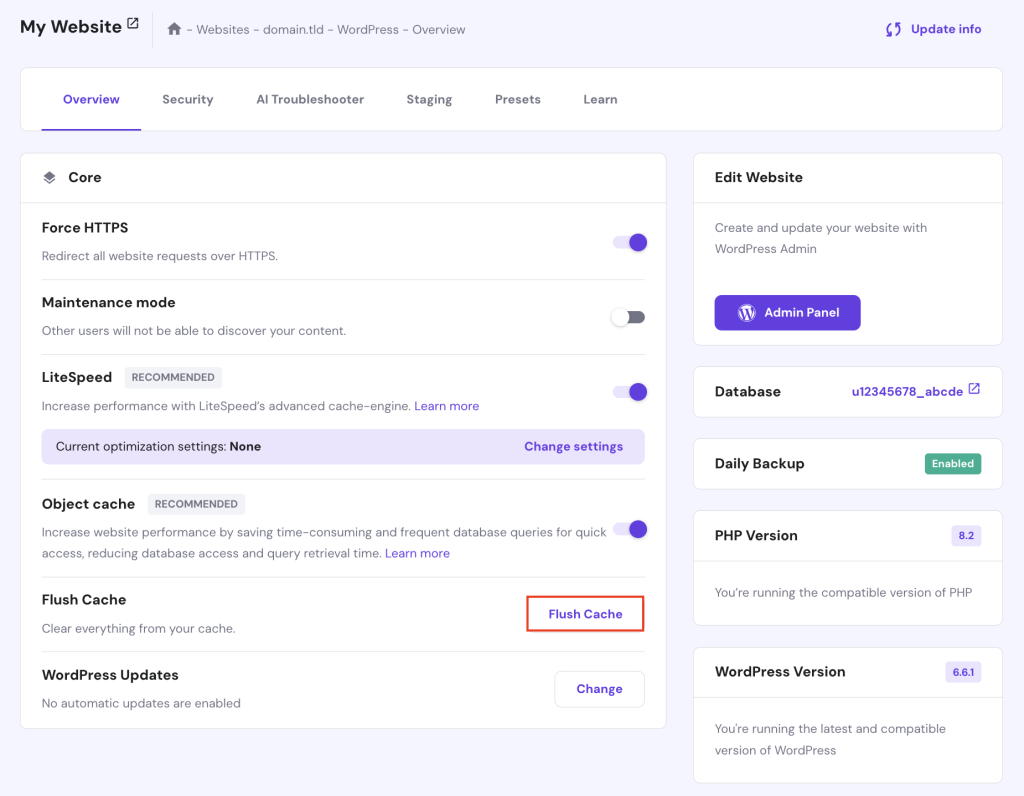
The WordPress REST API enables the editor to communicate with the server and perform tasks like saving and publishing content. If the REST API is blocked or malfunctioning, the editor can’t receive a valid JSON response.
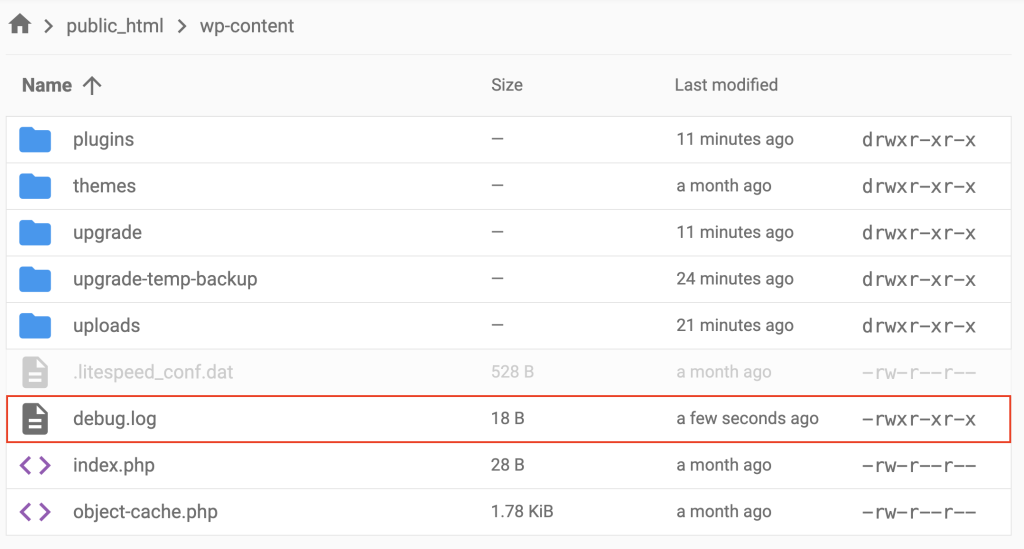
Checking the REST API debug log helps you identify any underlying issues causing this error. Follow the instructions below to view the debug log:
define('WP_DEBUG', true);

define('WP_DEBUG_LOG', true);

define('WP_DEBUG_DISPLAY', false);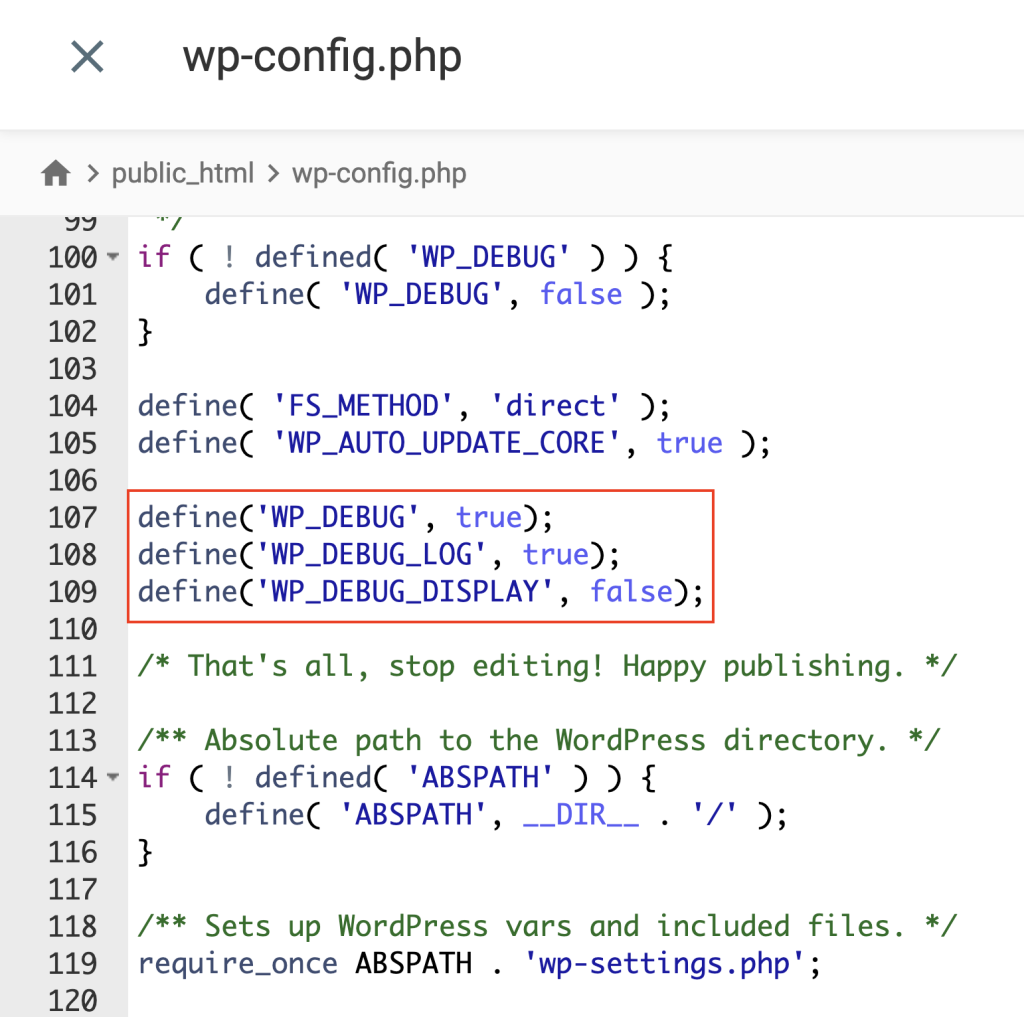
Once done, save your changes.
Firewalls protect your WordPress website from malicious attacks by blocking suspicious requests. However, they may also block legitimate requests from the WordPress editor for security reasons, causing errors like the invalid JSON response.
Temporarily disabling your security firewall can determine if it’s the source of the issue. Follow these steps:
While working on resolving the invalid JSON response error, there are temporary solutions to continue updating your content without interruptions. These methods help bypass the problem, providing a workaround until you apply a permanent fix.
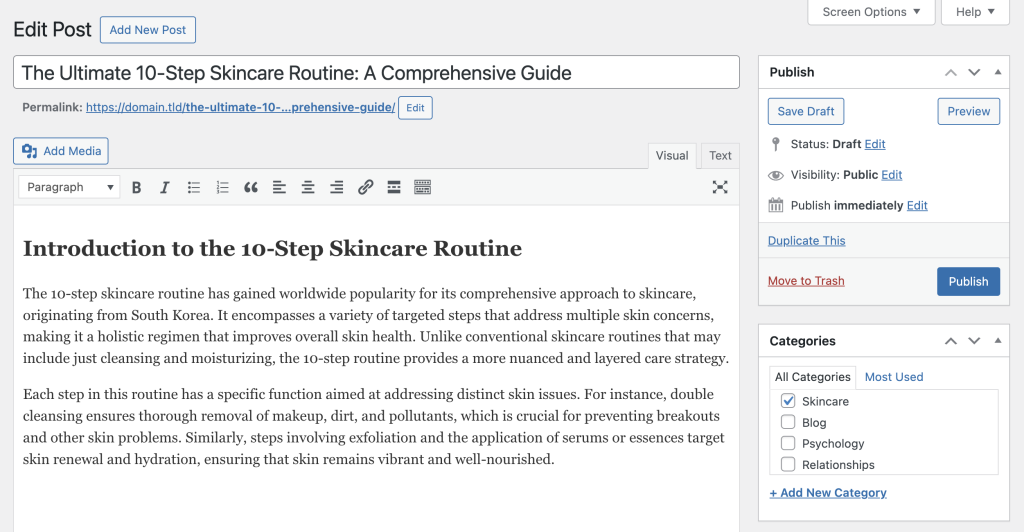
Use the Classic Editor plugin
As the name suggests, the Classic Editor plugin lets you use the previous classic editor. It’s less reliant on the WordPress REST API and can help avoid issues with the block editor. Here’s how:

Upload media files directly
If the JSON error occurs when uploading images or files in the block editor, you can upload media directly through the media library as a temporary solution:

The WordPress invalid JSON response error can arise from several issues, such as incorrect URL settings, plugin conflicts, or server configuration problems.
This article has provided several troubleshooting steps, from checking permalinks and disabling plugins to fixing mixed content and viewing the REST API debug log. Implement these solutions methodically to identify the root cause and resolve this WordPress JSON error.
If the problem persists, consider contacting a WordPress professional for further assistance. Should you have any questions or tips for fixing this issue, please use the comment box below.
A JSON response in WordPress is data exchanged between the server and browser, particularly in the editor. WordPress uses JSON to communicate via the REST API for tasks like saving and publishing content.
To handle the JSON response error, check URL settings, permalinks, plugins, and server configurations. Then, follow troubleshooting steps like deactivating plugins, reviewing the REST API debug log, and adjusting security settings to resolve the issue.
To check if JSON is valid, use online tools like JSONLint or browser developer tools like Google Chrome’s Network tab. Copy the JSON response, paste it into the tool, and validate. The tool will highlight errors in the JSON structure for correction.
All of the tutorial content on this website is subject to Hostinger's rigorous editorial standards and values.

Ariffud is a Technical Content Writer with an educational background in Informatics. He has extensive expertise in Linux and VPS, authoring over 200 articles on server management and web development. Follow him on LinkedIn.
/p> OpenClaw is an open-source, self-hosted AI agent that runs on your own server and can interact with the tools you already use, including...
Draft OpenClaw is an autonomous AI agent framework you can host on a virtual private server (VPS). It integrates with different tools and platforms,...
To secure WordPress for AI automation, you need to protect the APIs, user accounts, plugins, and automated workflows that allow AI tools to operate...