504 Gateway Timeout Error: 10 Reliable Solutions to Fix It
Feb 19, 2025
/
Ariffud M.
/
12 min Read
If you’ve ever encountered a 504 Gateway Timeout, it can be somewhat disruptive to your browsing experience. This error is typically caused by communication issues between the server hosting the website and your device, possibly involving your internet service provider (ISP).
In this article, we’ll explain the 504 Gateway Timeout error, its causes, and practical solutions to resolve it. Whether you’re a website owner or simply wish to find information online, our guide will help you find the cause and fix these gateway timeouts.
Download comprehensive HTTP status codes cheat sheet
What Is a 504 Gateway Timeout Error?
The 504 Gateway Timeout Error indicates a lack of timely response from an upstream server that the main server was attempting to access for request completion. Causes include malfunction, overload, or downtime of the upstream server.
The 504 Gateway Timeout error occurs when the central server, as a gateway or proxy, doesn’t receive a timely response from an upstream server. 504 is one of the HTTP status codes that signify an issue on the server-side.
In other words, the problem is with the actual server that’s hosting the website rather than your network device or internet connection.
| Error code | 504 Gateway Timeout Error |
| Error type | Server-side |
| Error variations | Gateway Timeout Error Gateway Timeout (504) 504 Gateway Time-out. The server didn’t respond in time This page isn’t working. Domain took too long to respond HTTP Error 504 – Gateway Timeout 504 Status Code |
| Error causes | Server connectivity issues DNS issues Server overload Network errors |
504 Bad Gateway Timeout Error Variations
The 504 Gateway Timeout error can manifest in several different forms depending on a web browser, server configuration, and operating system.
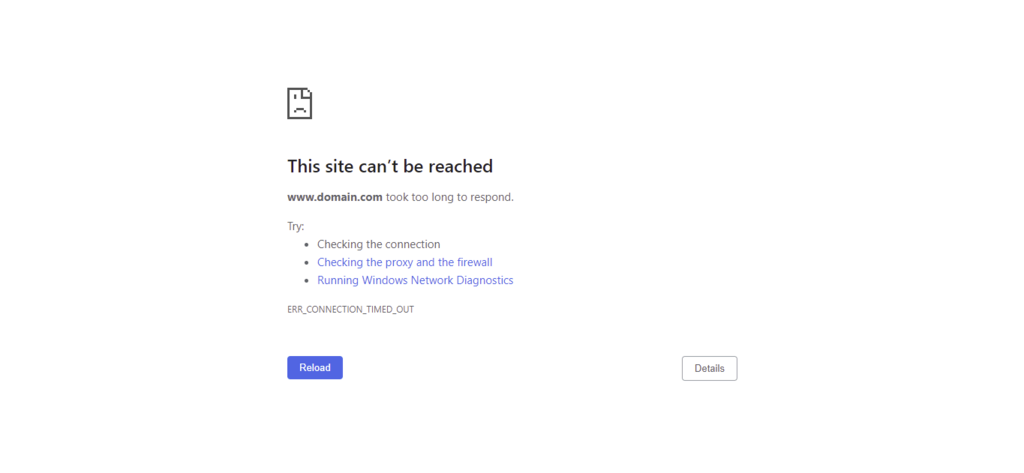
Here are some common variations you may encounter:
- 504 Gateway Timeout — the standard 504 error message.
- HTTP 504 Error — highlights it as an HTTP status code.
- Server Error – 504 — emphasizes that the issue originates from the server.
- Gateway Timeout Error — directly indicates a timeout at the server gateway.
- 504 Gateway Timeout NGINX / NGINX 504 Gateway Timeout — specific to NGINX servers, indicating a gateway timeout.
- Error 504 / HTTP Error 504 / HTTP Error 504 — Gateway Timeout — different expressions of the error, focusing on the HTTP request failure.
- This page isn’t working — Domain took too long to respond / 504 Gateway Time-out — The server didn’t respond in time — a more user-friendly phrasing explaining that there’s been a delay in response.
- The page request was canceled because it took too long to complete — indicates a timeout in processing the page request.
- Site visitors: There was an issue serving your request, please try again in a few minutes. — suggests website visitors should access the page later due to a delay in serving the request.
- Site Owners: There was a gateway timeout. You should visit your error log for more information. — the website owner is advised to check the error log for further details.
Each of these variations points to a common underlying issue — a delay in server response, preventing the successful loading of a web page.
What Causes 504 Bad Gateway Timeout Error?
Identifying the root cause is essential to resolve a 504 Gateway Timeout error. Some common triggers include:
- Connectivity issues – general network equipment problems can lead to temporary connectivity issues, affecting communication across multiple web browsers, devices, and websites.
- Proxy server issues – problems with proxy servers can disrupt the communication pathway between your server and the upstream server, leading to such potential timeouts.
- Firewall issues – firewalls, especially those with DDoS protection and mitigation systems, may mistakenly block requests. This is often due to faulty configuration or restrictions on certain ISPs or content delivery networks like Cloudflare.
- DNS issues and unresolvable domains – issues can arise when DNS servers are unable to resolve the domain name’s correct IP address. Causes may include incorrect DNS configuration, outdated DNS caches, or recent changes in IP addresses.
- Server connectivity issues – broader connectivity problems between servers can result in a 504 error, often stemming from network or hardware issues.
- Upstream server problems – if the upstream server is down or unresponsive, it can directly lead to a 504 error.
- Web server overload – when a web server is overwhelmed with requests or running low on resources, it can slow down or halt responses entirely, leading to timeouts.
- Limited PHP workers – websites with an insufficient number of PHP workers can experience delays in processing requests, causing timeouts, especially when handling multiple simultaneous requests.
How to Fix 504 Gateway Timeout Error
While server-side issues are typically the root cause of most 504 errors, they can also be triggered by client-side problems or false configurations. Thus, our troubleshooting guide addresses both scenarios.
While these solutions are generally applicable across various types of websites, specific steps for WordPress platforms will be listed as well.
With that in mind, let’s cover client-side solutions first.
1. Refresh the Page
Refreshing the web page is often the first and simplest step in resolving a 504 Gateway Timeout error. This action can fix temporary connectivity issues, especially if the error is due to a momentary glitch or server overload.
To refresh the page, click the refresh button in your browser.
Alternatively, you can use keyboard shortcuts. Press CTRL+R on Windows or COMMAND+R if you’re using macOS. Clear your browser’s cache and web cookies before refreshing to solve potential underlying issues.
However, refreshing web pages may not be effective if the server is still experiencing ongoing issues. In such cases, further troubleshooting of 504 Gateway Timeout methods may be necessary.
2. Try a Different Browser
Switching to a different web browser can single out whether a 504 Gateway Timeout error is specific to your primary browser. Issues such as outdated software, third-party extensions, or a corrupted browser cache can cause such an error.
To proceed, open another web browser on your device and navigate to the same web page. Alternatively, use incognito mode in your current browser.
If the web page loads successfully, the issue may lie with your primary browser’s cache, extensions, or settings.
On the other hand, if the page still does not load, it could indicate a more widespread issue, possibly on the server-side. You can check if the website is down for others by using an online service like Website Planet or Site24x7.
3. Check the Proxy Server Settings
A proxy server sits between your device and the internet, offering privacy benefits like hiding your device’s location or encrypting web requests. Incorrect proxy settings may hinder proper communication with web servers, though that scenario is uncommon.
Here are steps to check your computer’s proxy settings:
Windows 11
- Go to Settings → Network & Internet → Proxy. Here, you’ll find options like Automatically detect settings and Use a proxy server.
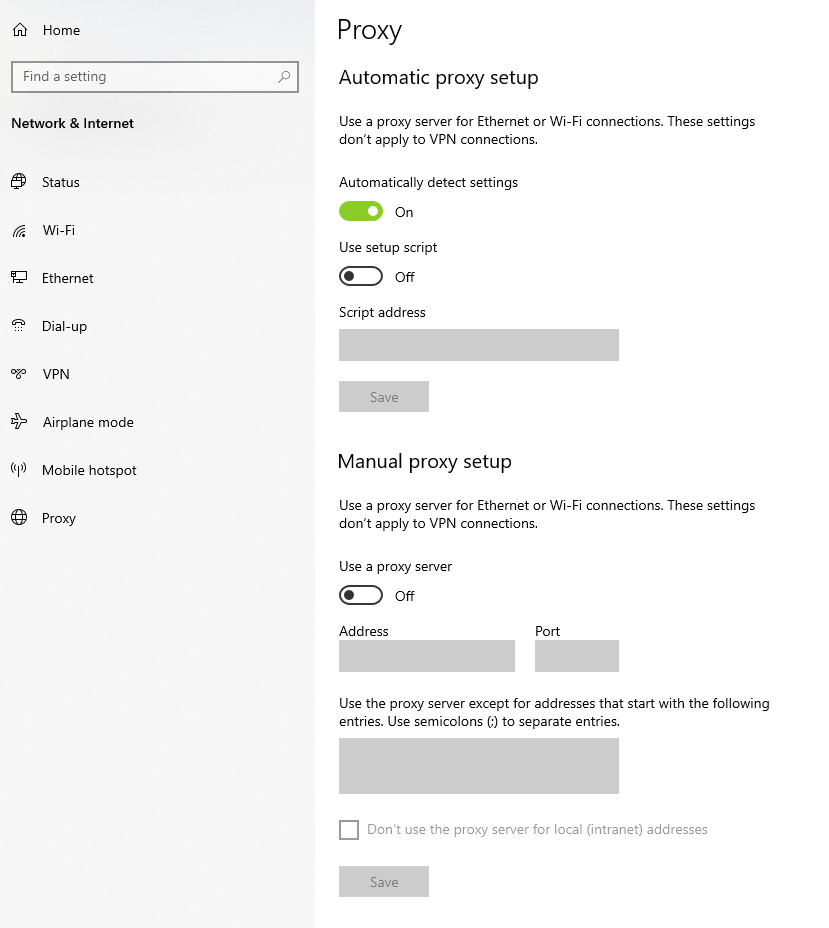
- If Use a proxy server is enabled, ensure the address and port details are correctly set for your network.
- Alternatively, turn off this option and then try reaccessing the website.
macOS Sonoma
- Click the Apple icon and select System Settings → Network.
- Next to your network service, click Details.
- Select the Proxies tab. Disable all proxy options by toggling off each proxy-related setting.
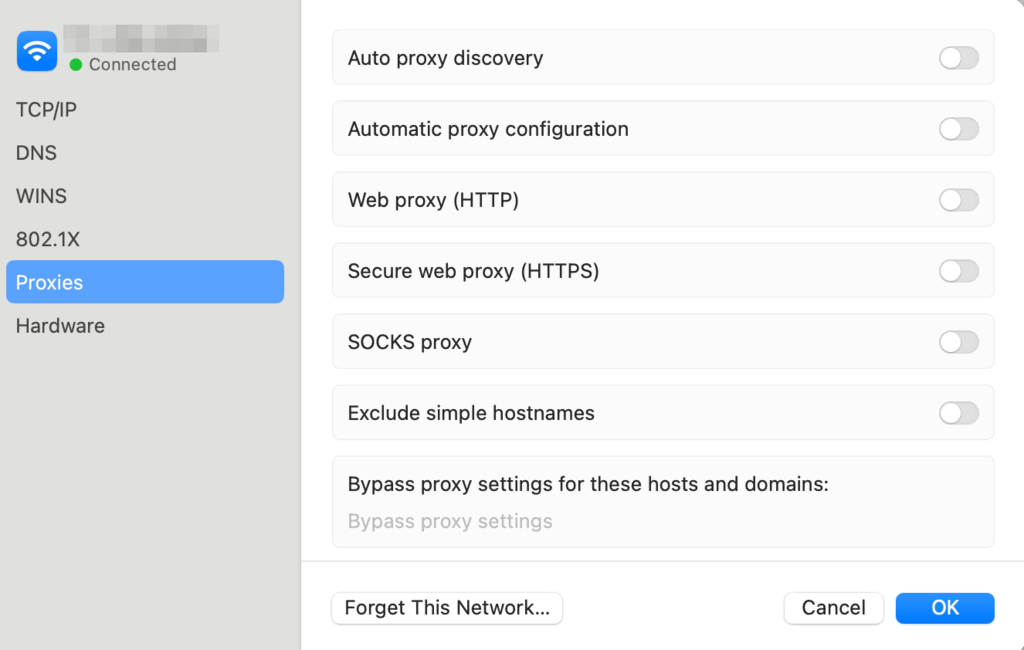
Although some computers and networks don’t use proxy services by default, web browsers may have separate proxy configuration settings. Therefore, it’s advisable to check that as well.
Important! Remember that altering your network settings can impact your entire internet access, causing potential problems of its own. Pay close attention when making any changes to your network settings.
4. Disable Your Firewall
A firewall is an essential tool to safeguard your computer against unauthorized access and various cyber threats. However, a faulty firewall configuration may mistakenly prevent legitimate network requests, leading to the 504 Gateway Timeout error.
Follow these steps to turn off your firewall temporarily:
Windows 11
- Click the Start menu and select Settings.
- Go to Privacy & Security → Windows Security → Firewall & Network Protection.
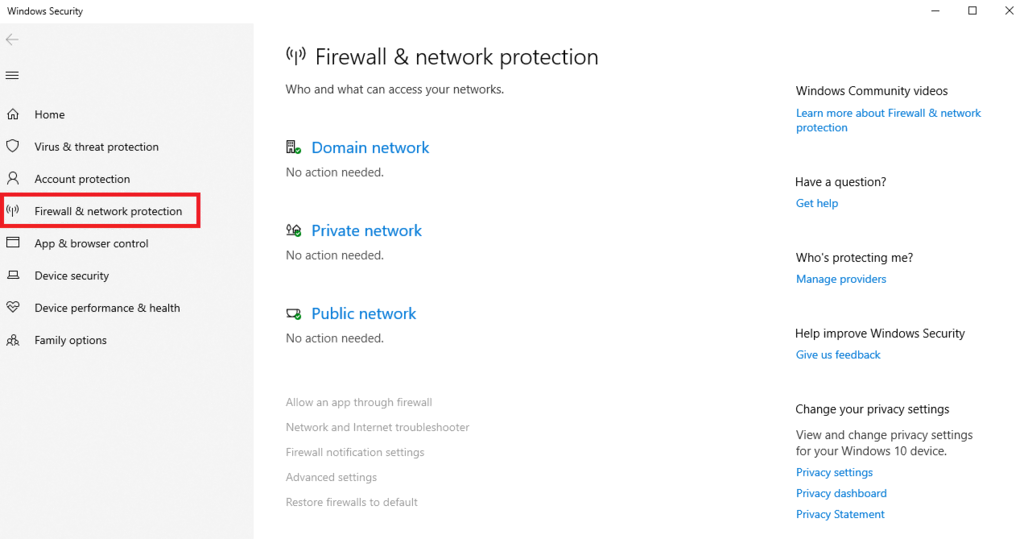
- Choose your currently active network (for example, Private, Public, or Domain network) and turn off Microsoft Defender Firewall.
macOS Sonoma
- Open System Settings → Network.
- Scroll down and select Firewall.
- Click the toggle button to turn off the firewall.
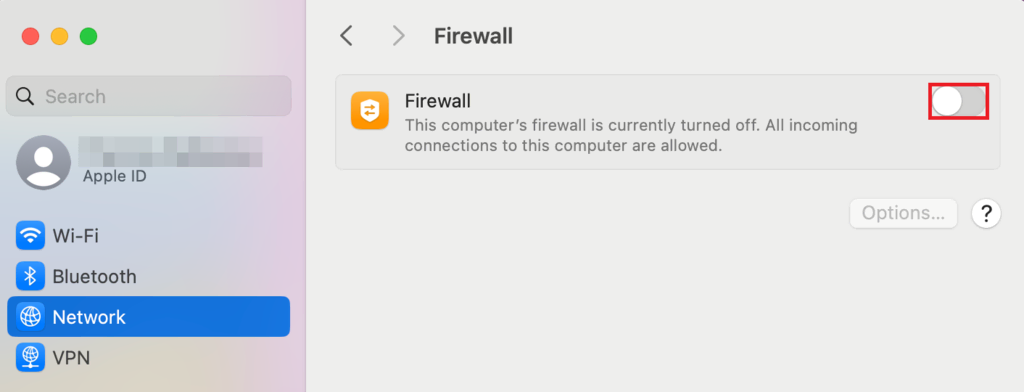
After turning off the firewall, try reaccessing the website to determine if faulty firewall settings were contributing to the 504 error.
Important! Deactivating your firewall should be a temporary troubleshooting step. It is generally not recommended to leave your firewall disabled, as this can significantly increase the vulnerability of your system.
5. Flush DNS
Flushing the DNS cache can be effective in resolving network connectivity issues, such as 504 Gateway Timeout errors. This process clears outdated or corrupted DNS information that might prevent your device from connecting to websites.
To fix client-side DNS issues, try flushing your DNS cache in your operating system:
Windows 11
- Search for cmd in the taskbar and right-click Command Prompt → Run as administrator.
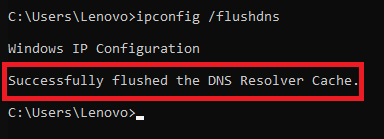
- Type ipconfig /flushdns and hit Enter.
- A message will appear to confirm a successful flush of the DNS resolver cache.
macOS Sonoma
- Open Terminal from Applications → Utilities.
- Type sudo dscacheutil -flushcache; sudo killall -HUP mDNSResponder and hit Enter.
- Enter your administrator password if prompted.
Google Chrome
Google Chrome maintains a separate DNS cache. To clear it:
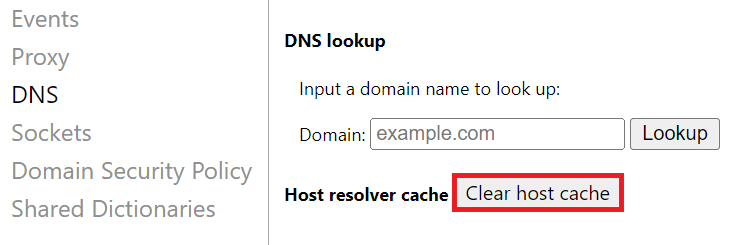
- Start Chrome, then type chrome://net-internals/#dns in the address bar and press Enter.
- Click the Clear host cache button to flush Chrome’s DNS cache.
If your website has recently moved to a different IP address or server, you might need to wait up to 48 hours for the DNS propagation process to complete since ISPs need to update their records.
Use tools like whatsmydns.net to verify whether the propagation is complete.
For persistent DNS issues, switch to a public DNS service like Google Public DNS, Cloudflare 1.1.1.1, or Quad9 for faster and more reliable DNS resolution.
6. Check Your Website’s Error Log
One of the causes of the 504 Gateway Timeout can be code corruption from recent updates or third-party plugins. Checking the website’s error log may help identify this problem. Error logs record various issues that occur on your site, including those leading to a 504 error code.
Hostinger’s web hosting customers can utilize the PHP error logging feature through the hPanel. Here’s how:
- Log in to hPanel and navigate to Advanced → PHP Configuration.
- In the PHP options tab, check the logErrors box.
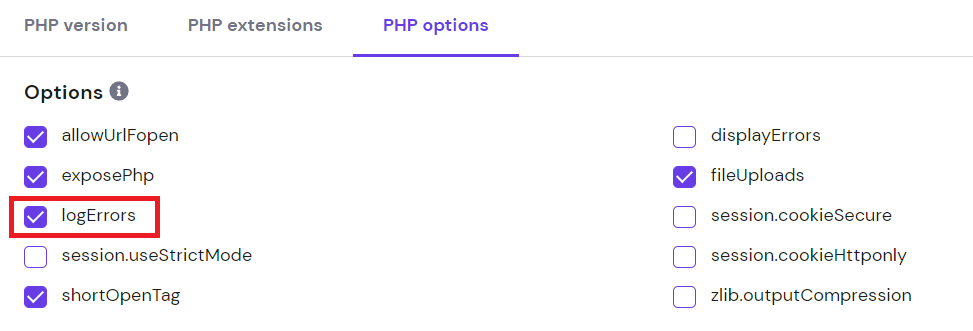
- Scroll down and click Save to activate PHP error logging.

If your hosting provider doesn’t offer PHP error logging by default and you use WordPress, you can enable the debug mode on your site by following these steps:
- Open your default File Manager application and find the wp-config.php file.
- Add the following lines to the file right before the /* That’s all, stop editing! Happy publishing. */ line:
define( 'WP_DEBUG', true );
define( 'WP_DEBUG_LOG', true );
define( 'WP_DEBUG_DISPLAY', false );
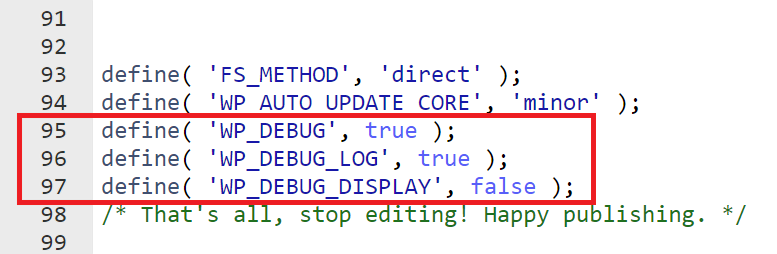
- Save your changes before exiting.
Here are the explanations of each variable:
- WP_DEBUG — enables WordPress debug mode.
- WP_DEBUG_LOG — saves all PHP errors in the wp-content/debug.log file.
- WP_DEBUG_DISPLAY — decides if debug messages will be shown on HTML pages. Setting it to false hides errors on the site but still logs them within the file.
After changing these settings, you can access raw WordPress error log files via SFTP. They are usually located in the server’s root directory under the logs folder.
Furthermore, checking the server log files is also helpful for troubleshooting. Here are some typical locations for server logs, depending on the web server used:
- Apache — the error log is usually found in /var/log/apache2/error.log/.
- NGINX — for NGINX servers, check /var/log/nginx/error.log/.
7. Check Your Website’s Plugins
In rare cases, plugins on WordPress sites can sometimes lead to a 504 Gateway Timeout error. This issue arises due to plugin-related server workload increases or compatibility issues.
Here’s how to check the website’s plugin for a 504 timeout error recovery:
- Access your WordPress admin dashboard and go to Plugins → Installed Plugins.
- Deactivate all your installed plugins. If your site becomes accessible afterward, a plugin is likely causing the issue.
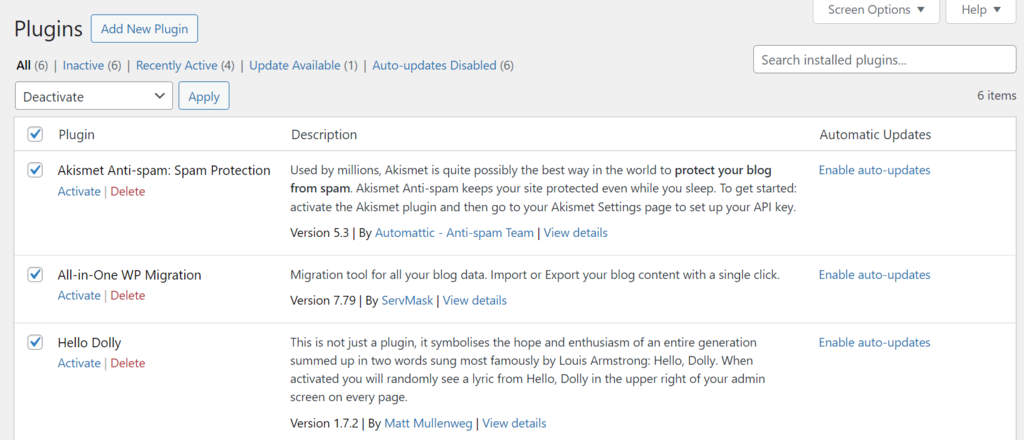
- Reactivate each plugin one by one, checking your site after each. If the error reappears, the most recently activated plugin is likely the culprit.
- Update the problematic plugin, seek an alternative, or reach out to the plugin’s support team for help.
If you can’t access your WordPress dashboard, use your web host account’s File Manager or an FTP client. Then, navigate to the wp-content directory and rename the plugins folder. This will disable all plugins, allowing you to test if the WordPress website works without them.
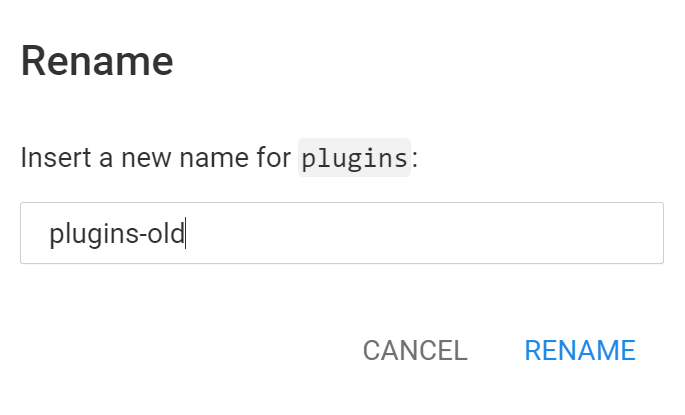
After confirming a plugin issue, restore the original folder name to plugins and deactivate each plugin individually to pinpoint the problematic one.
If disabling WordPress plugins doesn’t resolve this issue, the problem might be with your WordPress theme. Switch to a default theme via your dashboard to see if this addresses the problem.
8. Disable the CDN
A content delivery network (CDN) boosts website performance by speeding up content delivery and offering DDoS mitigation. However, it sometimes can be the cause of a 504 Gateway Timeout error as well.
Temporarily disabling your site’s CDN can help diagnose 504 issues. Hostinger customers that have Business plans or above can deactivate the built-in CDN as follows:
- Navigate to the hPanel dashboard. Then go to Performance → CDN.
- Under the CDN status section, click Disable.
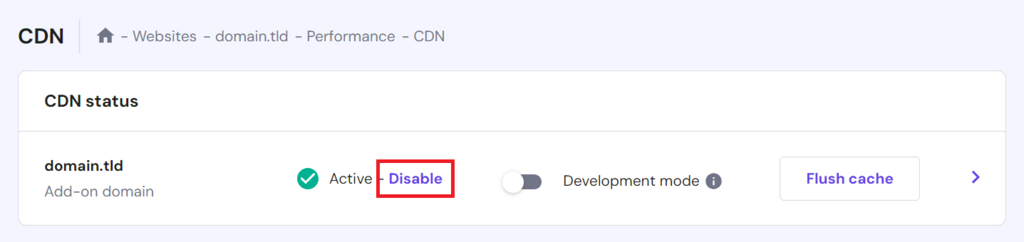
- Check your website to see if the issue is resolved.
If disabling the CDN allows website access, keep the CDN disabled temporarily. Contact our support team for assistance in resolving this CDN-related problem.
If you’re using a CDN service other than Hostinger’s, first check their system status for any reported issues. You can deactivate most CDN services by logging into your provider’s interface and finding an option to Pause or Deactivate the CDN.
Remember that disabling CDN services may involve DNS changes, which require time to propagate fully. After the DNS propagation finishes, revisit your website to check if the 504 error persists.
9. Check Your Server Resources
If you encounter a 504 error, check your server resources, as server overload is a common cause. Hosting providers allocate specific resources for optimal website performance, but sometimes errors occur.
Hostinger users can check their allocated resources by navigating to Hosting → Resource Usage on hPanel. Pay attention to CPU Usage and RAM Usage. High values suggest an overloaded server struggling with heavy traffic.
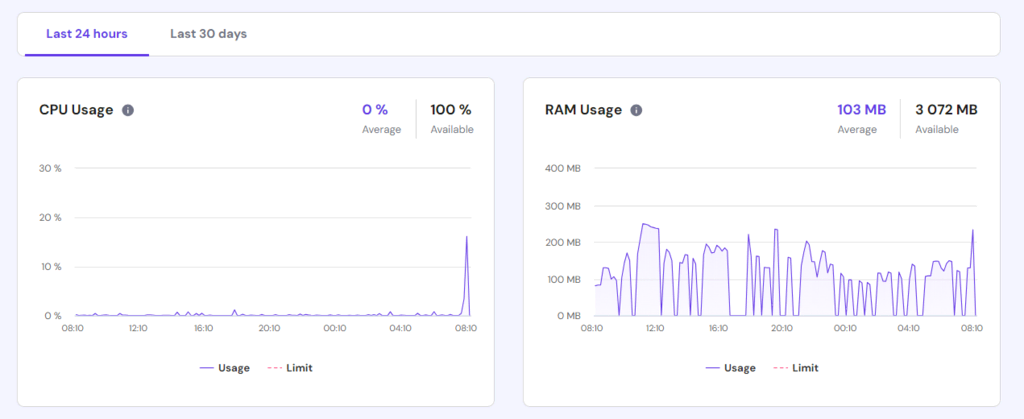
When noticing that resource usage is high, reduce your site’s traffic load or optimize performance. If your WordPress site has already reached its hosting limits, consider upgrading your plan.
Server timeouts may happen if PHP scripts exceed the server’s set execution time. Extending the maximum execution time limit can prevent such timeouts.
If you use Hostinger, you can increase the WordPress maximum execution time value via hPanel:
- From the hPanel dashboard, navigate to Advanced → PHP Configuration.
- In the PHP Options tab, locate the maxExecutionTime field, the default setting being 30 seconds.
- Increase this value to 60 seconds and hit Save. If issues persist, consider increasing it further to 120 or 180 seconds.
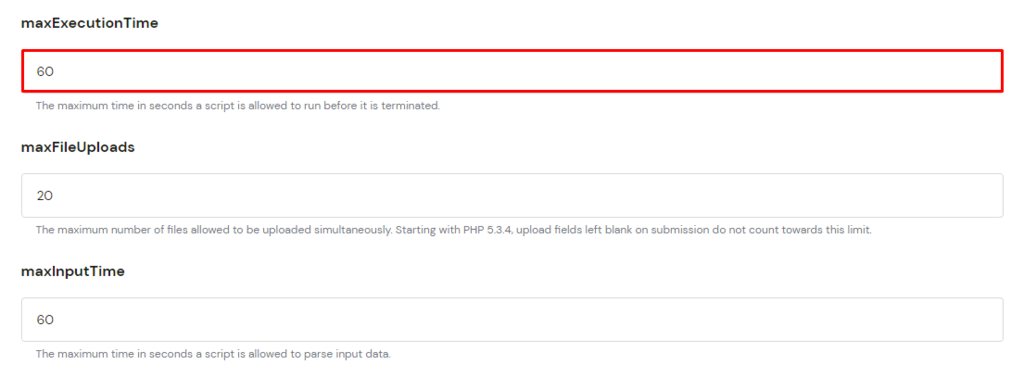
Important! Avoid setting the max-execution-time value to 0, as this allows PHP scripts to run indefinitely, potentially consuming excessive server resources as a result.
You can also increase the maximum execution time by editing your WordPress site’s .htaccess file. Here’s an example snippet to add to the file:
php_value max_execution_time 60
Adjust the number as needed for your WordPress site.

10. Configure Apache and NGINX Settings
For websites on VPS hosting, adjusting Apache and NGINX settings can manage server timeouts and resolve 504 errors. Here’s how to change settings on both Apache and NGINX servers:
Apache
- Locate the Apache configuration file, typically named httpd.conf or apache2.conf, and open it with a text editor.
- Modify the Timeout directive to a higher value. For instance, change from the default 60 seconds to 600 seconds with:
Timeout 600
- Save the changes and exit the editor.
- Proceed by editing the php.ini file.
- Increase the max_execution_time directive. The default value is typically 30 seconds. Increase it to 300 seconds with:
max_execution_time = 300
- Save your changes, then restart Apache:
sudo service apache2 restart.
NGINX
- Find the NGINX configuration file, usually located in /etc/nginx/nginx.conf.
- For sites running on NGINX + FastCGI Process Manager (PHP-FPM) or using NGINX as a reverse proxy for Apache, adjust the following values:
proxy_connect_timeout 600;
proxy_send_timeout 600;
proxy_read_timeout 600;
send_timeout 600;
fastcgi_read_timeout 300;
- Reload the NGINX server to implement the changes.
sudo service nginx reload
- Edit the PHP-FPM pool config file found in /etc/php/[version]/fpm/pool.d/www.conf. Replace [version] with your PHP version.
- Set request_terminate_timeout = 300 to increase the limit.
- In the php.ini file, set max_execution_time = 300.
- Reload PHP-FPM and NGINX to apply the changes.
sudo service php[version]-fpm reload && sudo service nginx reload
11. Contact Your Hosting Provider’s Customer Support
When you’ve tried all other methods and still face a 504 Gateway Timeout error, it is best to reach out to your hosting provider’s customer support for help.
When contacting support, be as detailed as possible about your issue. Include your website URL, the gateway message you’ve encountered, and a summary of the steps you’ve already taken to try to resolve the issue.
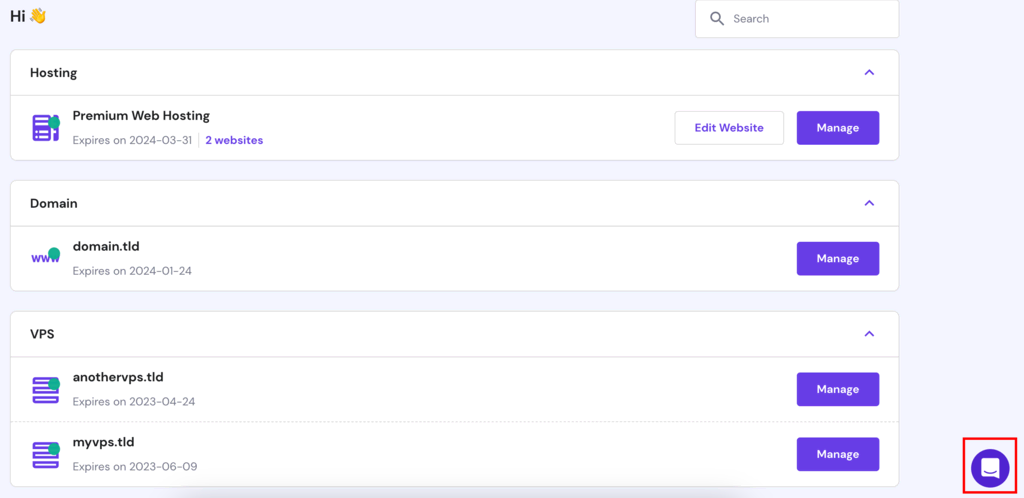
Hostinger provides 24/7 customer support and a comprehensive knowledge base for further information and possible solutions. Both of these features are accessible via hPanel.
How 504 Gateway Timeout Errors Affect SEO
504 Gateway Timeout errors can negatively impact a site’s search engine optimization (SEO) if they occur frequently or persist for an extended period. It’s because search engines like Google use HTTP status codes to assess the health and accessibility of a website.
If a website regularly returns a 504 status, search engines might perceive it as unreliable, potentially leading to a lower ranking in search engine results. To minimize SEO damage during downtimes caused by 504 errors, consider implementing these tips:
- Prompt resolution. Quickly resolving 504 errors is essential to lessen their impact on SEO. Regular monitoring and taking immediate action when issues are detected are crucial.
- Communicate with users. Use social media or other communication channels to inform your audience about the downtime and the steps being taken to resolve the issue.
- Temporary downpage. Create a temporary informational page to inform website visitors and search engines that you are aware of the problem and are working on it.
- Regular website backups. Consistently maintain backups of your website. If a 504 error lasts for a prolonged period, restore a backup file to minimize downtime.
- SEO monitoring tools. Employ SEO monitoring tools to keep track of issues that may affect your SEO, allowing quicker responses and resolutions.
Conclusion
Resolving a 504 Gateway Timeout error requires a set of diagnostic and corrective steps. From simple actions like checking browser issues to more technical approaches involving server resources and configurations, we’ve covered various 504 error solutions.
It’s crucial to address a 504 response promptly to preserve your site’s functionality and SEO health. By adhering to these outlined steps, you can efficiently manage and resolve this common yet challenging issue.
504 Gateway Timeout FAQ
This section will answer the most common questions about the 504 Gateway Timeout error.
How Long Does a 504 Gateway Timeout Last?
A 504 Gateway Timeout typically lasts as long as the server’s default timeout setting, which varies but is often around 60 seconds. This duration represents the network timeout period, after which the server gives up waiting for a response from the other server.
How Can I Prevent 504 Gateway Timeout Errors?
To prevent 504 Gateway Timeout errors, ensure you regularly monitor server loads and optimize website resources. Proactive server maintenance and efficient content delivery can reduce the chances of encountering this web server timeout error.
What Are Some Other Types of Gateway Timeout Errors?
Besides the 504 Gateway Timeout, other common errors include 502 Bad Gateway and 503 Service Unavailable. Each gateway timeout response represents different server-side issues in handling requests, requiring specific troubleshooting approaches for resolution.
All of the tutorial content on this website is subject to Hostinger's rigorous editorial standards and values.

Ariffud is a Technical Content Writer with an educational background in Informatics. He has extensive expertise in Linux and VPS, authoring over 200 articles on server management and web development. Follow him on LinkedIn.

Comments
July 16 2018
You are a life saver! This pesky 504 message kept bugging my site for such a long time. My host had no clue what happened. I started investigating my error log as you suggested and found out that a few WordPress plugins created many error entries. After deleting these plugins, my website works perfectly. No more error now. It seems like Hostinger has a solution for everything. I'm starting to consider moving my website to you guys haha!
July 18 2018
I'm glad to hear you were able to fix your website. And the doors of Hostinger are always open for you, Rajma! ;)
December 04 2018
Spell check strikes again.... in the 'conclusion', the word overlooked needs an edit. Either change it to read that you have looked over, looked at, or considered, etc. BTW, your article is extremely helpful. Well done!
January 14 2019
Fixed, thank you for the catch! ;)
March 05 2020
Fixed, thank you for the catch! ;)
September 07 2020
This article is too much informative,Thanks a lot for supporting us by sharing your most valuable time. keep It up
November 11 2020
Always happy to help.
May 19 2024
Why my link is 504 gateway and how to recovery of my link
May 22 2024
I'm sorry to hear that. This usually happens when the server takes too long to respond. To fix this, please try the tips in our article. If the issue persists, don't hesitate to reach out to our Customer Success Team for further assistance ?