Your Complete Guide to WordPress Database Optimization
Sep 02, 2024
/
Will M.
/
11 min Read
Your WordPress database stores all of your site’s information. If it’s become bloated with extra data, that can slow down your pages. Yet, at first glance, its numerous columns and settings can seem intimidating. Perhaps you’re afraid that your efforts at WordPress database optimization might cause irreparable data loss.
However, optimizing a WordPress database isn’t as complicated as it might initially appear, as many third-party plugins can help you with the process. After cleaning up a WordPress database and clearing up valuable server space, your site will be able to reach its highest performance potential.
In this article, we’ll learn what a WordPress database is and discuss why ensuring its organization is critical. Afterward, we’ll walk you through three ways how to optimize a database of your own. Let’s get to it!
Download all in one WordPress cheat sheet
Understanding WordPress Database
The WordPress database is where all your website’s data is stored. This information includes everything from usernames and passwords to comments and settings.
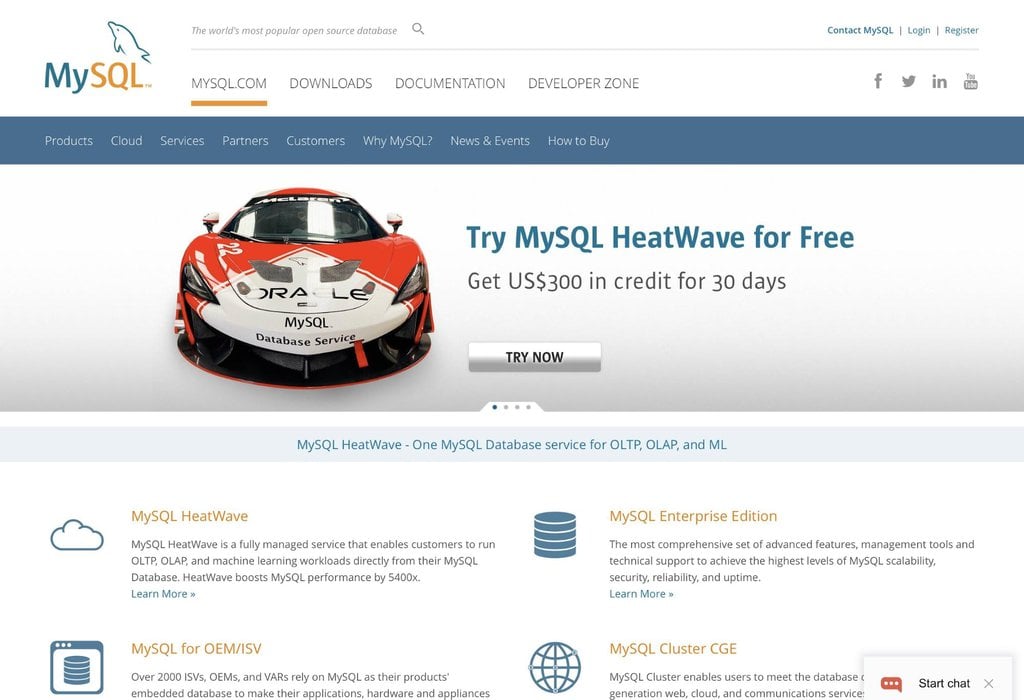
In order to store all of this essential data, WordPress uses MySQL, an open-source database management system.
To put it simply, WordPress establishes a database whenever you create a new website. The platform then stores this database on the web host’s server.
After that, when a user visits your website, their web browser will make a request to that server. In other words, it asks the server to transmit the necessary data required to display and run your content.
Your database will expand with every new piece of information added to the website. WordPress will send a MySQL query to the database regarding what data needs to be altered, created, or removed. You can also carry out these commands manually or via a database manager.
What Are WordPress Tables?
The data contained in a WordPress database exists across eleven core tables, but it’s possible to add more. Each one of these tables stores a specific type of data.
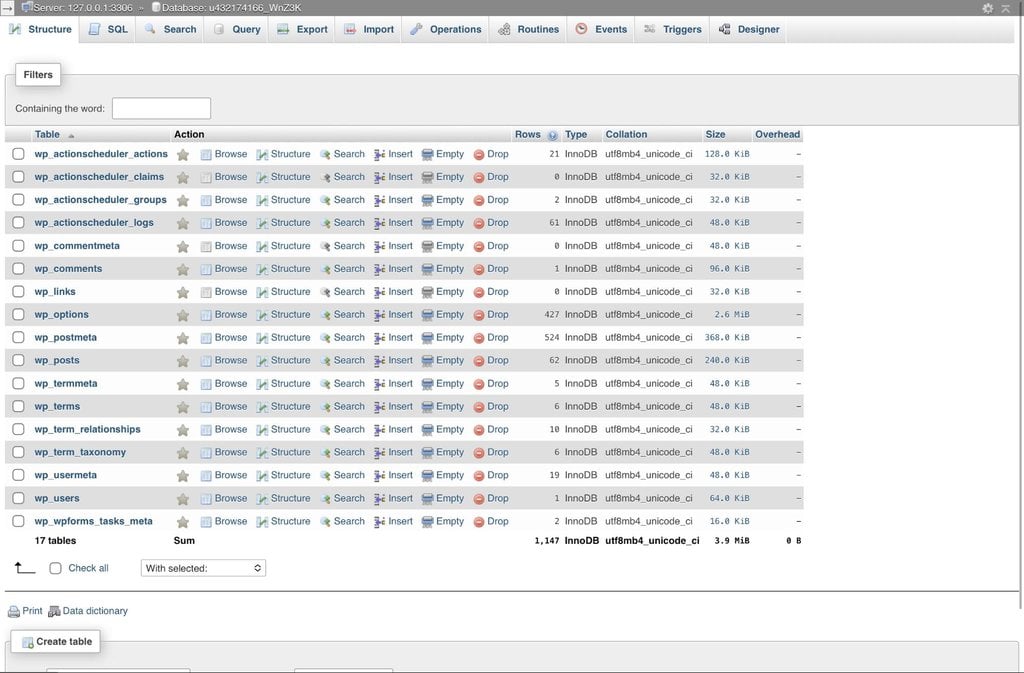
For example, the wp_posts table only contains the data for your blog posts.
As of WordPress 4.4, the default tables are as follows:
- wp_commentmeta – metadata information for comments.
- wp_comments – comments text.
- wp_links – information related to the Links feature.
- wp_options – WordPress references and configuration settings.
- wp_postmeta – metadata information for posts.
- wp_posts – posts, pages, and navigation menu items.
- wp_termmeta – metadata information for terms.
- wp_terms – categories and tags.
- wp_term relationships – relation between posts and their wp_terms.
- wp_term taxonomy – taxonomy for the entries in the wp_terms table.
- wp_usermeta – metadata information for users.
- wp_users – list of users.
To access the WordPress database, you’ll need to follow the method provided by your host. This can vary depending on which company you bought services from. However, in most cases, you’ll access the database via a free and open-source administration tool called phpMyAdmin.
WordPress database is primarily self-sufficient. You don’t need to interact with it in order to publish or manage a website. However, there are several scenarios where working with the WordPress database might be necessary. One of the most common reasons is if your site is suffering from slow performance.
What Causes a WordPress Database to Slow Down?
There are several reasons your website may run slower than you’d like, and your web hosting provider might be the culprit.
That’s because the host determines the speed data travels between the site’s server and visitors’ devices. When you have limited server space, you may discover that shared hosting is not a great fit for every type of website.
If your server is limited, there is a specific cap to what can be achieved regardless of your optimization efforts. To resolve this, choose a better WordPress hosting plan.

Other issues affecting a site may be a result of its design. For example, the WordPress theme that you choose can dramatically affect performance.
Therefore, it’s wise to pick your theme carefully. Complex and resource-heavy features may initially seem tempting. However, you may consider getting rid of them in favor of supporting a smoother user experience (UX).
Additionally, excessive use of plugins can negatively affect your site’s speed. While having a large number of extensions doesn’t automatically mean a website will be slower, it increases the risk that you’ll end up using poorly coded or “weighty” plugins.
Similarly, certain plugins can consume large amounts of resources. Therefore, it’s best to stick with only the most fundamental tools. You’ll also want to ensure they are well reviewed, employ efficient code, and receive regular updates.
Another issue that can cause slowdowns is using large image files that aren’t optimized, or simply having too much data on a single page. However, if none of these reasons seem to apply, you may have issues that can only be remedied within your WordPress database.
Common Issues That Affect a WordPress Database
As mentioned earlier, everything you do on your WordPress website is saved in your database. It’s a practical and essential element. Still, it presents a critical issue as it often generates a lot of unnecessary content on your site’s back end.
For instance, in addition to the information you’ll likely see as crucial, such as finalized post data, your database will also record every post revision by default. Additionally, your WordPress site keeps a record of all your comments, including spam messages.
Some of the common issues that can bloat your WordPress database are:
- Accumulated spam comments – a large number of spam comments can negatively affect the speed of your database. Moreover, it can leave a wrong impression on visitors or anyone who wants to share genuine and valuable comments. This can lead users to believe that your website is untrustworthy.
- Post revisions – WordPress records all the changes, revisions, and drafts you make. This can become an issue for very active blogs. They can fill up the database and slow down the server. WordPress stores an autosave every 60 seconds with a chronological record of edits made.
- Expired transients – these are WordPress database functions that allow developers to keep or cache important information in a database. WordPress does not erase expired transients, even when they’re no longer needed.
- Deleted items – whenever you remove something like a post or page, it isn’t gone entirely. Instead, it remains in your Trash folder. While this is often an invaluable tool, the deleted content can take up a lot of space if you don’t remove it from time to time.
- Unused tables – almost all WordPress plugins store their settings in the database. However, WordPress doesn’t remove that data once you’ve deleted a plugin from a site. This can become an issue if you often add and delete plugins regularly.
Over time, unused data will build up and slow down your website. You’ll need to optimize your WordPress database to remove it.
Why Is WordPress Database Optimization Essential?
The more unnecessary data your WordPress database holds the slower your website gets. No matter how careful you think you’ve been, it’s challenging to stay on top of deleting everything you should. Therefore, every database will need maintenance at some point in time.
If you neglect WordPress database optimization, you’ll get stuck with a slow website, which will cause significant problems in the long run. For starters, site speed is one of the factors that search engines such as Google use to determine page rankings.
Performance is crucial for your search engine optimization (SEO) strategy. If your website isn’t up-to-speed, it won’t perform well in the search results. As a result, new users will be far less likely to find your pages, products, and content.

Keep in mind that site speed is a sliding scale, with faster websites reaping the rewards. Every second you speed up your website is crucial to increasing engagement and boosting your conversions.
However, this isn’t the only reason you may want to optimize your WordPress database. Optimization also allows you to free up space for other tools and functionality. This is also a must if you’re on a limited storage plan.
How to Optimize Your WordPress Database (3 Ways)
If you’re determined to optimize your WordPress database, there are several ways to approach this. Fortunately, plenty of user-friendly options are available that don’t require you to understand all the ins and outs of WordPress database schema.
1. Manual WordPress Database Optimization
The first method is the manual approach. You might prefer this option if you want to avoid adding any new plugins to your site. In addition, you may want to use this method if you’re deleting a WP table altogether.
Before you start, it’s important to back up the existing WordPress database. This way, if something goes wrong and you accidentally delete important data, you’ll be able to recover it. There are several ways to download backed-up data, but we recommend opting for whatever tools you’re most comfortable with.
- Once you’ve backed up your database, open phpMyAdmin via your hosting provider. If your site is managed here at Hostinger, you can start by accessing the hPanel. Then, open phpMyAdmin in the Databases section and select which database you want to optimize.

- Next, select the Databases tab and choose the WordPress database name you wish to optimize.
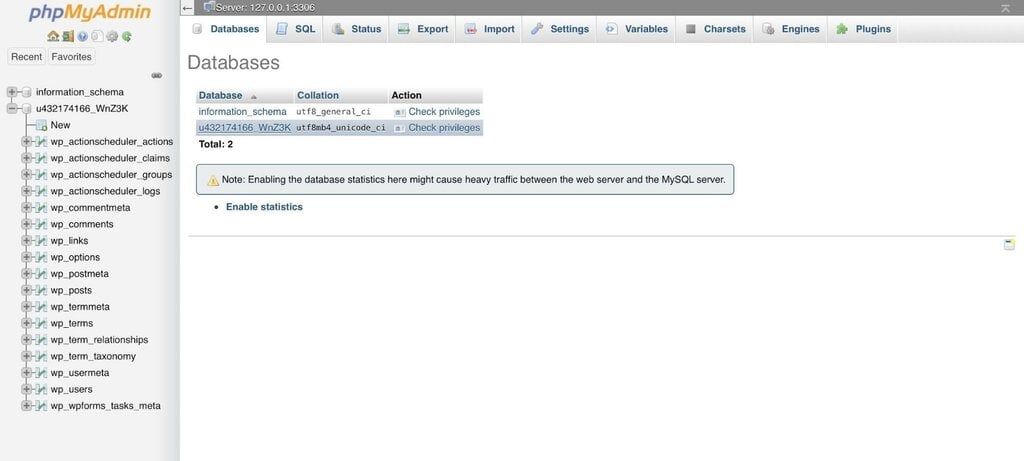
- Now select Check all to optimize all of the WP tables. Alternatively, you can select individual tables using the checkboxes on the left.
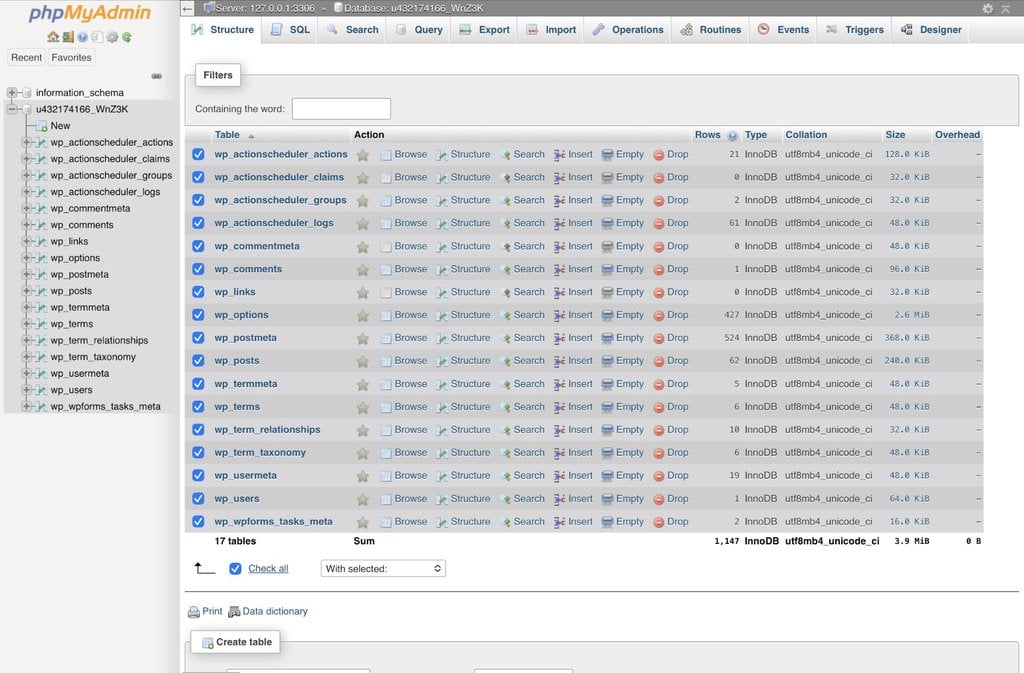
- After selecting the tables, click on the With selected: window and choose Optimize Table from the drop-down menu.
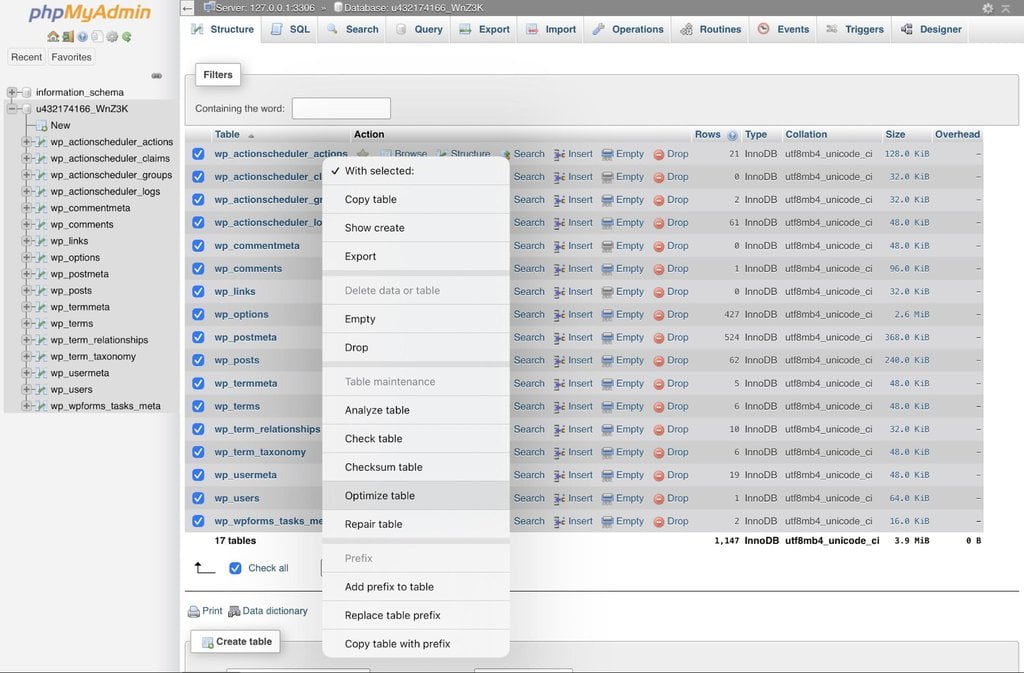
- This will optimize your database by defragmenting the selected WP tables. It should make your queries run faster and reduce the size of your database. Once complete, you’ll receive a message, “Your SQL query has been executed successfully.”
2. Automatic WordPress Database Optimization
WordPress also comes with a built-in automatic database optimization tool. This method is somewhat more complicated than others on this list, as it will require you to edit your site’s wp-config.php file. As previously, we recommend backing up your database before starting.
- The wp-config.php file is located in your site’s root folder. You can access it via hPanel’s file manager or an FTP client.
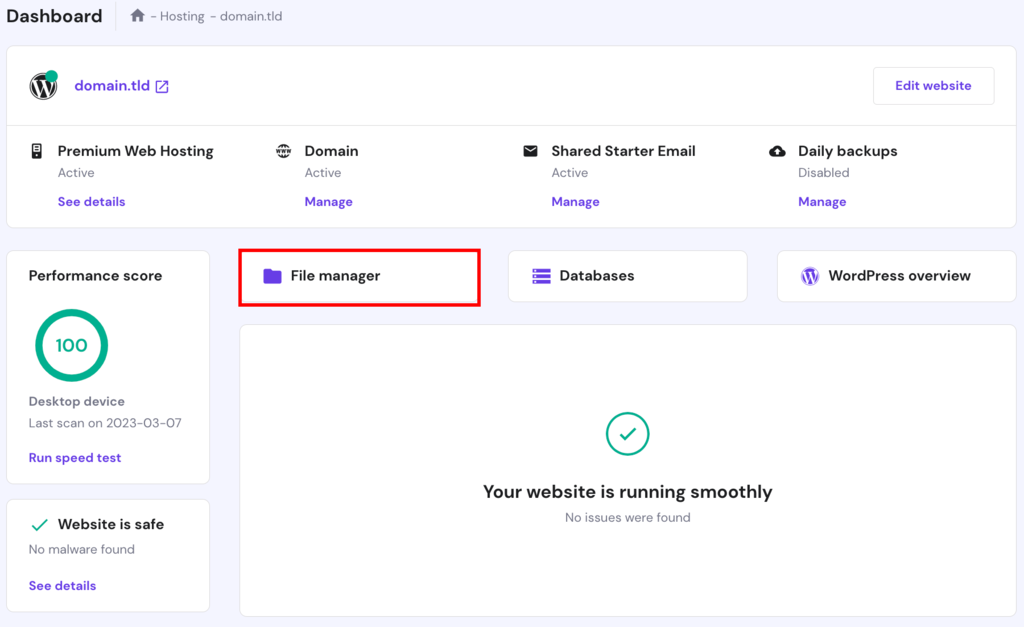
- Once you locate the file, you can download and edit it using a text editor such as Windows Notepad or Notepad++. Alternatively, you can edit the wp-config.php file inside hPanel by double-clicking on it.
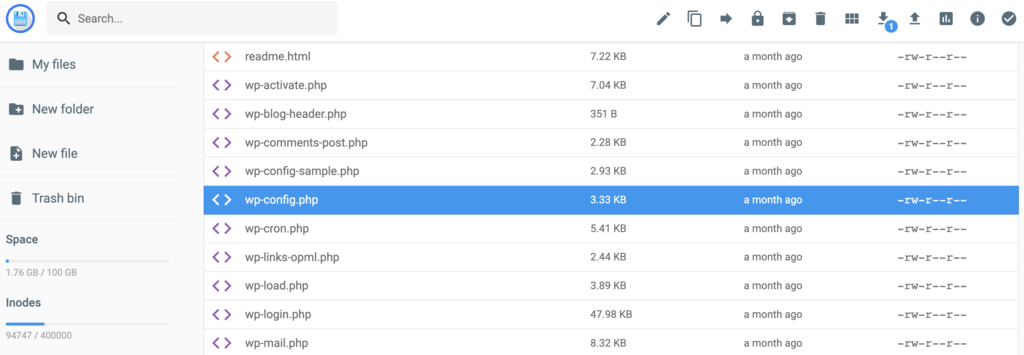
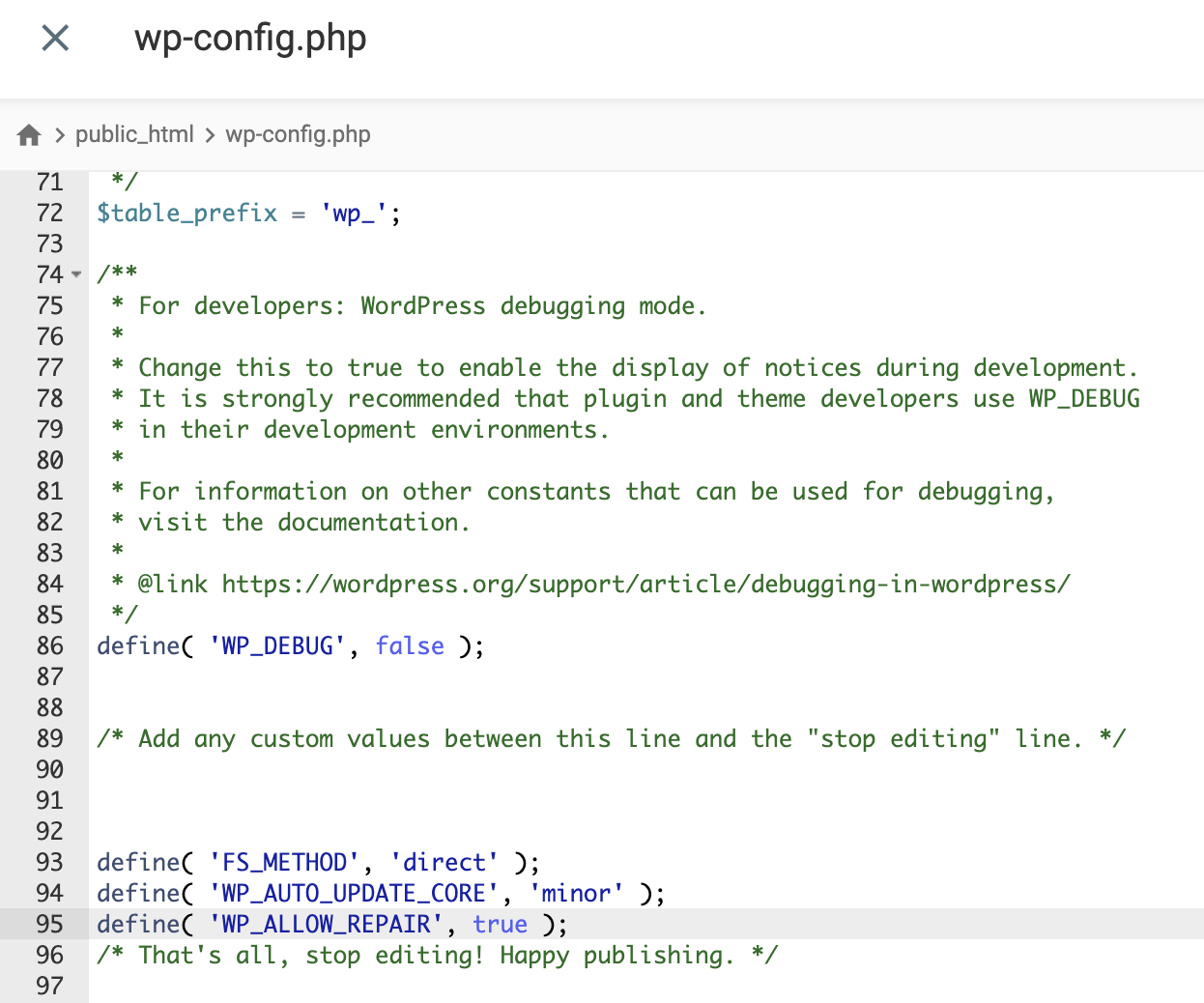
- Once you have the wp-config.php open, you’ll need to add the following line:
define( 'WP_ALLOW_REPAIR', true );
This is best done by placing the new line above "/* That's all, stop editing! Happy blogging. */", as we’ve done in the example below.
- Now, save the wp-config.php file and close it. If you downloaded the file in order to edit on your computer, reupload it to replace the existing one.
- You can then access the optimization tool by going to
http://www.yourwebsite.com/wp-admin/maint/repair.php.Remember to replace “your website” with your site’s domain. Finally, you’ll see an on-screen option to Repair and Optimize Database.
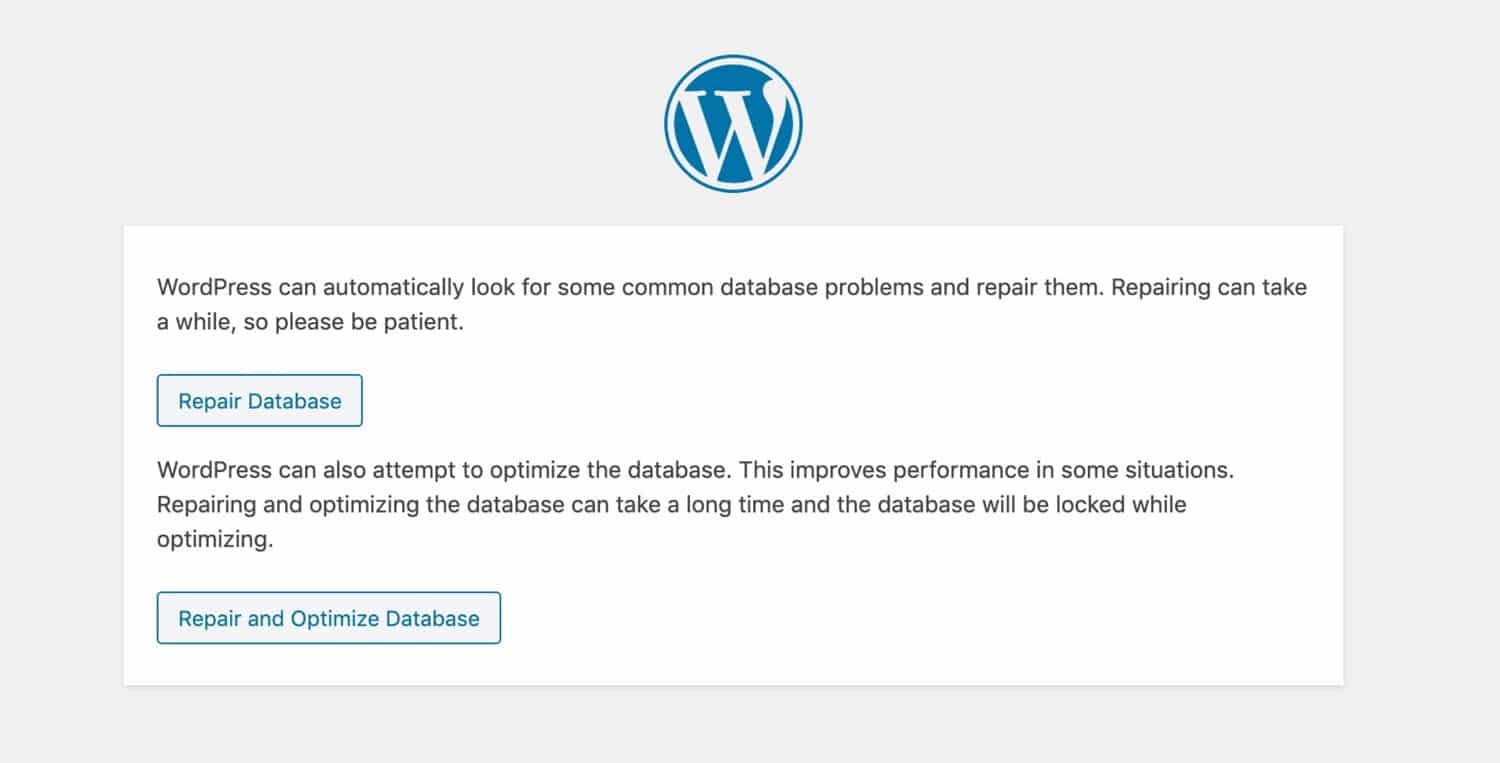
When the process is complete, you’ll need to return to the wp-config.php file and remove the added line.
Once again, if you downloaded the file, re-upload it to replace the existing copy. Leaving the line intact is a security risk because it allows anyone to access the repair page.
3. WordPress Database Optimization With Plugins
Finally, let’s discuss the easiest way to optimize your database using a WordPress database plugin. You can install and activate all of these plugins via your WordPress dashboard.
WP-DBManager
WP-DBManager is a simple plugin that allows you to optimize a WordPress database, as well as back up and restore files. With this tool, most of the work is done automatically upon installation.
Moreover, your options are limited, making it easier for newcomers to navigate. The plugin helps with getting rid of unwanted tables or fixing broken ones. It can also repair damaged files.
Once you’ve installed and activated the plugin, you’ll want to go to Database → Backup DB in order to safeguard your site. After that, go to Database → Optimize DB.
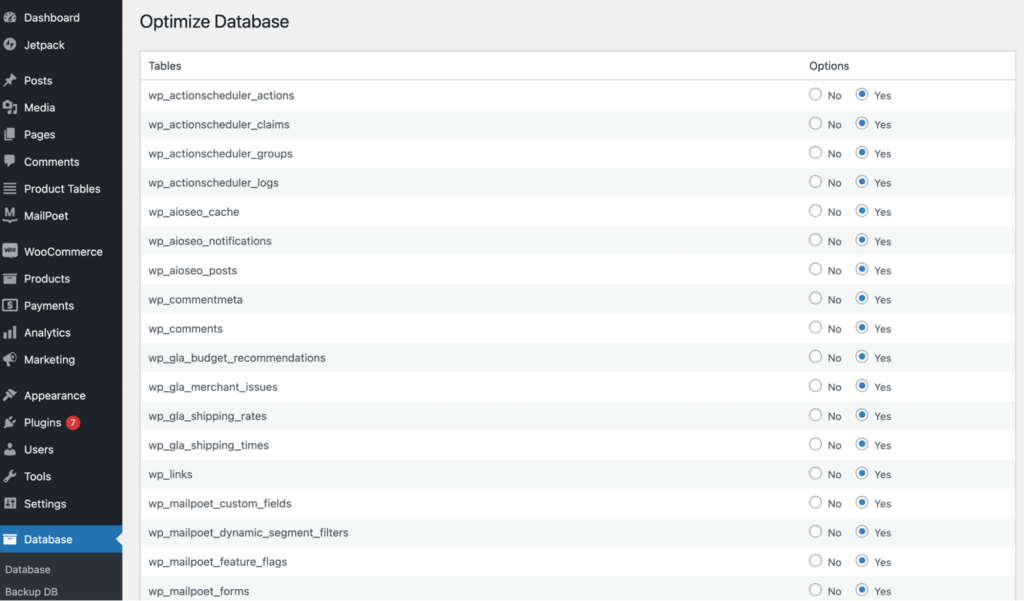
Choose Yes for all the database tables you want to optimize. Then, scroll down to the bottom of the screen and select Optimize.
WP-Optimize
WP-Optimize is an advanced tool that allows compressing, caching, and cleaning up a WordPress database. It is an all-in-one plugin, meaning you won’t need to install other tools to perform different database optimization tasks.
This popular WordPress database optimization plugin lets you set schedules to run these processes automatically. It even provides a tool to compress images.
After you have installed and activated the plugin, navigate to the WordPress dashboard. Then, go to WP-Optimize → Database.
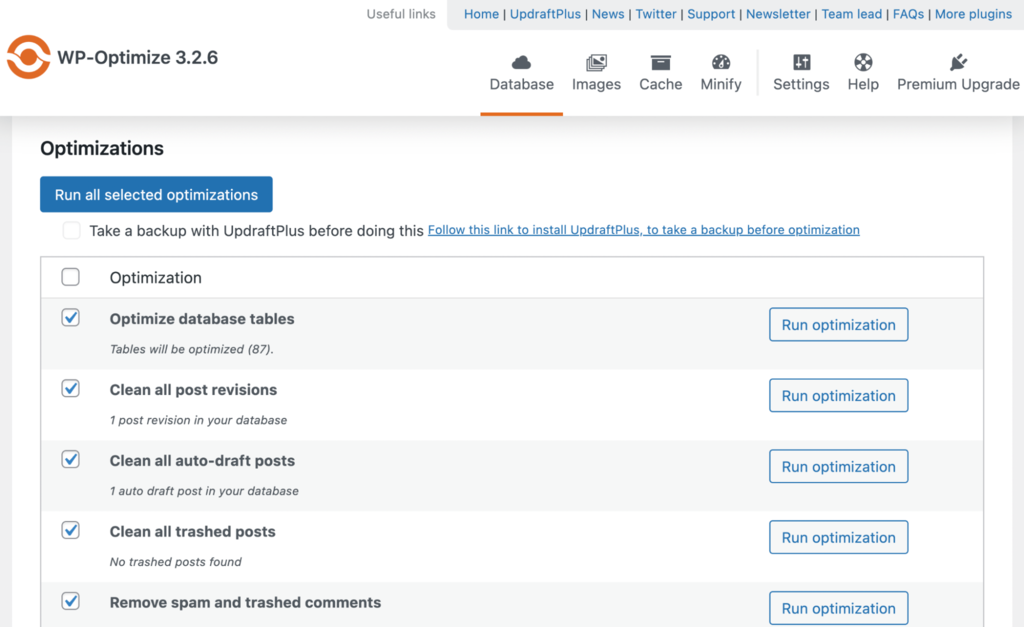
Here, it’s best to take the time to examine all the potential optimization options thoroughly. Go ahead and select/deselect the options as you see fit. You’ll also notice that the plugin suggests downloading a backup tool before proceeding.
Completing this preliminary step is a good idea if you don’t already have a backup tool installed. When ready for a WordPress database cleanup, click on Run all selected optimizations.
Advanced Database Cleaner
Advanced Database Cleaner is designed exclusively to help you clean up the WordPress database. It will delete old revisions, alongside elements like trackbacks, pending comments, old drafts, and anything else causing unnecessary bloat.
The plugin also features a quick setting module, options for how often the tool will run, and the ability to exclude anything you like from the optimization process.
When the plugin is installed and activated, go to Advanced DB Cleaner in your dashboard.
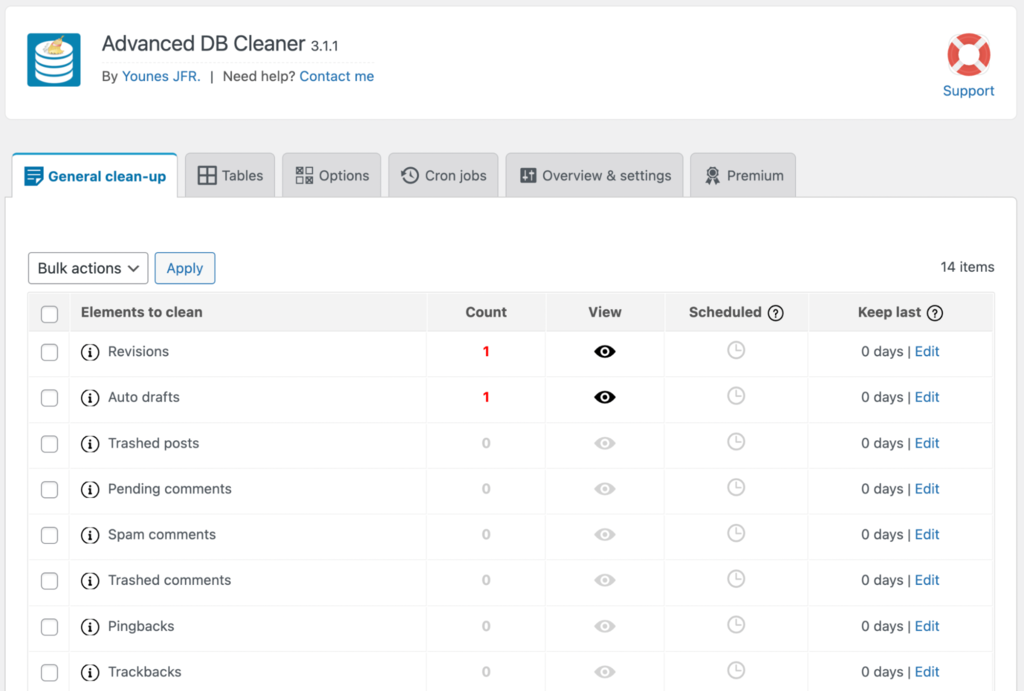
You’ll be on the General Clean-up tab by default. Like other tools, tick the checkboxes next to the elements you wish to delete.
Choose Clean from the drop-down menu and click Apply. You should have successfully performed a WordPress database cleanup.
Preventing Future WordPress Website Bloat
You should now be able to keep your WordPress database functioning at more optimum levels. However, even with these WordPress database optimization tools and strategies, it’s still a good idea to prevent any unnecessary site bloat before it happens.
This way, you can reduce the time required to maintain your web pages. Let’s look at some best practices for WordPress speed optimization to keep website bloat to a minimum.
Spam
Too many spam comments can take up a lot of space in your database. Therefore, WordPress automatically deletes them after 30 days. Still, they can take up a tremendous amount of space, especially if you’ve been a victim of an aggressive spam incident. The best way to confront this is through an anti-spam plugin such as Akismet.

Furthermore, spam comments generally target older articles that already rank high on search engine results. This means that even temporary spam can seriously damage your SEO efforts. To avoid this, you can also disable comments on articles older than a particular number of days.
Revisions
If you use your site for blogging, you likely already know that making revisions are essential. However, you may not have realized that lengthy or heavily edited articles can have dozens or hundreds of rows in the database.
To reduce the number of revisions your database holds, add a line of code to your wp-config.php file. WordPress will only maintain a maximum of two revisions per post:
define( 'WP_POST_REVISIONS', 2 );
Alternatively, you can disable revisions entirely with this line:
define( 'WP_POST_REVISIONS', false );
However, you may not want to use this option unless you’re confident you won’t need to retrieve any old revisions. Further information on how to use this code can be found in the official WordPress revisions documentation.
Transients
Developers use transients to store data temporarily in the database options table. However, expired records can be another strain on your database.
The best way to get rid of them is with a third-party plugin. Several high-quality options are available. If you suspect that transients are clogging up your site, you may want to consider using something like Transient Cleaner or Transients Manager.
Deleted Items
Almost everything you delete in WordPress doesn’t get removed entirely. Instead, it goes into the Trash folder and is only gone when you empty the bin. While this failsafe can be handy, it can cause your database to become bloated.
As such, you should consider emptying these trash folders regularly. WordPress permanently deletes these files after 30 days by default, but you can make the process happen more often.
By adding the following line of code to the wp-config.php file, you can alter the limit number:
define( 'EMPTY_TRASH_DAYS', 7 );
Here, we’ve lowered it to just seven days, but you can enter whatever value you like.
Unused Tables
When you install and activate a WordPress plugin, it may automatically get its own table. However, when you delete the plugin, WordPress doesn’t automatically remove that data.
Instead, it remains in place if you ever want to install the plugin again. If you swap out your plugins and install new ones regularly, this old data will cause problems like the error establishing database connection issue.
Therefore, you’ll want to clear up unused tables as a part of your WordPress database cleanup process.
While some plugins offer a built-in option to remove all data, most do not. That means it’s something you’ll need to do manually via the methods we’ve discussed previously. Remember not to tweak the core tables; ensure that you back up your files before proceeding.
Conclusion
WordPress database optimization is something every website owner needs to do at some point. In short, the longer your database is active, the more unnecessary information it will accumulate. However, removing this excess data doesn’t have to be complicated.
To recap, here are three ways you can carry out WordPress database optimization:
- Manually via phpMyAdmin.
- Automatically using the built-in WordPress optimizer tool.
- Using such third-party plugins as WP-DBManager, WP-Optimize, or Advanced Database Cleaner.
Now you have the tools and knowledge to maintain a high-performing and lightweight WordPress database! If you have more questions or suggestions, feel free to share them in the comments section.
WordPress Database Optimization FAQs
Here are some additional explanations about WordPress database optimization.
What Is WordPress Database Optimization?
WordPress database optimization is the process of cleaning and optimizing the WordPress database to analyze and improve website performance. This includes removing unnecessary data, optimizing database tables, and reducing the size of the database to ensure faster queries and a smoother overall user experience.
What Are Some Common WordPress Database Optimization Mistakes?
Some common WordPress database optimization mistakes include not backing up the database before making changes, not optimizing images and other media files, using too many plugins, not using a caching plugin, and not regularly cleaning up unused tables or data.
All of the tutorial content on this website is subject to Hostinger's rigorous editorial standards and values.

Will Morris is a staff writer at WordCandy. When he's not writing about WordPress, he likes to gig his stand-up comedy routine on the local circuit.