How to fix ERR_SSL_VERSION_OR_CIPHER_MISMATCH
Mar 10, 2026
/
Ariffud M. & Leonardus N.
/
8 min Read
The ERR_SSL_VERSION_OR_CIPHER_MISMATCH error commonly occurs when a web browser fails to establish a secure connection because the website’s SSL/TLS protocol settings are outdated or incompatible.
These protocols are important for encrypting data and ensuring privacy across the internet. It’s important for both website owners and visitors to understand this error, as it impacts user trust and the accessibility of the website.
This guide will explain the causes of ERR_SSL_VERSION_OR_CIPHER_MISMATCH and provide step-by-step solutions on how to fix it. By the end, you’ll know how to troubleshoot and prevent this issue from recurring, ensuring a smooth browsing experience for your visitors.
What is ERR_SSL_VERSION_OR_CIPHER_MISMATCH?
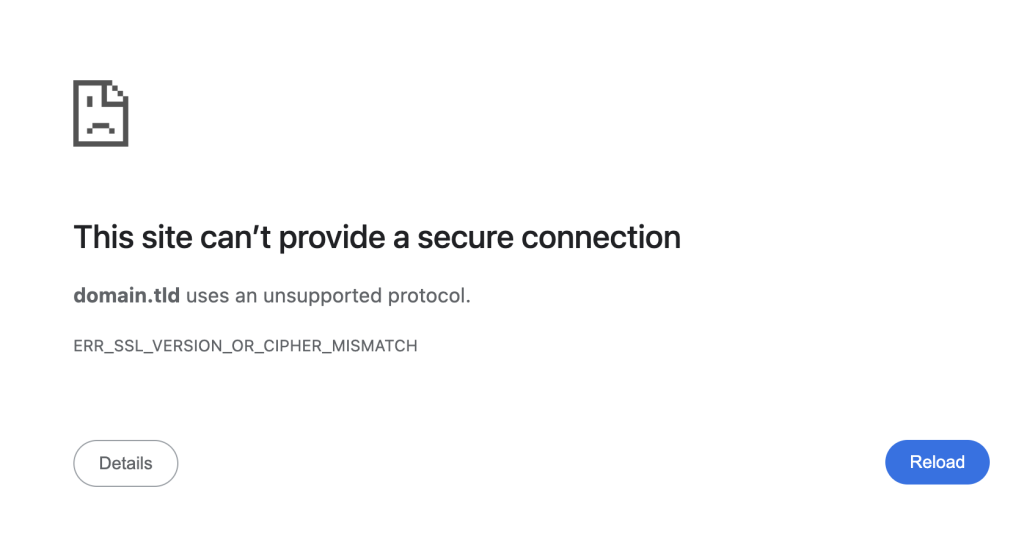
The ERR_SSL_VERSION_OR_CIPHER_MISMATCH error typically occurs when a browser detects a site’s Secure Socket Layer (SSL) certificate or protocol settings are incorrect or the cipher suite used is outdated.
This error is the browser’s way of protecting users from visiting potentially unsafe websites.
Web browsers like Chrome, Edge, and Safari automatically check a site’s SSL configuration to ensure it’s secure. This process, known as the Transport Layer Security (TLS) handshake, establishes a legitimate connection between the browser and the web server.
If either party fails to support a standard SSL protocol version or cipher suite during the handshake, it triggers ERR_SSL_VERSION_OR_CIPHER_MISMATCH.
What causes the ERR_SSL_VERSION_OR_CIPHER_MISMATCH error?
The ERR_SSL_VERSION_OR_CIPHER_MISMATCH error message can result from several possible causes, such as:
- Outdated or incompatible SSL/TLS protocols. If a web server uses an outdated SSL/TLS protocol version, such as SSL 3.0 or TLS 1.0, it may not be supported by current web browsers, leading to this error.
- Expired or mismatched certificate name. If the website’s SSL certificate is assigned to a different domain name or if it’s expired, the browser will display a warning message.
- Misconfigured web server or CDN settings. Incorrect SSL configurations on a web server or content delivery network (CDN), like Cloudflare, may prevent proper communication between the server and the browser.
- Browser issues or cache problems. Web browser cache data might contain outdated SSL information that conflicts with a website’s current settings.
- Antivirus or firewall interference. Specific firewall or antivirus software can block secure connections due to misconfigurations or false positives, causing the error to appear.
How to fix the ERR_SSL_VERSION_OR_CIPHER_MISMATCH error
Here are some troubleshooting tips to fix ERR_SSL_VERSION_OR_CIPHER_MISMATCH. Please note that the first two methods are dedicated to website owners, while steps three to six apply to everyone, including end-users.
1. Verify the SSL/TLS certificate
Verifying your website’s SSL/TLS certificate is a great starting point for resolving the ERR_SSL_VERSION_OR_CIPHER_MISMATCH error. Here’s how to check SSL configuration issues:
Checking SSL certificate validity
To determine if your SSL certificate is still valid and up to date, use online tools like Qualys SSL Labs. This tool provides a comprehensive report on your SSL settings, highlighting any issues that could cause errors. Follow these steps:
- Go to the Qualys SSL Server Test page.
- Enter your website URL and hit Submit.
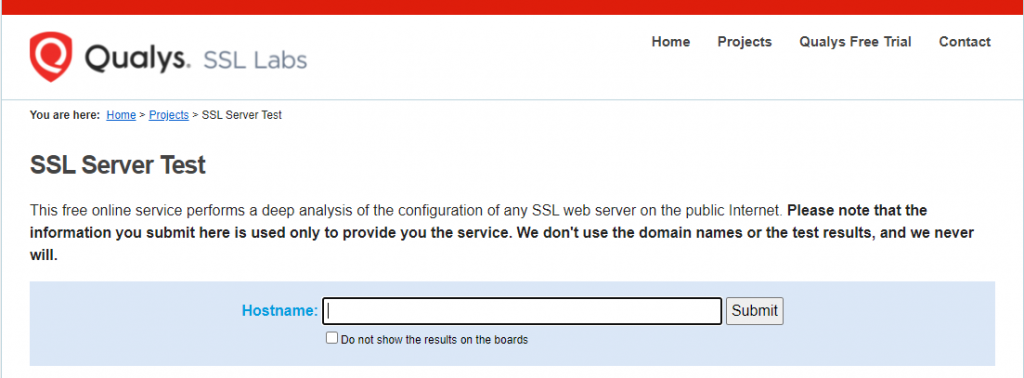
- Wait for the tool to analyze your site. It will provide a grade for your SSL connection and identify any problems, such as an expired SSL certificate or weak protocol support.
- Review the results to see if your SSL certificate is valid, properly issued, and supported by current browsers. If the certificate is expired or invalid, you’ll need to renew or replace it.
Understanding Qualys SSL Labs report
To fix ERR_SSL_VERSION_OR_CIPHER_MISMATCH effectively, you need to understand the results provided by Qualys. Here are four common issues that might appear in the report:
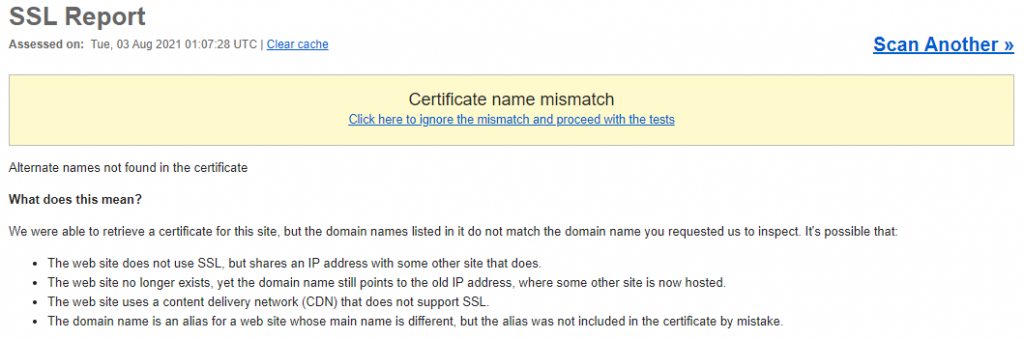
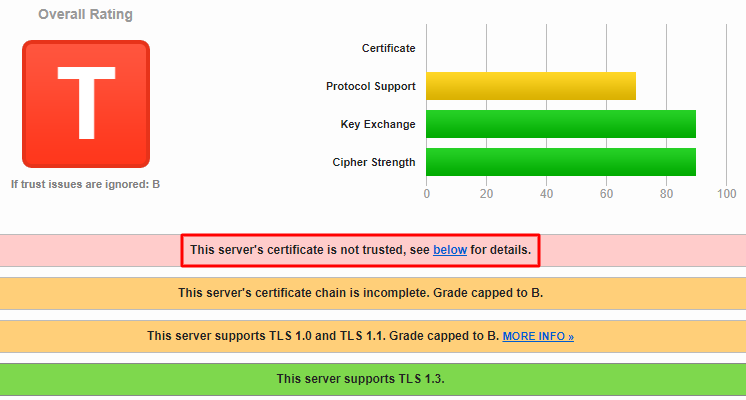
- SSL certificate name mismatch. This occurs when the domain name in the SSL certificate doesn’t match the URL accessed in the browser. Qualys SSL Labs detects a mismatch and includes the information in its report.
- Invalid SSL certificate. This happens when the certificate has expired, wasn’t issued by a trusted certificate authority, or was improperly installed. If that’s the case, you’ll need to update or reinstall the certificate.
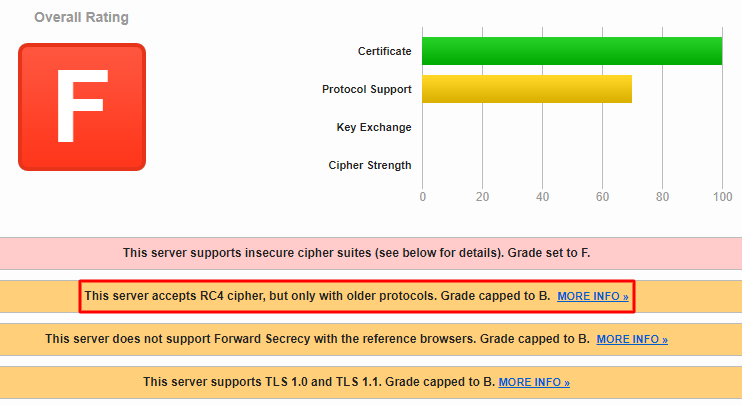
- RC4 cipher suite. The SSL Labs test checks the server’s current cipher suite. If it still uses the RC4 cipher suite, which is considered insecure, the report will flag it. Update your server configuration to disable RC4 and use a secure cipher suite instead.
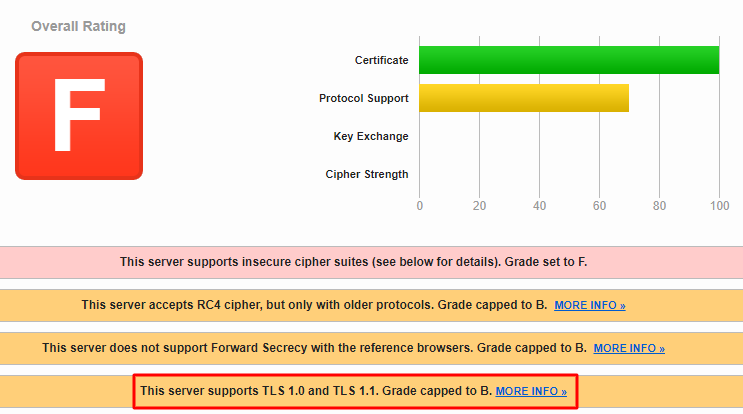
- Old TLS version. The tool also identifies the current version of TLS that your website is running. It should be at least TLS 1.2, as current browsers no longer support older versions like TLS 1.0 and TLS 1.1. If your site still uses an outdated version, contact your hosting provider to upgrade the TLS version.
Investigating a mismatched certificate name
If the Qualys SSL Labs tool detects an SSL certificate mismatch, use Google Chrome DevTools to confirm which domain names are covered by your certificate. Here’s how:
- Right-click anywhere on a Chrome tab and select Inspect.
- Go to Security → View certificate to see the certificate information.
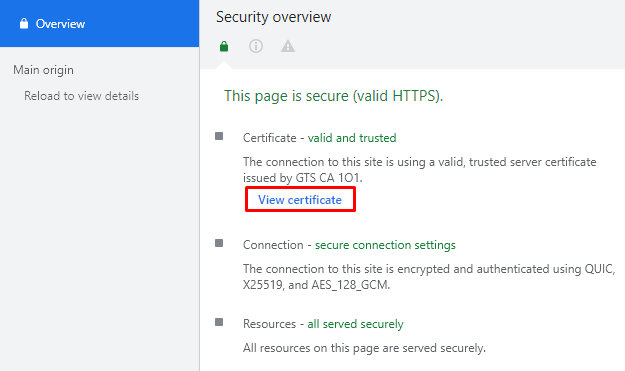
- In the certificate window, navigate to Details → Certificate Subject Alternative Name. This will show all the domain names covered by the certificate.
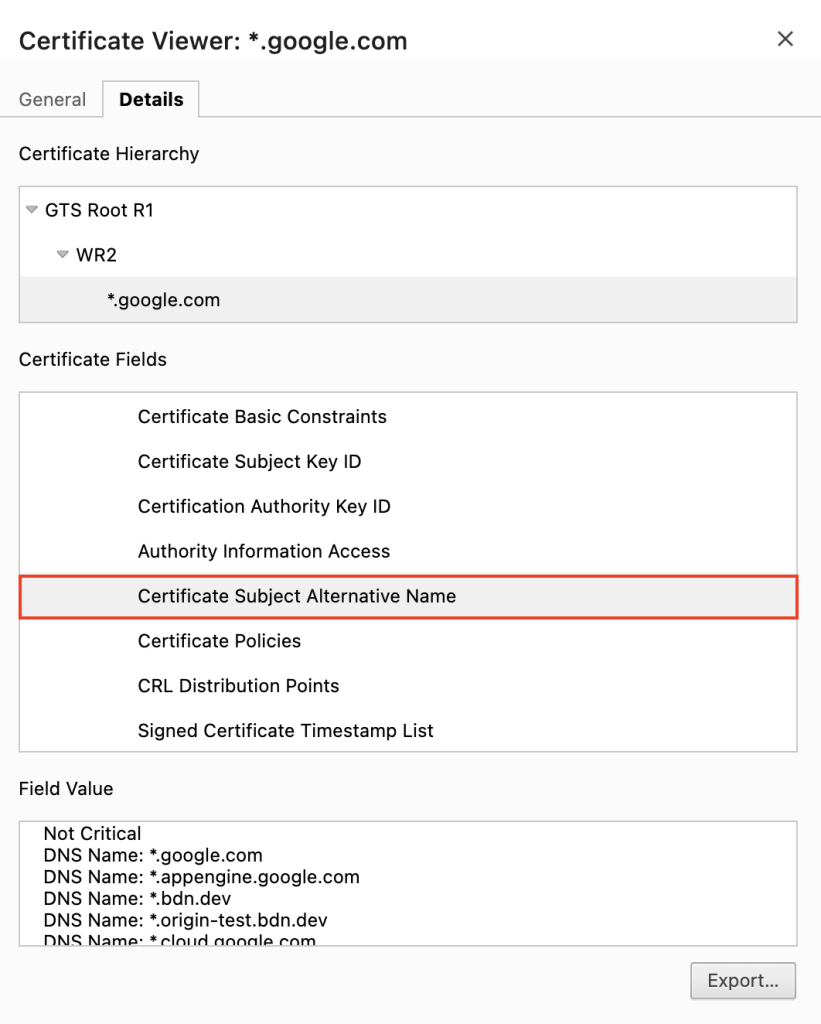
- Review the list of domain names to ensure they match the accessed URL. If there’s a discrepancy, redirect traffic to the correct domain or use a wildcard certificate that covers multiple subdomains.
2. Reconfigure SSL settings
Reconfiguring SSL settings can fix the ERR_SSL_VERSION_OR_CIPHER_MISMATCH issue if incorrect configurations cause it. Here’s how to do so on services like Hostinger and Cloudflare:
Reconfiguring SSL settings on Hostinger for Lifetime SSL
Hostinger offers a free SSL certificate from Lifetime SSL for all our web hosting plans. You can update the SSL settings via hPanel by following the instructions below:
- Log in to hPanel using your Hostinger account.
- Go to Websites → Dashboard.
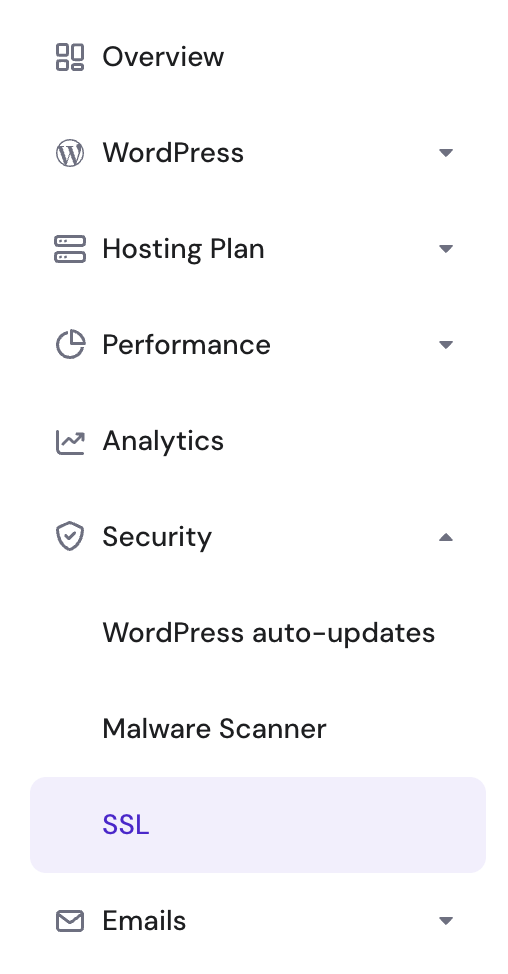
- In the left sidebar, select Security → SSL.
- Click the three-dot menu and select Uninstall.
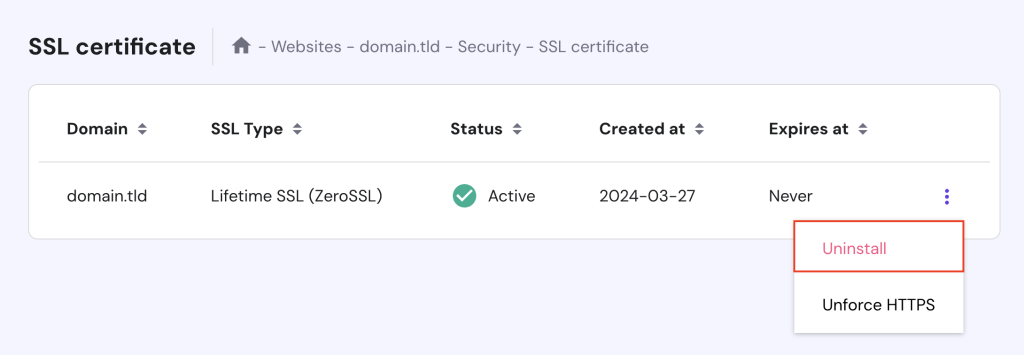
- Re-enable the SSL by selecting the domain name and clicking Install SSL.
- Wait until the SSL is activated for your domain. Once done, click the three-dot menu again and select Force HTTPS to ensure all traffic is redirected securely.
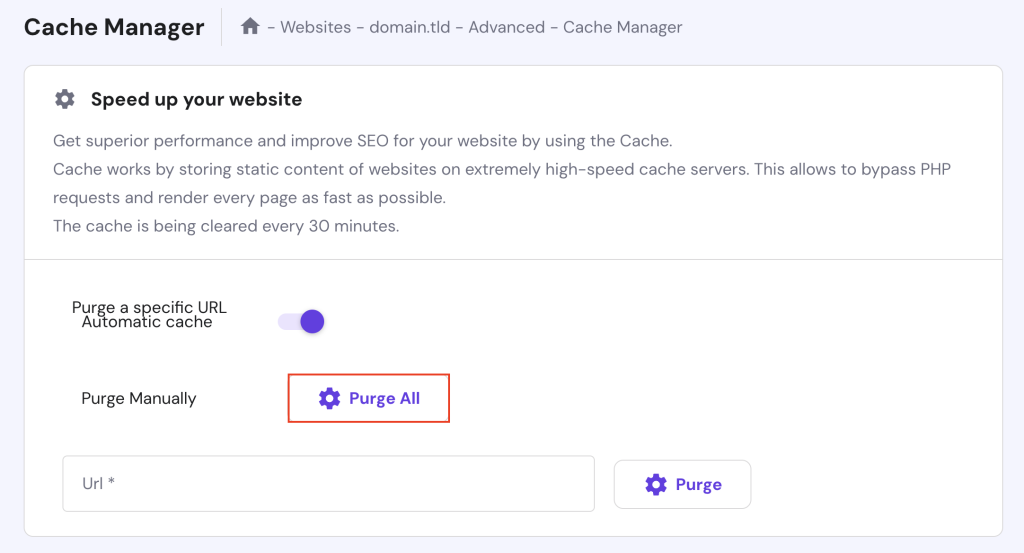
- Go to Advanced → Cache Manager and hit Purge All to clear any cached data pointing to the old SSL configuration.

Reconfiguring SSL settings via Cloudflare for Universal SSL
If you use Cloudflare’s Universal SSL, you need to adjust the SSL settings through its dashboard. Here’s how:
- Log in to your Cloudflare dashboard.
- Select SSL/TLS on the dashboard’s top panel.

- Go to the Edge Certificates tab.
- Scroll down and find the Disable Universal SSL button to disable the SSL.
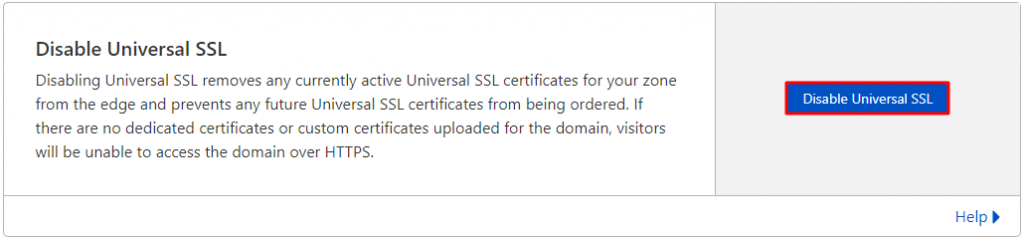
- Wait a few minutes for the process to complete, then click Enable Universal SSL to reactivate it.
- Go back to the top panel and select Caching.
- Navigate to Configuration → Purge Cache → Purge Everything to clear the cache.
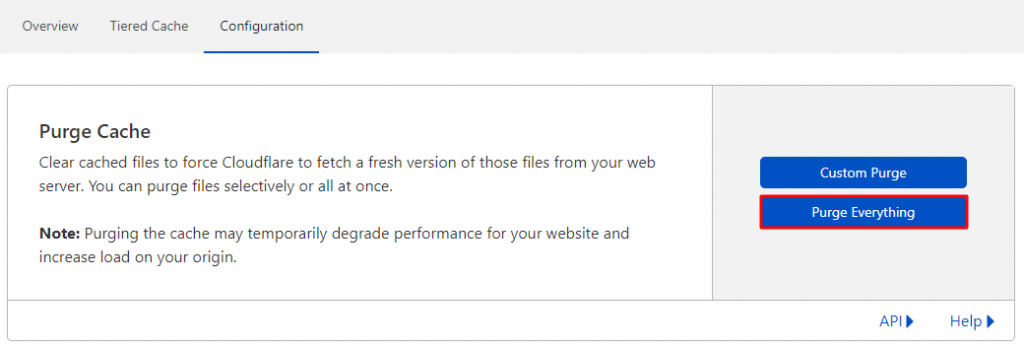
Regardless of the service, wait a few minutes after completing these steps. Then, revisit your website to see if the issue has been resolved.
3. Enable the latest TLS support
Enabling the latest TLS version in your browser can help resolve the ERR_SSL_VERSION_OR_CIPHER_MISMATCH problem. The most current version, TLS 1.3, is widely supported by current browsers.
However, there might be cases where you need to enable older TLS versions for testing purposes. Here’s how to manage browser TLS support:
Enabling TLS 1.3 for older browser versions
Most browsers, including Google Chrome, support TLS 1.3 by default. However, if you use an older Chrome version, you may need to enable it manually:
- Open Chrome and enter chrome://flags in the address bar.
- In the search field, type TLS.
- Look for TLS 1.3 options and set them to Enabled.
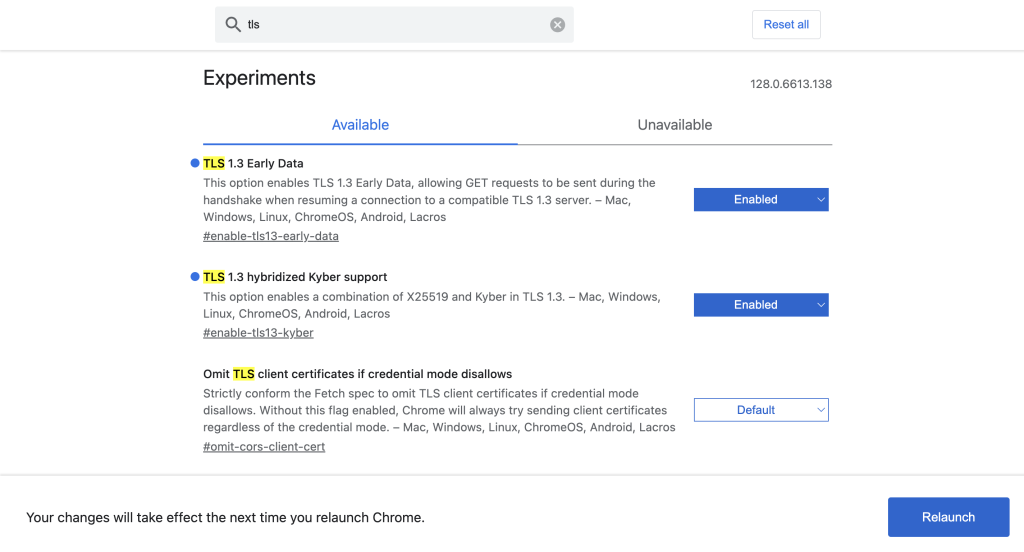
- Click Relaunch to restart Chrome and ensure the changes take effect.
Activating older TLS versions
Sometimes, you may need to test if older TLS versions, such as TLS 1.0 or 1.1, are causing ERR_SSL_VERSION_OR_CIPHER_MISMATCH. While keeping these settings is not recommended, you can temporarily enable these earlier protocols.
For Chrome users, here’s how to do it:
- Type chrome://flags in the address bar and press Enter.
- Search for TLS in the designated field.
- Find Enforce deprecation of legacy TLS versions and set it to Disabled.
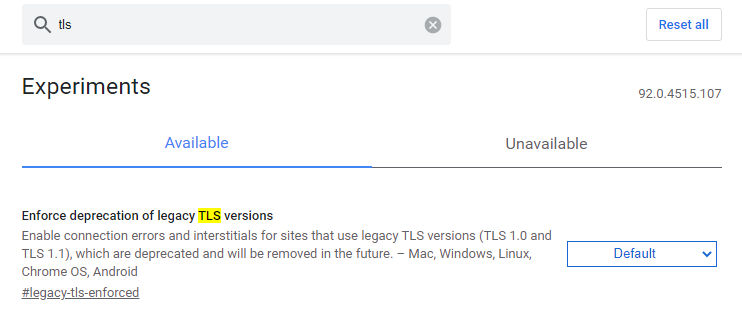
- Restart Chrome to apply the changes.
If you use Windows, you can also enable all TLS versions on your system with these steps:
- Go to Control Panel → Network and Sharing Center → Internet Properties.
- Select the Advanced tab and check the boxes for Use TLS 1.0, Use TLS 1.1, Use TLS 1.2, and Use TLS 1.3 (experimental).
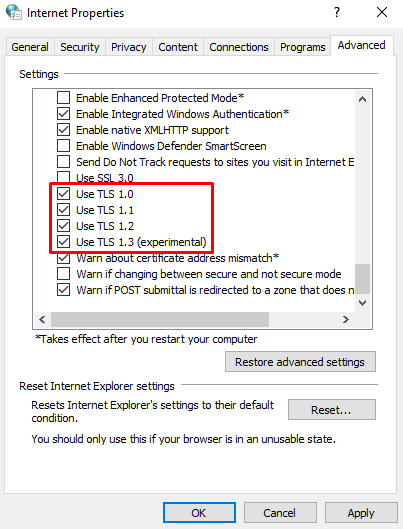
- Hit OK to save your configuration.
Warning! You should only activate older TLS versions temporarily for testing purposes. Keeping these settings enabled is not safe for regular browsing activities, as earlier versions are not supported anymore and can expose you to vulnerabilities.
4. Disable the QUIC protocol
The Quick UDP Internet Connection (QUIC) protocol is an experimental project developed by Google to improve the speed and reliability of web applications using the User Datagram Protocol (UDP).
While QUIC can be an effective alternative to well-known security solutions like TCP, HTTP/2, and TLS/SSL, it may sometimes cause SSL errors like ERR_SSL_VERSION_OR_CIPHER_MISMATCH.
Turning off the QUIC protocol in your browser can help resolve this issue. Here are the steps for Google Chrome:
- Go to chrome://flags and search for QUIC.
- Change the Experimental QUIC protocol value to Disabled.
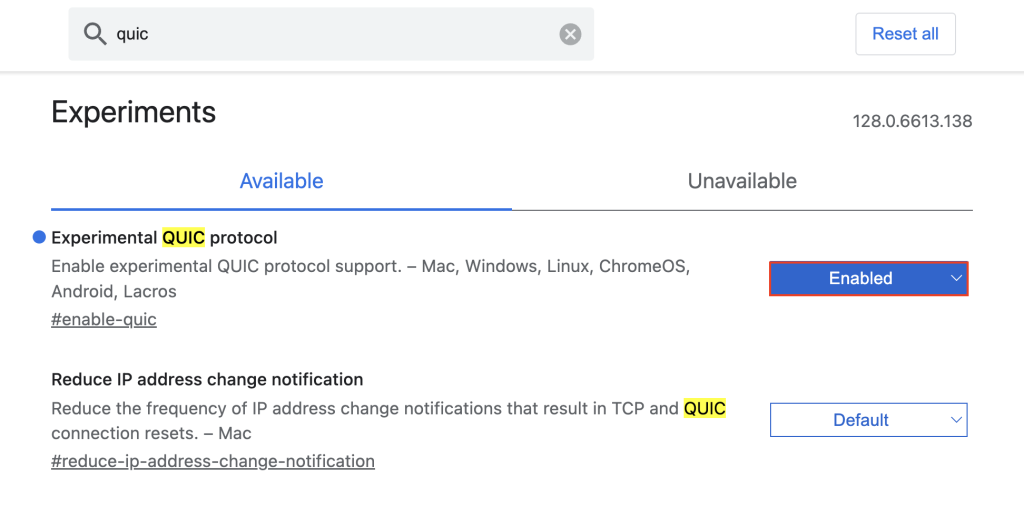
- Restart the web browser.
5. Clear your web history and cache
Your browser’s cache stores data such as text, images, and files from websites you’ve previously visited, allowing them to load more quickly on future visits.
However, if a website updates its SSL certificate or settings, the cache can become outdated, leading to problems such as ERR_SSL_VERSION_OR_CIPHER_MISMATCH. Clearing your browser’s cache can help resolve these issues.
Here’s a guide for Google Chrome users:
- Click the three-dot menu in the top right corner and select Settings.
- Go to Privacy and security → Delete browsing data.
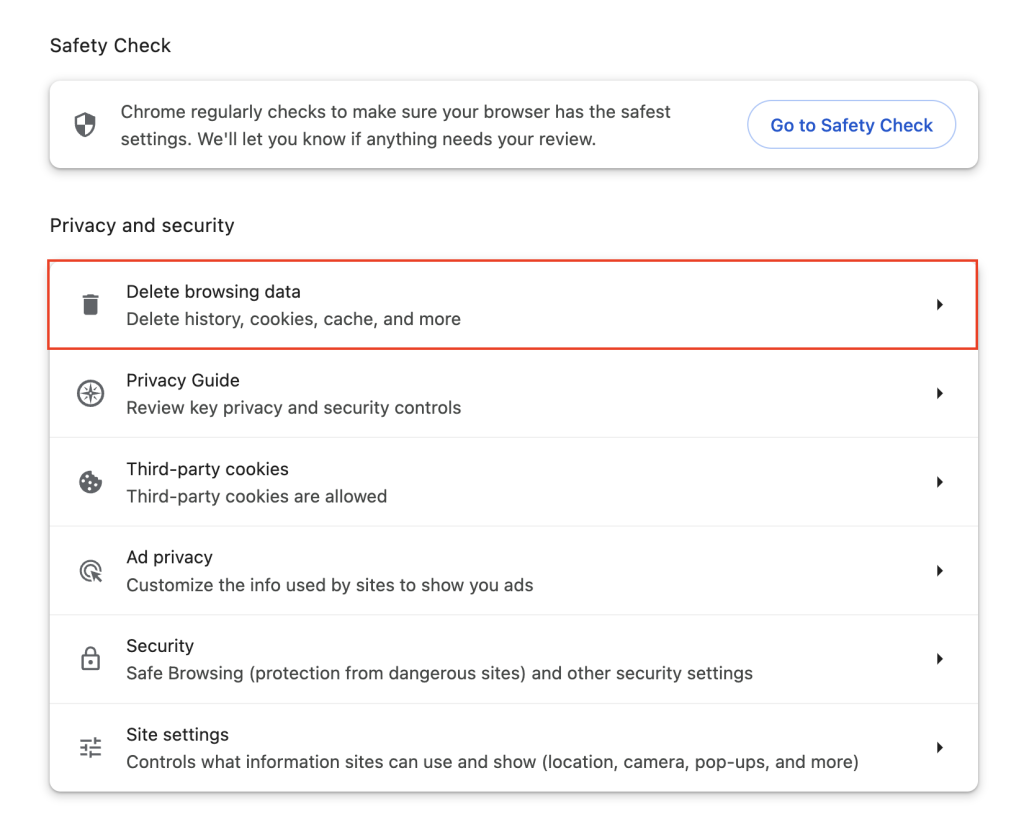
- In the pop-up window, select the time frame for deletion, such as All time.
- Check the Cached images and files option. You can also select other options as needed.
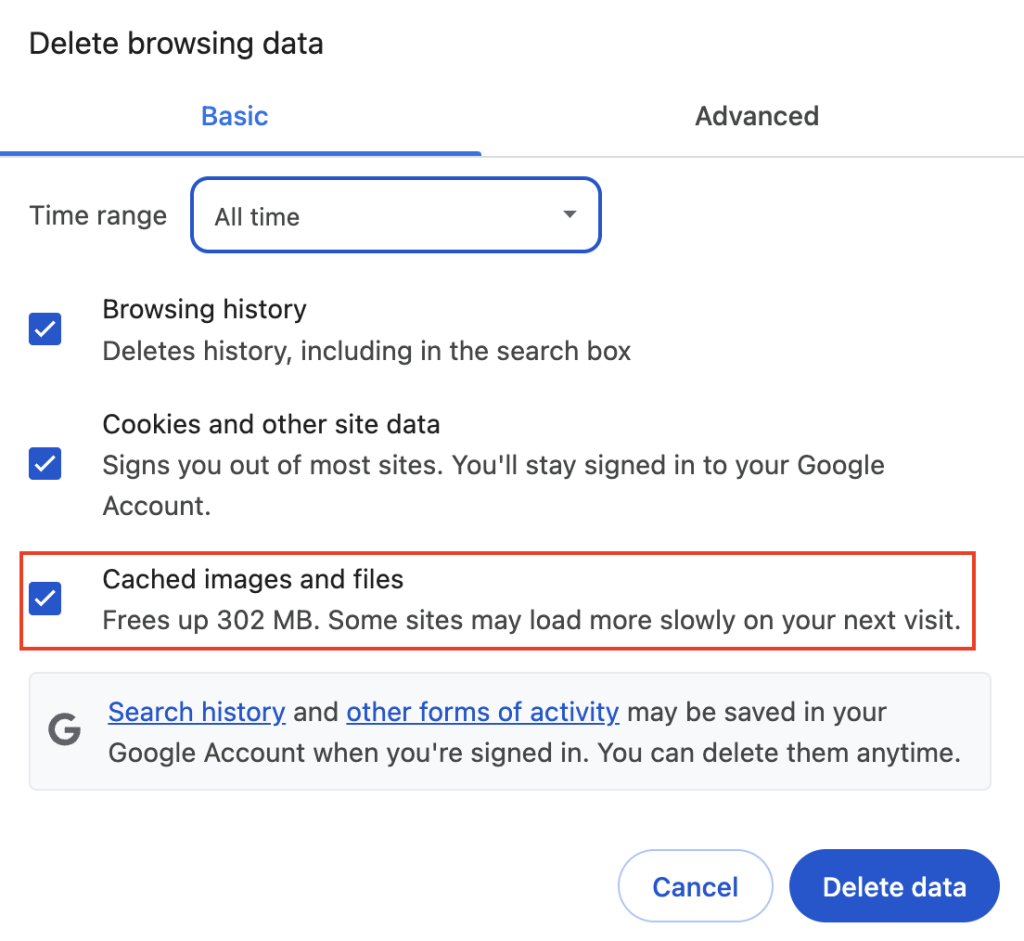
- Click Delete data.
After that, try revisiting the website. If the error persists, consider clearing the SSL state. Please note that this option is only available on Windows:
- Navigate to Control Panel → Network and Sharing Center → Internet Properties.
- Under the Content tab, click Clear SSL state.
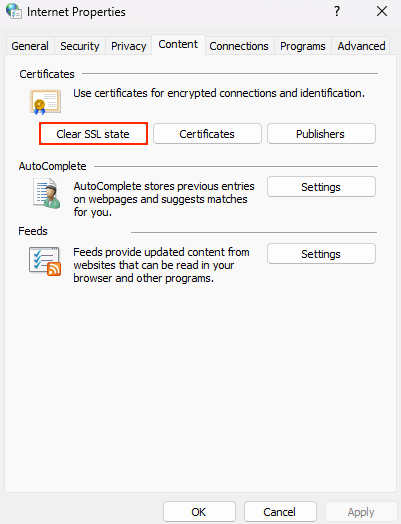
- Hit OK.
6. Review antivirus and firewall settings
Sometimes, your antivirus software or firewall settings can block secure connections, leading to issues like ERR_SSL_VERSION_OR_CIPHER_MISMATCH. Improper configuration or the software’s SSL certificates can cause false alarms, flagging safe websites as dangerous.
Temporarily disabling antivirus and firewall
If you use Windows, follow these steps:
- Head to Settings → Privacy & Security → Windows Security.
- Select Virus & threat protection → Manage settings.
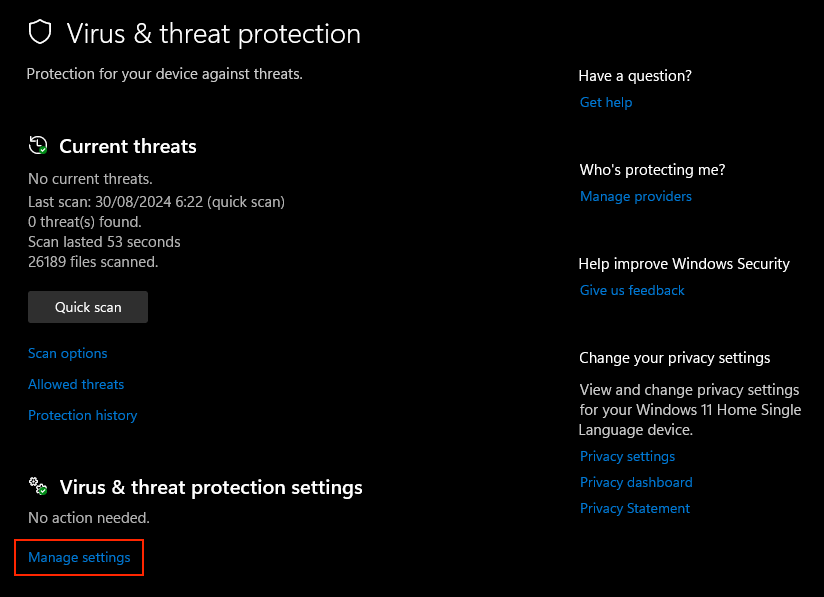
- Toggle Real-time protection to Off and click Yes to confirm.
Here are the instructions for macOS users:
- Go to System Settings → Network → Firewall.
- Turn off the Firewall option.
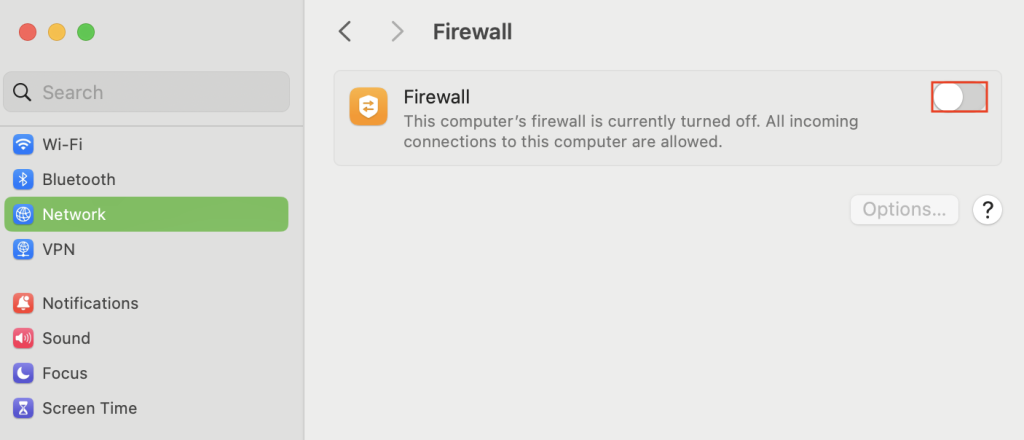
If you use a third-party antivirus program, look for an option to temporarily disable real-time protection, web shield, or firewall. This option might be listed as Pause Protection, Turn Off, or Disable.
After turning off these security programs, try opening the same website to verify if the error persists.
Adjust antivirus and firewall settings
If it turns out that your antivirus or firewall is causing the issue, consider adjusting your settings to prevent them from blocking secure websites:
- Disable SSL or HTTPS scanning features. Check for SSL or HTTPS scanning features in your software and disable them. These features can sometimes interfere with legitimate SSL certificates and cause errors.
- Whitelist the website. Add the affected website to the trusted list or exceptions to ensure it isn’t blocked in the future.
- Seek professional guidance. Consult the software’s support team or official documentation if you’re unsure how to configure the settings correctly.
Conclusion
To resolve the ERR_SSL_VERSION_OR_CIPHER_MISMATCH error, website owners can start by verifying the SSL/TLS certificate and then reconfiguring the SSL settings.
For visitors, try enabling the latest TLS support, disabling the QUIC protocol, clearing the browser cache, and reviewing your antivirus and firewall settings to ensure they aren’t blocking secure connections.
Regularly checking, renewing certificates, and updating SSL/TLS settings can maintain website security and prevent such issues in the future. If you have any questions or additional tips for fixing this error, feel free to share them in the comment section below.
ERR_SSL_VERSION_OR_CIPHER_MISMATCH FAQ
How do I fix the “ERR_SSL_VERSION_OR_CIPHER_MISMATCH” error?
To fix the ERR_SSL_VERSION_OR_CIPHER_MISMATCH error, verify your SSL/TLS certificate, reconfigure SSL settings, enable TLS 1.3, disable the QUIC protocol, clear your browser cache, and review firewall or antivirus programs for potential conflicts.
How do I update my SSL version to resolve the error?
To update your SSL version, enable TLS 1.3 on your server by accessing the SSL/TLS settings in your hosting control panel or server configuration. To improve security and compatibility, disable outdated versions like TLS 1.0 and 1.1.
What if the ERR_SSL_VERSION_OR_CIPHER_MISMATCH error persists?
If the ERR_SSL_VERSION_OR_CIPHER_MISMATCH error persists, consult your hosting provider for support, review server configurations, reset your network settings, reinstall your browser, and update your device’s operating system for better compatibility.
All of the tutorial content on this website is subject to Hostinger's rigorous editorial standards and values.

Ariffud is a Technical Content Writer with an educational background in Informatics. He has extensive expertise in Linux and VPS, authoring over 200 articles on server management and web development. Follow him on LinkedIn.

Leo is a Content SEO Specialist and WordPress contributor. Armed with his experience as a WordPress Release Co-Lead and Documentation Team Representative, he loves sharing his knowledge to help people build successful websites. Follow him on LinkedIn.