Sep 16, 2024
Domantas G. & Brian
6min Read
Sep 16, 2024
Domantas G. & Brian
6min Read
Secure Sockets Layer (SSL) is a digital security feature that enables an encrypted connection between a website and a browser. SSL aims to provide a safe and secure way to transmit sensitive data, including personal information, credit card details, and login credentials.
The SSL protocol can only be used by websites with an SSL certificate, a digital document that validates a site’s identity.
Implementing SSL is essential to boost site security and performance. In this article, we’ll provide the ultimate guide to SSL, including what is SSL, how it works, and how it impacts websites. We’ll also cover the steps of installing an SSL certificate.
Download glossary for web beginners
SSL is an internet security protocol used to secure communication between internet users and web servers. However, the SSL protocol is currently deprecated.
Transport Layer Security (TLS) is SSL’s successor. TLS was developed by the Internet Engineering Task Force (IETF) and is the correct term that people should start using.
HTTPS is a secure version of HTTP. Websites that install and configure an SSL certificate can run on HTTPS to establish a secure connection with a web server.
Follow this Hostinger SSL certificate activation tutorial to protect your domain.

SSL certificates protect data transfer using two different encryption techniques: asymmetric and symmetric.
Asymmetric encryption uses two separate keys: a public and a private key. The public key is used to encrypt the message, which can only be decrypted by the private key, and vice versa. On the other hand, symmetric encryption uses one shared key, or a pair of keys, to encrypt and decrypt the message.
To give a better understanding of how those encryption techniques work, here’s an overview of the process:
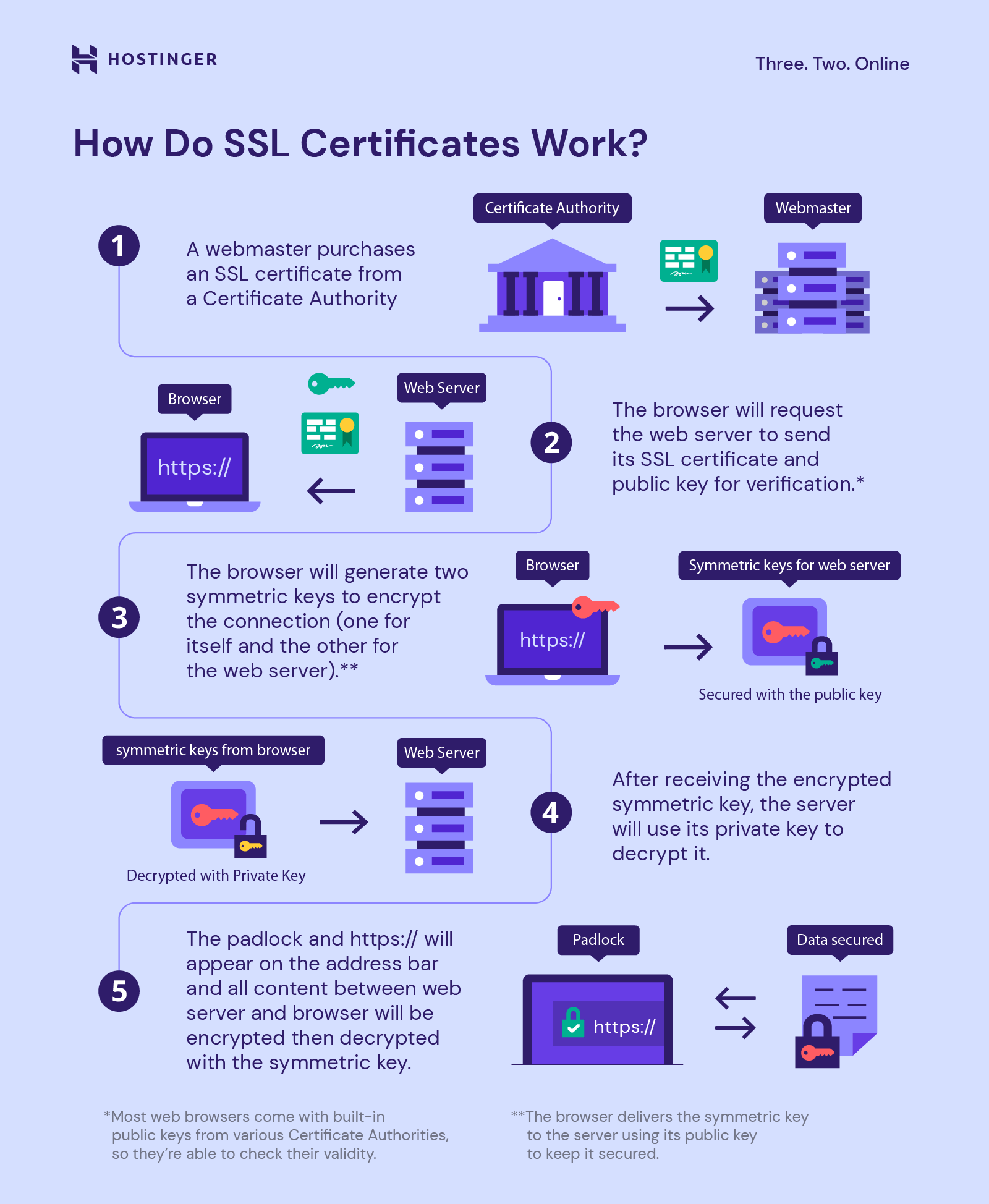
Once the SSL protocol has been enabled, the website will be secure and encrypted. Unauthorized third parties will no longer be able to intercept its communication.
It’s possible to know whether a website uses the SSL protocol by looking for a padlock icon on your browser’s address bar.
Click on the icon to view detailed information about the digital certificate, such as the issuer and valid date. Here’s what it looks like on Google Chrome:

On the other hand, the browser will display a “not secure” warning for non-HTTPS sites.

Since web browsers actively warn people to avoid unsecured sites, it’s in your best interest to install an SSL certificate and make your website secure. That way, visitors can instantly see that your site is reliable.
URLs are preceded by either HTTP (Hypertext Transfer Protocol) or HTTPS (Hypertext Transfer Protocol Secure). These protocols effectively determine how data you send and receive is transmitted.
Websites with no SSL certificate will run on HTTP and transfer data in plain text, meaning anyone on the internet can intercept and retrieve the message.
This can cause problems if the transmitted data contain confidential information, which attackers can use to commit cyber crimes such as a data breach, cyber extortion, and identity theft.
When you set up an SSL certificate, you configure it to transmit encrypted data using HTTPS. The two technologies go hand in hand – you can’t use one without the other.
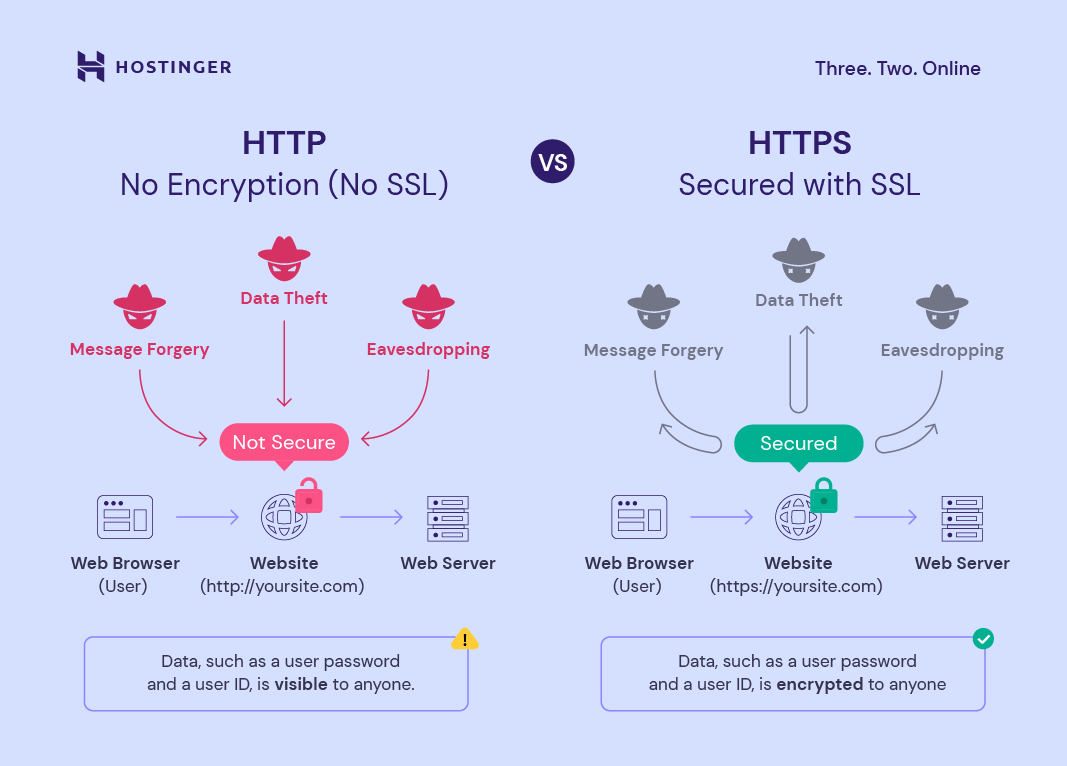
Since HTTPS connections require a certificate to work, look if the site uses an HTTPS web address to identify whether it implements the SSL protocol.
SSL is a must for websites handling sensitive information such as usernames, passwords, or credit card numbers.
SSL encryption ensures that only one person – the intended receiver – can decrypt the transferred data.

Some additional SSL benefits for your website include:
Google has stated that sites with an SSL certificate outrank those without it when all other ranking factors are equal.
While SSL currently carries less impact than other elements, such as high-quality content, the search engine is pushing to make HTTPS the standard for all websites.
As around 99% of browsing time on Google Chrome is spent on HTTPS sites, having an SSL certificate can make the difference between someone buying from you or clicking away.
While setting up an SSL certificate will affect your website’s search engine performance, that’s not why you should use it. Instead, set up an SSL certificate to establish trust amongst your visitors and take the SEO boost as a bonus.
There are various types of SSL certificates based on the number of domains:
There are also different types of SSL certificates based on their authentication levels, such as:
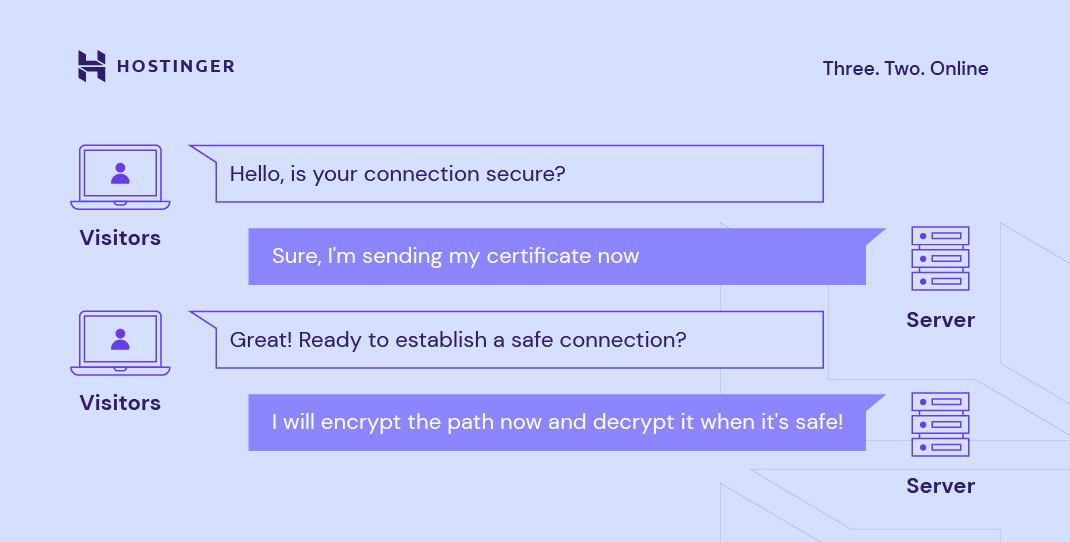
Now that you know what is SSL and its benefits, let’s find out how to install it on your website. While there are various ways to install an SSL certificate, the steps generally involve:
Alternatively, you can get SSL certificates from your hosting provider. For example, all of Hostinger’s website hosting plans, including managed WordPress and Cloud packages, come with a free certificate.
It will be installed automatically on all new domains, subdomains, and parked domains added to your account. However, if you would like to install SSL certificates on older domains, follow these steps:

It’s easy to get started with SSL on WordPress, as plugins like Really Simple SSL will handle the technical aspects for you.
Once you have an SSL certificate installed, change the settings in your WordPress dashboard to ensure the site will use HTTPS:

One error that you may experience after installing an SSL certificate on your WordPress website is mixed content. Learn how to solve it in our article.
Secure Sockets Layer (SSL) is a protocol that creates secure connections between a client and a web server. It encrypts all data transfers so third parties can’t steal sensitive information such as login credentials and credit card numbers.
Installing an SSL certificate improves your website security and search engine optimization, which can help your site outrank a competitor.
In this article, we’ve covered what is SSL, how SSL certificates work, and how to install one on your website. If you have more questions, don’t hesitate to leave a comment below. Good luck.
All of the tutorial content on this website is subject to Hostinger's rigorous editorial standards and values.

Domantas leads the content and SEO teams forward with fresh ideas and out of the box approaches. Armed with extensive SEO and marketing knowledge, he aims to spread the word of Hostinger to every corner of the world. During his free time, Domantas likes to hone his web development skills and travel to exotic places.

Brian is a Content Writer who loves telling complex stories in a simple way. He has written all types of content, including tutorials, blog posts, landing pages, social media posts, white papers, infographics, and YouTube scripts. Follow him on LinkedIn.

A homework submission system web app helps teachers collect, review, and manage assignments in one organized place. Instead of juggling emails, paper...

/p> OpenClaw is an open-source, self-hosted AI agent that runs on your own server and can interact with the tools you already use, including...
A subscription tracker web app helps you monitor recurring payments in one organized place. Instead of forgetting renewal dates or losing track of...

Comments
February 28 2022
Good
March 14 2022
Best
April 26 2022
Dear Hostinger, I just bought a 48-month website purchase to start my own website but in the way I had to make connection with Nameserver but also the SSL. I would like to have some help to make this succesfully done, can you help me with this? Thank you, Hayaan
May 04 2022
Hi there Hayaan! I understand you've already managed to change the nameservers, right? If not, you can follow our guide for pointing your domain. If you're setting up our lifetime SSL, you can find step-by-step instructions for it over here ;) If you run into any issues with anything, feel free to reach out to our Customer Success team as well!
September 01 2022
I recently purchased a new domain, could you please give me EXTRA the SSL Certificate?
September 02 2022
Hey there! We offer free unlimited SSL certificates for all active domains and subdomains that are added to your hosting plan! You can check out this article to learn how to install the Lifetime SSL on your new domain! ?