How to use Gmail with custom domain: using pop3 and forwarders
May 22, 2026
/
Linas L.
/
3 min Read
Do you own a custom domain email, but want to use Gmail as the main platform to manage all messages? You’ve come to the right place. Stick with us and discover how to integrate your custom domain address with Gmail.

Reasons to Integrate Custom Domain Email to Gmail Account
When you buy hosting, chances are you’ll get a free business email right out of the box. However, it might take time to get used to because the interface is different from Gmail’s.
There are numerous options available for setting up a professional email account. While purchasing a Google Workspace account is one alternative, requiring an investment with plans starting at $6.99/month per user, other email services offer more budget-friendly solutions, with some starting as low as RM2.99/month.
Luckily, it’s possible to use Gmail with your own domains for free. That way, you can have the best of both worlds — a custom domain email with the convenience of Gmail’s interface. You also don’t have to log in to different platforms to manage your personal and business emails or look for a different Gmail alternative.
Using Hostinger Email? If you’re having trouble setting it up, we have a quick guide just for you!
How to Integrate a Custom Domain Email to Gmail?
Now that you know why it’s convenient to integrate Gmail with a custom domain, let’s take a look at the steps to set it up:
1. Getting POP3 and SMTP Details
Before we can set up a Gmail account to work with a custom domain, first you need to create a domain-based email. In case you haven’t made one, refer to our tutorial to know how to do so.
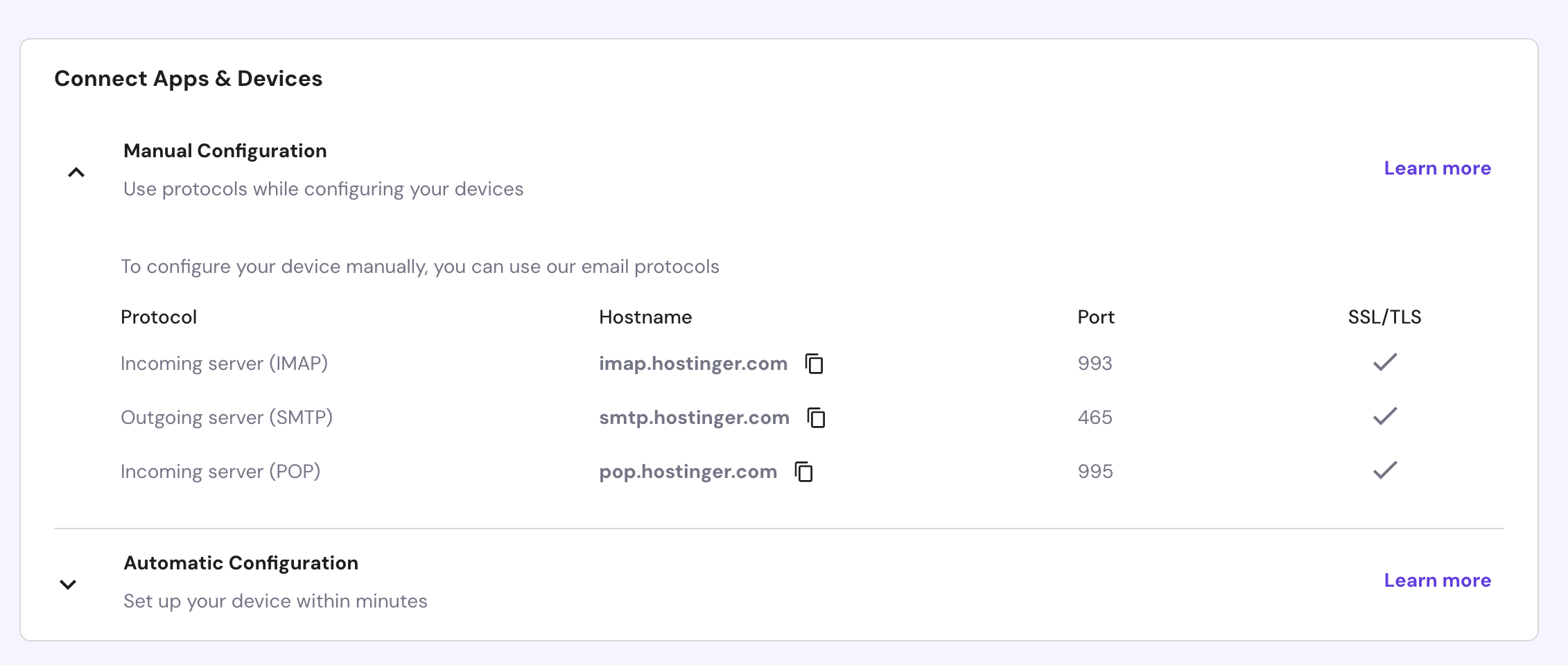
After creating the email, you need to collect its POP3 and SMTP details. To locate the email protocols in Hostinger’s hPanel, do the following:
- Go to Emails -> Manage next to your email account.
- Select Connect Apps & Devices from the left sidebar.

- Find the Manual Configuration section. We’re going to use that information later.
2. Forwarding Emails to Gmail Account
Now that we have the necessary data, it’s time to set up the Gmail account so it can receive messages sent to your custom domain email. Here’s how:
- Log in to your Gmail account, click on the gear icon, and select Settings -> Accounts and Import.
- Choose Add a mail account under the Check mail from other accounts section.
- After you enter your domain email, click Next -> Import emails from my other account (POP3) -> Next.
- Fill in the details using the server information we located earlier. The server we’re using is pop.hostinger.com, and the port is 995.
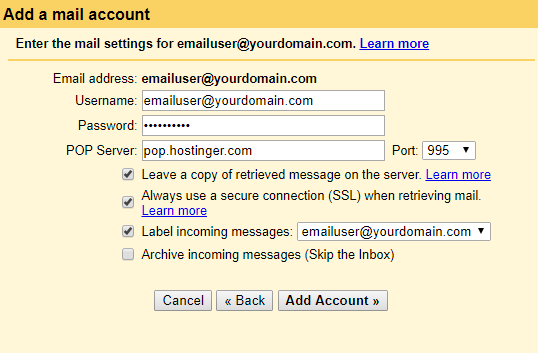
- Check the boxes as needed, but we recommend ticking the first three boxes. This way, you can keep two copies of the same message on different platforms, use a secure connection, and label incoming messages according to their original email destination.
- Click Add Account to finalize the settings.
- You’ll be prompted with the option to send emails from your custom address. If you only need Gmail to receive emails and choose No, you’ll be all set. But if you want the platform to be your one-stop destination to receive and send messages, select Yes and continue to the next part.
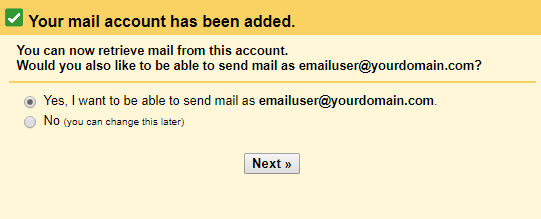
3. Configuring Gmail to Send Emails as a Custom Domain
- Enter your name and email address and leave the Treat as an alias box checked. This way, you can manage incoming and outgoing messages from the same inbox as your current Gmail address. Click Next.
- Set the smtp.hostinger.com as the SMTP server and 465 as the port. Use SSL to secure the connection.
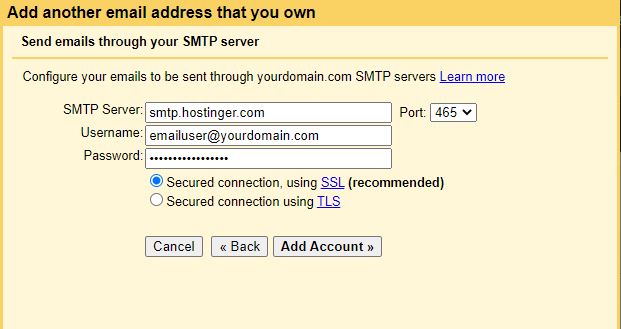
- Go to your inbox and open the verification email. Use the link or code to confirm your request.
- Once you’re done, you can now use Gmail to send messages as your custom domain address.

Conclusion
Getting the best of Gmail’s interface with the perks of having a personalized domain can be costly, but it doesn’t have to be. In this tutorial, we have learned how to integrate the best of both worlds by tweaking the settings of a Gmail account.
Let us know in the comments below if this guide is useful.
Suggested Reading
Learn how to check if port 587 is open and establish more secure connections between your mail client and server.
All of the tutorial content on this website is subject to Hostinger's rigorous editorial standards and values.

Linas started as a customer success agent and is now a full-stack web developer and Technical Team Lead at Hostinger. He is passionate about presenting people with top-notch technical solutions, but as much as he enjoys coding, he secretly dreams of becoming a rock star.