How to add Amazon Affiliate link to WordPress: 3 effective methods
Dec 18, 2025
/
Aris S.
/
6 min Read
Amazon Associates program is an excellent side hustle for making extra money online. By featuring products on your blog or website, you receive commissions from purchases made from the affiliate links.
Adding affiliate links to your WordPress site lets you track their performance and use visual elements to promote products in a more compelling way. You can do so manually using code or directly via the admin dashboard using a WordPress plugin.
This article will explain how to add Amazon affiliate links to WordPress using three methods. Since they have different difficulty levels and advantages, choose one based on your preferences and skill level.
How to add Amazon Affiliate link to a WordPress website
Here are three methods of how to add sponsored links when building your Amazon Affiliate website. Before proceeding, ensure you have obtained the tracking, access, and API keys from the Amazon Associates Dashboard to connect your account.
How to add Amazon Affiliate link using Hostinger’s plugin
Hostinger’s Managed WordPress hosting users can easily add affiliate links to their websites using our Amazon Affiliate Connector plugin. Available on the Business and cloud hosting plans, it is installed by default if you choose to start an affiliate marketing website during the onboarding process.
Alternatively, you can install it on an existing website by following these steps:
- Log in to hPanel → Websites on the top menu.
- Find your WordPress affiliate website’s domain name and click Dashboard next to it.
- Open the WordPress overview page.
- Scroll down to the Recommended installations section and click Install next to Hostinger Amazon Affiliate Connector.

Once installed, connect your Amazon Affiliate account with the plugin. Here’s how to do it:
- Go to your WordPress admin dashboard → Hostinger → Amazon Affiliate tab and click Connect.
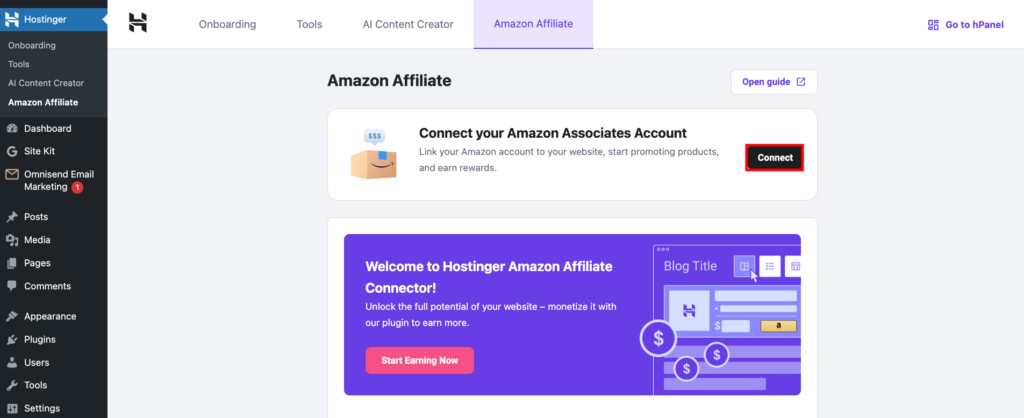
- Choose the country where you set up your Amazon affiliate account and enter your tracking ID. Adding your API settings is optional, but they can give you more accurate search results.
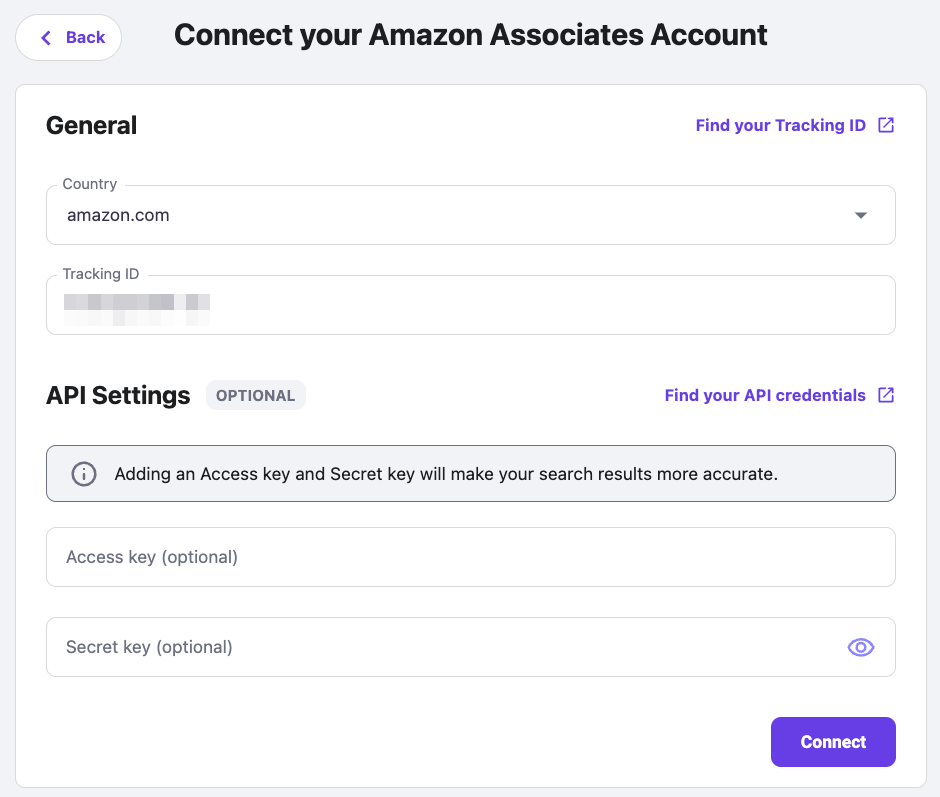
- Hit Connect once you’re done. You’ll see a confirmation message if the integration is successful.
Now, you can start adding links to your website. To do so, edit the WordPress blog post where you want to add Amazon Affiliate products. Click the + icon and add the Link Amazon Product(s) block.

Select the layout to promote multiple products simultaneously or a single item only. You will be prompted with an Amazon marketplace explorer window with a search bar to look for relevant products.
Click the image to select the items to add. After picking the products, click Confirm Selection to add them.
Note that you can only select multiple related products at once. For example, you can’t add mugs and water bottles since they are using different keywords.

How to add Amazon Affiliate link using a third-party plugin
If you need specific features beyond adding Amazon Affiliate links, there are numerous third-party plugins available. They offer various tools that help improve your marketing efforts, like a built-in performance tracker and link cloaking.
There are various WordPress plugins for Amazon Affiliates available with different functionalities and prices. Since most options are paid, we recommend using the freemium option first and upgrading to the premium plan if needed.
For this tutorial, we will use Auto Amazon Links since it is simple to use and offers a free version. After downloading and installing the plugin, follow these steps:
- On your WordPress admin dashboard, navigate to the sidebar → Auto Amazon Links → Settings.
- Under the Associates tab, enter your Amazon Affiliate API token, access key, and account locale. Click Check API to verify if the credentials are valid and select Submit once finished.
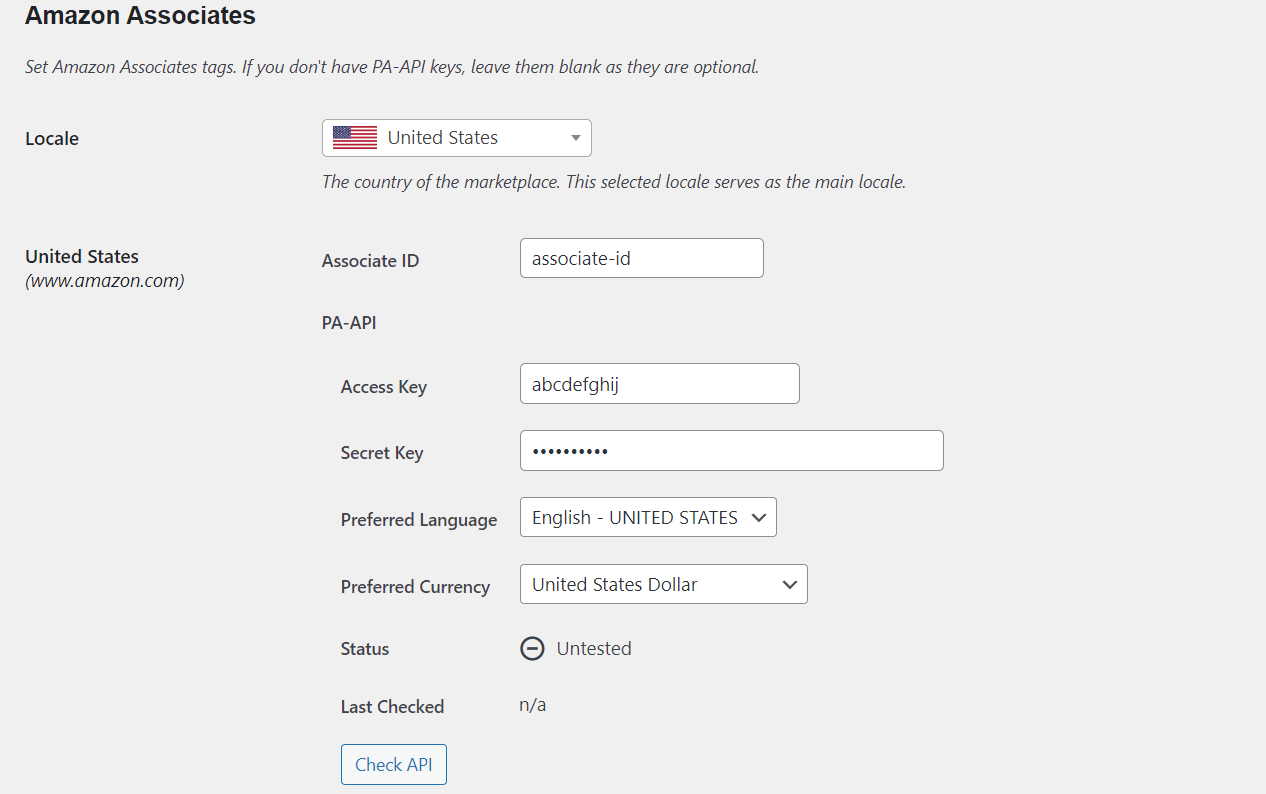
- Add the sponsored product by creating a unit. This is a set of rules defining how the Amazon link displays on your WordPress site. The plugin offers different ways to do so, but we’ll select Add Unit by Category.
- Enter the required information, like the unit name and country, and sort order. You’ll also need to choose the category, including new or best-selling products. Click Proceed to confirm.
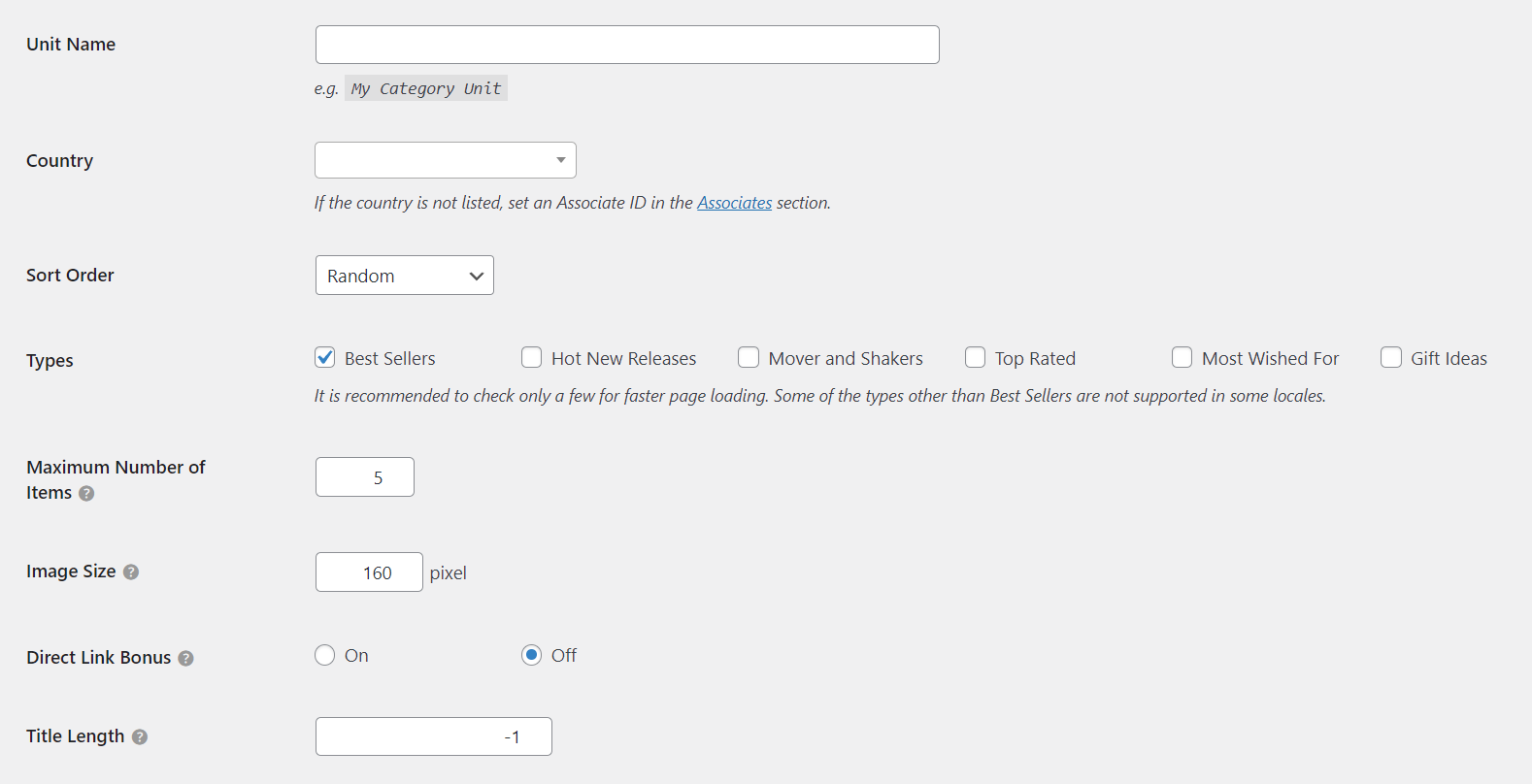
- Navigate to the sidebar, select the product categories to add from Amazon, and click Add Category to include it. Hit Create to finish.
- Now, add the unit to your post to display sponsored products. To do so, go to the sidebar → Auto Amazon Links → Manage Units.
- Look for the unit you want to show from the list. Copy the shortcode from the rightmost row.
- Edit the WordPress blog post you want to modify. Click the + icon to add a new Shortcode block.
- Paste the code and click Update.
Once you visit your WordPress post, you should see the Amazon products with their images and descriptions.
Note that another WordPress plugin might have more configuration options and different setup processes. For example, Amazon Affiliate WordPress Plugin (AAWP) provides various templates to display sponsored products in a more visually appealing design.
Meanwhile, use MonsterInsights if you want to track and monitor your Amazon Affiliate earnings and link performance by integrating Google Analytics.
How to add Amazon Affiliate links manually
If you don’t want to install plugins, add affiliate links to WordPress manually. However, this method is more complicated since you must select products via the Amazon Associates page, copy the HTML code, and paste it into your post.
Selecting products and retrieving their URLs
To start, open the Amazon Associates page and log in to your affiliate account’s dashboard. On the top menu, navigate to Promotions → Amazon Bounty Program.
Go to the top menu again, expand the Product Linking drop-down menu, and select Product Links. You will be redirected to a new page where you can search for items to feature on your website. Select the Link to Search Results tab and enter the item information. Click Get HTML, and the link for embedding Amazon products will appear in the right window. Copy the HTML code and save it in a safe location.
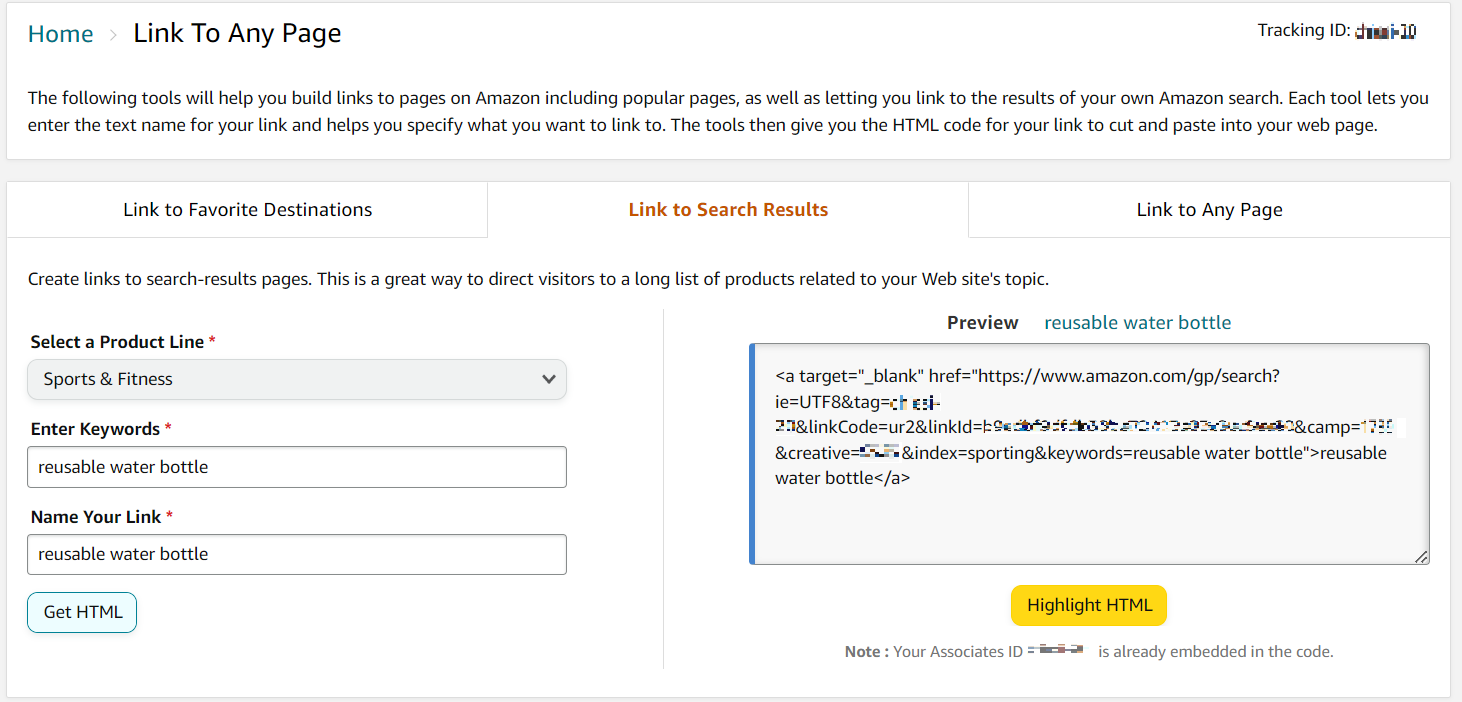
To generate Amazon affiliate links, you can also use the built-in SiteStripe. To do so, navigate to a product page in the Amazon Marketplace and click Get Link on the top toolbar.
Configure the ID and choose between short or full link options. Click the Get Link button, and SiteStripe will copy the URL to your clipboard.

Older SiteStripe versions offer the following product link display settings. However, these might be unavailable for new users:
- Text only – generate an anchor text that directly leads to the product page when clicked.
- Image only – create a product image link that redirects users to the item page’s URL.
- Image and text – show the product title, image, and a call-to-action button that leads to the marketplace page.
Each display option is suitable for a different use case. For example, adding affiliate products as text links suits written-only content. Meanwhile, product images are ideal as a visual aid to make your WordPress posts more compelling.
Adding Amazon Affiliate links to WordPress
After obtaining the Amazon Associates link, add it to your WordPress posts or pages. The steps differ slightly different depending on your chosen product URL type. For the entire link, follow these steps:
- Open your WordPress dashboard and edit the post you want to modify.
- Click the + icon and select the Custom HTML block.
- Paste the code from the Amazon Associates dashboard into the HTML tab.
- Select Preview on the block toolbar to see if the product displays properly. If so, click Update to apply the changes.
Now, the sponsored product should display on your WordPress content and redirect you to the Amazon page when clicked.
If you choose to add short affiliate links, insert the URL like creating a hyperlink. To do so, highlight the phrase you want to use as the anchor and click the link icon, or press Ctrl + L. Paste the HTML code into the field and click the Enter icon.
To improve user experience and search engine optimization (SEO), ensure the text link describes the attached product in detail. For example, use one-liter metal water bottle instead of water bottle.
We recommend reading our affiliate marketing tips article to learn more about Amazon Associates program best practices to help boost revenue.
Conclusion
The Amazon Affiliate program lets you make extra income by featuring sponsored product links on your online content. There are different ways to do so on a WordPress website, depending on the difficulty levels and tool requirements.
The easiest method is using Hostinger’s built-in Amazon Affiliate Links plugin. After installing it via hPanel, open the WordPress admin dashboard and enter associate account credentials such as the secret key.
Then, open the post editor and add the Amazon Affiliate block. Search the products and add them to your website. Other plugins like Auto Amazon Links require an extra step to set up and use shortcodes to insert the links.
If you prefer not to use a plugin, open the Amazon Associates dashboard and look for the products you want to add. Generate a URL and use a custom HTML block to insert the links to your WordPress post.
How to add Amazon Affiliate link to WordPress FAQ
How do I sign up for an Amazon Affiliate account?
To join Amazon Affiliate, open the Amazon Associates page and click the Sign up button. Enter details like your password and email address. Then, add your website URL, store ID, monetization method, payment information, and tax ID to finalize your affiliate program.
Can I track clicks and earnings from Amazon Affiliate links on WordPress?
Yes, tracking Amazon affiliate links in WordPress requires a plugin with monitoring features like MonsterInsights. After installing it, connect your Google Analytics account and add the affiliate link paths you want to check. The click and earning reports are accessible via the plugin’s menu in the WordPress admin dashboard.
Can I use images as affiliate links on my WordPress site?
Yes, you can insert Amazon Affiliate links as images using plugins like Hostinger Amazon Affiliate Connector. You could do so using the URL Customize in the Amazon Associates dashboard, but the feature is unavailable for newer versions.
All of the tutorial content on this website is subject to Hostinger's rigorous editorial standards and values.

Aris is a Content Writer specializing in Linux and WordPress development. He has a passion for networking, front-end web development, and server administration. By combining his IT and writing experience, Aris creates content that helps people easily understand complex technical topics to start their online journey. Follow him on LinkedIn.