Locked out of WordPress? here’s what you need to do
Mar 10, 2026
/
Domantas G.
/
8 min Read
Getting locked out of your WordPress admin account can be frustrating, especially if it occurs suddenly, and you don’t know why it happened nor how to fix it.
It’s easy to overcome this situation if you have a webmaster or developer on your team. If you manage your WordPress website by yourself, you’ve come to the right place.
This article will help you understand the various reasons that may cause you to be locked out of WordPress. We’ll go through nine possible causes and their solutions so you can regain access to the site.
Download all in one WordPress cheat sheet
What to Do Before Fixing the Issue?
Before proceeding to fix the issue, there are three tasks you need to do:
- Restore a backup – this may help if you’re locked out of WordPress. If you don’t have any backup data, proceed to the following tasks.
- Back up WordPress – do this before making any changes to your site’s database. This helps return your site to its previous state in case any changes cause issues.
- Install an FTP client – access your web server through a local computer manually using an FTP client such as FileZilla. It only takes a few easy steps to configure the FTP, and the process is similar for other clients as well.
9 Causes of Getting Locked Out of WordPress and How to Fix Them
There are nine reasons why you could be locked out of WordPress. They include wrong data inputs, system errors, and cyberattacks. In this section, we will help you to identify the situation and act accordingly.
Warning! Make sure to back up your site before following any of these troubleshooting tips. If the changes and attempts to fix the problem cause any issues, you’ll still have all the site’s critical data on hand.
1. Incorrect Login Credentials
One of the most common reasons for getting locked out of WordPress is entering incorrect login credentials. They typically include a username and a password.
Usernames may not directly reference someone’s real name, and passwords are case-sensitive and usually hidden as we type. That’s why it’s possible to enter an incorrect password or username inadvertently.
How to Fix This?
Carefully type in your credentials, paying special attention to the capitalization. To avoid issues like forgetting or mistyping your passwords, consider using a password management app such as LastPass or 1Password.
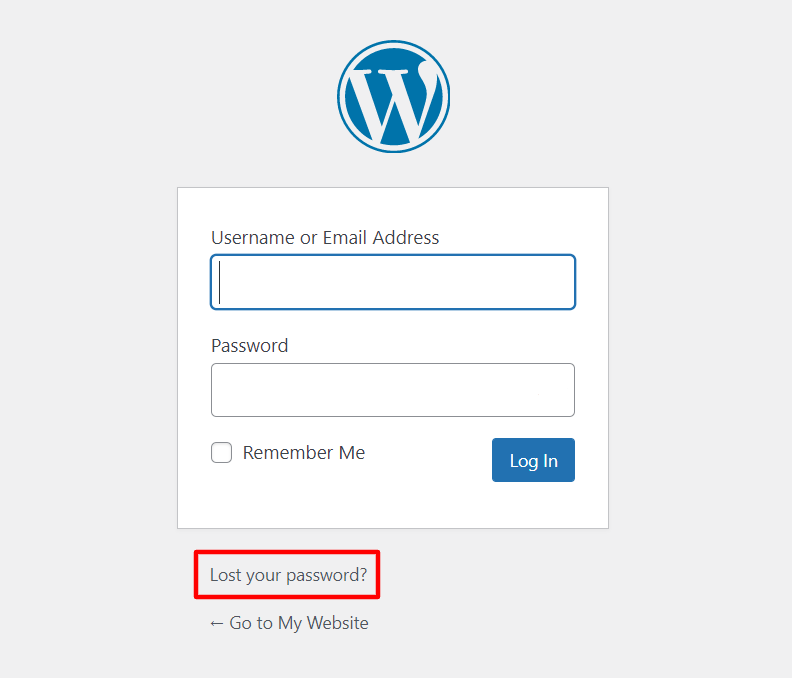
If that didn’t solve the issue, try resetting the password by using WordPress’s built-in recovery feature on the login page. Here’s a step-by-step guide:
- Click Lost your password?.
- Enter your username or email address in the available field.
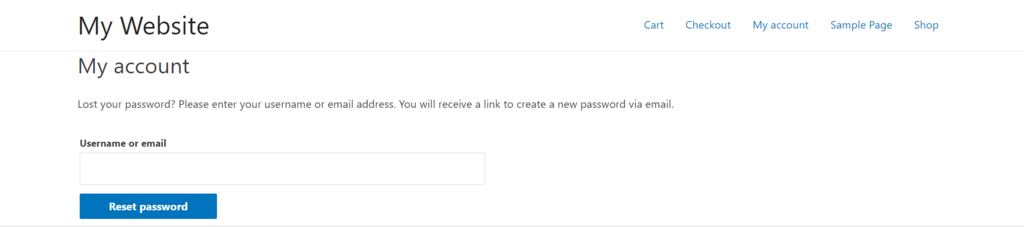
- Click the Reset password button.
- WordPress will send a link to your email address to create a new password. Follow the prompt, then log in to WordPress again with the new credentials.
If you recently migrated your domain to a new server, make sure that the domain is pointing to the correct registrar. Otherwise, your account may be locked out as well.
2. Password Does Not Work & Failed Password Recovery
You may forget your password, but there’s also a chance that someone has gained access to your site and changed it.
If the password recovery on the login screen didn’t work or you didn’t receive a password reset email, it can be because your WordPress website is not sending emails.
How to Fix This?
You can resolve this problem by resetting your password from your WordPress hosting account control panel.
We’ll guide you through this process using Hostinger’s hPanel and phpMyAdmin:
- Open hPanel.
- Click Databases.
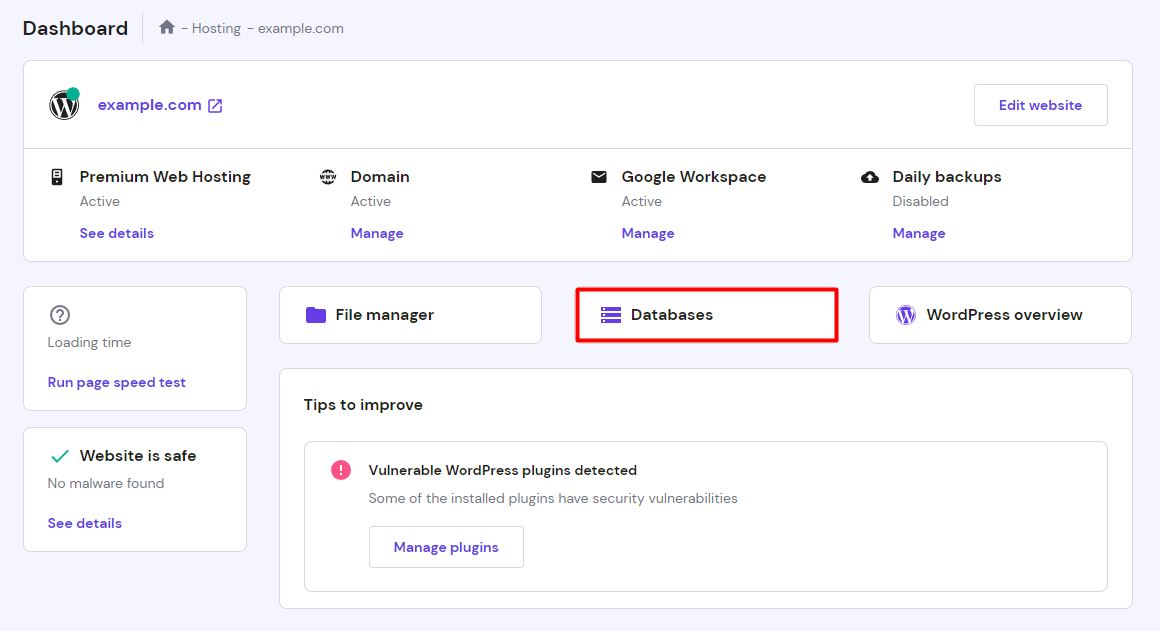
- On the Management page, click Enter phpMyAdmin, and you’ll be redirected to phpMyAdmin’s administration page.
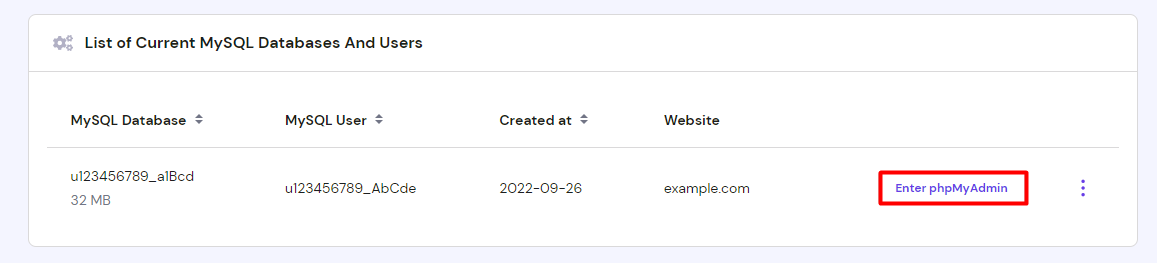
- Select Structure. Scroll down to find wp_users and click it.
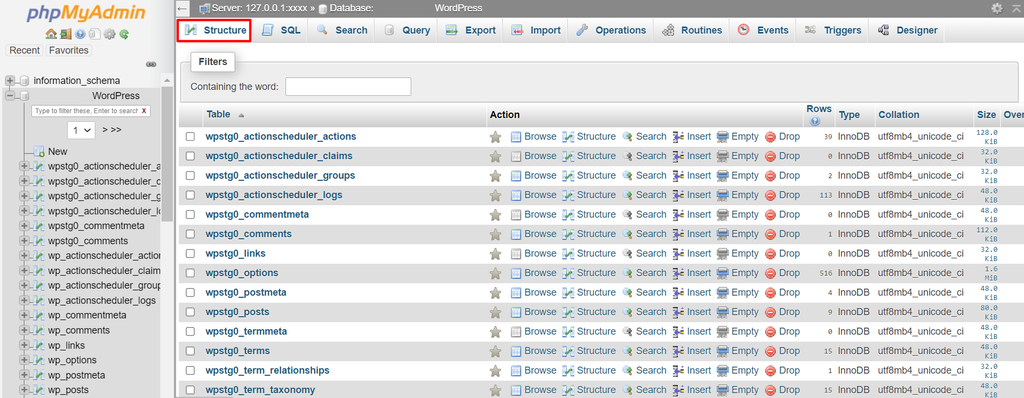
- You’ll see the login credentials of the site’s users. Click Edit.

- Type in the new password in the user_pass column to change it, then make other changes as needed.
- Change the Function value of your password to MD5. This is used to add an additional layer of security.

- Press Go to save the changes.
Then, log in to WordPress using the new password.

3. Losing Administrator Privileges
If you can’t log in, your username doesn’t exist, or you can log in but no longer have administrative privileges, it means you’ve lost access to the WordPress admin dashboard.
This can happen if the site owner has revoked your admin rights. Another possible reason is a cyberattack where the hacker has deleted your WordPress administrator privileges.
How to Fix This?
If you have lost admin privileges due to a cyberattack, add a new admin user to your WordPress database through phpMyAdmin. Here’s a guide on how to do it:
- Open hPanel.
- Navigate to Databases -> Enter phpMyAdmin.
- Once you’re on the phpMyAdmin dashboard, click on wp_users, then select Insert.
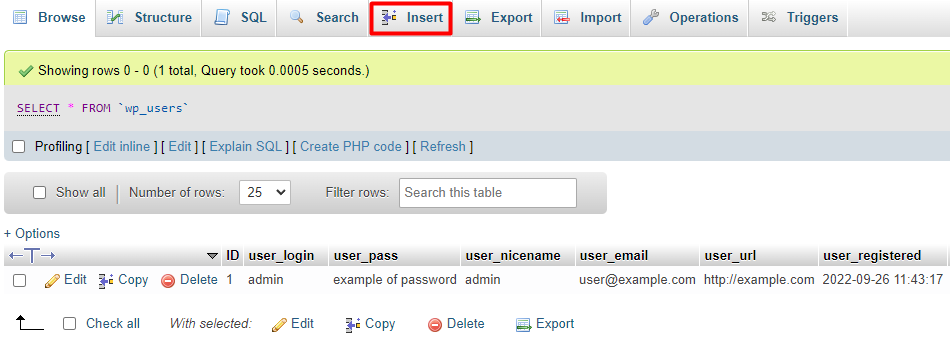
- Fill out the fields as needed and save the changes. Pick an ID number that isn’t in use in the database, and keep the user_status as 0.
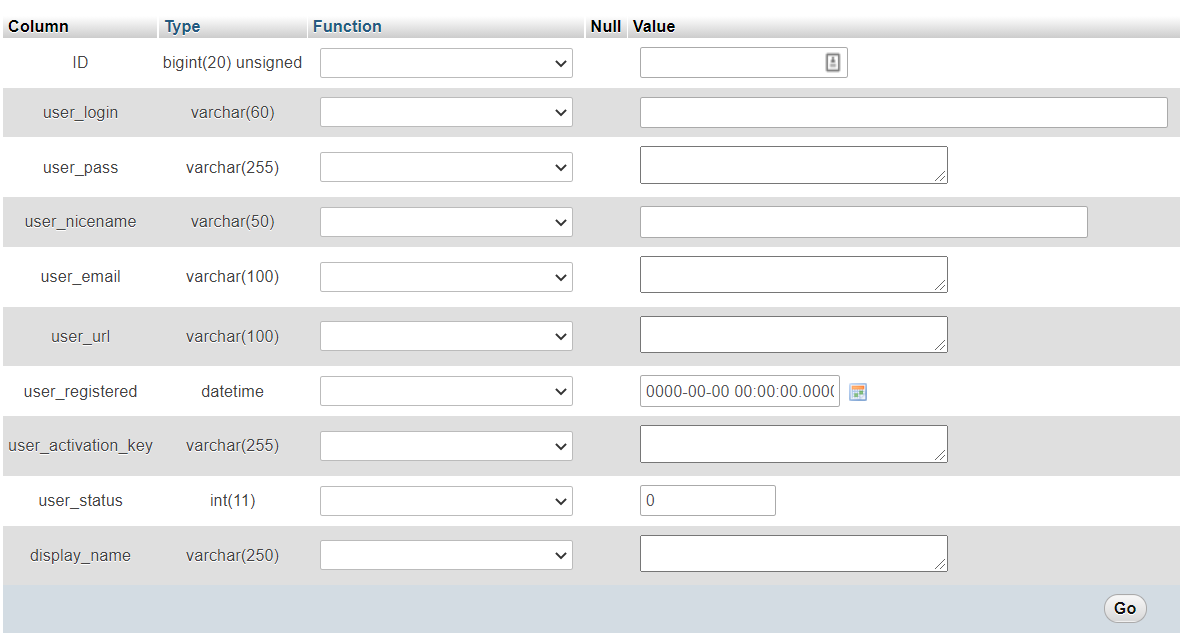
- Note that you’ll need the information from this form later on, especially the ID, user_login, and user_pass. Click Go to save changes.
- Next, head to the navigation panel on the left side of the screen and click wp_usermeta. Select the Insert tab.
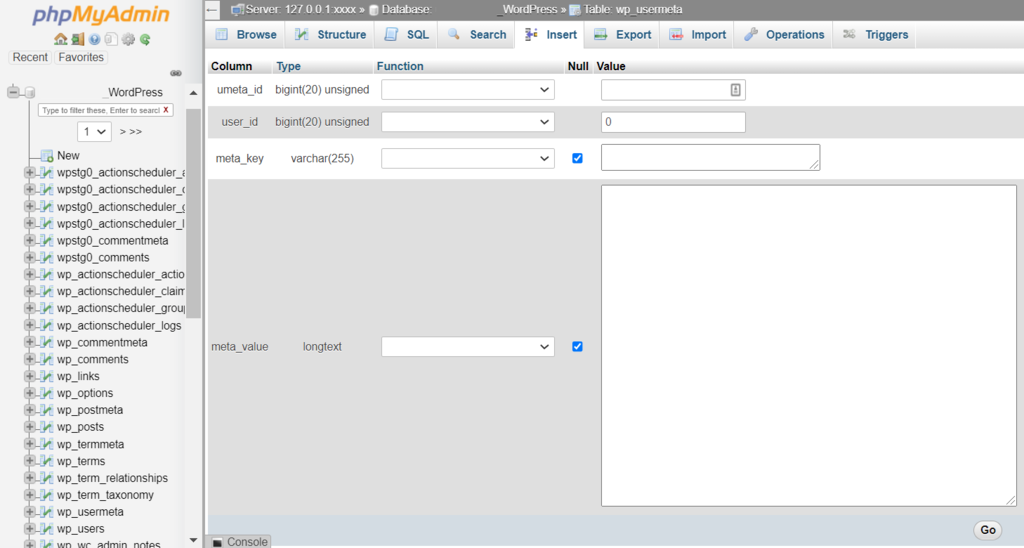
- Fill in the columns with the following information:
- unmeta_id – leave it blank as it will be generated automatically.
- user_id – enter the ID number you’ve inserted in step four.
- meta_key – type in wp_capabilities.
- meta_value – insert a:1:{s:13:”administrator”;b:1;}.
- Make sure to insert the meta_value correctly. We suggest copy-pasting instead of writing it manually to avoid any errors. Once you’re done, click Go.
- Repeat step six to add the second meta value, with a different set of information:
- unmeta_id – leave it blank as well.
- user_id – enter the same ID number you’ve inserted in step four.
- meta_key – type in wp_user_level.
- meta_value – type in 10.
- Click Go once again to save the changes.
You’re all set now. Log in to WordPress with the new administrator credentials.
4. Too Many Login Attempts
Some site owners use security plugins to limit the number of attempts users can make to log in at one time. It’s a great way to prevent brute-force attacks, but it can also become the reason for you being locked out of your own account.
How to Fix This?
The login form will work again after some time, but if you can’t wait, you can opt to deactivate the plugin through an FTP client. Here’s how to do it:
- Set up an FTP client through hPanel.
- Log in to the FTP server and head to the Remote Site window.

- Open the domains -> public_html folder, scroll down and find the wp-content folder. Select plugins.
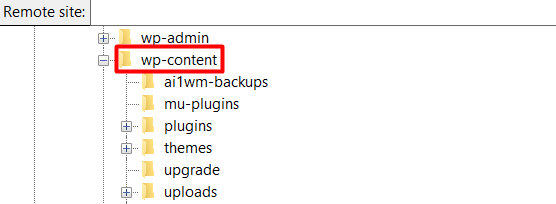
- In this article, we are using Limit Login Attempts Reloaded as our security plugin. Right-click the limit login attempts plugin folder and select Rename.
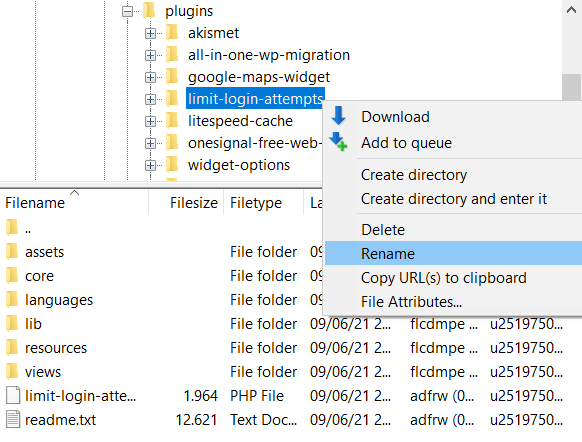
- Type in deactivate_ before the plugin’s name.
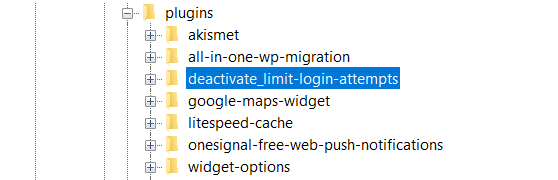
Now, the plugin is disabled, and you can log in right away.
Important! Keep in mind that this is a solution for when you need to access the dashboard immediately and can’t wait for the login form to work again. We strongly recommend reactivating the security plugin to keep your WordPress site secure.
Once you have successfully accessed the WordPress dashboard, go back to the FTP client and rename the deactivate_limit-login-attempts folder back to its original name. In this example, we rename it back to limit-login-attempts.
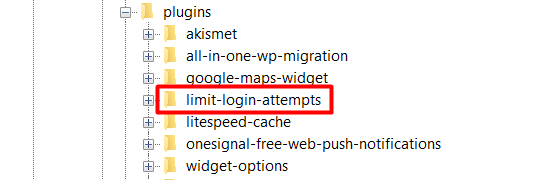
After renaming the plugin folder, navigate to your WordPress dashboard and the Plugins tab. Check if the plugin is activated – if not, simply click Activate.
5. Incorrect WordPress URL
Changing your WordPress site’s domain name may also get you locked out. If you recently made such a change, check if there’s any inconsistency between your site’s URL and the one stored in the MySQL database.
How to Fix This?
The MySQL database stores all WordPress data, including site URLs. If you want to change your WordPress URL in the database, use phpMyAdmin to solve the problem.
6. Error Establishing Database Connection
A database connection error affects your entire WordPress site. It makes you unable to connect to the database, as in addition to storing URLs, it also stores all your site information, including content, user accounts, and permissions.
This usually happens when there’s something wrong with the server or the database. Corrupted files can also lead to this – a poorly-working plugin is one of the various reasons that may cause the issue.
How to Fix This?
There are several solutions for WordPress database connection errors:
- Activate the built-in WordPress repair configuration.
- Fix the corrupted files.
- Check the database settings through the control panel on your hosting account.
If all the previous methods still couldn’t restore the connection, try to disable the plugins you’ve recently installed before the incident. Follow the steps in section four to deactivate the plugin.
Database errors can also be caused by a troubled database server. This typically happens on a shared host, where the number of permitted concurrent connections is limited. Simply contact your hosting provider to check if the error is on their end, and ask them to fix it.
7. White Screen of Death (WS)
The white screen of death is the blank white page you may see when trying to access the WordPress dashboard. The reasons behind this problem vary from bad plugins to insufficient website memory.
How to fix this?
Here are some options to fix the WordPress white screen of death:
- Increase your site’s memory limit – provide more memory capacity for your WordPress website.
- Disable bad plugins – disable recently installed plugins to check if a plugin is causing the issue. Since you can’t access the dashboard, use an FTP client to disable your plugins manually. Follow the steps in section four to do this.
- Install a default theme via phpMyAdmin – change your WordPress theme without accessing the admin area.
8. Parse Error: Syntax Error
If you see a message that says parse error: syntax error when you try to access the site, incorrect code is the cause of the issue. This type of error is very common, as even a single misplaced letter can trigger it. Fortunately, it can also be fixed easily.
How to Fix This?
Here’s what you can do to fix a syntax error:
- Trace the source of error – check if the code changes you’ve made recently are correct and use proper syntax.
- Repair the bad code via an FTP client – fix the WordPress syntax error on your WordPress website by determining the corrupted file and fixing it via the file manager.
Pro Tip
Determine the source of the error by opening your site on a browser and waiting for the syntax error message to appear. It will show you the full path of the error.
9. Issues with Plugins or Themes
A recent addition of a new plugin or theme may also lead to you being locked out of WordPress. The reason might be the .htaccess file of the plugin or theme being corrupted or misconfigured.
The .htaccess file is a configuration file that contains essential server instructions. It is used to enable or disable various functionalities and features, including applying access restrictions to your website.
How to fix this?
Fix the corrupted .htaccess file by using an FTP client:
- Log in to the FTP server, then head to the Remote site window.
- Open domains -> public_html and scroll down to find the .htaccess file.
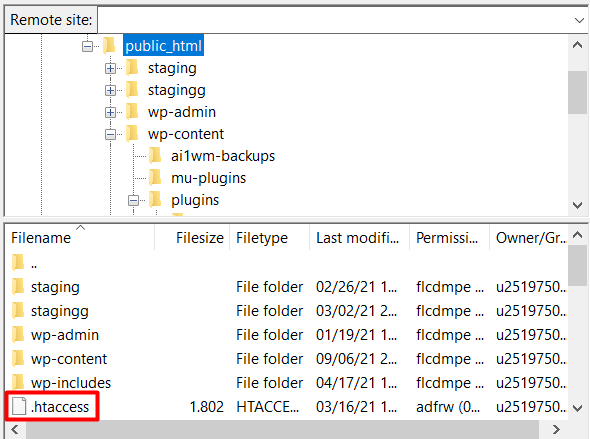
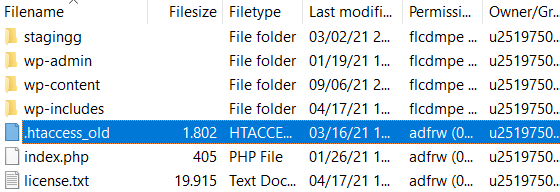
- Once you find it, right-click it to rename it to htaccess_old.
- Go to your WordPress dashboard, navigate to Settings -> Permalinks.
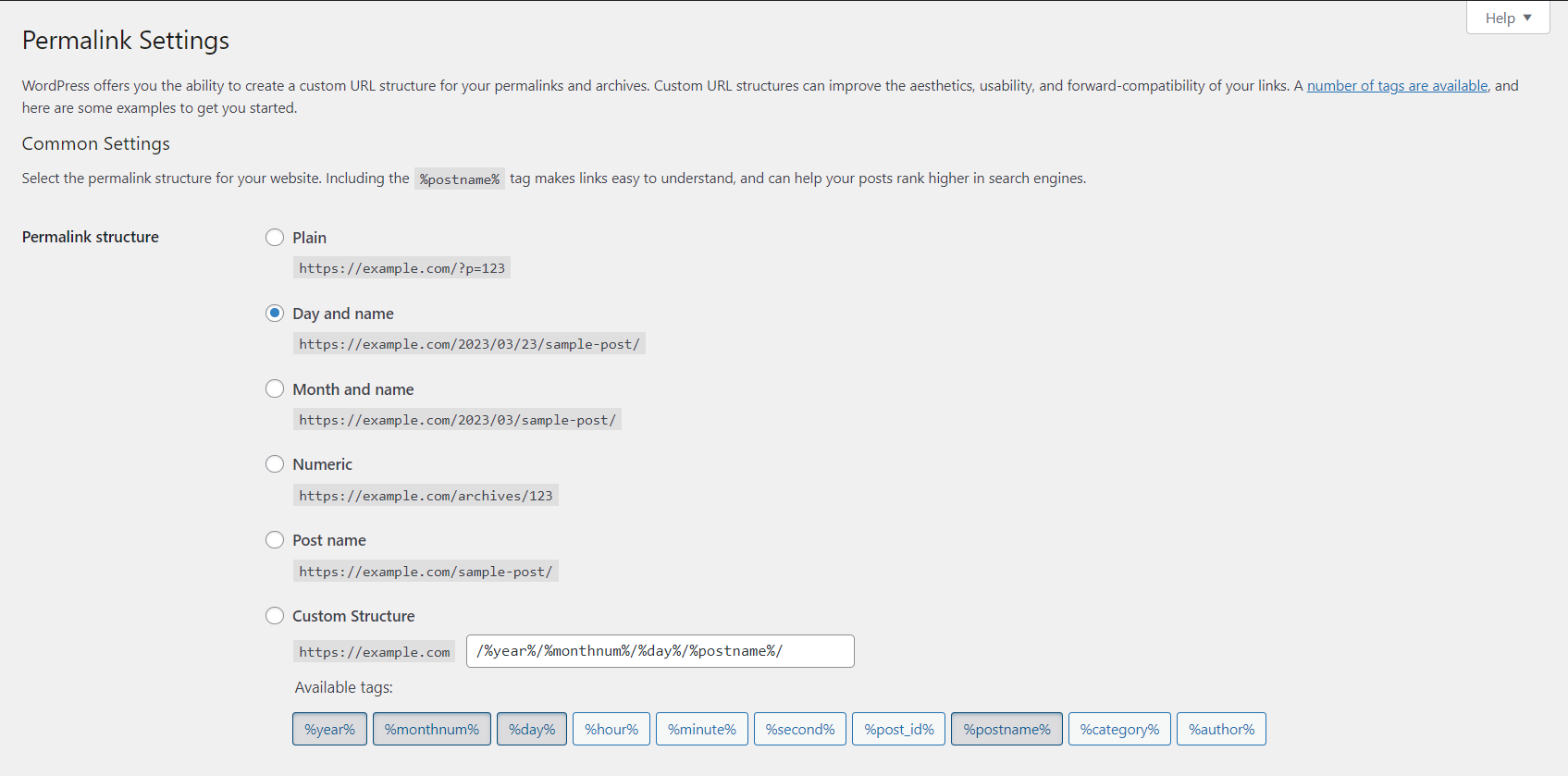
- You don’t need to change anything on the Permalink settings page, just hit the Save Changes button. This will generate a new .htaccess file automatically.
- Check if the new .htaccess file is already generated by going back to the FTP client directory and refreshing the screen.
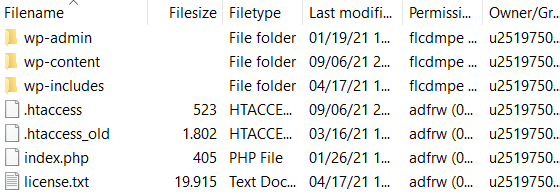
- Once you see the new .htaccess file in the directory, delete htaccess_old.
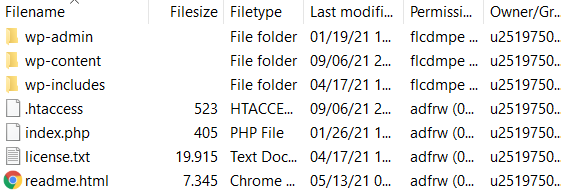
Now you can return to your WordPress website, access the login page, and log in as usual.
Conclusion
Here’s a quick recap of the nine issues causing you to be locked out of WordPress we’ve listed in this article and how to fix them:
- Incorrect login credentials. Use WordPress’s built-in password recovery feature. Remember to type in your password carefully or use a password manager app for secure and hassle-free logins.
- Password doesn’t work & failed password recovery. If the password recovery method didn’t work, create a new password through your hosting provider’s control panel.
- Losing admin privileges. Create a new admin user in the database through phpMyAdmin.
- Too many login attempts. To log in right away, use an FTP client to disable the security plugin that prevents you from logging in.
- Incorrect WordPress URL. Update your database with the new URL through phpMyAdmin.
- Error establishing a database connection. Check if there’s something wrong with your database through your hosting account’s control panel, or disable bad plugins and themes.
- White Screen of Death. Increase the site’s memory limit, disable bad plugins, and set the site’s theme to default.
- Parse error: syntax error. Determine the source of the error and fix it via an FTP client.
- Issues with plugins or themes. Fix the corrupted .htaccess file via an FTP client.
Now, you’ll be able to quickly regain access to your WordPress admin dashboard. If you have any questions, don’t hesitate to leave a comment or contact our support team.
All of the tutorial content on this website is subject to Hostinger's rigorous editorial standards and values.

Domantas leads the content and SEO teams forward with fresh ideas and out of the box approaches. Armed with extensive SEO and marketing knowledge, he aims to spread the word of Hostinger to every corner of the world. During his free time, Domantas likes to hone his web development skills and travel to exotic places.
Comments
September 04 2020
Thank you for this guide! It really helped ?