How to Add a WordPress Table of Contents: 2 Easy Ways and the Best Plugins
Mar 10, 2026
/
Larassatti D.
/
5 min Read

The ideal blog post length for search engine optimization (SEO) is around 2,000 words, which is equivalent to four pages of text. It’s worth keeping in mind, however, that 43% of readers say they only skim blog posts.
Providing a table of contents (TOC) is therefore an excellent way to help readers navigate your posts and prevent them from clicking off your WordPress site within seconds.
Compared to website builders, WordPress lets users extend a website’s functionality more freely using plugins. This article will cover the steps to add TOCs to your WordPress site both manually and by using a plugin. We also listed five WordPress TOC plugins for your reference.
Why Add a WordPress Table of Contents?
A table of contents helps readers jump to relevant sections of a WordPress post, which can improve its readability – particularly for long-form content.
Adding a TOC also enhances search engine optimization. For example, it may reduce your website’s bounce rate as users can easily navigate to the sections that answer their search intent.
Furthermore, TOCs can help make your web pages look more attractive on search engine results pages (SERPs). Providing a table of contents helps Google automatically generate jump links to different sections of your post.

How to Create a WordPress Table of Contents Manually
In this section, we’ll go over how to create a table of contents using WordPress’ Gutenberg block editor.
This method doesn’t offer much flexibility, but it is a good alternative for those who want to avoid installing too many plugins.
Note that the tutorial above does not work if you’re using other page builders, in which case, consider using a WordPress plugin to create a TOC.
- Log in to your WordPress dashboard and access the post where you wish to add a TOC.
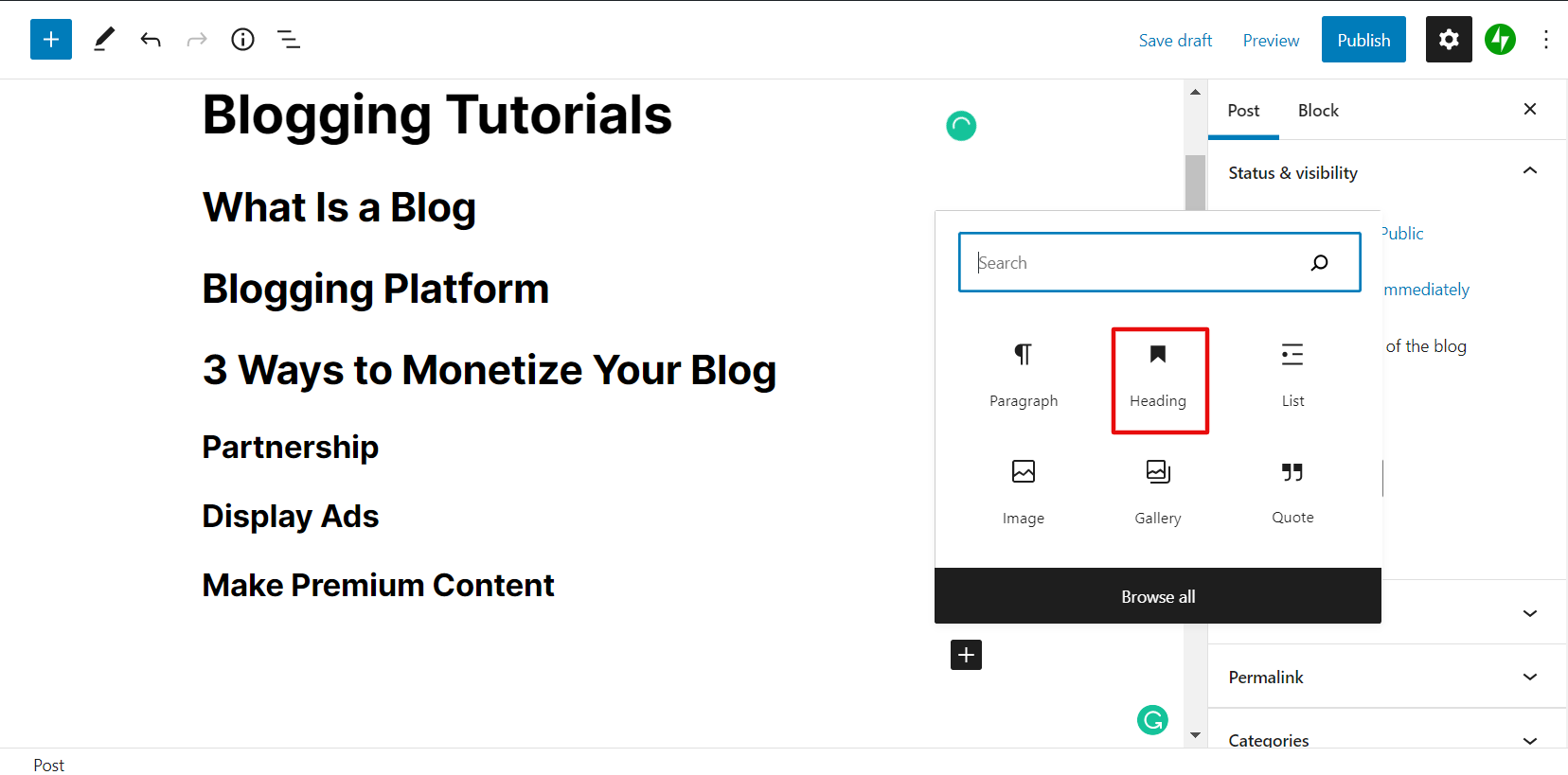
- Add a heading block for every section you want to include in the TOC.
Skip this step if the headings are already present – you can tell by the different font sizes between the headings and the body text.
- Then, place the cursor on a heading and write an HTML anchor for it under Advanced settings. Note that the anchor text should be without spaces.
Repeat this step for all headings and ensure each anchor name is different.
- Add a List block on a section of the page where you want to insert the table of contents. Then, insert all the TOC headings consecutively.
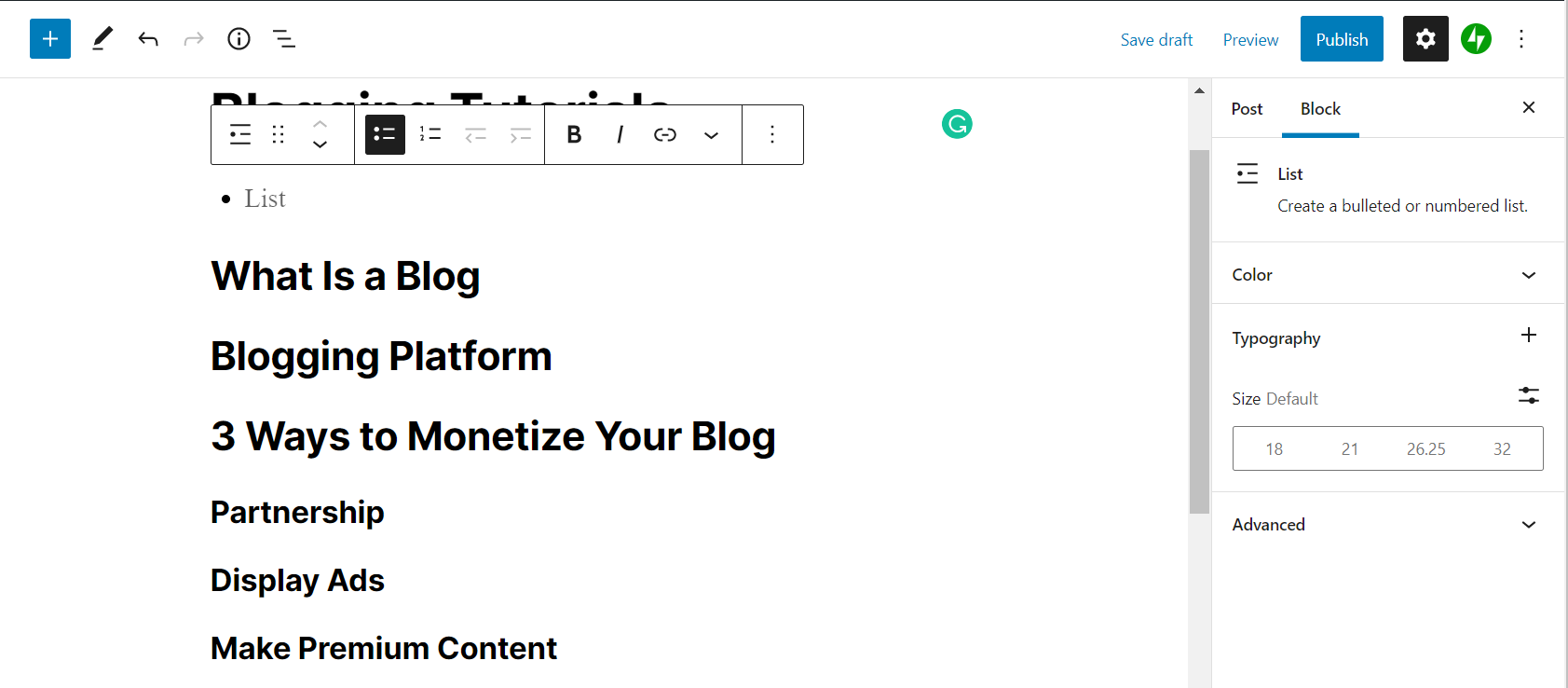
- With your cursor, highlight an entry from the list, then click on the Link icon in the toolbar.
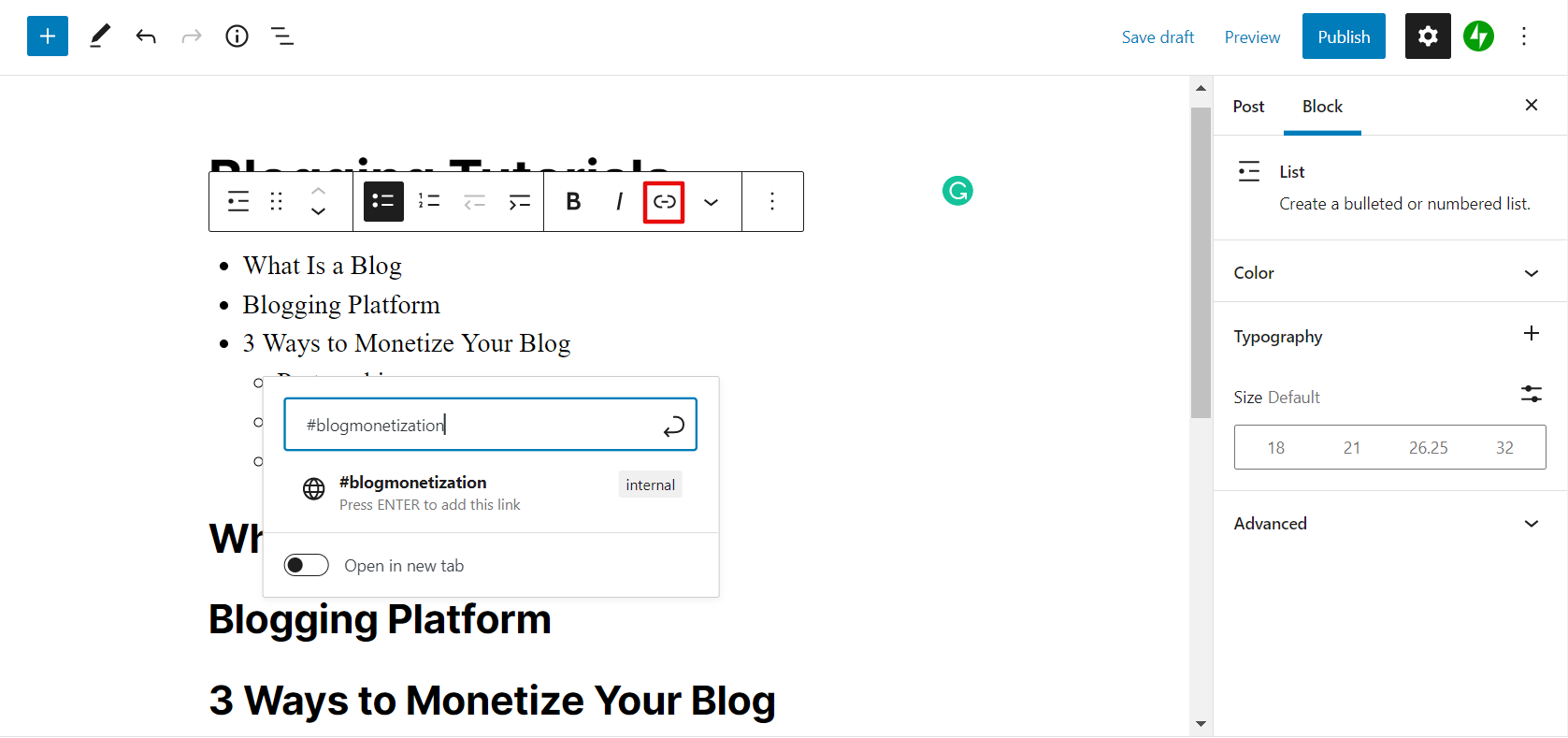
- Type the heading’s targeted HTML anchor using a hashtag into the pop-up box, then hit Enter.
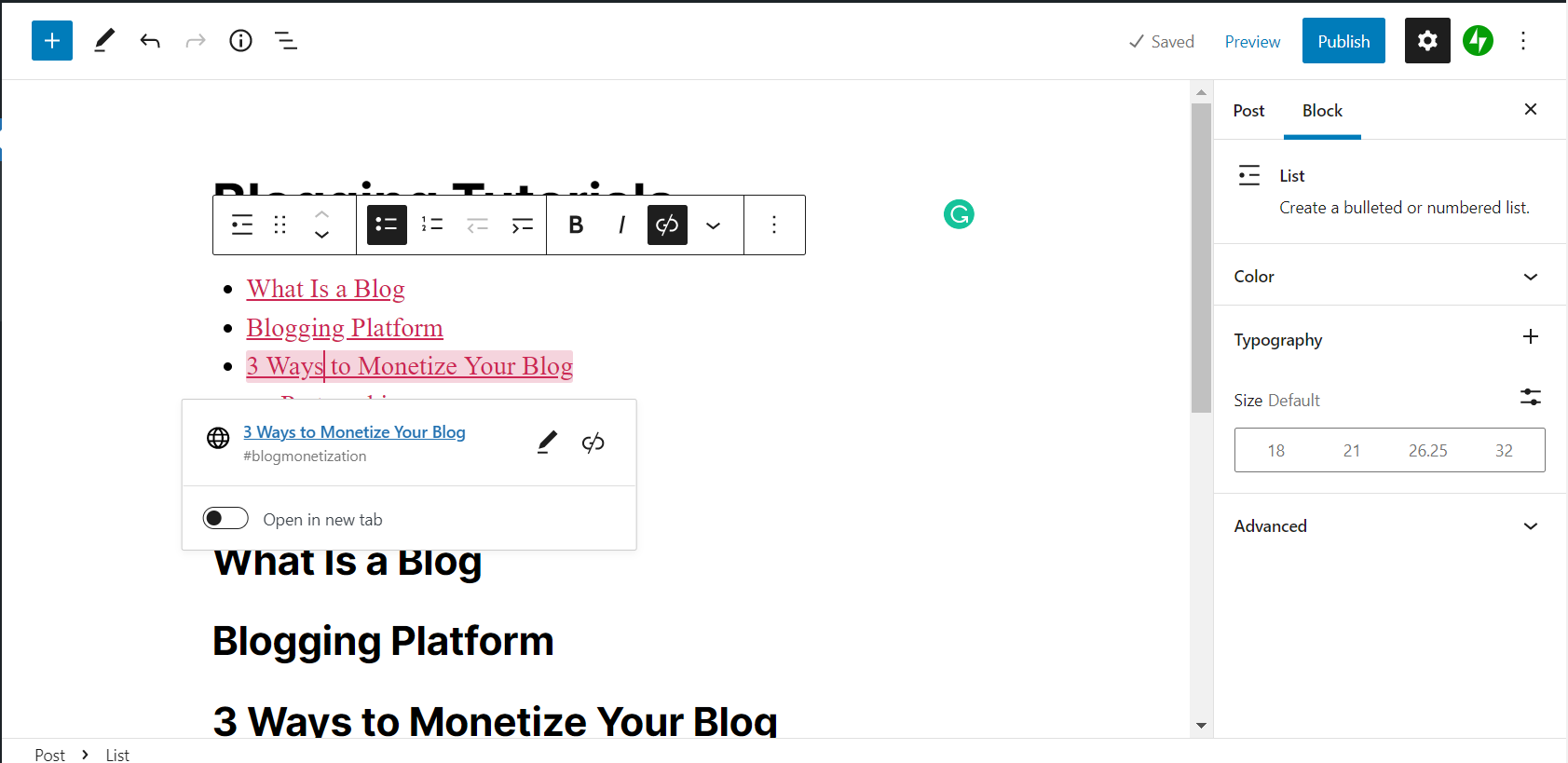
- Repeat steps five and six for all entries on the list so that they each link internally to the targeted sections.
How to Add a WordPress Table of Contents with a Plugin
Manually creating a table of contents might be time-consuming for long posts containing many headings. Fortunately, a WordPress plugin can help ease the process.
For example, we’ll demonstrate the steps to create a TOC using Easy Table of Contents:
- Install and activate the plugin.
- Navigate to Settings -> Table of Contents on the WordPress dashboard.
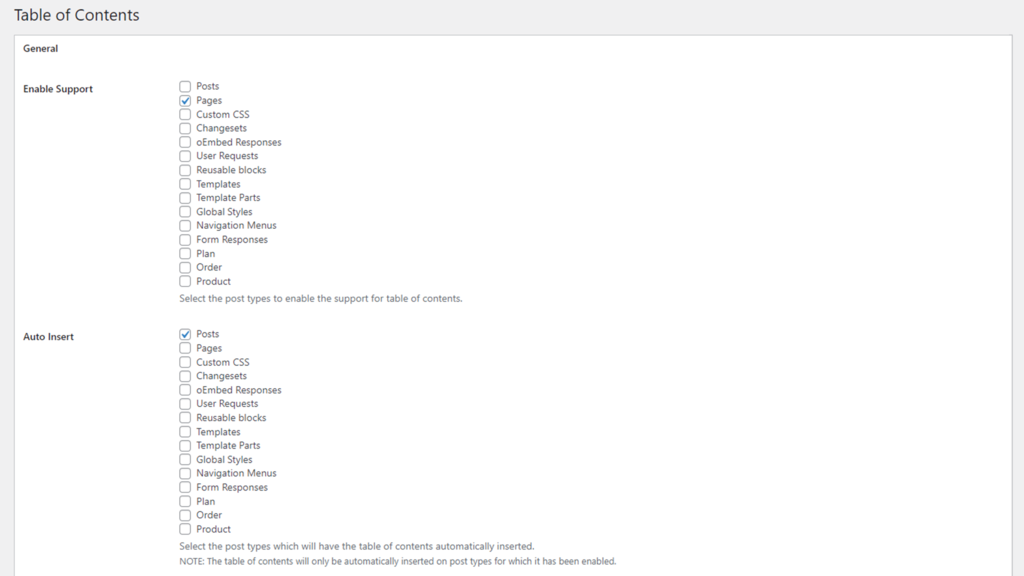
- Under General -> Auto Insert, select the post types you want the plugin to automatically add TOCs to. Here, we selected Posts.
Under the same section, you can also configure the table’s position, header labels, and the number of headings to display.
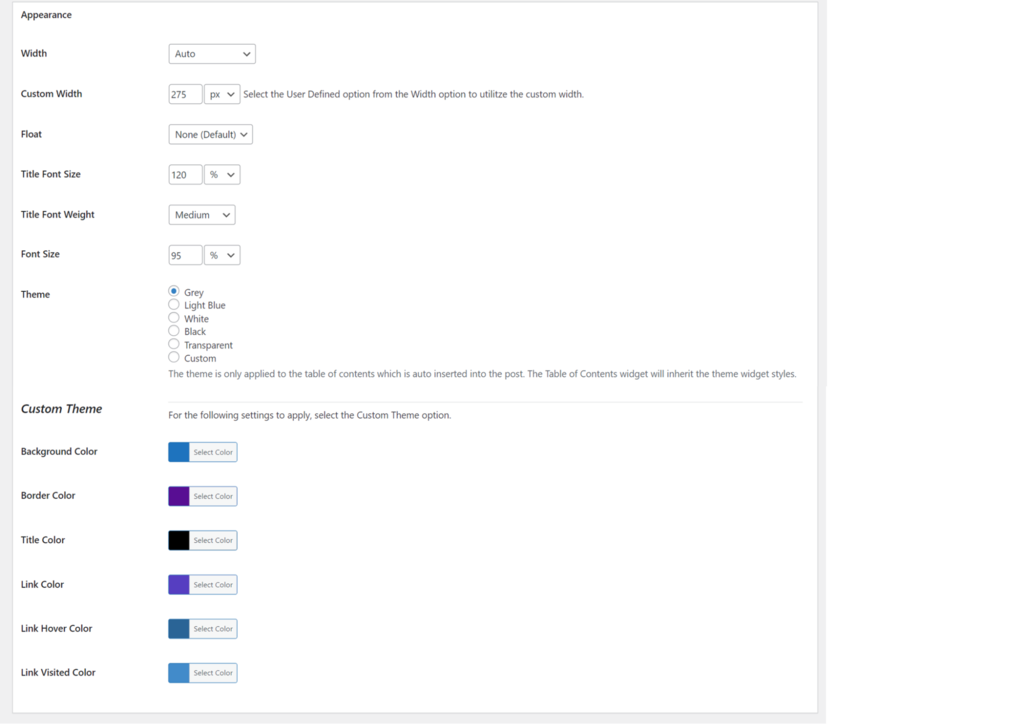
- Then, customize the TOC’s width and alignment in the Appearance section. Altering the TOC’s font size, table theme, and colors are also possible.
- Navigate to the Advanced configuration settings to define the conditions of how the TOC will appear. For example, only selecting H1, H2, and H3 headings will exclude H4 headings and below from the TOC.

- Hit the Save Changes button.
This free tool automatically generates the table of contents upon publication. However, we recommend previewing the TOC before publishing to ensure there are no configuration errors.
Top 5 Plugins to Add WordPress Table of Contents
Many WordPress SEO plugins already include a table of contents creation tool. However, if you prefer using a dedicated WordPress TOC plugin, here are our five recommendations.
1. Easy Table of Contents

Stats:
- Downloads: 300,000+
- Rating: 4.5/5
- Notable Features: multiple counter bullet formats, auto insertion, compatibility with various page builders
- Best Suited For: WordPress beginners
- Price: free
Easy Table of Contents is one of the most downloaded WordPress TOC plugins. It helps users easily create a TOC without needing to edit any HTML code. All you need to do is configure the plugin’s settings as discussed above, and the TOC will automatically appear on your post.
There’s no premium version of this plugin, so all of its features and tools are accessible for free.
2. Table of Contents Plus

Stats:
- Downloads: 300,000+
- Rating: 4.6/5
- Notable Features: tools for indexing pages, including content indexing for sidebars
- Best Suited For: websites with lengthy pages that need indexing
- Price: free
This plugin is a suitable option if you run a more complex website with multiple-page WordPress posts.
Inspired by Wikipedia’s TOC format, the developer of Table of Contents Plus enables users to index and show TOCs on the sidebar of their posts.
This plugin’s features are all available for free.
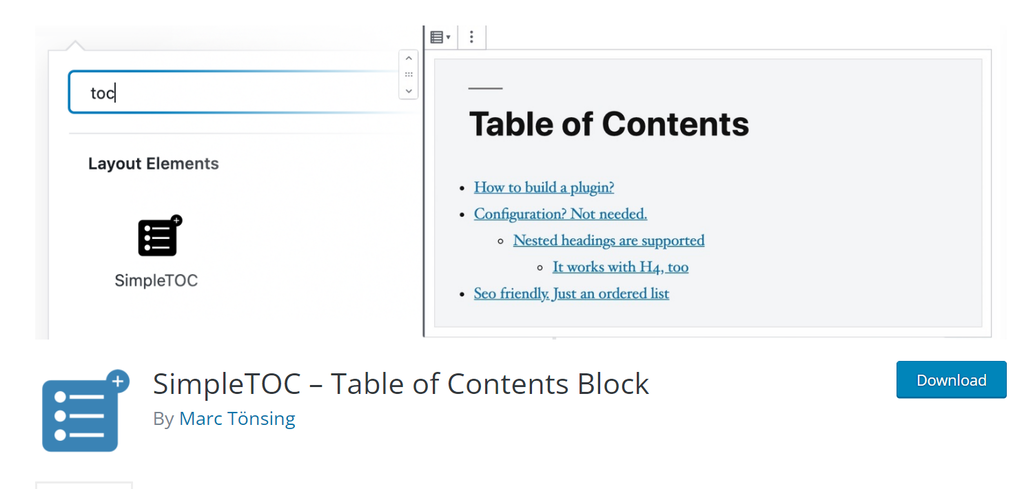
3. SimpleTOC – Table of Contents Block
Stats:
- Downloads: 4,000+
- Rating: 5/5
- Notable Features: sidebar widget block editor, support column block layouts, compatibility with non-Latin texts
- Best Suited For: Gutenberg users
- Price: free
If you are an avid Gutenberg user, consider using this plugin to create TOCs. It offers Gutenberg’s native styling options directly from the sidebar widget settings.
Notably, this plugin has many language options and is compatible with non-Latin texts like Arabic and Japanese, making it convenient for users who run multilingual or non-English sites.
You can integrate all of these features into your WordPress dashboard at no extra charge.
4. LuckyWP Table of Contents
Stats:
- Downloads: 80,000+
- Rating: 4.9/5
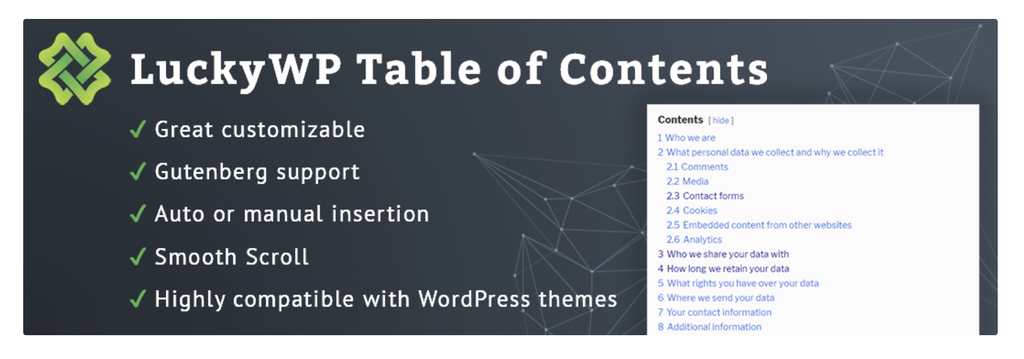
- Notable Features: Compatible with several non-Gutenberg page builders, customizable appearance, SEO friendly
- Best Suited For: Users of Elementor, Beaver Builder, and WPBakery page builders
- Price: free
LuckyWP is compatible with multiple WordPress page builder plugins. Users can customize the appearance of their TOCs by adjusting the width, hover colors, and font sizes. It even has an option for a floating TOC.
This plugin provides SEO-friendly features and a smooth user experience, and all tools are available for free.
5. Ultimate Blocks

Stats:
- Downloads: 30,000+
- Rating: 4.9/5
- Notable Features: various types of blocks for different functions, including calls to action and reviews.
- Best Suited For: WordPress experts
- Price: free
Ultimate Blocks is a multifunctional plugin offering 47 types of blocks for WordPress’ Gutenberg editor, including the table of contents block. All blocks are free of charge and compatible with WordPress version 5.0 and above.
This plugin is a convenient option if you have lengthy website posts with various content types. For instance, it’s perfect for bloggers or marketers wanting to create calls to action blocks and testimonial blocks in addition to a table of contents block.

Conclusion
Adding a table of contents is an excellent way to reduce bounce rates and improve the overall SEO of WordPress websites.
Fortunately, adding one to your WordPress posts is relatively straightforward. As we discussed in this article, users can create TOCs manually or with the help of a plugin.
To help get you started, we also reviewed our top five picks for the table of contents plugins. If you’re a WordPress beginner, we recommend opting for Easy Table of Contents since it’s free and easy to use.
Should you have any questions, feel free to drop them in the comments section below.
Learn What Else You Can Do With WordPress
How to Login to WordPress
How to Duplicate Pages and Posts on WordPress
How to Delete WordPress
WordPress Taxonomy Guide
How to Export WordPress Users
Guide to WordPress Revisions
How to Create Tables in WordPress
WordPress Table of Contents FAQ
Here are some frequently asked questions about the table of contents in WordPress.
Can I Add a Table of Contents Without a Plugin?
Yes, you can add a table of contents in WordPress without a plugin by adding a shortcode to your post or page using the built-in heading tags. In addition, you can also use the Gutenberg editor’s Table of Contents block to automatically generate a table of contents based on headings.
How to Customize My WordPress Table of Contents?
To customize your WordPress table of contents, you can use plugins like Easy Table of Contents or SimpleTOC to adjust the style, position, and behavior of the table of contents. You can also modify the CSS code or use custom HTML code to create a unique design.

Larassatti Dharma is a content writer with 4+ years of experience in the web hosting industry. She has populated the internet with over 100 YouTube scripts and articles around web hosting, digital marketing, and email marketing. When she's not writing, Laras enjoys solo traveling around the globe or trying new recipes in her kitchen. Follow her on LinkedIn


