What is WordPress recovery mode and how to use it
Dec 02, 2025
/
Ksenija
/
7 min Read
Have you ever tried logging into your WordPress admin panel, only to see a “There has been a critical error on this website” message instead of your dashboard?
If this happens, don’t start panicking yet. As bad as it looks, your site is most likely still there and is completely fixable.
WordPress has a built-in safety net called recovery mode, and it is designed to help you regain access to your site and resolve the issue quickly.
In this guide, we’ll walk you through what WordPress recovery mode is, why it activates, and how to use it to troubleshoot and restore your website.
What is WordPress recovery mode?
Introduced in version 5.2, WordPress recovery mode helps you regain access to your admin panel when a critical error prevents a normal login.
It temporarily disables malfunctioning plugins or themes, allowing you to troubleshoot and fix issues without taking your entire site offline.
Please note that if you’re running an older version of WordPress, this feature won’t be available. This, alongside many other security reasons, is why you should always keep your site updated to the latest release.
To better understand how recovery mode works, let’s look at a practical example.
If we deliberately create an error by deleting the opening <?php tag from a plugin file (in this case, the Hostinger Easy Onboarding plugin), WordPress will detect this critical error.
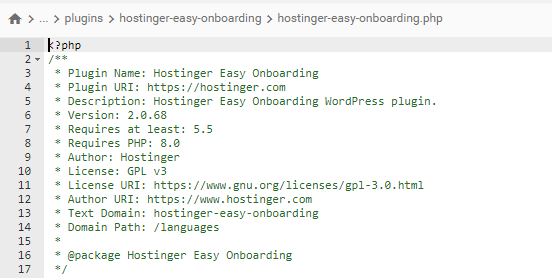
Without the PHP tag, the server interprets the file as plain text rather than executable code, causing the plugin to break.
When we subsequently try to log into the WP admin panel, the system detects the error and activates recovery mode to help you solve it.

Why do you need WordPress recovery mode?
The main purpose of WordPress recovery mode is to help you troubleshoot your website when a critical error blocks you from accessing your site’s backend.
WordPress recovery mode provides several handy benefits. Specifically, it:
- Prevents complete site failure – Instead of crashing entirely, your site enters recovery mode, allowing you to fix the issue even if you don’t have advanced technical skills.
- Pauses the malfunctioning plugin or theme – It temporarily disables the problematic code from loading, allowing your website to maintain most of its functionality, unless the issue affects a critical component like core theme files or security plugins.
- Provides safe access – You receive a special link via email, giving you temporary access to the admin dashboard to resolve the problem.
- Identifies the problem – Recovery mode highlights the plugin or theme causing the problem, so you can deactivate or fix it.
What triggers WordPress recovery mode?
If you see the recovery mode message, it is likely to be caused by one of the following reasons:
- Theme and plugin conflicts – Sometimes, updating a plugin can unexpectedly clash with your theme, compromising your site’s functionality. This usually happens when both the theme and plugin try to modify the same feature, leading to layout issues, broken styles, and more.
- Plugins conflict with each other – Plugins can also interfere with each other. For instance, if you use two different caching plugins, they might try to optimize the same database queries, leading to database connection errors or broken page caching.
- Fatal errors from code modifications – Syntax or other coding mistakes can trigger recovery mode and sometimes even result in the infamous “white screen of death,” where your site becomes completely blank with no error messages, making troubleshooting even trickier.
- Your site has been hacked – Hackers can inject malicious scripts into your website that could corrupt files, redirect users, or completely lock you out of WordPress. These scripts often trigger fatal PHP errors, activating recovery mode.

How to access WordPress recovery mode?
There are two ways to access recovery mode and resolve the: through the link that WordPress sends in an email or by adding a special variable to your login URL.
How to access WordPress recovery mode via email
When WordPress detects a critical error, it sends an email to the site admin. This email will contain the following:
- A description of the specific error that’s affecting your website
- A link that will allow you to access recovery mode
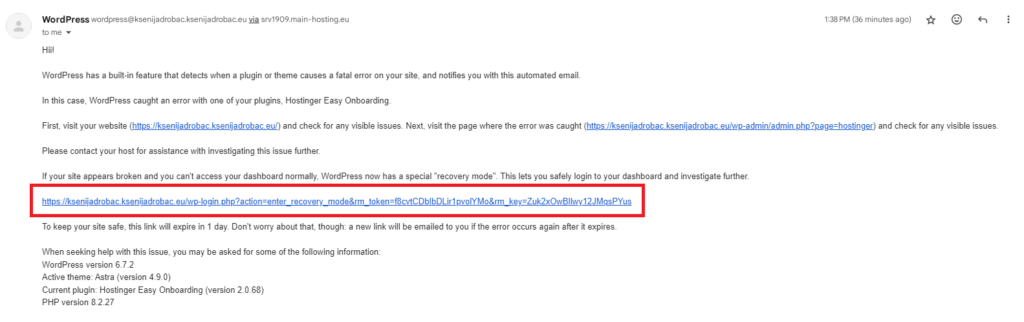
When you click on the recovery mode link, you’ll be taken to your login page, where you’ll log in as usual.
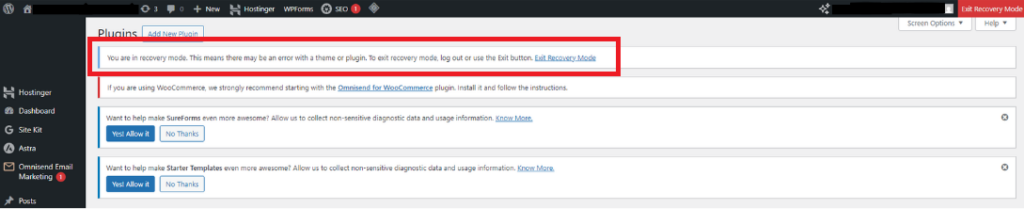
Once logged in, you’ll see your usual WordPress dashboard view, along with two additional features:
- A new Exit Recovery Mode button at the right top corner of the WordPress toolbar
- Admin notices explaining what went wrong
If it is a plugin issue, go to Plugins → Installed Plugins and you’ll see the problematic plugin listed in red.
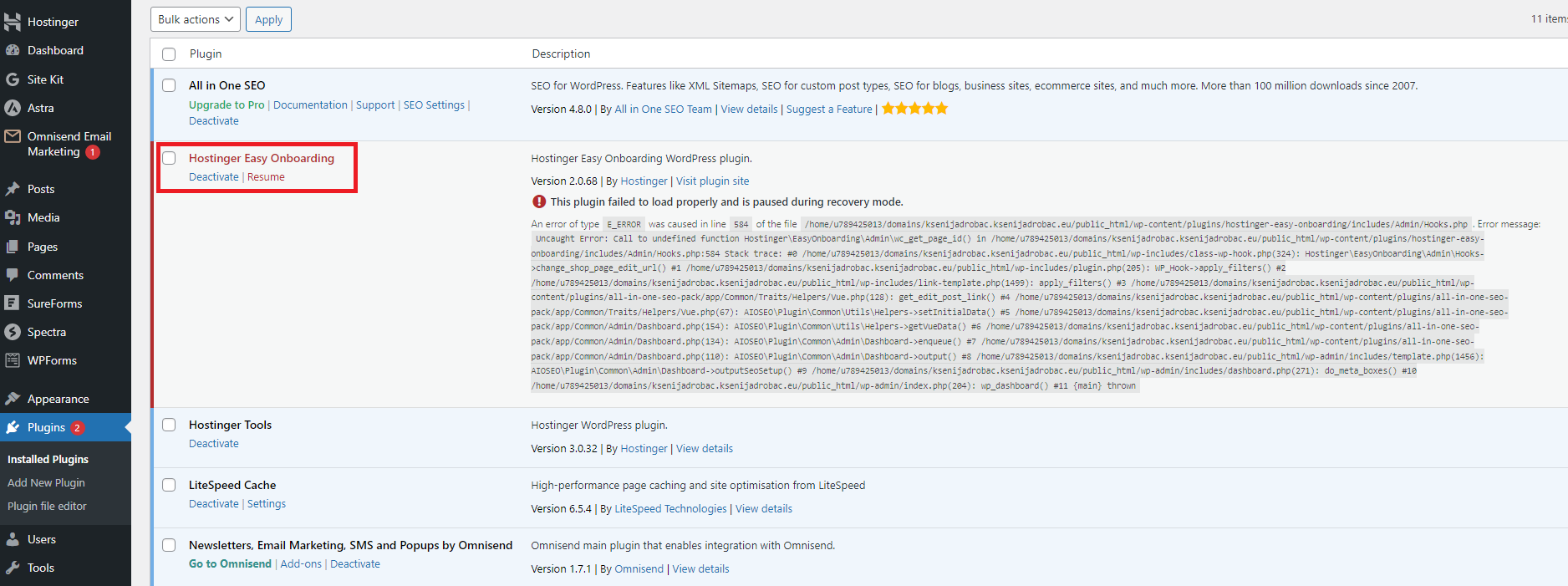
To resolve the problem, you can deactivate the problematic plugin to get your website to work again.

From there, you can either find an alternative plugin or contact the plugin’s support team to help you fix the issue.
You should only opt for Resume if you’ve manually fixed the plugin’s code; otherwise, you risk triggering the same error again.
If WordPress is reporting a problem in your theme’s code, navigate to Appearance → Themes and look for any underlined issues.
In this case, there is one theme that needs an update, although it’s not the cause of this particular error.
However, if left unaddressed, an outdated theme could eventually lead to issues down the line.
Follow the Update now link and the issue should be resolved.
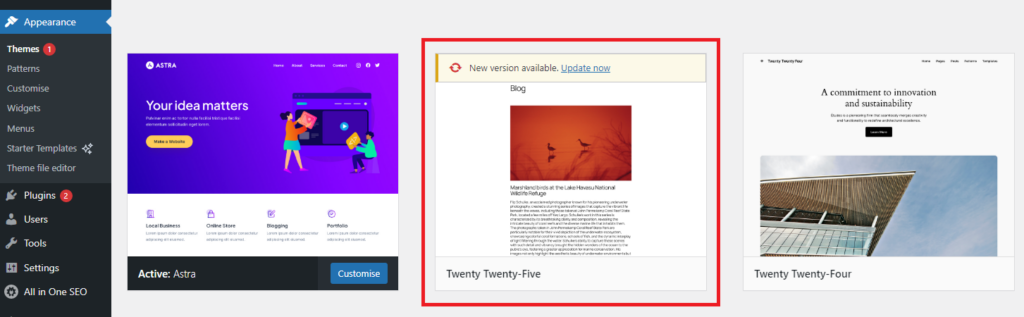
After resolving the problem, click the Exit Recovery Mode button, and your site should be back to normal.
If you’ve addressed all the issues flagged by WordPress recovery mode but still face the critical error, there are likely deeper hidden problems.
Here’s how to troubleshoot further:
Inspect plugins/themes manually
Recovery mode may not catch all conflicts between your theme and plugins. To leave no stone unturned, try the following:
- Using File Transfer Protocol (FTP), rename the plugins folder to plugins_old to deactivate all plugins.
- If your site starts working again, it means that one of the plugins triggered the issue.
- Rename the folder back to plugins to restore them.
- Reactivate plugins one by one, reloading your site after each activation to see which plugin causes the problem.
- Repeat the same process for themes.
Enable WordPress debugging mode
Edit wp-config.php using FTP or your hosting file manager to enable WordPress debugging mode and log errors.
- In your public_html root folder, find the wp-config.php file and open it
- Locate the define( ‘WP_DEBUG’, false ); line
- Change false to true
- Save the changes
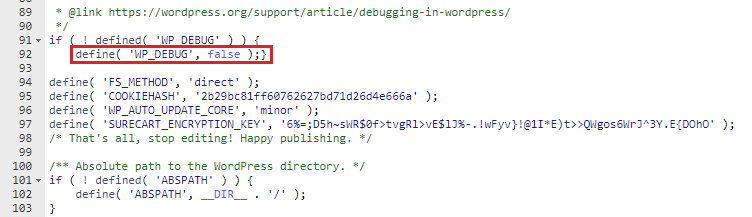
For more details, check out our guide on how to enable the WordPress debug mode.
Reinstall WordPress core files
Reinstalling WordPress core files replaces any corrupted, missing, or modified system files with fresh versions.
Navigate to Dashboard → Updates → Re-install (your WP current version) button.
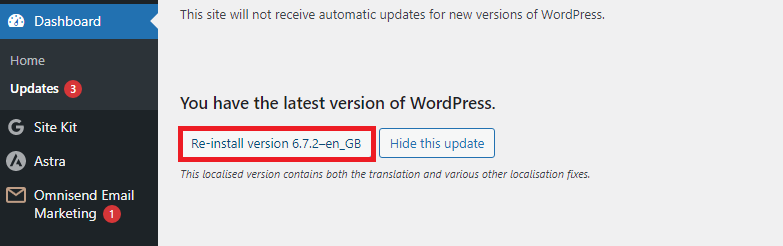
You can also reinstall your WordPress core files via WP-CLI. To find out how, follow the steps in our guide to reinstalling WordPress.
If all else fails, contact your hosting provider to investigate server-side issues such as mod_security rules or broken cron jobs.
How to access WordPress recovery mode using URL
If you encounter the so-called white screen of death (WSOD), which is a blank screen with no error message, you will not receive a recovery mode link via email.
In such cases, you can access recovery mode directly by changing the login URL.
Add ?action=entered_recovery_mode to your regular login URL.
Instead of https://yourwebsite.com/wp-login.php, use:
- https://yourwebsite.com/wp-login.php?action=entered_recovery_mode
After logging in, follow the same steps – deactivate plugins, check the theme, and fix any issues that come up.
When the problem is resolved, click the Exit Recovery Mode button in your dashboard.
How to prevent errors that trigger recovery mode?
You can avoid most of the critical WordPress issues with a couple of proactive maintenance steps.
To steer clear of those dreaded “critical error” messages, do the following:
1. Keep plugins/themes updated and ensure their compatibility
Outdated plugins and themes are the most common causes of your site’s functionality issues. This is why it is important to update them whenever you see a new version is available.
Before applying updates, confirm that they are compatible with your WordPress version and other installed plugins, by:
- Testing updates in a staging environment before applying them to your live site
- Checking plugin documentation and user reviews for compatibility reports
- Using a plugin like Better Plugin Compatibility Control to spot potential conflicts in advance
To check if there are any plugins marked for updating, go to Plugins → Installed Plugins and filter them by clicking on the Update Available tab.
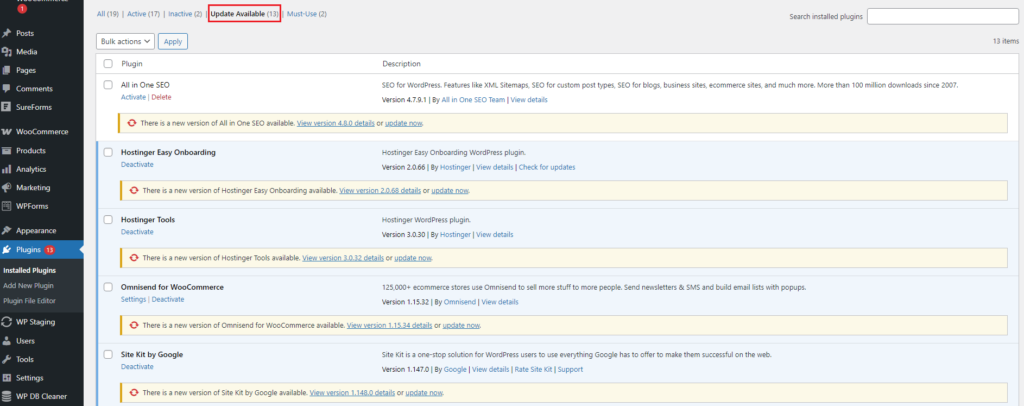
You will get a list of all the plugins that offer new versions that you can upload by selecting the update now link.
2. Remove unused plugins and themes
If you keep deactivated plugins or themes in your directories, you should know that they can still trigger vulnerabilities or cause conflicts on your site.
If you are no longer using them, it’s best to delete them altogether and leave no room for unnecessary risks.
Navigate to Plugins → Installed Plugins → Inactive to see if there are any plugins left in inactive mode.
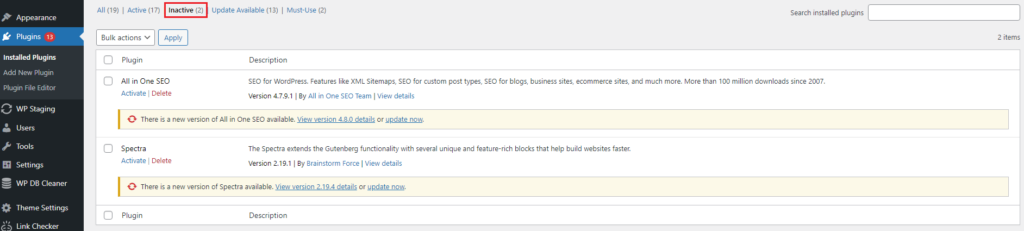
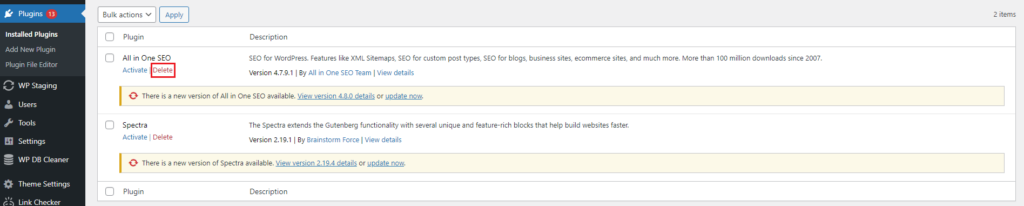
After you confirm that you don’t need them, remove them completely by clicking on the Delete tab.
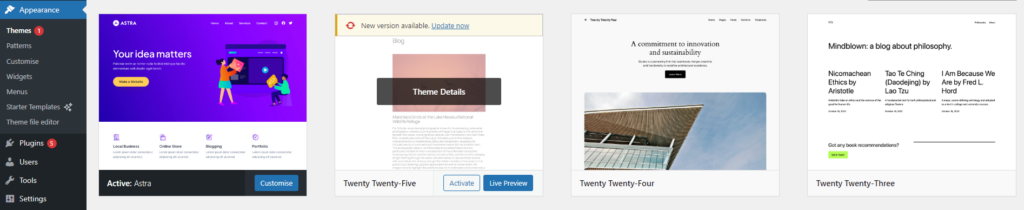
To delete inactive themes, go to Appearance → Themes and hover above a theme that has an Activate button to reveal the Theme Details option.
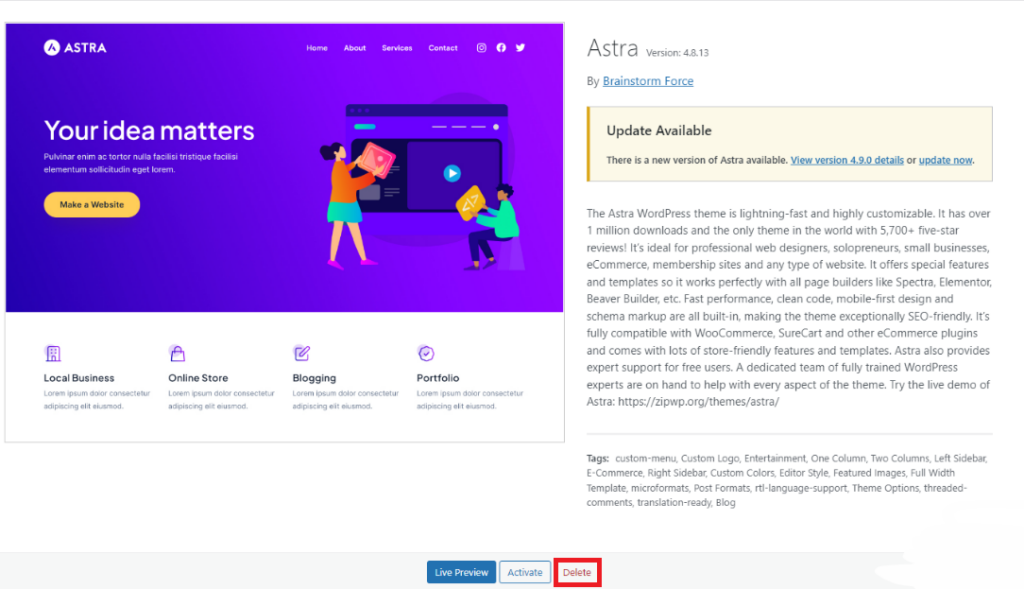
Open the Theme Details to find the Delete link at the bottom, click on it and the theme will be removed permanently.
3. Set up proactive monitoring and automatic backups
You can monitor your website performance using various proactive monitoring tools to spot any issues before they create significant damage.
- WP Umbrella – A security monitoring platform that scans for vulnerabilities in plugins, themes, and WordPress core. Offers real-time alerts and integrates well with other monitoring tools.
- Patchstack – Community-powered security monitoring that detects vulnerabilities and provides actionable suggestions. Offers real-time email alerts and integration with major hosting providers.
You can also use backup tools to create copies of your website’s files and database, allowing you to restore your site in case of data loss, hacking, or technical failures.
- Duplicator – Allows you to schedule automatic backups with customizable templates and storage options.
- Auto Backup – Offers automated backup schedules with support for various cloud storage platforms like Dropbox and Amazon.
Conclusion
WordPress recovery mode is a lifesaver when your site runs into trouble, providing a quick way to diagnose and fix critical errors.
Whether the issue stems from a plugin conflict, a faulty theme, or a deeper site vulnerability, knowing how to navigate recovery mode can save you time, stress, and potential data loss.
By following best practices, such as keeping your plugins updated, removing unused themes, and setting up automatic backups, you can minimize the risk of any future functionality failures.
We hope this guide saved you from unnecessary stress and helped you get your site back on track!
WordPress recovery mode FAQ
What will WordPress recovery mode do?
WordPress recovery mode automatically activates when a critical error occurs, allowing administrators to regain access to the dashboard and troubleshoot issues.
It deactivates faulty plugins or themes, providing a safe environment to fix conflicts, update files, or restore backups without breaking the entire website.
How do I manually restore WordPress?
To manually restore WordPress, access your hosting account via FTP or a file manager and upload a clean WordPress core installation but keep the wp-config.php and wp-content folders intact.
Restore the database using a backup, then reactivate plugins and themes one by one to identify potential conflicts. Clear the cache and test site functionality.
What is the difference between WordPress recovery mode and safe mode?
WordPress recovery mode activates when a critical error is detected, disabling problematic plugins or themes so you can fix issues.
On the other hand, what’s often called “safe mode” is typically a manually activated troubleshooting mode (via plugins or custom code) that loads WordPress with only essential features, preventing conflicts from interfering with normal operation. Unlike recovery mode, this is not an official built-in WordPress feature.

Ksenija is a digital marketing enthusiast with extensive expertise in content creation and website optimization. Specializing in WordPress, she enjoys writing about the platform’s nuances, from design to functionality, and sharing her insights with others. When she’s not perfecting her trade, you’ll find her on the local basketball court or at home enjoying a crime story. Follow her on LinkedIn.


