How to Create WordPress Anchor Links Using Block Editor, Classic Editor, and a Plugin
Mar 10, 2026
/
Arafat
/
8 min Read
Anchor links, also known as jump links, are essential for enhancing the user experience and navigation on your website. Although you can find anchor links anywhere on a website, they are most often concentrated in website navigation menus or tables of contents.
If you want to know how to add anchor links in WordPress, you’re in the right place. This article is a comprehensive guide on creating WordPress anchor links. We’ll be covering three different methods – using the block editor, the classic editor, and a plugin.
We will explain what anchor links are, their components, and why you should consider using them. We’ll also provide use cases for implementing jump links on your WordPress site.
What Is A WordPress Anchor Link?
A WordPress anchor link is a hyperlink that allows users to jump to a specific section within the same page or another page. It consists of two main components – an anchor ID and a link to the element. When a user wants to read a specific section of your post or page, they can click the anchor link to get there.
Here’s some more detail about the components that make an anchor link functional:
- Anchor ID. This is a unique identifier assigned to a specific section or HTML element on the web page. This ID attribute serves as the target destination for the anchor link.
- Link to the element. It is the anchor link itself, which users can click to navigate to the content associated with the anchor ID.
When clicked, an anchor link takes you to a specific section further up or down on a page. These links are particularly useful for creating a seamless reading experience and helping visitors find relevant information quickly without scrolling extensively.
Why Should You Use Anchor Links?
Anchor links offer many benefits. Aside from ease of use, here are a few reasons to consider adding jump links to your website:
- Make it easy to locate content. If you have long pages and posts, adding anchors helps users navigate easily. For lengthy pages with multiple sections, they provide a convenient way to divide content into manageable parts.
- Smooth navigation. These links allow users to jump to a specific section of the web page. That way, readers don’t have to scroll manually and can access the content on a page with one click.
- SEO benefits. Anchors add structure to your page, which helps enhance your WordPress SEO efforts. Sometimes, anchors appear on search engine results pages (SERPs), improving the chances of increasing your click-through rate.
- References. When writing blog posts or journal articles, anchor links enable authors to refer to specific points. For instance, a writer can link to a definition, a related topic, or a supporting example within the same page or a different content piece.
From the above points, it’s clear that there are many benefits to using anchor links. Whether it’s a one-page website or a lengthy product page, site visitors will have better navigation. You can even add smooth scroll animations, which will further enhance the user experience.
To ensure your WordPress site runs smoothly while you incorporate anchor links, consider Hostinger’s managed WordPress web hosting solution solution. It offers optimized performance and our user-friendly hPanel. Plus, our expert Customer Success team is online 24/7 to help resolve any issues.

Use Cases for Anchor Links
To demonstrate, here are some use cases where jump links can be highly beneficial:
- Table of contents. A table of contents is usually seen in articles and blog posts. It’s located at the beginning of the post or article. The table of contents provides an overview of the page’s structure and allows users to jump to the section they’re interested in.
- Call to action (CTA). Anchors can guide users toward important CTA sections, boosting your page’s effectiveness. This can work anywhere, including one-page sites and long sales pages.
- Tutorials and guides. Use anchors to break down an extensive blog post into sections. When users click on these links, they instantly jump to the relevant information.
- FAQ pages. Organize Frequently Asked Questions (FAQs) with anchor links so users can find answers easily.
- Product pages. Use those links on product landing pages to guide users to the product features and benefits section.
- Documentation. Create a jump link in your documentation to help users locate specific topics.
Anchors improve accessibility, enhance user engagement, and contribute to a well-organized web page. They’re especially handy for navigating long-form content, FAQs, documentation, or one-page websites where readers may want to jump directly to specific sections.
These internal links act as bookmarks, making your website navigation smoother and faster. You can also use them as custom links for A/B testing against an actual link.
How to Create WordPress Anchor Links
Now that you understand their benefits and uses, let’s delve into the methods to create anchor links in WordPress.
There are various ways to create anchor links for your WordPress posts or pages. We’ll explore three easy methods – using the block editor, the classic editor, and a plugin. Each method offers its own set of advantages, catering to different user preferences and needs.
In this WordPress tutorial, we’re going to use a WordPress post to demonstrate.
How to Create Anchor Links in WordPress Using the Block Editor
Using the default WordPress content editor or the Gutenberg editor, you can add anchor links relatively easily. Follow the steps below to add anchor links using this visual editor:
- Select the target block. Edit the post or page where you want to insert the anchor link. Then, select the target block where you want to place an anchor ID.
- Access the block settings. With the block selected, you can find the block settings on the right sidebar. There will be two tabs on top of the sidebar – Post and Block.
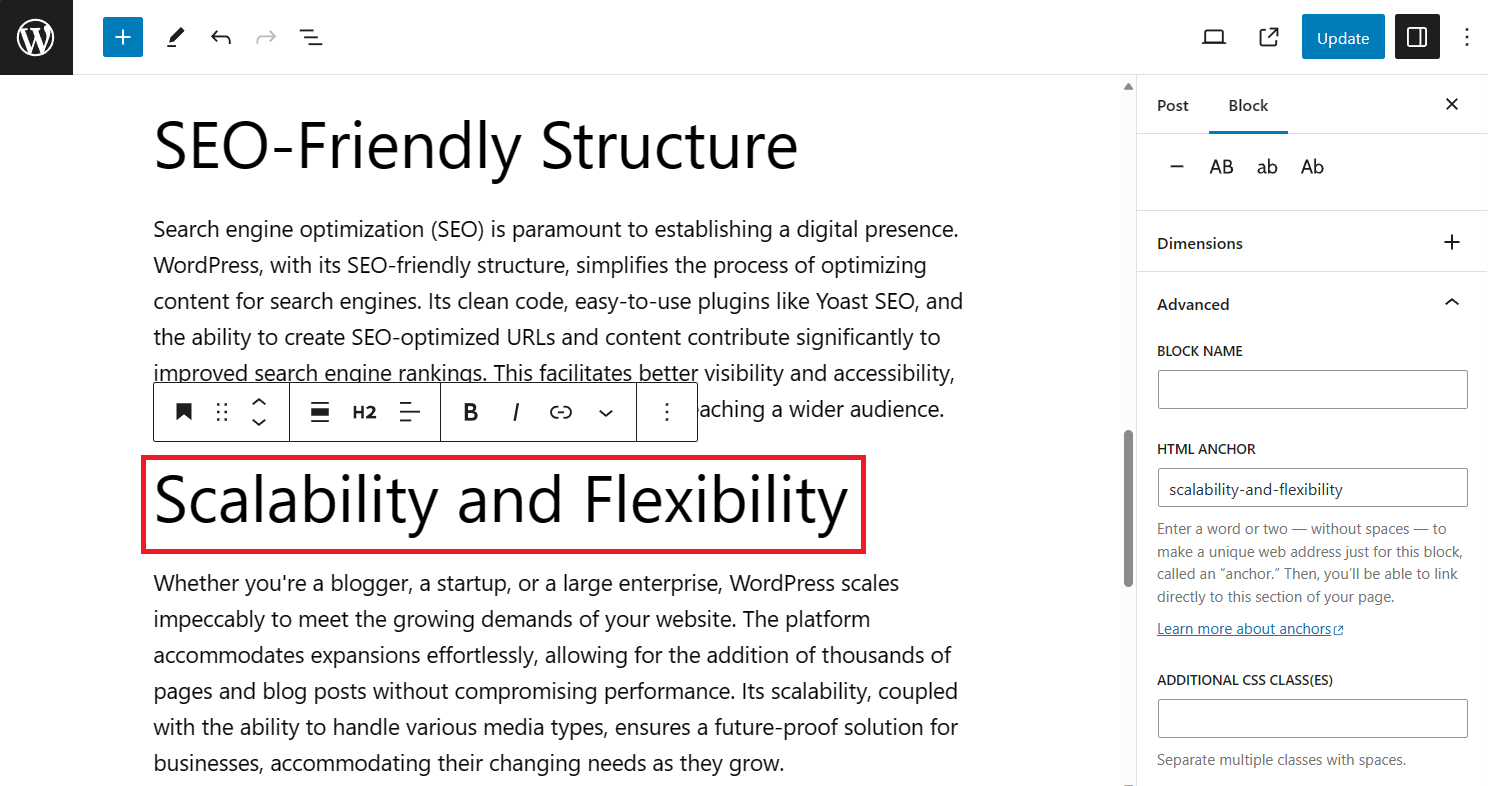
- Add the anchor ID. Select the Block tab and navigate to the Advanced section. Under the HTML Anchor box, add your ID attribute.
Important! Note that it’s better to use one unique word for your ID. If you’re adding more than one word in the HTML Anchor field, don’t add a space between them. Instead, use hyphens (-) or underscores ( _ ). For example, we’ve named our heading “scalability-and-flexibility.” Avoid using any ID already added elsewhere on the page, and keep it relevant to the block content.
- Add the anchor link to the desired text. Select the text where you want to add this anchor’s link. This is where users will click to jump to their desired section. Then, click on the chain icon in the pop-up toolbar and insert the anchor text following a # sign. Make sure to use the # prefix instead of https.
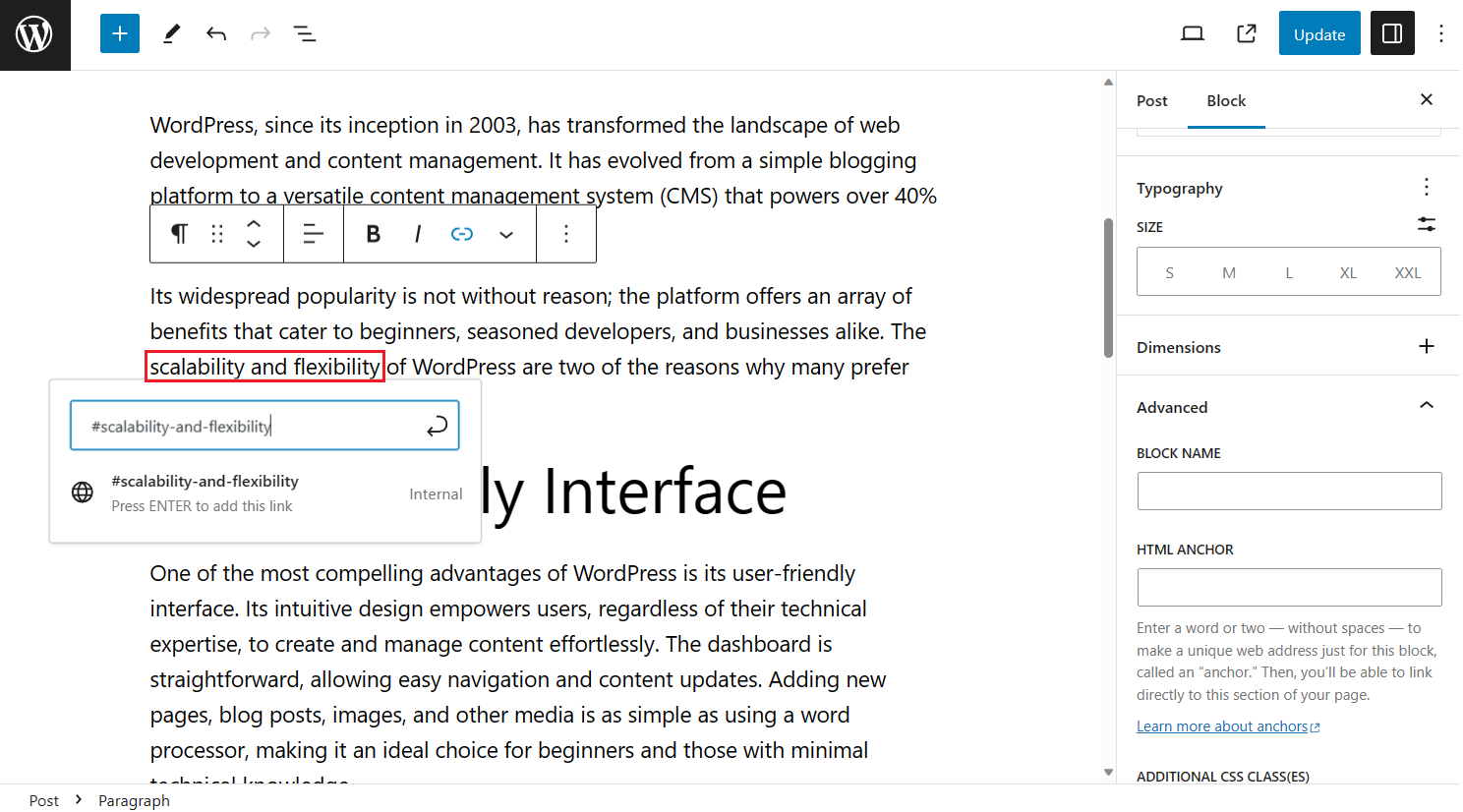
After adding the link, hit Enter on the keyboard or click on the curved arrow at the end of the textbox. Save your changes, and you’ve successfully added a jump link to your post.
How to Create WordPress Anchor Links Using the Classic Editor
Creating anchor links using the classic WordPress editor is technically similar to the block editor. You can manually add anchor links using this method by following these steps:
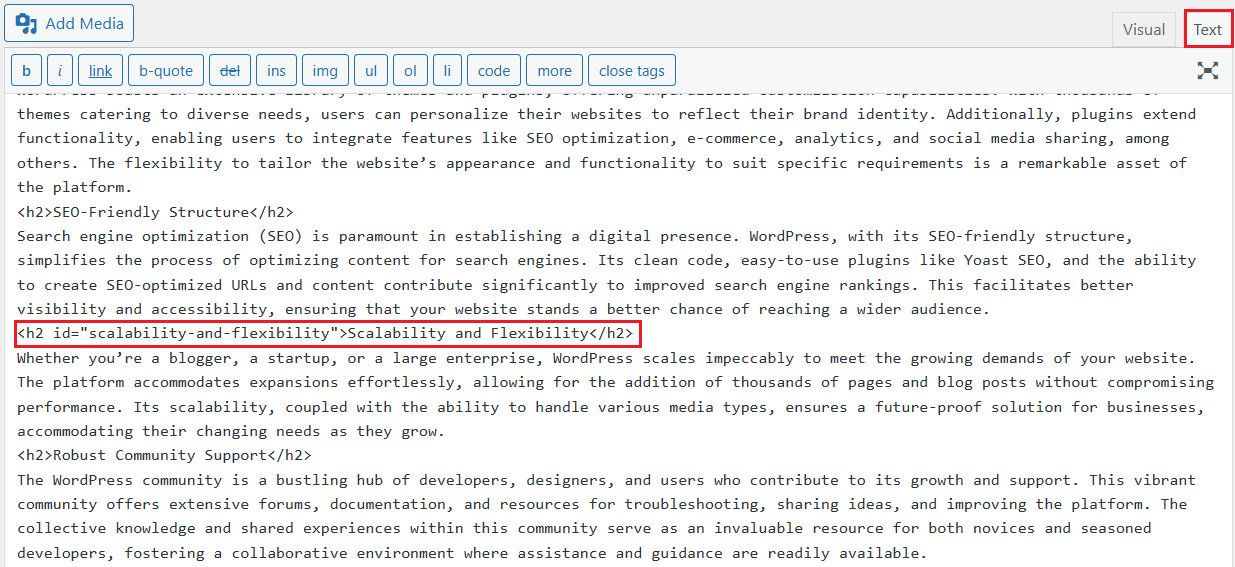
- Edit the post or page. First, access the content where you want to add the anchor ID or anchor text. Once you are in the classic WordPress editor, click on the Text tab.
- Add the anchor ID. Navigate to the part of the content where you want to add the anchor. In our case, we’ll add it to the H2 header tag “Scalability and Flexibility.” Within that HTML tag, add the anchor ID. The result should look like this: <h2 id=”scalability-and-flexibility”>Scalability and Flexibility</h2>.
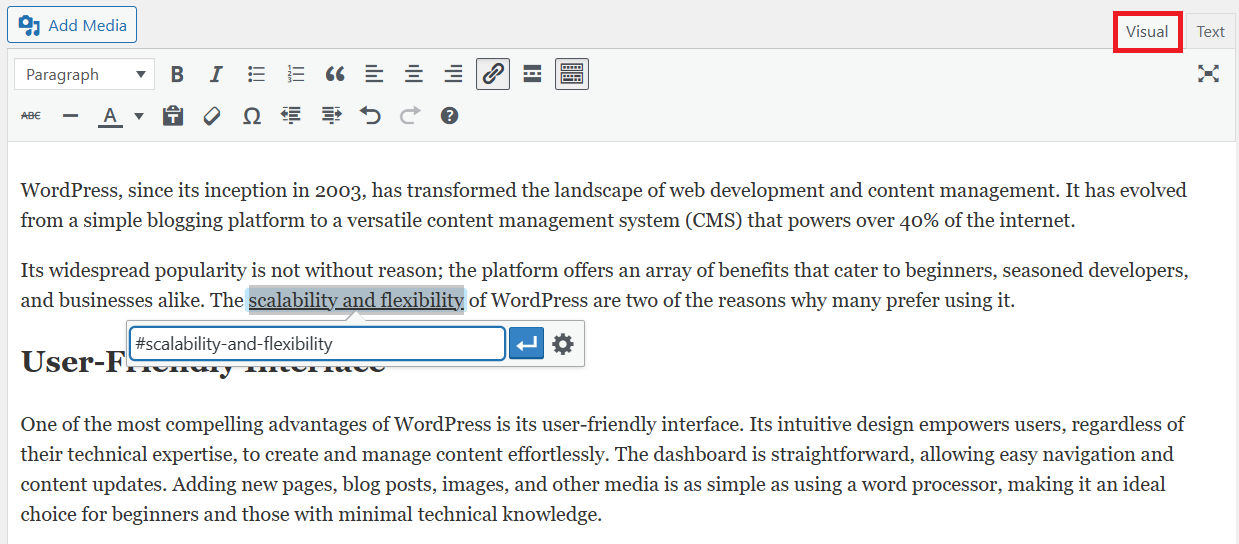
- Add the anchor link to your content. Switch back to the Visual tab and find the word or phrase where you want to add the anchor link. Highlight the text and click on the chain icon in the top toolbar of the WordPress classic editor. Insert your anchor text with a # prefix – in our case, it will be #scalability-and-flexibility – then hit Enter.
An alternative option for step three is to manually create the jump link in the Text editor. For that, you need to add the HTML <a> tag and the anchor ID text with the # prefix. It’s similar to adding a link to a text. In our case, it will look like the following HTML code:
<a href=”#scalability-and-flexibility”>scalability and flexibility</a>
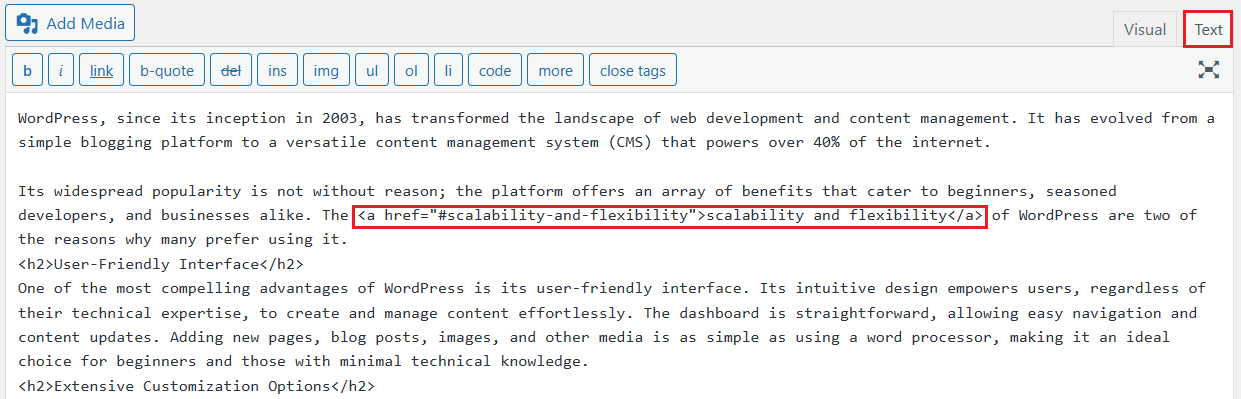
After that, don’t forget to save your changes and check the live version to ensure that the link is working properly.
How to Create Anchor Links in WordPress Using a Plugin
If you want to easily add anchor links, an option is to use the All in One SEO (AIOSEO) plugin. It can create a table of contents for your post or page and automatically add jump links to it. This is a great way to save time and add structure to your pages.
First, you’ll need to install the WordPress plugin from your dashboard by heading to Plugins → Add New. Then, activate the plugin so that it appears as a WordPress navigation menu item.
To add WordPress anchor links using AIOSEO, follow these steps:
- Edit the post where you want to add the table of contents. At your desired section in the post, click on the Add block (+) button and search for “table of contents.”
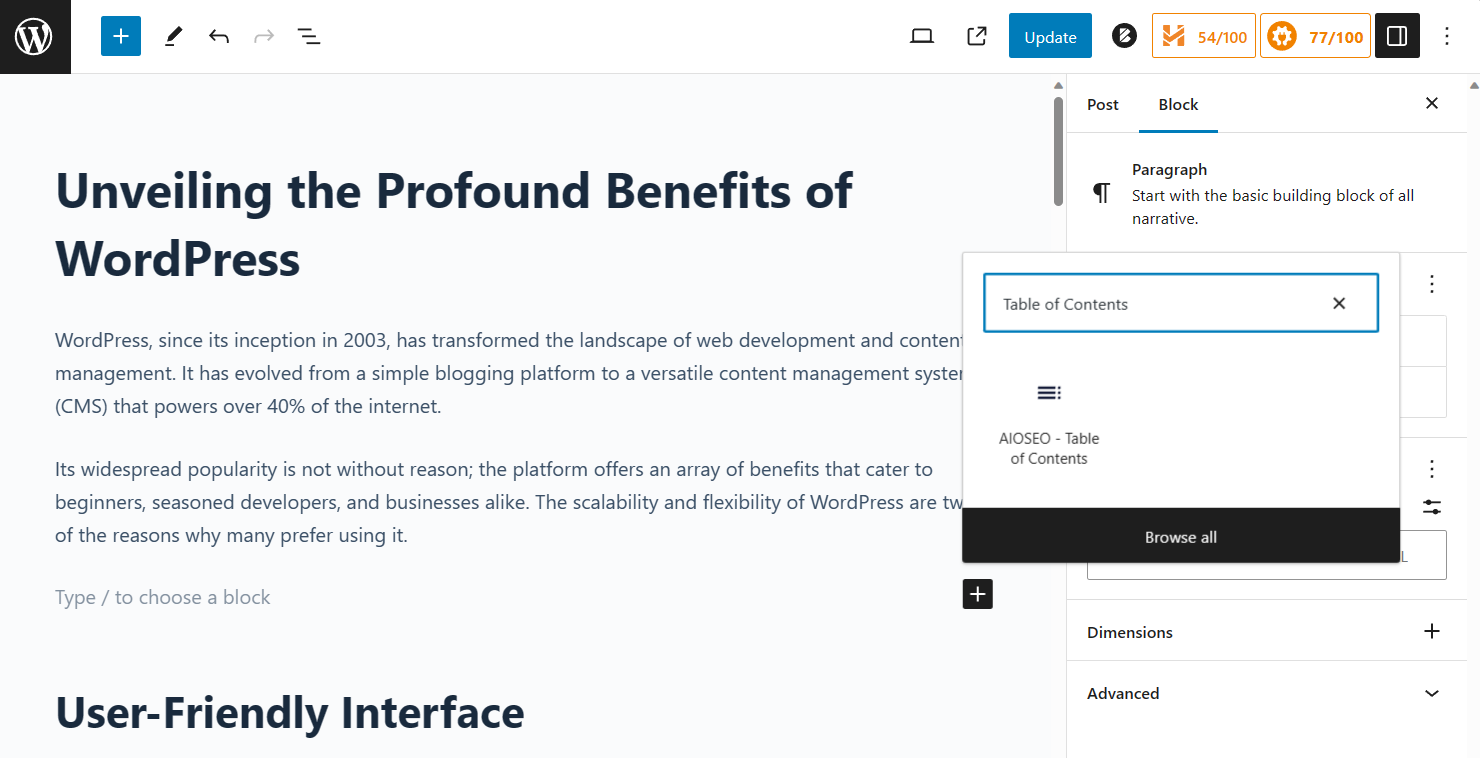
- Insert the AIOSEO – Table of Contents block into your post. It will detect the headings in the post and automatically add anchor links for all the headings. You can then decide which headings to display on the block.
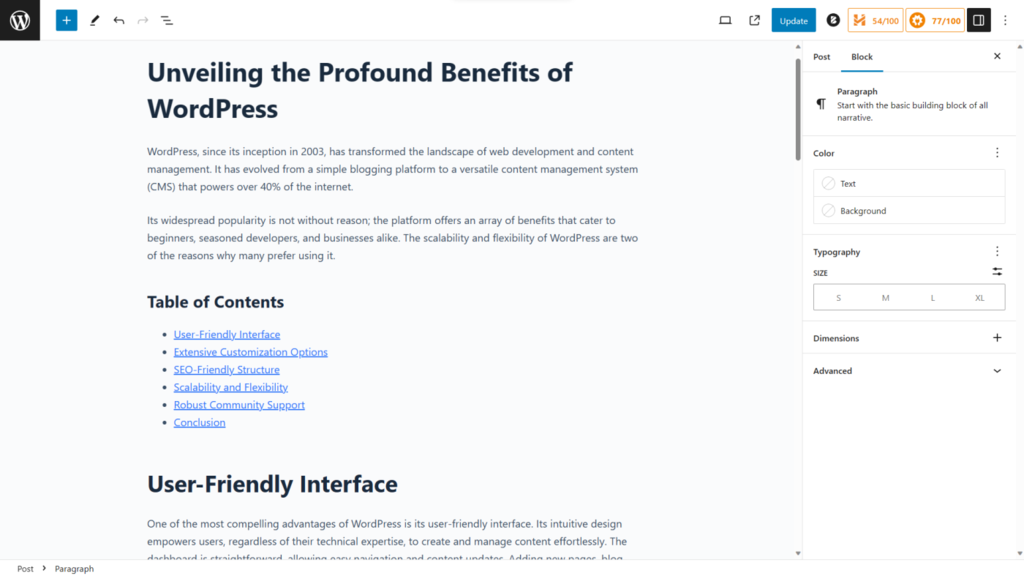
- After that, add a heading on top of the block with the text “Table of Contents” or something similar. This makes the section easily visible to support a better user experience.
So that is how you can create links and insert a table of contents automatically to your posts with the AIOSEO WordPress plugin.
Alternatively, you can use the Easy Table of Contents plugin to automatically display a similar table in all of your posts. This WordPress link-to-page section plugin has an auto-insert option that comes in handy for blogs and media sites.
Suggested Reading
Discover our complete AIOSEO tutorial for comprehensive installation and configuration tips.
Tips for Using Anchor Links
Anchor links make your pages more organized and improve the overall user experience. After learning how to add anchor links to a WordPress site, most users will proceed with inserting a table of contents at the beginning of their posts.
However, be careful not to overuse them. Posts with too many anchor links can look cluttered. This might drive away visitors, which can harm your site’s reputation.
Therefore, when adding anchor links, it’s necessary to keep certain factors in mind:
- Use a descriptive anchor text. When you’re inserting an anchor ID to a section, make sure it describes the content accurately. Instead of using generic phrases like “click here,” opt for relevant keywords that describe the linked content.
- Avoid using too many anchor links on a single page. Excessive anchor links on a single page make the content look spammy. Since search engines like Google use anchors to crawl and understand the structure of a website, inserting too many of them might result in confusion. So, use anchor links where they’re necessary.
- Test your anchor links to make sure they work. It’s a good idea to check whether your anchor links are working properly. If the anchor links are empty or if you’ve made a mistake in the linking process, it may result in an error.
- Add WordPress anchor links to another page. You can take an external page section’s anchor attribute, create an anchor link, and insert it into another page. This way, you can direct visitors to a specific section of a different page or post.
Conclusion
In this article, we’ve explored the steps for creating anchor links in WordPress, delving into their benefits and the practical steps to implement them. Whether you’re a seasoned WordPress user or just starting out, understanding how anchor links work is crucial.
Anchor links not only enhance the structure and organization of your web pages but also contribute positively to your SEO efforts. They provide a smoother navigation experience for visitors, allowing them to quickly access specific content.
We’ve covered the methods on how to create an anchor link using the block editor, classic editor, and a WordPress anchor links plugin, offering flexibility based on your preference and experience level.
Remember to adhere to best practices and avoid overuse, ensuring your site remains user-friendly and efficient. Keep the helpful tips in this article in mind as you continue to refine and optimize your WordPress site. Good luck!
WordPress Anchor Links FAQ
If you still have questions about how to create anchor links on a WordPress website, take a look at these WordPress anchor link FAQs.
What Are the Benefits of Using Anchor Links?
There are several benefits of adding anchor links to your posts or pages. Primarily, they improve the user experience when used on long-form articles and pages. It helps users better navigate through your web page without needing to manually scroll to certain sections. Anchoring also helps search engines understand the overall structure of your site.
Why Is My Anchor Link Not Working?
Your anchor link may not work due to syntax errors, incorrect anchor IDs, relative path issues, JavaScript conflicts, or CSS styles affecting visibility. To avoid such issues, ensure the link points to the right ID. Also, check for case sensitivity and browser compatibility. Troubleshoot accordingly by re-doing the process or using another method for a functional anchor link.
How Do I Use Anchor Links to Link to Pages on Other Websites?
To anchor link to a different website, use the entire URL followed by the # symbol and the ID. Here’s an example: <a href=”https://otherwebsite.com/page#section-3″>Link to Section 3</a>. As such, anchor links in WordPress doesn’t always have to be an internal link. External anchoring is also possible.

Arafat is a passionate tech enthusiast and seasoned content creator with over 12 years of experience. He enjoys sharing valuable insights, tips, and comprehensive guides through engaging multimedia content. Arafat excels in creating informative and user-friendly tech content, making it accessible for all audiences. Follow him on LinkedIn.


