How to change a hostname in Linux
Mar 10, 2026
/
Aris S. & Noviantika G.
/
5 min Read
A Linux hostname identifies systems within a network, enabling them to identify and communicate with one another correctly. Assigning a unique hostname is crucial for network management to prevent multiple devices from sharing the same identity, which can cause conflicts and errors.
There are different ways to change a hostname in Linux:
- Using hostnamectl. Systemd-based modern distributions like Ubuntu, Debian, CentOS 7+ offer a dedicated hostnamectl command to change a hostname.
- Editing the configuration file. Your system has a configuration file that defines its current hostname, which you can edit to modify the setting.
- Utilizing nmtui. NetworkManager’s interactive command-line tool provides an option to change your system’s hostname.
- Leveraging your hosting control panel. Your Linux server’s hosting control panel, like Hostinger’s hPanel, may provide an option to change your system’s hostname.
You can also change the hostname temporarily or permanently, depending on your needs.
How to check your current hostname
To check your current Linux system’s hostname, use the hostname or hostnamectl commands in your terminal.
The hostname command provides a quick look at the active system name:
hostname
The output will show your system’s current hostname:
myserver.example.com
For more details, use hostnamectl. This command can reveal different types of hostname:
- Static hostname. The primary, persistent system identity stored in the /etc/hostname file that initializes the kernel during boot. It is essential for network communication and enforces strict syntax rules, prohibiting spaces and special characters.
- Pretty hostname. This is a free-form, high-level name stored in /etc/machine-info that supports capitalization, spaces, and special characters. Its purpose is to provide a human-readable description for user interfaces and terminal prompts, without affecting network routing.
- Transient hostname. This is a dynamic identity maintained by the Linux kernel that can change during runtime based on network configurations like DHCP or mDNS. It typically mirrors the static hostname but acts as a temporary fallback to resolve conflicts if the static name is invalid or duplicated.
You can run hostnamectl by itself without any flags or parameters:
hostnamectl
The output will display detailed information about your system, including its hostnames:
Static hostname: hostinger-vps
Pretty hostname: Hostinger VPS Server
         Icon name: computer-vm
           Chassis: vm
        Machine ID: 45598cbdb6ee462e8696166b520fe788
           Boot ID: 99526e56aeea45c2a0f3b2ffaaffe9d9
    Virtualization: kvm
  Operating System: Ubuntu 22.04 LTS
            Kernel: Linux 5.15.0-101-generic
      Architecture: x86-64
Note that the transient hostname will appear only after you set a temporary hostname. You can explicitly tell hostnamectl to check it like this:
hostnamectl --transient
The above command will output only the transient hostname of your system. If you haven’t set up the temporary hostname, however, it’ll simply print the static hostname.
How to change the hostname permanently
Permanently changing the hostname of your Linux system ensures that the new identity persists after a reboot. You typically do this when setting up a new VPS whose services require persistent communication, such as mail or web applications.
The easiest way to do it is by running the hostnamectl command:
- Access your device’s terminal. For a remote system, such as a Linux virtual private server, connect via SSH.
- Run this command to update the static hostname. Replace new-host-name with your desired name:
sudo hostnamectl set-hostname new-host-name
- Update the /etc/hosts file to ensure your system can resolve to its new hostname to the local loopback address. To edit the file, run:
sudo nano /etc/hosts
- Find the line starting with 127.0.0.1 or 127.0.1.1 and replace the old hostname with the new one:
127.0.0.1 localhost

127.0.1.1   new-host-name
- Press Ctrl + X, Y, then Enter to save the changes.
- Check whether the new hostname is assigned by executing:
hostnamectl
Important! If your /etc/hosts file only contains localhost and not the old hostname, you don’t need to update it.
This method works for modern Linux distributions that use systemd. If your distro uses another init system, you can change the hostname by editing the configuration file manually.
How to change the hostname by editing configuration files
You can manually edit configuration files to change the hostname on any Linux system. This is particularly useful for legacy distributions or when hostnamectl is unavailable:
- Open /etc/hostname using a text editor like nano:
sudo nano /etc/hostname
- Delete the existing name and enter your new desired hostname.
- Hit Ctrl + X, Y, then Enter to save the file.
- Update the /etc/hosts name using the same procedure explained in the previous section.
At this point, your hostname is updated. However, you’ll need to complete additional steps if you use a cloud system like a VPS hosting solution, because the provisioning service, like cloud-init, might reset the settings after reboot. Here’s how to preserve the new hostname:
- Open the cloud configuration file:
sudo nano /etc/cloud/cloud.cfg
- Find the preserve_hostname parameter and set it to true:
preserve_hostname: true
- Hit Ctrl + X, Y, and Enter to save the changes.
- Apply the changes by restarting your server:
sudo reboot
Once your system finishes restarting, check the /etc/hostname file to verify that the change has been applied:
cat /etc/hostname

How to change hostname using nmtui
If you are changing your hostname as part of broader network maintenance or prefer using an interactive interface, use nmtui. This works similarly to hostnamectl but has an intuitive menu and more network-related options.
Install the tool before proceeding, as it’s not pre-installed in all Linux distributions. To do it on a Debian-based operating system like Ubuntu, run:
sudo apt install network-manager
Meanwhile, run the following if you use Red Hat Enterprise Linux-based distros like CentOS and AlmaLinux:
sudo dnf install NetworkManager-tui
Now, change your hostname using nmtui:
- Launch the nmtui interface by running the following command:
sudo nmtui
- Using your arrow keys, navigate to the Set system hostname menu. Hit Enter.
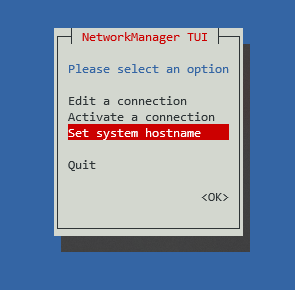
- Delete the old hostname and enter the new one. Hit OK.
- Hit OK again on the confirmation message.
- Navigate to Quit and hit Enter.
- Check the hostname to verify that the change has been applied:
hostnamectl
If you want a more interactive method, change your system hostname via your hosting control panel.
How to change hostname via Hostinger VPS hPanel
Hostinger VPS users can change their server’s hostname directly from hPanel without using the command line. This method is the most beginner-friendly and simple because you don’t need to access your VPS’s terminal. Here’s how to do it:
- Log in to your Hostinger Account and navigate to the VPS section on the sidebar.
- Click Manage on the VPS you want to modify.
- Scroll down to the VPS details section.
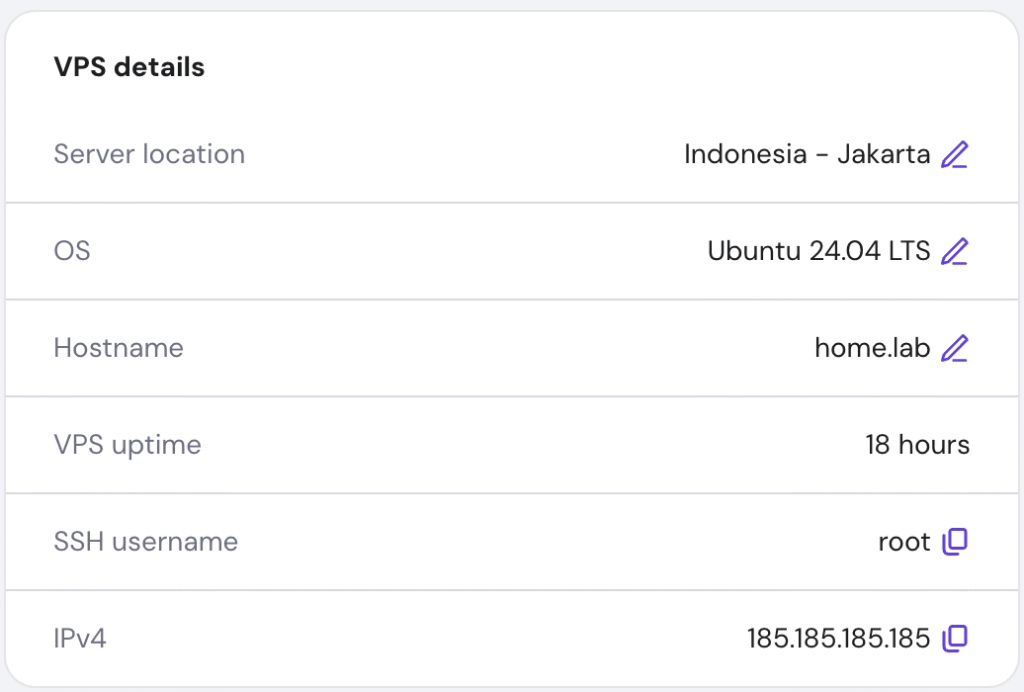
- Find the Hostname setting and click the pencil icon.
- Enter your desired hostname based on the requirement.
- Hit Change to confirm.
This process updates the configuration permanently. Once the change takes effect, you’ll see it reflected in the VPS details section.
Alternatively, you can ask Kodee, our AI assistant, to change the hostname for your server like so. Remember to replace old-hostname and new-hostname with their actual values:
Change the hostname of my old-hostname VPS to new-hostname.

Important! If you update your VPS hostname via hPanel or Kodee, the change might not be reflected immediately due to the browser cache. However, it should be updated in the background, which you can check using commands via the terminal.
How to change hostname temporarily (without reboot)
To temporarily change the hostname of your system, use the hostname command followed by your desired hostname.
sudo hostname temporary-name
To verify the change, run this command:
hostname
If the change is successful, your terminal will print the new static hostname. This temporary hostname will revert to the value stored in /etc/hostname after you reboot the system.
This method is helpful for quickly testing network scripts or debugging session-specific issues that require a hostname change without altering the permanent server configuration.
What should you do after changing your Linux hostname?
After changing the hostname of your Linux server, you should ensure that your connection protocols and network services align with the new identity. Two of the most important steps after updating your hostname are:
- Updating SSH config. Your local machine uses the ~/.ssh/config file to manage SSH connections to remote systems, including storing their hostname. Adjust the file’s Host or Hostname entries to match the new name to avoid connection errors.
- Restarting services. Some services in your system, especially those involving network connections, may still cache the old hostname. Restart them or reboot your system entirely to make sure the change takes effect on all parts of your machine.
Changing the hostname is typically a part of a bigger network configuration. While doing so, it’s recommended to implement other security practices, such as changing the SSH port on your VPS, to further safeguard your system from various cyberattacks.

Aris is a Content Writer specializing in Linux and WordPress development. He has a passion for networking, front-end web development, and server administration. By combining his IT and writing experience, Aris creates content that helps people easily understand complex technical topics to start their online journey. Follow him on LinkedIn.

Noviantika is a web development enthusiast with customer obsession at heart. Linux commands and web hosting are like music to her ears. When she's not writing, Noviantika likes to snuggle with her cats and brew some coffee.

