How to change the SSH port
Mar 10, 2026
/
Ariffud M. & Edgaras G.
/
4 min Read

SSH, or Secure Shell, is an essential protocol for securely accessing and managing remote servers. It encrypts all communication, ensuring that data remains protected from unauthorized interception.
By default, SSH runs on port 22, which is often targeted by brute force attacks. Changing the default SSH port can significantly enhance security by reducing the likelihood of automated attacks.
This article will guide you through all the steps to changing the SSH port on a Linux virtual private server (VPS), from selecting the appropriate new port to ensuring your server remains accessible after the change.
Download ultimate SSH commands cheat sheet
Choosing a new SSH port
It’s important to select a port that is not already in use by other services to avoid potential conflicts and reduce security risks on your VPS. Here are some of the most commonly used port numbers with their associated services and protocols:
| Port number | Service | Protocol |
| 20 | FTP (data transfer) | TCP |
| 21 | FTP (control) | TCP |
| 22 | SSH | TCP |
| 23 | Telnet | TCP |
| 25 | SMTP | TCP |
| 53 | DNS | TCP/UDP |
| 67/68 | DHCP | UDP |
| 69 | TFTP | UDP |
| 80 | HTTP | TCP |
| 110 | POP3 | TCP |
| 123 | NTP | UDP |
| 137/138/139 | NetBIOS | TCP/UDP |
| 143 | IMAP | TCP |
| 161/162 | SNMP | TCP/UDP |
| 179 | BGP | TCP |
| 389 | LDAP | TCP/UDP |
| 443 | HTTPS | TCP |
| 636 | LDAPS | TCP/UDP |
| 989/990 | FTPS | TCP |
| 3306 | MySQL | TCP |
| 8080 | Alternative to HTTP (web) | TCP |
| 8443 | Alternative to HTTPS (web) | TCP |
Additionally, consider selecting a port outside the well-known range (0-1023) and the registered ports range (1024-49151). It’s advisable to opt for a custom port within the dynamic or private ports range (49152-65535).
Suggested Reading
SSH uses three different encryption techniques: symmetric, asymmetric, and hashing. Learn more about these methods in our SSH tutorial article.
How to change the default SSH port
Now that you have chosen a new port, let’s proceed with the steps to implement the change.
1. Access your server via SSH
Before you can make any changes, you need to access your server securely. Follow these steps to connect to your server via SSH:
- Whether you’re using Windows, macOS, or Linux, start by opening a new terminal window. On Windows, you may need an SSH client like PuTTY.
- Use the following command to connect to your server. Replace username with your actual server username and server_ip with your server’s IP address:
ssh username@server_ip
- Enter the password associated with the username you provided. For enhanced security, it is recommended to use SSH keys instead of passwords.
2. Edit the SSH configuration file
Once you’ve successfully accessed your server, the next step is modifying the SSH configuration to use a new port. This involves editing the sshd_config file, which controls various parameters of your SSH daemon.
- Use the following command to open the SSH daemon configuration file in the nano text editor:
sudo nano /etc/ssh/sshd_config
- Scroll down until you find the line that includes #Port 22. This line is commented out by default, and the number 22 represents the default port.
- Remove the # to uncomment this line and change 22 to your desired port number, such as 61189.
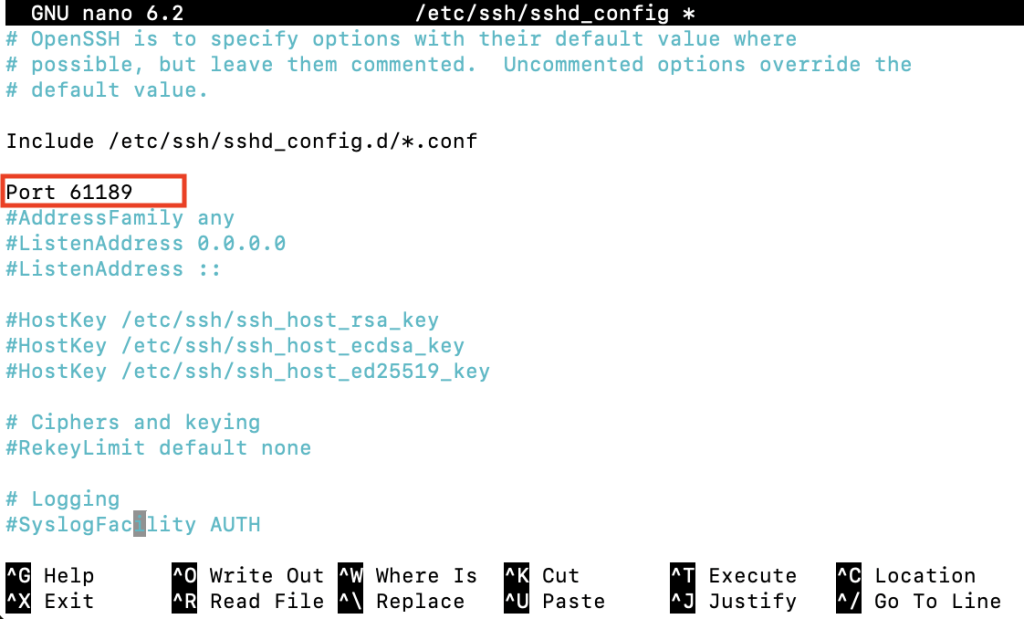
- Once done, press Ctrl + X → Y → Enter to save the changes and exit nano.
3. Adjust firewall settings
After updating your SSH port, it’s essential to adjust your firewall settings to allow traffic on the new port. However, if you’ve never configured any firewall rules, you can skip this step and proceed to the next section.
Here’s how to update firewall settings using Uncomplicated Firewall (UFW):
- Execute the following command to allow incoming connections on your new port over TCP, replacing 61189 with your specific port:
sudo ufw allow 61189/tcp
- Reload UFW to apply the changes:
sudo ufw reload
For Hostinger’s VPS hosting customers, you can easily configure firewall settings on hPanel. Follow these steps:
- Access your VPS dashboard and navigate to Security → Firewall.
- Click Create firewall configuration, name your new configuration, and click Create.

- Click the three-dot horizontal button and choose Edit.
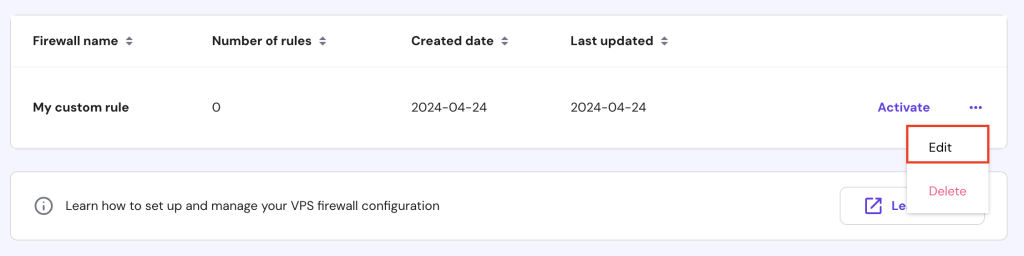
- In the Add firewall rule section, configure the rules you prefer and click Add Rule.
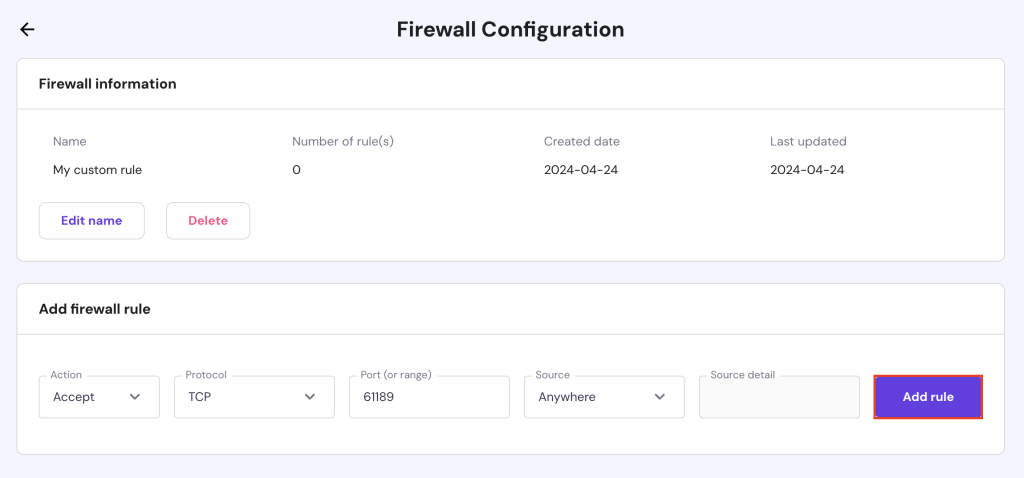
- Return to the Firewall page and click Activate.

After setting up your firewall rules using either method, verify the current UFW status with this command:
sudo ufw status
4. Restart the SSH service
Once you’ve updated the SSH configurations and firewall rules, it’s time to restart the SSH service to apply the new settings.
For systems using systemd, which is common in newer distributions like Ubuntu, Debian, and CentOS, restart the SSH service by running the following command:
sudo systemctl restart sshd
For older systems that use SysVinit, use this command instead:
sudo service ssh restart
After restarting, verify the SSH service status to make sure everything is running smoothly:
sudo systemctl status sshd
5. Verify the new port
Now that you’ve restarted the SSH service, the final step is verifying that SSH is indeed operating on the new port. This ensures that your changes have been successfully implemented and the server is accessible.
Check the SSH port with ss or netstat
If you have ss installed, use the following command to list active connections, filtering for your new SSH port:
ss -tuln | grep [new_port_number]
Here’s the output you might see:

If you prefer using the netstat command, you can check with:
netstat -tuln | grep [new_port_number]
The output should resemble:

Alternatively, Hostinger VPS users can verify whether the new SSH port is open by asking the Kodee AI assistant. For example, ask Kodee “Check the status of port 61189,” and it will output the port status like so.
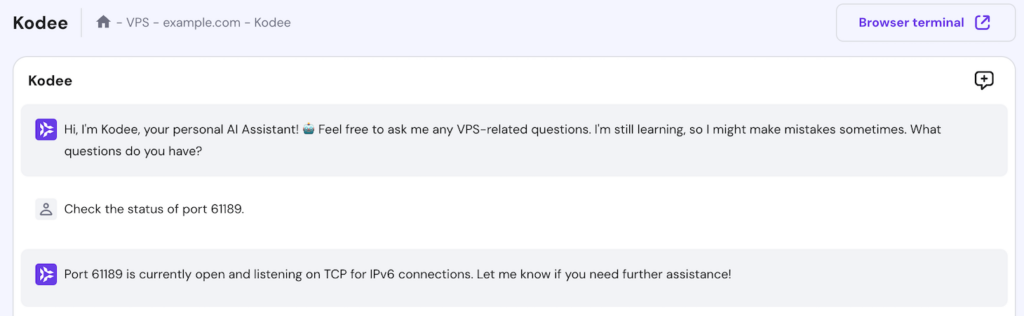
Ask Kodee to manage your firewall
You can also ask Kodee to set up a new firewall rule for your VPS. For example, ask it, "Create and activate a new firewall rule that opens port 66189 TCP to any IP address."
Log in using the new port
Open a new terminal window to test connecting to the server with the new SSH port number by executing this command:
ssh -p new_port_number username@server_ip
Replace new_port_number, username, and server_ip with your specific details.
A successful SSH connection using the new port confirms that your server is functioning correctly with the changes.
Important! Do not log out of your previous root session until you’ve confirmed that the new setup is working correctly.
Conclusion
Changing the default SSH port is an effective security measure that can reduce your server’s vulnerability to attacks.
By implementing this change along with other best practices, such as using firewalls, regularly updating server packages, and setting up multi-factor authentication, you create a more secure environment for your SSH server.
Remember, security is an ongoing process that benefits from regular attention and adaptation.
How to change the SSH port FAQ
This section will answer the most common questions on how to change the SSH port.
Why should I change the default SSH port?
Changing the default port for SSH reduces your server’s visibility to automated attacks and port scans, enhancing security for sensitive data and root access.
What is the best port to choose when changing the default SSH port?
Choose a port above 1024 that isn’t used by the most common privileged services to minimize conflicts and reduce exposure to attacks.
Will changing the SSH port affect my server’s performance?
Changing the SSH port does not affect Linux server performance. It merely alters the entry point for SSH connections to improve security.

Ariffud is a Technical Content Writer with an educational background in Informatics. He has extensive expertise in Linux and VPS, authoring over 200 articles on server management and web development. Follow him on LinkedIn.

Edgaras is a veteran server administrator at Hostinger. He makes sure that every server runs at full throttle and has all the latest technological advancements. When he's not working, Edgaras enjoys skiing and exploring the world.

