How to use Git hooks?
Mar 10, 2026
/
Edward S. & Hasna A.
/
6 min Read
Git has become essential for software developers, programmers, and engineers to track changes made to their projects for more efficient collaboration.
Git hooks are one of Git’s many built-in features. They let users automate custom actions every time a particular event occurs.
Some benefits of implementing Git hooks include continuous integration workflows, upholding a commit policy, and preventing actions that don’t comply with defined standards.
In this article, you will learn more about what Git hooks are and how to use them both on the client side and server side. We will also provide some examples of Git hooks to implement in your own project.
Download complete GIT cheat sheet
What Is Git?
Before tackling the subject of how Git hooks work and how to use them, let’s quickly go over what Git is.
Git is an open-source version control application. With it, users can monitor and track software development in detail. You can create development branches, register changes, and have absolute control over your project’s file versions.
Git is very popular among software developers, and most open-source projects use it.
What Are Git Hooks
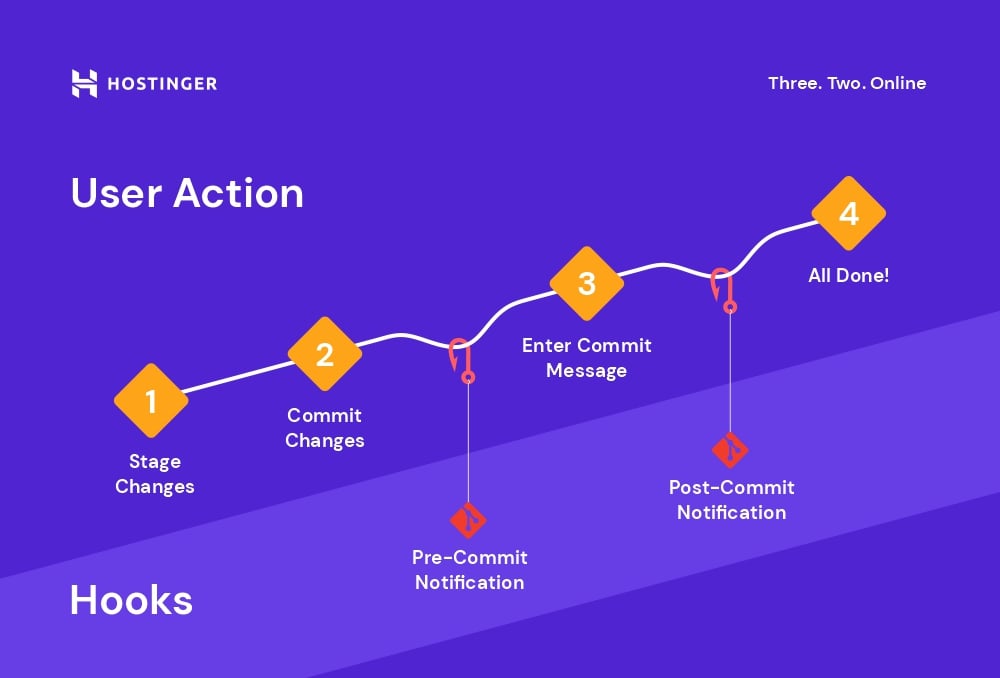
Git hooks are scripts that run automatically before or after executing Git commands like Commit and Push. With Git hook scripts, users can customize Git’s internal behavior by automating specific actions at the level of programs and deployment.
Git includes examples of hooks in any given Git repository. However, sites like GitHub or GitLab do not allow their use in the first instance. That is why Git hooks are mainly used in local or private instances.
Keep in mind that the system must have execution permissions to run a particular hook.
Suggested Reading
Check out our tutorial on how to use Git to streamline your project development.
How to Use Git Hooks
Hook scripts are stored in the .git/hooks/ directory. With Git’s template directory feature, users can install them automatically. Whenever you use “git init” or “git clone”, all the files and directories within the template directory will be copied to the new empty Git repository.
Within .git/hooks/, you will find a series of sample hooks, such as commit-msg.sample, post-update.sample, and pre-commit.sample, which are good starting points.
Installing hooks involve creating an executable file and saving it in the .git/hooks/ directory.
How to Use Local Hooks
Local or client-side hooks are triggered by events executed on the local computer, such as when you commit or merge a project.
In general, there are three types of local or client-side hooks:
- Committing-workflow hooks. These are hook scripts related to the committing process – pre-commit, prepare-commit-msg, commit-msg, and post-commit.
- Email workflow hooks. These are hook scripts for projects with an email-based workflow that uses the “git am” command. This includes applypatch-msg, pre-applypatch, and post-applypatch.
- Others. They include other local hook scripts such as pre-rebase, post-rewrite, post-checkout, post-merge, pre-push, and pre-auto-gc.
To install a git hook:
- Open your repo’s .git/hooks/ directory.
- Find the sample file of the hook you want to use.
- Remove “.sample” from the hook’s filename. For instance, “pre-commit.sample” should be changed to “pre-commit”.
- Make the hook executable by changing its permissions using the following Git command:
chmod +x [hook-name] - Choose what scripting language you want to use for the hook. You’re free to use any scripting language, including Python, Bash, or shell.
- Open the hook file in your code editor program and define your chosen scripting language. Include the path of the interpreter in the command.
If you want to use Python:
#!/usr/bin python
If you want to use Bash:
#!/bin/bash
If you want to use shell:
#!/bin/sh
- Write the hook’s script in the chosen scripting language.
Keep in mind that for a hook to run correctly, the exit value should be 0. For it to fail, the exit value should be 1. If you want to include multiple conditions, they should be present in the same file.
It’s also important to remember that hook scripts are not checked into the Git version control by default. In other words, they can’t be committed. If the local hooks directory is removed, Git will remove all hooks and their previous versions entirely from the project.
As a workaround, you can add a symlink (symbolic link) to the Git repository. As a result, the enabled hook scripts can be committed into the version control. Here’s how to do it:
- Create a new Git directory named “hooks” in your main project.
- Copy and paste the hook file from .git/hooks/ into the new “hooks” directory. If it’s still a sample file, make it executable by deleting “.sample” from the filename.
- Navigate to .git/hooks/ and create a new empty file with the same filename.
- Create a new symlink by entering the following command into Git:
ln -s -f ../hooks/[hook-name] .git/hooks/[hook-name]
Additionally, if for some reason you want to bypass an active hook, add “–no-verify” to the relevant command. For example, enter the following command to skip commit hooks:
git commit --no-verify -m [commit message]
Using Pre-Hooks
A pre-hook is executed before a particular event in the Git repo.
The pre-commit hook, for example, can be used to enforce a commit policy and prevent incorrect commits. If the hook exits with a non-zero status, Git will abort it.
Here are some examples of local pre-hooks:
- pre-applypatch. Checks the state of the working tree before committing the changes. It’s called after a new version is applied but before the changes are committed.
- pre-commit. Inspects the content of the commit itself, such as the code style or trailing whitespace. It’s called before the commit message is even typed.
- pre-merge-commit. Calls an automatic merge commit invoked by “git merge”. It’s called after the merge but before obtaining the proposed commit message file.
- pre-push. Validates a set of ref updates before a push occurs. It runs during “git push” after the remote refs have been updated but before any new changes are transferred.
- pre-rebase. Disallows the rebasing of any Git commit that has already been pushed. It’s called before “git rebase” occurs.
Some of these hooks may seem similar to each other, such as the pre-push and pre-commit scripts. It’s important to know which hook will fulfill your needs best.
The pre-commit script runs before you type in a commit message, while pre-push runs before the new content is uploaded to a remote repository. They work at different points of the project’s cycle, but you can use both to prevent incorrect commits and pushes, ensuring better workflow.
Using Post-Hooks
Git executes a post-hook after a particular event occurs in the repository.
Post-hooks are often used to automate responses to other actions, such as sending out notification emails when a new Git commit is added.
Here are some examples of local post-hooks:
- post-applypatch. Notifies a group or the patch author after the patch is applied. It’s called after a new version is applied and committed.
- post-commit. Creates notifications after the entire commit process is finished.
- post-checkout. Verifies conditions, displays differences, and sets up a proper working directory for the project environment. It runs after a successful “git checkout” is completed.
- post-merge. Saves, applies permissions, and restores other untracked data in the working tree. It’s called after a successful “git merge” command.
- post-rewrite. Can be used similarly to the post-checkout and post-merge hooks. It’s run by Git commands that replace commits, such as “git rebase”.
How to Use Server-Side Hooks
Server-side hook scripts are executed on remote repositories or servers that receive pushes from a local computer. They can run before or after server pushes. Server-side pre-hooks, for example, can abort any Git push that exits with a non-zero message.
Here are some examples of server-side hooks:
- pre-receive. Lists references that are being pushed to the remote repository. It can be used to ensure that none of the updated references are non-fast-forwards or to do access control for all the refs and files that are changed with the Git push.
- update. Has a similar purpose to pre-receive. The only difference is that update is run once for each branch, while pre-receive can run once for multiple branches.
- post-receive. Emails a list, notifies a continuous integration server, or updates a ticket-tracking system. It’s run on the remote server during pushing after all references have been updated.
- post-update. Implements notifications for the pushed references. It works similarly to post-receive – the only difference is that it doesn’t receive old or new ref values. It runs once after all the refs have been pushed to the remote server.
The steps of installing server-side hooks are the same as client-side hooks. The only difference is that you should place the scripts into the .git/hooks directory located on the remote server rather than the local directory.
Git Hook Examples
The are many use cases for hook scripts. Take a look at the following examples.
Showing Information About a Commit Action
This example shows the information of a Git commit action. This hook is called after receiving the default commit message and before the commit message editor is opened.
Make a file called prepare-commit-msg in the .git/hooks/ folder of the Git repository. Then, write the following script:
#!/bin/sh

SOB=$(git config github.user)
grep -qs "^$SOB" "$1" || echo ". Cambio por @$SOB" >> "$1"
Once done, save it and set the execution permissions to the file.
:~$ chmod +x prepare-commit-msg
With this simple hook, we’ll instantly receive relevant information about a commit action when it’s made.
Generate Documentation as Changes Are Uploaded
The pre-push hook allows generating the documentation of our code if we have a generator. Every time we make a change, the documentation will be compiled automatically.
Create the pre-push hook in the Git directory as before and add the following script:
#!/bin/bash

doxygen Doxyfile
git add docs/
git commit -m "Update documentation ($(date +%F@%R))"
Save the file and set the execution permission.
:~$ chmod +x pre-push
Find and Fix Trailing Whitespace in Commits
This pre-commit hook is quite simple to make. Make a file called pre-commit and add the following script to it:
#!/bin/bash -l

.git/hooks/pre-commit-master-no-no
if [[ $? == 1 ]]
then
exit 1
fi

.git/hooks/pre-commit-debugger
.git/hooks/pre-commit-trailing-spaces
.git/hooks/pre-commit-images
.git/hooks/pre-commit-pair
Now trailing whitespace will be found and fixed in all commits.
Conclusion
Hooks let software developers, programmers, and engineers automate custom actions each time a specific event occurs in their Git repo.
In this tutorial, we have explored how to use both local and server-side hooks for multiple purposes. We also offered some examples of Git hooks and how to install them.
We hope this article has helped you use Git to its full potential. If you have any questions or tips, feel free to leave them in the comments section below.


Edward is a content editor with years of experience in IT writing, marketing, and Linux system administration. His goal is to encourage readers to establish an impactful online presence. He also really loves dogs, guitars, and everything related to space.

Hasna is passionate about tech, culture, and the written word. She hopes to create content that helps people succeed on the web. When not writing, rearranging, or polishing sentences, she enjoys live music and overanalyzing movies.


Comments
February 14 2022
There are contents in `update.sample` file, after I rename it to `update`, can I just remove all those contents and write my own code?
February 14 2022
Hi Bruce, sure you can! However, I would advice to keep the samples - duplicate and rename the copy instead. It's a good idea to keep the sample in case you need it for the future :)