How to OP someone in Minecraft: using Game Panel and OP commands
Mar 10, 2026
/
Dominykas J.
/
4 min Read

In Minecraft, giving a player operator status, or “OPing” them, is a simple yet powerful way to grant administrative privileges within a server. An OP’d player can access Minecraft admin tools that allow them to manage the game environment, control gameplay settings, and even moderate other players.
This can be especially useful for server owners who want to delegate administrative tasks to trusted players, ensuring the game runs smoothly for everyone.
In this article, we’ll cover two primary methods for OPing players: using your server’s Game Panel and employing in-game OP commands. Whether you’re new to managing a server or looking to streamline permissions, these methods will make granting operator status both easy and effective.
Prerequisites for giving OP in Minecraft
Before diving into the steps to OP a player in Minecraft, it’s essential to have a few prerequisites in place:
- A working and fully set up Minecraft dedicated server
The first requirement is a fully configured and operational dedicated Minecraft server. If you’re using a VPS hosting provider like Hostinger, ensure your server instance is correctly set up, accessible, and free from any technical issues. This setup typically includes configuring server properties, assigning IP addresses, and ensuring firewall permissions are appropriately set.
- Admin access to the Minecraft server
To give operator status to any player, you’ll need admin or “root” access to the server. Without admin privileges, you won’t have permission to change server settings or manage player permissions. Make sure you’re logged in with the proper administrative credentials to access the Game Panel or enter commands directly.
- Basic understanding of server commands and configuration
While OPing a player is a relatively straightforward task, it requires a basic understanding of Minecraft server commands and configurations. Familiarity with commands, such as /ban, /kick, /op and /deop as well as basic knowledge of server structure and configuration files, will make the process much easier. This foundation helps prevent errors and ensures that you maintain control over your server settings and permissions.
With these prerequisites met, you’re ready to move on to the main methods for giving OP status, starting with using the Game Panel and then delving into OP commands.

Using Game Panel server console
One of the most efficient ways to manage your Minecraft server is through Hostinger’s Game Panel, a web-based interface that simplifies server control and configuration.
To give a player OP access through Game Panel follow these steps:
- Log in to hPanel. On the VPS page, you’ll see a running Game Panel VPS:

Press Manage → Manage Panel, which will take you to your Game Panel login page. Log in with the credentials you’ve set. Make sure to use the admin account.
- In the Instances section locate your Minecraft server and press Manage.
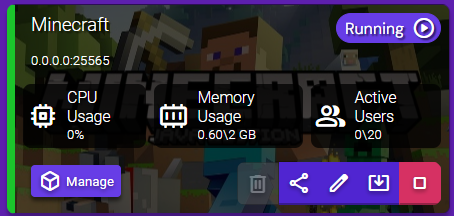
- Locate the Console tab. This is where you can directly enter server commands.
- In the Console, type the following command to make a player an operator:
op <player_username>
- After entering the command, the console should display a message confirming that the player has been granted OP permission level. The newly OP’d player will now have access to admin commands within Minecraft.

All set!
Using OP commands in-game
In addition to the Game Panel, server owners can grant operator status to users directly within the game using in-game commands. If you are the server owner but do not yet have OP privileges, you’ll need access to the server console to initially OP yourself, since using /op command in game requires these permissions. To do so, follow the previous section’s instructions.
Once you have a character with operator status, you can learn how to OP other players directly from the in-game chat. This is especially useful if you want to promote another player quickly without leaving the game. Here’s how to do it:
- Open the in-game chat by pressing the T key (or whatever key you have binded for chat) to bring up the chat interface.
- Enter the following command:
/op <player_username>
When you hit Enter, the player with that username will immediately receive operator status. A message will appear in the chat confirming that the OP command has been executed successfully.
Example commands and scenarios
Once a player has been granted OP status, they gain access to a command set that helps in managing the server. Some examples include:
- /spectate
Allows an operator to follow or “spectate” other users in Spectator Mode. Often used to monitor players that are suspected of cheating or other types of rule breaking.
Syntax:
/spectate <player_username>
- /kick
Removes a player from the server temporarily, often used as a warning or when a random player is causing disruptions (spamming, destroying buildings, etc.).
Syntax:
/kick <player_username> [<reason>]
- /ban
Kicks a player and prevents them from rejoining the server until the ban is lifted. Used to block unwanted players, rulebreaker, and cheaters from ruining the server experience for other players.
Syntax:
/ban <player_username> [<reason>]
There is a multitude of other MInecraft console commands that you can look up in the Minecraft Wiki page.
Revoking OP status
There may come a time when you need to revoke operator permissions from a player on your Minecraft server. Removing OP status can be necessary to maintain control over the server, especially if an OP’d player no longer needs administrative access or if their actions have started to disrupt the gameplay experience for others.
Revoking OP status is straightforward and can be done using the /deop command, which immediately removes all operator privileges from the player:
- In Game: Open the chat by pressing T (or whatever button you have binded for chat) and enter the following command:
/deop <player_username>
- In the Server Console tab: Open the console in the Game Panel and type:
deop <player_username>
Conclusion
Granting and managing operator status in Minecraft can really help with server management, whether for moderating gameplay or assisting with administrative tasks. In this article, we covered two primary methods to OP a player: using in-game commands and the Game Panel.
In-game commands, like /op and /deop, are quick and flexible, allowing you to manage permissions directly within the Minecraft environment. The Game Panel offers a more centralized approach, ideal for those who prefer a structured console interface to manage their server settings.
Each method has its advantages, so choose one that best fits your setup and skill level. By knowing how to grant and revoke OP status efficiently, you can create a balanced, enjoyable Minecraft world for everyone involved. Happy crafting!
How to OP someone in Minecraft FAQ
What does it mean to OP someone in Minecraft?
OP (or “operator status”) grants a player administrative privileges and special commands for managing gameplay, moderating other players, and adjusting server settings.
What are OP commands in Minecraft?
OP commands are special administrative commands available to operators, allowing them to perform tasks such as teleporting players, changing game modes, kicking or banning players, and managing in-game settings.
Do I need to restart the server after making someone OP?
No, a server restart isn’t needed. OP changes take effect immediately after entering the command, so the newly OP’d player can start using commands right away.

Dominykas is a Technical Content Writer with a background in cloud engineering and technical support. He’s operated in fields like fintech and point-of-sale and is passionate about software development, DevOps, and AI. Find him on LinkedIn.