How to create and remove Linux symlinks for files and directories
Dec 02, 2025
/
Ariffud M.
/
7 min Read
A symbolic link, or symlink, is a special file type in Linux that points to another file or directory. Similar to Windows shortcuts, symlinks provide quick access without duplicating data. With symlinks, you can navigate complex directory structures and reduce storage usage.
In this article, you’ll learn how to create links and explore practical scenarios where Linux symlinks can enhance your file management tasks. By the end of this guide, you’ll know how to effectively use symlinks to organize your files and directories in Linux.

How does Linux symlink work?
In Linux, a symlink points to a target file or folder. Unlike regular files, symlinks don’t contain actual data but store the full path of the linked item. When you access a symlink, the OS uses a system call to resolve the path and redirect you to the target.
The redirection makes the symlink appear as the actual file or directory. As a result, you can manage items efficiently across different locations within the file system and access them more quickly by eliminating the need for duplicate files.
Additionally, deleting a symlink does not affect the target; it simply removes the reference. This means you can safely remove symlinks without worrying about losing the actual data.
Differences between symlinks and hard links
Symlinks, sometimes referred to as soft links, and hard links are two ways of creating links between files. Their primary difference lies in their structure. As a pointer to a file, a symlink has its inode and exists independently of the target file or directory.
Meanwhile, a hard link points directly to the target file’s inode, meaning it shares the same inode and metadata as the original file. Hard links can also only point to files, not directories.
Here’s a comparison table to help you understand their differences:
| Features | Symlinks | Hard links |
| Storage | Store the path to the target file or directory | Point directly to the original file’s data |
| Inode number | Have a different inode number from the target | Share the same inode number with the target |
| File systems | Can link across different file systems | Must reside on the same file system |
| Target deletion impact | Become dangling if the target is deleted or moved | Persist as long as one reference exists |
| Creation use | ln -s [source] [link] | ln [source] [link] |
| Permissions | Have their own permissions; the target file’s permissions determine actual access | Share the permissions and ownership with the target |
| Usage scenarios | Useful for creating shortcuts and accessing files quickly | Helpful in ensuring file integrity and consistency across references |
When to use symlinks?
- Cross-file system access. Symlinks are ideal when linking files across different file systems. For example, you might want to create a quick-access shortcut in your home directory to a configuration file located elsewhere.
- File browsing and navigation. Symlinks simplify file navigation in browsers by allowing you to create easy-to-navigate directory paths without duplicating files.
When to use hard links?
- Data integrity and backup. Hard links are helpful when you want multiple references to the same file. For instance, creating hard links in a backup scenario ensures the backup reflects the original file’s state.
- Consistency. If multiple applications or processes need to reference the same file, using hard links can ensure that changes are consistently applied across all references.
Advantages and disadvantages of symlinks
It’s important to understand symlinks’ benefits and drawbacks so you can use them effectively.
Advantages of using symlinks
- Efficient file organization. Symlinks allow you to create shortcuts for files and directories, simplifying access to frequently used data in your system.
- Multiple-location linking. Unlike hard links, symlinks can point to files across different systems. This capability is invaluable in large Linux distributions where files may reside on separate partitions.
- Version control and shared libraries. In software development, symlinks can help manage different versions of libraries or tools. For instance, you can create a link that points to a library’s current version, making it simple to switch versions by updating the link.
Disadvantages of using symlinks
- Dangling symlinks. A symlink becomes a dangling link if the target file or directory is moved or deleted. This results in broken symlinks that can cause errors or disrupt scripts relying on those links. A common error message is “No such file or directory.”
- Security concerns. Improper use of symlinks can lead to vulnerabilities, especially if a link points to a sensitive file. Ensure that symlinks don’t inadvertently expose or grant access to unauthorized users.
- Management complexities. While symlinks simplify access to files, managing many of them can become complex. Keeping track of which links point to which files requires careful organization and documentation.
Creating symlinks in Linux
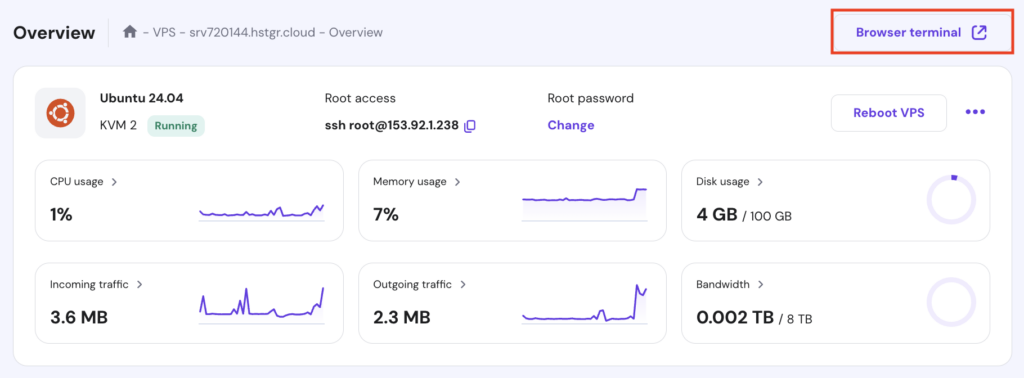
This section will demonstrate how to create symlinks in Linux using simple commands. Hostinger VPS customers can practice creating links by accessing their server via a terminal, an SSH application like PuTTY, or our built-in Browser terminal feature.

How to create a file symlink
Creating a file symlink in Linux is made simple using the ln command with the -s option, which specifies that the link should be symbolic. Here’s the basic syntax:
ln -s [target_file] [link_name]
- [target_file] – the original file path you want to link to.
- [link_name] – the symlink name you are creating.
For example, to create a symlink named my_link pointing to a file called myfile.txt, you can run the following command:
ln -s /path/to/myfile.txt /path/to/my_link
Additional symlink options
Besides the required -s, there are other options you can add to your command:
- -f or –force – forces the symlink creation, removing any existing file or symlink with the same name.
- -v or –verbose – displays detailed information about the symlink creation process.
- -r or –relative – creates a symbolic link using a relative path to the target file.
Relative vs absolute paths
When creating symlinks, you can use either relative or absolute paths:
- Relative path – indicates the target file based on the current directory. This method is helpful if the directory structure is unlikely to change. For instance, if you’re in the /home/user/documents/ directory and want to link to myfile.txt, type:
ln -sr ../myfile.txt my_link
- Absolute path – specifies the full path from the root directory to the target file. This approach is more stable if the directory structure changes, as it always points to the exact location. Using an absolute path looks like this:
ln -sv /home/user/document/myfile.txt my_link
How to create a directory symlink
Creating a symlink for a directory is similar to creating one for a file. Suppose you have a directory named project_files in /home/user/documents/ and want to link it to your home directory. You would execute the following:
ln -s /home/user/documents/project_files /home/user/my_project
The above command creates a symlink called my_project in /home/user/ that points to project_files. You can then access the contents of project_files by navigating to my_project.
How to overwrite a symlink
As previously explained, you can overwrite a symlink by appending the -f option to your command. This option removes the existing symlink before creating a new one, effectively overwriting it.
Here’s an example of updating a symlink that currently points to /home/user/documents/old_file.txt, changing it to link to /home/user/documents/new_file.txt:
ln -sf /home/user/documents/new_file.txt /home/user/my_link
Make sure to use the same link name, in this case, my_link, to ensure the symlink is correctly overwritten with the new target.
Removing symlinks in Linux
Once you no longer need a symlink, it’s essential to remove it safely. This section will show you how to do so.
How to remove a symlink with the unlink command
The unlink command is specifically designed to delete symlinks. It ensures that only the link is removed without affecting the target file or directory. Its basic syntax is as follows:
unlink [link_name]
For instance, if you have a symlink named my_link in your home directory that points to /home/user/documents/real_file.txt, you can remove this symlink without deleting real_file.txt with:
unlink /home/user/my_link
When using unlink, avoid adding a trailing slash—a forward slash (/) placed at the end of a directory name in a path. Doing so can cause the command to fail by treating the link as a directory, as shown in the example below:
unlink /home/user/my_link/
Additionally, the unlink command doesn’t prompt confirmation before removing a symlink, so specify the correct symlink to avoid accidental deletion.
How to remove a symlink with the rm command
Similar to removing regular files in Linux, you can use the rm command to remove symlinks. Here’s an example of deleting a link named my_link from the home directory:
rm /home/user/my_link
Unlike the unlink command, you can use the -i option with rm to prompt for confirmation before removing the symlink:
rm -i /home/user/my_link
unlink vs rm commands
Both the unlink and rm commands can remove symlinks in Linux, but they operate differently and are suited for different scenarios.
The unlink command is designed to remove a single symlink at a time. It doesn’t have options for interaction or confirmation. unlink is particularly useful for ensuring that only the symlink is deleted.
Meanwhile, rm can handle multiple symlinks simultaneously, making it more suitable for batch removal. It also offers several options, such as -i to confirm your action before deletion.
rm is generally preferable when you need to delete multiple targets in a single command or in cases where unintended deletion could be problematic.
Safe practices for removing symlinks
When removing symlinks, especially in scripts or automated processes, follow these safe practices to avoid accidental file deletions:
- Double-check the symlink. Always verify that you are targeting the correct symlink before removing it. Use ls -l to inspect where the symlink points.
- Test scripts in a safe environment. Before running a script that eliminates symlinks, test it in a controlled environment, such as a directory containing dummy files. This helps identify any issues before they affect essential files.
- Log removals. If you remove symlinks in a script, consider logging each removal action. This keeps a record of what was deleted, which can help troubleshoot if an issue arises.
- Script with caution – when writing scripts that remove symlinks, include checks to ensure the script targets only symlinks and not regular files to prevent unintended actions.
Identifying broken symlinks
Broken symlinks occur when the target file or directory that a symlink points to has been moved or deleted. These broken links can cause various issues in systems and applications, such as failed scripts, disrupted workflows, or application errors.
Finding broken symlinks
You can use the find command with the -xtype l option to identify broken symlinks in your file system, as shown in the example below:
find /path/to/search -xtype l
- /path/to/search – replace this with the directory path where you want to search for broken symlinks.
- -xtype l – this option tells find to look for symlinks (l) that point to non-existent files or directories.
Once you have identified broken symlinks, you can take the following actions:
- Update symlinks – if the target file or directory has been moved, you can update the symlink to point to the new location with the ln -sf command.
- Delete symlinks – to remove all broken symlinks in a directory, use either the unlink or rm command.
Tools and scripts for automatic deletion
Several tools and scripts can help automate broken symlink detection and correction:
- symlinks utility – the symlinks command-line tool is designed specifically for managing symbolic links. It can identify, report, and optionally delete or fix broken symlinks. The -r option recursively searches the directory for broken symlinks.
symlinks -r /path/to/search
- Custom scripts – write custom scripts to regularly scan for broken symlinks and automatically correct or remove them. For example, you can schedule a script as a cron job to run the find command and log any broken symlinks it finds.
Conclusion
In this article, you’ve learned how to create, manage, and remove symlinks in Linux. To effectively use symlinks, always verify the target paths, remove unused links, and use tools like find and symlinks to identify broken symlinks.
Symlinks act as a powerful tool for organizing files and directories. Mastering them can streamline your workflow and enhance your Linux administration skills. If you still have questions about symlinks, please use the comment box below.
Linux symlinks FAQ
Do symlinks affect file permissions?
Symlinks have their own permissions, but the permissions of the target file determine access to the linked file. In multi-user environments, users must have the correct permissions on the target file to access it through the symlink.
What happens if I delete the original file of a symlink?
If you delete the original file of a symlink, the symlink becomes broken or dangling. It will still exist but point to a non-existent file, leading to errors if accessed.
Can I update a symlink?
You can update a symlink by overwriting it with a new target using the ln -sf command. This effectively changes the symlink to point to the new file or directory.

Ariffud is a Technical Content Writer with an educational background in Informatics. He has extensive expertise in Linux and VPS, authoring over 200 articles on server management and web development. Follow him on LinkedIn.

