How to use HeidiSQL to connect to a MySQL database
Mar 10, 2026
/
Domantas G.
/
3 min Read

HeidiSQL is an all-in-one tool for database management, development, and administration. You may use HeidiSQL to remotely connect to a database created here on Hostinger. While our web hosting plans offer phpMyadmin to help with database management, HeidiSQL is the preferred choice for many developers. Using it can greatly speed up development. The remote MySQL connection made via your local machine will let you apply new updates and changes quicker, thus saving you the trip to the web hosting control panel.
Before you begin this HeidiSQL tutorial, you will need the following:
- HeidiSQL client
- Remote MySQL entry for your IP address
- MySQL database credentials
We assume you already have a HeidiSQL client installed on your local machine. So we will begin by explaining the steps to access a MySQL database created on Hostinger.

Step 1 – Allowing a Remote MySQL connection from your IP address
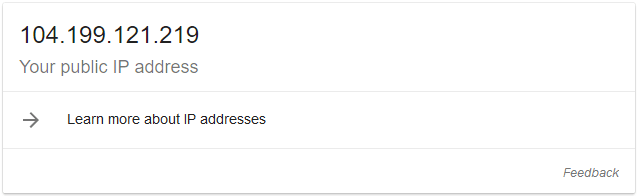
Firstly, locate your IP address using any online tool. One way to get it is by typing what is my IP in Google search engine. Here’s an example:
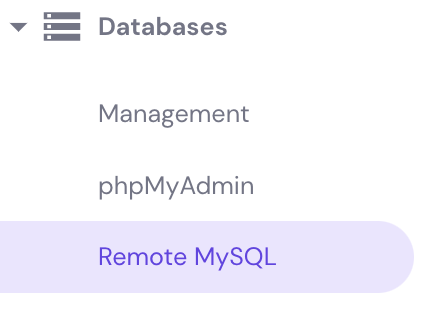
Next, navigate to the Remote MySQL section in your web hosting control panel.
You will need to add your public IP there to allow the remote database connection. In this section, you’ll also find the remote MySQL hostname, which we will need later.
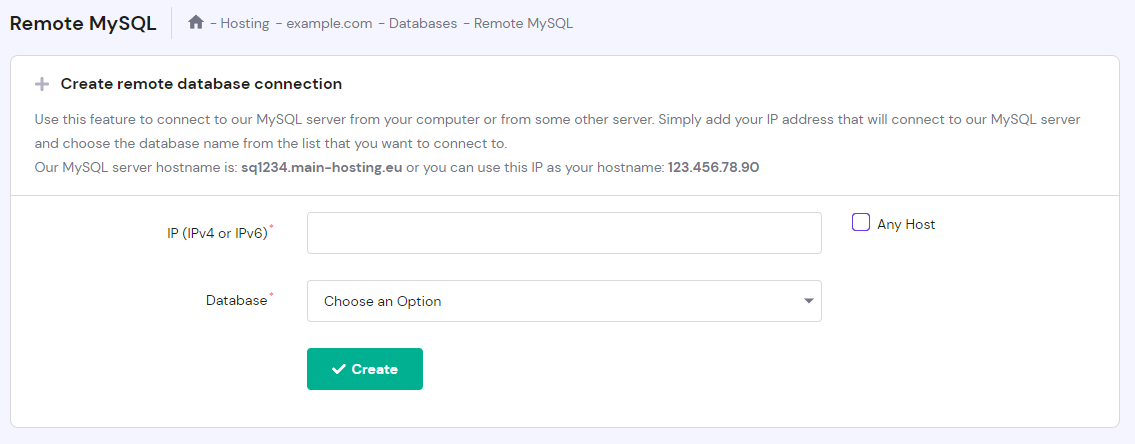
- IP (IPv4 or IPv6) – enter your public IPv4 or IPv6 address.
- Database – select the MySQL database that you will connect to.
- Any Host – select this if you want to allow any host to connect to your database remotely.
Once everything is filled in, press Create, and you will see a confirmation message. After that, the remote database access will work in a few seconds.
Step 2 – Gathering MySQL database details
Secondly, you will need the database information. You can get the required credentials in the Databases → Management section in the control panel.
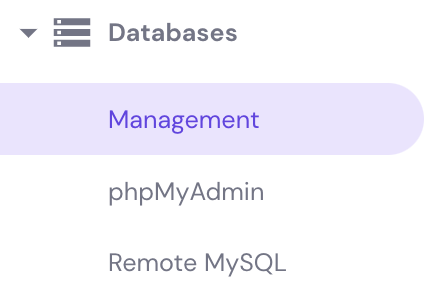
Since we already located the remote MySQL hostname in the previous step, we will only need the MySQL Database and MySQL User.
That’s all! We now have all we need to start configuring the HeidiSQL client.
Step 3 – Configuring HeidiSQL client
Open the database client and press New to create an entry.

Then, you will need to name the entry and fill in the MySQL database configuration.
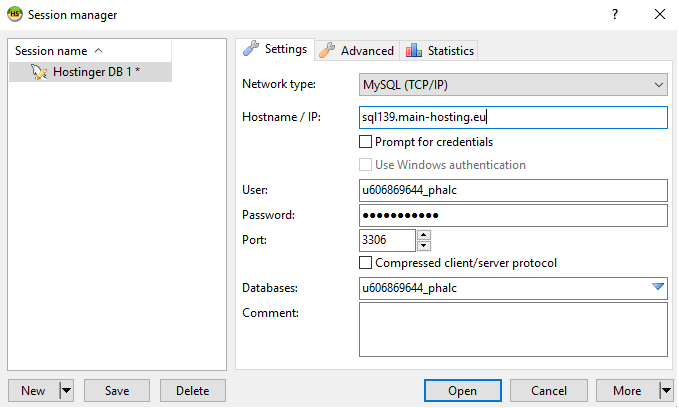
Make sure to complete the following fields:
- Network Type – set it to MySQL (TCP/IP).
- Hostname / IP – enter the remote MySQL hostname located in step 1 of this tutorial.
- User – Enter the MySQL database user located in step 2.
- Password – Fill in the user password.
- Port – The default MySQL port for local and remote connections is 3306.
- Databases – Input the MySQL database name found in step 2.
Once done, press the Open button and you’ll be inside your database.
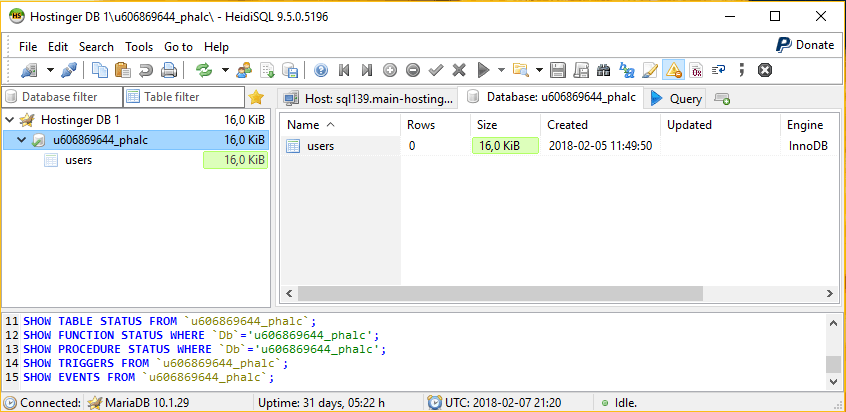
Congratulations! You can now access your databases remotely using a HeidiSQL client.
Troubleshooting common HeidiSQL connection errors
Sometimes mistakes or mistypes happen that can cause HeidiSQL client to show errors. Let’s discuss a few common ones and see how we can fix them.
Can’t connect to MySQL server
The error occurs when using an incorrect MySQL port. It usually looks like this:
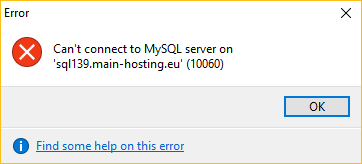
To fix it, review the port number in your HeidiSQL configuration. On Hostinger, this value is 3306. You may also contact your hosting provider as this value can differ.
Unknown MySQL server host
The following error can happen due to incorrect MySQL hostname. It’s displayed as:
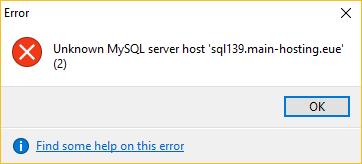
To get rid of it, double check if your remote MySQL hostname value is correct. On Hostinger, you may locate it in Remote MySQL section of the hosting panel.
Access denied for user
This error can come in different forms and relates to incorrect details or missing IP entry in Remote MySQL section. Here’s one version of it:
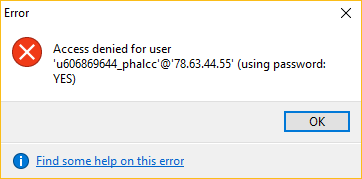
If you see this error, try one of these 3 solutions:
- Double check if you added the correct IP address in Remote MySQL section. Start by looking up your IP address once again using any online tool. Furthermore, a dynamic IP address can cause this, as it changes after a period of time.
- Make sure the MySQL user is correct. You can double check it in MySQL Databases section.
- Re-check the MySQL user password. You may reset it via MySQL Databases section. Alternatively, if you are trying to reach your WordPress database, you may locate its current password in the wp-config.php file.
The error may also look like this:
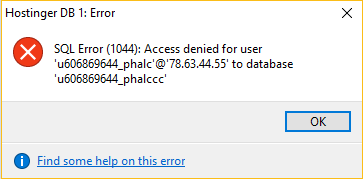
This indicates that your database name is wrong. Re-check the name in MySQL Databases section and update your HeidiSQL client configuration. As a result, you should have no problem managing your database.

Further Reading
For more MySQL basics and tutorials, check out these articles:
- How to Connect PHP to MySQL Database
- How to Use PHP to Insert Data Into MySQL Database
- Difference Between MySQL and SQL Server
Final Word
To sum up, there are various database management tools that can increase your work efficiency. In this tutorial, we have learned how to set up a remote MySQL connection via HeidiSQL client and fix basic connection issues.
Also, do you have any questions, tips, or ideas to share? You are welcome to do so in the comments below!

Domantas leads the content and SEO teams forward with fresh ideas and out of the box approaches. Armed with extensive SEO and marketing knowledge, he aims to spread the word of Hostinger to every corner of the world. During his free time, Domantas likes to hone his web development skills and travel to exotic places.


Comments
September 24 2020
Thanks a lot for making this post.
November 18 2020
Very happy to help, Roham.