How to fix WordPress login redirect loop issue
Dec 02, 2025
/
Domantas G.
/
4 min Read

Being stuck on the WordPress login page can be frustrating. Fortunately, there are several ways to solve this issue. Take a look at this article as we’ll uncover how to solve the WordPress login redirect loop issue using three simple methods.
Download all-in-one WordPress cheat sheet
Three Ways to Fix WordPress Login Redirect Loop Issue
Generic WordPress redirect loops are quite common, but a login redirect issue occurs when the platform keeps redirecting you to the wp-admin page even though you input the correct login credentials.
Depending on its cause, there are three ways to solve the WordPress login redirect loop issue: clearing browser cookies and cache, restoring .htaccess file, and deactivating themes and plugins.
Pro Tip
Be sure to back up your WordPress site first before making any major changes to avoid data loss
Method 1: Clearing Browser Cookies and Cache
WordPress uses cookies for user authentication and session management. It also enables website caching to make it load faster.
While they are beneficial to your site, cookies and cache can cause the WordPress login redirect loop issue. The problem arises when your browser’s cookies and cache still hold onto old information or use outdated WordPress files.
Here’s how to clear your browser cookies and cache in popular web browsers:
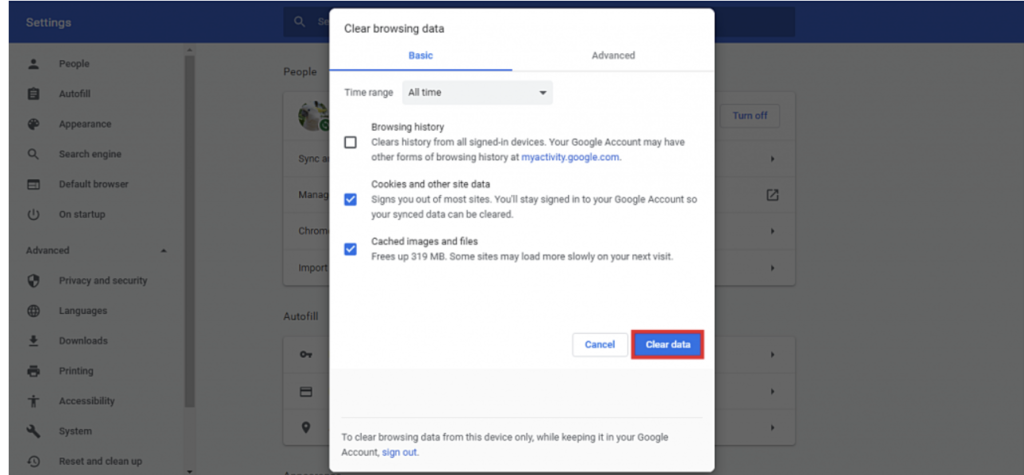
Google Chrome
- Click the three-dot menu at the top-right corner, then select History. Alternatively, you can press Ctrl+H.
- Choose Clear browsing data from the left column.
- Once the dialog box appears, tick the Cookies and other site data and Cached images and files options. Set the time range to All time, then click Clear data.
Mozilla Firefox
- Select the hamburger button at the top right corner, then go to Options -> Privacy & Security.
- Navigate to the Cookies and Site Data section and select Clear data.
- Tick the Cookies and Site Data and Cached Web Content options, then click Clear.

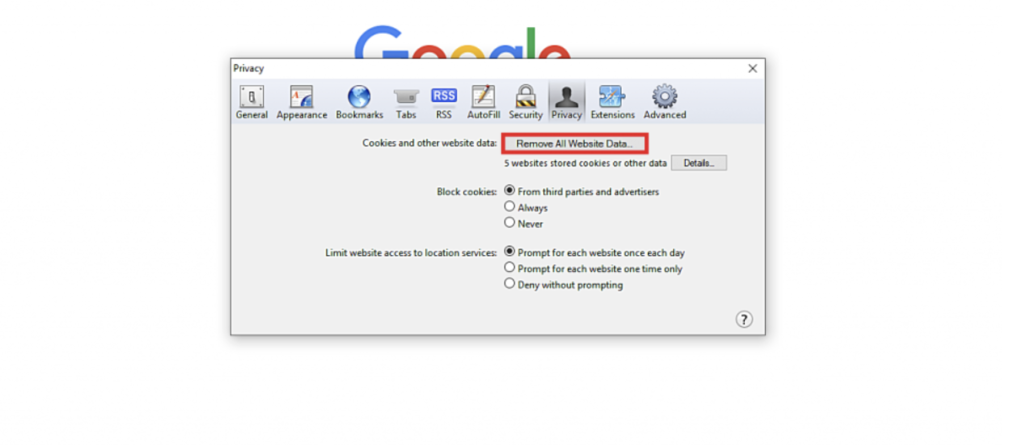
Safari
- Navigate to Preferences -> Privacy. Alternatively, you can press Command+.
- Select Remove All Website Data button, then click Remove Now.
Microsoft Edge
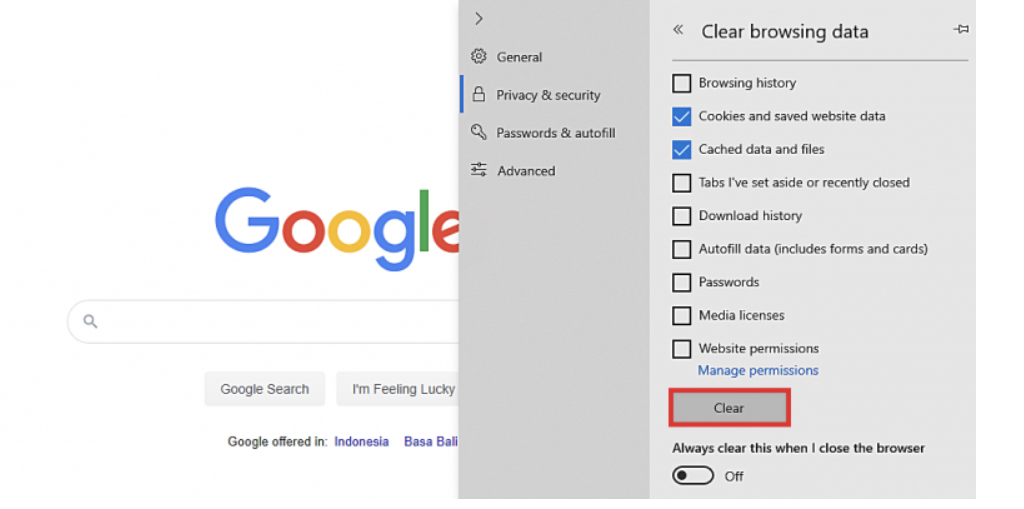
- Click the three-dot menu at the top right corner, then select History. You can also press Ctrl + H.
- Select the Clear history link to open the Clear Browsing Data menu.
- Tick the Cookies and saved website data and Cached data and files options, then click Clear.
Method 2: Restoring Default .htaccess File
In some cases, the WordPress login redirect loop issue is a result of a corrupted .htaccess file. If that’s so, you only need to replace the faulty file with the working one.
Here’s how to restore the default .htaccess file:
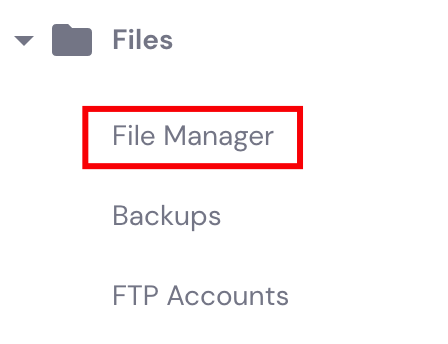
- Access your website’s root folder (public_html) using an FTP or a File Manager. If you’re using Hostinger, you can find the File Manager under the Files section of your hPanel.
- Locate the .htaccess file, then delete it. Alternatively, you can disable it by renaming the file to something else.
- Create a new .htaccess file for your WordPress site.
Method 3: Deactivating Themes and Plugins
Conflicting or corrupted plugins are another common culprit of the WordPress login redirect loop issue. Therefore, you need to deactivate the faulty plugin.
Here’s how to troubleshoot the login redirect loop issue by deactivating your WordPress plugins:
- Access your website’s wp-content directory using an FTP or a File Manager.
- Rename the plugins folder to something else to deactivate all plugins. If this action solves the issue, that means you have a corrupted plugin. What we need to do now is to find the exact culprit.
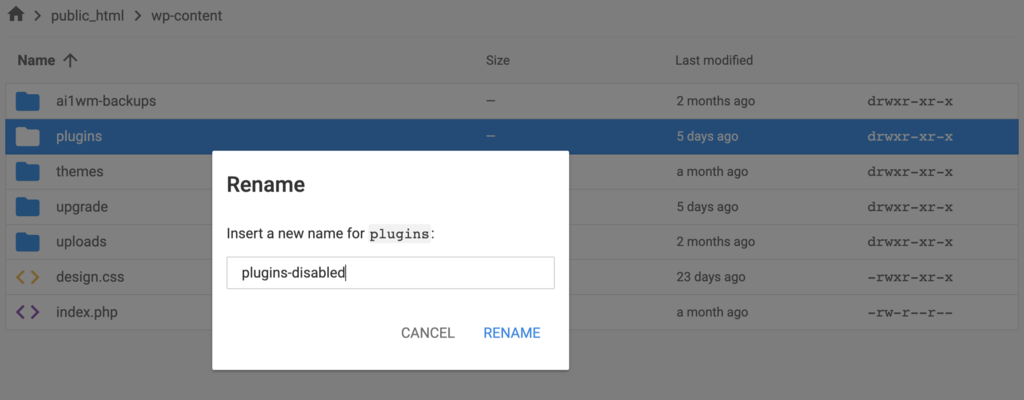
- Change the plugins folder to its original name. This way, WordPress can reaccess your plugins, but all of them are still inactive.
- Login to your WordPress dashboard and head over to Plugins -> Installed Plugins. Activate all plugins.
- Logout from WordPress, and go back to your File Manager.
- Open the plugins directory, and disable the plugins one by one by renaming the corresponding folders. Each time you disable a plugin, try to login to your site and keep doing that until you find the one that causes the issue.
Similarly, a faulty custom theme can also disrupt your access to wp-admin. To confirm this suspicion, you need to revert the site to the default WordPress theme – Twenty Seventeen.
Here’s how to troubleshoot the login redirect loop issue by deactivating your WordPress theme:
- Access your site’s MySQL database via phpMyAdmin. If you’re a Hostinger user, open your hPanel, go to phpMyAdmin and select your database. If you don’t know your WordPress database name, this tutorial can help you.
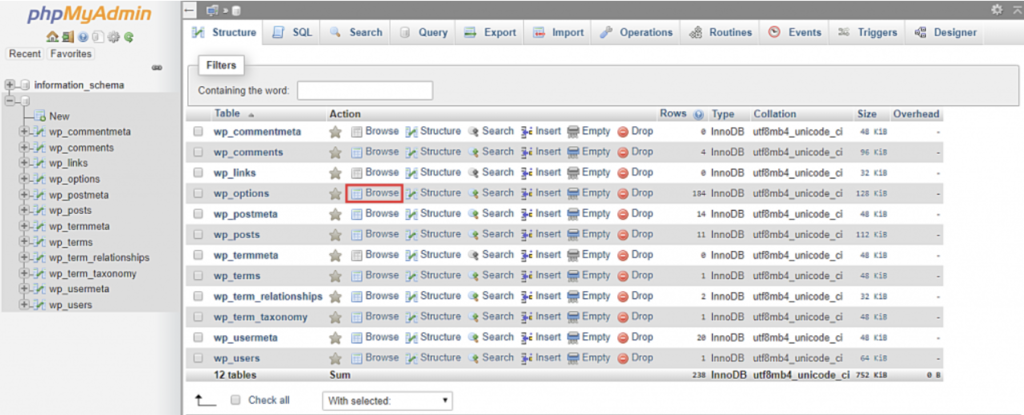
- Click Browse next to the wp_options table. Please note that the table’s prefix may vary.
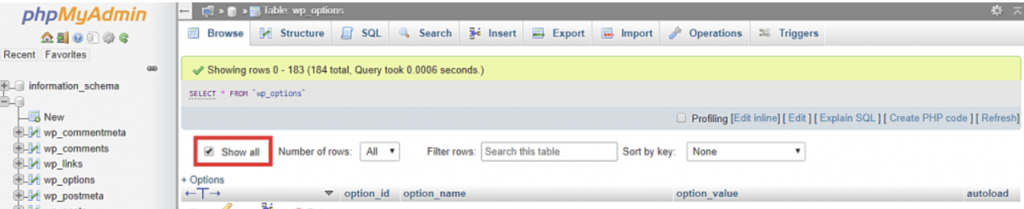
- Expand your table’s content by checking the Show all option.
- Locate the template and stylesheet rows, then rename the values to twentyseventeen by double-clicking the current theme name.
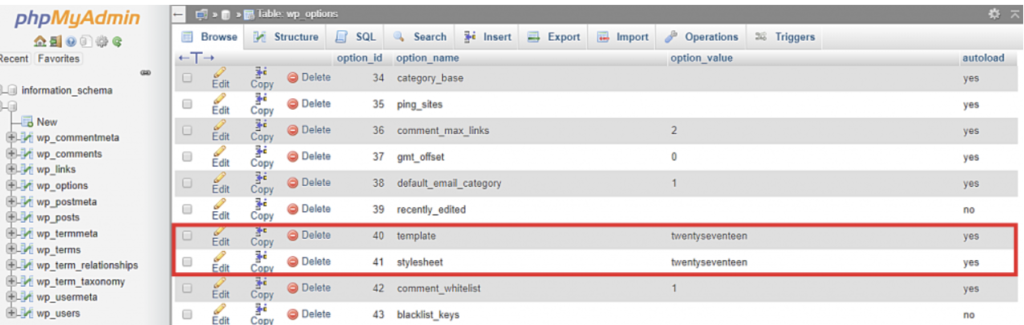
5. If you can log into your site, that means your current theme causes the login redirect loop error.

Conclusion
WordPress login redirect loop is a common issue that can happen to anyone. Fortunately, you can easily solve this error by clearing browser cookies and cache, restoring the default .htaccess file, and deactivating themes and plugins.
Do you find this WordPress tutorial helpful? Let us know in the comments section below!
Suggested Readings
Debug WordPress: a Comprehensive Guide for Beginners
Locked Out of WordPress? Here’s What You Need to Do
How to Fix WordPress White Screen of Death: 7 Solutions
WordPress Login Redirect Loop FAQ
To understand WordPress login redirect loop better, here are some frequently asked questions.
How Do I Redirect a User After Logging in to WordPress?
To redirect a user after logging in to WordPress, you can use a plugin like Peter’s Login Redirect, or add code to the functions.php file to redirect users based on their user role or other criteria.
How Do I Stop WordPress Login Redirection?
To stop WordPress login redirection, you can disable the plugin causing the redirection, remove the code that redirects users from the functions.php file, or use a plugin to customize the login page and redirection settings.

Domantas leads the content and SEO teams forward with fresh ideas and out of the box approaches. Armed with extensive SEO and marketing knowledge, he aims to spread the word of Hostinger to every corner of the world. During his free time, Domantas likes to hone his web development skills and travel to exotic places.



Comments
March 27 2019
I just wanted to save someone else 3 hours of their lives. I had tried alllllll the answers online and then finally in an error log I noticed that that UID was smaller than.. This was caused by the file owner not being correct. The simplest way to correct this for most people is to: Navigate wp-admin/ Locate index.php rename index.php index_old.php Create a new file -> name this: index.php open index_old.php and copy the contents and paste them into index.php This should fix the error. Now you may get a reauth=1 error. The best solution I found was to log in from Chrome using incognito mode, once you have done this you can go back to using your browser. We then had another issue with no loading style sheets.. the answer: locate: wp-config.php at the end of the file paste this line: define( 'CONCATENATE_SCRIPTS', false );
September 23 2020
Or just enter it in private mode (or another browser), change password and: voila!
May 18 2022
My issue was due not having the full URL (https://domain.com/) or trailing / for the site url and home in the database. After which I had no css in the dashboard. But thankfully avilu's comment above helped me fix that.