How to use cookie-free domains: what they are and why you need them
Mar 10, 2026
/
Jordana A.
/
3 min Read

Website speed has a great impact on user experience, traffic, and SEO. Several tools, such as GTmetrix, allow you to check your website speed, giving warnings and recommendations according to its weak spots.
If your site is experiencing slow load times or GTmetrix displays a cookie-free error when analyzing your web performance, you may want to start using a cookie-free domain.
This article will provide the steps necessary to create and use a cookie-free domain in your WordPress website.

What Are HTTP Cookies?
HTTP cookies are text files containing data components a website sends to the users’ web browser, such as login authentication and language preferences, to improve user experience.
When you access a site with cookies for the first time, the site sends a request to your browser to store its cookies. The browser then stores this data, which helps the site provide a personalized browsing and online advertising experience based on previous visits.
However, the information it will collect depends on the website’s needs. For example, an eCommerce website usually uses cookies to track your purchase history and shopping cart items.
The next time you visit it, the cookies stored will help the site recommend products or display ads according to your previous activity.
What Is a Cookie-Free Domain?
When an HTTP request is made, the browser sends data and response headers to the site’s server. Some of these might include Set-Cookie headers, which tell the browser to set certain cookies.
Since static content like images, JavaScript, and CSS files rarely change, sending those cookies will do nothing but clog the web server with unnecessary network traffic ‒ causing your site to slow down.
A cookie-free domain is a domain that doesn’t send the browser a request to store the site’s cookies. Using this domain type will reduce the number of requests sent to the server since it will not send cookies for content that doesn’t need them.
Consequently, it will improve your website’s performance, eliminating unnecessary traffic.
How to Use a Cookie-Free Domain in WordPress
There are two methods you can use to set a cookie-free domain. The first one requires creating a separate domain to deliver the static content. That’s because if you use a domain like yourwebsite.com, the cookies will be set in all your subdomains as well.
However, if you use a regular domain like www.yourwebsite.com, you only need to create a cookie-free subdomain. To use a cookie-free domain on your WordPress website, simply follow these steps:
- If you use a Hostinger hosting plan, go to the hPanel and select Subdomains. Create a new subdomain ‒ static.yourwebsite.com, for example.
- Point the subdomain to the WordPress wp-content directory by updating the document’s root field. You can do so when creating the subdomain via the Subdomains subdirectory on your hPanel. Select Custom folder for subdomain and add wp-content as the folder name, like on the screenshot below.
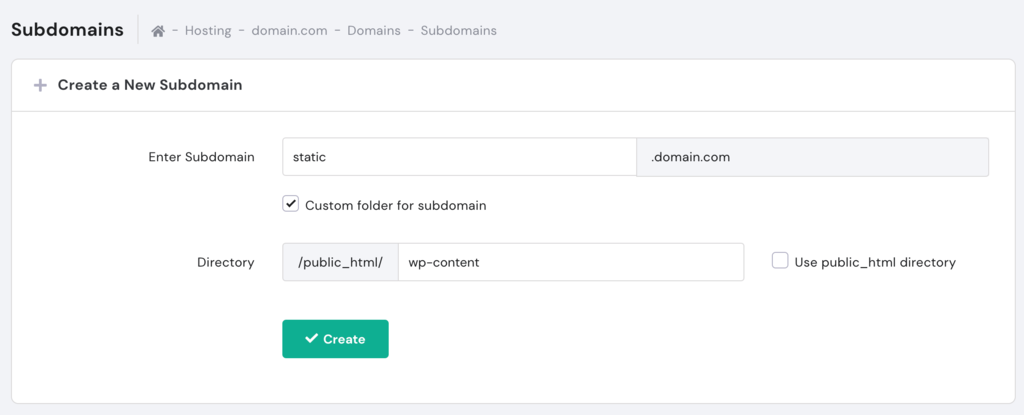
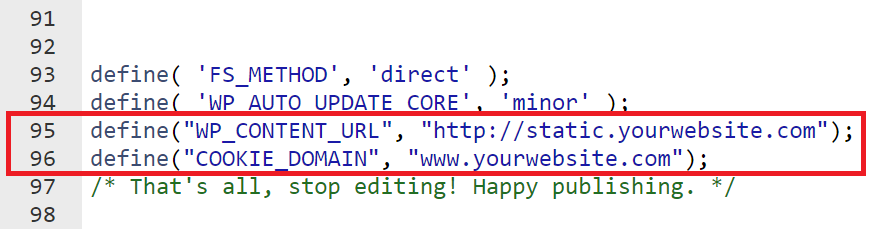
- Navigate to the File Manager and add the following code to the wp-config.php file. Don’t forget to replace the links to reflect your webpage’s URLs.
define("WP_CONTENT_URL", "http://static.yourwebsite.com");
define("COOKIE_DOMAIN", "www.yourwebsite.com");
Ensure these lines are placed above the /* That’s all, stop editing! Happy publishing. */ line. Placing them below this line may result in the settings not being applied correctly.
- Navigate to phpMyAdmin -> SQL and redirect all posts to the new domain by running this command in the SQL database. Finding your WordPress database name is very simple, you just need to follow our guide.
UPDATE wp_posts SET post_content =
REPLACE(post_content,'www.yourwebsite.com/wp-content/','static.yourwebsite.com/')
Once that’s done, static.yourwebsite.com will deliver all static content without cookies.
Another way of using a cookie-free domain is to set up a content delivery network (CDN) like KeyCDN and Cloudflare.
If you use KeyCDN, enabling the Strip Cookies feature will stop the server from sending Set-Cookies headers in response to HTTP requests. The Cache Cookies setting allows users to ignore all cookies.
This will help the website load faster, and the user will no longer get the cookie-free error.
Benefits of Using Cookie-Free Domains
Cookie-free domains are an essential part of website optimization efforts – even GTmetrix includes in its scoring metrics. GTmetrix displays a cookie-free error for websites that don’t use a cookie-free domain as their server is deemed unoptimized, harming the site’s overall score.
Using cookie-free domains can bring several benefits for your website, including:
- Less network traffic ‒ using a different domain to serve static content lets you reduce unnecessary cookie traffic on the server.
- Faster loading speed ‒ this particularly applies to static content, as cookie-free domains don’t require that the users’ browsers store cookies for them.
Conclusion
When analyzing your site’s performance using a tool such as GTmetrix, you might have found the cookie-free error. It might seem complicated at first, but it is not difficult to solve it – you can set a cookie-free subdomain or change your CDN settings.
We hope this article helped you learn what cookie-free domains are and how to set them up on WordPress to improve your traffic, SEO, and user experience. Good luck!
Learn More About Website Maintenance
Website Maintenance Cost
How to Diagnose and Fix a Hacked Website
Hotlinking: What Is It and Why Is It Bad?
How to Clear Browser Cache and History
How to Inspect Element
How to Download a Website Backup
How to Fix “Specify a Vary
How to Check Your Website’s PHP Error Log

Jordana is a Senior Content Writer with a background in Information Systems. She has over five years of experience in WordPress and is casually dabbling with PHP and MySQL. Her passion for writing and technology drives her to create tutorials for anyone wanting to build their online presence. Follow her on LinkedIn.



Comments
September 03 2020
define(“WP_CONTENT_URL”, “http://static.mydomain.com”); this line is showing error may be because of \\ this.. the command has commented out .. what should i do?
November 11 2020
Hey Ayush! :) If the line is commented out, the webpage won't read it out. You need to remove the comment lines, and it should work fine :)