Website troubleshooting: Useful tips for diagnosing a broken website
Sep 15, 2026
/
By Noviantika G.
/
6 min Read
As a site owner, getting comfortable with website troubleshooting is essential. If your website doesn’t load, you’re potentially losing visitors and revenue, negatively impacting your search engine optimization efforts.
Fortunately, there are various methods to identify and fix website issues. In this article, we will discuss the importance of troubleshooting and provide 10 tips for fixing your site.
Download website launch checklist
Why is troubleshooting important
Troubleshooting helps identify and verify the root cause of an error to fix it and prevent it from happening again.
As a website owner, you need to take care of errors immediately. The longer your site is unavailable, the more harm it can cause to your business.
To troubleshoot your website, start by answering these questions:
- What are the symptoms of the issue? If the page displays an error message, the status code will help you identify what to fix. However, if you encounter a blank page, you need to enable the error log feature on your hosting account to identify the issue.
- When does it occur? Check whether your website is experiencing downtime. If yes, contact the hosting provider’s support team for assistance.
- Where does it occur? Analyze whether the error occurs on the client’s or server’s side. While you can resolve the former, you may need help from your hosting provider to solve the latter.
- Under which conditions does it occur? Check if the issue occurs whenever your website performs certain tasks or runs an application. This helps identify in which environment the problem appears and correlate any dependencies.
- Can it be replicated? Analyze whether you can reproduce the issue on a test system. If yes, create a staging environment and try debugging the error.
However, if you still don’t know what happened to your website, try the following troubleshooting methods.
Pro Tip
In website troubleshooting, effective website management tools are key. Easy to use hosting panels, file management systems and other solutions help not only to simplify troubleshooting but also enhance overall site performance, making your website management smoother and more efficient.
Check if the site is down only for you
The first step is to check if the site is down or if you’re the only one experiencing the issue.
Use a status tool like Site24x7 to monitor your website uptime. Enter your web address, and it will provide ping, trace, port, health, and page speed information.
If your website is experiencing downtime, contact your hosting provider’s support team for assistance.
Check the network connection
Using a poor connection may lead to your website not loading. To check it, access other websites – if they work, there is nothing wrong with your internet connection.
However, if other websites are not loading, try accessing them using mobile data. If the pages are working properly, the problem lies in the local network.
Reset the connection by restarting the router. Once you switch it off, wait a minute before turning it back on. You can also unplug the internet cable and wait a few seconds before reconnecting it.
Use another device
Outdated computer software may lead to security, memory, and connection errors. Therefore, visit your site using another device on the same network to isolate the issue. If it works, the problem lies in your computer.
To avoid this type of issue, update the computer software regularly, especially its operating system. New releases usually include vulnerability patches and protection against new-found cyber attacks.
Look for error messages in the browser
When a web page is not loading, the browser usually displays an error message. It includes an HTTP status code that specifies the issue and helps you identify and fix any website errors. Some of the most common ones include:
- 403 Forbidden. The server understood the request but refused to process it because the client had no rights to access the requested content.
- 404 Not Found. The server can’t locate the requested resource, usually because of broken links or deleted pages.
- 405 Method Not Allowed. The server understands the request method (like GET or POST) but cannot process it because the specific resource doesn’t allow that method.
- 500 Internal Server Error. The server encountered an unexpected issue, making it unable to fulfill the request.
- 502 Bad Gateway. The gateway or proxy server received an invalid response while attempting to process the request.
- 503 Service Unavailable. The server couldn’t fulfill the request due to scheduled maintenance or temporary overload.
- 504 Gateway Timeout. The browser sent the request but didn’t receive a response from the server.
Try a different browser
Your browser may be unable to load pages because of a caching issue. In this case, clear the browser cache to start a fresh connection and see if the site loads.
If the error is still there, try accessing the page using another browser. If it opens in another web browser, perform a cross-browser compatibility test using an online tool such as LambdaTest.
It lets you run real-time tests and debug errors using its native developer tools. If it is still not possible to load the page after that, try the next method.
Examine DNS records
If you recently changed your domain nameservers, the DNS records need to be updated to ensure all servers have the same information. This process takes up to 24 hours, during which your website may be temporarily unavailable.
For example, if the site displays the DNS_PROBE_FINISHED_NXDOMAIN error, it means the web browser can’t find its IP address. To solve this website issue, release and renew the IP address by entering the following commands on Windows Command Prompt:
ipconfig /release

ipconfig /renew
Once done, run these commands:
netsh int ip set dns

netsh winsock reset
On macOS, choose the Apple menu → System Settings → Network. Select your network connection and click Details → TCP/IP → Renew DHCP Lease.
On the other hand, your site may become inaccessible if the domain nameservers are incorrect. Hence, ensure your domain is pointing to the correct ones by checking the DNS Zone or using an online tool like DNS Checker.
Pro Tip
Learn how to configure your DNS settings using Hostinger’s DNS Zone Editor.

Check the error logs
Sometimes, when your website encounters an issue, it doesn’t show an error message. Luckily, the best web hosting providers offer an error log feature to help you find more details about PHP issues.
If you use Hostinger, activate the error log by going to Hostinger dashboard → Advanced → PHP Configuration → PHP options and tick the logErrors box.
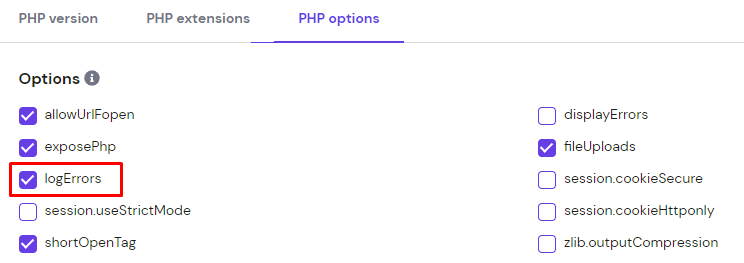
To check the website’s error log, open File Manager → [username]/.logs → error_log_[domain] file. The file contains detailed records of critical errors your website encountered, helping you identify and fix them.
If you run a WordPress website, follow our tutorial to enable the WordPress debug mode.
Use developer tools
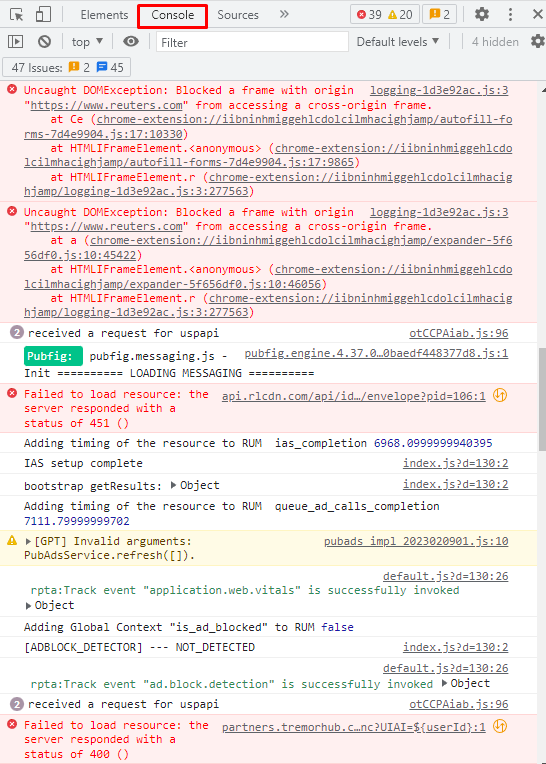
Most web browsers, including Google Chrome, have a built-in inspect element feature to temporarily modify your site’s front-end source code without changing its live version. Additionally, it allows you to test the interface design, debug errors, and verify scripts.
When your website encounters a problem, open Google Chrome’s Inspect element. Go to the Console panel on the top-right section to inspect page issues such as broken images and code. It also shows resources that aren’t loading correctly from the website’s database.
Using the Lighthouse option, you can scan problems that affect the site’s performance, user experience, and accessibility.
Once you find the issue, add DOM breakpoints using the Break on feature. This option lets you modify subtrees and attributes and remove nodes to debug errors. Once you finish debugging, apply the same troubleshooting steps to the live website.
Trace back recent changes
Recent changes or updates can cause issues to your website because of software conflicts or incompatibility. To solve this, use a tool like Fluxguard to detect broken elements.
If the problem lies in a plugin or theme, deactivate, downgrade, or remove it from your site. On the other hand, if there were recent code changes, reach out to the developer so they can help fix the issue.
Restore a backup
This method is the last resort. Incomplete or corrupted data can result in your site not loading correctly. Downloading a website backup lets you revert the site to a previous, accessible version.
While some web host companies provide daily or weekly backups, it’s important to do it yourself whenever you make critical changes to the website.
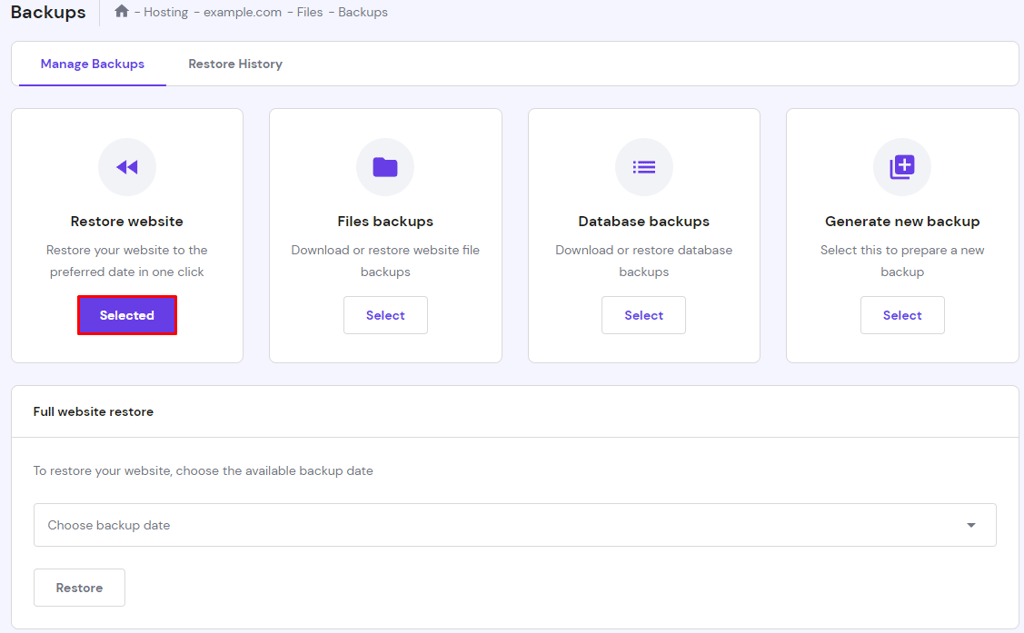
At Hostinger, you can restore the website directly by going to Hostinger dashboard → Files → Backups → Restore website and choosing from the available dates.
Conclusion
Website troubleshooting means identifying and verifying the root problem to ensure the issue doesn’t occur again. When your website is not loading, here are the 10 most common troubleshooting steps to solve it:
- Check if the website is down. Use website status tools to ensure the problem doesn’t lie in the server.
- Check the internet connection. Switch to mobile data or restart your router.
- Use a different device. Access the website using another device on the same network.
- Analyze the error message. The displayed status code can determine whether the issue lies on the client or server side.
- Switch to another web browser. Use a new web browser to start a fresh connection.
- Verify the DNS records. Ensure the DNS settings are configured properly.
- Check the error logs. Go through the logged messages to locate any issues.
- Use developer tools. Try debugging the issue or locating the broken code.
- Trace back recent changes. Find which element triggered the problem and remove or deactivate it from your site.
- Restore a backup. Revert the website to a previous version.
We hope this article has helped you troubleshoot website errors. If you have any questions or suggestions, leave them in the comments section below.
This article is a localized version of Website troubleshooting: Useful tips for diagnosing a broken website, originally published in English.

Noviantika is a web development enthusiast with customer obsession at heart. Linux commands and web hosting are like music to her ears. When she's not writing, Noviantika likes to snuggle with her cats and brew some coffee.