How to fix the DNS_PROBE_FINISHED_NXDOMAIN error
Mar 10, 2026
/
Maisha R.
/
5 min Read
The DNS_PROBE_FINISHED_NXDOMAIN error appears when your browser can’t find a website’s IP address. In simple terms, the domain name isn’t resolving properly.
If you’re seeing this error, try these quick fixes first:
- Flush your DNS cache
- Restart your router
- Change your DNS server to Google (8.8.8.8) or Cloudflare (1.1.1.1)
- Double-check the website URL for typos
In most cases, one of these steps solves the problem within minutes.
Below, you’ll find detailed instructions for Windows, macOS, and Chrome, along with advanced fixes if the issue persists.
What Is DNS_PROBE_FINISHED_NXDOMAIN?
DNS_PROBE_FINISHED_NXDOMAIN error appears when the domain name system cannot resolve a website’s URL into an IP address, making the web browser unable to reach it. The NXDOMAIN in the error code implies that the domain is non-existent.
| Error code | DNS_PROBE_FINISHED_NXDOMAIN |
| Error type | DNS error |
| Error variations | This site can’t be reached (Google Chrome) Hmm. We’re having trouble finding that site. (Mozilla Firefox) Hmm… can’t reach this page (Microsoft Edge) Safari Can’t Find the Server (Safari) |
| Error causes | DNS misconfiguration DNS not yet propagated Internet connection error Firewall blocks Unresponsive server |
If you prefer a visual guide, here’s a video tutorial for solving the DNS_PROBE_FINISHED_NXDOMAIN error:


How to fix the DNS_PROBE_FINISHED_NXDOMAIN error
The DNS_PROBE_FINISHED_NXDOMAIN error can appear due to issues with the website, the client’s computer, or the internet connection. The solution will naturally depend on this root cause.
Let’s look at the 9 ways that cover all possible causes.
1. Flush the DNS cache
Your device stores DNS records locally. If those records are outdated, the browser may fail to resolve a domain.
Pro Tip
See our guide on how to flush DNS for detailed instructions, including information for Linux and older MacOS versions users.
Windows
To flush the DNS cache on Windows, follow this step-by-step tutorial:
- On the Start menu, search for the Command Prompt. Then, right-click to select the Run as administrator option.
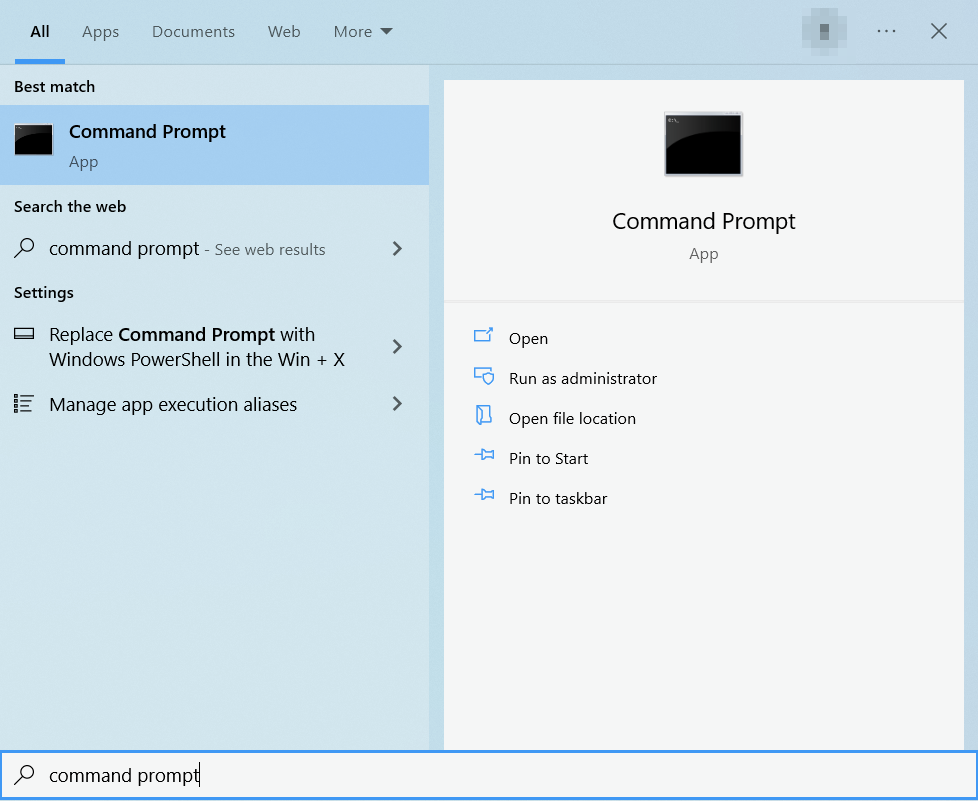
- Once a new window appears, type in the commands below. Then, hit Enter.
ipconfig /flushdns
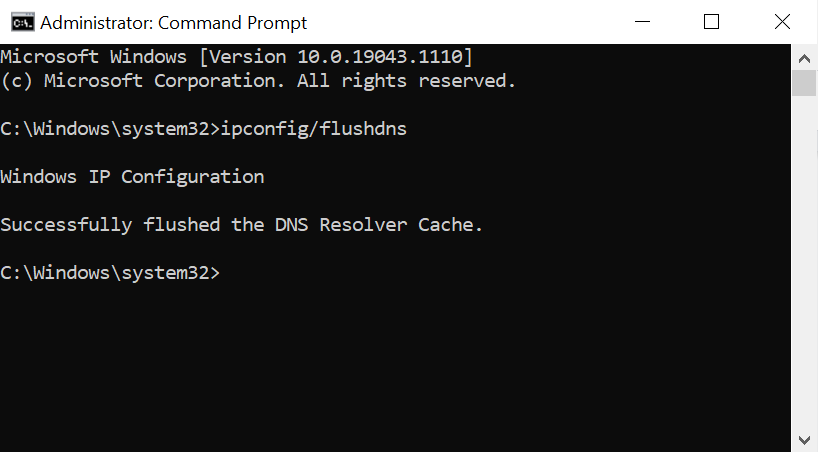
- Open the browser to see whether the DNS_PROBE_FINISHED_NXDOMAIN message still occurs.
macOS
- Open the Terminal application.
- Enter the following commands and press the Return key.
sudo dscacheutil -flushcache; sudo killall -HUP mDNSResponder
- Insert your password and press Return again.
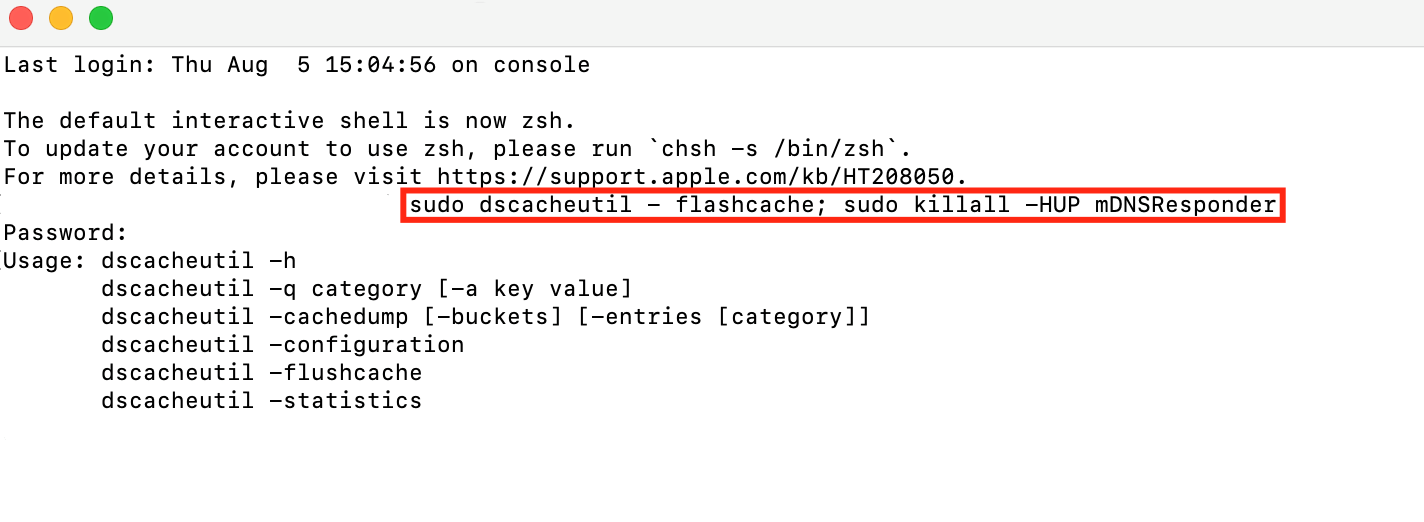
- Open the browser and check if the error is still there.
Google Chrome
Google Chrome has a separate DNS cache from the operating system, so flushing it may fix the DNS_PROBE_FINISHED_NXDOMAIN Chrome error.
To do so, enter chrome://net-internals/#dns into the Chrome address bar. Then click Clear host cache.
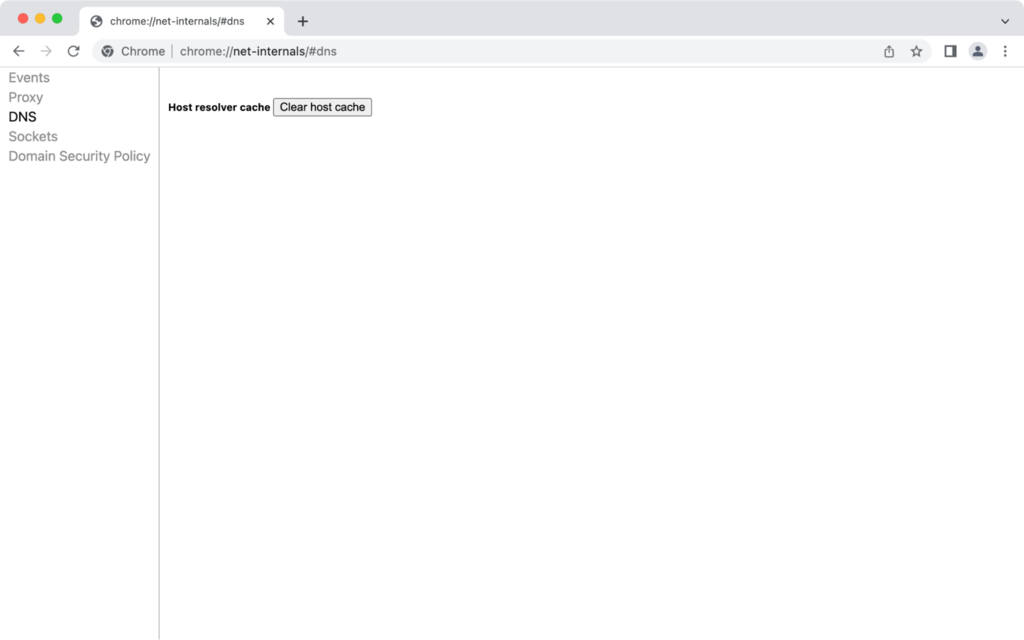
Then, check if the DNS_PROBE_FINISHED_NXDOMAIN error is resolved.
2. Check whether the issue is on your device
Try accessing the website:
- From another device
- Using mobile data
- Through an online proxy
If it works elsewhere, the problem is likely on your local device or network.
If you’re unsure where the problem originates, follow our step-by-step guide to troubleshooting website issues to determine whether it’s a browser, network, or server issue.
3. Release and renew the IP address
Open Command Prompt as Administrator.
Run:
ipconfig /release
ipconfig /renew
Restart your computer.
4. Change the DNS servers
If your ISP’s DNS server isn’t responding properly, switching to a public DNS often resolves the issue.
You can use:
- Google DNS: 8.8.8.8 and 8.8.4.4
- Cloudflare DNS: 1.1.1.1 and 1.0.0.1
Windows
- Open Control Panel → Network and Internet → Network and Sharing Center.
- Click Change adapter settings.
- Right-click your connection → Properties.
- Select Internet Protocol Version 4 (TCP/IPv4) → Properties.
- Choose Use the following DNS server addresses and enter the new values.
Restart your browser afterward.
macOS
- Save changes and restart your browser.
- Go to System Settings → Network.
- Select your connection → Advanced → DNS.
- Add the new DNS servers.
Google Chrome
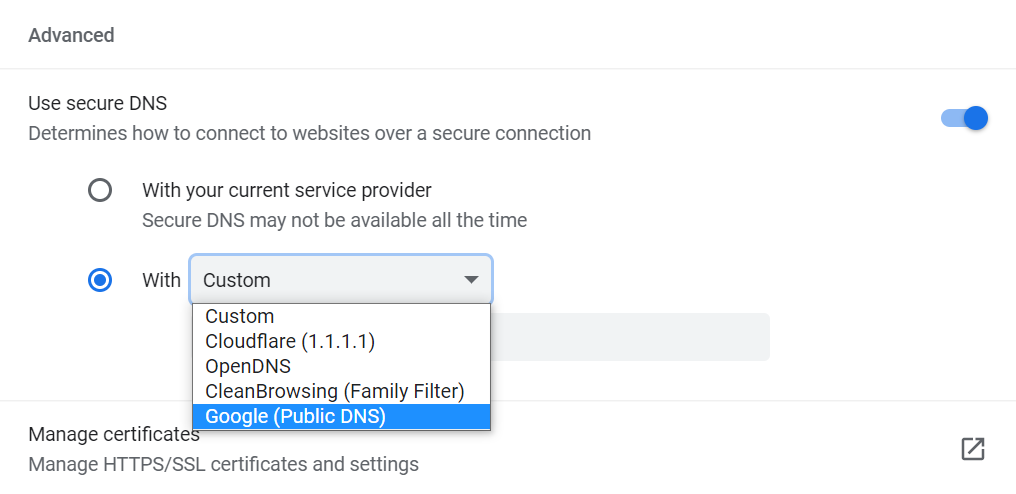
1. Enter chrome://settings/security on the address bar to access the Chrome DNS settings.
2. Scroll down to the Advanced section and select With Custom. Users can change it to one of the built-in DNS server addresses from Cloudflare, OpenDNS, CleanBrowsing, or Google.
5. Check your local hosts file
If the domain is blocked locally, your browser won’t be able to reach it.
Windows
Open:
C:WindowsSystem32driversetchosts
Remove any entries related to the affected domain.
macOS
Run:
sudo nano /private/etc/hosts
Delete any lines referencing the blocked website.
Save and restart your browser.
6. Disable VPN or antivirus temporarily
Some VPNs and security tools modify DNS behavior.
Temporarily disable them and check if the website loads. If it does, adjust your software settings accordingly.
Important! The steps to disable your antivirus program depend on the program itself. If you’re unsure how to do it, read the software’s knowledge base or contact the support team.
7. Restart your router
Network glitches can interrupt DNS resolution.
- Try loading the website again.
- Unplug your modem and router.
- Wait 30 seconds.
- Plug the modem back in.
- After one minute, plug in the router.
8. Restart the DNS client service (Windows only)
If DNS still isn’t resolving properly, restarting the DNS Client service may help.
1. Open Command Prompt as Administrator.
2. Run:
net stop dnscache
net start dnscache
3. Restart your computer and test the website again.
If the service cannot be stopped, it may already be running correctly. In that case, move on to the next solution.
You can also restart the DNS Client from the Windows Services panel if needed.
9. Reset Chrome Flags
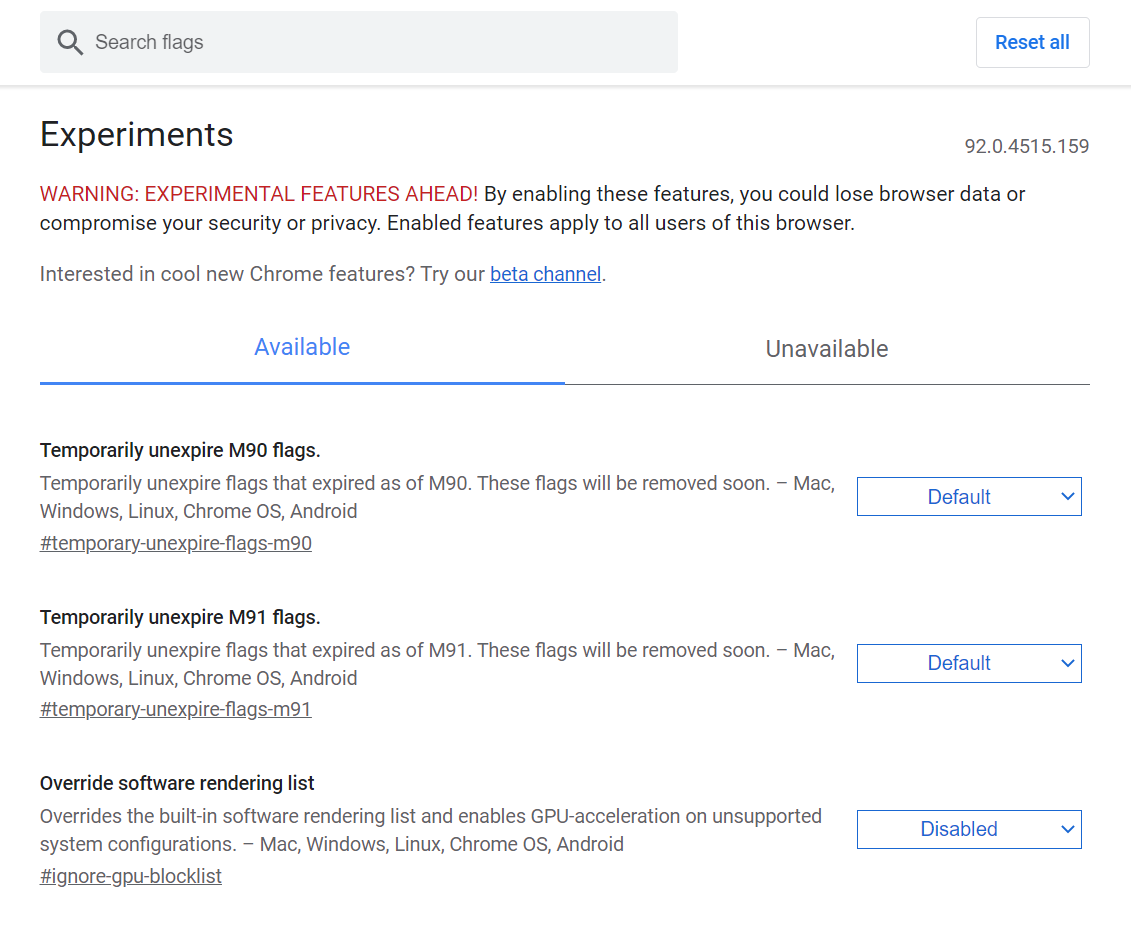
If you’ve enabled experimental Chrome features, they may interfere with DNS resolution.
- Restart Chrome and test the website again.
- Enter
chrome://flagsin the address bar. - Click Reset all at the top of the page.
- Once done, close and reopen the browser.
10. Contact your internet provider
If nothing works, your ISP may be experiencing DNS issues. Contact them to confirm.
How to fix DNS_PROBE_FINISHED_NXDOMAIN if you own the website
If visitors are reporting the DNS_PROBE_FINISHED_NXDOMAIN error for your site, the issue is likely related to your domain or DNS configuration.
Start with these checks:
1. Make sure your domain hasn’t expired
If a domain expires, browsers can no longer resolve it.
You can:
- Log in to your domain registrar and check the expiration date
- Use an ICANN lookup tool to confirm the domain status
If the domain recently expired, renew it immediately. Some registrars offer a short grace period, but delays can lead to additional recovery fees.
2. Verify your nameservers
Your domain must point to the correct nameservers.
Check that:
- The nameservers match your hosting provider’s settings
- There are no outdated or custom entries pointing elsewhere
Incorrect nameservers can prevent DNS records from resolving properly.
Check out this guide if you want to verify a domain’s nameservers correctly.
3. Check your DNS records
The most important record is the A record, which connects your domain to your server’s IP address.
Make sure:
- The A record points to the correct IP
- There are no duplicate or conflicting records
- Recent DNS changes have fully propagated
If you recently updated DNS settings, allow up to 24–48 hours for propagation.
4. Temporarily disable your CDN
If you use a CDN like Cloudflare, incorrect configuration can interrupt DNS resolution.
Try:
- Temporarily pausing the CDN
- Checking whether the domain resolves directly from the origin server
If the site works without the CDN, review your DNS and proxy settings.
5. Confirm your hosting server is active
If your server is offline or suspended, DNS may fail to resolve correctly.
Check your hosting dashboard for:
- Server status
- Account suspension notices
- IP address changes
Conclusion
DNS_PROBE_FINISHED_NXDOMAIN means the browser can’t resolve a domain name into an IP address. In most cases, the issue is local and can be fixed by flushing DNS, restarting your router, or switching DNS servers.
If you manage the website, review your domain and DNS configuration to ensure everything points correctly.
Do you know other methods to fix DNS_PROBE_FINISHED_NXDOMAIN? Leave a comment down below.

Maisha is a proponent of high-quality, actionable content. When she's not writing for Hostinger Tutorials and Blog, she immerses herself in the English thesaurus. Her love for personal development essays drives her to help her fellow writers succeed in the world of content marketing.



Comments
September 03 2019
This is working 100% ipconfig/release ipconfig/all ipconfig/flushdns ipconfig/renew netsh int ip set dns netsh winsock reset
July 31 2020
Thanks for you help !
October 28 2020
thanks very much for the help!
December 13 2020
great article
April 04 2021
thanks! control panel button, 100% working :]
May 19 2021
Option 3 works fine... thanks!
June 01 2021
Awesome. Worked for me
March 06 2022
My gmail account does not work
March 09 2022
Hi there, if you're not able to setup your custom email with Gmail, feel free to check out our step-by-step guide :)
July 21 2021
most easiest way is to use a free vpn
August 28 2021
Thanks a . ton. It took me 3 days to resolve this issue which was troubling me for some selected sites, The changing DNS from automatic to 8.8.8.8 and 8.8.4.4 did the trick.
September 16 2021
still not working arghhhhh i have tried each and everthing still sucks. i have to switch off my computer then after an hour it works properly......
September 21 2021
Hello, one more thing you can try would be performing traceroute to the IP of your host. Then if you're still facing the issue, I'd suggest to check with your host with all of the information and see if they can find anything on their side. Good luck!
February 03 2022
Awesome write-up. I’m a normal visitor of your site and appreciate you taking the time to maintain the nice site. I’ll be a regular visitor for a long time.
February 04 2022
Warms my heart to hear that :)
March 05 2022
Method "5. Change the DNS Servers" worked for me. thank you so much :)
July 13 2022
Tried all of them and not a single one of them worked. The website I am trying to access is accessible on my phone but only when I'm not using my wifi and now im not sure what else to do.
July 14 2022
Hey there! If you're not able to access your website with your local WiFi, we would suggest performing a traceroute test for your IP. You can easily look up your IP on this website. If the traceroute from the server to your IP is not completed, that might mean that there are connectivity issues on the trace from your computer to the server’s IP, and because of this you cannot reach the website. No worries, in most cases it’s a temporary issue, which should be solved in several hours, meanwhile, your website visitors from the different IPs will see your website without any problems. If the issue happens to you several times, we would recommend contacting your Internet Service Provider, so they can check possible connectivity issues on their side and assign you a different IP address if it’s possible. And if your ISP won’t be able to locate the issue and it will persist, you can go for a server transfer and see if it helps. If you have any further questions, feel free to contact our Customer Success department from your account, and the team will be there to assist you further! ?
January 08 2024
Trade all of them and not a single of them worked. The website I am trying to access accessible on my phone but only when I am not using my wifi and now am not sure what else to do.
January 08 2024
Hi there! If the website is accessible on your phone but not when using Wi-Fi, consider clearing the DNS cache on your device or resetting network settings. Additionally, check your router settings for any website blocking options, and try switching to different DNS servers like Google DNS or OpenDNS. Hope it helps ?
January 08 2024
Thanks for your help
January 08 2024
You're welcome! If you have any more questions or need further assistance, feel free to ask ?
February 14 2024
Good work
February 20 2024
Hi! Thank you for your kind words ?
February 29 2024
How can I fix it using Ubuntu?
March 13 2024
Hi there! To fix "DNS probe finished" on Ubuntu, try clearing the DNS cache, resetting network settings, and ensuring correct DNS configurations. You can also switch to a different DNS server like Google DNS or OpenDNS. Restart your browser after making these changes for the fixes to take effect ?
May 04 2024
Everytime I open some website in my Google it always says DNS error
May 08 2024
Hi there, Phia! DNS errors typically occur when your device is unable to connect to the website's domain name server, preventing it from translating the website's domain name into an IP address. To troubleshoot this issue, we recommend clearing your browser cache and cookies, restarting your router, and ensuring that your DNS settings are configured correctly ?
May 20 2024
Everytime I open some website in may Google it always says DNS error
May 22 2024
I'm sorry to hear that. Please check out the tips in our article to help resolve the issue. If you still need assistance, feel free to reach out to our Customer Success Team!
June 07 2024
Mine got fixed by changing the DNS Servers.. thanks alot!!!
June 13 2024
Great to hear that!
June 24 2024
Everytime I open some website in may Google it always says DNS error
June 27 2024
Hi Rajeev! You might try flushing your DNS cache, releasing and renewing the IP address, changing the DNS servers, and more. For detailed steps, please refer to this tutorial. Following these instructions should help resolve the issue ;)
July 31 2024
Every time I open some websites in May Google it always says DNS error
August 07 2024
Hi there! Give our tutorial a try—it should help resolve the DNS error you're encountering ;)
August 14 2024
How to use DNS
August 14 2024
Hello! Hello! To use DNS, you'll need to configure your domain's DNS records, such as A, CNAME, and MX, in your hosting account. For specific issues, feel free to contact our Customer Success team for help :D
September 03 2024
Hello, How can i redirect my website www. ? I've already added www. but its showing that DNS_PROBE_FINISHED_NXDOMAIN, and also added CNAME & A record also, still its showing the same, what is the reason behind this? how can i get my website back with www. URL ? is there any certificate update issues?
September 05 2024
Hey Fathima! To fix the error for your "www" URL, make sure the CNAME record for "www" points to your main domain, and the A record points to the right IP address. Also, check if your SSL certificate covers both versions (with and without "www"). DNS updates can take up to 24 hours, so it might need some time ;)
September 29 2024
Link is not opened
October 02 2024
Hello! Could you let us know which specific link you're referring to that's not opening? We’ll be happy to check it out :)
October 05 2024
Hello, How can i redirect my website www. ? I've already added www. but its showing that DNS_PROBE_FINISHED_NXDOMAIN, and also added CNAME & A record also, still its showing the same, what is the reason behind this? how can i get my website back with www. URL ? is there any certificate update issues?
October 11 2024
Hey! I'd recommend checking out our tutorial on how to redirect a domain for a step-by-step guide. If the issue persists, there could be other factors, like a certificate or caching issue. For specific troubleshooting, feel free to reach out to our Customer Success team—they’ll be happy to assist! :D
January 09 2025
Hello, How can i redirect my website www. ? I've already added www. but its showing that DNS_PROBE_FINISHED_NXDOMAIN, and also added CNAME & A record also, still its showing the same, what is the reason behind this? how can i get my website back with www. URL ? is there any certificate update issues?
January 09 2025
Hey Lorie! If you've already added the CNAME and A records and are still experiencing this issue, it's possible that the changes haven't fully propagated across the DNS servers yet. DNS changes can take anywhere from a few minutes to 24 hours to fully take effect. Additionally, if there’s an SSL certificate associated with the domain, you might need to update or reissue it for the www version of your domain. For setting up a redirect from non-www to www, I recommend following this guide: How to Redirect Non-www to www URLs ;)
April 04 2025
Hello, How can i redirect my website www. ? I've already added www. but its showing that DNS_PROBE_FINISHED_NXDOMAIN, and also added CNAME & A record also, still its showing the same, what is the reason behind this?
April 10 2025
Hi! You can do that via your hPanel, a CDN, or web server. We’ve prepared a guide to help you with this: How to Redirect Non-www to www URLs. If you need more assistance, feel free to reach out to our Customer Success team!
September 30 2025
Hello, How can i redirect my website www. ? I've already added www. but its showing that DNS_PROBE_FINISHED_NXDOMAIN, and also added CNAME & A record also, still its showing the same, what is the reason behind this?
October 15 2025
Hi! The error DNS_PROBE_FINISHED_NXDOMAIN usually means your DNS records aren’t set up correctly or haven’t fully propagated yet. To check exactly what’s happening with your domain, please contact our Customer Success team so we can investigate and help you fix it :)