How to Get an SSL Certificate: Installing a Free Lifetime SSL Certificate at Hostinger
May 07, 2026
/
Akshay K.
/
7 min Read

Securing websites with SSL (Secure Sockets Layer) is essential for protecting customers’ sensitive data during online activities such as browsing, form submissions, and financial transactions.
SSL certificates encrypt the data flow between a user’s browser and the web server, safeguarding personal and financial information.
The benefits of SSL extend beyond data protection, it also enhances search engine rankings, as platforms like Google favor SSL-secured websites, boosting visibility and organic traffic.
This guide will cover installing a free Hostinger SSL certificate on your website, along with alternative SSL acquisition methods and solutions for common SSL issues.
Download website launch checklist
TL;DR
- To get an SSL certificate, use Hostinger hPanel for a free SSL or purchase one from a certificate authority for manual installation.
- In hPanel, select your website, open Security → SSL, choose the domain, and click Install SSL if it was not activated automatically.
- For third-party SSL, generate a CSR, validate domain ownership, submit it to the issuer, install the certificate, and renew it before expiration.
How to Get an SSL Certificate Using hPanel
First, let’s discuss how to get an SSL certificate for free to strengthen your web hosting security. Hostinger offers users a free SSL certificate for web hosting, cloud hosting, and Hostinger Website Builder plans.
Pro Tip
Read our guide to choose the right web hosting plan for you at Hostinger.
Our system automatically performs an SSL certificate setup, providing encryption to your website as soon as it’s added to your hosting plan.
The automated process eliminates the need for manual installation or renewals. We handle it all for you, ensuring peace of mind.

If the free SSL certificate renewal or installation does not happen automatically, you can manually obtain SSL for a website through hPanel by following these easy steps:
1. Verify Domain and Access hPanel
Ensure that your domain is added to your Hostinger hosting plan. If you’re planning to use a subdomain, create and add it to your hosting plan from hPanel.
Here’s how to do it:
Perform Domain Verification
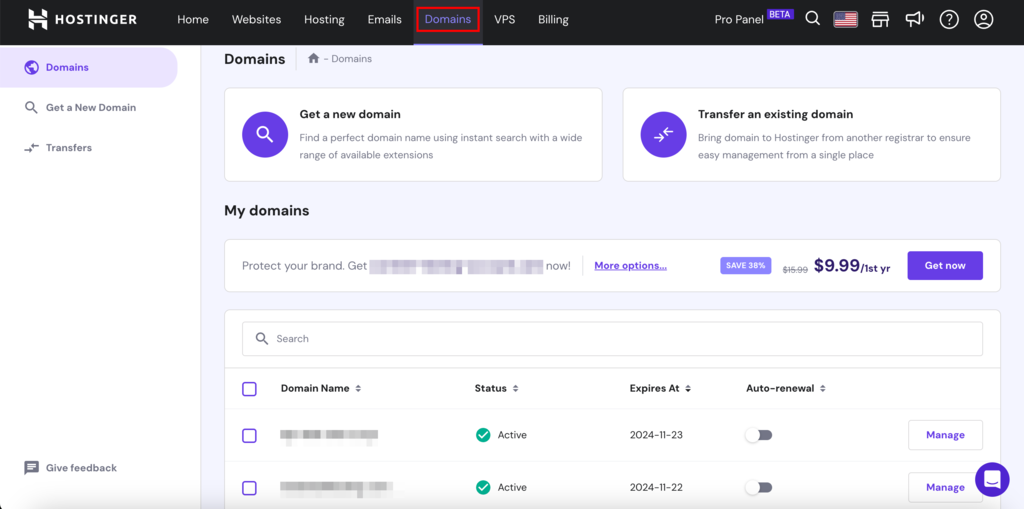
Log in to your hPanel, navigate to the Domains section, and scroll down to the My domains tab. Here, you’ll find a list of all your domains, including those purchased through Hostinger and any external domains added to your hosting plan.
Create a Subdomain
If you plan to use a subdomain for your website, follow these steps on hPanel:
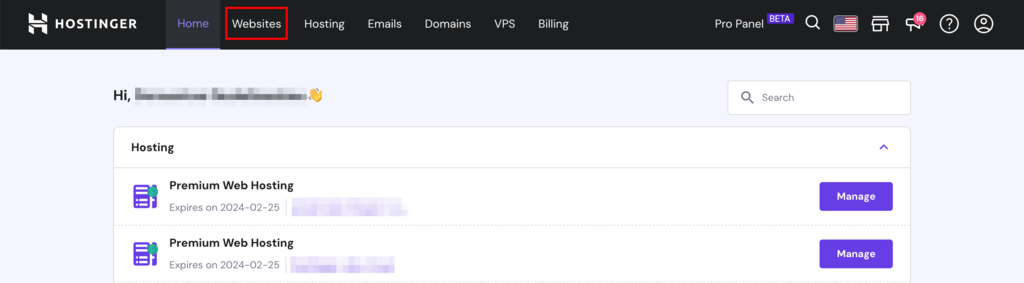
- Navigate to the Websites section.
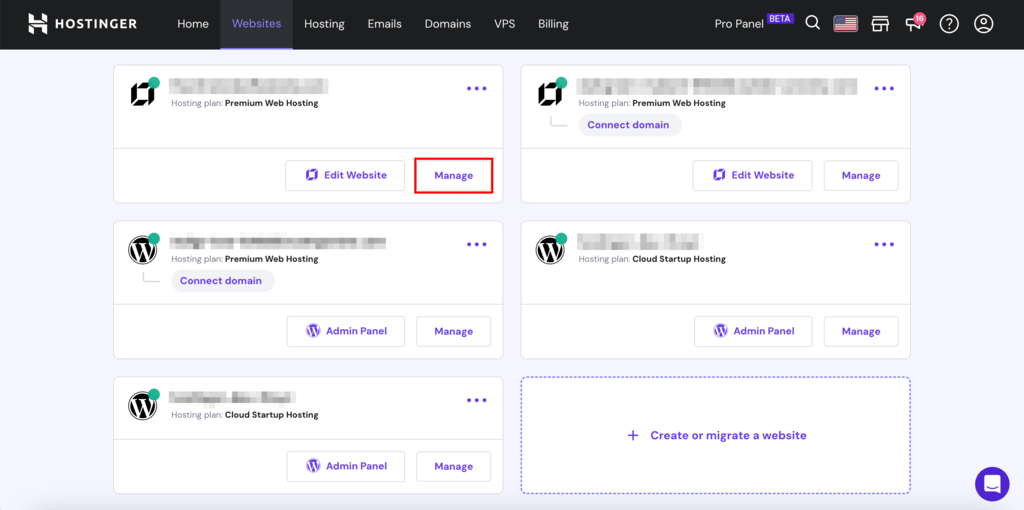
- Click Manage next to the website for which you intend to create a subdomain.
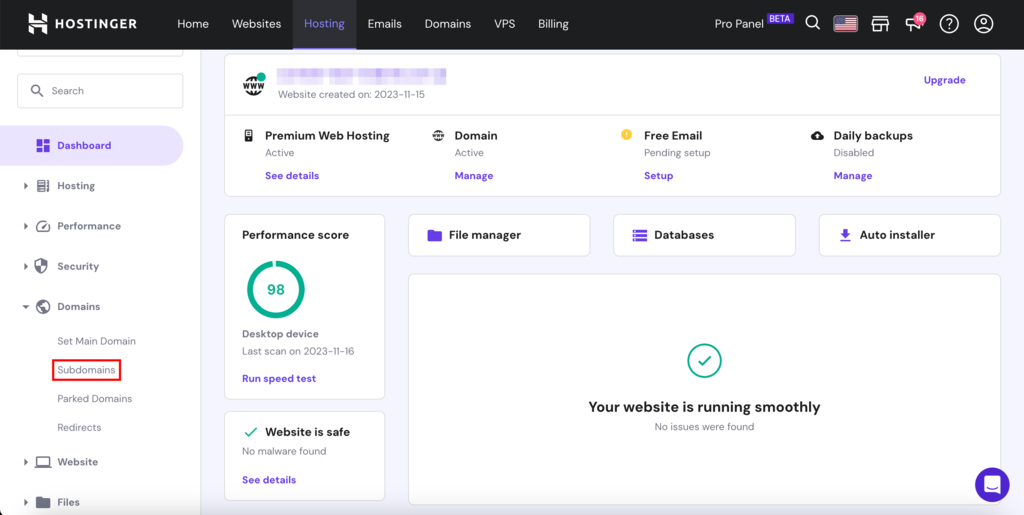
- Next, click on Domains → Subdomains on the left sidebar.
- In the Create a New Subdomain section, enter the desired name for your subdomain.
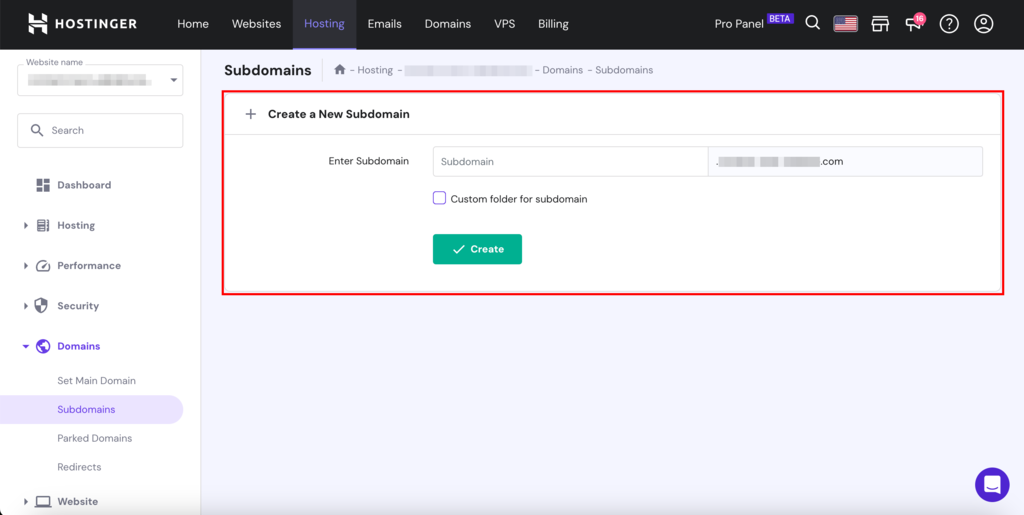
- You have the option to create a custom folder for the subdomain. However, we recommended keeping the default directory for ease of management.
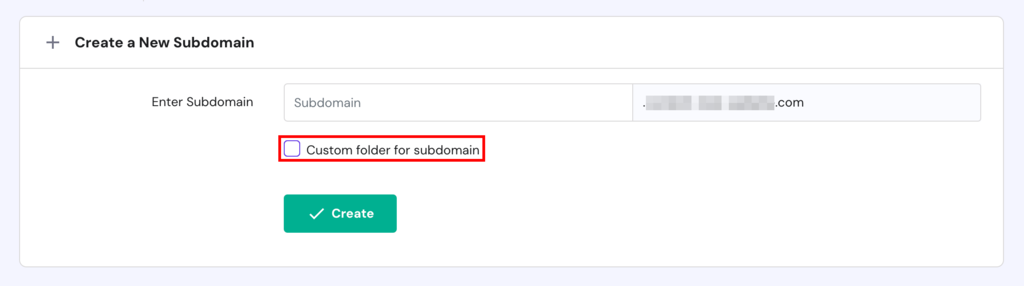
- Once you’ve entered the subdomain name and decided on the directory, click Create.
You can repeat these steps to create multiple subdomains for your website.
Pro Tip
To secure multiple domains or subdomains with SSL, you can use a Wildcard Certificate. Head to our other tutorial to learn more about the different types of SSL certificates.
2. Navigate to Website Settings
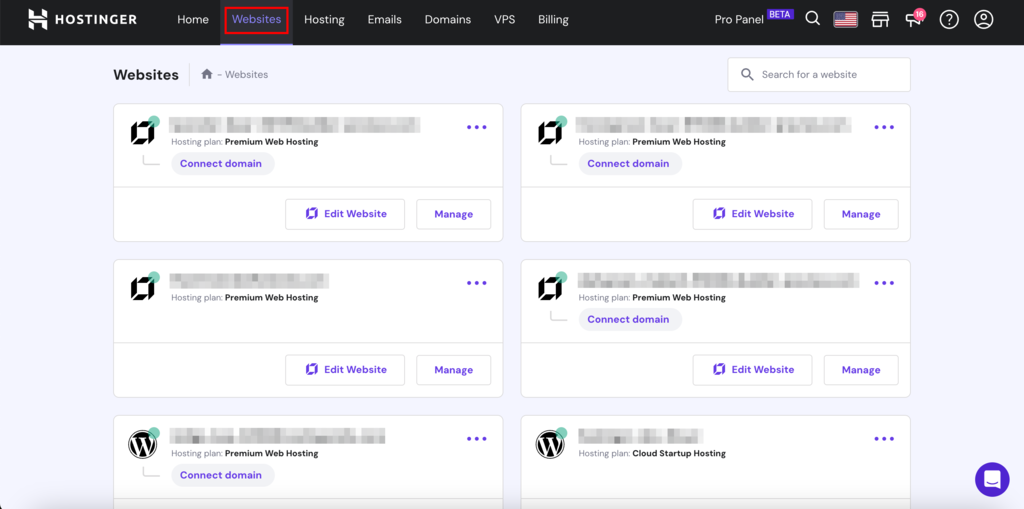
Go to the Websites section in hPanel. Here, you’ll find a list of all the sites hosted under your account. This area allows you to manage various aspects of your website, including editing the website design and managing the hosting.
3. Select the Website to Install SSL
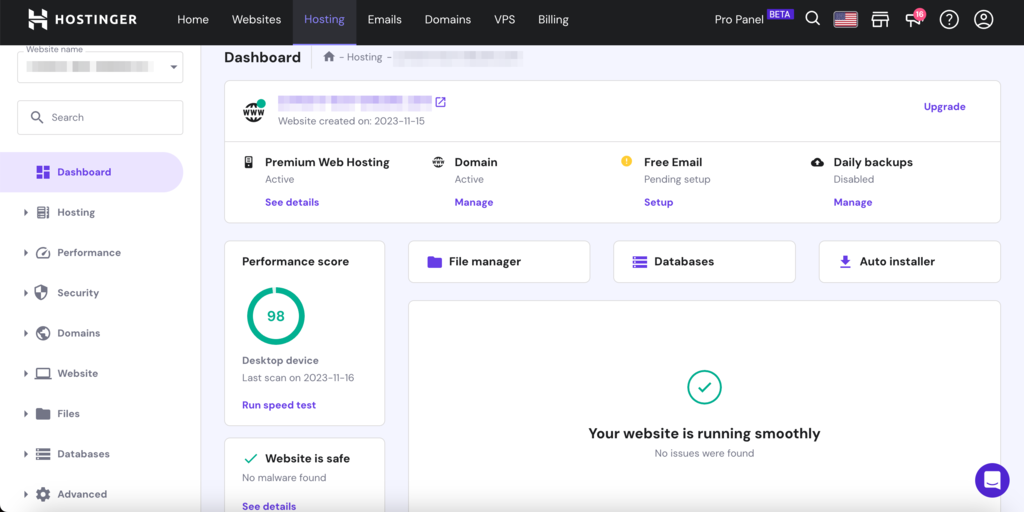
Locate the website for which you want to conduct manual SSL certificate installation and click Manage. This action will take you to the site’s hPanel dashboard.
4. Initiate SSL Installation
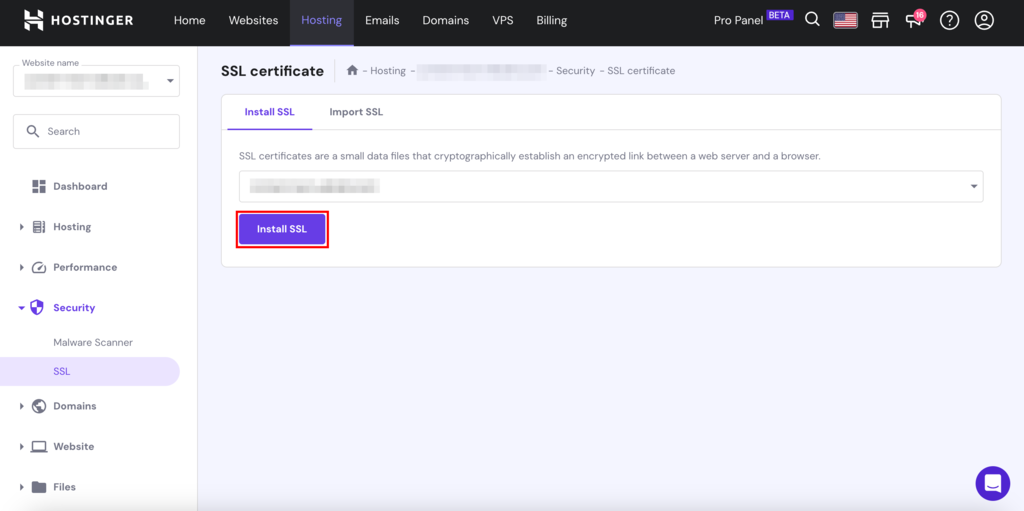
From the dashboard, go to the Security tab and click on SSL on the left sidebar. Here, select the primary domain name from the dropdown list and click on Install SSL. This will manually install your free SSL certificate.
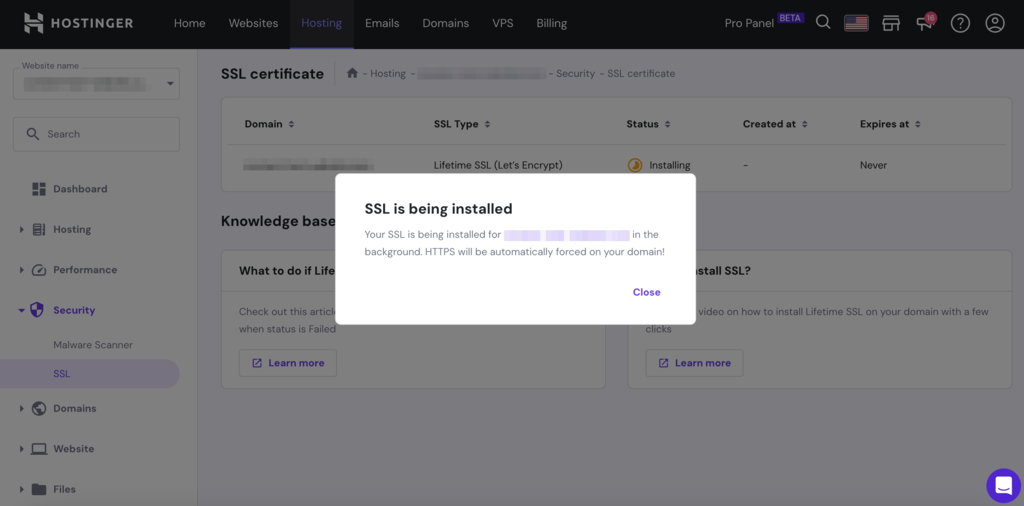
There will be a pop-up notification informing you that the certificate is being installed.
5. Check for SSL Options
If you don’t see the Import SSL or Install SSL options, it is likely that you already have an SSL certificate installed on that domain. The section will show you the certificate details instead, including its SSL type, date of creation, date of expiry, and status.

6. Verify SSL Status
If you get a free SSL certificate for your website, it’s crucial to ensure that it’s properly installed and functioning. The activation time frame of an SSL certificate depends on various factors, including the type of hosting plan you have and the specific Certificate Authority (CA) used.
To ensure your website’s encrypted connection is working correctly, check these factors:
- Open your website using different web browsers. Look for the lock icon in the address bar – it indicates that the SSL certification is active.
- Ensure that your website has an https:// in its URL. The s in https stands for secure, and its presence signifies that the security protocol is in place.

- Inspect the certificate details by clicking on the padlock icon → Connection is secure → Certificate is valid. This provides information about the certificate issuer, the validity period, and the domains covered.

- Check the status of your certificate using SSL checker tools such as SSL Shopper. Simply enter your website’s URL, and it will verify the certificate’s validity.
How to Get an SSL Certificate
You can also get an SSL certificate for a website by directly purchasing it from a certificate authority (CA).
Here’s how you can do it:
Choose a Certificate Authority
It’s important to buy your certificate from reputable certificate authorities like Let’s Encrypt, Comodo SSL, or DigiCert.
The cost of an SSL certificate may vary based on the number of domains covered, the type, and the issuing authority. Make sure you consider all these factors while selecting the issuer.
Generate a Certificate Signing Request (CSR)
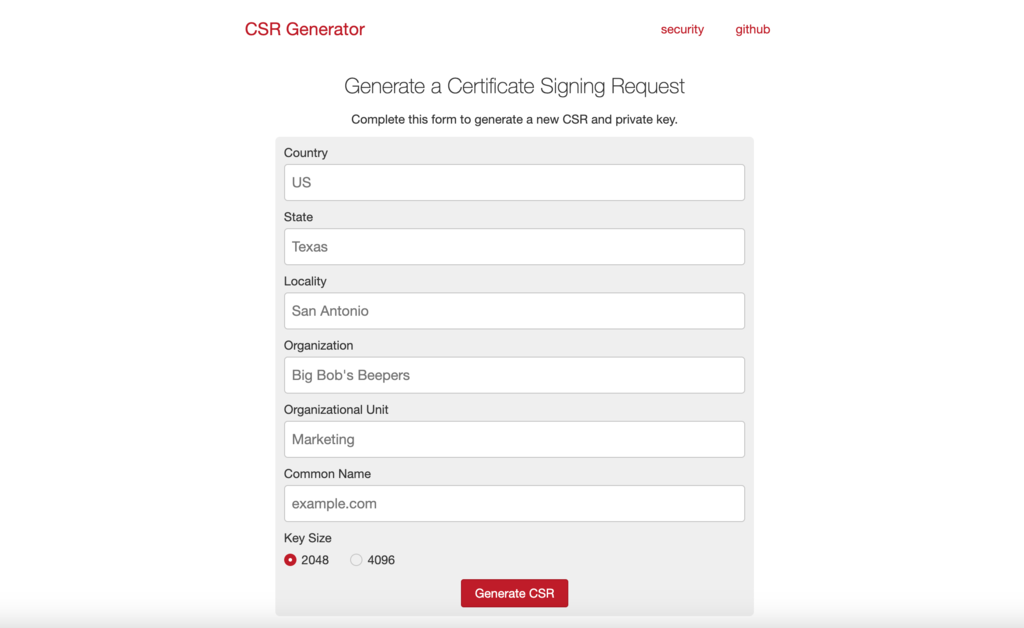
A Certificate Signing Request (CSR) is a file that contains essential information about a website and its owner. This file is necessary for the SSL certificate process.
You can generate a CSR file through the control panel of your web hosting provider or by using dedicated CSR generation tools like CSR Generator.
Validate Domain Ownership
The CA may require owners to verify ownership before issuing an SSL certificate for a domain. This process involves confirming your authority over the domain’s DNS records or the associated email address.
The DNS method involves adding a specific TXT record generated by the CA to your domain’s DNS zone. This record includes a unique code that lets the CA verify your ownership when it accesses your domain’s DNS records.
For email verification, the CA sends a validation link or code to the email address associated with your domain. To confirm your ownership, click on the link or enter the provided code.
Submit Certificate Signing Request to the Issuing Authority
After verifying your domain ownership, you’ll need to submit the CSR file to the CA. The authority will then review your application and issue an SSL certificate if everything is in order.
Install SSL Certificate
Once you receive your SSL certificate and its corresponding private key, the next step is to install it on your website through your web host. Many web hosting services have a dedicated section to import certificates. This option is generally located in the SSL settings of the control panel.
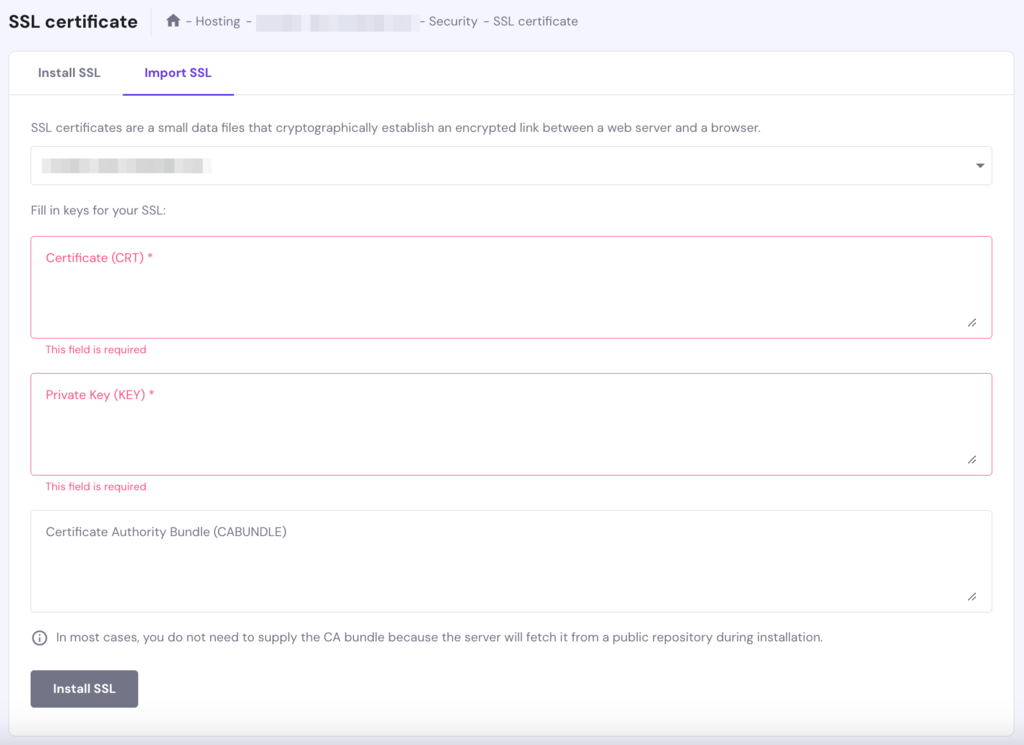
With Hostinger’s hPanel, you can find this option at Security → SSL → Import SSL. Here, enter your certificate details, including its public key, private key, and Certificate Authority Bundle, to install your certificate.
Important! SSL certificate activation can take a while, as the changes may require a few hours to propagate online.
Renew SSL Certificate
All certificates have a limited lifespan, usually lasting one to two years. To keep your website’s data encrypted and secure, you’ll have to renew its SSL before it expires. Most CAs send SSL certificate renewal reminders a month before the expiration date.
To renew, you’ll have to generate a new CSR, reconfirm your domain ownership, submit a renewal request, pay the renewal fees, and install the new certificate through your hosting service once it is issued.
Troubleshooting SSL Installation
If you encounter issues during the installation process, here are some solutions you can try:
- Clear your browser’s history and cache. Alternatively, access the website using incognito mode to bypass cache issues.
- Temporarily disable your device’s antivirus or firewall. They can sometimes interfere with SSL connections.
- Ensure that your domain is correctly pointing to Hostinger’s nameservers. Incorrect DNS settings can lead to SSL installation failures.
- Wait for the DNS records to fully propagate after you make any changes to your DNS settings. This process can take up to 48 hours. During this time, your SSL certificate might not function correctly.
- Perform an SSL certificate validation check using SSL checkers. If it indicates your SSL is invalid, contact your SSL issuer. If you’re using the SSL provided by your hosting company, try uninstalling and reinstalling the certificate.
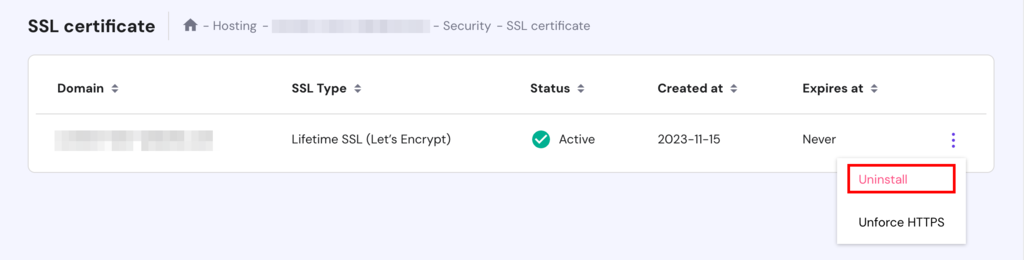
With hPanel, you can do this by navigating to the SSL certificate section. Here, click on the three dots menu for more options and select Uninstall.
If you still face any issues with the activation process, contact Hostinger’s Customer Success team for assistance.
For additional help with SSL certificate errors, refer to our video tutorial, which offers more SSL certificate troubleshooting alternatives.
Suggested Reading
To address specific SSL errors, check out our guides on:
Conclusion
SSL certificate configuration is a vital web hosting security measure for ensuring a secure online presence. It helps all types of sites, from small business websites to eCommerce stores, safeguard sensitive information and foster customer trust.
Ensuring the security of your website is straightforward and effective with the right approach and knowledge. Whether you get a free SSL from Hostinger or purchase one from a certificate authority, the goal is to provide a secure online environment for visitors.
Hostinger makes website security more convenient by providing free unlimited SSL certificates with web hosting, cloud hosting, and Hostinger Website Builder plans. While our automatic installation offers convenience, manual installation is equally intuitive and user-friendly should you decide to purchase an SSL certificate from a third party.
How to Get an SSL Certificate FAQ
In this section, we’ll cover some frequently asked questions about how to obtain an SSL certificate for online businesses.
Does Hostinger Provide Free SSL Certificates for All Hosting Plans?
Hostinger provides free SSL certificates with its web hosting, cloud hosting, and Hostinger Website Builder plans. However, free SSL is not included with our VPS hosting plans.
How Do I Know if My SSL Certificate Was Installed Automatically?
To check if your SSL certificate was installed automatically, visit your website and look for a padlock icon in the browser address bar. Click on the icon and select the Connection is secure option to view the certificate details. Alternatively, you can log in to your Hostinger account and access hPanel for SSL status updates.
Can I Reuse SSL Certificates on Different Websites?
No. Each site typically needs its own SSL certificate to establish secure connections and ensure data encryption, and you cannot transfer them between different websites.

Akshay is a Senior Content Writer who loves writing about technology. As a Computer Engineering graduate and a certified digital marketer, he aims to make tech easier for everyone. He also enjoys cooking, traveling, and learning new languages. Follow him on LinkedIn.