How to fix the 503 Service Unavailable error
Sep 15, 2026
/
By Ariffud M. & Aris S.
/
7 min Read

The 503 Service Unavailable error is a temporary HTTP response status code indicating that the server can’t handle the request at the moment. It often occurs due to back-end issues like ongoing maintenance, resource limitations, software conflicts, or service misconfigurations.
Website visitors can attempt to resolve 503 Service Unavailable by refreshing the web page and clearing their browser’s cache. However, since this error is on the server-side, it typically requires the website owner to resolve it using these methods:
- Check server usage to see if it reaches or exceeds the limit.
- Verify automated maintenance or service downtime.
- Inspect the server and application logs for anomalies.
- Reboot the host server and other services to clear temporary issues.
- Review firewall and content delivery network (CDN) settings that might block legitimate traffic.
- Revert recent changes, like new plugin installation or code modifications.
After resolving the 503 Service Unavailable error, you should take measures to prevent it from happening again. For example, set up a load balancer to minimize server load, configure auto scaling to anticipate traffic spikes, optimize database queries, and reschedule tasks during low-traffic hours.
Let’s go over how to fix the 503 Service Unavailable in more detail and explore best practices for preventing it from recurring.
1. Check server resources
The first step to resolving the 503 service unavailable error caused by limited server resources is to analyze whether your server has sufficient computing power to handle the current traffic or tasks.
Servers process requests using resources like CPU, RAM, bandwidth, and disk space. When these resources are maxed out, your website’s performance can degrade, triggering errors like 503.
Website owners can monitor resource usage through their hosting provider’s control panel.
For example, if you have Hostinger’s web hosting, cloud hosting, or Managed WordPress plan, open Hostinger dashboard to access your website’s dashboard. Then, go to Hosting Plan → Resource Usage to view metrics such as disk space, inodes, CPU, memory, bandwidth, and I/O (throughput).
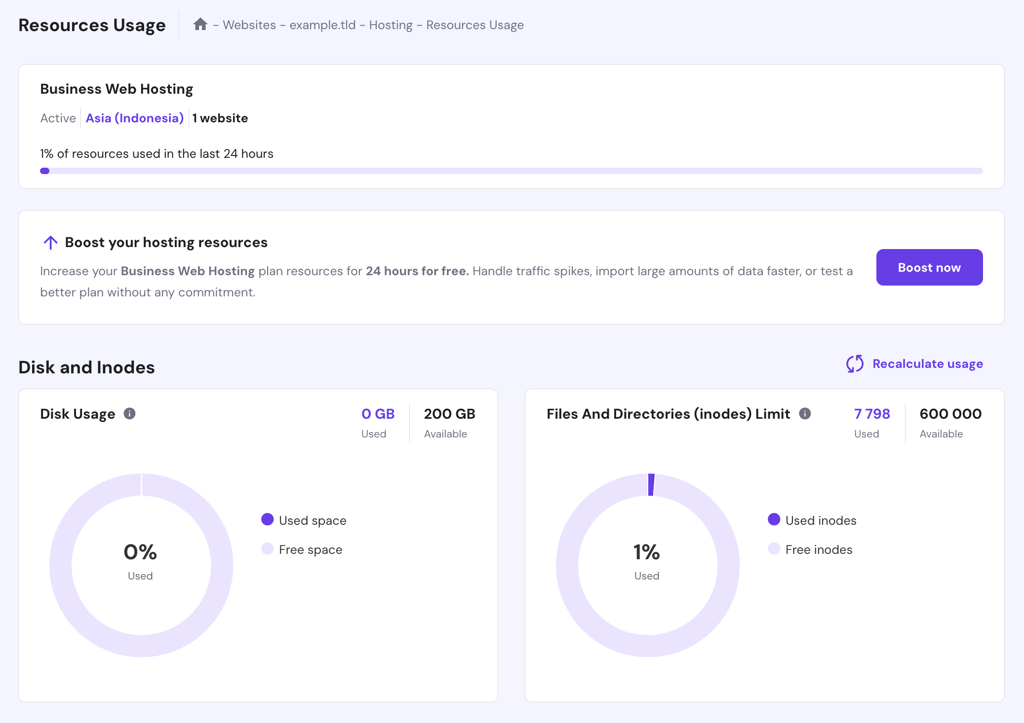
If your website consistently exceeds disk space, inodes, or memory limits (represented by a red line on graphs), you need to optimize resource usage or upgrade to a higher-tier plan with more CPU, RAM, and bandwidth.

If you host your website on a Linux virtual private server (VPS), run commands like top, htop, or vmstat in the terminal to monitor running processes and resource usage in real time.
After identifying processes that consume excessive CPU or memory, terminate them using commands like kill or pkill to free up resources.
2. Verify maintenance or updates
Check whether your hosting platform is undergoing maintenance, resulting in 503 Service Unavailable. Web servers and applications often shut down automatically during updates or maintenance, which can happen without warning.
For instance, many web hosts enable automatic updates for new WordPress releases. During the process, they may issue the 503 HTTP status code on user websites until the update is completed. Hostinger customers can check real-time server updates on our status page.
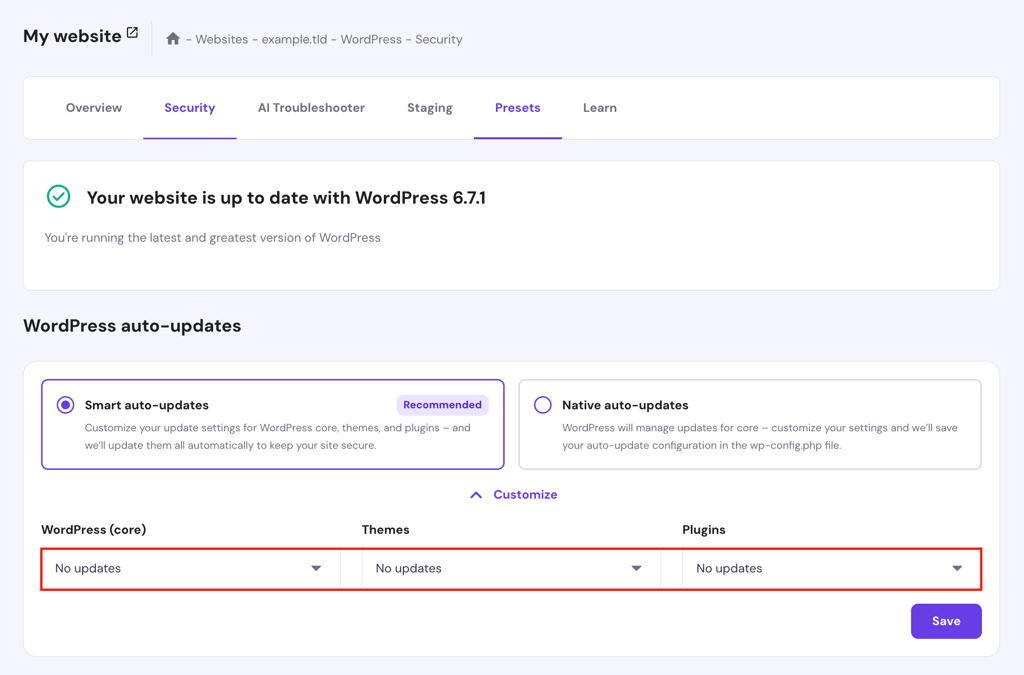
You can modify your server settings to disable automatic updates and prevent unexpected downtime. For Hostinger’s web hosting users, here’s how to do so on Hostinger dashboard:
Important! If you decide to disable automatic updates, make sure to manually check for updates and apply them promptly to keep your site secure.
- From your website’s dashboard, navigate to WordPress → Security.
- Expand the WordPress auto-updates section by clicking Customize.
- Select No updates from the WordPress (core), Themes, and Plugins drop-down menu, then hit Save.
Pro tip
Enable maintenance mode on your site during planned maintenance. This informs visitors about the downtime and reassures them that your website will return soon.
3. Inspect server and error logs
To resolve 503 Service Unavailable efficiently, examine your server logs to pinpoint the cause of the error. Logs provide detailed information about your website’s activities, making it easier to identify the root issue.
For WordPress websites, enable debugging mode to generate an error log. Here’s how to do this if you host your WordPress site on Hostinger:
- Navigate to Websites → Dashboard → Files → File Manager on Hostinger dashboard.
- Open the public_html folder and locate the wp-config.php file.
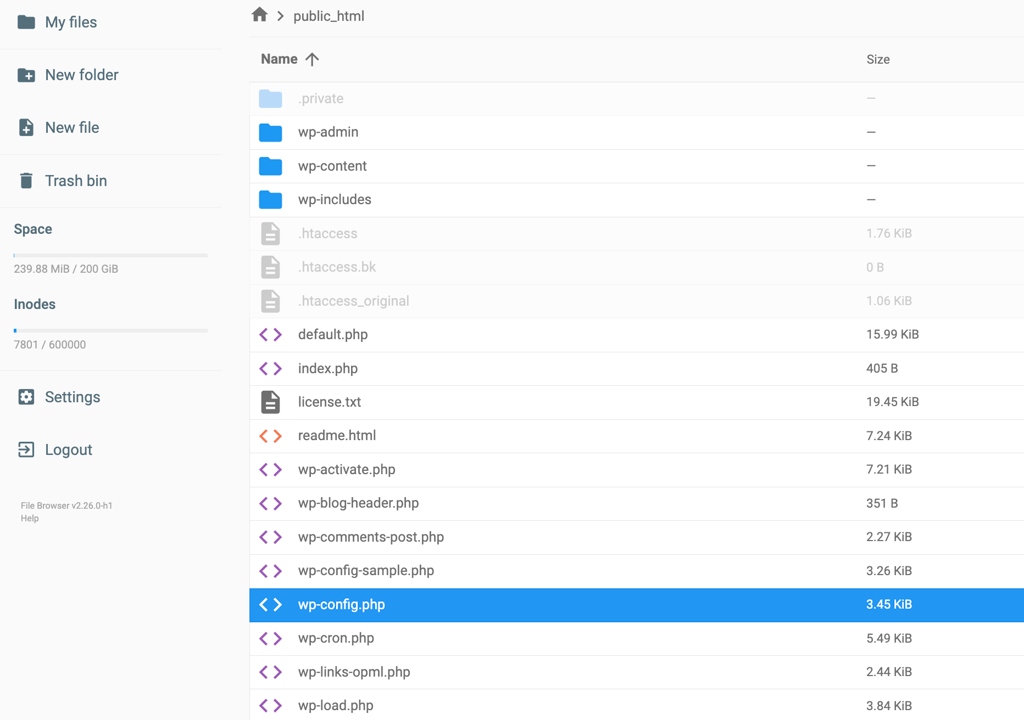
- Right-click the file and select Edit.
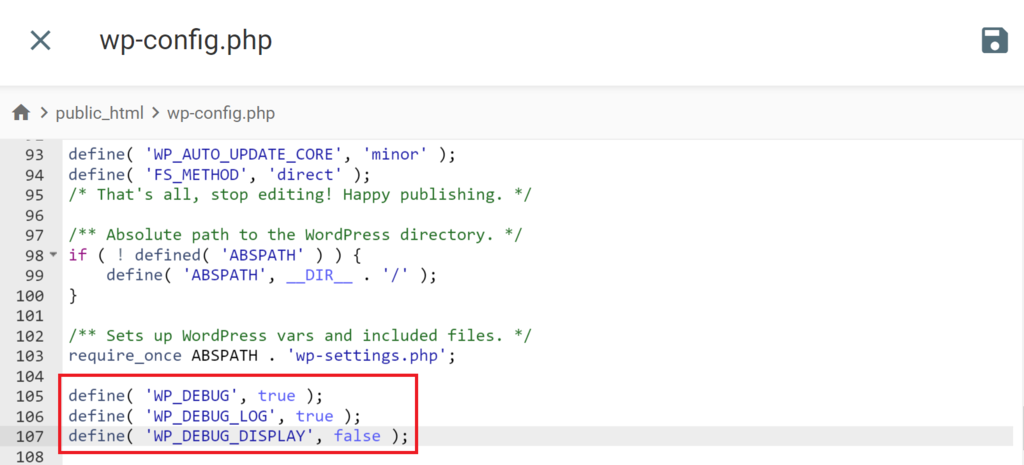
- Add the following code inside the file – preferably at the end of it – and hit Save.
define( 'WP_DEBUG', true );

define( 'WP_DEBUG_LOG', true );

define( 'WP_DEBUG_DISPLAY', false );
- Trigger the error by accessing the page where the issue occurs.
- Check the debug.log by going to public_html → wp-content.
In this file, you’ll find the detailed information that helps you identify the root cause of the issue, which might include:
- PHP warnings. Issues with plugins, themes, or scripts.
- Failed API calls. Errors in external service integrations.
- Database connection timeouts. Problems with database credentials or performance.
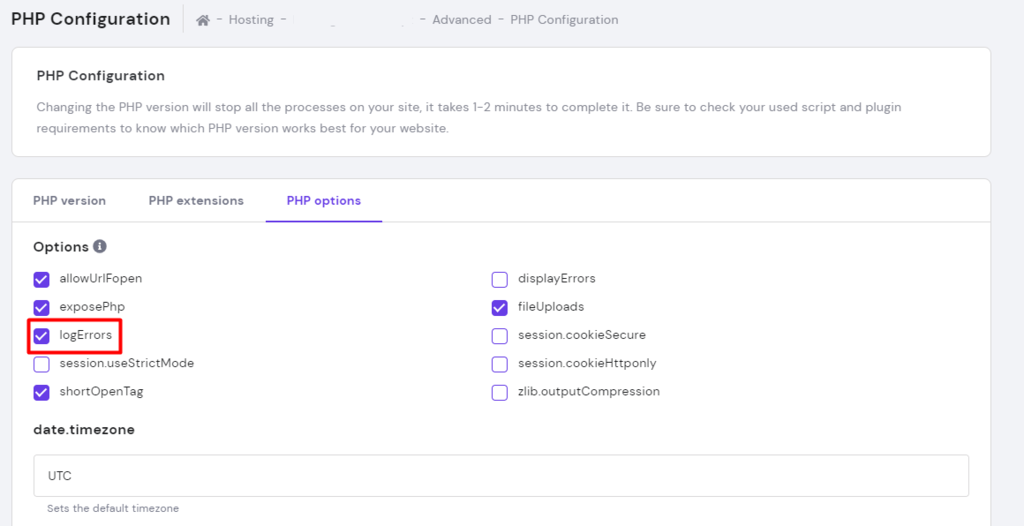
If you suspect the issue is related to broader PHP scripts, activate PHP error logging. Here’s how to do it on Hostinger dashboard:
- Navigate to Advanced → PHP Configuration from your website dashboard’s left sidebar.
- Select the PHP Options tab, enable the logErrors option, and click Save.
- Access your server configuration files by connecting to your website via SSH and navigating to the .logs directory:
cd .logs
Locate the error log file, typically named error_log_yourdomain_tld. It records broader PHP-related issues, such as syntax errors in server-side scripts and failed server processes.
If you’re a VPS hosting user, check web server logs to investigate errors like missing files, misconfigured virtual hosts, and module failures. They are typically located under /var/log/web-server-name/error.log.
4. Restart the server or services
Restarting your server or specific components helps resolve 503 Service Unavailable. This clears problems such as locked files, memory leaks, or unresponsive processes so your server can start fresh.
On Hostinger’s web hosting plans, you don’t have root access to restart the server directly. However, you can stop and restart key processes using Hostinger dashboard:
- Go to Hosting → Resources Usage and scroll to the Stop running processes section.

- Click the corresponding button and confirm the action in the dialog box.
- Wait a few seconds for the process to finish.
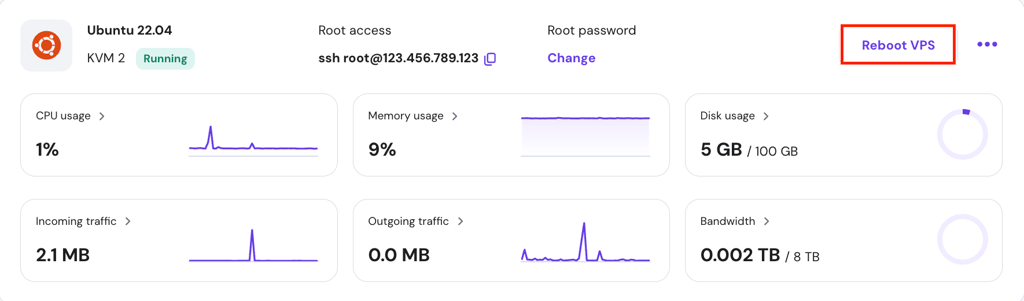
If you use VPS hosting, you have complete control over restarting your entire server or individual services. To reboot your VPS via Hostinger dashboard:
- Go to VPS → Overview.
- Click the Reboot VPS button.
- Wait at least two minutes for the process to complete.
If you prefer restarting your server via the command-line interface (CLI), open your terminal and run the command below:
sudo reboot
Besides rebooting the entire server, you can reboot individual services like Apache, NGINX, or MySQL. Read our tutorial on managing Linux services to learn how.
5. Review firewall and CDN settings
Reviewing web application firewalls (WAFs) and CDN settings helps resolve the 503 Service Unavailable error. These applications might be misconfigured or have overly strict rules that can result in false positives, blocking safe traffic and triggering errors.
If you suspect your firewall is blocking legitimate requests, reset its configuration to default settings. For Hostinger’s web hosting users, follow these steps:
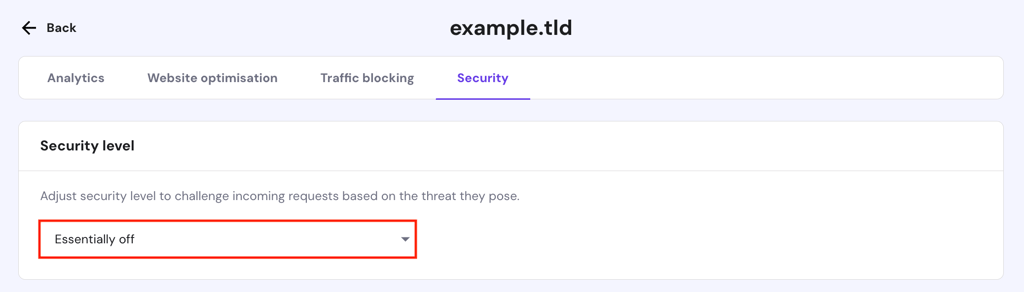
- On Hostinger dashboard, navigate to Performance → CDN and hit Manage.
- Select the Security tab and set the security level to Essentially Off.
- Revisit your website to see if the error is resolved.
If the error continues, return to the CDN page and deactivate it entirely.

Important! Only disable the firewall temporarily. Don’t forget to re-enable it after identifying the issue to maintain server security.
If you use a firewall from a third-party CDN like Cloudflare, visit its dashboard to adjust the settings. If you need help, contact the platform’s support team.
On Hostinger’s VPS, you can reset or modify firewall rules using Hostinger dashboard:
- From your VPS dashboard, go to Security → Firewall.
- Click the three horizontal dots next to your custom firewall configuration and select Edit.
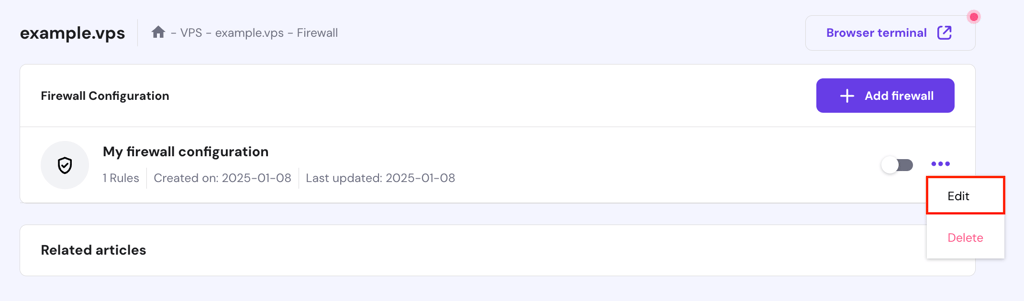
- Review each rule you’ve set, then edit or delete any that might be causing issues.
- If necessary, delete the custom configuration entirely.
- If the above steps don’t help, go to Settings → Main settings and click the button next to Reset firewall configuration. This will reset all rules to the default settings.
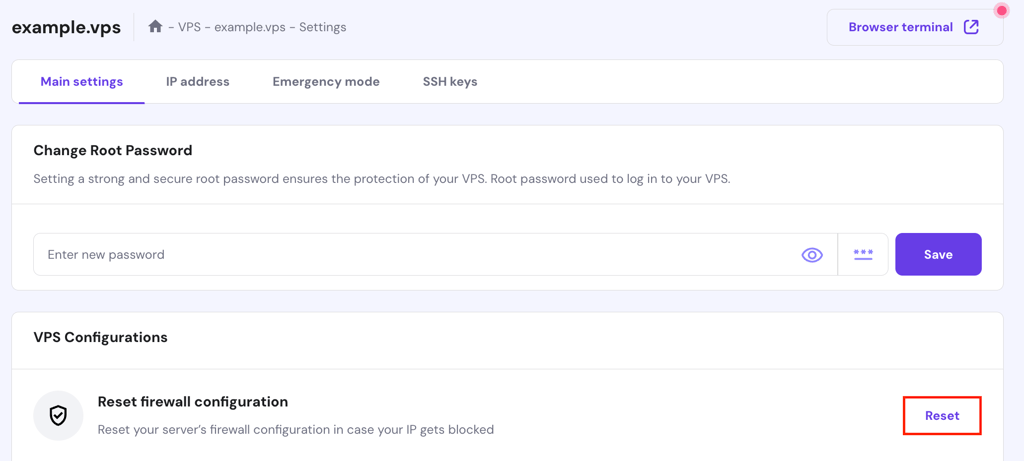
If you use a Linux VPS from another provider, you can disable and reset the firewall rule using your system’s Uncomplicated Firewall (UFW).
6. Revert recent changes or conflicts
Revert recent changes to resolve 503 Service Unavailable caused by a misconfiguration or incompatibility after an update, deployment, or code modification.
On WordPress, plugins commonly cause 503 errors when they consume excessive resources or conflict with each other. If the error occurs after installing a new plugin, deactivate or remove the plugin altogether.
If you’re unsure which plugin is problematic, consider disabling all of them at once and then check your website. If the error resolves, reactivate the plugins one by one to identify the culprit.
Poorly coded WordPress themes can also trigger 503 Service Unavailable. Troubleshoot by switching to a default theme and checking if it resolves the issue.
Important! Test the rolled-back version in a staging environment to ensure compatibility and stability before deploying it to production.
If the error began after deploying new code, rolling back to a previous stable version may fix it. Use a version control system like Git to simplify the process. For example, these Git commands will revert recent commits:
git reset --hard [commit_hash]

git push --force
Note that recovering code using a version control system is only possible if you set up this tool before making the changes. Alternatively, you can restore your website from a backup.
How to fix the 503 Service Unavailable error as a visitor
While 503 Service Unavailable is a server-side issue, website visitors can try a few quick fixes, such as:
- Refreshing the desired web page.
- Checking if the website is down using tools like DownDetector.
- Clearing the browser’s cache, cookies, and history.
How do you prevent the 503 Service Unavailable error?
The most efficient way to prevent the 503 Service Unavailable error from recurring is by addressing traffic-related issues.
This is crucial because traffic spikes can trigger and sustain the 503 error. When too many requests overwhelm a server’s resources, they can cause downtime, stopping visitors from accessing the desired page. Here are five strategies for mitigating traffic-related problems:
- Use a load balancer. A load balancer distributes incoming requests across multiple servers, preventing any single server from getting overwhelmed. With it, you can ensure better availability and performance during traffic spikes.
- Choose a CDN service. A CDN caches and serves static content from servers closer to users, reducing the main server’s load by distributing traffic evenly. Hostinger offers an in-house CDN that’s included with our cloud hosting, web hosting, and Managed WordPress hosting plans.
- Enable auto-scaling. Auto-scaling dynamically adjusts your server resources based on traffic demands. During high-traffic periods, it allocates additional resources to maintain performance, and during quieter periods, it scales back resources to save costs.
- Optimize database queries. Review and refine database queries regularly so that they execute efficiently, reducing server strain and improving overall website performance.
- Reschedule cron jobs. Schedule background tasks, such as cron jobs, during low-traffic periods to minimize their impact on server performance. This reduces the risk of resource contention during peak hours.
While these preventive strategies are effective, they don’t fully guarantee that 503 Service Unavailable won’t reappear because there are other causes that are difficult to identify. With that in mind, it’s important to properly manage your website after fixing the error so you can resolve the issue more efficiently if it happens again.
What should you do after fixing a 503 error?
Once you resolve 503 Service Unavailable on your website, it’s crucial to prevent the issue from happening again and prepare a recovery plan so you can fix this error more easily in the future. This is important because errors like 503 Service Unavailable lead to a poor user experience and can affect your brand reputation.
Aside from taking preventive measures, you should regularly back up your website, implement a version control system, and check logs periodically. These practices ensure you have restoration points that help you recover your website more easily if it encounters issues.
Finally, set up a monitoring and alerting system on your website to receive instant downtime notifications. If errors like 503 Service Unavailable remain unresolved for long, they affect more users and lead to bigger losses. To prevent this, learn how to monitor your website’s uptime and make sure you catch issues before they escalate.
This article is a localized version of How to fix the 503 Service Unavailable error, originally published in English.

Ariffud is a Technical Content Writer with an educational background in Informatics. He has extensive expertise in Linux and VPS, authoring over 200 articles on server management and web development. Follow him on LinkedIn.

Aris is a Content Writer specializing in Linux and WordPress development. He has a passion for networking, front-end web development, and server administration. By combining his IT and writing experience, Aris creates content that helps people easily understand complex technical topics to start their online journey. Follow him on LinkedIn.