10 best Webflow alternatives: Key features and pricing
Sep 04, 2026
/
By Alma
/
18 min Read

Many website owners look beyond Webflow when they need simpler tools, lower costs, or features that better match their projects. While Webflow offers advanced design control, its learning curve, layered pricing structure, and ecommerce limitations can make it less practical for beginners, small businesses, or store owners.
Several platforms solve these challenges in different ways while still serving the same purpose as Webflow: helping you build and manage websites without heavy development.
Some prioritize drag-and-drop simplicity with bundled hosting. Others focus on deep customization through plugins, or specialize in ecommerce with built-in payment and inventory systems. Pricing models also vary – from all-in-one plans to modular setups where you manage hosting and add-ons separately.
Here are five standout Webflow alternatives based on different priorities:
- Best for ease of use – Hostinger AI Builder, a no-code platform for building websites.
- Best for flexibility – WordPress, highly customizable with extensive plugins and themes.
- Best for ecommerce – Shopify, robust ecommerce features tailored for online stores.
- Best for design freedom – Wix, extensive design options with a user-friendly interface.
- Best for beginners on a budget – Squarespace, affordable plans with beautiful templates.
1. Hostinger AI Builder

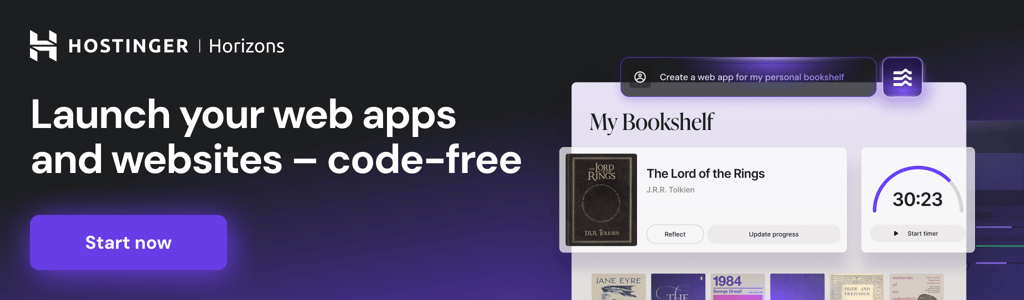
Hostinger AI Builder is a no-code platform with two distinct building approaches. Agentic mode generates functional web applications from a plain-language prompt, including back-end logic like user authentication, database storage, form handling, and custom workflows. Manual mode is a drag-and-drop editor for websites, portfolios, and online stores that need a fast, visual workflow.
Compared to Webflow, AI Builder trades pixel-perfect design control for speed and accessibility. Webflow requires learning its layout system and CSS logic. AI Builder lets you describe what you want to build or drag elements into place, which makes it practical for small businesses, freelancers, and teams who need results quickly rather than granular control over every design detail.
When you want to make a website quickly, the built-in AI tools generate page layouts, create content based on your business type, and suggest structure from your goals. From there, you design it visually by adjusting sections, fonts, and colors directly on the page.
The editor is mobile-friendly, so you can build and manage your site from your phone and update content on the go. AI Builder also works with Hostinger Ecommerce for selling products and services online, with 20+ payment gateways and no commission fees.
Hostinger AI Builder pros
- Two no-code building modes — Agentic mode handles sites and complex web applications through prompts, while Manual mode lets you design a website visually through drag-and-drop. Both work without coding knowledge, covering use cases that Webflow reserves for developers.
- Seamless hosting integration — Hostinger handles security updates, CDN delivery, and server optimization automatically. You manage hosting, design, and site settings from one dashboard, with no separate infrastructure to configure.
- Affordable all-in-one pricing — One predictable monthly cost covers hosting, a free domain for the first year, an SSL certificate, and 24/7 support. No bandwidth overages or per-seat charges stacked on top.
Hostinger AI Builder cons
- Manual mode offers less design precision than Webflow — You work within the editor’s framework, which handles most use cases but has limits for pixel-perfect layouts or complex CSS animations that Webflow handles natively.
- Agentic mode output depends on prompt quality — The AI generates functional applications from descriptions, but complex or vague prompts can produce results that need multiple iterations to refine. Unlike Webflow’s deterministic visual editor, the output varies based on how clearly you define what you need.
Pricing
Hostinger AI Builder plans start at CA$ 3.49 per month on a 48-month term and CA$ 5.59 per month on a 12-month term. Every plan includes web hosting, a free domain for the first year (for annual plans and above), an SSL certificate, and 24/7 support.
Compared to Webflow’s separate site and workspace tiers, AI Builder keeps all costs in one place. There are no bandwidth overages, no per-seat charges, and no separate hosting fees to manage alongside your builder subscription.
2. WordPress
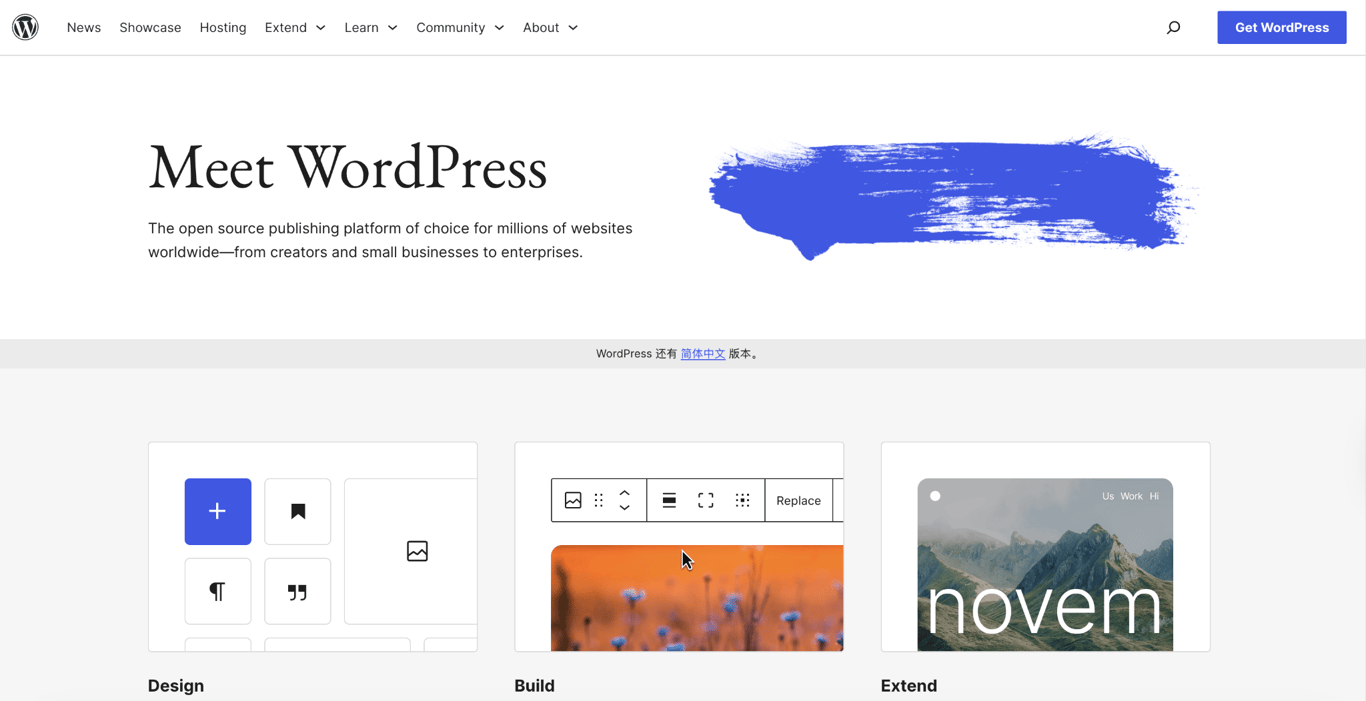
WordPress is a highly popular open-source content management system (CMS) used by developers, bloggers, and enterprises worldwide – in fact, it powers 43% of all websites on the internet.
WordPress is great for developers who want full control, content-heavy sites such as news publications or magazines, and businesses that need specific functionality via plugins. You’ll find WordPress powering blogs, business websites, online portfolios, and ecommerce stores through WooCommerce.
Users choose WordPress over Webflow when they need maximum flexibility without platform lock-in, want to avoid monthly platform fees, or require specialized plugins for their industry, such as LMS plugins for online courses or booking systems for service businesses.
The main advantage is that you can add virtually any feature through plugins and move your site to any hosting provider whenever you want, so you’re never locked into one ecosystem. If that level of control matters to you, comparing WordPress vs website builders makes it easier to see how flexibility stacks up against convenience.
WordPress pros
- Unlimited customization through plugins and themes – Need a membership site? Job board? Learning platform? There’s a plugin for virtually everything, giving you far more options than Webflow’s contained ecosystem.
- Huge community and support availability – Millions of developers contribute knowledge bases, tutorials, and solutions. You’re never stuck without help, whether through free community support or paid developer services.
- Open-source with no license fees – The core software costs nothing. Download WordPress, install it on any hosting provider, and build without paying the platform itself, which keeps base costs low if you’re comfortable with some technical work.
WordPress cons
- Steeper learning curve for non-technical users – You need to understand hosting, themes, plugins, and updates, which requires more hands-on management than Webflow’s guided approach. Many beginners struggle with the initial setup and ongoing maintenance tasks.
- Requires separate hosting and maintenance – You’re responsible for keeping WordPress updated, securing your site, managing backups, and handling technical tasks that all-in-one platforms manage automatically. This ongoing responsibility adds complexity but also gives you control.
Pricing
The WordPress core software is free, which means your costs depend entirely on the tools and services you choose.
You’ll need hosting first. Basic shared hosting starts around $3–$5/month, while managed WordPress hosting ranges from $15–$100/month depending on performance features and support.

Shared hosting works well for new sites with modest traffic. Managed plans cost more but handle updates, backups, and optimization for you.
Design and functionality can add to that base cost. Premium themes range from $20 to $200, either as a one-time purchase or an annual license. Premium plugins for advanced SEO, page building, ecommerce, or memberships run $0–$300 per year, depending on the feature set.
Compared to Webflow’s bundled pricing, WordPress lets you choose your own hosting, plugins, and themes. This requires more setup, but it gives you full control over how your site is built and scaled. You can upgrade hosting without changing themes, switch plugins without rebuilding your site, and scale individual components as your needs grow.
3. Shopify

Shopify is a dedicated ecommerce platform designed specifically for merchants and online stores who want to sell products without managing technical infrastructure and with built-in payment processing, inventory management, and shipping integrations.
Shopify works best for ecommerce businesses, from small startups to large stores processing thousands of orders each month. You’ll benefit most from Shopify when selling physical products, digital goods, or subscription services that require reliable payment handling and order fulfillment.
Use cases include online retail stores, dropshipping businesses, multi-channel selling that combines online and in-person sales, and subscription boxes.
Users prefer Shopify over Webflow for ecommerce because of specialized features like abandoned cart recovery, discount code systems, and integrated shipping label printing functionality that would require extensive custom development in Webflow.
When comparing Hostinger vs Shopify, the main difference lies between simplicity and specialized ecommerce tools. Hostinger focuses on getting you online quickly with built-in features, while Shopify is built specifically for retail operations at scale.
Should you decide between Shopify vs WooCommerce, the choice comes down to structure versus flexibility – Shopify offers an all-in-one system, while WooCommerce gives you deeper customization inside WordPress.
Shopify pros
- Comprehensive ecommerce tools out of the box – Payment processing through Shopify Payments (or third-party gateways), inventory tracking, order management, and customer accounts set up without plugins. This all-inclusive approach eliminates the guesswork of building an online store.
- Secure payment options and robust inventory control – Shopify handles PCI compliance automatically, processes refunds smoothly, and tracks stock levels across multiple sales channels. You can manage variants like sizes, colors, and materials easily, which is critical for fashion or any product with options.
- Scalable plans suitable for growing stores – Start on Basic and upgrade to Advanced or Plus as revenue increases. The platform grows with you without requiring platform migration, handling everything from small startups to enterprises processing millions in annual sales.
Shopify cons
- Limited design flexibility outside ecommerce templates – You work within Shopify’s theme structure, which means less design freedom than Webflow for creating unique layouts or animations. The focus is on converting sales rather than creative expression.
- Monthly fees can add up with apps and transaction fees – Base subscription ($39-$399/month), transaction fees (0.5-2% unless using Shopify Payments), and costs for premium apps ($5-$50/month each), increasing total expenses. These costs multiply as you add functionality.
Pricing
Shopify uses tiered subscription plans built specifically for ecommerce businesses.
- Starter – $5/month supports only social selling.
- Basic – $39/month includes core ecommerce features for small stores.
- Grow – $105/month expands reporting and operational tools.
- Advanced – $399/month adds advanced analytics and lower processing rates.
Using third-party payment gateways like PayPal or Stripe will have Shopify charge an additional 0.5%–2% transaction fee, depending on your plan. Using Shopify Payments removes those extra transaction fees, leaving credit card processing rates between 2.4%–2.9% + $0.30 per transaction based on your tier.
Shopify offers a 3-day free trial, followed by $1/month for the first three months, giving you time to build and test your store before full pricing applies.
Shopify’s pricing is structured entirely around selling. You’re paying for inventory management, checkout optimization, and retail-specific infrastructure rather than general website design flexibility.
4. Wix
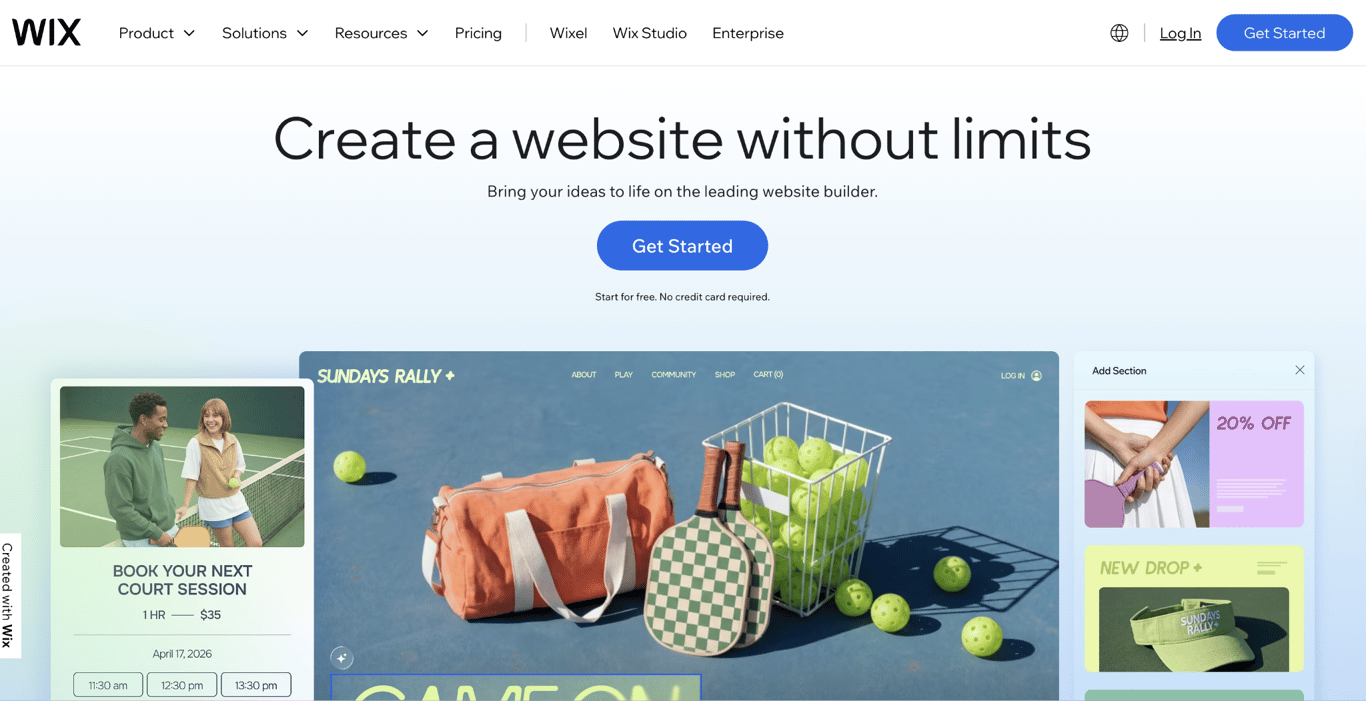
Wix is a popular, user-friendly website builder with drag-and-drop simplicity that lets you design pages visually without touching code. Compared to Webflow, Wix focuses on ease of use rather than advanced design control.
You get hundreds of professionally designed templates for portfolios, business sites, blogs, restaurants, and more, making it easy to launch a polished website quickly.
It’s a great option for small business owners, photographers, artists, consultants, and anyone who wants a professional-looking site without learning web development.
Users choose Wix over Webflow for its straightforward building experience and large template library. The editor gives you pixel-perfect positioning – you drag elements exactly where you want them – which feels intuitive for people with graphic design backgrounds who think visually about layouts.
Wix pros
- Intuitive editor with many customizable templates – Hundreds of starting points designed by professionals across every industry. Pick a template close to your vision, then modify colors, fonts, layouts, and content to match your brand perfectly.
- Flexible app market for additional features – Add booking systems, event calendars, email marketing tools, or live chat through Wix’s App Market. Most apps integrate seamlessly with your site design, and many offer free tiers for basic use so you can test before paying.
- Built-in hosting and domain services – Everything lives under one roof. Wix handles server management, security, and performance optimization automatically. Purchase a domain directly through Wix or connect an existing one, with SSL certificates included standard on all paid plans.
Wix cons
- Less customizable on the coding side – While Wix offers Velo (formerly Corvid) for adding custom code, it’s not as flexible as WordPress or as design-precise as Webflow. You’ll hit walls if you need complex database integrations or custom API connections beyond what apps provide.
- Exporting sites to another platform is limited – Essentially impossible while maintaining your design. Once you build on Wix, you’re committed to the platform. The trade-off for simplicity is that convenience comes with platform lock-in, making migration difficult if your needs change drastically.
Pricing
Wix follows a freemium model. The free plan lets you publish with Wix branding and ads, while premium plans remove those limitations and unlock additional features.
- Light – $17/month removes ads and lets you use a custom domain.
- Core – $29/month adds ecommerce capabilities, unlimited contributors, code injection, and premium integrations.
- Business – $36/month expands ecommerce features and lowers transaction fees.
- Business Elite – $159/month includes unlimited storage, the lowest processing fees, and priority support.
Premium plans include hosting, analytics, and bandwidth, so infrastructure costs are bundled into one subscription. Credit card processing through Wix Payments runs 2.9% + $0.30 per transaction.
Wix pricing is generally more affordable than Webflow for basic business sites, especially at entry level. However, Webflow offers greater scalability for complex builds and advanced interactions, where deeper customization becomes more important than simplicity.
5. Squarespace
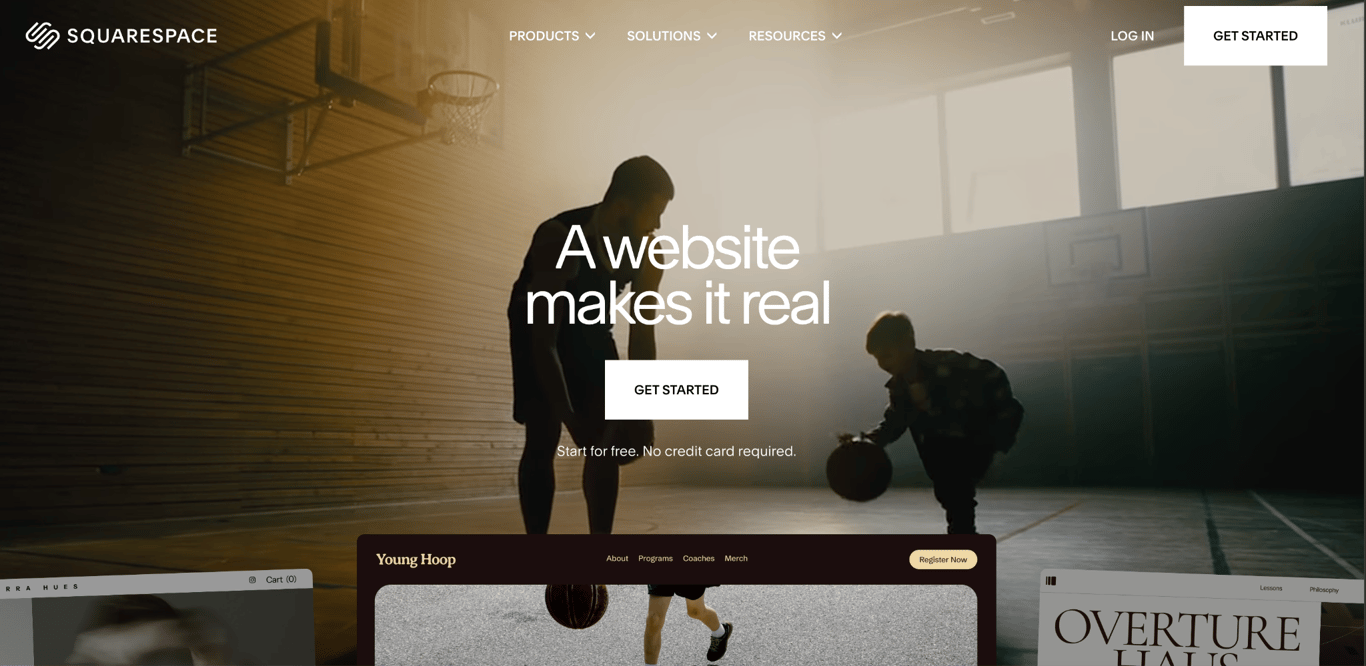
Squarespace is a website builder known for its polished templates and strong visual design.
It’s especially popular with photographers, designers, consultants, and small businesses that want their websites to look professional without heavy customization.
Choose Squarespace when visual polish matters more than deep customization. It’s a strong fit for portfolio sites, blogs, small ecommerce stores, and professional service websites where presentation quality carries more weight than complex functionality.
Compared to Webflow, Squarespace offers a guided building experience through structured templates that maintain visual consistency automatically. You give up some design freedom, but you gain speed and clarity – fewer layout decisions, less time adjusting details, and a smoother path from idea to launch.
Squarespace pros
- Beautiful, professionally designed templates – Each template uses thoughtful typography, spacing, and color palettes that work together seamlessly. You simply add your content, and the design framework ensures everything looks polished without endless tweaking.
- All-in-one platform with integrated hosting and support – Everything works together automatically. Squarespace handles SSL certificates, hosting performance, mobile optimization, and security updates. Customer support is notably responsive compared to many competitors, with live chat and email support available on all plans.
- Good ecommerce support for small stores – Basic ecommerce tools cover essentials like product pages, checkout, inventory tracking, and discount codes. You can sell physical products, services, or digital downloads with straightforward tools that integrate naturally into your site design without feeling bolted on.
Squarespace cons
- Limited design flexibility compared to Webflow – You customize within each template’s structure, changing colors, fonts, and content, but can’t completely rebuild page layouts or add complex animations. Advanced users find this constraining, though beginners appreciate the guardrails that prevent design disasters.
- Pricing is less transparent with fewer tiers – Squarespace offers Basic, Core, Plus, and Advanced plans, but the distinctions aren’t immediately obvious. You need to dig into feature comparisons to understand which plan fits your needs, and the pricing jumps significantly for ecommerce features.
Pricing
Squarespace subscription plans vary by features for personal websites, business sites, and ecommerce stores. Plans are billed annually for the best rates, with monthly options available at higher costs.
- Basic – $16/month includes a 2% transaction fee on physical products, 7% on digital products, plus 2.9% + $0.30 per transaction for payment processing.
- Core – $23/month removes transaction fees on physical products but charges 5% on digital sales, with 2.9% + $0.30 processing.
- Plus – $39/month includes 0% transaction fees on physical products, 1% on digital sales, and 2.7% + $0.30 processing.
- Advanced – $99/month removes all transaction fees and lowers processing to 2.5% + $0.30 per transaction.
There’s no free plan, but Squarespace offers a 14-day trial that lets you build your entire site before paying. This trial is genuinely useful – you can complete your site and publish the moment you add a subscription.
The pricing is competitive with other design-focused platforms but less flexible than Webflow’s options. You’re paying for cohesive design systems and reliable hosting that works well for straightforward projects, though Squarespace becomes expensive for complex sites needing extensive customization.
6. Weebly
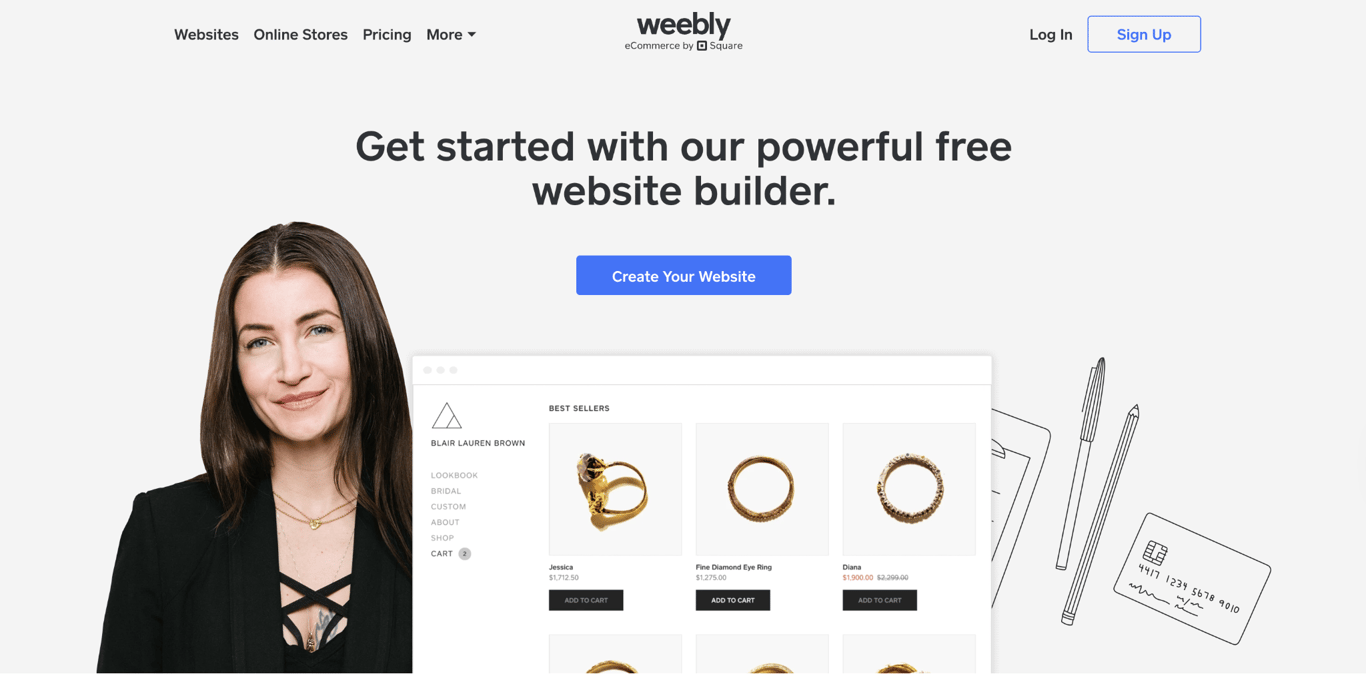
Weebly is an easy-to-use website builder owned by Square that’s ideal for small businesses and entrepreneurs who want a straightforward online presence. Its ecommerce features are powered by Square’s payment ecosystem, making it particularly useful when you need basic online selling integrated with in-person sales through Square hardware.
Weebly works best for small entrepreneurs, startups, local businesses, and side hustlers who value simplicity over advanced customization.
It’s a good fit for business websites, simple online stores, event pages, and personal blogs where clean layouts are enough. Compared to Webflow, you trade design flexibility and advanced interactions for speed and ease of use.
Weebly pros
- Simple drag-and-drop editor – The interface is uncluttered compared to more powerful builders, reducing decision fatigue when you’re just starting. You select elements from a sidebar, drag them onto your page, and edit content directly by clicking.
- Integrated with Square for payments – If you’re already using Square’s point-of-sale system for in-person sales, this integration is seamless. Your online and offline inventory sync automatically, customers can save payment information across both channels, and reporting combines all sales streams for simplified accounting.
- Affordable pricing with ecommerce support – Plans start lower than dedicated ecommerce platforms like Shopify, and you get essential selling features without complex configuration or high monthly fees that eat into slim profit margins.
Weebly cons
- Limited customization and design flexibility – Basic templates with fewer design options than Wix, Squarespace, or Webflow. Advanced design elements like animations, custom fonts, or unique layouts require workarounds that often aren’t possible within Weebly’s constraints.
- Smaller app ecosystem – While Weebly includes essential features built-in, you won’t find the extensive app marketplaces of Shopify or WordPress. This limits your ability to add specialized functionality as your business grows beyond basic needs.
Pricing
Weebly offers a free plan that includes basic features and Weebly branding, making it suitable for testing or simple personal projects. Paid plans remove branding and unlock additional capabilities.
- Personal – $10/month removes branding and connects a custom domain.
- Professional – $12/month adds site search, video backgrounds, and password protection.
- Performance – $26/month includes ecommerce with unlimited products, inventory management, and Square integration.
The free plan remains available, while paid plans are billed annually for the best rates.
Compared to Webflow, Weebly’s pricing is straightforward and affordable for simple sites. You’re paying for ease of use and built-in tools rather than advanced customization or complex interactions, which makes it less scalable for growing businesses.
7. Joomla
Joomla is an open-source CMS with strong content management capabilities, well-suited for developers and medium- to large-sized websites that require robust user management and access controls.
It’s a great option when you need more structure than WordPress offers but want open-source flexibility rather than a proprietary platform, like online portals, community sites, membership platforms, and corporate intranets, where managing many contributors with varying permission levels is critical.
Compared to Webflow, Joomla offers more control over content organization and user permissions but requires significantly more technical skill. You’re building with code and configuration rather than visual tools, which gives developers more power but creates barriers for non-technical users.
Joomla pros
- Powerful content and user management – Granular control over who can create, edit, publish, and delete content. You can create user groups with specific permissions, build workflows where content requires approval before publishing, and manage thousands of articles with nested categories that prevent chaos on sites with multiple contributors.
- Flexible and extendable with extensions – Over 8,000 extensions in Joomla’s directory cover ecommerce (VirtueMart, HikaShop), forums, event calendars, booking systems, and more. Like WordPress plugins, these extensions expand Joomla’s capabilities without modifying core code, keeping your installation maintainable.
- Free core software – No licensing fees for the platform itself. You download Joomla, install it on your hosting, and build without platform costs. This open-source model keeps expenses low if you have development skills or a technical team who can handle configuration.
Joomla cons
- Steep learning curve for beginners – The admin interface is complex, terminology differs from simpler platforms, and even basic tasks like creating menus or installing templates require understanding Joomla’s unique structure. Most users need significant training time before feeling comfortable, which delays launches.
- Requires manual setup and hosting – You’re responsible for server configuration, security hardening, updates, and performance optimization. Unlike all-in-one platforms that handle technical details automatically, Joomla requires you to manage hosting, backups, and ongoing maintenance yourself or pay for managed services.
Pricing
Joomla’s core software is completely free, with no licensing fees or usage limits. Your costs are determined by the infrastructure and tools you choose.
Hosting ranges from $5 to $50/month, depending on performance needs. Shared hosting works for smaller sites, while VPS or dedicated servers make more sense for high-traffic or resource-intensive projects.
Premium extensions generally cost $20–$200, either as one-time purchases or annual licenses for updates and support. Businesses without in-house technical expertise may also need developer support for setup, customization, or maintenance.
Unlike bundled platforms, Joomla requires you to assemble your own stack. That keeps costs flexible, but total expenses depend heavily on your hosting level, extension choices, and whether you need professional development help.
8. Duda
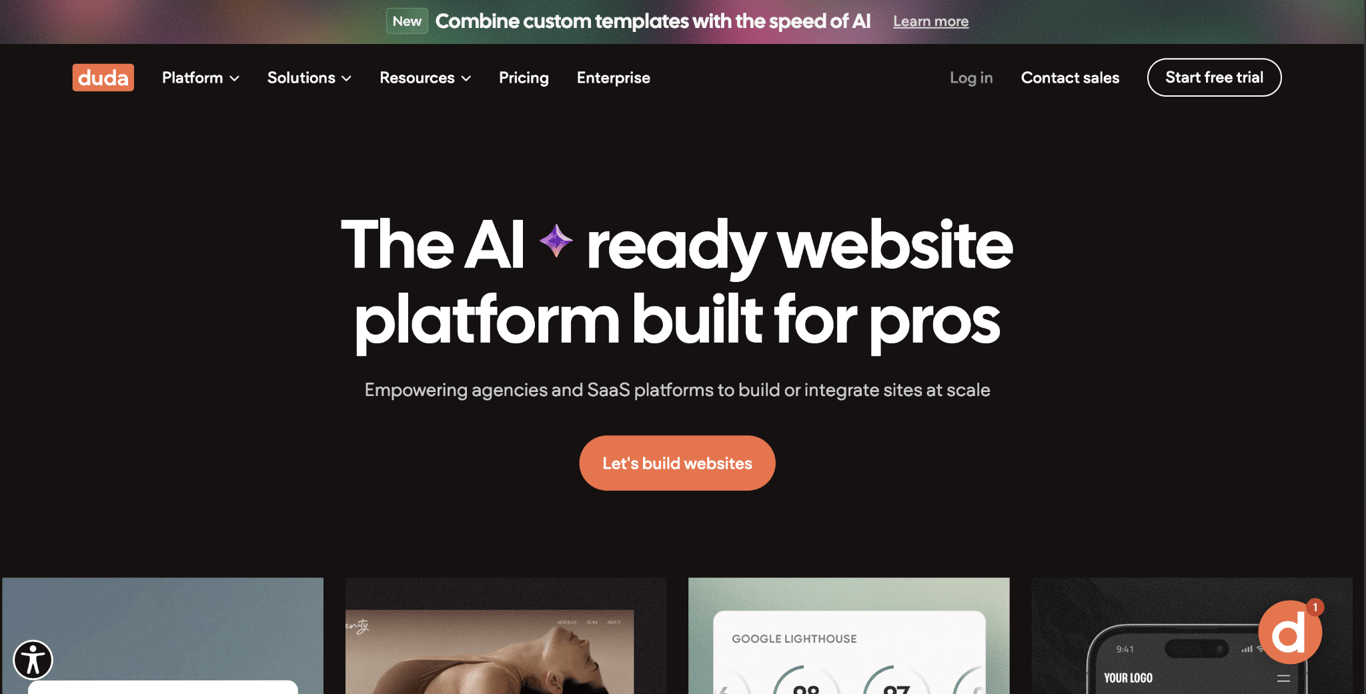
Duda is a website builder focused on agencies and web professionals who build sites for clients rather than themselves. Compared to Webflow, it places greater emphasis on client management and operational workflows than on advanced visual design control.
Duda’s core strength lies in collaboration tools and workflow features that support team-based web development. It works best for agencies, freelancers handling multiple clients, and small to medium-sized businesses that need role-based access. You can manage permissions, prevent accidental changes, and streamline updates without external tools.
Use cases include client websites, multilingual sites for international businesses, and projects that require collaboration, where designers, writers, and clients all need access without risking accidental changes.
Duda pros
- Advanced collaboration tools – Multiple team members work on sites simultaneously with role-based permissions. You can assign designers to handle visuals, content writers to update copy, and clients to review progress – all without risking accidental changes to live sites or overwriting each other’s work.
- Mobile-responsive designs and widgets – Duda uses a mobile-first approach, allowing you to customize mobile layouts separately from desktop layouts, giving precise control over how content adapts across devices. Pre-built widgets for maps, galleries, contact forms, and social feeds significantly speed up development.
- White-label options for agencies – Brand the entire platform with your logo and colors so clients log into what looks like your proprietary tool rather than a third-party service. This professional presentation strengthens client relationships and increases the perceived value of your services.
Duda cons
- More expensive plans geared at agencies – Pricing reflects the platform’s focus on professional use. You’re paying for collaboration tools, white-label branding, and client management features that solo site owners don’t need. This makes Duda cost-prohibitive if you’re just building one or two sites for yourself.
- Less practical for single-site projects – Duda is built for agencies and teams, so it can feel more complex than necessary if you only need one personal or small business website. Compared to Webflow, its client workflow tools are less useful for solo users.
Pricing
Duda uses tiered subscription pricing structured around professional and agency use.
- Basic – $25/month (monthly), $19/month (billed annually)
- Team – $39/month (monthly), $29/month (billed annually)
- Agency – $69/month (monthly), $52/month (billed annually)
- White Label / Custom – from $199/month (monthly), from $149/month (billed annually), depending on volume and features
There’s no free plan, but Duda offers a 14-day free trial with full platform access, allowing you to test workflows and build client projects before committing.
Duda’s pricing is higher than Webflow’s for individual site owners. However, for agencies managing multiple clients, the included billing tools, permissions, and white-label features make it more operationally efficient than using Webflow with separate third-party tools.
9. Webnode
Webnode is a website builder built around multilingual publishing, making it a strong choice if your audience spans multiple languages from day one.
It works well for small to medium-sized businesses operating in multilingual regions like Canada, Switzerland, or Belgium, as well as anyone launching business sites, portfolios, informational pages, or online stores that require multiple language versions.
Unlike Webflow, which requires custom setup or third-party integrations for multilingual functionality, Webnode includes native language switching and content management. That makes expanding to international audiences more straightforward and less technical.
Webnode pros
- Easy localization for multiple languages – Create separate page versions for each language with a few clicks. You add languages to your site, then edit content for each language version directly in the editor without plugin configuration. Visitors select their preferred language from a dropdown menu, and the entire site switches – including navigation, buttons, and all content.
- Quick setup and user-friendly editor – The interface is clean and uncluttered, focusing on essential building blocks rather than overwhelming you with options. Templates are straightforward, and the drag-and-drop functionality works smoothly for basic layouts without complex customization that requires technical knowledge.
- Integrates with some ecommerce features – While not as robust as Shopify or even Wix’s ecommerce tools, Webnode includes product pages, a shopping cart, and payment processing for straightforward retail needs. This covers small boutiques or service businesses selling a few products alongside informational content.
Webnode cons
- Limited customization options – Templates are fairly rigid, and customization mostly involves changing colors, fonts, and content rather than restructuring layouts or adding custom elements. Advanced users quickly hit the platform’s limitations when trying to create unique designs or interactions.
- Smaller ecosystem – Fewer apps, integrations, and third-party extensions compared to larger platforms. You’re working primarily with Webnode’s built-in features rather than adding functionality through a marketplace, which simplifies the experience for basic sites but limits growth potential as needs become more sophisticated.
Pricing
Webnode offers a free plan with basic features and Webnode branding, making it suitable for testing or simple personal projects. Paid plans remove branding and expand storage and ecommerce capabilities.
- Limited – $3.90/month removes ads, connects a custom domain, and includes 1GB storage.
- Mini – $7.90/month increases storage to 3GB and adds features like forms and photo galleries.
- Standard – $12.90/month includes 7GB storage and ecommerce for up to 100 products.
- Profi – $19.90/month offers unlimited storage, unlimited products, and priority support.
Webnode’s pricing is notably lower than Webflow’s entry tiers, especially for multilingual business sites. However, the tradeoff is simpler design tools and fewer advanced customization options. It works best when affordability and built-in language support matter more than complex interactions or design flexibility.
10. BigCommerce
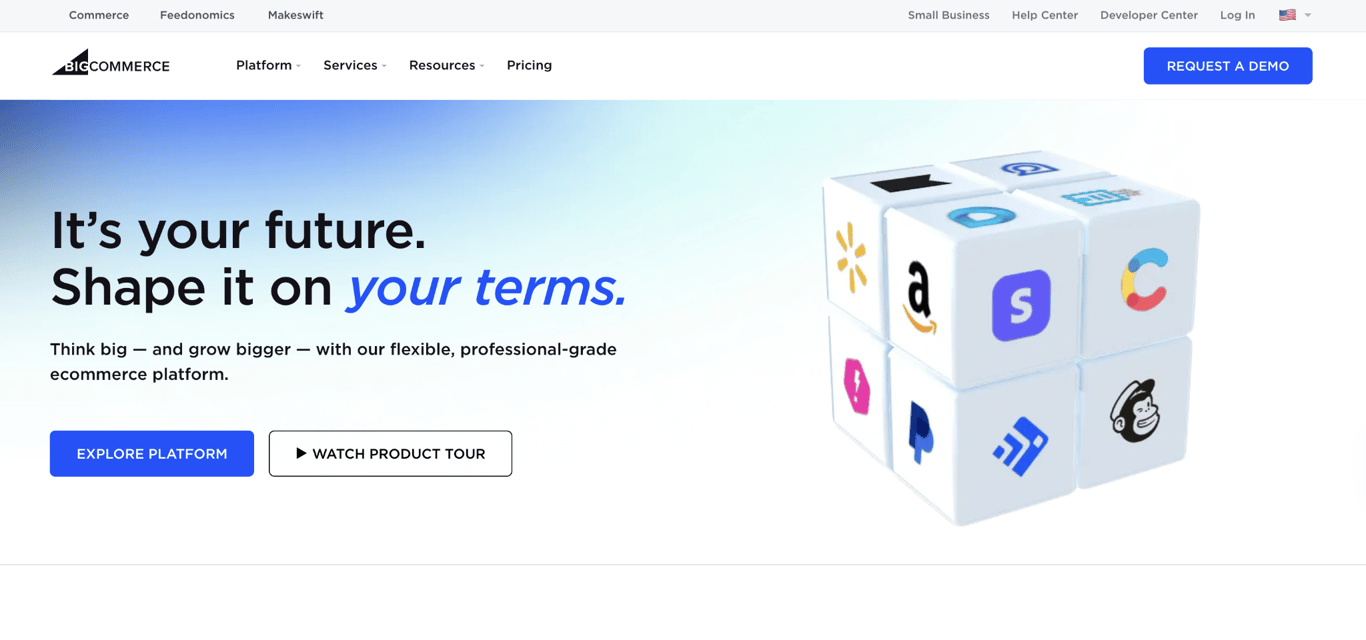
BigCommerce is an ecommerce platform built for established retailers managing large product catalogs and high order volumes. It’s designed for businesses that need advanced selling tools without building a custom enterprise system from scratch.
It works well for growing online stores, companies managing thousands of product variations, B2B wholesale portals with customer-specific pricing, subscription-based businesses, and brands selling across multiple channels, such as Amazon, eBay, and social platforms.
Choose BigCommerce when you need advanced product rules, detailed reporting, multi-channel integrations, and infrastructure that supports large transaction volumes.
Compared to Webflow, BigCommerce focuses on retail performance and backend control rather than visual experimentation. You gain deeper ecommerce functionality, while design flexibility becomes secondary to sales optimization.
BigCommerce pros
- Extensive ecommerce functionality – Enterprise-grade features built right in. You can handle unlimited products without performance degradation, create sophisticated discount rules with multiple conditions, manage customer groups with differentiated pricing, and run complex promotions – all without custom development or expensive apps.
- Multi-channel sales and integrations – Sell on your website, Amazon, eBay, Facebook, Instagram, and more from one central dashboard with inventory synced across every channel automatically. This unified approach prevents overselling (listing products you don’t have) and simplifies order fulfillment when orders come from multiple sources.
- Scalable for high-volume stores – BigCommerce handles growing traffic and transaction volumes without requiring platform migration, which loses SEO rankings and disrupts operations. Many stores processing millions in annual sales use BigCommerce, proving its reliability at scale when the stakes are high.
BigCommerce cons
- Higher cost and complexity – Plans start at $39/month but quickly increase to $105-$399/month for growing stores, and you’ll likely need apps or developer help for customization. The admin interface is powerful but overwhelming when you’re just starting out – there are simply more settings and options to understand than on simpler platforms.
- Requires design skills or developers – While themes are professional out of the box, making them truly yours requires CSS knowledge or hiring developers. This adds cost and time compared to platforms with more intuitive visual editors, though it gives you precise control over every design detail.
Pricing
BigCommerce structures pricing around annual sales volume rather than just feature access. As your revenue grows, your plan automatically adjusts to match your scale.
- Standard – $39/month supports up to $50,000 in annual sales and includes three storefronts and four inventory locations.
- Plus – $105/month supports up to $180,000 in annual sales and adds customer groups and abandoned cart recovery.
- Pro – $399/month supports up to $400,000 in annual sales, along with advanced product filtering and Google customer reviews.
- Enterprise – Custom pricing applies once sales exceed $400,000 annually, with tailored features and dedicated support.
BigCommerce automatically upgrades you to the next tier if you exceed your plan’s revenue threshold. On the Pro plan, additional fees apply for every $200,000 in sales beyond $400,000 until you transition to Enterprise.
BigCommerce charges zero transaction fees on all plans. Payment processing through PayPal powered by Braintree starts at around 2.59% + $0.49 per transaction on Standard, with lower rates available on higher tiers.
A 15-day free trial gives you full access to test the platform before committing.
While Webflow focuses on visual design flexibility, BigCommerce prioritizes retail infrastructure. The higher starting cost reflects advanced shipping logic, persistent carts, segmentation tools, and scalable backend systems built for high-volume selling.
How to choose the right website builder for your needs
Prioritize your goals, your technical comfort, and your budget when choosing a website builder.
Focus on drag-and-drop simplicity if you want something easy to manage. Choose flexibility if customization and control matter more. And if ecommerce is your main focus, make sure it includes all the tools you need, like product support, order tracking, and payment gateways.
You should also look beyond headline pricing. Calculate total cost, including transaction fees, premium apps, domain renewals, and potential upgrades.
At the same time, consider scalability and support. Will the platform grow with you? Is customer service responsive? A builder that works today but limits you in a year can leave you outgrowing the platform just as your site starts gaining traction.
Before committing, test free trials and evaluate how confident you feel using each option. The right choice is the one you can manage comfortably now and scale confidently later.
How to use a website builder to launch your website
Launching a website using a website builder comes down to choosing a template, customizing it with your content, and using built-in tools to optimize everything before publishing.
It helps to begin with a template that aligns with your goal. Templates provide a proven layout structure, so you’re not rethinking navigation, hero sections, or product pages. From there, you can replace the placeholder content, adjust the visuals to match your brand, and shape each page to guide visitors to do what you want.
Consider using AI tools to generate layout ideas or draft initial copy if your builder includes them. AI tools are useful for building momentum, especially when you’re staring at a blank page. You can refine the output to reflect your voice and offer.
Before publishing, make time for the essentials. Apply basic SEO techniques using your platform’s built-in tools by setting clear page titles and meta descriptions, adding descriptive alt text to images, and checking how your site performs on mobile devices. If you’re selling products, run a test purchase and confirm that payments, shipping, and tax settings are working correctly.
Finally, click through every page and form. A structured website launch checklist helps you catch small issues before your visitors do, so you can launch with confidence.
This article is a localized version of 10 best Webflow alternatives: Key features and pricing, originally published in English.

Alma is an AI Content Editor with 9+ years of experience helping ideas take shape across SEO, marketing, and content. She loves working with words, structure, and strategy to make content both useful and enjoyable to read. Off the clock, she can be found gaming, drawing, or diving into her latest D&D adventure.