How to Add Facebook Like Button in WordPress: Code and Manually
Apr 23, 2025
/
Tomas A.
/
3 min Read

Searching for a way to attract more traffic to your WordPress website? Why don’t you use Facebook Like buttons? With a click, your visitors can like and share your content on their Facebook accounts.
In this article, we will provide you with a comprehensive tutorial on how to add Facebook Like button to your WordPress site.
Why Do You Need Facebook Like Button on Your Site?
You can’t deny the power that Facebook holds – it has 2.9 billion monthly active users, and over ten million businesses choose to advertise themselves on this platform.
However, you don’t have to use ads to promote your business on Facebook.
Expand your audience reach by using Facebook Like button. Thanks to the platform’s Open Graph, your site’s link will be posted on the visitors’ news feed when the button is clicked. It’s an easy way to get people to share your website.
How to Add Facebook Like Button?
There are two methods you can use to add a Facebook Like button to your website – inserting code to your theme’s template files or utilizing a WordPress plugin.
Manually Adding the Code
Here are the steps to manually insert the button to your site:
- Access Facebook for Developers page and click Like Button Configurator.
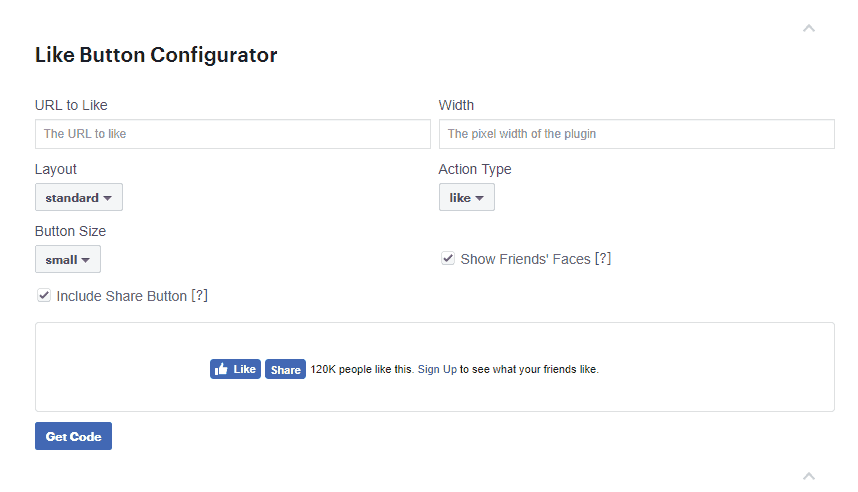
- Fill out the URL to Like field with your site’s link or the URL of your Facebook page.
- Adjust the settings – width, layout, and size – to fit your preferences. You’ll see how the button looks like inside the preview window.
- Click Get Code, and a popup box will appear.
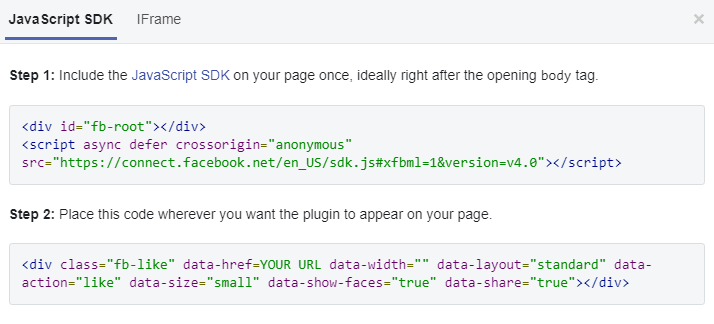
- Copy the first code snippet from the JavaScript SDK tab.
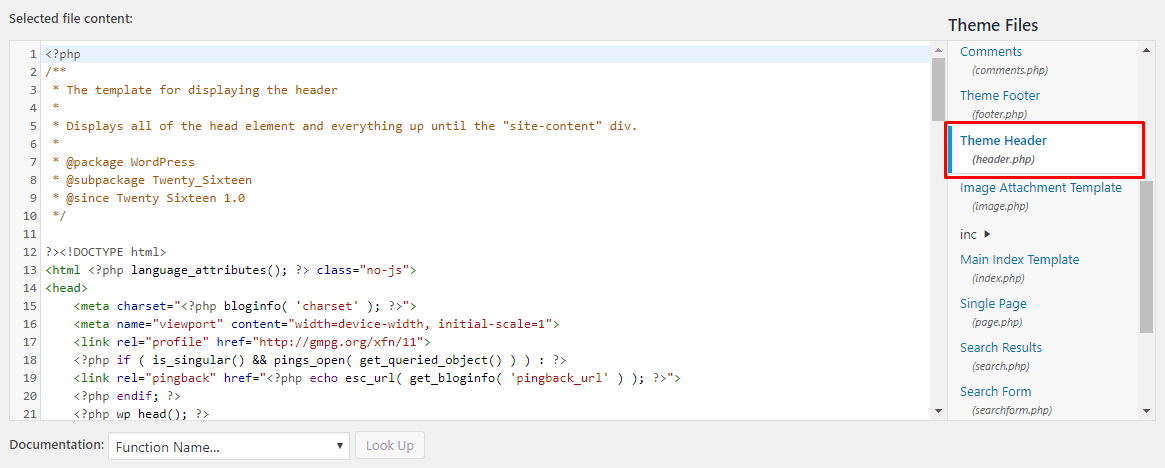
- Open your WordPress dashboard directly or access it from your WordPress web hosting control panel and head over to Appearance -> Theme Editor.
- Select the header.php file under the Theme Files, and paste the code below the <body> tag. Click Update File.
- Go back to the JavaScript SDK tab and copy the second code snippet.
- Navigate to Theme Editor again, and select one of the theme files where you want to display the button. For instance, you can choose single.php, page.php, and footer.php.
- Click Update File and check your website to see the changes.

Using a Plugin
Another way to add Facebook Like button to your site is by using a WordPress plugin.
There are plenty of plugins available, but we recommend using WP Like Button. It is compatible with all the best WordPress themes, provides four different responsive button layouts, and can display a Share button along with the Like button.
Here is how you use the plugin:
- Once you have installed and activated the plugin, open your WordPress dashboard and select WP Like Button menu.
- Use “Where to display?” setting to choose where you want the button to be displayed.
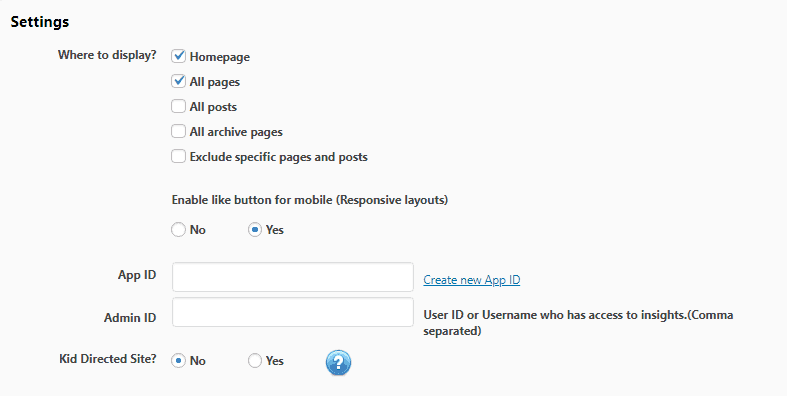
- If you do not want to show the button on particular pages, select the Exclude specific pages and posts. A dropdown menu will appear where you can pick the posts you want to exclude.
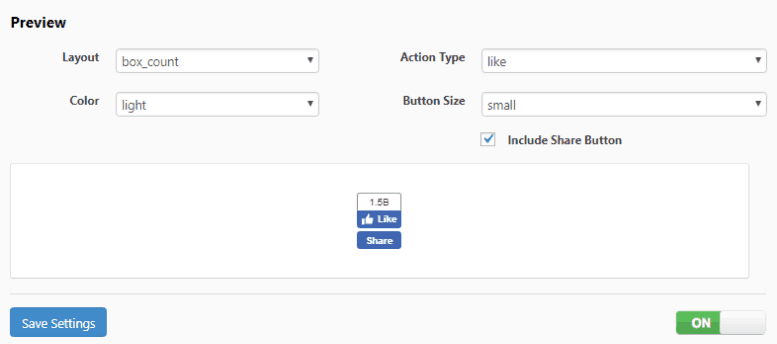
- Scroll down to the Preview section to customize the looks of your button.
- Hit Save Settings — and you’re done.
Alternatively, the plugin also allows you to manually add the button by inserting the [fblike] shortcode to your WordPress editor.
If you want to disable the Like button, simply switch the On/Off toggle located at the bottom of the settings page.
Conclusion
All in all, Facebook Like button is an important tool to boost your website traffic. The more readers like and share your content, the bigger the possibility that your website will thrive.
In this tutorial, you’ve learned two methods to add Like buttons to your site. The first one requires you to get a certain code from Facebook for Developers, while the other needs you to use a plugin.
Which method do you prefer? Let’s discuss it in the comment section below.
Learn What Else You Can Do With WordPress
How to Login to WordPress
How to Duplicate Pages and Posts on WordPress
How to Delete WordPress
WordPress Taxonomy Guide
Guide to WordPress Revisions
How to Add Related Posts in WordPress
All of the tutorial content on this website is subject to Hostinger's rigorous editorial standards and values.

Tomas provides top-notch technical advice on a daily basis to our valued customers. He also likes to create websites and do various coding side projects.