What is error 405 Method Not Allowed and how to fix it?
Dec 10, 2025
/
Simon L.
/
11 min Read

The 405 Method Not Allowed error occurs when a web server recognizes the request but rejects the specific HTTP method used for the requested resource.
The error is most often caused by two things: the client using an HTTP method that the server does not support for that specific URL, or incorrect configurations in the web server settings.
Here’s how to fix this common issue:
- Verify the URL. Make sure the URL you’re accessing is correct and not misspelled.
- Undo recent site changes. Roll back any recent updates to your application, themes, plugins, or extensions.
- Inspect database changes. Check your database for unexpected modifications made by extensions.
- Remove new extensions. Temporarily deactivate recently installed plugins or themes.
- Examine server logs. Review application and access logs to pinpoint the exact request that triggered the error.
- Review server configuration. Check files such as .htaccess or nginx.conf for rules that restrict specific HTTP methods.
- Check application code. Ensure custom scripts use the appropriate HTTP methods for the pages they contact.
- Restore from backup. Fully revert your website to a previous, known-working version.
- Check .htaccess rules. Carefully examine rewrite rules within the .htaccess file for any conflicts.
- Fix file ownership. Correct the file and folder permission settings on your server.
- Verify A records. Confirm that your domain’s DNS A records point to the correct IP address, although this is a less common cause.
| Error code | 405 Method Not Allowed |
| Error type | Client-side error |
| Error variations | HTTP Error 405 – Method Not Allowed HTTP 405 Method Not Allowed 405 Not Allowed Method Not Allowed HTTP Error 405 |
| Error causes | Unacceptable HTTP method Incorrect server configuration API restrictions Specific firewall rules |
What causes the 405 Method Not Allowed error?
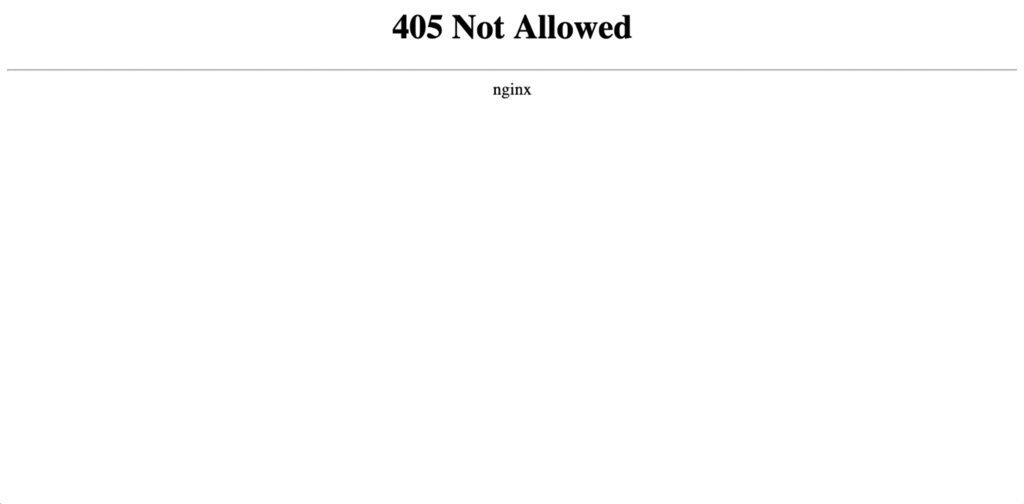
The main cause of a 405 Method Not Allowed error is when the client’s request doesn’t align with what the server or web application allows.
- Unsupported HTTP method. This is the most common reason. Every web address (resource) is set up to accept specific commands, or HTTP methods, such as GET for viewing data, or POST for sending data (submitting a form). If you try to use a method the page isn’t programmed for, such as trying to delete something on a static page, the server responds with a 405 error.
- Incorrect server configuration. Web servers use configuration files, like the .htaccess file, to decide how to handle incoming requests. If a rule is accidentally set up to block a specific HTTP method for a particular path, it will trigger the error, even if the request was legitimate.
- Application Programming Interface (API) restrictions. When you interact with a web service or API, that API may only be programmed to respond to a few specific methods. If your request uses a method different from the one the API expects, it will reject the request with a 405 status code.
- Web Application Firewall (WAF) rules. Security layers, such as a WAF, sometimes block specific HTTP methods for certain directories or paths to prevent security exploits. These rules can be too strict and block legitimate requests, resulting in the error.
- Platform-specific issues. If you use a Content Management System (CMS) like WordPress, a newly installed plugin or theme might contain faulty code. This new code might use an unsupported HTTP method or interact with the database in a way the server doesn’t like. This is a common reason why websites crash unexpectedly.
- Database changes. Sometimes, when you install or uninstall an extension, it makes changes to your database that aren’t properly cleaned up. These leftover changes can disrupt your application’s logic, which may then cause the application to send requests using incorrect HTTP methods, ultimately triggering the 405 error.
How to fix the 405 Method Not Allowed error
To fix the 405 Method Not Allowed error on your website, you need to troubleshoot your site’s configuration and code systematically.
Here are several methods for resolving the issue.
1. Double-check the URL
If users encounter 405 errors on specific pages, start by verifying that your URLs and routing are set up correctly. This is a quick step that can save you a lot of troubleshooting time.
Look for these common issues:
- Typos in your URL configurations (like /usres instead of /users)
- Case sensitivity problems (some servers treat /Page and /page as different URLs)
- Incorrect paths in your application code
- Trailing slashes that might be causing conflicts
Take a moment to review how your URLs are mapped to their handlers. Sometimes, a route points to code that doesn’t support the HTTP method being used, which triggers the 405 error.
If everything appears correct and the error persists, proceed to the next solution.
2. Revert recent updates
The 405 error sometimes appears right after you update your site. To fix this, try reverting any recent changes you’ve made, which include extensions, modules, themes, or plugins.
Create a full backup of your website before rolling back any updates. This ensures you can easily restore your site if the rollback process causes a new issue.
The rollback process depends on your platform. For example, if you run a WordPress site, you can use a plugin like WP Rollback to revert the core software, theme, or plugin to a previous version.
If the error disappears after the rollback, you’ve found the culprit. At that point, you can wait for the developer to release a fix or look for an alternative tool or theme if you need the functionality immediately.
Always test your website thoroughly after every update to catch errors like 405 before they impact your visitors.
3. Check for unexpected database changes
Another possible reason behind the 405 Method Not Allowed error is changes made to your database. To investigate if that’s the cause, check the last update time of your database. This might reveal if a recent change, possibly made by an extension, is related to the issue.
Remember, some extensions can modify your database and may not revert changes even if uninstalled. While database changes don’t directly cause 405 errors, they can disrupt your application’s logic, which may then trigger the error.
The steps to check for changes vary depending on your hosting platform. Hostinger users can follow this process:
- Access and manage databases through hPanel. For detailed instructions, see:
- Within phpMyAdmin, select your database and navigate to the SQL tab.
- Find the last update time of your database by running the following query. Make sure to replace your_database_name with the actual name of your database:
SELECT
    UNIX_TIMESTAMP(MAX(UPDATE_TIME)) AS last_update
FROM
    information_schema.tables
WHERE
    TABLE_SCHEMA = 'your_database_name'
GROUP BY
TABLE_SCHEMA;- Click Go on the right side of the page to complete the request. This will display the date and time of your last database update.
To identify specific problems, examine the tables and records for any modifications that seem out of place or could have been altered by an extension. If you find suspicious changes, consider reverting them.
However, proceed with caution to avoid unintentional data loss or corruption. Always create a database backup before making any changes so you can revert if something goes wrong.
If you’re unsure about making database modifications, consult your hosting provider’s support team or hire a developer. They can provide guidance and help you avoid unnecessary or harmful changes.
4. Uninstall new plugins, themes, and extensions
When installing a theme, plugin, or extension, the website’s code may change, which can cause a 405 error.
If the error occurs immediately after you add something new, the first step is to deactivate it to see if the issue resolves temporarily.
If you are a WordPress user, head to the WordPress Admin Panel → Plugins and click Deactivate below the plugin you just installed.
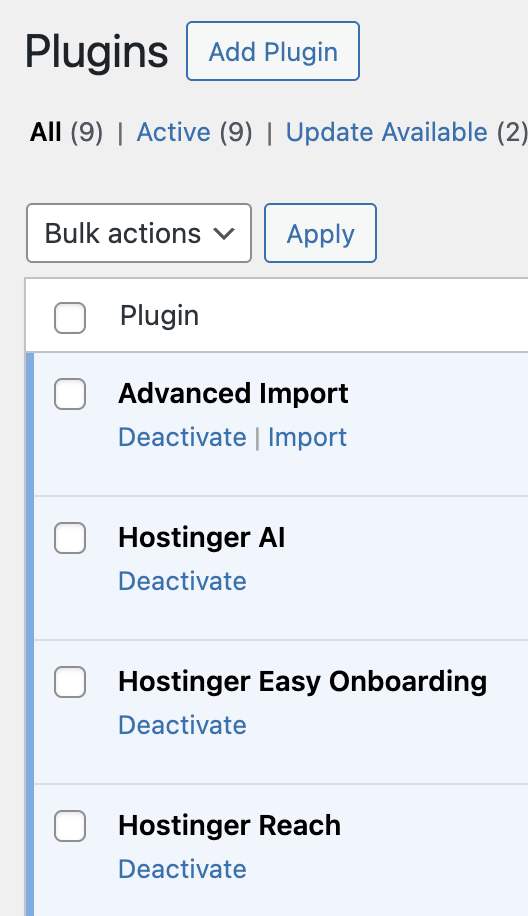
To remove a WordPress theme, navigate to Appearance → Themes. Hover over the theme, select Theme Details, and click the Delete button.

Hostinger users can also delete WordPress plugins and themes via hPanel. Follow the steps in our guide to manage WordPress and click the red trash icon next to each plugin or theme you intend to remove.
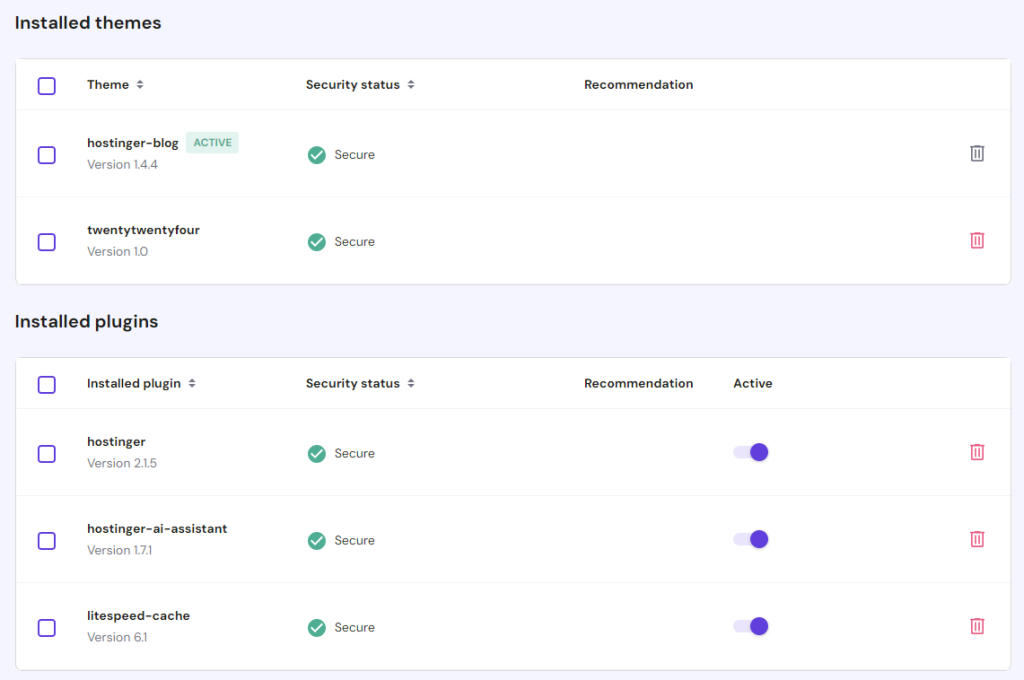
Check if the error message still appears after you disable your latest plugins and themes. If the issue is solved, try using a different extension on your site.
5. Check your server-side logs
Server logs are invaluable for diagnosing and understanding what happens on your website. These logs often hold the key to resolving issues such as the 405 Method Not Allowed error.
There are two primary types of logs: server logs and application logs.
Server logs deal with the actual hardware running the application. Application logs store the complete history of what the app did. Each type plays a distinct role in monitoring and troubleshooting your site environment.
Server logs
The web servers, such as Apache and NGINX, maintain server logs. They record every request made to the server and the server’s response.
These logs are typically divided into:
- Access logs. Provide detailed information about every access request received by the server and all connected services. Those may include the IP address of the requester, request date and time, HTTP method, URL requested, and HTTP status code.
- Error logs. Contain server errors, warnings, and other diagnostic information. These logs are crucial for identifying issues that prevent the server from fulfilling requests correctly.
To investigate a 405 Method Not Allowed error, you need to examine both the access and error logs.
The access log helps you track down the specific request that led to the error, while the error log offers clues about what went wrong on the server’s end.
Application logs
Nearly every web application running on the server keeps an application log. This log is the complete history of the web app’s past activities, from the database results it has returned to the pages it has requested.
Depending on the application’s logging strategy, these logs can vary significantly in format and detail level. They might include:
- Debug information. Detailed insights into the application’s execution, including variable values and state changes.
- Error messages. Information about exceptions or errors encountered during the application’s runtime.
- Audit trails. Records of significant actions or events within the web app, such as user logins, data changes, and system state alterations.
When dealing with a 405 Method Not Allowed error, application logs can provide context about how the application handled the request and why it might have responded with a 405 error.
For instance, the logs might reveal that the application’s routing logic doesn’t support the requested HTTP method for the given URL.
Accessing and analyzing logs
To access server logs, use a Secure Shell (SSH) terminal like PuTTy to connect to your server. This will give you command-line access to navigate through your server’s file system.
After that, locate the log files in /var/log/apache2/ on Ubuntu systems or /var/log/httpd/ on CentOS systems for Apache. If you use NGINX, check /var/log/nginx/. Regardless of the OS, you will find a logs folder in the application root directory, which will contain both access.log and error.log.
You can use text-viewing commands like cat, less, or tail to view the contents of these log files. For instance, tail -f /var/log/apache2/error.log will show you the latest entries in the Apache error log in real time.
Having accessed your logs, it’s time to analyze them:
- Access logs. Look for entries that correspond to the time when the 405 error occurred. Note the request method, like GET or POST, and the requested URL. This will help you identify the exact request that led to the error.
- Error logs. Pay attention to any entries that coincide with the access log entries for the 405 error. These may provide more detail on why the request was not allowed, such as misconfigurations or denied access due to server rules.
6. Check your web server configuration
If the 405 Method Not Allowed problem persists, check the configuration files of your web server software. Look for any unintentional redirects or request handling instructions.
Most web servers use configuration files that dictate how requests are handled, and certain misconfigurations in these files can inadvertently block specific HTTP methods, resulting in the 405 error.
Here’s a closer look at common misconfigurations for both Apache and NGINX.
Apache
Apache servers use the .htaccess file to define rules for individual directories.
Misconfigurations can arise from directives intended to restrict access or modify request handling. Both can inadvertently block legitimate requests:
- Mod_rewrite rules. Used for rewriting URLs and can be misconfigured to reject certain methods. For example, a RewriteRule intended to redirect traffic might not account for the POST request, causing a 405 error for that particular method.
- Limit directive. It allows you to specify which request methods are allowed or denied for the target resource. While the Limit directive is useful for enhancing security, it can also trigger client error responses if not configured carefully.
NGINX
NGINX uses nginx.conf for its configuration file. Similar to Apache, certain directives in this file can cause a 405 error if misconfigured:
- Location blocks. NGINX processes requests using location blocks, which can be configured to handle specific request methods. If a location block is improperly configured to reject certain methods, it can result in a 405 error.
- Error_page directive. An incorrectly used error_page directive can inadvertently mask the actual error or even cause the 405 response code. This is because users might be redirected to a resource that doesn’t accept the method used in the request.
Checking relevant configuration files
To avoid the 405 error, check the relevant configuration file based on your web server.
Apache users can access the .htaccess key file by going to the root directory of their website’s file system. The most common method is by using an FTP client.
Inside the file, try temporarily commenting out any RewriteRule directives that seem out of place. You can use the # character prefix and restart the web server to see if the error is solved.
If you use NGINX, access the nginx.conf file via an SSH terminal like PuTTy. Once you’ve accessed the config file, look for any directives that might be restricting certain HTTP methods.
After making any edits, always restart your web server for the changes to take effect.
7. Check your code and scripts
The 405 error often occurs when there is a mismatch between your application’s requests and the server’s configuration for handling them. Here’s what to focus on when reviewing custom code:
- Verify HTTP method usage. Ensure your code sends the correct methods for intended actions – GET for retrieving data, POST for creating data, and so on.
- Identify unsupported methods. Check if any libraries or frameworks you use might be sending unexpected HTTP methods that the server rejects.
A thorough code review can help prevent 405 errors upfront. Consider trying out the following:
- Code review. Manually inspect code to confirm it’s using appropriate HTTP methods and handling server responses correctly.
- Unit testing. Implement unit tests that simulate different HTTP methods to identify potential mismatches during development.
- Perform a debugging process. Copy your website to a local development machine and simulate the exact scenario in which the 405 Method Not Allowed error occurs.
For example, for WordPress sites, deactivate all plugins and switch to a different theme to isolate the issue. Review custom scripts and the .htaccess file, and use browser developer tools to spot problematic requests.
8. Fully restore your website from a backup
Restoring your entire website from a backup is often considered a last resort after targeted troubleshooting has failed to pinpoint the source of the 405 error.
However, it can be the fastest solution for any compatibility issues.
This process involves using your hosting provider’s tool to revert your application, code, and database to a previous, known working state.
When choosing a file, select the most recent backup point created before the error first appeared or before your last round of updates. If you use Hostinger, you can get detailed steps in our guide on how to restore a WordPress website from backups. This quickly reverts your site to a stable version.
9. Double-check the .htaccess file
Incorrect modifications to rewrite rules within the .htaccess file of a site can often lead to 405 errors. This file serves as the primary configuration tool for Apache servers, and even minor changes can lead to significant conflicts.
To access your .htaccess file, use your hosting control panel’s File Manager or an FTP client.
Once you’re viewing the content, look for lines that use Rewrite directives. Specifically, check if any include [R=405].
If you find this specific rule, comment it out by adding a # at the beginning. Then, refresh your website (or clear your browser cache) to see if this resolves the issue.

10. Fix file ownership
File permissions control which users can access and modify files. An incorrect setup can sometimes result in 405 errors, as the server may lack the necessary permissions to process requests correctly.
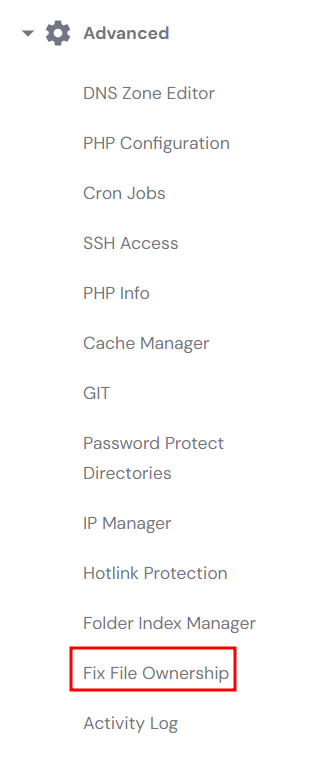
There are different ways to fix file ownership depending on your platform. If you’re a Hostinger user, access hPanel, click on your website, and under Advanced, look for Fix File Ownership on the sidebar.
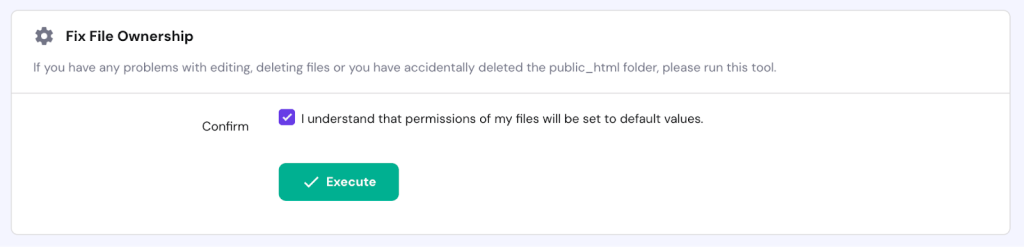
After that, confirm that you want to revert your site’s files and folders back to default values and click Execute.
11. Check A records
Incorrect Domain Name System (DNS) configurations can cause requests to be sent to the wrong server. This server may not be configured to handle specific HTTP methods, which could result in a 405 error.
Check the A records to ensure that all details are accurate. The A record is the most basic type of DNS record that points a domain or subdomain to an IP address.
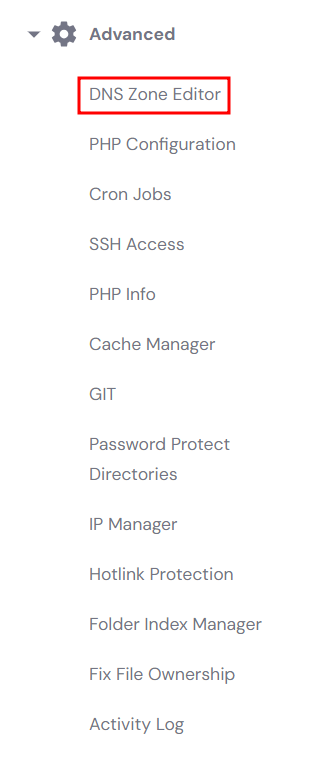
The steps to access your DNS records depend on your web hosting provider. Hostinger users can access their database records by heading to their website in hPanel and selecting DNS Zone Editor.
Check that your A records contain this information:
- Type. The type of DNS record should be A.
- Name. Use @ to represent the root domain itself, or specify a subdomain name if configuring a subdomain.
- Points to. Verify if your domain or subdomain points to the correct IP address.
- Time to Live (TTL). How long should the DNS resolver save the query for this domain in the cache. Most hosting providers usually set it to 14400 seconds or 4 hours.
Domain settings that control URL redirection or proxy behaviors can also impact how requests are processed.
When these rules are misconfigured, they may accidentally alter or restrict the HTTP method, resulting in an unexpected 405 Method Not Allowed response.
How to keep your website running smoothly
Once you’ve solved the 405 Method Not Allowed error, the natural next step is to shift your focus to long-term site stability. Fixing the immediate issue restores access, but proactive maintenance ensures similar problems don’t recur.
General website troubleshooting practices help prevent errors and maintain your site’s stability for both you and your visitors.
Learning to fix website issues involves regularly checking server logs, keeping all software up to date, testing new configurations in a staging environment first, and maintaining a reliable backup plan.
Taking the time to understand these core practices helps you build a more resilient online presence, allowing you to focus on your business goals. Make regular maintenance a priority, and you’ll avoid future roadblocks.
All of the tutorial content on this website is subject to Hostinger's rigorous editorial standards and values.

Simon is a dynamic Content Writer who loves helping people transform their creative ideas into thriving businesses. With extensive marketing experience, he constantly strives to connect the right message with the right audience. In his spare time, Simon enjoys long runs, nurturing his chilli plants, and hiking through forests. Follow him on LinkedIn.