What Is the ERR_TOO_MANY_REDIRECTS Error and How to Fix It in WordPress
Feb 19, 2025
/
Ariffud M.
/
9 min Read
ERR_TOO_MANY_REDIRECTS, also known as a redirect error, indicates your website is caught in an endless cycle, attempting to direct the browser from one page to another without arriving at the intended destination page.
Fortunately, this issue is relatively benign, and you can resolve it using the right approach. This article will present several ways to address the ERR_TOO_MANY_REDIRECTS error in WordPress, its various causes, and how it looks across different web browsers.
Download comprehensive HTTP status codes cheat sheet
Error Code ERR_TOO_MANY_REDIRECTS Error Type Browser error, code error Error Variations This page isn’t working. example.com redirected you too many times. This page isn’t working right now. example.com redirected you too many times. The page isn’t redirecting properly. Safari can’t open the page – Too many redirects occurred trying to open ‘example.com’. Error Causes Corrupted cookies or outdated cache Poor website address configuration Problematic WordPress plugins Incorrect server settings Bad HTTPS settings Third-party service issues
What Is ERR_TOO_MANY_REDIRECTS?
ERR_TOO_MANY_REDIRECTS is a common browser error showing that a website is stuck in an infinite redirection loop, where the browser is directed from one page to another without reaching a destination.
What Causes ERR_TOO_MANY_REDIRECTS?
Here are the most common causes of ERR_TOO_MANY_REDIRECTS:
- Corrupted browser cookies or outdated cache. Problems persist in the user’s browser, such as corrupted cookies or outdated cache data, causing continuous redirects.
- Misconfigured WordPress address. Incorrect settings in the WordPress URL configuration can lead to this error.
- Faulty WordPress plugins. Plugin conflicts or issues with installed plugins, particularly those managing redirects or security, can trigger an endless redirection loop.
- Misconfigured server settings. Incorrect web server redirect settings, particularly in Apache’s .htaccess file or the NGINX config file, can cause redirect loops.
- Incorrect HTTPS redirect rules. Misconfigured redirects in HTTPS can cause this error, especially if there’s a mismatch between secured and unsecured content.
- Issues with third-party services. External factors, such as DNS redirection issues or misconfigured CDN SSL/TLS settings, can also contribute to this error.
How Does ERR_TOO_MANY_REDIRECTS Look Like On Different Browsers
Here’s how the ERR_TOO_MANY_REDIRECTS error message looks across different browsers.
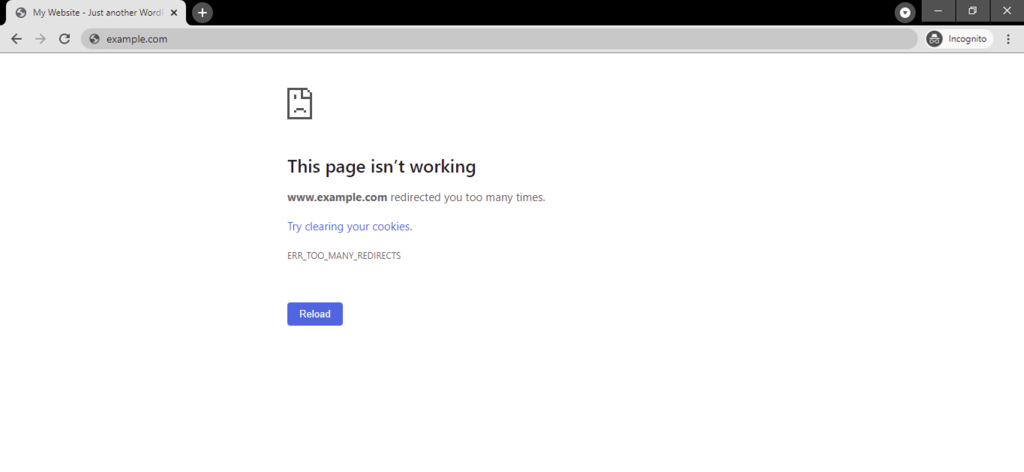
Google Chrome
Chrome displays a message stating, “This page isn’t working. example.com redirected you too many times” highlighting a redirect loop error. The browser often suggests actions to fix this, confirming the redirection problem.
Mozilla Firefox
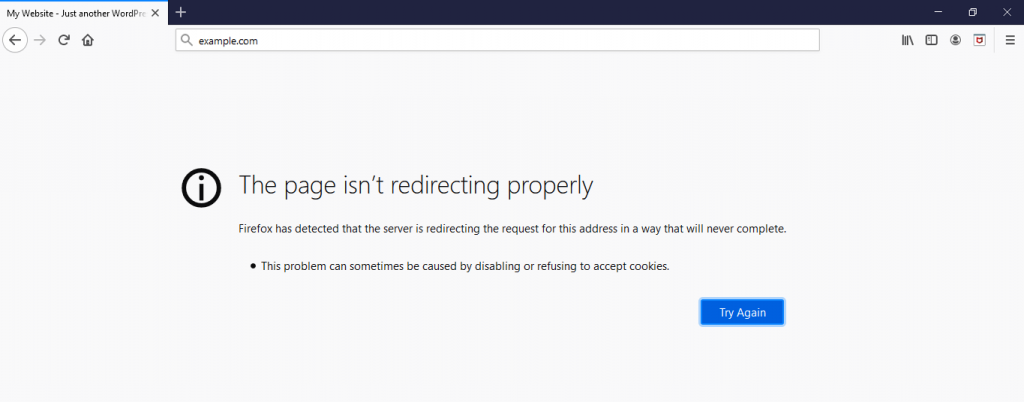
Firefox warns its users with the “The page isn’t redirecting properly. Firefox has detected that the server is redirecting the request for this address in a way that will never complete” message indicating an endless redirection cycle.
Safari
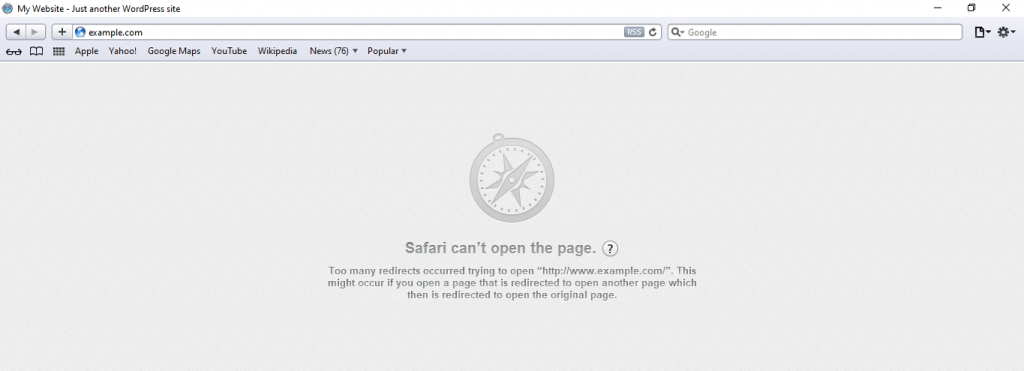
In the Safari browser, the warning is “Safari can’t open the page ‒ Too many redirects occurred trying to open ‘example.com.'” This implies a loop where a page redirects to another, which redirects back, creating an infinite loop.
These browser-specific redirect issues help you identify and understand the nature of the ERR_TOO_MANY_REDIRECTS happening on your site.
How to Fix ERR_TOO_MANY_REDIRECTS
Here are seven troubleshooting steps to fix the ERR_TOO_MANY_REDIRECTS issue in WordPress. We recommend trying each individually to identify the root cause of the redirect loop. Remember to track your changes so you can revert them if necessary.
1. Clear Browser Data
Browser data sometimes stores corrupted cookies and an outdated cache, leading to the ERR_TOO_MANY_REDIRECTS error. Before making further changes to your WordPress site, it’s wise to see if your browser is causing the issue by deleting its data history.
Here’s how to clear browser data in Chrome:
- Open Chrome and click the three vertical dots in the upper-right corner.
- Navigate to Settings → Advanced → Clear browsing data.
- In the clear browsing data window, make sure to select Cookies and other site data and Cached images and files.
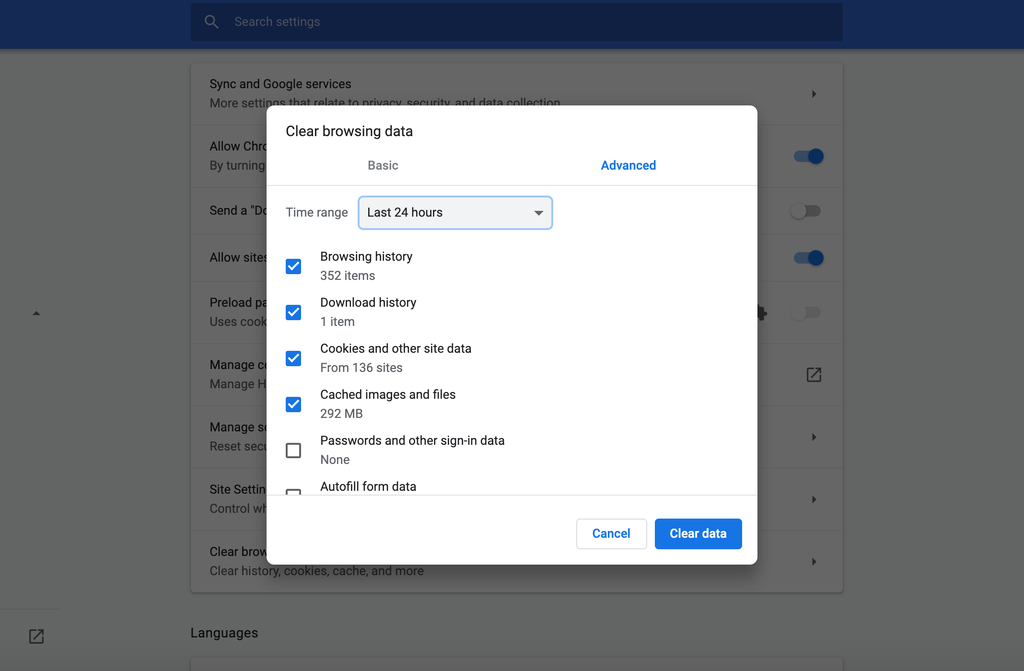
- Click Clear data to delete cookies, cache, and other junk files.
Please note that the steps for clearing cache and cookies in other browsers, such as Microsoft Edge, should be similar, though specific menus and options might vary slightly.
If the redirect error persists, then your browser extensions could be the culprits. Some extensions can interfere with web page loading and interactions. Disabling them one by one can help identify if a browser extension is causing the browser redirection error.
2. Verify the WordPress URL Settings
If the previous troubleshooting method was unsuccessful, the next step is to check your WordPress URL for the correct configuration.
An infinite redirect loop problem often arises when web admins accidentally direct their site to the wrong domain when migrating WordPress hosts or changing domain names.
To verify your website URL settings, you can proceed manually, through the database, or via the WordPress admin dashboard.
Checking and Changing URL Settings Manually
If you encounter the “too many redirects” error and cannot access your WordPress admin area, you may need to adjust your URL settings manually. Ensure your WordPress host allows editing the wp-config.php file, either through a File Manager or an FTP client like FileZilla.
Here’s how to edit wp-config.php using Hostinger’s File Manager:
- Log in to hPanel and navigate to Files → File Manager.
- Locate the wp-config.php file in the public_html directory, right-click it, and select Edit.
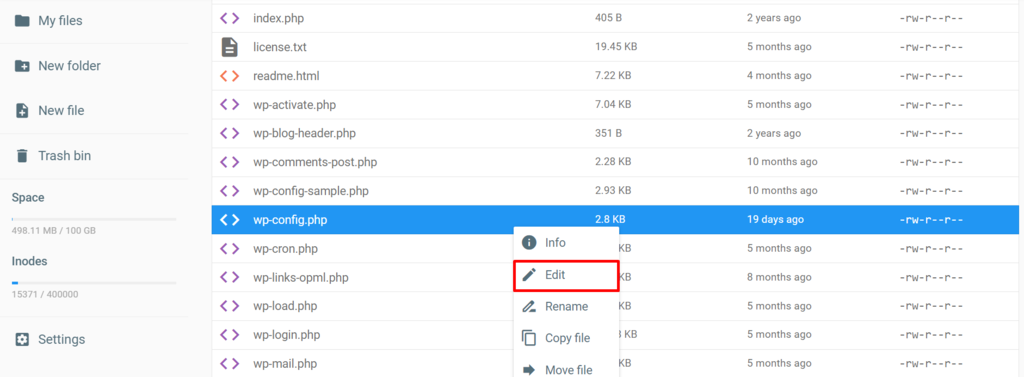
- Insert the following lines into the file, replacing http://example.com with your actual domain name:
define('WP_HOME','http://example.com');

define('WP_SITEURL','http://example.com');- Save the changes and visit your site to see if the URL adjustment has resolved the WordPress ERR_TOO_MANY_REDIRECTS error.

Edit URL Settings via Database
To fix redirect issues, you can also modify the WordPress URLs in the MySQL database via phpMyAdmin. Follow these steps:
- Find your WordPress database name from the wp-config.php file.
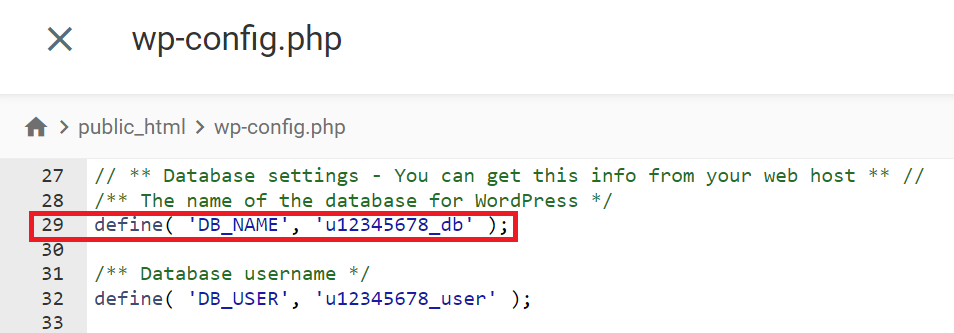
- Log in to hPanel and go to Databases → phpMyAdmin. Click Enter phpMyAdmin next to your WordPress database.
- In phpMyAdmin, open the wp-options table by double-clicking it.
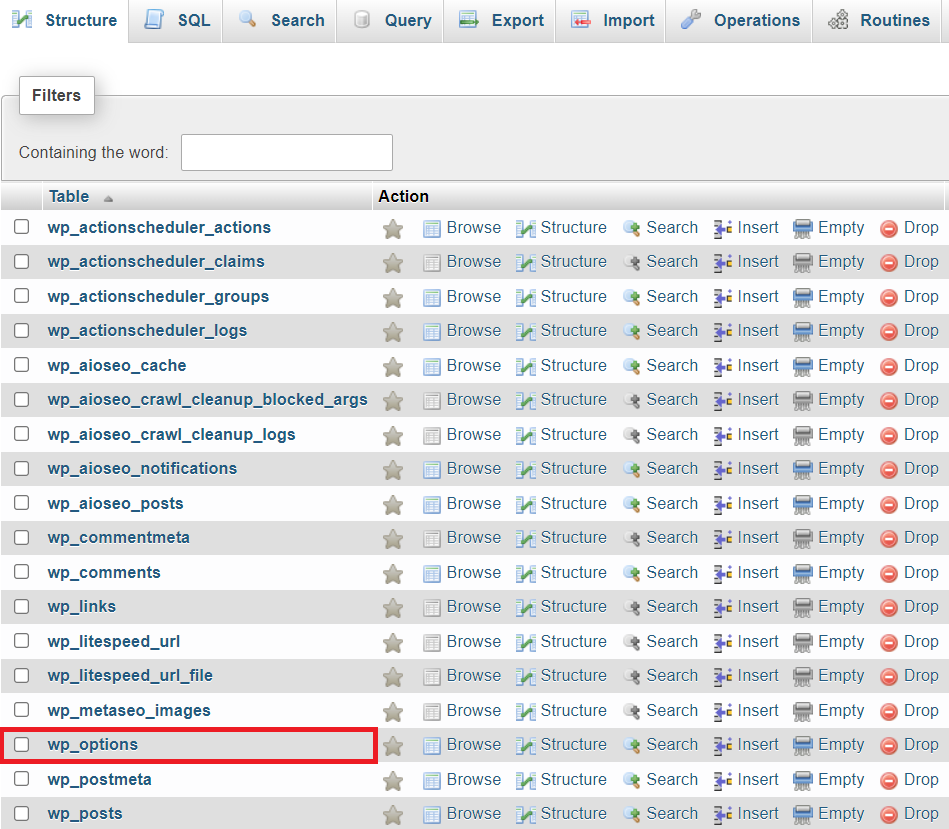
- Within the wp-options table, locate the siteurl and home entries. Click Edit next to each.
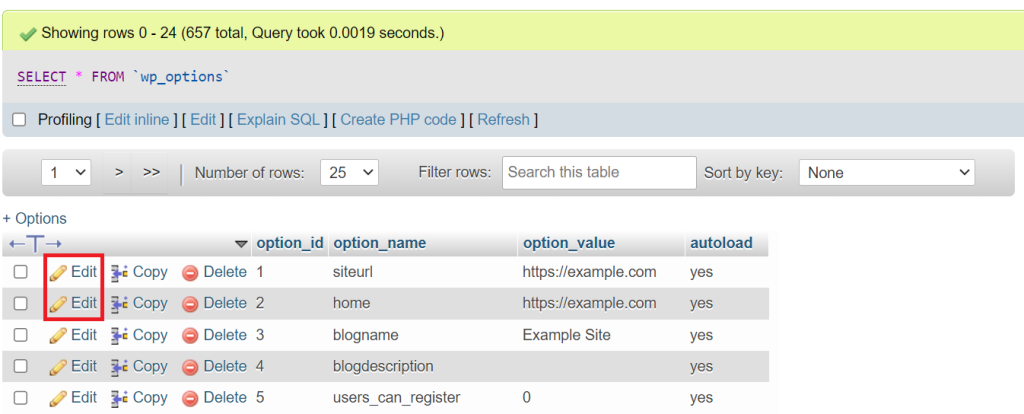
- Input your correct WordPress site URL in the option_value field for both entries. Click Go to save changes.
Remember, if your website is in the default root folder (/public_html/), use the standard URL (http://example.com/).
If it’s in a subfolder like /wp/, then change the URL to http://example.com/wp.
Changing URL Settings via Administrator Dashboard
If you have access to your WordPress admin area, you can change the URL settings directly from the dashboard. Here’s how:
- From your WordPress admin dashboard, go to Settings → General.
- Review the WordPress Address (URL) and Site Address (URL) in the default settings.
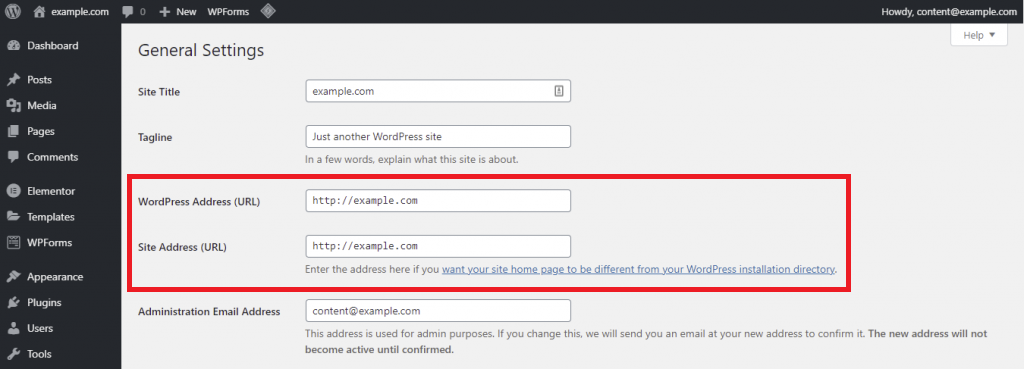
- Ensure both URLs are correctly configured. Remember to save any changes you make.
3. Deleting WordPress Cache
Besides web browsers, your site can also accumulate a corrupted cache, potentially leading to the ERR_TOO_MANY_REDIRECTS error. Here’s how to clear your website’s cache using Hostinger’s automatic cache feature and various popular caching plugins:
1. Enable Automatic Cache
If you’re a Hostinger customer, you can use our automatic cache feature. Designed primarily to bypass PHP requests and render web pages quickly, it also clears the cache every 30 minutes, which can help resolve redirect errors.
To enable this option, go to Advanced → Cache Manager in your hPanel dashboard. Then, toggle the Automatic Cache option to activate it.

Once activated, the feature will work automatically. If needed, you can manually delete your website’s cache by clicking Purge All.
2. Using the WP Fastest Cache Plugin
WP Fastest Cache’s free version provides a sufficient caching feature to help you clear the WordPress cache. Follow these steps to use it:
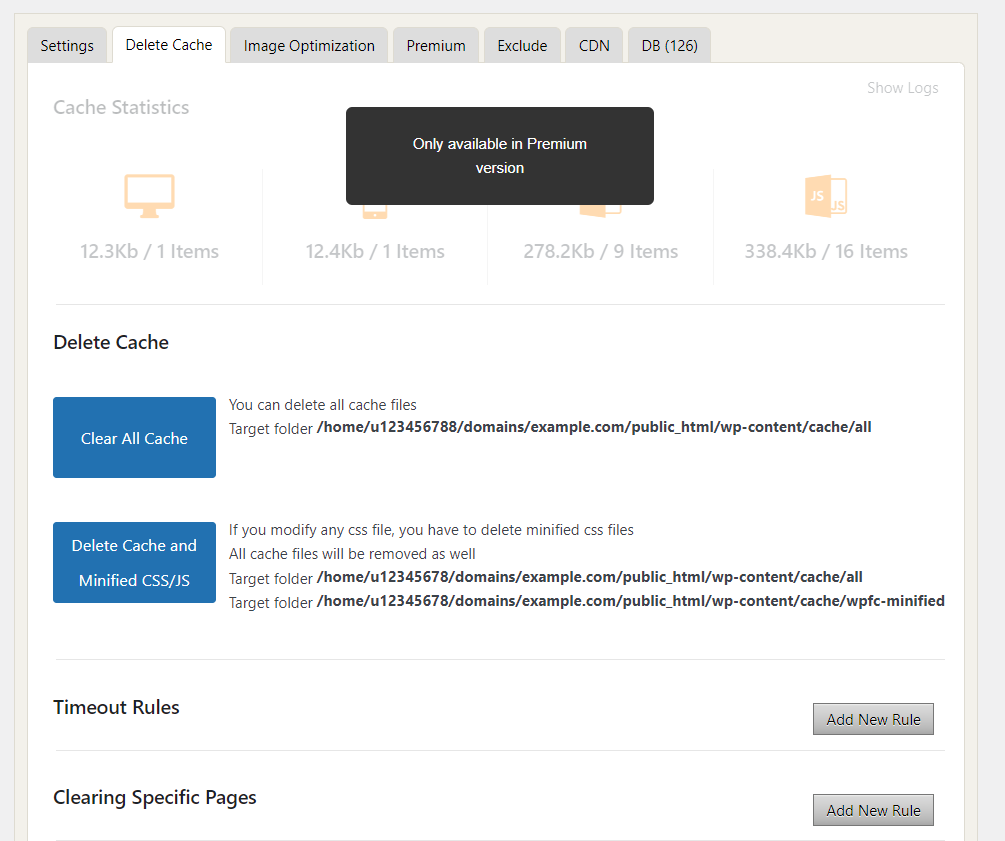
- Ensure the plugin is installed. If not, navigate to Plugins → Add New and search for WP Fastest Cache. Then, click Install Now → Activate.
- Once activated, go to the WP Fastest Cache menu from your left sidebar.
- In the Delete Cache tab, choose either Delete Cache or Delete Cache and Minified CSS/JS.
3. Using the WP Rocket Plugin
WP Rocket is a premium plugin that offers comprehensive caching methods, database optimization, and lazy loading to speed up your WordPress website. It also allows you to clear the website cache. Here are the steps:
- After purchasing WP Rocket, download this caching plugin to your computer.
- Access your WordPress dashboard, go to Plugins → Add New Plugin → Upload Plugin, and install WP Rocket manually.
- Once installed, navigate to Settings → WP Rocket.
- Under Quick Actions, click Clear Cache to eliminate all cached files, including page, object, and server cache.
4. Deactivate and Test WordPress Plugins and Themes
As the leading content management system, WordPress offers numerous plugins and themes to enhance your site’s functionality and aesthetics. Yet, installing problematic plugins can trigger the ERR_TOO_MANY_REDIRECTS error.
Moreover, using a WordPress redirection plugin for custom redirects may cause conflict with the server’s redirection rules configuration, potentially creating an endless loop.
To identify if a specific plugin is causing the issue, temporarily disable them via the WordPress dashboard’s bulk actions dropdown menu under Plugins, through your host’s File Manager, or using the FileZilla FTP client.
Here, we’ll use the latter:
- Launch FileZilla on your computer and connect to your server.
- Once logged in, access the Remote Site panel. Then, go to public_html → wp_content and locate the Plugins folder.
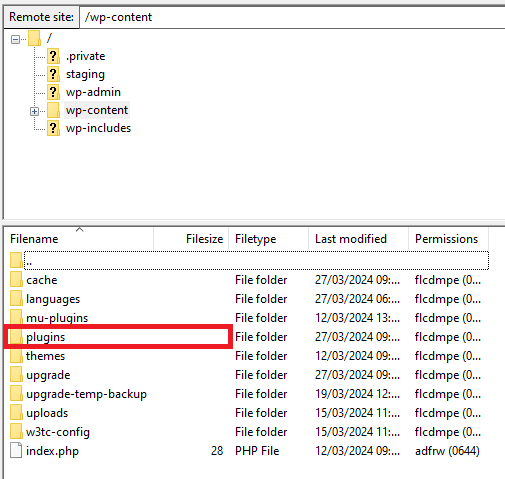
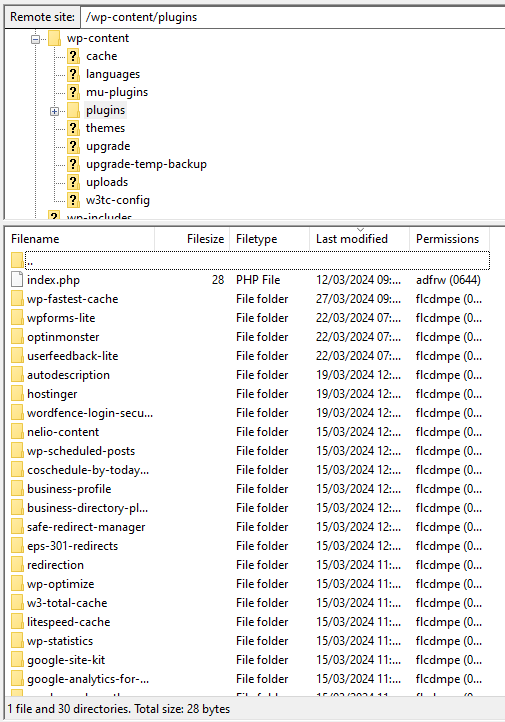
- Right-click the folder and rename it to plugins_backup. Then, try accessing your website. If the error message no longer appears, then one or more active plugins are corrupted or outdated.
- Rename the folder back to Plugins and individually troubleshoot each plugin folder to find the problematic one. We recommend starting with the most recently installed plugin.
5. Verifying the .htaccess File and Server Configuration
Redirect loops can sometimes originate from issues within the WordPress .htaccess file, which contains permalink rules and may include custom configurations. If you suspect this file is causing problems, you can temporarily deactivate it to regain site access.
Remember, always back up the .htaccess file before disabling or making changes, ensuring you can restore the original settings if necessary.
Here’s how to manage .htaccess with Hostinger’s File Manager:
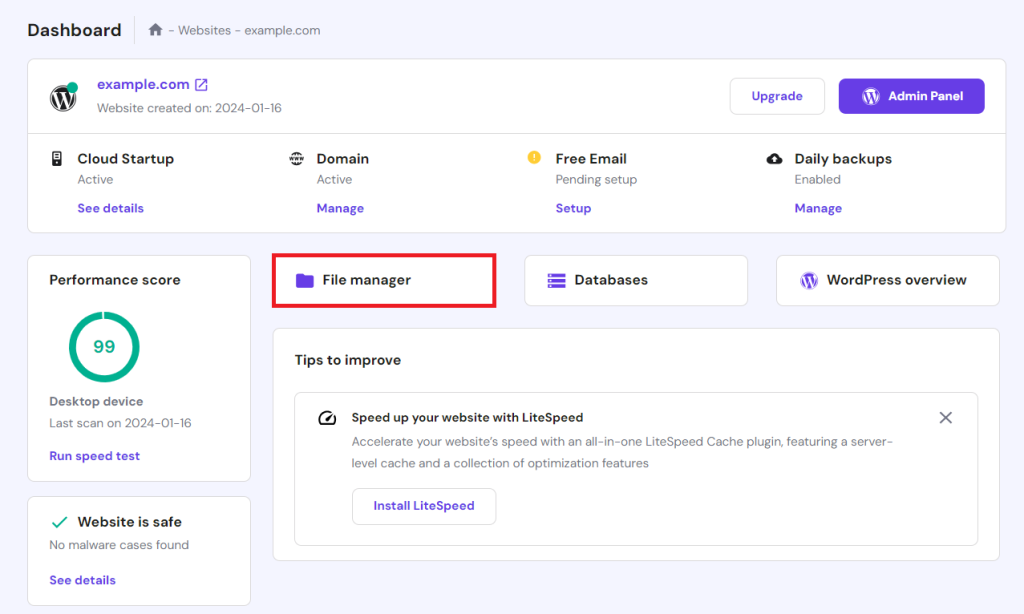
- Access the hPanel dashboard and select File Manager.
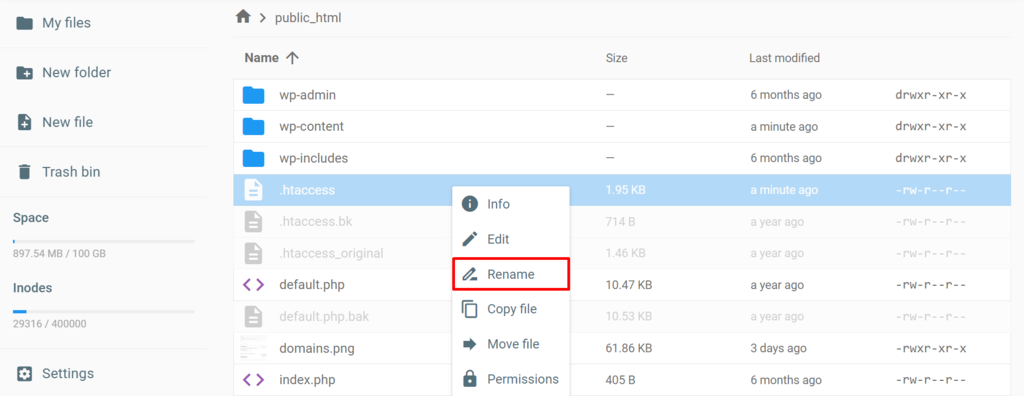
- Locate your .htaccess file within public_html.
- Right-click the file and select Rename. Use .htaccess_disabled as the new name to turn it off.
- Check if your website now loads correctly.
- If this action resolves the issue, the file may have misconfigurations. To edit, right-click the renamed file and select Edit. The default configuration typically looks like this:
# BEGIN WordPress

<IfModule mod_rewrite.c>

RewriteEngine On

RewriteBase /

RewriteRule ^index.php$ - [L]

RewriteCond %{REQUEST_FILENAME} !-f

RewriteCond %{REQUEST_FILENAME} !-d

RewriteRule . /index.php [L]

</IfModule>

# END WordPress
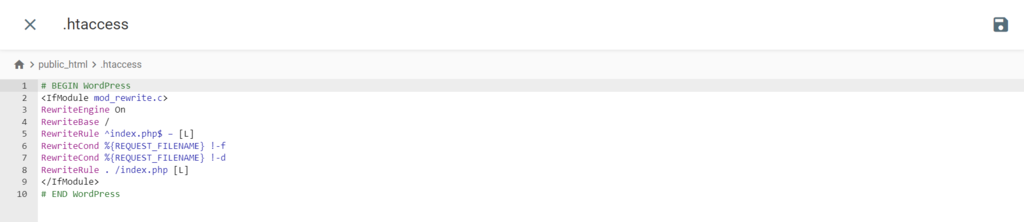
After making necessary edits or restoring the default settings, rename the file back to .htaccess. This should correct the .htaccess redirect loop.
This approach is applicable for hosts using LiteSpeed or Apache web servers, as they utilize .htaccess.
If your hosting service uses NGINX, the configuration file will differ. We recommend you consult with your server administrator or hosting provider for the correct configurations.
6. Check Your HTTPS Settings
Ensure that your website’s HTTPS settings are correctly configured to avoid the ERR_TOO_MANY_REDIRECTS error. Incorrect HTTPS configuration can lead to many issues that disrupt site access.
Mixed Content Redirection
When your site is secured with HTTPS but loads partial content, like images, scripts, or stylesheets, over HTTP, it results in mixed content. This prompts browsers to block insecure content or attempt to solve the issue by redirecting, which may lead to errors.
Utilizing the Redirect Mapper tool can help identify and correct these mixed content links, ensuring all resources are loaded over HTTPS.
HTTP to HTTPS Redirection
Redirecting all HTTP traffic to HTTPS is a common practice to secure connections. You can manage this through WordPress settings or specific .htaccess file rules. However, an incorrect HTTPS redirection setup can lead to infinite loops.
It’s important to verify that your .htaccess file or WordPress settings are enforcing SSL to force HTTPS, preventing circular redirects.
SSL Certificate Validation and Renewal
A valid and active SSL certificate is crucial for HTTPS redirects. Make sure your SSL certificate is installed correctly, validated, and regularly renewed on your hosting server.
Most providers will notify you when SSL renewal is ready. An expired SSL certificate can result in security warnings and redirection issues as browsers try to establish a secure connection.
7. Inspect Your CDN Configuration
Another potential cause of redirect loop errors could be the settings of third-party services, such as content delivery networks (CDNs).
While CDNs enhance website load speeds by distributing content across servers globally, specific SSL/TLS encryption mode settings might inadvertently lead to redirection issues.
Managing Redirection in Cloudflare
To determine if Cloudflare might be contributing to the redirect loop, you can:
- Log in to your Cloudflare dashboard and select your website.
- Go to the Overview tab.
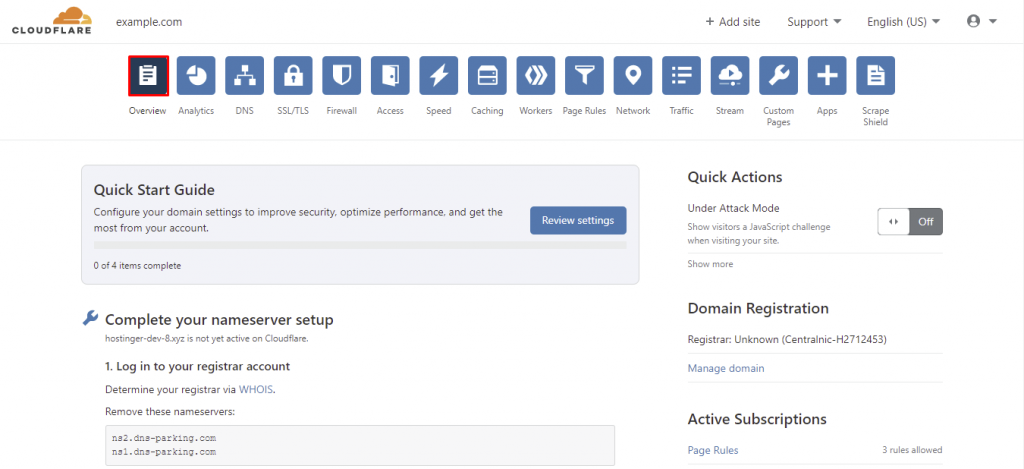
- In the Advanced Actions section, choose Pause Cloudflare on Site. This temporarily suspends Cloudflare’s features, allowing you to see if the issue remains without it.
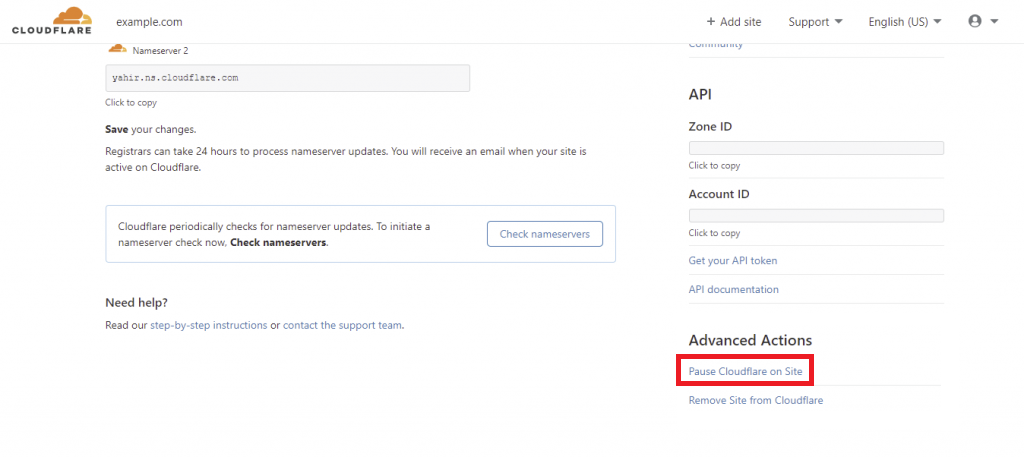
Fixing Cloudflare SSL/TLS Settings
Cloudflare’s SSL/TLS encryption mode is pivotal in managing requests between the CDN and your WordPress site.
However, setting Cloudflare’s SSL mode to Flexible can create issues by prompting Cloudflare to send unencrypted requests to your server. If your site has HTTP to HTTPS redirect configurations enabled, this may cause endless redirects.
To prevent this, adjust Cloudflare’s SSL settings to Full or Full (strict) when you have a valid SSL certificate on your server. This ensures the connection between Cloudflare and your server complies with your site’s HTTPS redirection rules.
Verifying DNS Configuration
Improper DNS configurations can trigger ERR_TOO_MANY_REDIRECTS errors, especially concerning the www and non-www versions of your site. Verify that your DNS records in Cloudflare or any CDN accurately point to your server without causing unintended redirects.
After adjusting these third-party service settings, we suggest you delete your site’s cache again.
Fixing ERR_TOO_MANY_REDIRECTS – Video Tutorial
Watch our video tutorial for a visual guide on fixing infinite redirects.


Conclusion
In this guide, we’ve covered multiple strategies for resolving redirection issues that can negatively impact user experience and require website maintenance. From clearing the browser cache to examining CDN settings, each step ensures seamless site functionality.
By applying these solutions, you can effectively address and prevent the ERR_TOO_MANY_REDIRECTS error. If you have questions or additional methods to suggest, please feel free to contribute in the comments section below.
ERR_TOO_MANY_REDIRECTS FAQ
This section will answer the most common questions about fixing the ERR_TOO_MANY_REDIRECTS error in WordPress sites.
Why Is My URL Redirected Too Many Times?
Your URL might be redirected too many times due to redirect chains, where one URL leads to another and so on, creating a loop. To prevent this, ensure there are direct paths from the original URL to the final destination, thereby avoiding redirect chains.
How Can I Prevent an ERR_TOO_MANY_REDIRECTS Error?
You can prevent the ERR_TOO_MANY_REDIRECTS error by regularly debugging redirects and analyzing server log files for anomalies. Ensure your site’s .htaccess file, redirection plugins, and server settings are correctly configured to maintain smooth navigation.
Can I Encounter the ERR_TOO_MANY_REDIRECTS Error on Mobile Devices?
Yes, the ERR_TOO_MANY_REDIRECTS error can occur on mobile devices as well, impacting user access to websites through mobile browsers. Utilizing network tools and redirect checkers can help diagnose problematic redirection patterns that cause the error.
All of the tutorial content on this website is subject to Hostinger's rigorous editorial standards and values.

Ariffud is a Technical Content Writer with an educational background in Informatics. He has extensive expertise in Linux and VPS, authoring over 200 articles on server management and web development. Follow him on LinkedIn.
Comments
June 19 2017
Unfortunately, NONE of the sites that I've visited over the past 3 days address this issue as it pertains to running WordPress under IIS 8.0 on Windows Server 2012 R2. Note that there is NO .htaccess file, there is only a wp-config.php file. I have searched and searched and searched for a solution to this issue, with zero luck thus far. Please note that the ADMIN area (for WordPress), works fine. It is only when I try to fire up the site itself that this "too many re-direct" issue comes up. In fact, many of the sites I've visited state that the issue is caused by "the hosting company." Unfortunately, I AM the hosting company, so this does not help me. Please help! This is driving me crazy!
June 19 2017
Hey, Sorry but Hostinger offers Linux hosting only and we don't really have experience in Windows servers. Anyway, you may want to make sure that you have setup WordPress on Windows server correctly.
June 20 2017
I have found that the solution to this problem is as follows: Add the following line of code to the FUNCTIONS.PHP file in the wp-content folder, for the theme you are using: // Remove Canonical URL functionality (as per URL: http://codex.wordpress.org): remove_filter('template_redirect', 'redirect_canonical');
June 21 2017
Hey, Thank you for sharing your find!
February 26 2018
hi. i too much gooogle, and solution was born: add in wp-config.php lines: define('FORCE_SSL_ADMIN', false); its disable some function, but truble was gone. in my situation i migrate to "https" from "http", and use plugin - Rename wp-login.php my wp-config.php was contain lines: define('WP_SITEURL','https://mysite.com'); define('WP_HOME','https://mysite.com'); without line "define('FORCE_SSL_ADMIN', false);" i have loop redirects.
April 14 2018
my wp-admin as too many redirects . i deactivated 404 & redirect plugins. Thanks for your article, it helped alot :-)
May 02 2018
Your article helped me a lot! It took me a week to configure and fix all the redirect issues. Many thanks!
October 28 2018
Option -2 resolved my problem of TOO MANY REDIRECTS while accessing wp admin. Thanks a Lot.
May 26 2019
Step 2 worked for me. Thank you Tomas!
June 22 2019
Hi thanks a lot you saved my life adding site url manually in wp-config.php resolved the loop best regards
August 28 2019
Thanks bro. very helpful information.
October 06 2019
Thanks step 3 worked for me
November 30 2019
Thankyou so much, after 7 days I found the great man with this tutorial. option 5 is work wel
July 03 2020
OSM and lovely article and easy to follow. Just one small change made the day
July 04 2020
hi, unfortunately non of the above worked for me. I am trying to install fresh version of WordPress and i have deleted everything from my website including database. When i extracted the wp folder in the public_html folder through my cpanel, and tried to access my url www.mydomain.com it is giving me error " too many redirects. I googled and did every thing people mentioned including clear cache but in vain. can some one help me out.?
July 18 2020
Thank You! Checking and Changing URL Settings Manually This helped :) I was in Wordpress admin, I could preview the website, but not open it from my dashboard or going to the URL
August 25 2020
Thank you so much! I was not able to log into WP admin, so I went into cPanel and edited the config file. I have never done anything like that before, but it totally worked!! Thank you!
November 06 2020
Hey Susan! Glad to hear it worked. Editing config files and code seems scary at first but it's not that difficult, as there are resources for everything! :) Just make sure to always make a copy of whatever you are editing, to not lose the original file! :)
September 25 2020
That was quite amazing --thank you for an awesome Article
November 18 2020
Always happy to help.
November 03 2020
so so helpfull artical
December 02 2020
For me the woo commerce plugin was causing the trouble when I deactivated (option 4), it my site was finally opening and i wasn't getting any messages regarding redirects. Disabling my .htaccess file (option 5) also worked but when i clicked to edit it the code was the exact same as it should be so check out all the possible options before making changes in the actual code.
February 17 2021
Adding those to define statements worked like a miracle!!!!
May 06 2021
Heya David, Great to hear that adding those lines of code worked :)
February 28 2023
I use hostinger since 26 January 2021. My blog hosted on cloud hosting. I got redirection error on search console which shows 12 pages of my website have problem with redirection. I never did any redirection. All the affected url follow same pattern i.e. /feed in last. Example: https://domain.tld/feed/ https://domain.tld/web-stories/feed/ https://domain.tld/comments/feed/ https://domain.tld/85-motivational-quotes-for-student-in-hindi/feed/ However I able to access wordpress dashboard and checked some normal url (except /feed url) by entering on browser it didn't show any error. What is reason for this error and how can i solve it? Please help!
March 03 2023
Hello! Redirect issues are usually caused by plugins or incorrect .htaccess rules. I would suggest to refer to the steps in the article and disable plugins to see if the issue is fixed. As for .htaccess, back up your original file and create a new .htaccess file with default rules to see if it helps. If you are still having same issues after trying these fixes, don't hesitate and contact our Customer Success team and we will gladly help you.