hPanel tutorial: features, overview, and tips
Feb 10, 2025
/
Matleena S.
/
6 min Read
Designed for ease of use, Hostinger’s control panel hPanel streamlines most website management tasks, such as setting up and configuring your domains, websites, emails, VPS, and more.
In this tutorial, we’ll cover the essential features and tools within hPanel, helping you efficiently manage your hosting environment and optimize your online presence.
What is hPanel?
hPanel is Hostinger’s custom control panel, created to simplify and streamline website and web hosting management.
With hPanel, you can efficiently manage your domains, websites, emails, and other Hostinger services from one place, making it ideal for users of all technical levels.
hPanel consists of the following main sections:
- Home. Overview of your account and quick access to key features.
- Websites. Configure websites and hosting plans.
- Domains. Manage domain portfolio, including new purchases and transfers.
- Emails. Set up and manage email accounts.
- VPS. Manage virtual private servers.
- Billing. View active subscriptions, payment history, and payment methods.
- WordPress Add-ons. Configure various WordPress-specific tools.
- Marketplace. View and purchase other Hostinger products.
There are also additional menus on the top-right of the screen:
- Referral & Earn 450 USD. Earn rewards by participating in Hostinger’s referral program.
- What’s new. Learn about the latest Hostinger features.
- Help. Access support resources and contact options.
- Account. Update your profile, security settings, and notification preferences.
Home
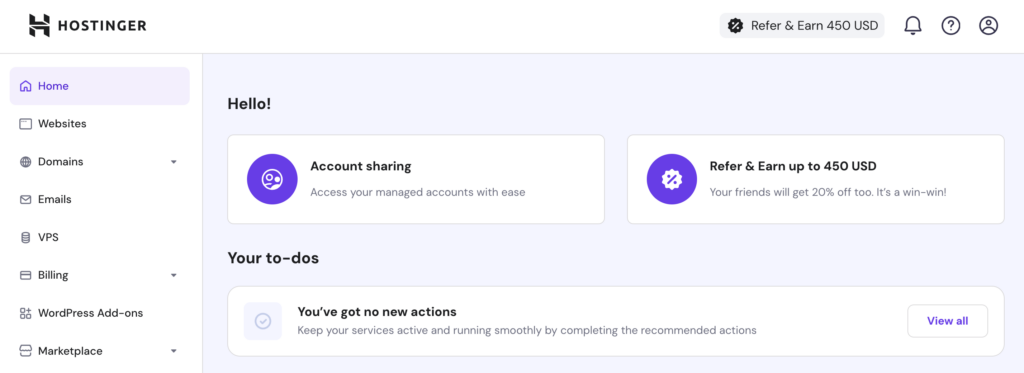
The Home section serves as your dashboard, summarizing key information about your account.
It offers quick access to frequently used features and provides an at-a-glance view of your hosting plans, domain registrations, and other services.
This helps you efficiently manage your online activities and stay informed about the status of your hosting environment. Add widgets to the top of the page to keep track of the most important aspects of your websites and domains.
Websites
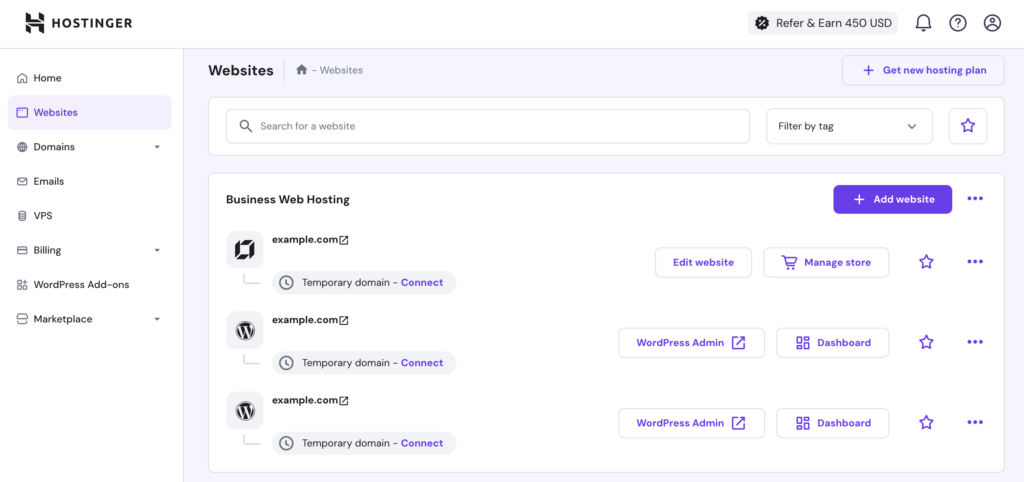
This section includes all essential tools for creating, managing, and optimizing your websites.
View all your websites and their web hosting plans here. All sites and hosting plans are organized so that each website is nested under the corresponding web hosting plan.
Open the hosting settings by clicking on the three dots:
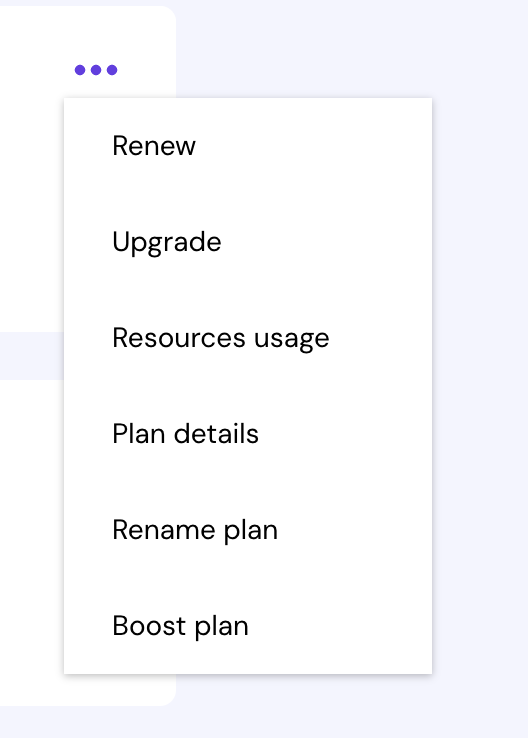
These links redirect you to the Hosting section of your website dashboard:

Use the top of the Websites page to search and filter through your websites or add new sites to your account:

Create a new site using WordPress or Hostinger Website Builder. Click the Add website button, and follow the steps to set up a new website.
You can also transfer your website from another hosting provider. To do this, click Add website, select Migrate Website, and follow the instructions. For more information, follow this migration guide.
WordPress
For WordPress websites, access the WordPress Admin directly from this section or navigate to the hPanel Dashboard.

In WordPress Admin, you can directly add and manage content in WordPress:

Meanwhile, the hPanel Dashboard has all the tools and settings you need to effectively manage other aspects of your website, such as site security, databases, and more:
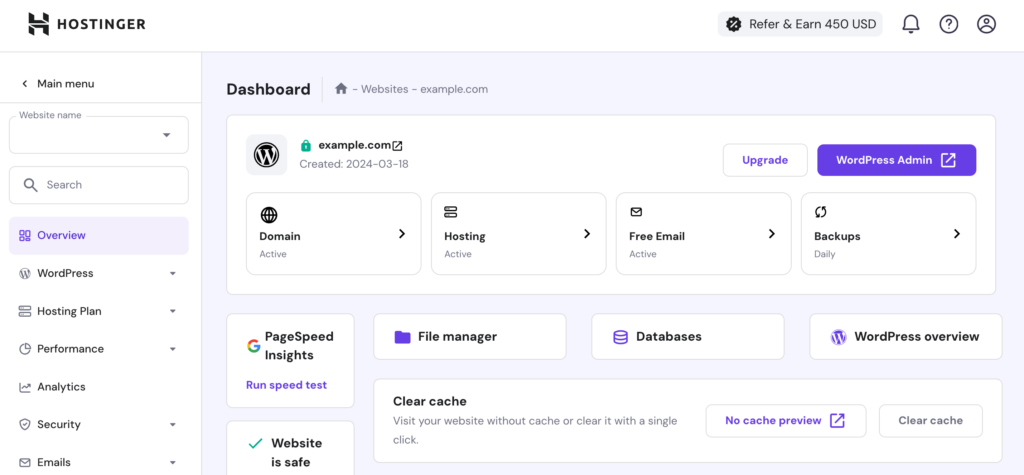
Our built-in tools ensure your WordPress site is secure, up-to-date, and optimized for performance. Key tools for WordPress management in hPanel include:
- Auto installer. Instantly install WordPress, WooCommerce, and other applications.
- Version control. View and update PHP and WordPress versions.
- Core and performance settings. Activate HTTPS, maintenance mode, LiteSpeed, and object cache.
- Security tools. Configure WordPress auto-updates, the malware scanner, and SSL certificates.
- Staging. Create test environments for your WordPress site.
- Plugin and theme management. Manage plugins and themes without having to access the WordPress Admin panel.

Hostinger Website Builder
For websites built with Hostinger Website Builder, you have the option to either Edit website or open the Dashboard.

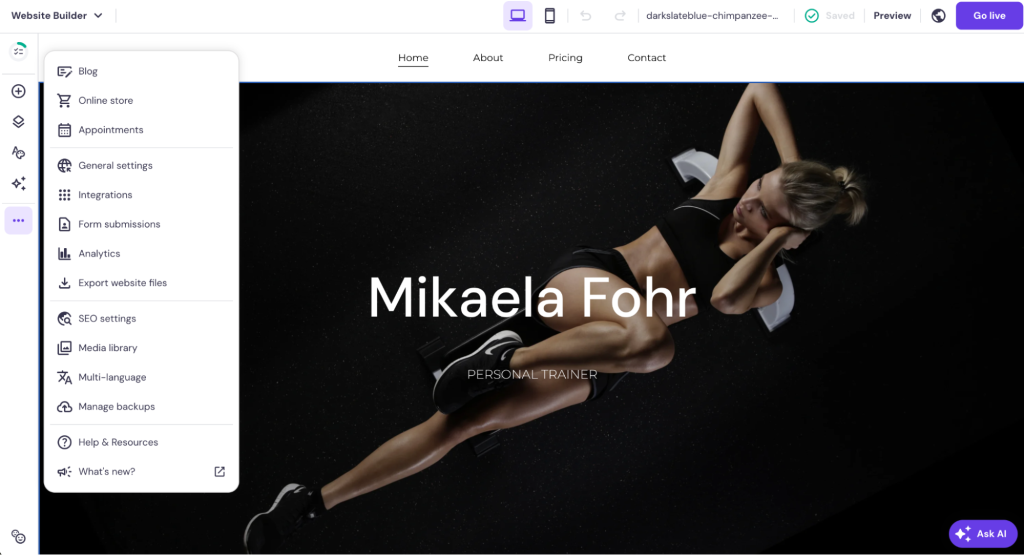
Clicking the Edit website button opens the website editor. Since Hostinger Website Builder is a drag-and-drop builder, you can edit all aspects of your site through the intuitive editor. Access everything from general site settings to your files, backups, and integrations through the three dots in the side menu:
The Dashboard menu, on the other hand, includes various tutorials and guides to help you get the most out of your site:
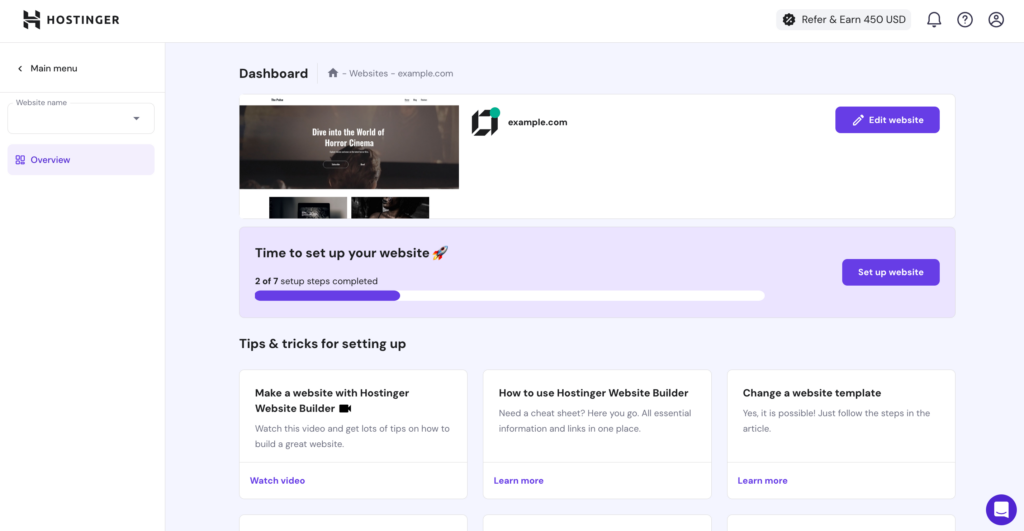
Compared to WordPress, Hostinger Website Builder is more ideal for beginners who want to quickly publish their website and manage it with an intuitive drag-and-drop interface. To start, simply ask AI to create a unique web design or pick a website template and customize it.

Emails
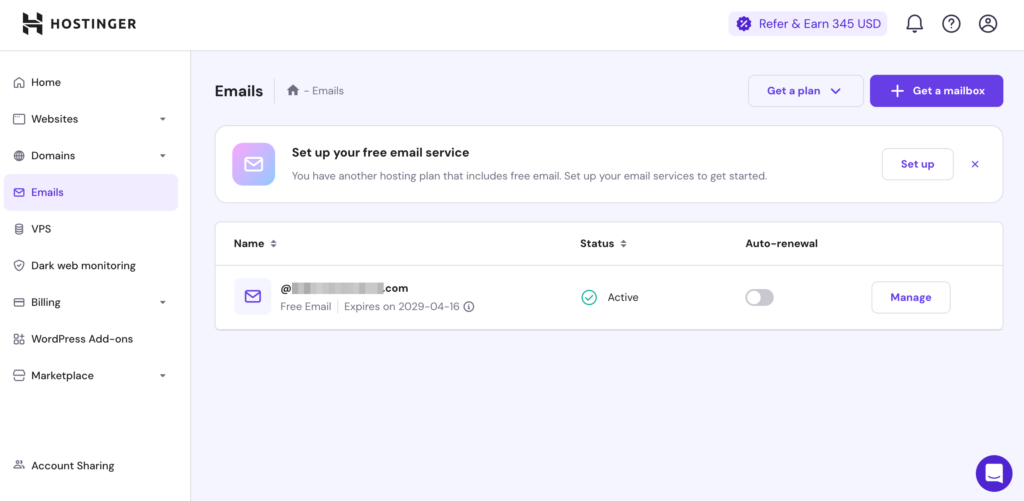
On hPanel, you can set up and manage your email account in the Emails section. All your email plans and mailboxes are listed under the corresponding domain names. View the status of each plan, toggle auto-renewal, and open the individual settings for each mailbox here.
If you need a new plan or more mailboxes, click on the Get plan or mailbox button.
Open the mailbox overview by navigating to Emails, selecting the domain associated with your email, and clicking Manage:
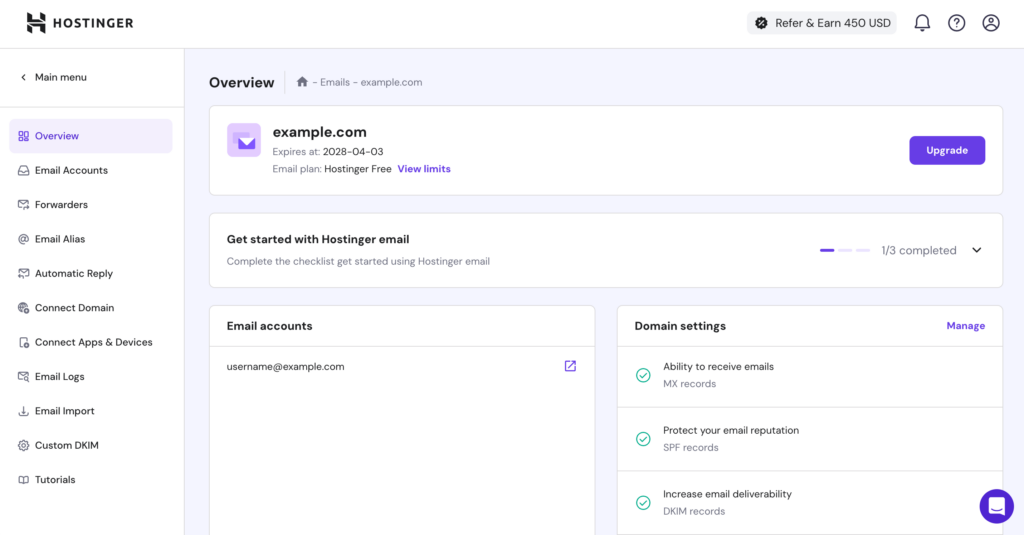
You can manage various aspects of your email account, including:
- Email Accounts. Add up to 100 mailboxes with the free email plan included in web hosting plans.
- Forewarders. Redirect emails to another address.
- Connect Apps & Devices. Configure email clients and view your IMAP, POP, and SMTP protocols.
- Email Import. Transfer email account data from your previous provider.
- Custom DKIM. Helps prevent spoofing, phishing, and being marked as spam.
Domains
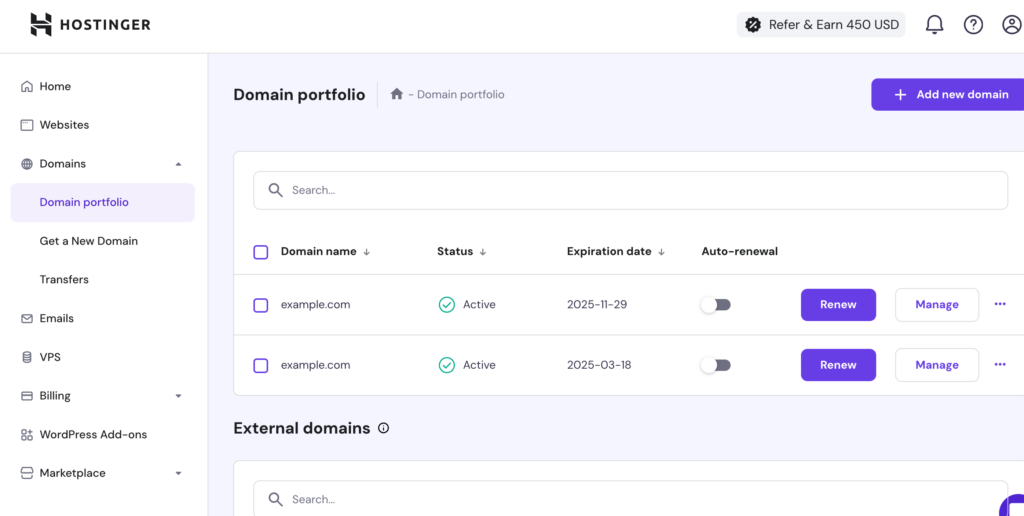
Managing your domains through hPanel streamlines domain registrations, transfers, subdomains, and DNS setting management.
All your domains are listed in the Domain portfolio section. View the status and expiration date of each domain, toggle auto-renewal, and access individual settings for each domain.
If you need to register a new domain, click Add new domain. Or, if you need to transfer a domain from another registrar to Hostinger, select Transfers.
To open the Domain Overview for each domain name, select a domain and click on Manage:
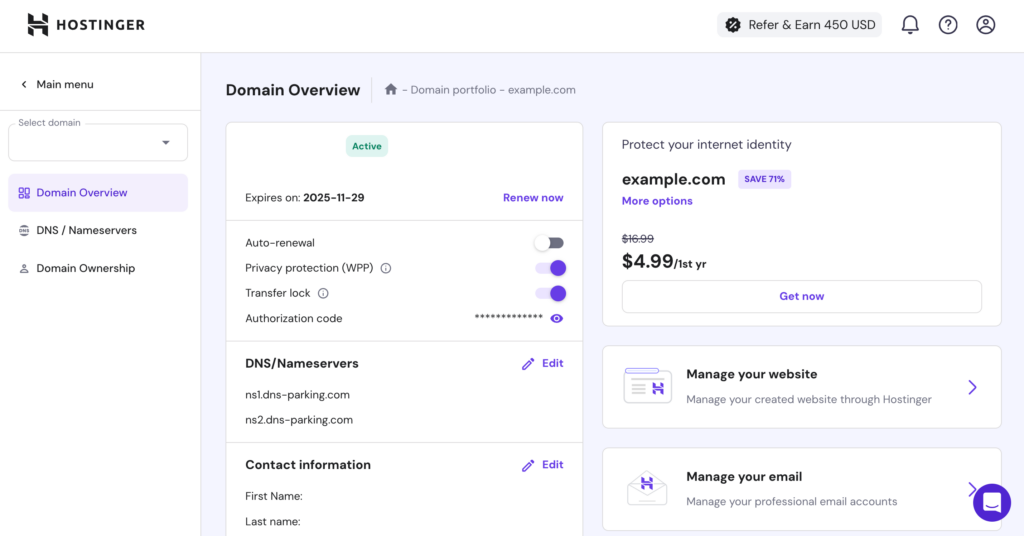
Use hPanel to manage various aspects of your domain:
- DNS / Nameservers. Configure DNS records such as A, CNAME, MX, and TXT, and create child nameservers.
- Transfer lock. Prevent unauthorized domain transfers.
- Privacy protection (WPP). Protect your personal information by enabling WHOIS privacy.
- Domain Ownership. View ownership information and move domain to another Hostinger account.
VPS
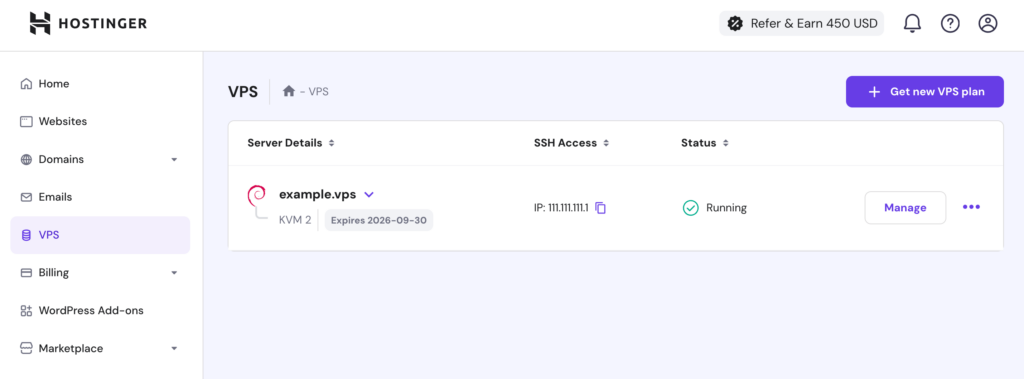
hPanel provides robust tools for managing your Virtual Private Servers (VPS), giving you control over resources and performance.
In the VPS section, view and manage your VPS plans. Get an overview of server details, SSH access, and the overall status of your servers. Click Get new VPS plan to purchase new plans.
Open the overview of an individual VPS by selecting your desired plan and clicking Manage.
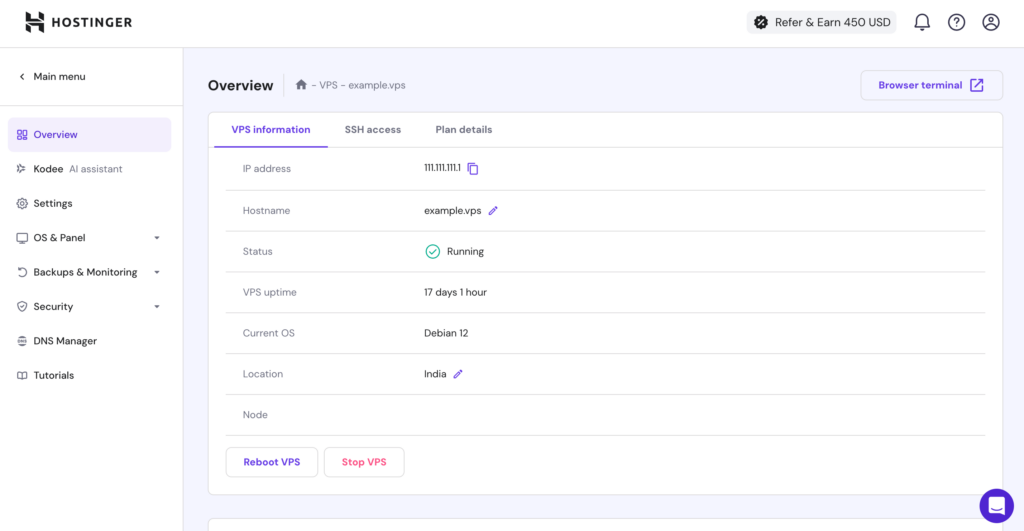
Use hPanel to manage various aspects of your VPS account:
- Set up VPS. Follow the on-screen steps for setup, including SSH access, updating the server, creating users, enabling public-key authentication, and configuring a firewall.
- Configure tools. Install necessary tools like LAMP and SSH keys. If you need to double-check some Linux commands, simply prompt and get instant answers from the Kodee AI assistant.
- Domain management. Point your domain to your VPS by changing the A record or setting up custom nameservers.
- Configure settings. Create backups, monitor server resource usage, reinstall operating systems, and manage licenses.
Other settings
hPanel is also your dashboard for managing everything related to your Hostinger account. From invoices and resetting your password to managing referrals and accessing tutorials, hPanel is built to empower you to succeed online.
Billing
The Billing section of hPanel makes it easy to keep track of your financial transactions with Hostinger.
Get a snapshot of the renewal prices, expiration dates, and all active and expired subscriptions in your account. You can also add payment methods and view your account’s payment history here.
WordPress Add-ons
In this section, you can set up automatic website reports, monitor website security and performance, create website presets, and transfer WordPress website ownership.
Referral program
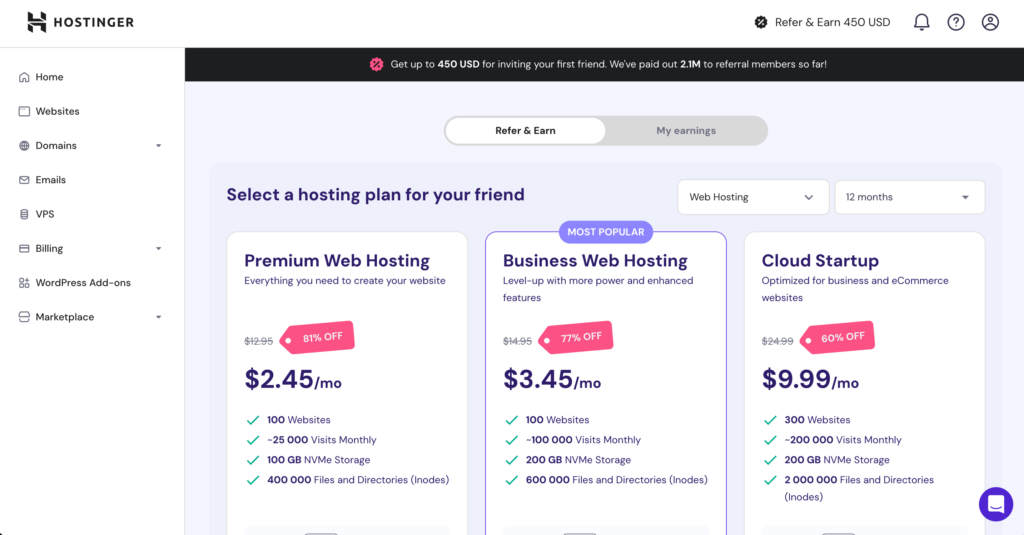
The Referral Program enables you to earn rewards by inviting others to use Hostinger’s services.
You can generate and share referral links with friends and colleagues, making it easy to invite others. Once shared, you can monitor the status of your referrals and the rewards you earn.
Marketplace
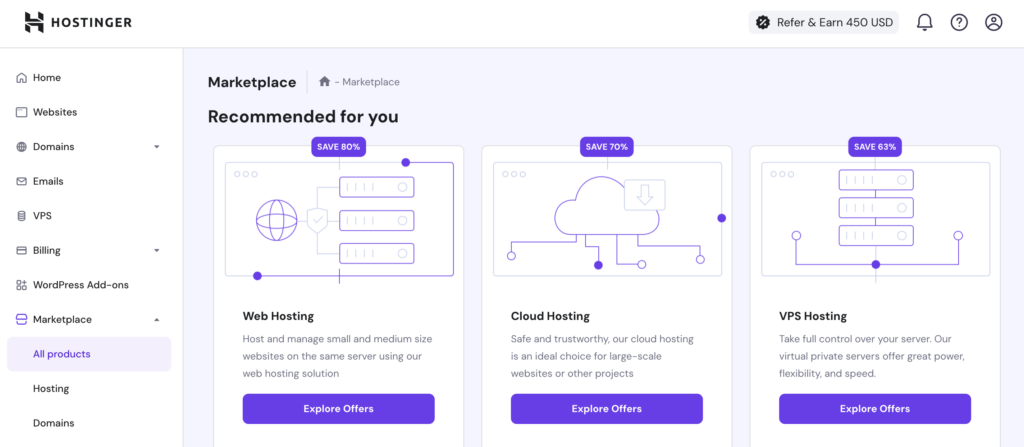
Use the Marketplace to explore and purchase add-ons and services to enhance your hosting experience. Discover additional tools and features that can be integrated into your hosting plan.
What’s new
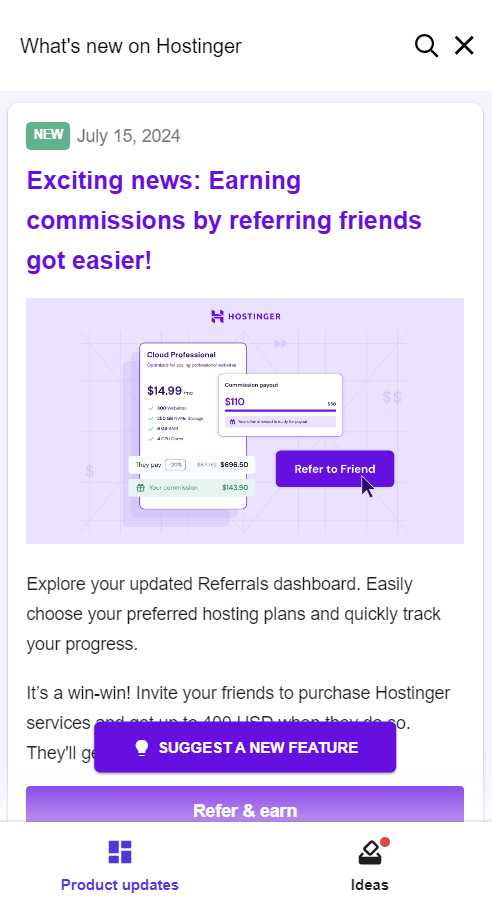
The What’s New section keeps you informed about the latest updates, features, and improvements in hPanel. Here, you can learn about new tools and enhancements designed to optimize your hosting experience.
Help
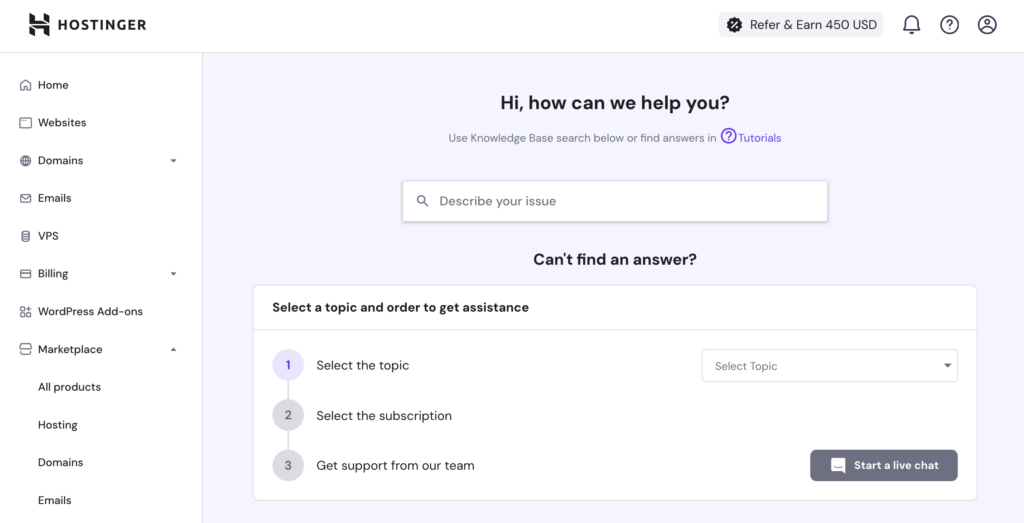
The Help section in hPanel has various resources to troubleshoot and optimize your hosting experience. This includes a knowledge base with detailed guides and tutorials on various topics. Additionally, you can reach out to our Customer Success team 24/7 for help.
Account
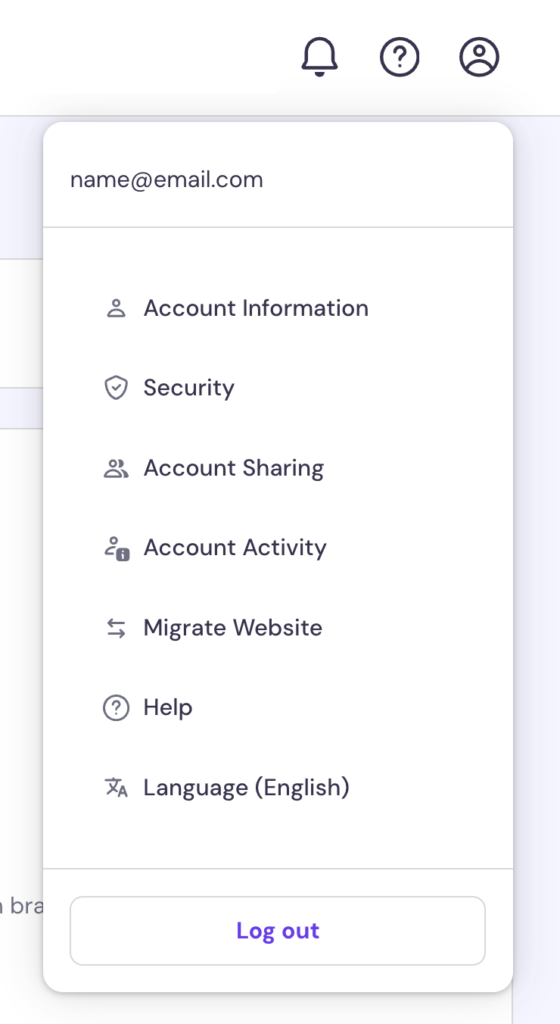
In the Account section, you can customize your user settings to enhance security and personalize your experience. This includes updating your personal information and password, enabling two-factor authentication, and changing your email and notification preferences.
How does hPanel differ from cPanel?
While cPanel is a popular and feature-rich choice for web hosting management, it can be overwhelming and difficult to navigate for beginners.
hPanel offers a more intuitive and user-friendly design tailored for the Hostinger ecosystem. Its minimalist design simplifies essential tasks, like website management, email configuration, and domain management, making it a great choice for users prioritizing ease of use and efficiency.
For a more detailed comparison, read our guide on hPanel vs cPanel.
Conclusion
hPanel is an intuitive control panel designed to simplify website and hosting management. Its key features include domain management, email setup, VPS control, and WordPress tools.
By using hPanel, you can efficiently manage your online activities from one place, ensuring a secure and optimized hosting experience.
For those looking for a user-friendly alternative to cPanel, hPanel offers a streamlined and effective solution within the Hostinger ecosystem.
All of the tutorial content on this website is subject to Hostinger's rigorous editorial standards and values.

Matleena is a seasoned Content Writer with 5 years of content marketing experience. She has a particular interest in emerging digital marketing trends, website building, and AI. In her free time, Matleena enjoys cups of good coffee, tends to her balcony garden, and studies Japanese. Follow her on LinkedIn