How to Move Content from Google Docs to WordPress: 4 Quick Methods
Mar 26, 2024
/
Leonardus N.
/
5 min Read

It’s hard to have a website without any content, written or otherwise. If you’re using WordPress as your content management system, you’re probably familiar with the post drafting and publishing process.
However, solely relying on the Gutenberg editor to create your content isn’t always ideal, especially if you need to collaborate with others or include multimedia in your post. That’s why many content creators use Google Docs to brainstorm and draft their content.
But at some point, the content draft has to be moved to WordPress, which isn’t always as straightforward as you’d hope.
This article will detail four proper methods to move Google Docs drafts to WordPress, from moving the content manually to using a plugin.
Why Use Google Docs with WordPress
A WordPress site can have multiple writers, editors, and even external freelancers who work on the website’s content. But it’s not always recommended to grant all contributors access or share login details with all parties, as it exposes your WordPress back-end and can cause security risks.
Often, a third-party collaboration tool for creating content is needed. Google Drive and Docs are great platforms to collaboratively write, edit, and save the content draft without needing access to the WordPress site. You can even safely share Google documents with all involved external parties.
Using Google Drive and Docs to draft your content is also more convenient when working with multiple WordPress sites. You can store these drafts in one organized space without worrying about logging into different sites to create a draft.

Why You Shouldn’t Copy Text from Google Docs to WordPress
Formatting is one of the most common issues users face when copying and pasting text from Google Docs to the WordPress classic editor. Usually, you see extra line breaks on the text editor that weren’t present in the original draft.
Moreover, when you open the code editor, you may see extra HTML tags, like span and font-weight. While they may not affect the content appearing on the WordPress site, the extra code counts towards the overall page speed and can negatively affect your page load times and overall optimization.

Images can also disappear completely when copied and pasted directly to the classic editor from a Google Doc. This means more manual work before the post is ready for publishing.
How to Properly Import Google Docs to WordPress
While working with Google Docs can be a great solution for collaborative work, you can’t simply import formatted text to the WordPress editor and publish it. There are a few things you should do to make sure your Google Doc draft is imported to WordPress properly.
Import Google Docs to WordPress With Gutenberg Block Editor
Switching to Gutenberg often solves most formatting issues. If you import text from a Google Doc to the block editor, you will see almost no extra HTML tags compared to the classic editor. Gutenberg also pastes header tags, bold formatting, and hyperlinks properly.
That said, this method still carries over some unnecessary code, especially if there are line breaks and non-breaking spaces in the text.
To clean them up, open the code editor by clicking the three dots icon at the top-right corner of the editor and select Code editor. Use the find feature on the web browser by pressing CTRL+F or Command+F, search for <br> and , and delete them manually. Once you’ve finished, click on Exit code editor to return to the WordPress visual editor.

The main drawback of copying and pasting a Google Doc to the Gutenberg editor is that the images aren’t uploaded to WordPress. You can see in the code editor that the image tag still shows that the image is hosted on Google servers rather than on WordPress.
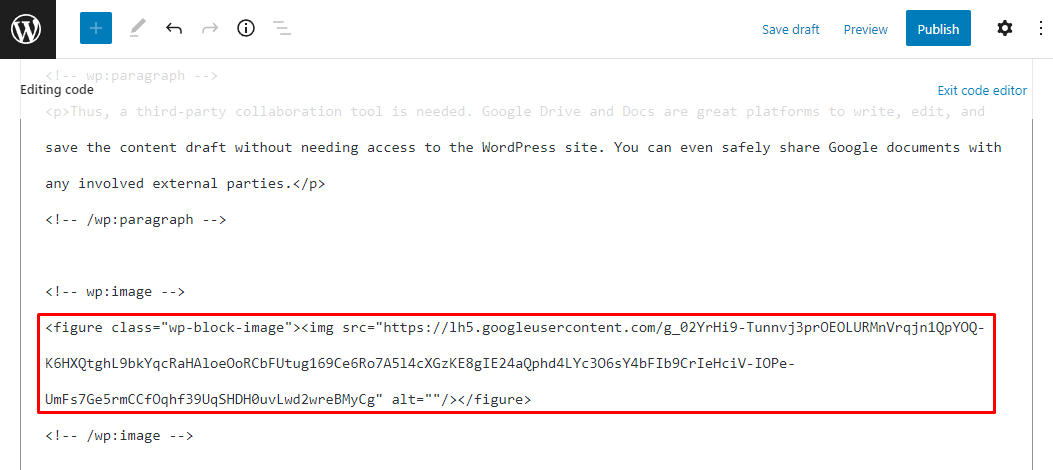
You will still need to import images from your Google Doc file to WordPress separately.
Import Images From Google Docs to WordPress Gutenberg Editor
Importing images to the block editor makes the files available on WordPress. The manual export and uploading process also means you can resize or compress images using a third-party tool, optimizing your page speed.
First, you must manually export your Google Docs draft by opening the File → Download menu and selecting Web Page (.html, zipped). The ZIP file will then be downloaded to your local computer.
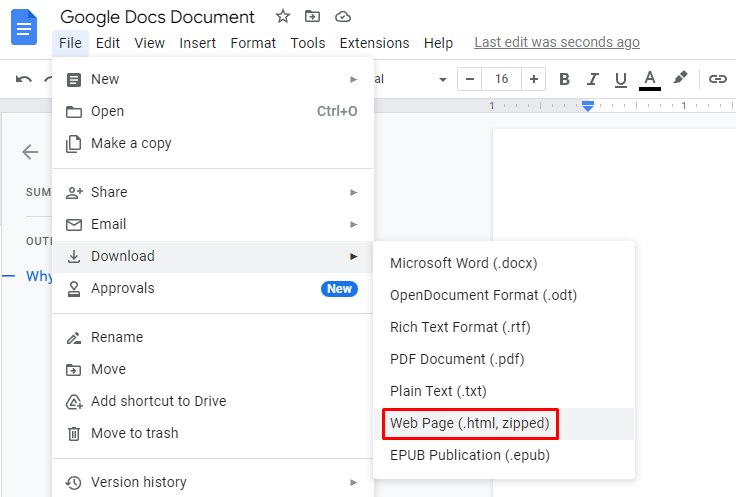
Once downloaded, unarchive the ZIP file, and you will find the images folder containing the images from the Google document. We recommend renaming these image files before uploading them to WordPress.
Next, open your post draft on WordPress and follow these steps to replace the images properly:
- Select the image on the block editor and click Replace on the block toolbar. Select Upload and look for the correct image on your local computer to replace it with.
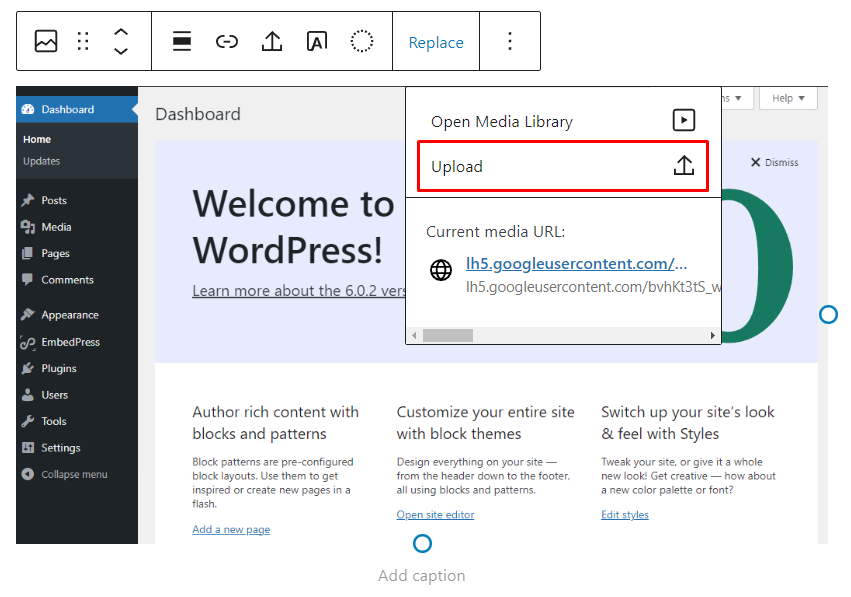
- Click Open, and the image will be uploaded into the media library. It also replaces the Google-hosted image.
- Add the image alt text in the block settings panel.
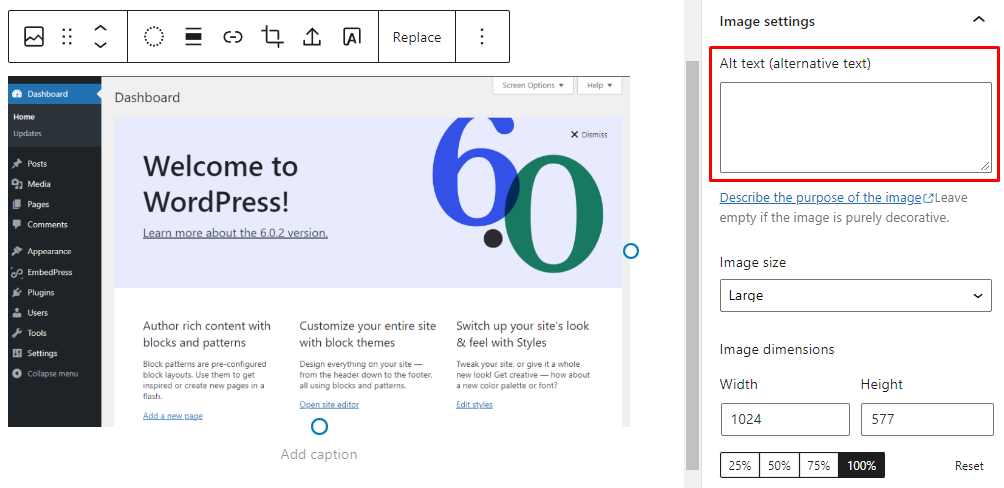
You should repeat these steps for all images on the post. As all these images are now uploaded to WordPress, you can reuse them on other posts or pages without needing to re-upload them.
Also, if you want to upload a featured image for the post, be sure to do that in the dedicated section of the post settings panel.
Import Google Docs to WordPress Using a Plugin
Importing a Docs draft using a WordPress plugin is faster than manual import.
While there are several document importer plugins available, we’ll use the Seraphinite plugin for this tutorial. Install and activate the free plugin, then follow these steps to import the Docs draft to WordPress in a few clicks.
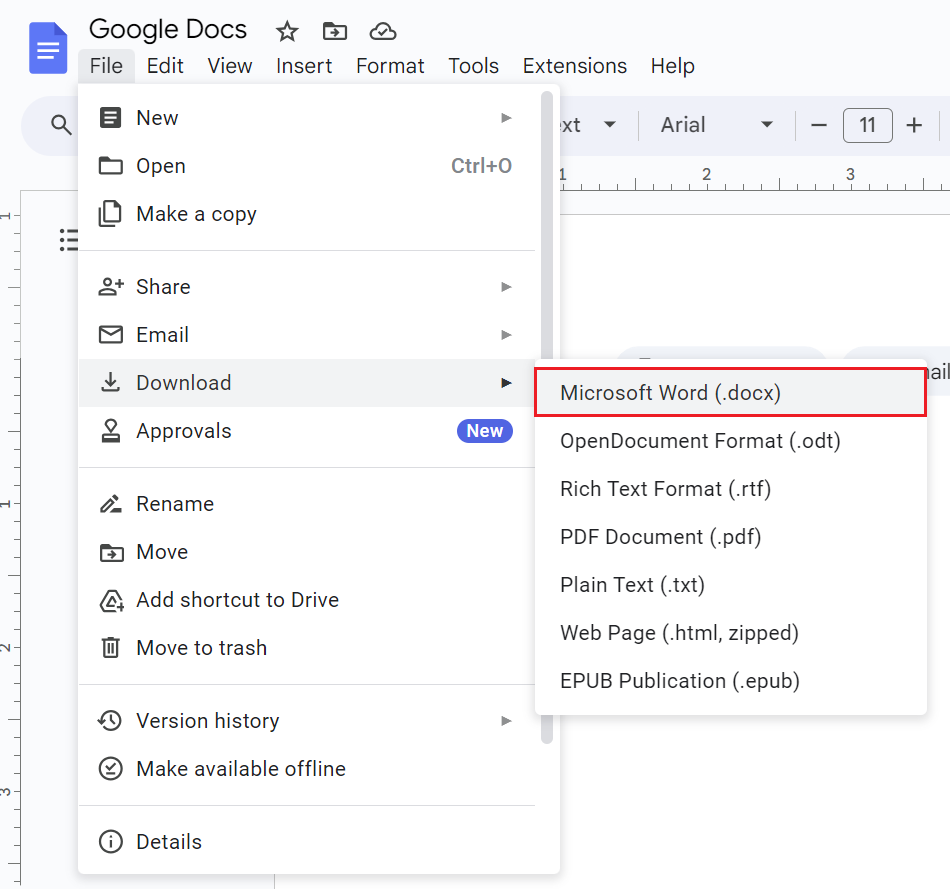
- Download the Docs draft as a DOCX file. To do that, navigate to File → Download in Google Docs and select Microsoft Word (.docx).
- Open your WordPress admin dashboard and create a new blog post by navigating to Posts → Add New.
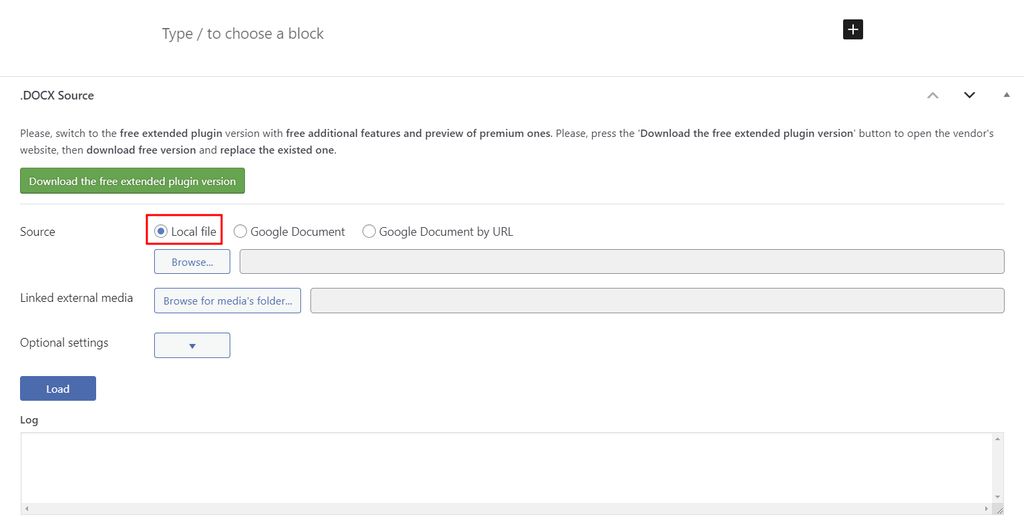
- Scroll down to the bottom of the editor and find the .DOCX Source section. Choose Local file as the source, hit Browse, and select the downloaded DOCX file.
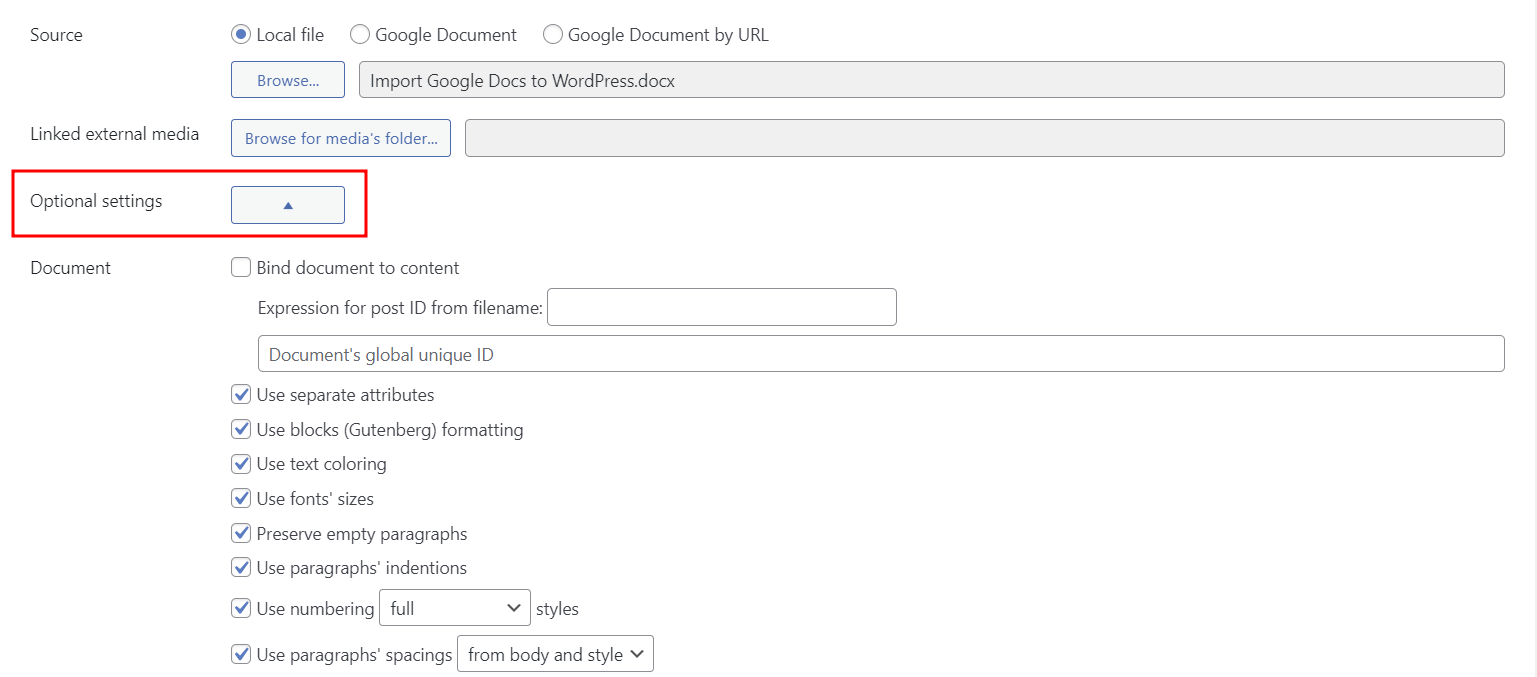
- Configure the document’s attributes and media settings under the Optional settings menu.
- Click Load to start the import process.
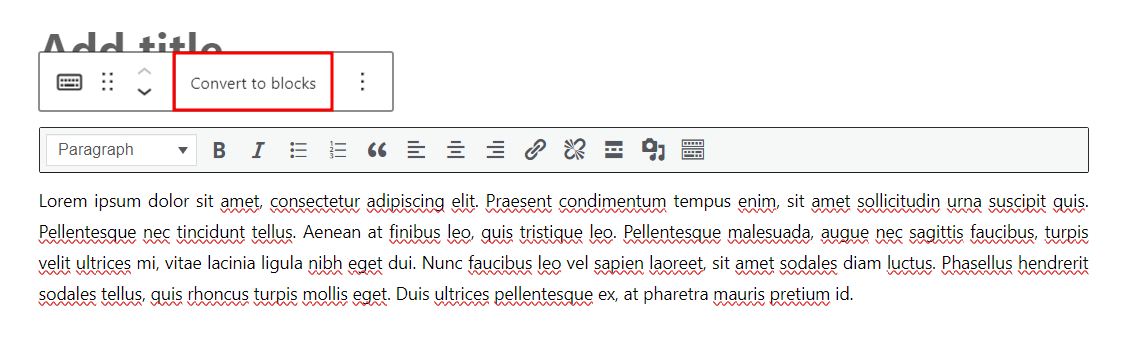
- Select the Convert to blocks option in the content toolbar to edit the imported content as individual content blocks.
One significant advantage of using the plugin is that you don’t have to replace images in your posts, as they are automatically added to the WordPress media library. Customize media upload rules by modifying Media configurations in Optional settings.
Once you’ve done editing, click Save draft to revisit the post later, or hit Publish to make it public.
Embed Google Docs to WordPress
Another method for importing a Docs file to WordPress consists of embedding the file. You can do this by using an embedding WordPress plugin such as EmbedPress.
Install and activate the plugin, then follow these steps to integrate Google Docs in a WordPress post using the EmbedPress plugin:
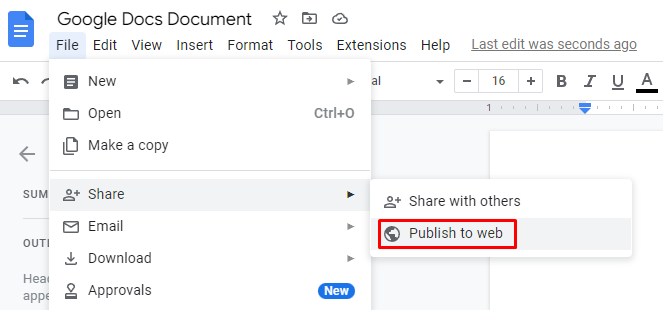
- Open the Google Docs you want to embed and publish to the web. Open the File → Share menu and select Publish to web.
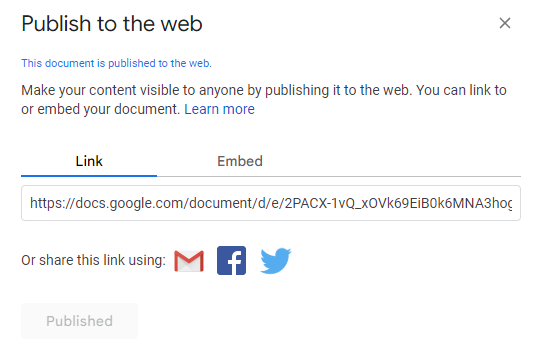
- Click the Publish button and copy the URL in the Link tab.
- Go to the WordPress admin dashboard and add a new post.
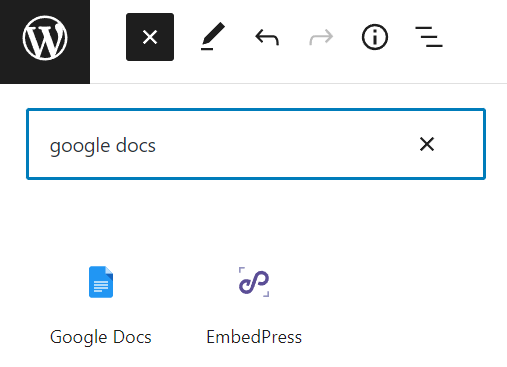
- Insert the Google Docs block by clicking the plus icon on the top-left corner of the screen and find the Google Docs block.
- Paste the copied URL to the block placeholder and click Embed.
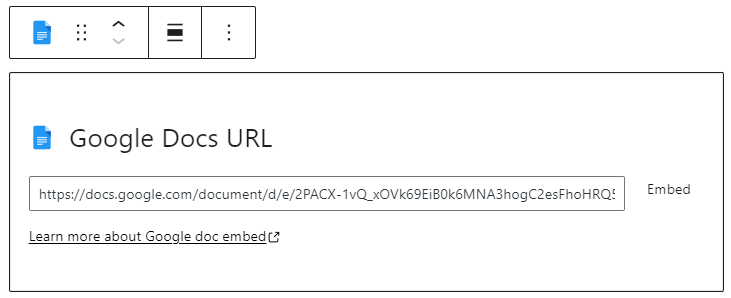
The Google Docs file is now embedded in the inline frame. If you want to adjust the frame height and width, navigate to Dashboard → EmbedPress and open the General settings. Specify the frame’s height and width in the Global Embed iFrame section.
Conclusion
Google Docs is a convenient platform for creating content when you can collaborate with others, especially if you want to regulate access to your WordPress dashboard.
Knowing the proper ways of moving the Google Doc text to WordPress streamlines your content production and saves you time, especially if you use the Mammoth plugin or embed the Google Docs using the EmbedPress plugin.
We hope this article helps you publish content for your WordPress site. Explore our WordPress tutorials to learn more about this content management system.
All of the tutorial content on this website is subject to Hostinger's rigorous editorial standards and values.


Leo is a Content SEO Specialist and WordPress contributor. Armed with his experience as a WordPress Release Co-Lead and Documentation Team Representative, he loves sharing his knowledge to help people build successful websites. Follow him on LinkedIn.



Comments
0 responses