How to add related products in WooCommerce
Dec 18, 2025
/
Larassatti D.
/
5 min Read
Have you ever noticed the Related products or You might also like section on a product page? If you’re wondering how to display it on your own WooCommerce store, you’ve come to the right place.
Whether you want WooCommerce to create it automatically or handpick the items yourself, this article will guide you step-by-step on how to add WooCommerce related products.
How related products in WooCommerce work
Before we begin the tutorial, it’s important to know that there are three ways related products are shown in WooCommerce.
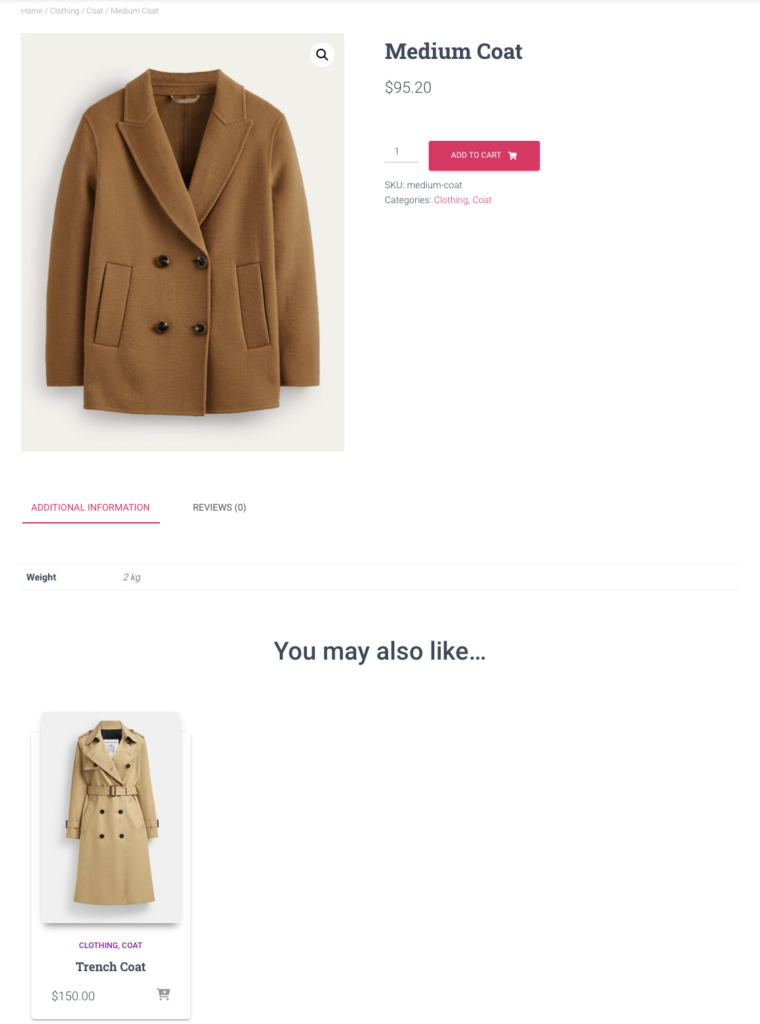
Upsells
The purpose is to show higher-end alternatives to the product that a customer is currently viewing, encouraging them to consider the more expensive item instead.
For instance, showing a trench coat under a medium coat product page can subtly persuade customers to buy the more expensive product.
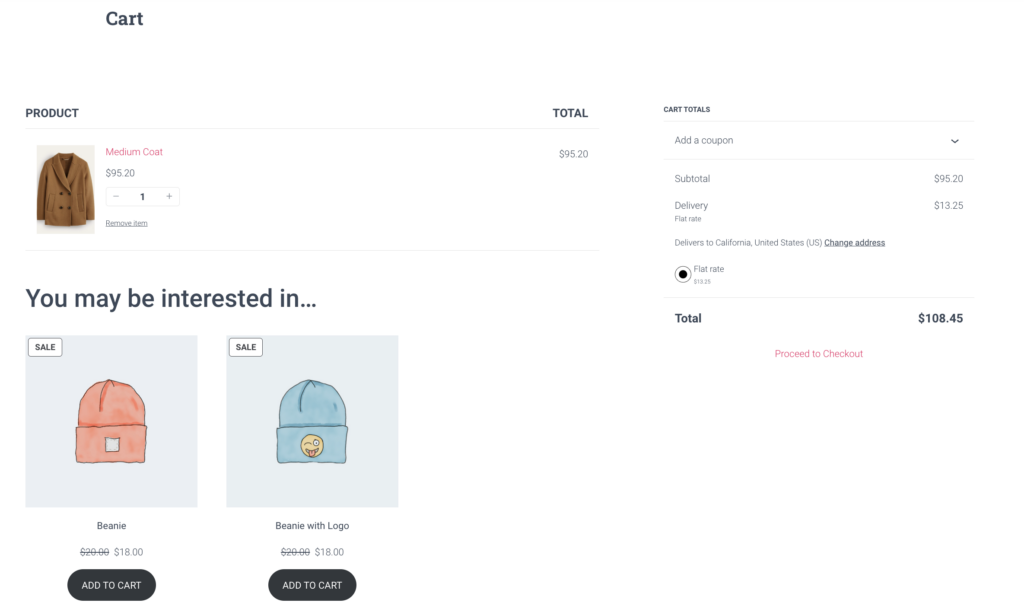
Cross-sells
Cross-sell items complement the product in a customer’s shopping cart page. This type of related product can increase the order value by encouraging customers to check out additional items at the last minute.
Using the same medium coat example, you can add beanies as complementary accessories in cold weather.
Related products
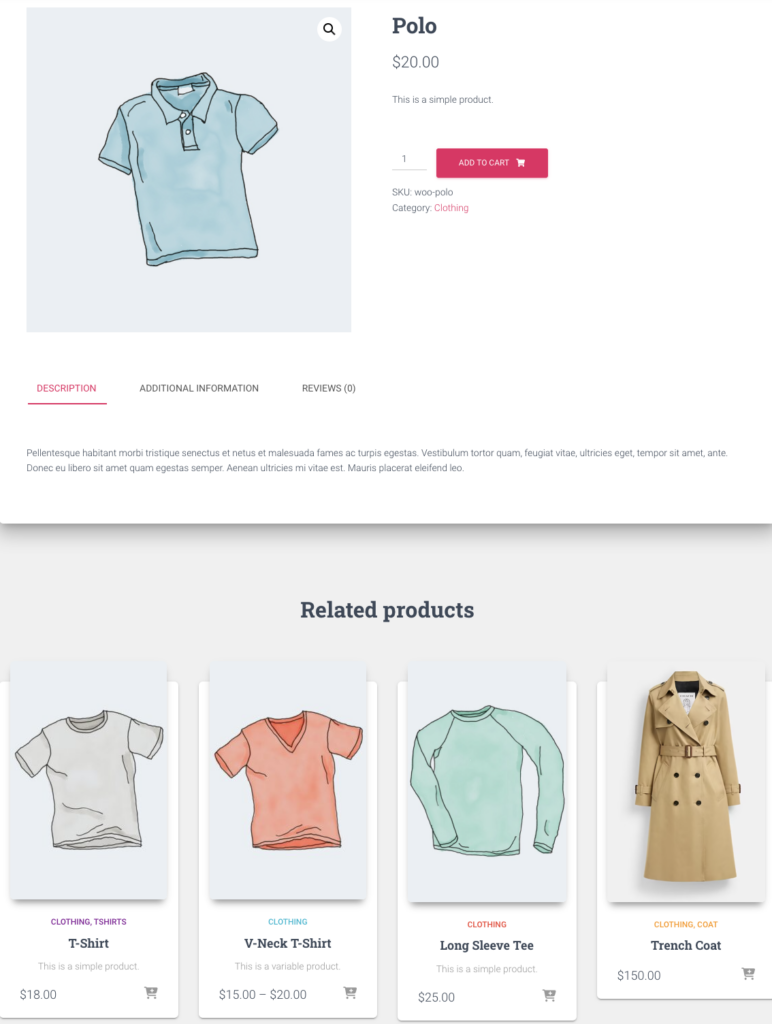
Unlike upsells and cross-sells that require manual setup in WooCommerce, related products can be automatically pulled from your store’s WordPress taxonomy.
By default, WooCommerce’s Related Products section displays other items with the same categories or tags. Therefore, organizing similar products in one group can result in more accurate recommendations.
How to set up related products in WooCommerce
You can set up related products in WooCommerce automatically and manually by following these steps:
Add product categories and tags
Setting up product categories and tags in WooCommerce will automatically determine the items shown in the Related Products section:
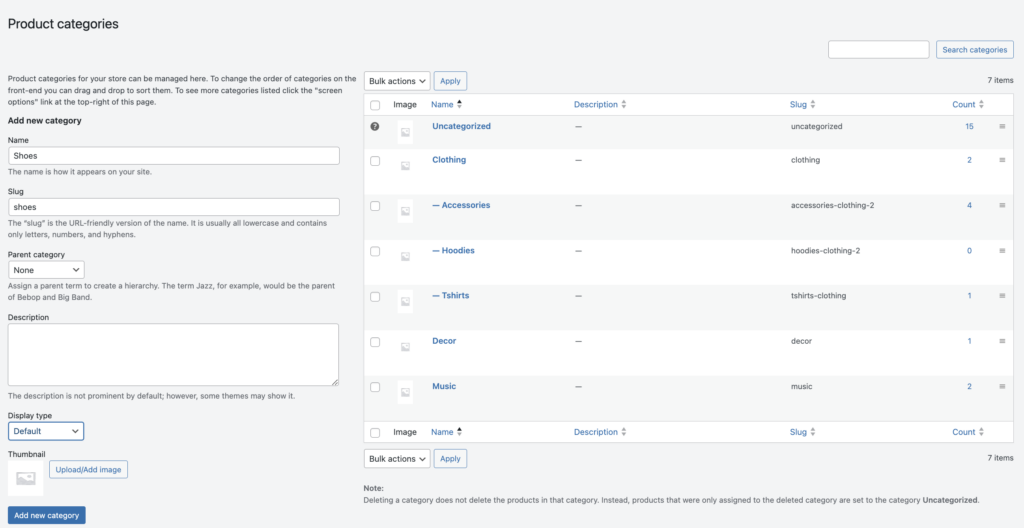
- Add the categories by going to Products → Categories from your WordPress dashboard.
- Enter the category name and slug in the respective fields. If you’re creating a subcategory, don’t forget to assign the parent category from the drop-down.
- Hit Add new category, and you’ll see it as a new addition to the product categories list.
- Once all the categories are added, go to Products → Add new product.
- Enter all the product details and check the relevant Product categories in the right column of the product page editor.

- Add any product tags you see fit. Otherwise, grouping products according to the category would suffice.

- Click the Publish button.
In case you’ve added uncategorized products before, you can group them into a category in one go using the bulk editing feature:
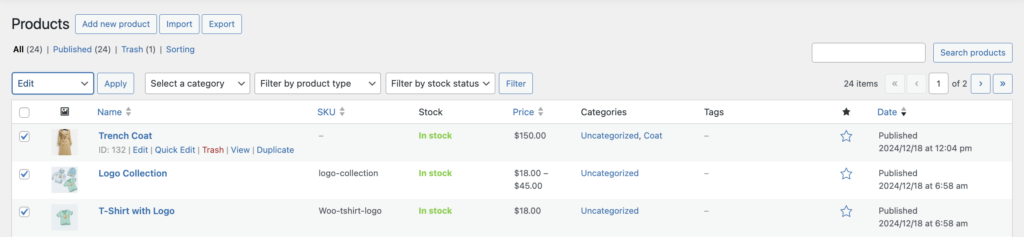
- Go to Products → All Products.
- Check the items you want to put in the same category.
- Select Edit from the Bulk actions drop-down menu, and hit Apply.
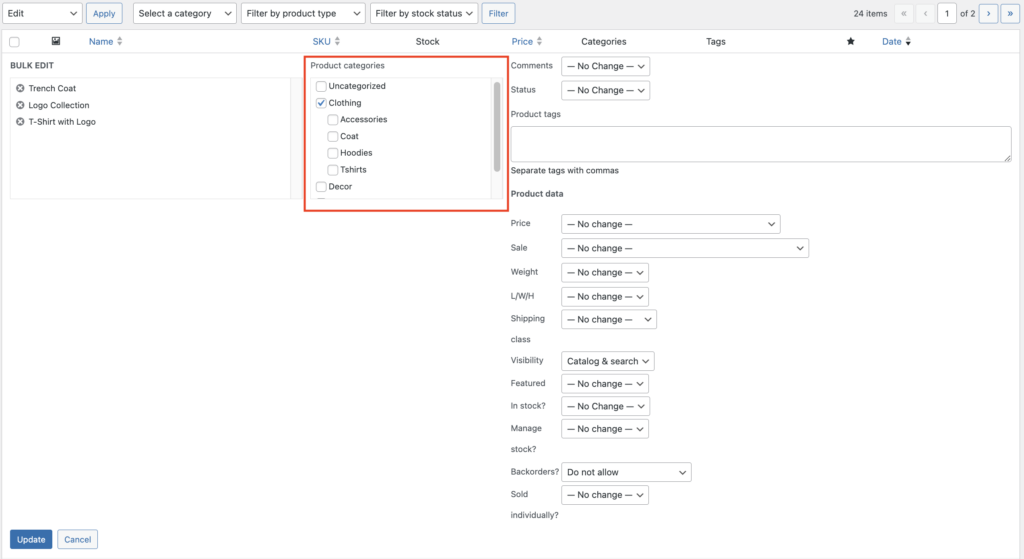
- Check the Product categories to group the selected items.
- Click Update to apply the changes.
Alternatively, you can assign product categories individually by hovering over a product and clicking Quick Edit. Check the relevant Product categories, then hit the Update button.

Set up the linked products
By entering the linked product details in WooCommerce, you can manually select products to upsell or cross-sell:
- Go to Products → All Products.
- Hover over a product and click Edit.
- Scroll down to the Product data section, where you can find the Linked Products tab.
- Enter the product names you want to upsell or cross-sell in the respective fields. You can add as many products as you want.
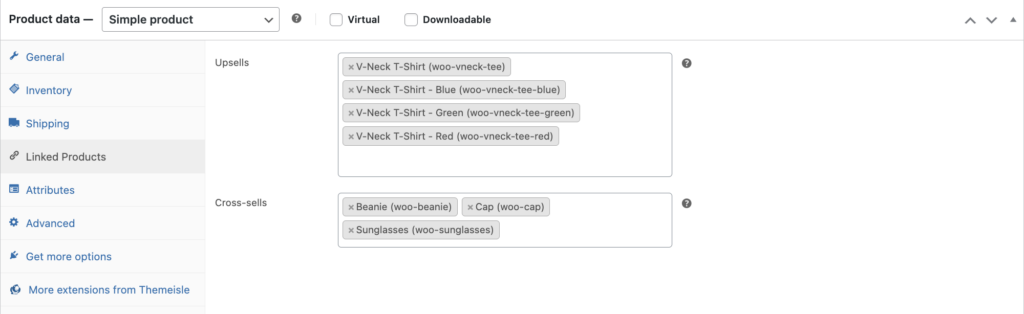
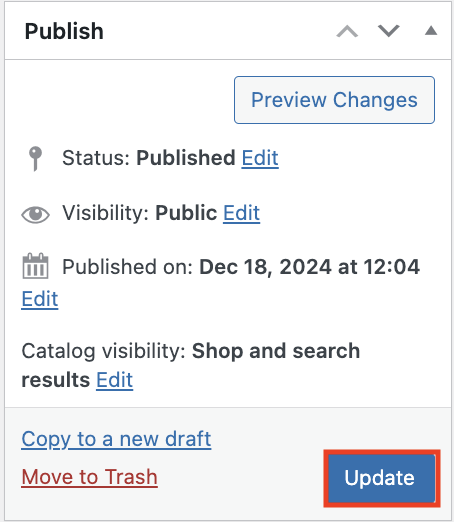
- Scroll back up to find the Publish section and hit Update to apply the changes.
Pro tip
Your chosen WooCommerce product type will determine the fields available in the Linked Products tab. For instance, if you select an External/affiliate product type, you’ll only see the Upsells field. Once you switch to Simple product, both Upsells and Cross-sells fields will appear.
Benefits of showing related products in WooCommerce stores
Displaying related products in your eCommerce store gives you the opportunity to increase profit. A study by Barilliance highlights the effectiveness of product recommendations in driving additional sales and conversions.
While the benefit to your revenue is clear, there are other advantages of showing related products in WooCommerce:
Enhanced user experience
Offering related products helps customers discover more items they may be interested in. This creates a more personalized and engaging shopping experience, encouraging them to explore more of your store.
Better product visibility
Related products increase the visibility of items your customers might not have noticed before. Showcasing these products, especially if they are new or less popular, can increase their chances of getting more recognition.
Enhanced inventory management
Featuring related products can help you promote overstocked items. By displaying these products alongside popular items, you can clear inventory more efficiently.
Strengthened brand loyalty
Offering tailored suggestions shows customers that your store understands their needs, which can build trust and encourage repeat purchases.
Tips for organizing related products
Make the most of your WooCommerce Related Products section by implementing these best practices:
- Prioritize relevance – display products that highly complement or enhance the main item. Irrelevant recommendations can confuse your customers and discourage them from exploring.
- Tailor your product recommendations – handpick related products for better accuracy and to your specific customer’s needs, especially for the most popular items on your online store.
- Keep it minimal – avoid overwhelming customers with too many options. Highlight only the most relevant items to maintain their interest.
- Keep the display visually engaging – to increase engagement, showcase related products in a slider or grid with clean layouts, consistent styling, and high-resolution images.
- Do your research – use sales and customer behavior data to identify frequently bought-together items and optimize your recommendations accordingly.
- Monitor performance – regularly review the sales generated from related products and adjust them if needed.
Recommended plugins to customize related products
Using a plugin is the easiest way to make advanced customizations to your online store’s Related Products section. These are some of the best WooCommerce plugins for related products:
Related Products for WooCommerce
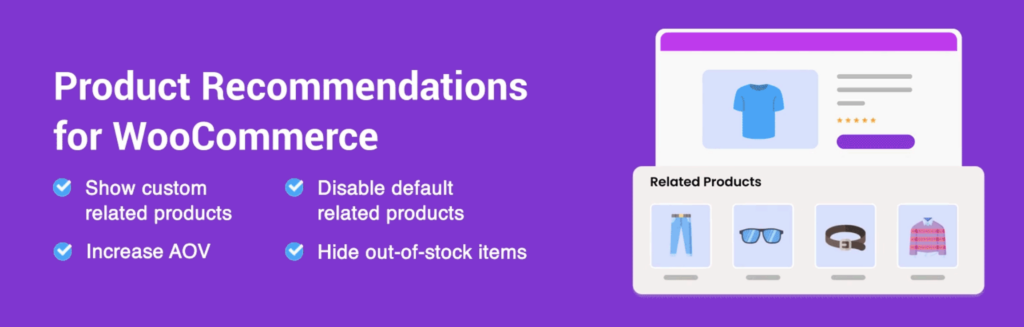
Activating this plugin lets you create product recommendation rules that aren’t just limited to categories or tags. You can also display related products in a slider and customize the section’s appearance. To help you quickly add related products to any page, the plugin also supports WooCommerce shortcode.
YITH WooCommerce Frequently Bought Together

This plugin lets you configure product suggestions, customize the Related Products section’s title, and edit add-to-cart buttons. Upgrading to the premium version unlocks discounts on combined purchases and other options for a more tailored upselling strategy.
WPB WooCommerce Related Products Slider
This WooCommerce related products plugin replaces the default section with a dynamic, responsive slider. It offers two pre-made design themes that can seamlessly integrate into your eCommerce store. The premium version offers advanced customization options, including manual selection of related products, upsell and cross-sell sliders, and style adjustments.
Conclusion
Adding related products to your WooCommerce store is an effective way to increase sales and personalize your customers’ shopping experience. With WooCommerce’s built-in functionality, you can add related products through:
- Adding product categories and tag
- Setting up linked products
You can also use a plugin to customize and control your related products section further.
We hope this article helps you improve your eCommerce store in a meaningful way. Good luck!
How to add related products in WooCommerce FAQ
What do related products mean?
In WooCommerece, related products are recommended items shown alongside the product a customer is currently viewing.
What is an example of a related product?
If someone visits a laptop product page, related products might include a laptop sleeve, a wireless mouse, or a cooling pad – all of which complement the main product.
Is there a limit to the number of related products I can add?
There’s no strict limit on how many related products you can add. However, your theme or plugin settings may influence the maximum number of related products displayed.
All of the tutorial content on this website is subject to Hostinger's rigorous editorial standards and values.

Larassatti Dharma is a content writer with 4+ years of experience in the web hosting industry. She has populated the internet with over 100 YouTube scripts and articles around web hosting, digital marketing, and email marketing. When she's not writing, Laras enjoys solo traveling around the globe or trying new recipes in her kitchen. Follow her on LinkedIn