Adding PHP to WordPress: 2 methods to add PHP code snippets
Sep 15, 2026
/
By Jordana A. & Ariffud M.
/
4 min Read
Adding PHP to WordPress lets you add custom functionality, automation, and specific logic directly to your website’s architecture.
By adding these PHP snippets, you can customize theme behavior, extend plugin capabilities, and enhance security features beyond the default settings.
WordPress doesn’t allow direct PHP input in the block or classic editor because it would expose your site to code injection attacks – a vulnerability that could give attackers full server access.
To work around this safely, you can use two methods to add PHP to your WordPress site:
- Use a plugin. This option works best for beginners and non-technical users because it manages code execution safely without risking site errors.
- Add PHP manually. This method suits users who want full control of their file structure or need to implement complex logic in a child theme.
How to add PHP code using a plugin
WordPress prevents users from adding custom PHP code directly in the built-in editor due to security concerns. To safely add PHP code to a WordPress post or page, you can convert it into a shortcode first.
You can create a shortcode in WordPress manually, but a plugin streamlines the process. Several options are available in the WordPress repository. For this tutorial, we’ll use one of the most popular choices: WPCode.
WPCode includes built-in error checking. If you make a syntax error or paste malformed code, it automatically deactivates the snippet and displays an error message explaining what went wrong.
Here’s how to add a PHP code snippet using the WPCode plugin:
- Install and activate the plugin. The Code Snippets menu appears in your WordPress dashboard after activation.
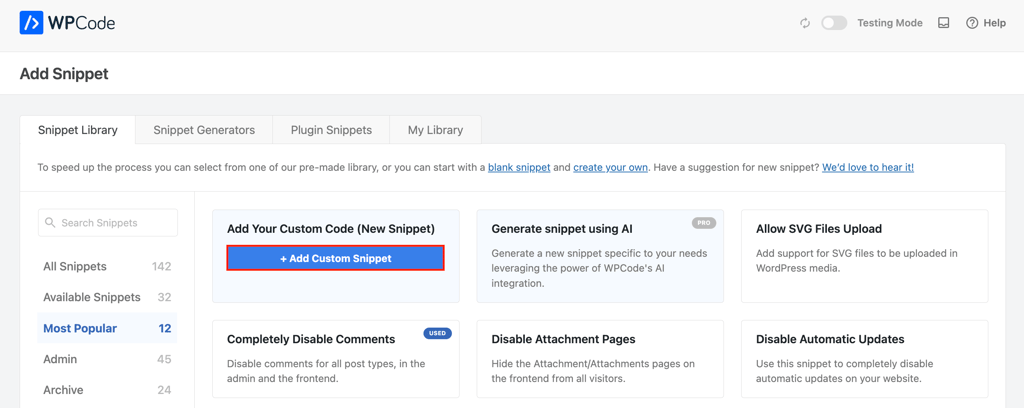
- Go to Code Snippets → + Add Snippet. You’ll see a library of pre-made snippets. To add custom PHP code, hover over Add Your Custom Code (New Snippet) and click + Add Custom Snippet.
- Name your snippet and set the Code Type to PHP Snippet. Write your code in the Code Preview box. The example below shows a simple timezone snippet. You don’t need to include the opening <?php tag, as WPCode adds it automatically.
// Display Los Angeles timezone
   $timezone = new DateTimeZone('America/Los_Angeles');
   $datetime = new DateTime('now', $timezone);
   echo '<p>Current time in Los Angeles: ' . $datetime->format('g:i A') . '</p>';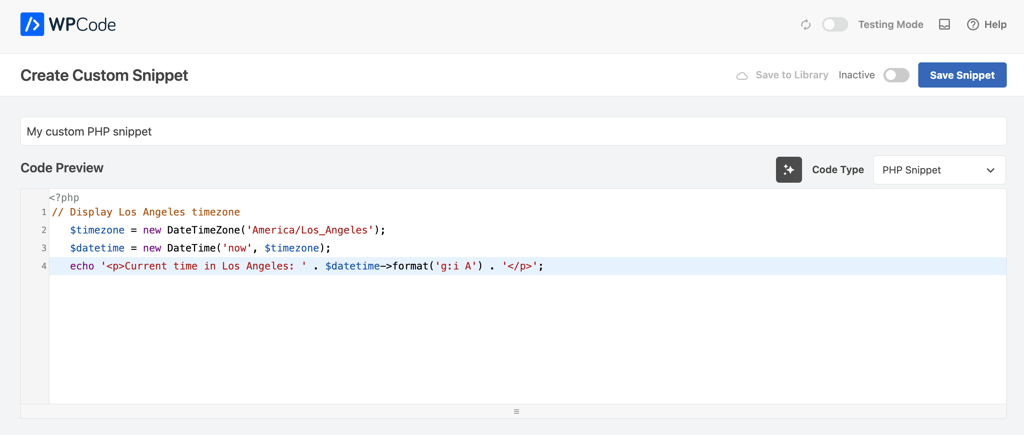
- Configure the Insertion settings. Choose Auto Insert and set the location to Site Wide Footer to display the timezone in the footer of all pages.
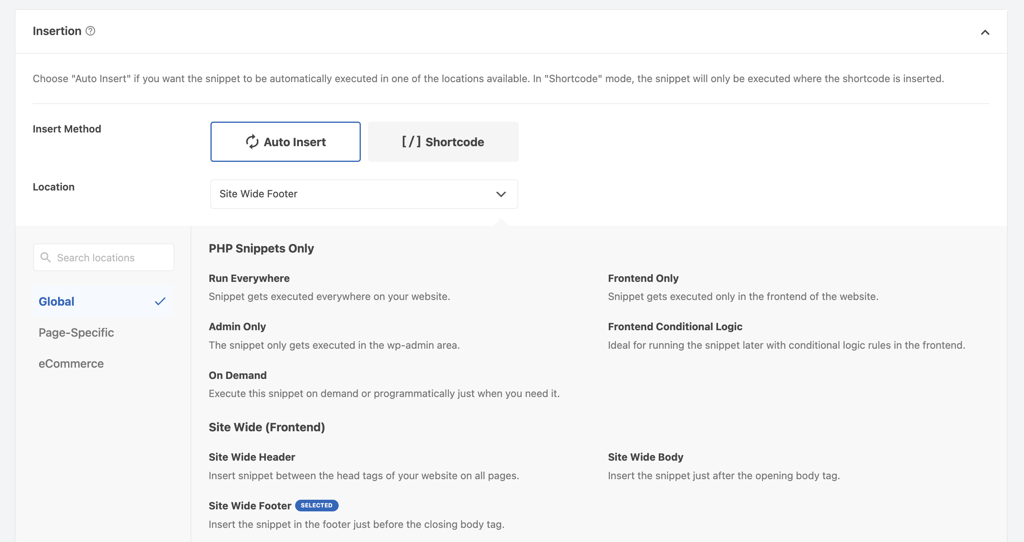
- Use the Shortcode option if you prefer to embed the snippet in posts or pages. After saving it, Click Copy and paste the shortcode where you want it to appear.
- Set conditional logic if you’re using Auto Insert. The free version supports user and page conditions, including user role, page type, and specific URLs. Select Add new group and configure your rules.
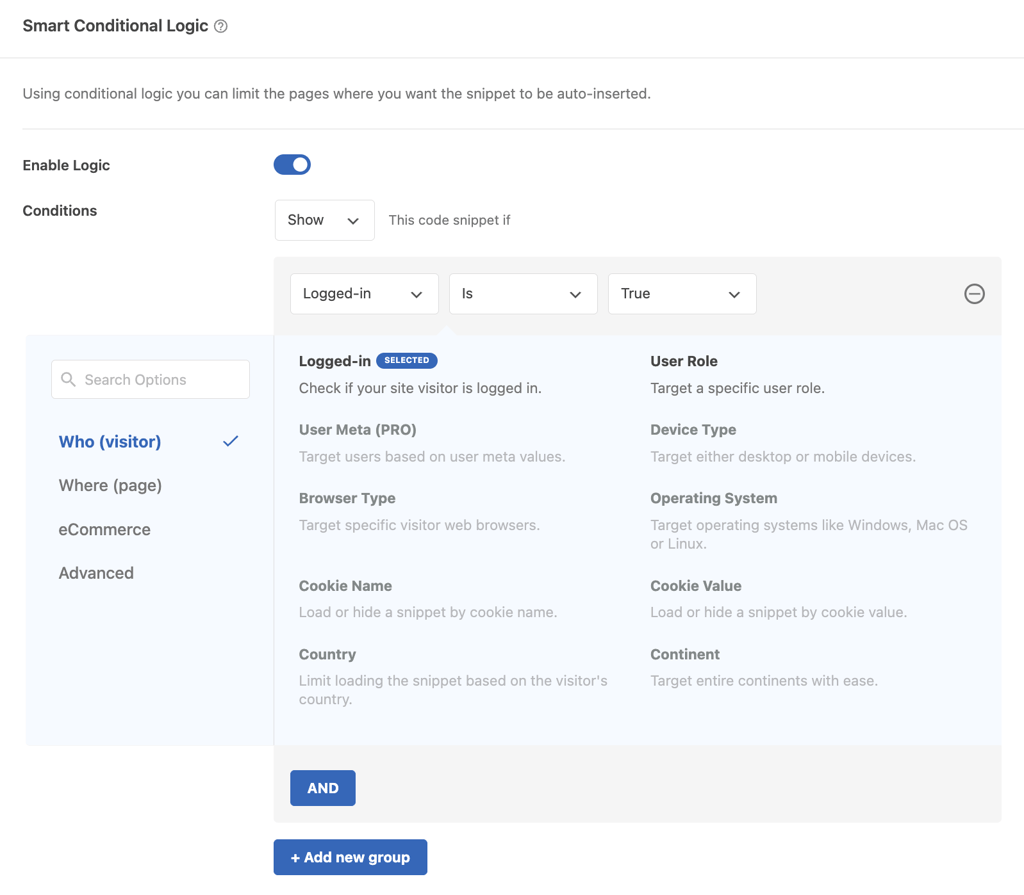
- Activate and save your snippet. Turn on the toggle in the upper menu bar and click Save snippet.
If WPCode doesn’t meet your needs, consider these alternatives:
- Code Snippets. Includes an editor with error checking and lets you group related snippets with tags.
- Head and Footer Code. Sets the priority of custom code for the header, body, and footer.
- Post Snippets. Lets you reorder snippets using drag-and-drop.
How to add PHP to WordPress manually
The plugin method makes adding custom PHP code easy, but it may be limiting for advanced customization. For more flexibility, you can add PHP manually.
Back up your WordPress website before changing any PHP files to protect your data in case something goes wrong. It’s also best to test changes in a staging environment instead of a live site unless it’s absolutely necessary.
There are two main ways to add PHP code to your WordPress site manually: using the WordPress theme editor or using a file manager or FTP client with a code editor.
The theme editor works well for quick edits because it’s accessible from your WordPress dashboard. But it lacks features like error checking and autocompletion that a proper code editor provides.
If you want to modify theme files, create a WordPress child theme and add your PHP snippets there. A child theme keeps your customizations separate and prevents theme updates from overwriting them.
If you’re using a modern block theme like Twenty Twenty-Four, some customizations that previously required functions.php can now be handled in the theme.json file. Check your theme’s documentation for the recommended approach.
Here’s how to add custom PHP in WordPress using the theme editor:
- Head to Appearance → Theme File Editor in your WordPress dashboard.
- Select Theme Functions on the right sidebar to open the functions.php file.
- Add the code for your desired functionality. Insert your custom PHP at the end of the file, just before the closing ?> tag if it exists. Here’s an example of modifying the WordPress excerpt length:
// Custom function to modify excerpt length
   function custom_excerpt_length( $length ) {
       return 30; // Number of words
   }
   add_filter( 'excerpt_length', 'custom_excerpt_length', 999 );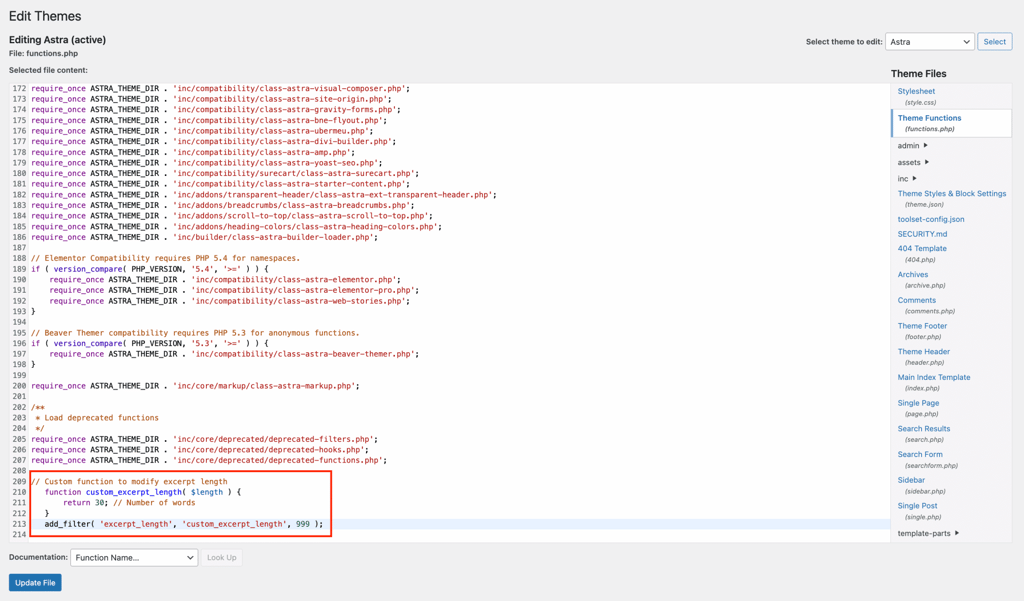
- Once done, click Update File.
To modify plugin files, go to Plugins → Plugin File Editor and follow the same steps. If you introduce a syntax error, WordPress deactivates the plugin and shows an error message so you can fix it.
On the other hand, editing files using your web host’s File Manager or an FTP client like FileZilla is better for users with some technical experience. This method also lets you access and modify files beyond themes and plugins.
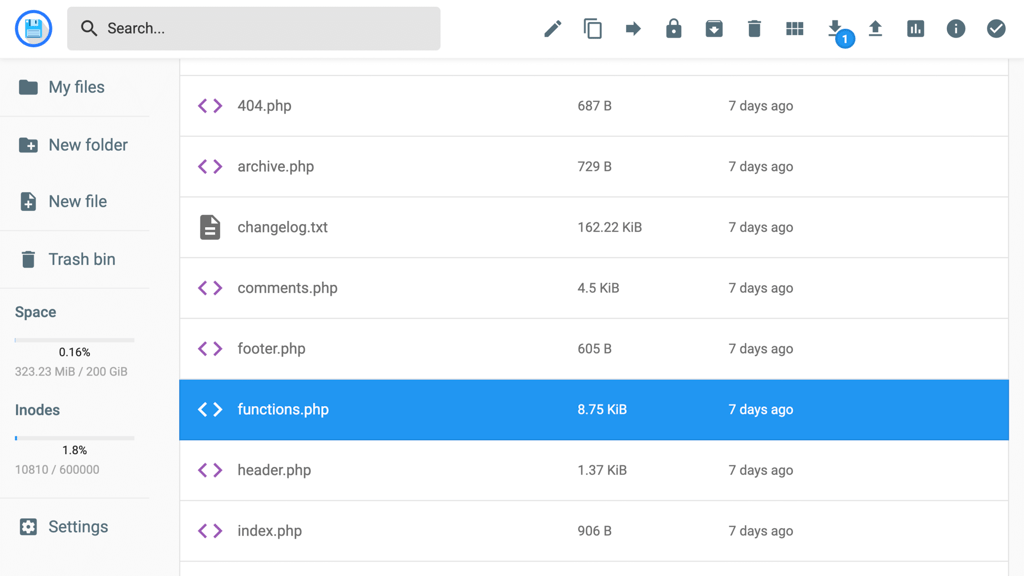
Here’s how to add a PHP snippet using Hostinger’s File Manager:
- Select File Manager from your Hostinger dashboard.
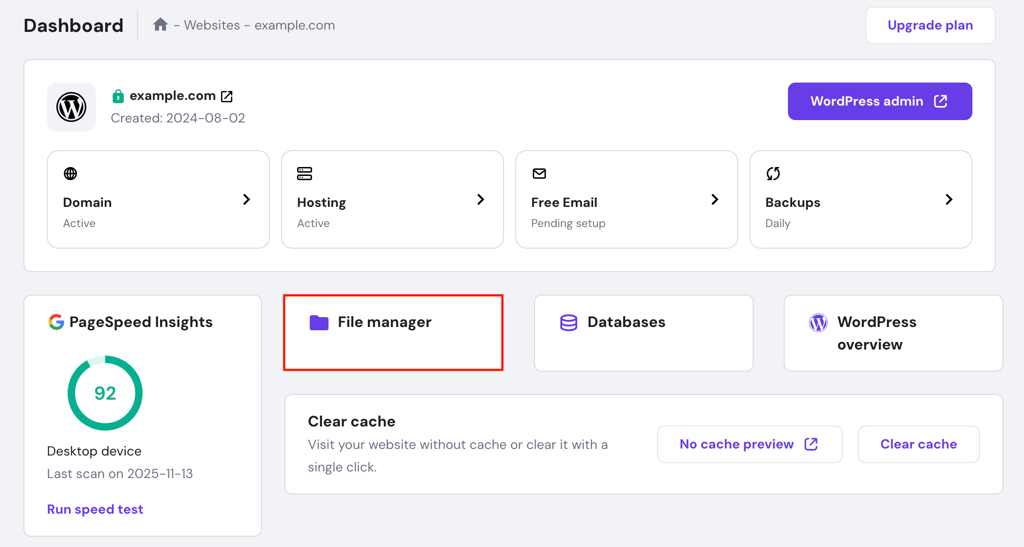
- Open the public_html folder to view your site files.
- Open wp-content to access your theme or plugin folders. For example, go to themes → your active theme folder and add functions to the functions.php file. Double-click the file to open it, and click Save when you’re done.
Why add PHP to WordPress
For websites running on managed WordPress hosting, inserting custom PHP code offers the following benefits:
- Enhanced functionality. Add unique features that might not be achievable with standard plugins or themes.
- Tailored solutions. Create customized solutions for your specific requirements and growing user demands.
- Unique designs. Implement special design elements and layouts that set your website apart from others using off-the-shelf themes.
- Integration. Integrate external services, APIs, or databases seamlessly into your WordPress site, enabling complex interactions and data handling.
- Automation. Automate repetitive tasks to save time and streamline data processing.
- Improved security. If implemented correctly, you can gain better control over your website’s security measures.
- Cost savings. You don’t have to rely on expensive third-party plugins to scale your website.
Continue building with JavaScript in WordPress
By adding PHP code to your WordPress core files, you can control how the server processes data and constructs pages before they reach the user. But a modern website needs more than server-side logic – it also needs interaction.
PHP handles the server-side work, while JavaScript runs in the browser to power dynamic features like live search, instant form validation, and interactive maps without requiring a page reload.
Combining PHP’s data processing with JavaScript’s interactivity is the standard approach for advanced plugin development and custom theme design. To round out your toolkit, read our guide on how to add JavaScript to WordPress.
All of the tutorial content on this website is subject to Hostinger's rigorous editorial standards and values.

Jordana is a Senior Content Writer with a background in Information Systems. She has over five years of experience in WordPress and is casually dabbling with PHP and MySQL. Her passion for writing and technology drives her to create tutorials for anyone wanting to build their online presence. Follow her on LinkedIn.

Ariffud is a Technical Content Writer with an educational background in Informatics. He has extensive expertise in Linux and VPS, authoring over 200 articles on server management and web development. Follow him on LinkedIn.