What is the WordPress theme editor and how does it work?
Sep 15, 2026
/
By Ariffud M.
/
7 min Read
The WordPress theme editor (officially called the Theme File Editor) lets you modify theme files directly in the WordPress dashboard.
It plays an important role in WordPress theme customization and troubleshooting because it gives you instant access to your theme’s core files without using external tools like FTP clients or file managers.
A WordPress theme includes a collection of PHP, CSS, and JavaScript files that control your site’s design and functionality.
Files like header.php and style.css define your site’s HTML structure and visual design, while functions.php controls features like menus, widgets, and custom logos.
The Theme File Editor lets you work with all these files in one place. You can use it to:
- Edit template files. Change how specific pages, such as posts, archives, or 404 pages, are structured and displayed.
- Customize stylesheets. Adjust fonts, colors, layouts, and spacing in the style.css file to update your site’s design.
- Add functionality. Insert code into functions.php to register features, enqueue scripts, or modify default WordPress behavior.
- Troubleshoot issues. Find and fix code-level problems affecting your site’s front end or dashboard.
What is the WordPress theme editor?
The WordPress theme editor is a built-in plain-text code editor in the WordPress admin dashboard that lets you edit your theme’s PHP, CSS, and other configuration files.
On the left side of the screen, you’ll see the code editor with the selected file. On the right, a sidebar lists all editable files in the active theme.
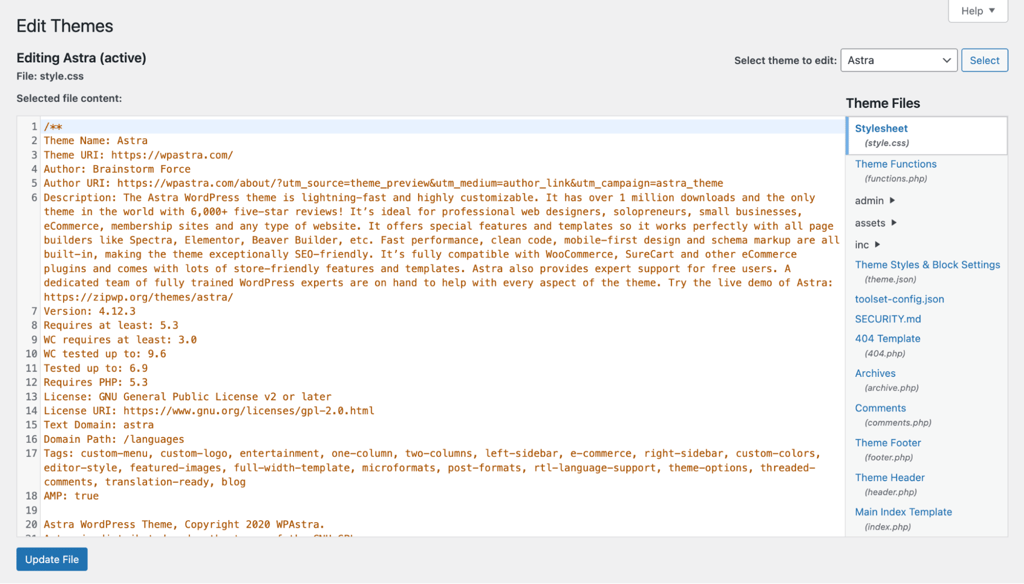
The available files depend on your WordPress theme, but most themes include these core files:
- style.css. The main stylesheet that controls your site’s design, including typography, colors, spacing, layout, and responsive styles.
- functions.php. The configuration file that defines features like widget areas, navigation menus, custom post types, and script loading.
- header.php. Generates the top section of every page, including the <head> tag, site logo, and main navigation menu.
- footer.php. Outputs the bottom section of every page, often with copyright information, footer widgets, and closing scripts.
- single.php. Controls the layout of individual blog posts.
- page.php. Determines the layout of static pages.
- index.php. Acts as the fallback template when no more specific file matches the requested content.
By default, only users with the Administrator role can access the Theme File Editor. WordPress controls access through the edit_themes capability, so Editors and Authors won’t see the option in the dashboard.
On WordPress Multisite, only Super Admins can access it.
The editor has limitations. It doesn’t include version control, so you can’t undo changes or restore a previous version of a file. Errors in critical files like functions.php can break your site entirely.
WordPress does run a basic syntax check before saving PHP files, but it won’t catch logical errors that can still break your layout or functionality.
What are the differences between the WordPress theme editor, block editor, and Customizer?
The WordPress theme editor lets you edit your theme’s source code directly. The block editor helps you create and arrange content inside posts and pages. The WordPress Customizer enables you to adjust theme settings through a visual interface.
When comparing the theme and the block editor, the key difference is code versus visual editing. The theme editor gives you direct access to PHP, CSS, and JavaScript files that control how your entire site works.
The WordPress block editor, also known as Gutenberg, uses a block-based system to build layouts without coding. You use it whenever you create or edit a post or page.
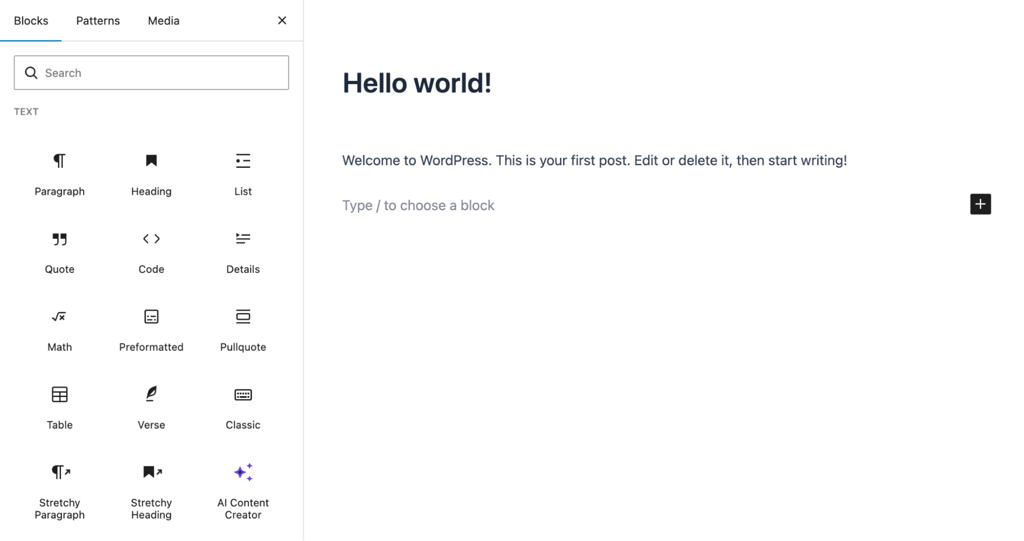
The theme editor and the Customizer seem similar, but they serve different purposes.
The WordPress Customizer, available under Appearance → Customize in classic themes, offers a visual interface for adjusting settings like site identity, colors, and menus.
It also shows a live preview before you publish changes. However, you can only change the options provided by the theme developer.
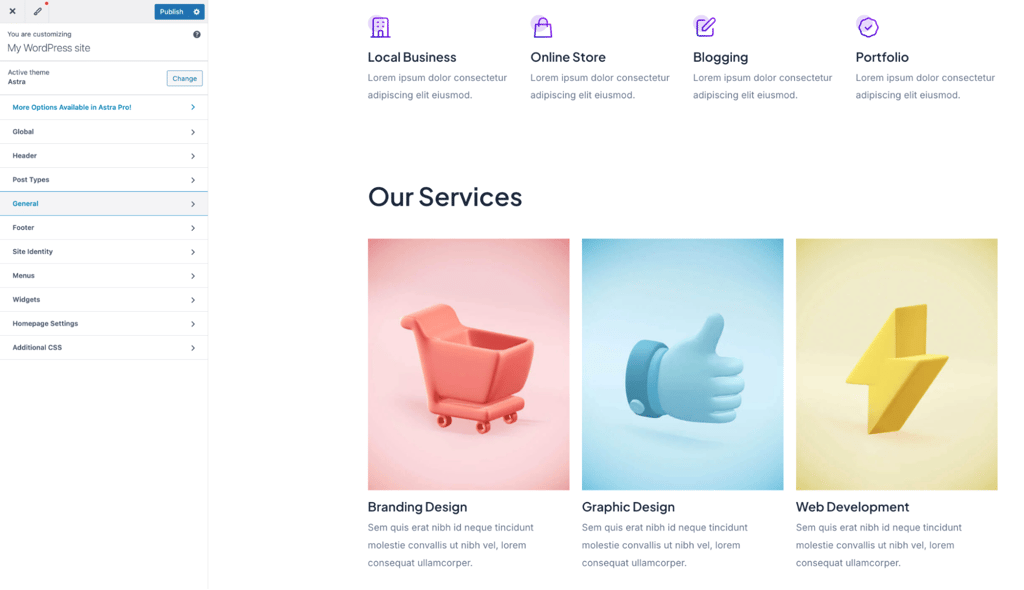
The theme editor doesn’t have those limits. You can modify any line of code in any theme file. However, it doesn’t provide a visual preview, and there’s no undo feature. Once you click save, your changes go live immediately.
In short:
- Use the theme editor when you need to modify template logic, add PHP functions, or edit stylesheets beyond what the Customizer or block editor allows.
- Use the block editor to create and structure post and page content.
- Use the Customizer for visual, no-code changes to your site’s overall design, such as adding custom CSS to WordPress.
How does the WordPress theme editor work?
The WordPress theme editor reads files stored in the /wp-content/themes/ directory and displays them in an editable text area inside your dashboard.
When you save edits, WordPress writes them directly to the file on your server.
The editor’s location depends on your theme type:
- Classic themes. Navigate to Appearance → Theme File Editor.
- Block themes (WordPress 5.9+). Go to Tools → Theme File Editor.
Before you make any changes, make sure you have a recent backup of your WordPress site.
Follow these steps to edit a theme file safely:
- Open the Theme File Editor. Log in to your WordPress dashboard and navigate to the editor based on your theme type.
- Select the theme. Use the dropdown menu in the top-right corner and click Select. WordPress loads the active theme by default, but you can view files from any installed theme.
- Choose a file. Click a file name in the right sidebar, such as style.css or functions.php, to load it into the editor.
- Edit the code carefully. Make one change at a time so you can quickly identify issues if something breaks. If you’re adding a large code snippet, test it in a staging environment first.
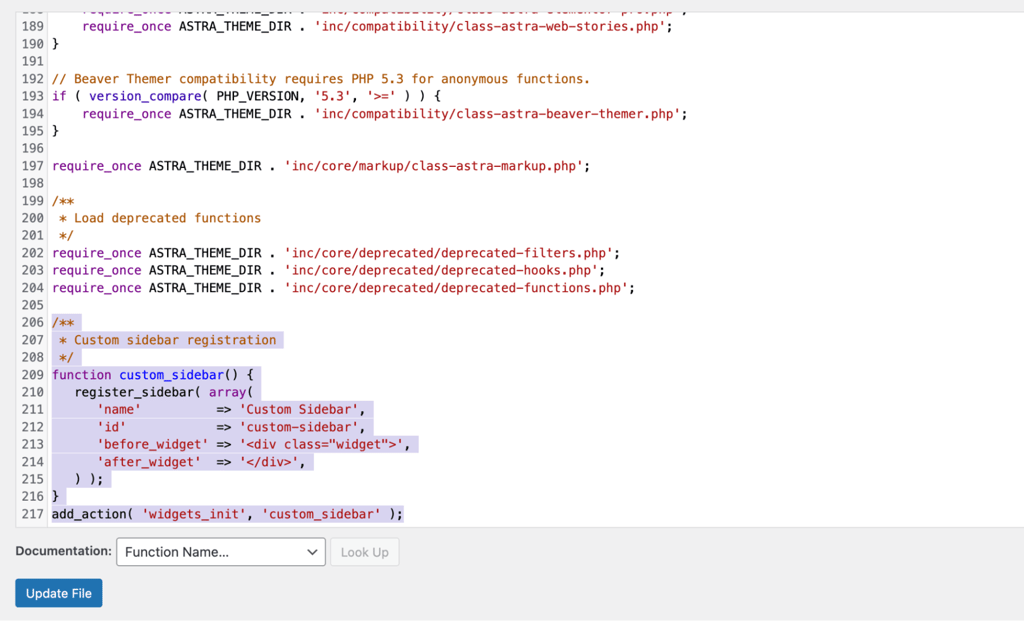
- Click Update File. WordPress runs a basic syntax check on PHP files before saving. If it detects an error, it shows the error location and blocks the update.
- Check your site. Open your site in a new browser tab and confirm the changes work as expected. If your site breaks and you can’t access the dashboard, restore your previous backup.
What can you edit in the WordPress theme editor?
The WordPress theme editor lets you edit any file inside your theme’s directory. Here are the main theme file types:
- Template logic. PHP files in WordPress like single.php, page.php, archive.php, and 404.php control the HTML output for specific page types. Edit these files when you want to change what content appears or how it’s structured. For example, add a custom author box below every blog post in single.php or adjust how archive pages display post excerpts.
- Visual design. The style.css file is your theme’s main design file. It controls typography, colors, spacing, layouts, and responsive breakpoints. Every WordPress theme requires a style.css file. It also includes the theme’s metadata, such as name, version, and author, in a comment block at the top.
- Theme behavior. The functions.php file works like a built-in plugin for your theme. It’s one of the most commonly edited files because it handles menu and widget registration, script loading, feature support like post thumbnails and custom logos, and custom shortcodes or hooks.
- Front-end interactivity. Some themes include .js files for sliders, mobile menu toggles, or smooth scrolling. You’ll usually find them in a /js/ or /assets/ subdirectory inside the theme folder.
Here are a few real-world examples of common edits:
- Changing your site’s font family. Open style.css and edit the font-family property in the body selector:
body {
font-family: 'Inter', sans-serif;
}- Adding a custom widget area. Open functions.php and register a new sidebar:
function custom_sidebar() {
register_sidebar( array(
'name'          => 'Custom Sidebar',
'id'            => 'custom-sidebar',
'before_widget' => '<div class="widget">',
'after_widget'  => '</div>',
) );
}
add_action( 'widgets_init', 'custom_sidebar' );- Inserting a tracking code into the header. Open header.php and add your tracking snippet or meta tags inside the <head> section, just before the closing </head> tag:
<head>
<!-- Existing theme head content -->
<!-- Custom tracking code -->
<script async src="https://www.googletagmanager.com/gtag/js?id=your-tracking-id"></script>
<script>
window.dataLayer = window.dataLayer || [];
function gtag(){dataLayer.push(arguments);}
gtag('js', new Date());
gtag('config', 'your-tracking-id');
</script>
</head>
Best practices when using the WordPress theme editor
When using the WordPress theme editor, follow a few core best practices: always back up your files before editing, use a child theme for customizations, test changes in a staging environment, consider safer alternatives for complex edits, and disable the editor if you don’t need it.
Editing theme files directly comes with real risks. A syntax error in functions.php can trigger a critical error that locks you out of both your site and the dashboard.
Pasting untrusted code from the internet can introduce security vulnerabilities. Any changes you make to a parent theme’s core files will also disappear the next time the theme updates.
You can manage these risks if you set up the right safety net before making any edits:
- Keep backups and use version control. Save a copy of every file before you edit it. If one line of bad code breaks your site, that backup is the fastest way to recover. If you’re using Hostinger’s managed hosting for WordPress, you get automatic weekly backups on all plans and daily backups on Business + AI and higher plans. If you manage frequent changes or work in a team, use Git for version control. It lets you track revisions, compare changes, and collaborate without overwriting each other’s work.
- Use a child theme. A WordPress child theme inherits the parent theme’s design and functionality but stores your customizations separately. When the parent theme updates, your changes stay intact. If you’re making code-level edits, create a child theme first. It’s the most important step to protect your customizations from updates.
- Test on a staging site. A WordPress staging environment is a copy of your live site where you can test changes safely. If something breaks, your visitors won’t notice. Hostinger users on the Business + AI plan and higher can use the WordPress staging tool in Hostinger dashboard. Alternatively, install WordPress locally on your computer to test changes before pushing them live.
- Consider safer alternatives for advanced edits. The Theme File Editor works well for quick changes, but it’s not ideal for complex development. For larger edits, use an FTP client like FileZilla or your hosting provider’s file manager. Download the theme files, edit them in a dedicated code editor such as VS Code, then upload them again. Code editors offer syntax highlighting, auto-completion, error detection, and better file management.
- Disable the theme editor if you don’t need it. If you don’t plan to edit theme files from the dashboard, disable the Theme File Editor altogether. This helps prevent accidental changes and reduces security risks if someone gains unauthorized admin access. To do so, add this constant to your wp-config.php file:
define( 'DISALLOW_FILE_EDIT', true );
Next step: Learn to edit your WordPress site with the block editor
Beyond editing theme files directly, you can customize your WordPress site visually using the built-in block editor.
Its drag-and-drop system lets you create content-rich pages and posts by stacking and arranging WordPress blocks like paragraphs, images, columns, buttons, and media embeds, all without writing code.
For site-wide design changes, such as editing headers, footers, and page templates, use the Site Editor under Appearance → Editor. It extends the block system to your entire site.
You’ll need a block theme, such as Twenty Twenty-Five or Twenty Twenty-Four, to use the Site Editor.
If you use one, it gives you a powerful no-code way to make structural changes that would otherwise require editing PHP template files.
This article is a localized version of What is the WordPress theme editor and how does it work?, originally published in English.
All of the tutorial content on this website is subject to Hostinger's rigorous editorial standards and values.

Ariffud is a Technical Content Writer with an educational background in Informatics. He has extensive expertise in Linux and VPS, authoring over 200 articles on server management and web development. Follow him on LinkedIn.