What is WordPress version control?
Mar 10, 2026
/
Aris S.
/
7 min Read
WordPress version control is a process that enables you to track and revert changes to your website over time. It is commonly used for development, troubleshooting, or disaster recovery.
The benefits of implementing a WordPress version control system include streamlined collaboration, improved data integrity, and easier documentation.
You can implement a version control system using different tools: Git, a rollback plugin, or WordPress’s built-in revisions feature. However, each method has its own limitations and is only suitable for tracking specific parts of your website.
In this article, we’ll discuss WordPress version control in more detail and provide tips for implementing this system to help you get the most out of it.
What is WordPress version control used for?
Implementing version control helps streamline WordPress development, as it enables you to monitor and roll back changes on your website more easily. Here are some real-world use cases:
- Theme and plugin development. WordPress version control can track new code or content when developing themes and plugins.
- WordPress website redesign. You can keep the production version of your website unchanged while working on new improvements in another development branch.
- Debugging and bug fixing. Keeping a historical record helps you to more easily identify when a bug was introduced, thereby facilitating recovery.
- Managing crucial files. Implementing a version control system lets you maintain the integrity of critical WordPress files like wp-config.php, .htaccess, or custom .env, which defines your website functionality.
- Deployment. A version control system allows developers to synchronize changes from local development to staging and production environments.
- Backup and disaster recovery. Enable version history in your WordPress development environment to serve as backups or restoration points.
What are the benefits of WordPress version control?
Here are the common benefits of implementing WordPress version control:
- Change tracking. A version control system can monitor all changes during your WordPress development process, providing information like what has been modified, when, and by whom.
- Streamlined documentation. The version history contains all historical information about your WordPress development, which is helpful during reporting, auditing, or handover.
- Collaboration. Developers can work on the same project simultaneously without conflict using isolated development branches, merging functionality, and code review.
- Safe experimentation. A version control system enables developers to create separate development branches where they can test changes without affecting the main production line.
- Improved security. Version control history contains information that helps you identify unauthorized or accidental changes to your website, which can help reduce human error overall.
How to use version control in WordPress
Here are three common methods of implementing a version control system in WordPress.
How to use Git for WordPress
Git is the most popular open-source version control system, known for its flexibility. It’s typically used for tracking code and file-level changes in WordPress development.
Git is also essential if you want to set up a continuous development and integration (CI/CD) pipeline that automates code deployment on your website. Note that this isn’t used to monitor content on posts and pages, as this is edited by users on the admin dashboard and stored in the database.
Configuring Git for your WordPress website consists of two parts: setting up the repository and setting up the deployment pipeline. Here’s the process of the first phase:
- Back up and download your WordPress site’s files using your web host’s built-in feature or the FileZilla SFTP client.
- Install Git on your local computer.
- Navigate to the downloaded website directory, which is ~/my-wordpress-site/public_html by default.
- Create a new file called .gitignore, which specifies files that Git won’t read. It must contain important files or folders that regularly change to preserve your live website’s functionality. We’ll explain what to include later on, so let’s keep it empty for now.
- Open your system terminal and navigate to the directory using commands. If you use Windows, right-click anywhere and hit Git Bash Here.
- Run these commands one by one:
git init
git add .
git commit -m "first commit"
- Create a GitHub repository for your website. To learn more about the steps, check out our GitHub for WordPress tutorial.
- Run the following one by one to upload the website files to the GitHub repository:
git remote add origin https://github.com/yourusername/your-repo.git
git branch -M main
git push -u origin main
When you modify the downloaded website files on your local computer, the changes will be tracked and applied to the repository after you push them.
Important! Your .gitignore file should contain items that need to be excluded from the repository – like the wp-config.php configuration file, because it contains environment-specific settings that should not be pushed to the live site.
And, because the /wp-content/uploads/ folder contains user-uploaded media that changes independently from the dev process, it also shouldn’t be version-controlled.
Now, configure the deployment pipeline that will push changes from the repository to your live website. There are different ways to do this: manually by uploading the files, pulling the data with commands, or setting up a CI/CD pipeline.

For Hostinger WordPress hosting plan users, you can easily push all your website files and set up a deployment pipeline with your repository via hPanel. Here are the steps:
- Create a new private GitHub repository. Make sure to keep it empty.
- Log in to hPanel and open your WordPress website’s dashboard.

- Navigate to the sidebar → Advanced → GIT.
- Click Generate SSH key and copy the key.
- Add the SSH key to your GitHub account.
- Return to hPanel and enter details about your GitHub repository in the Create a New Repository section.
- Hit Create to confirm.
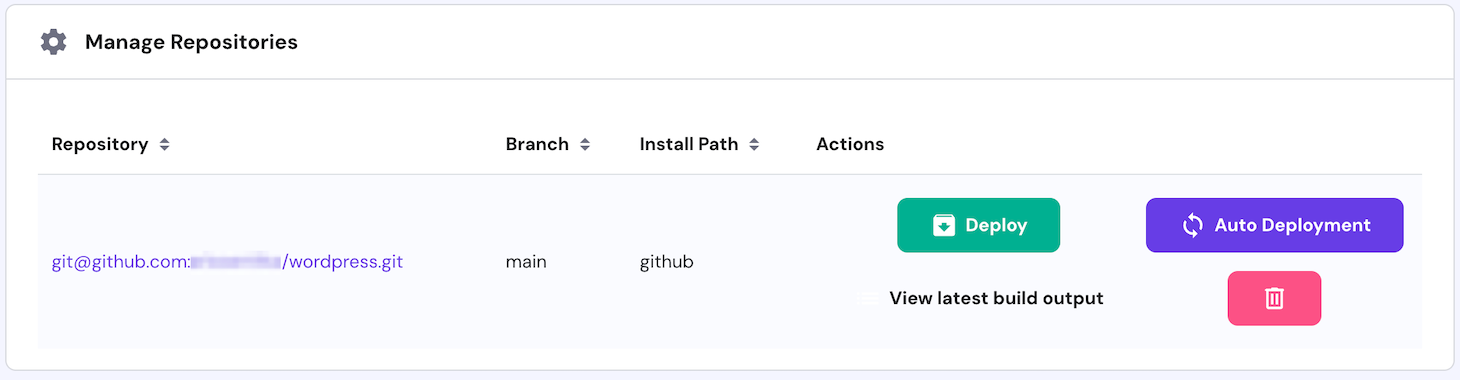
Once configured, simply hit Deploy to push changes from the GitHub repository to your live website.
You can also enable the auto-deploy feature to push changes in your repository to the live site automatically.
How to use a WordPress rollback plugin for version control
A WordPress rollback plugin is an extension that allows you to revert changes to your website easily, making it an ideal solution if you want to implement a simple version control system.
There are different rollback plugins for various purposes. One of the most popular ones is WP Rollback, which lets you revert plugins or themes to their previous versions to undo changes.
Here’s how to install and use the plugin on your website:
- Open your WordPress website’s admin panel.
- Navigate to the sidebar → Plugins → Add New Plugins.
- Look for WP Rollback and hit Install.
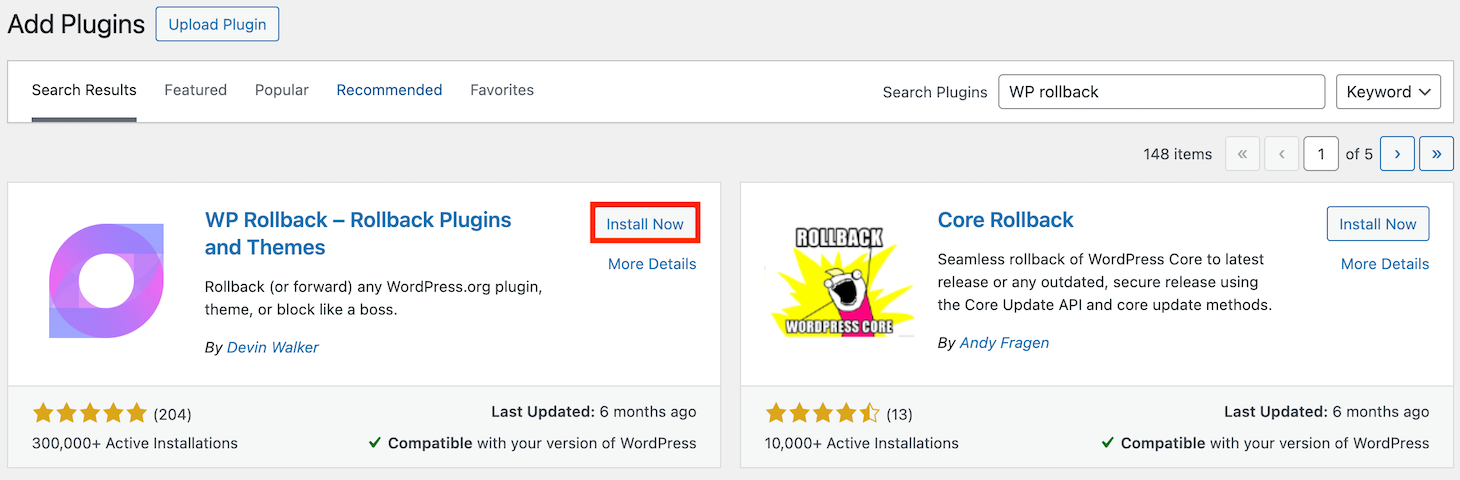
- Once installed, click Activate.
To use this plugin to roll back themes and plugins to their previous versions, simply go to the sidebar → Plugins → Installed Plugins and hit Rollback on the extension you want to revert.

For themes, navigate to the sidebar → Appearance → Themes. Hover over the theme and click theme details. The Rollback button will appear at the bottom of the pop-up window.
Note that depending on the plugin, the changes you can track differ. For example, WP Rollback doesn’t help you roll back WordPress versions or undo changes to post or page content.
How to use WordPress’s built-in revisions system
The WordPress revisions system is a built-in feature that automatically tracks post or page edits. It works as a basic version control system because you can keep track of and compare all content changes, and revert them to previous versions if you want to.
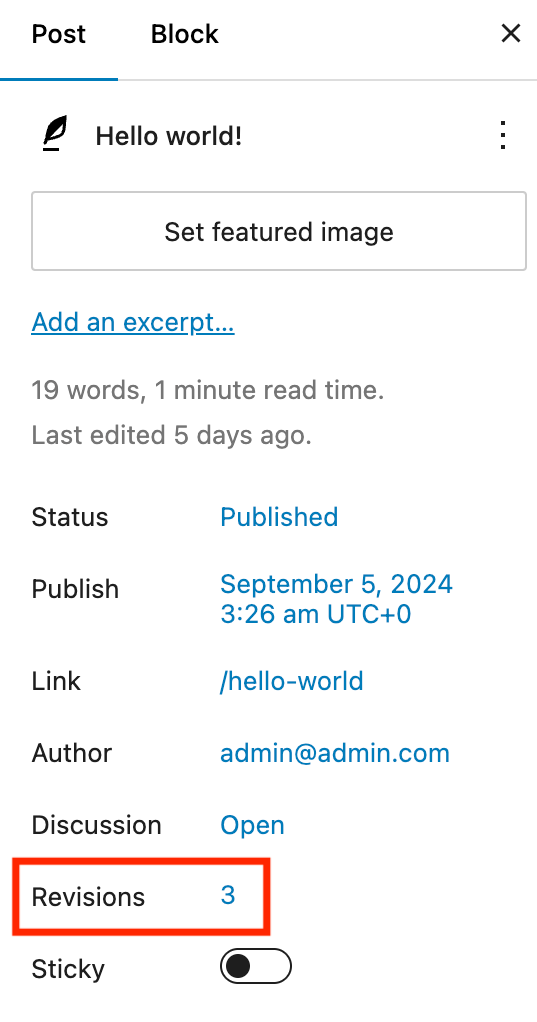
To see changes made to a post or page, open it in the content editor and navigate to the right sidebar. If you can’t find the right sidebar, expand it by clicking the Settings icon in the top right.
From the Post or Page tab, you can see the total number of revisions. Click on it to open the revisions page, where you can check all changes, including their authors and the modified content.
Check the revision history using the slider at the top of the page, with the leftmost being the latest version. You can also put two post versions side-by-side by checking the Compare any two revisions box.
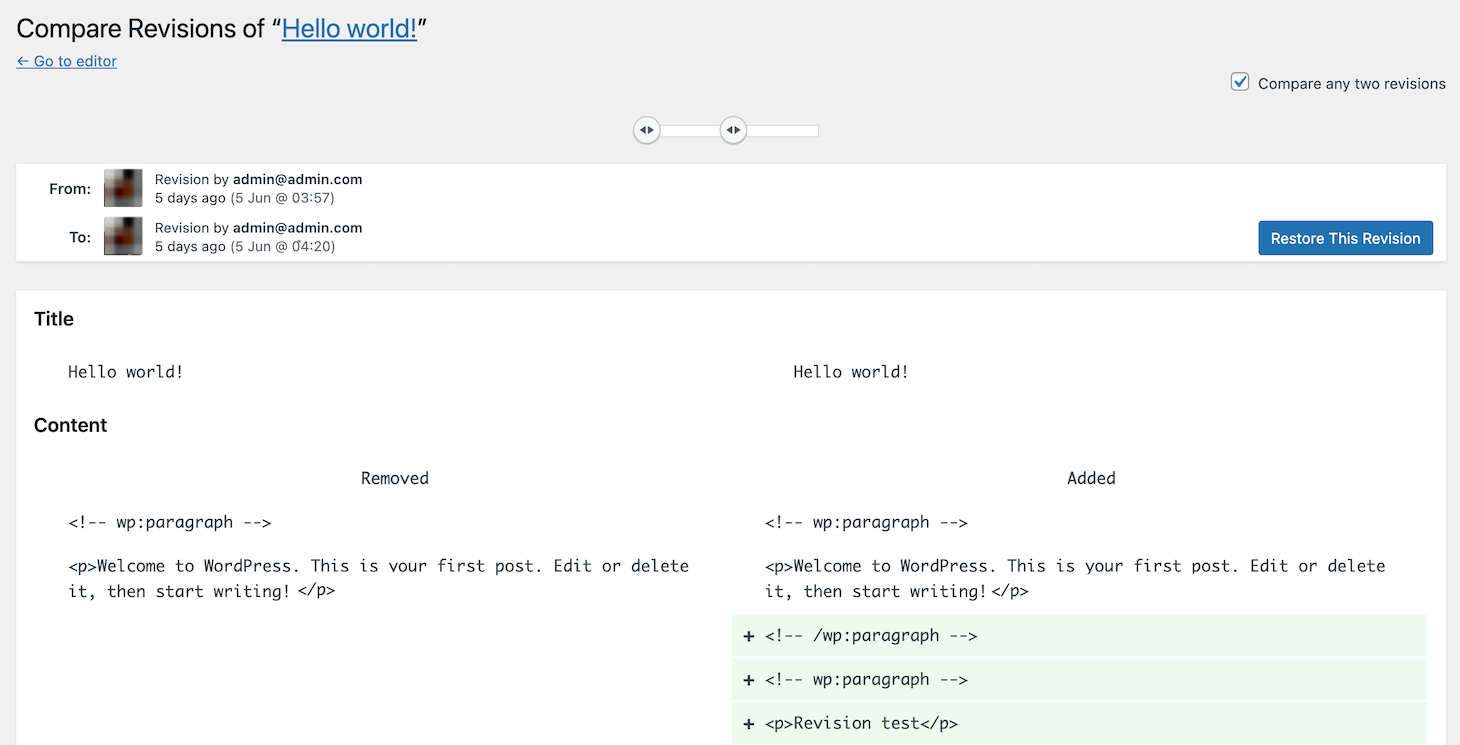
Undo changes in the WordPress post by clicking Restore This Version after you’ve identified the desired previous version.
What are the limitations of version control for WordPress?
Despite being a powerful tool, version control in WordPress has several limitations, such as:
- Technical knowledge requirement. Implementing a version control system in your WordPress website requires more profound technical knowledge, especially for Git. Even the simpler options – like plugins or the built-in content revisions feature – take some time to learn before you can use them efficiently.
- Content limitations. Your version control system determines the types of changes you can track. If you want to monitor modifications to all aspects of your websites, you must use Git, a plugin, and the built-in revision feature.
- Third-party tool dependency. Implementing a comprehensive version control system for your website requires setting up third-party tools like a plugin or Git because WordPress lacks built-in tracking capabilities for files, plugins, and themes.
- Performance impact. Installing a version control plugin can add extra load to your website’s host server, slowing down its performance. Also, keeping too many revision histories in your database can consume significant storage space over time.
- Potential conflicts. Conflicts might arise when multiple users merge changes to the same Git branch or restore different post versions. When left unresolved, this can cause errors on your website.
- Management complexity. Implementing a version control system means you have additional tools or platforms to manage. To simplify this process, use an automation feature for tasks like deployment or updating.
Tips for implementing WordPress version control
Here are the best practices for implementing version control with WordPress to make the most of it and improve development efficiency:
- Use multiple version control systems. Since WordPress stores your website data in different locations, use multiple version control systems to track all of them. For example, your WordPress code files contain your site’s source code, while plugin settings are saved in the database.
- Test before deploying. Always test changes or rollbacks in a staging environment before implementing them on the live website. Otherwise, modifying or undoing changes might cause errors that can lead to downtime.
- Document all changes. Since working with multiple version control systems can be tricky, one team member working on the website might be unaware of minor changes implemented by another. Manual logging ensures everyone is notified and has access to context around all changes.
- Use reputable plugins. Only install rollback plugins that are actively maintained and from reputable developers. Installing plugins with few users or that aren’t actively updated can present serious security risks.
- Limit stored revisions. Keeping too many post and page revisions can waste storage and affect your website’s performance. Limit the number of stored versions by adding define( ‘WP_POST_REVISIONS’, n ); to your wp-config.php file, with n being the maximum number.
Conclusion
A WordPress version control system is crucial for your website’s development and maintenance processes. It saves you time and effort by eliminating the need to manually copy your posts, files, or code for backup and testing.
Moreover, combining it with other tools and platforms can elevate your WordPress development efficiency even more.
For example, Hostinger’s free automatic weekly backups will improve your website’s security and data integrity. You can also activate our auto-update feature to ensure your version control plugins remain up-to-date for optimal security and functionality.
WordPress version control FAQ
Which version control tools are best for WordPress?
Plugins are often the best tools for implementing version control on a WordPress website because they are usually easy to use. Ideally, though, you should use multiple solutions to track all changes on your WordPress website. For example, you could use Git to track changes to WordPress core files, plugins to track changes to custom plugin and theme code, and the built-in revisions system to manage changes to posts and pages.u0026nbsp;
Do I need technical expertise to use version control for WordPress?
Yes, you need basic technical expertise to use version control with WordPress. Plugins and the built-in revisions feature are relatively easy to learn but require technical knowledge to use efficiently. Meanwhile, Git is significantly more complicated because youu0026rsquo;ll have to learn various terms, commands, and systems.u0026nbsp;
Does version control work with the WordPress database?
Technically, yes. You can implement version control for content stored in the WordPress database, like posts and pages, using the built-in revision tracking system. Several plugins can also enhance this functionality. While it is possible, you shouldnu0026rsquo;t use Git directly on the database because it could conflict with regular user input.

Aris is a Content Writer specializing in Linux and WordPress development. He has a passion for networking, front-end web development, and server administration. By combining his IT and writing experience, Aris creates content that helps people easily understand complex technical topics to start their online journey. Follow him on LinkedIn.


