What Is WordPress Playground and How to Create a Browser-Based Test Environment
Dec 02, 2025
/
Larassatti D.
/
5 min Read
Normally, there are several steps to set up WordPress – configure a WordPress hosting account, conduct a WordPress install, set up an admin account, then customize the WordPress site.
While going through these steps can take time, the WordPress core team initiated WordPress Playground to let people experience the CMS without hassle.
In this article, we will review how WordPress Playground works and how to use it for testing purposes.
Download all-in-one WordPress cheat sheet
What Is WordPress Playground?
WordPress Playground is an open-source project that aims to provide running WordPress software with no database and a PHP server. It runs privately on a web browser and is accessible from any device without login. Hence, everyone can experiment with WordPress freely and instantly.
How Does WordPress Playground Work
Users can access WordPress Playground to test a website or any WordPress versions, blocks, themes, and plugins without any installation or hosting account setup.
It also powers a Node application called wp-now, which can be useful for developers to launch WordPress in a local environment. That way, they can create and modify a site locally using the Visual Studio Code extension.
Playground uses three essential solutions to run WordPress in a web browser:
- WebAssembly. It helps to make the client-side WordPress interactive on a browser by running PHP files and linking them with JavaScript. In wp-now, this technology creates a php-wasm instance and downloads the selected WordPress version.
- SQLite. Normally, every WordPress installation includes a MySQL infrastructure to store data, but it can’t run in a browser. Therefore, WordPress Playground uses the wp-sqlite-db plugin to allow for integration with SQLite.
- ServiceWorker and Worker Threads APIs. They help to intercept web requests and run PHP apps in the browser.
Despite its powerful features, Playground is an experimental project and is still under active development. Therefore, it still has limitations:
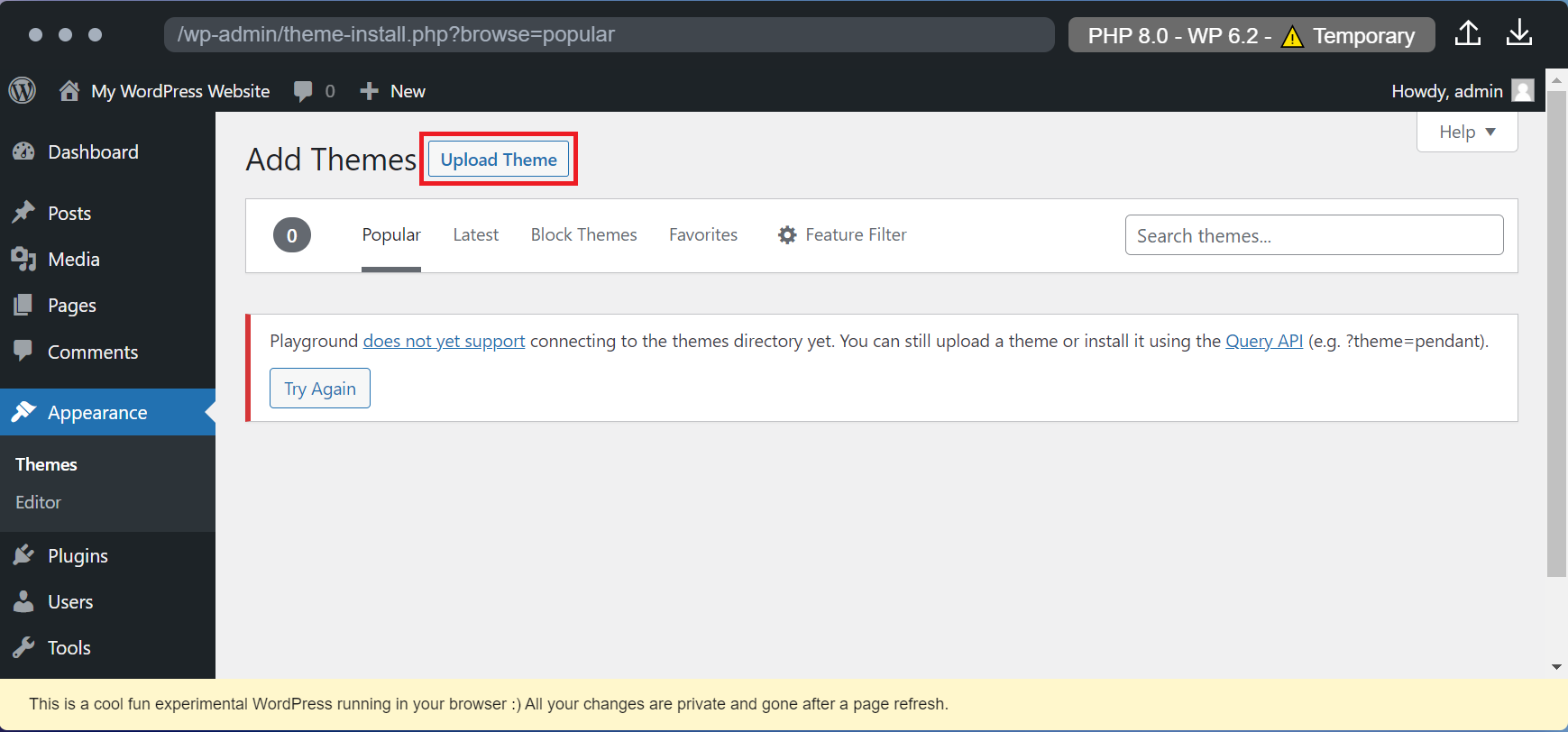
- Unsupported network connections. You can’t access the WordPress official plugins or themes directory in the browser.
- Temporary access. You’ll lose all the database changes and uploads every time you refresh the page. You can only save the files by exporting them.
- iFrame quirks. WordPress is displayed within an iFrame, so it’s challenging to manage the target=”_top” HTML attribute in links. Moreover, the iFrame-originated JavaScript popup windows can’t be shown sometimes.
- Unsupported pthreads and XDebug. The in-browser WordPress uses the WebAssembly version of PHP. Unfortunately, it doesn’t support pthreads which limits you from using pcntl_ functions. XDebug also doesn’t work with php-wasm.
How to Use WordPress Playground
WordPress Playground is a great tool for experimenting with complex elements like software and design updates. This section will show you how to create and embed a dummy WordPress site into the live one.
How to Start a WordPress Playground Site
Users can access the in-browser WordPress through the demo page link. It will display the sample blog page with the WordPress default settings.
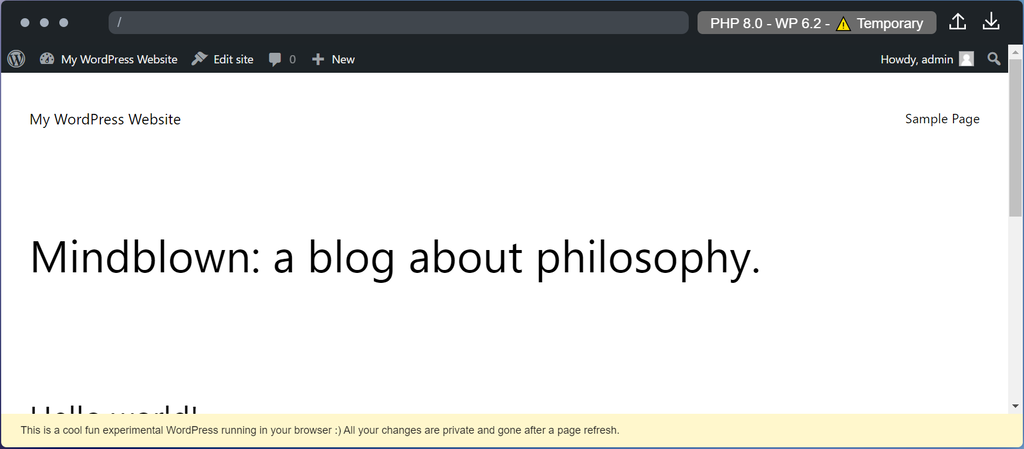
You can test any themes or plugins directly on the page. However, since Playground doesn’t send any data to the internet, users can’t install a WordPress theme from the official directory like usual.
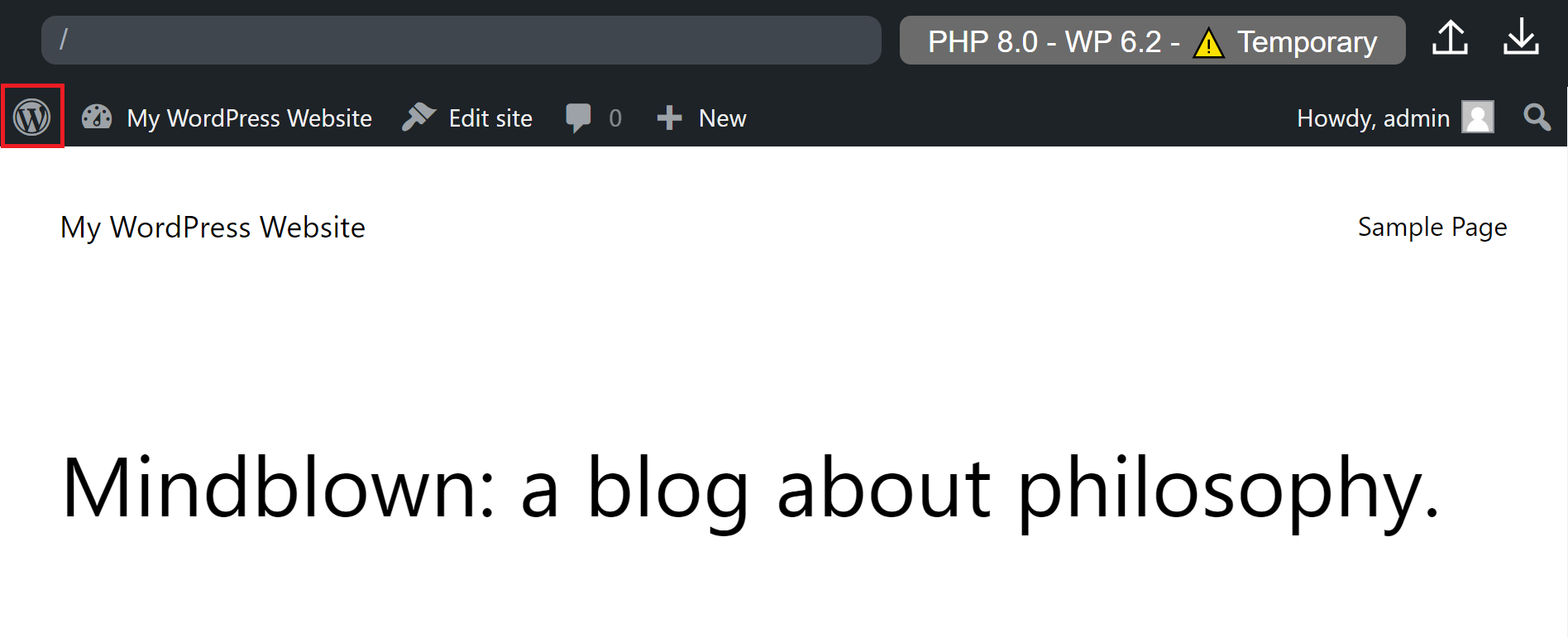
You need to upload files to Playground instead. To do so, click the WordPress icon to access the admin dashboard:
Navigate to Appearance → Themes → Add New, then click Upload Theme. From there, open or drag the theme’s .zip file to add it to the list.
Once installed, you can experiment with theme or template creation using the WordPress Site Editor. However, this can only apply to certain supported WordPress themes like Twenty-Twenty-Three.
Users can also try out plugins on the site by performing similar steps as uploading a theme – navigate to Plugins → Add New → Upload Plugin.
From there, you can learn to design website content, create a post, or test out every feature of the WordPress Page Editor without worrying about breaking the live site.
Playground also lets you experiment with different PHP or WordPress versions. To change them, simply click the customization button on the top right, which displays the current PHP and WordPress versions used.
Another customization option is the storage types:
- Temporary. You will lose all your site data once you refresh the page.
- Persistent. WordPress uses cookies to save your site’s instances in the browser.
- Live directory from your computer (beta). You can sync all changes in Playground to a local directory, but not vice versa.
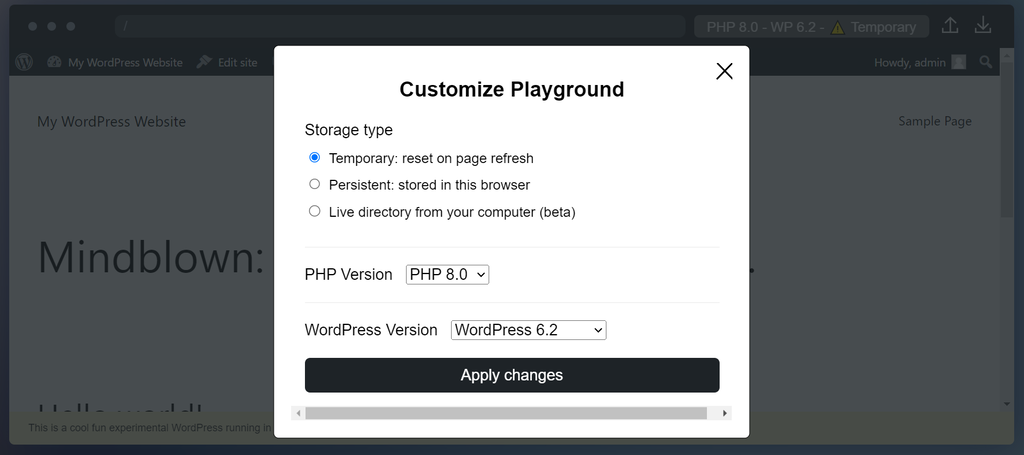
Though WordPress Playground provides the Persistent storage type, it is still undergoing development. Hence, the safest option to keep your work is to download and restore it once you want to continue.
Export or import your work by clicking the arrow button in the top bar:

You can also host the downloaded website files on any server supporting PHP and SQLite.
If you’re a complete beginner, our guide to WordPress may give you ideas of what to explore in Playground. It can be a good way to familiarize yourself with the CMS before building your own live site.

How to Embed WordPress Playground to Your Website
A site developer can embed Playground on a dedicated website using this HTML <iframe> tag:
<iframe src="https://playground.wordpress.net/"></iframe>
It will grant a free private WordPress instance which you can customize using one of the Playground APIs – Query, Blueprints (JSON), JavaScript.
Note that if you work from Playground’s site, you might encounter downtime in case of traffic surges. To prevent that from happening, you can host Playground on your own domain instead of playground.wordpress.net.
Doing so will give you full control over its content and behavior, so you aren’t dependent on a third-party web server. Moreover, you can provide a tailored user experience, like having Playground with pre-installed default settings.
How to Use the Query API
Visitors can use this simple API to skip a few settings when customizing Playground. It works by translating configuration options as query parameters to the WordPress Playground URL.
This API helps you pre-configure the test website with a single click. You just need to add values to the URL following this pattern:
https://playground.wordpress.net/?configuration options=value
To demonstrate, you can use this URL for installing the Jetpack plugin:
https://playground.wordpress.net/?plugin=jetpack
Plugin is the configuration option, while jetpack is the value. For any theme or plugin’s value, you should precisely use the name written in the WordPress official directory URL:

You can add multiple options in one URL using ampersands. For instance, if you want a test website with WordPress 5.9 and PHP version 7.4 running, the URL looks like this:
https://playground.wordpress.net/?wp=5.9&php=7.4
You can also pre-configure more elements:
https://playground.wordpress.net/?plugin=jetpack&plugin=gutenberg&theme=pendant&wp=6.2&php=7.4
A developer may also embed the URLs in a website using an <iframe> tag:
<iframe src="https://playground.wordpress.net/?plugin=jetpack&plugin=gutenberg&theme=pendant&mode=seamless"> </iframe>
The mode=seamless parameter will redirect visitors to the Site Editor.
Conclusion
WordPress Playground is a learning and testing tool with WordPress core instances running on a browser. With it, learners can experiment with building a website and altering its component from any device.
Additionally, developers can use it for multiple instances, like showcasing a project demo, reviewing code, testing code snippets, or embedding it to live sites.
It uses WebAssembly, SQLite, Service Worker API, and Worker Threads API to run WordPress functionalities on a web browser.
This open-source project is still under constant development, so it still has limitations. That said, it is a great resource to help users learn a safe environment for exploring PHP and WordPress development without affecting their live sites.
WordPress Playground FAQ
To help you better understand WordPress Playground, we will answer some common questions about it.
Is WordPress Playground Suitable for Beginners?
Yes. WordPress Playground can be suitable for beginners as it provides a low-pressure environment to learn, experiment, and gain confidence in using WordPress. It can be a great tool for those who want to become proficient in managing and customizing WordPress websites.
Is WordPress Playground Free to Use?
Yes. WordPress Playground is free software and is released under the terms of the General Public License 2 or any later version.
Can I Install Custom Themes and Plugins in WordPress Playground?
Yes. You can apply custom themes and plugins on WordPress Playground by uploading the .zip file to the WordPress virtual environment. For example, you can test out how different review plugins work before setting one up on your own site.
Can I Export My Work From WordPress Playground to a Live WordPress Site?
Yes. You can export your work to a .zip file and import it into a hosting account of your choice. However, since the in-browser WordPress uses SQLite, you might need to convert the database to MySQL or MariaDB for it to run on a web server. In case you do, utilize SQLite converter tools like Ispirer Toolkit.

Larassatti Dharma is a content writer with 4+ years of experience in the web hosting industry. She has populated the internet with over 100 YouTube scripts and articles around web hosting, digital marketing, and email marketing. When she's not writing, Laras enjoys solo traveling around the globe or trying new recipes in her kitchen. Follow her on LinkedIn


