How to edit the sudoers file to obtain and manage root privileges
Mar 10, 2026
/
Ariffud M.
/
6 min Read
The sudoers file is a critical configuration file in Linux and Unix-like operating systems that controls user privileges. It defines who can execute commands as the superuser, providing a secure way to manage administrative rights.
System administrators can configure the sudoers file to let specific users or groups run commands with elevated privileges, but improper changes can lead to serious security risks or system malfunctions.
In this article, you’ll learn how to edit the sudoers file and manage user privileges safely.
Prerequisites
Before editing the sudoers file, ensure you have the right tools and access. Below are the essential prerequisites:
- Linux. The sudo command and the sudoers file are used to manage Linux-based systems, such as a virtual private server (VPS). If you don’t have one, consider getting a VPS plan from Hostinger. This way, you can test configurations remotely with administrative permissions.
- SSH access. If you work on a VPS, you need Secure Shell (SSH) access to securely connect and manage the system.
- Command-line operations. You will need to use the command-line interface (CLI) to configure the sudoers file. Ensure you understand basic Linux commands and navigation to avoid mistakes and keep operations smooth.
- visudo command. Using visudo is the safest way to edit the sudoers file. It typically comes pre-installed on most Linux distributions. If visudo is not available, you can install it with:
sudo apt install sudo # Debian or Ubuntu
sudo dnf install sudo # CentOS, Fedora, or Rocky Linux

Understanding the sudoers file
To safely modify user privileges on a Linux system, you must understand how the sudoers file works.
This file is located at /etc/sudoers and is used by the system to control which users and groups have sudo privileges. It specifies who can execute commands as certain users, along with any restrictions and security policies that apply.
The sudoers file is structured with a specific syntax that must be strictly followed. Here’s what a typical rule looks like:
[user] [host] = ([runas_user]) [commands]
- [user]. The user or group to which the rule applies.
- [host]. The host on which the command can be run – usually set to ALL.
- ([runas_user]). The user as whom the command can be run – often set to ALL.
- [commands]. The specific commands that the user is allowed to execute.
For instance, john ALL=(ALL:ALL) ALL allows the user john to execute any command as any user on any host.
How to edit the sudoers file
This section will explain how to edit the sudoers file using visudo. To start, open your terminal or an SSH client application like PuTTY. Hostinger VPS customers can also access their server using our built-in Browser terminal feature.
To do so, simply open your Hostinger account and go to VPS → Manage. Then, click Browser terminal on the top right corner, and you will log in to your server automatically.
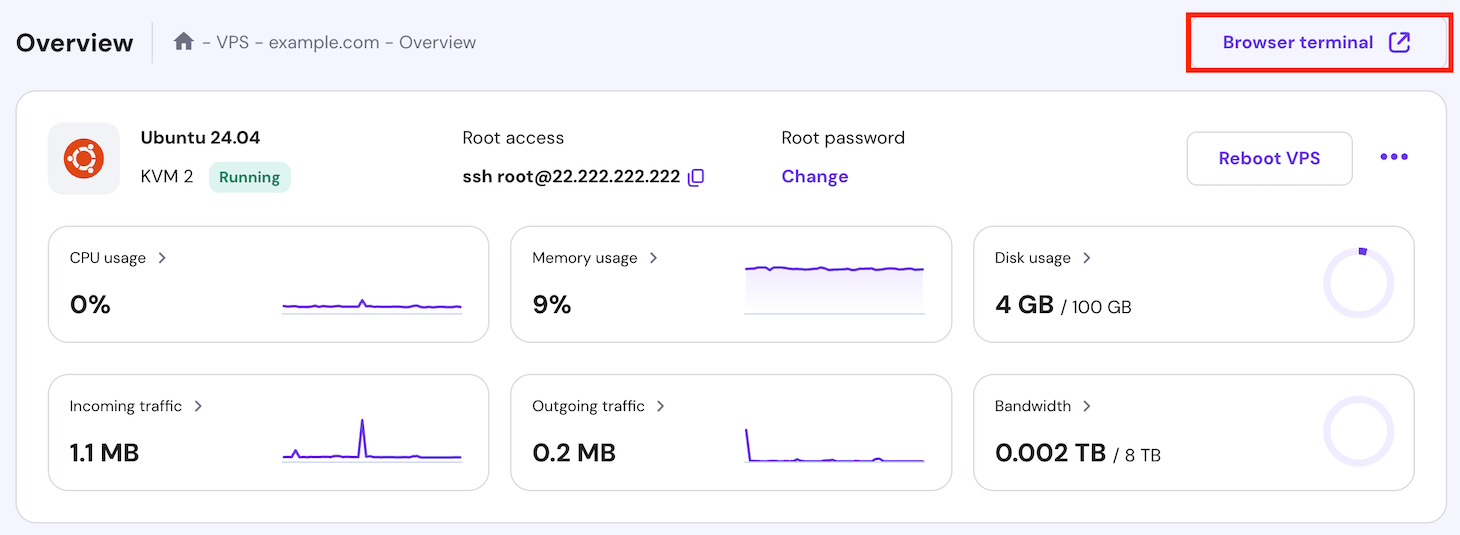
That’s it! Now, you can start running commands on your VPS.
Using visudo
As previously explained, visudo is the safest and most recommended method for editing sudoers files in Linux. visudo locks the file while you edit it, preventing others from making changes and causing conflicts.
Additionally, visudo provides a safer environment by checking for possible syntax errors before saving changes, minimizing the risk of losing sudo access entirely or locking yourself out of the system.
Follow these steps to open and navigate the sudoers file using visudo:
- Switch to the root user and run visudo with these commands:
sudo -i

visudo
If you don’t want to switch to root, run the command with sudo permissions:
sudo visudo
The above commands will open the sudoers file with the default terminal editor, either nano or vim.
- Use the arrow keys to navigate the file and make the necessary changes.
Pro tip
By default, visudo opens the sudoers file with the vim text editor. However, on Ubuntu, visudo is configured to use nano instead.
Adding a user to the sudoers file
To grant users sudo privileges, add them to the sudoers file. This allows users to execute commands with elevated privileges, which is essential for performing Linux administrative tasks.
Here are the instructions:
- Open the sudoers file using the same sudo visudo command.
- Add the following line to grant a user named john full sudo permissions:
john ALL=(ALL:ALL) ALL
- You can also add multiple users to the sudoers file with different permissions tailored to their specific roles, one line per user. For example:
john ALL=(ALL:ALL) ALL

steve ALL=(ALL) NOPASSWD: /usr/bin/apt

mary ALL=(ALL:ALL) /usr/sbin/reboot
- The first line grants john full sudo access, as explained before.
- The second one lets steve execute the apt command without being prompted for a password.
- The third line permits mary to reboot the system, but they can’t perform any other sudo actions.
Managing group permissions
Managing user permissions individually in the sudoers file can be time-consuming and prone to errors, especially when dealing with numerous users. A more efficient approach is to manage permissions using the sudo group.
It’s a Linux system group providing all its members administrative access. By default, users in the sudo group can execute any command with superuser privileges without needing to edit the sudoers file for each one.
To add a user to the sudo group, use the usermod command with the -aG option. Here’s how to add a user named john as an example:
sudo usermod -aG sudo john
After that, refresh the user’s group membership to gain administrative privileges by logging out of the current session and then logging back in as the newly added user:
logout

ssh john@your_vps_ip
If logging out is not convenient, switch to the user’s account with an updated session with the su command and enter the correct password:
su - john
Understanding common configuration options
The sudoers file offers several configuration options that provide flexibility when managing user and group privileges. Understanding these options helps you set clear and concise rules while reducing errors and conflicts.
Defaults
The Defaults option sets default environment variables and behaviors for sudo operations. These settings apply globally to all users or can be tailored to specific users or groups. For example, env_reset clears variables to prevent unauthorized access:
Defaults env_reset
Cmnd_Alias
Cmnd_Alias creates aliases for groups of commands. These are variables that represent multiple commands or paths. For instance, NETWORK_CMDS groups network-related commands, while ADMIN_CMDS groups administrative commands:
Cmnd_Alias NETWORK_CMDS = /sbin/ifconfig, /sbin/ip, /usr/sbin/traceroute

Cmnd_Alias ADMIN_CMDS = /usr/sbin/useradd, /usr/sbin/userdel, /usr/sbin/visudo
Host_Alias
This option lists the hosts or systems that can run specified commands. It helps when managing permissions across multiple entries for different hosts. Here’s an example:
Host_Alias FILE_SERVERS = server1, server2, server3
User_Alias
User_Alias groups multiple users into one alias so you can assign the same privileges to all users in a specific group. In this example, john, mary, and admin are grouped under the alias ADMINS:
User_Alias ADMINS = john, mary, admin
Runas_Alias
It specifies which users or groups can be impersonated when running commands. For instance, users can run commands as root or operator:
Runas_Alias OP = root, operator
Here are some practical examples you can follow:
- Grant specific commands to a group of users. The ADMINS alias, which includes john and mary, can run the commands in STORAGE_CMDS on all hosts.
User_Alias ADMINS = john, mary

Cmnd_Alias STORAGE_CMDS = /bin/mount, /bin/umount

ADMINS ALL=(ALL) STORAGE_CMDS
- Set up permissions with timeouts. Users running commands under the NETWORKING alias must re-authenticate after 2 minutes.
Cmnd_Alias NETWORKING = /sbin/ifconfig, /sbin/ip

Defaults!NETWORKING timestamp_timeout=2
- Avoid conflicting values. When creating multiple entries, ensure they don’t have clashing values. The example below will conflict, as one requires a password for all commands, while apt doesn’t.
john ALL=(ALL) NOPASSWD: /usr/bin/apt

john ALL=(ALL) PASSWD: ALL
Saving changes
After editing the sudoers file using visudo, save your changes correctly to ensure they are applied without errors. If you use nano, press Ctrl + X → Y → Enter. For vim users, press Esc to switch to command mode. Then, type :wq and hit Enter.
If visudo detects any syntax errors in the file, it will display a warning message and prompt you to correct them before exiting. Make sure to address any mistakes accordingly.
Testing changes
Once you save your changes, test them manually to confirm that the new sudo configurations work as expected. Make sure to switch to the user whose privileges or configurations you want to verify beforehand:
su - [username]
- Check if the user has the intended privileges. When you add a user to the sudo group or specify a command alias, run the following command to verify:
sudo whoami
If the user has sudo privileges, the output should be root.
- Test user-specific commands. To confirm that a user alias or specific privileges are configured correctly, use a specific match test:
sudo -l
This command lists the sudo privileges available to the user.
- Check group permissions. After adding users to the sudo or other admin groups, ensure they have the correct permissions by running a privileged command:
sudo ls /root
Confirm whether the command runs successfully.
- Verify alias definitions. First, open the sudoers file to see how the alias is defined. Then, run a command within that alias. For example, if you set /sbin/ifconfig within NETWORKING, execute:
sudo /sbin/ifconfig
Conclusion
Editing the sudoers file is a powerful way to manage user privileges on a Linux system. However, it requires careful handling to avoid errors that may lead to security risks or loss of access.
In this article, you’ve learned how to safely edit the sudoers file using visudo, add users with specific privileges, manage group permissions, and understand common configuration options like Defaults and aliases.
Remember to always double-check your configurations and test them with commands such as sudo whoami, sudo -l, and sudo ls /root to ensure they work as expected and maintain a stable system for all users.
Sudoers file FAQ
What is the purpose of the sudoers file?
The sudoers file controls user permissions for executing commands as root or another user. It defines who can use sudo and under what conditions, enhancing security by managing administrative access.
Where is the sudoers file located?
The sudoers file is located at /etc/sudoers on most Linux systems. It’s a system-wide file that should not be moved or renamed. For more granular control, add specific configuration files in the /etc/sudoers.d directory, which sudo reads as main file extensions.
How do I open and edit the sudoers file?
Use the visudo command to open and edit the sudoers file safely. It provides a secure editing environment by preventing multiple users from editing the file simultaneously, reducing the risk of conflicts and syntax errors.
Can I modify the sudoers file using a text editor?
Directly editing the sudoers file with a regular text editor is not recommended, as mistakes may compromise your system. Instead, use visudo, which locks the file and checks for errors before saving any changes.

Ariffud is a Technical Content Writer with an educational background in Informatics. He has extensive expertise in Linux and VPS, authoring over 200 articles on server management and web development. Follow him on LinkedIn.


Comments
November 29 2023
Very small point on the above: #s aren't always comments. In fact you give an example only a few lines further down of one of the exceptions to that convention, the #includedir
December 08 2023
Hi John! Thanks for your feedback. We've updated the article. If you have additional insights, we'd love to hear them ?
July 02 2025
I have followed the directions to add the following line to my file: superuser ALL={ALL:ALL) ALL but when I save the file it says there is a syntax error. I can't see what the problem is and the error message point to this line in the file. It is the only change I have made. What am I doing wrong? This is on a Raspberry Pi 3 b. Thank you!
July 03 2025
Ah, looks like it’s just a small typo! You’ve got a { instead of a (