How to Embed iFrame Into WordPress Using a WordPress Block, an iFrame Plugin, and Manually
Dec 02, 2025
/
Will M.
/
5 min Read

If you want to insert content from other sites on your WordPress website, embedding an iFrame is one of the easiest methods.
With an iFrame, you can display images and videos from sites like YouTube without violating copyright laws. Plus, it enables you to keep your website light and fast.
This article will explore three ways to embed an iFrame into WordPress. The most popular method is to embed web content using the HTML block. Alternatively, you can embed iFrames using a plugin or manually.
We’ll also discuss reasons why you would want to use iFrame and how it differs from the WordPress Embed block. Let’s get to it!
Download all-in-one WordPress cheat sheet
How to Embed iFrame Into WordPress
Here are three easy ways to embed iFrames in WordPress.
How to Use the Embed Code and Custom HTML Block
If you want to add WordPress iFrames without a plugin, the simplest approach is to use the embed code. Simply copy and paste the content’s embed code into a WordPress using the Custom HTML block.
This method is best for embedding content from social sites like Facebook and YouTube. That’s because some of these platforms restrict embedding iFrames manually.
Let’s say you want to embed a YouTube video into your WordPress site. Follow these steps:
- Locate the Share button beneath the YouTube video.
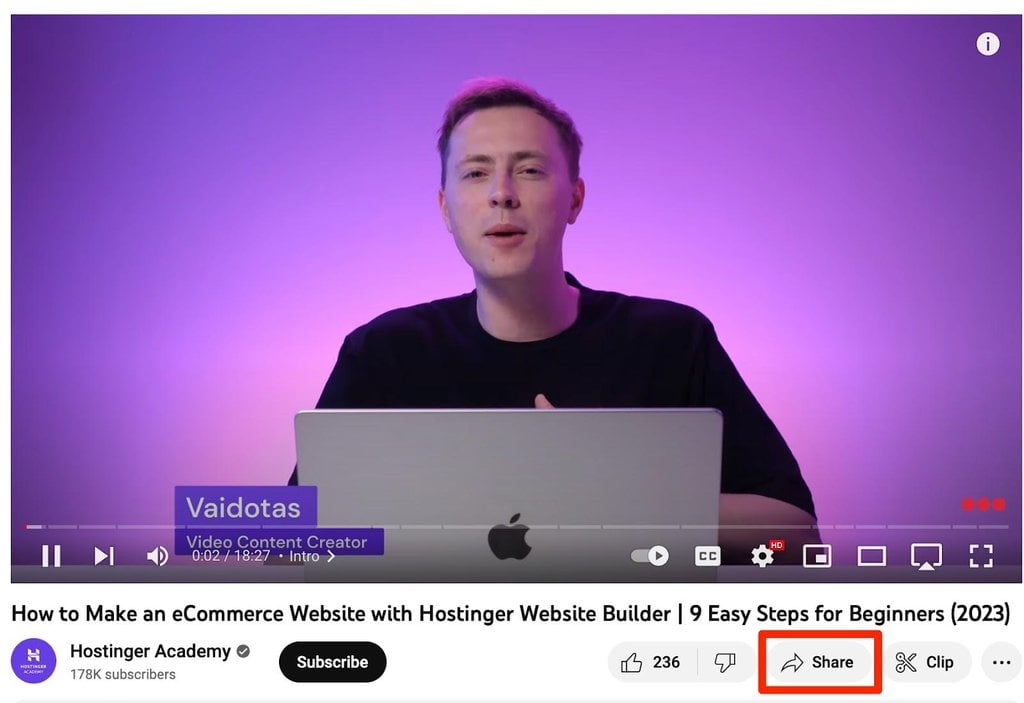
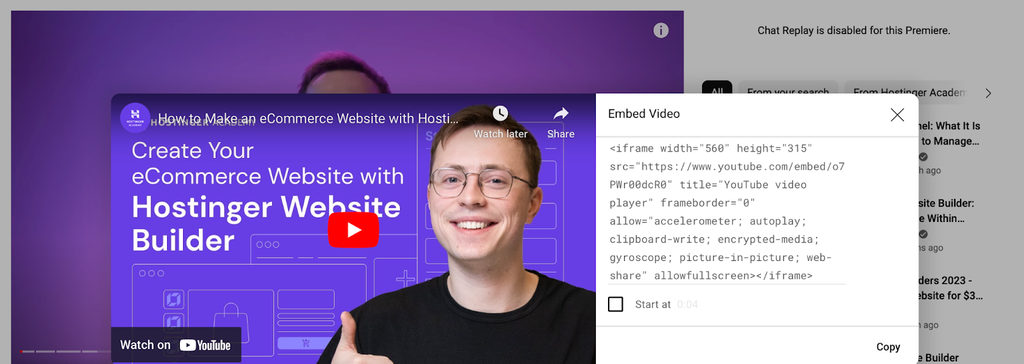
- A popup will appear with the different ways you can share the video. Select the Embed option.

- Copy the YouTube iFrame code that appears. You can also define iFrame parameters like the height and width of the content.
- Open the block editor for the post or page that you want to embed the video on your WordPress site.
- Click on the + icon to add a new block and select Custom HTML.
- Paste the iFrame code.
- Switch to the Preview tab. The iFrame should now appear.
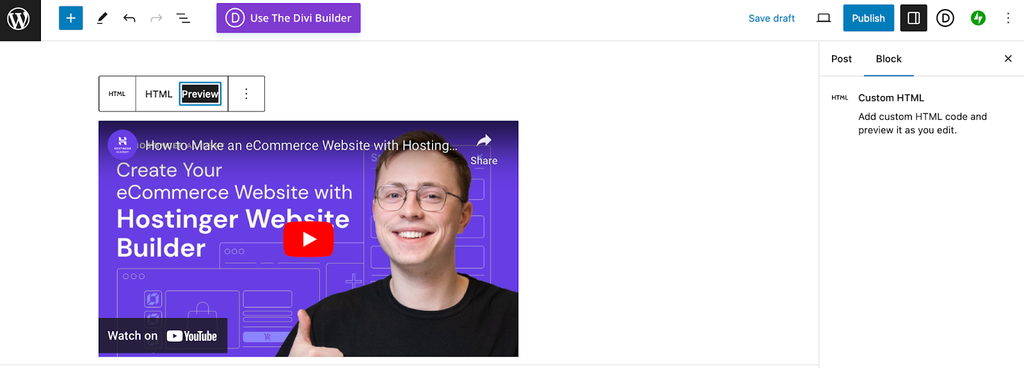
You’ll use the same method to embed content from other social sites like Facebook, LinkedIn, Instagram, and Twitter.
How to Embed iFrame by Using a WordPress Plugin
If you want to add external content to your site regularly, using a plugin might be more convenient. It’s also a great option if you’re unfamiliar with using HTML code.
There are plenty of WordPress iFrame plugins to choose from, but Advanced iFrame is one of the best.

Advanced iFrame gives you more control over the way your iFrame looks. For instance, you can hide areas of the layout, forward parameters to the iFrame, or hide the content until it’s fully loaded.
To get started, install and activate the Advanced iFrame plugin from your WordPress dashboard.
Then, go to Advanced iFrame and select the Options tab:
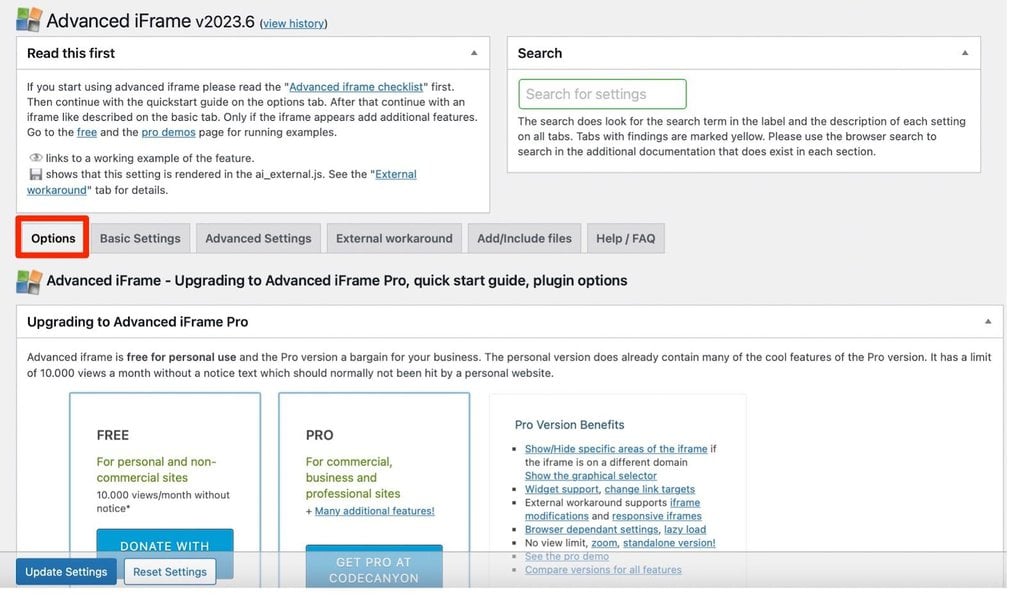
Here, you can adjust various configurations, including the display and technical options.
Before embedding the iFrame on your WordPress site, use the plugin’s free iFrame checker to see whether the URL contains any scripts that will prevent the content from loading.
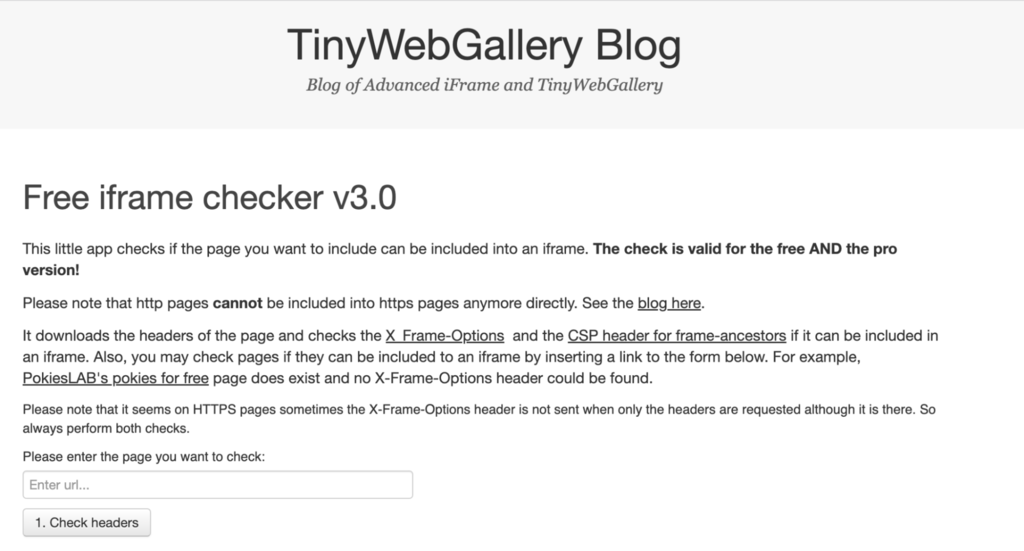
Once checked, return to the plugin’s Basic Settings tab on your WordPress dashboard.
Scroll down to Url to add the domain. You can also define different values like the content’s height, width, and transparency.

Click Generate a shortcode for the current settings.
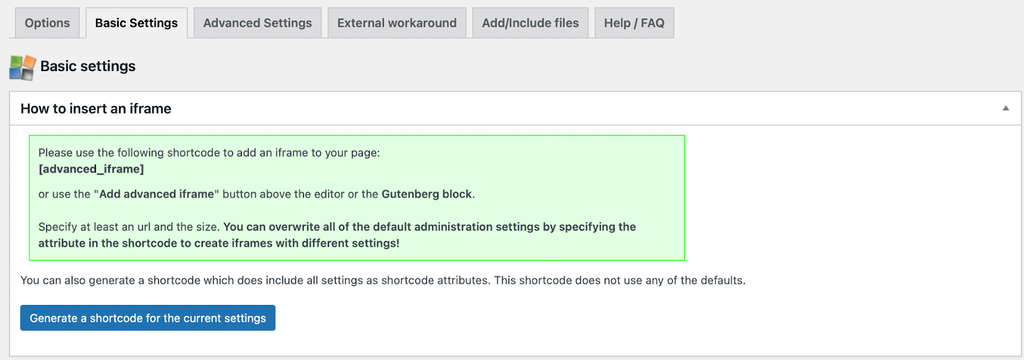
Copy the shortcode and paste it into a Shortcode block on any post or page via the block editor. After that, Preview the WordPress page on your website to make sure that the iFrame works as intended.
How to Use Code to Embed an iFrame Manually
To embed an iFrame manually, you’ll have to add the opening and closing iFrame HTML tags and the content’s URL to your WordPress site.
The main benefit of this method is that you will have full control over how the iFrame will appear. You can alter the width and height of the iFrame, enable full-screen viewing, or determine when it should load.
Unfortunately, some social sites like Facebook and Instagram disable manual iFrame embedding. You are also limited to content from sites that use the same Hypertext Transfer Protocol. In other words, if your website uses HTTPS, you can only embed content from other HTTPS sites.
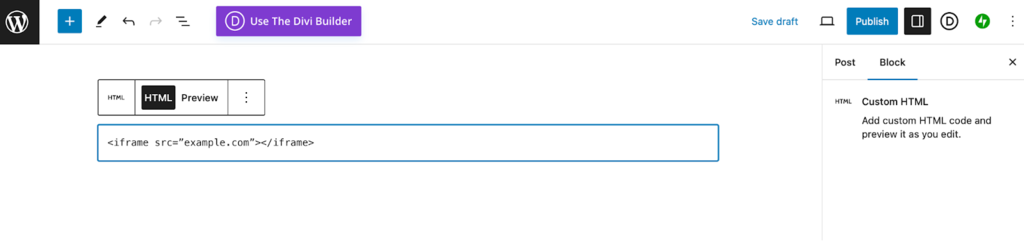
To get started, add the iFrame code using the Custom HTML block on your WordPress post or page.&
Add the opening and closing HTML tags with the content’s URL sandwiched between them:
<iframe src=”example.com”></iframe>.
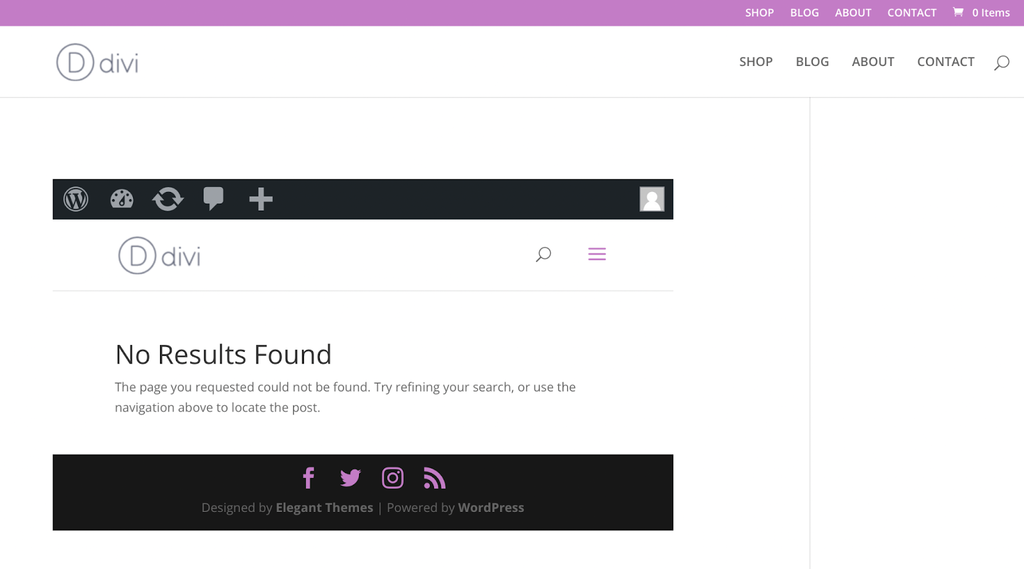
It should look something like this:
If you want to change the width or height, specify the exact dimensions for the iFrame after the URL. For example, let’s set the width to 700px and the height to 900px:
<iframe src=”example.com” width=”700” height=”900” ></iframe>.
Once you’re done customizing the iFrame, preview the result to make sure it looks good. When you’re happy with the result, publish or update your page.
Why You Should Use iFrame
An iFrame is one of the easiest ways to display external content on your own website without violating copyright laws. In other words, it’s a legal and ethical way to share content on your website that was made by others.
iFrames is also useful for embedding videos or other large files. Since you don’t have to host the iFrame content in your Media Library, you can save storage space on your hosting account.

Therefore, using iFrames lets you keep your website light and fast, giving visitors an optimal user experience. Since website speed is a key ranking factor, this also helps your site get higher visibility on Google.

What Is the Difference Between iFrame and Embed Blocks In WordPress?
You can share external content on your WordPress site using both iFrames and the Embed blocks, powered by the oEmbed API.
However, iFrame and Embed have key differences. Mainly, they are used for different types of content.
iFrame is best for displaying HTML documents from other sites. You can also customize the content’s appearance.
Meanwhile, Embed can be used to share other content types like PDFs or Flash animations. However, Embed blocks only work with specific third-party sites, including YouTube, Vimeo, and Twitter. Facebook and Instagram no longer support the oEmbed API.
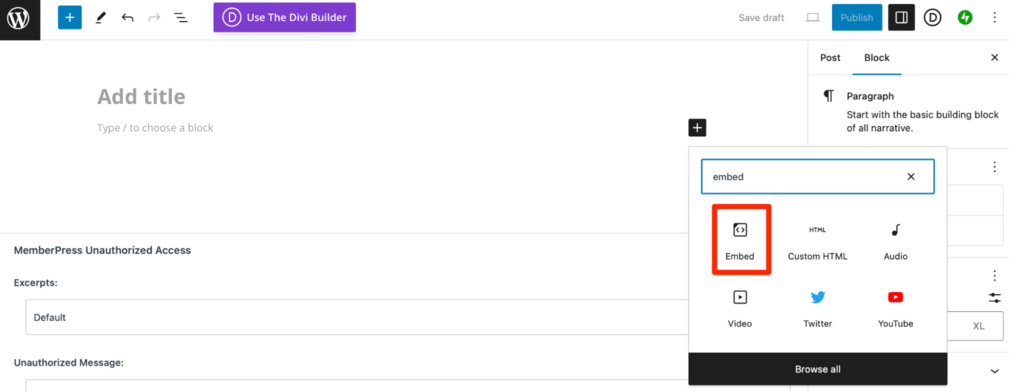
To use the Embed WordPress block, open the editor for a post or page from your WordPress dashboard and select the Embed block.
Conclusion
An iFrame is one of the easiest ways to display content from other sources on your website. For example, you can use it to share large audio and video files.
To recap, here are three ways to embed an iFrame into your WordPress website:
- Copy the embed iFrame code and paste it into the HTML block.
- Install a WordPress plugin, like Advanced iFrame.
- Edit and add the iFrame HTML code to embed it manually.
With iFrames, you’re able to add content from other websites legally and ethically. Plus, you can specify its parameters so that the content appears exactly how you want it.
How to Embed iFrame Into WordPress FAQ
Now, you know how to embed an iFrame in your WordPress website. However, you might still have questions about the process. In this section, we will answer the most common questions about iFrames.
What Is iFrame?
iFrame is a common method for displaying content from external sources on your own site. You can embed an iFrame in WordPress to share content legally and ethically. Plus, since the content isn’t hosted on your website, you can free up storage space and improve WordPress performance.
Can I Make iFrame Embedded Content Responsive?
To make iFrames responsive and mobile-friendly, enclose the iFrame in the div container. This will allow the iFrame to automatically resize based on the screen’s width. To do this, add the following to the HTML code:
<div class=””container”> </div>
You can also add CSS to the iFrame code:
.container {
padding-top: 56.25%;
The percentage value is useful when embedding YouTube videos to ensure full visibility.
How Do I Embed iFrame Without A Plugin?
To use iFrames in WordPress without a plugin, you have two options. First, you can copy and paste the content’s embed iFrame code into a Custom HTML block. Second, you can manually add the HTML iFrame tags between the source URL.
What Are the Alternatives to iFrame?
A popular iFrame alternative is the WordPress Embed block. You can also use a plugin like Smash Balloon to display external content from social media sites.

Will Morris is a staff writer at WordCandy. When he's not writing about WordPress, he likes to gig his stand-up comedy routine on the local circuit.


