How to integrate WhatsApp with n8n?
Mar 10, 2026
/
Aris S.
/
10 min Read
Integrating n8n with WhatsApp enables you to create an automation workflow for various tasks, including creating a chatbot that responds to user questions 24/7 and developing an alerting system for your project.
Since n8n is low-code and open-source, integrating it with WhatsApp is a simple, affordable solution for creating an automation system for your needs.
The process may appear tricky to new n8n users, but, in reality, connecting n8n with WhatsApp only takes five steps:
- Create and configure a WhatsApp app on the Meta developer portal.
- Generate a WhatsApp API and obtain credentials to integrate it with n8n.
- Set the credentials in n8n.
- Add and configure the WhatsApp node in n8n.
- Send a test message to verify the integration’s functionality.
Integrating n8n with WhatsApp is ideally done using a self-hosted solution like Hostinger’s VPS for optimal access control and data privacy. This higher level of security enables you to create an automation system that involves personal information, like a private AI chatbot.
Note that setting up a WhatsApp-n8n integration goes beyond creating the workflow and requires post-deployment practices, such as securing the credentials, to ensure your automation performs smoothly. Let’s explore how to connect n8n with WhatsApp in detail and implement it into a practical automation workflow.
What is n8n WhatsApp integration?
The n8n-WhatsApp integration allows you to create an automation workflow that uses data from the messaging app. To connect them, you need the WhatsApp Business application programming interface (API), which facilitates and secures the data exchange.
Leveraging n8n integration with WhatsApp lets you build automation systems for various purposes, such as:
- Automated customer support. n8n can fetch customer queries and give instant responses using pre-determined messages or AI-generated ones. You can also integrate Customer Relationship Management (CRM) apps to create personalized responses based on user data.
- Alerting system. An n8n workflow connects to apps from which you want to receive alerts and monitors specific events, such as failed payments or server downtime. When these events occur, your automation system automatically triggers and sends a WhatsApp message to notify you.
- Personal AI assistant. Connecting n8n with Ollama, Gemini, ChatGPT, or other large language models (LLMs) nodes enables you to build a custom AI assistant tailored to your needs. Integrating WhatsApp into the workflow will allow you to create an AI-powered chatbot embedded in the messaging app.
- Reminder. A scheduled trigger in your n8n workflow checks for upcoming meetings, deadlines, or tasks on other applications, like Google Calendar. By integrating WhatsApp, you can send a reminder as a chat message.
While other platforms may allow you to set up automation workflows for the same tasks above, n8n might be the best choice for several reasons. Let’s discuss them in the next section.
Is n8n the right tool for WhatsApp automation?
n8n is an excellent choice for WhatsApp automation if you are looking for a platform that provides the following benefits:
- Open-source and self-hostable. Being open-source, n8n doesn’t impose a vendor lock-in policy and is deployable on a self-managed environment. This provides you with complete control over your data and workflow.
- Zero to low-code. n8n’s graphical interface and powerful built-in tools enable you to build a no-code automation system easily. Codes are optional, applicable if you need a more complex system and data manipulation.
- Cost-effective. As an open-source platform, n8n and most of its features are free. You only need to pay for hosting, which at Hostinger starts at CA$ 9.09/month.
- Scalable. Users can scale n8n horizontally by adding more resources to the server and vertically by enabling the queue mode to distribute the load to multiple workers. If you need to expand your workflows, you can easily do so by connecting APIs or pre-built nodes.
- Extensive community and support. As one of the most popular automation tools, n8n has a strong community that actively participates in forum discussions. With its comprehensive documentation, you can easily find answers to n8n-related issues.
Despite its benefits, n8n also has several limitations. For example, you need to set up the platform manually and manage the hosting infrastructure yourself to maintain smooth operability.
Other automation platforms, like Zapier, offer services for handling infrastructure setup and maintenance. However, they are more expensive and less flexible than an open-source solution like n8n.
Suggested reading
Interested in Zapier? Check out our in-depth comparison of n8n vs Zapier to learn more about their differences and which one suits your needs the best.
Several providers also offer features that simplify the configuration and management of a self-hosted n8n instance, which requires only a few prerequisites to set up.
Prerequisites for connecting WhatsApp to n8n
Before connecting WhatsApp with n8n, you need to set up the automation platform and create an account. Follow our step-by-step tutorial to learn how to install n8n in your system.
If you don’t have a hosting environment for n8n, we recommend purchasing Hostinger VPS. It has various features that help simplify server configuration and management, like the OS template that lets you install n8n in one click.

Even better, this OS template is pre-selected if you purchase our n8n hosting solution. This means all you need to do to set up n8n is simply finish the onboarding process, which involves basic tasks like setting up a new password.
Once installed, open your n8n instance and create a new account. You’re now ready to integrate it with WhatsApp.
How do you set up WhatsApp integration in n8n?
Configuring the WhatsApp integration in n8n involves setting up the credentials and adding the messaging app’s nodes into your workflow. Let’s explore the steps in more detail.
1. Create and configure the WhatsApp app in Meta
Creating and configuring the WhatsApp application in the Meta developer portal is mandatory to obtain the credentials. Here are the steps:
- Open the Meta developer portal registration page and log in to your Facebook account.
- Follow the registration procedure. Once done, you will land on the following screen:
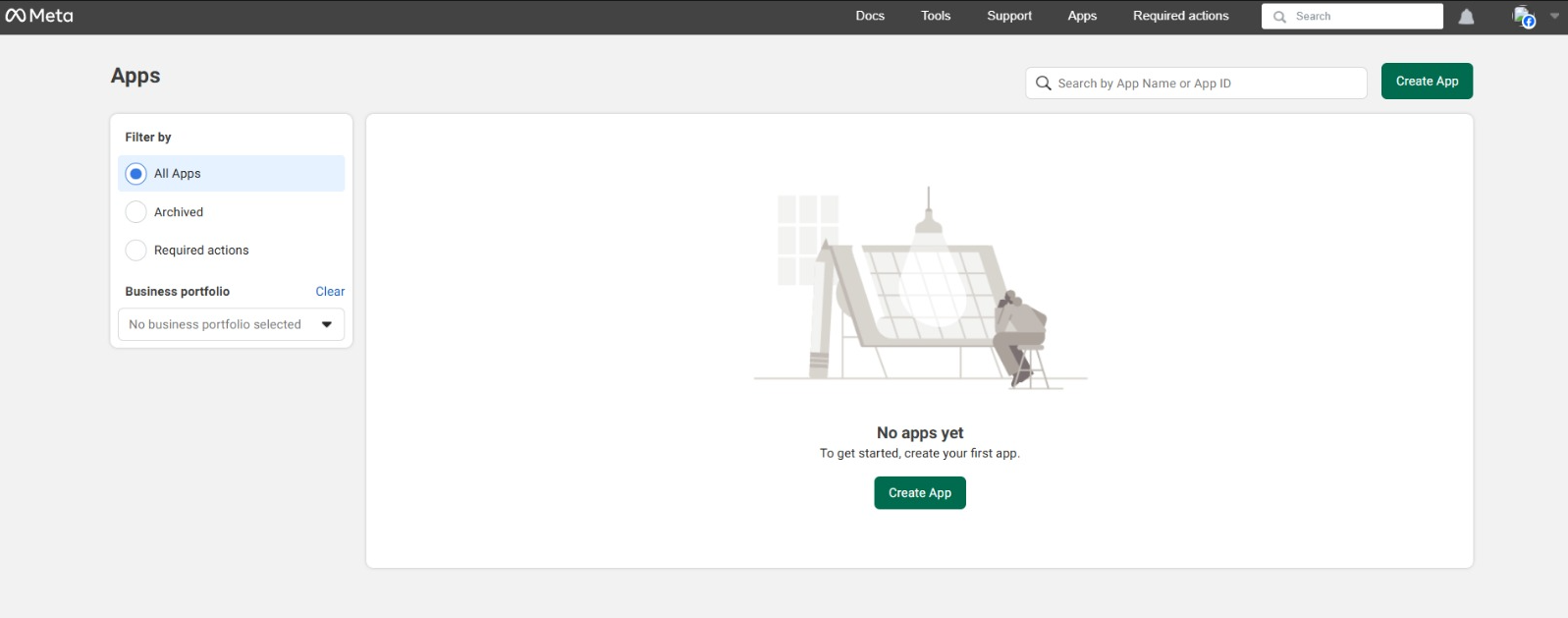
- Click Create App. On the pop-up window, click Create App again.
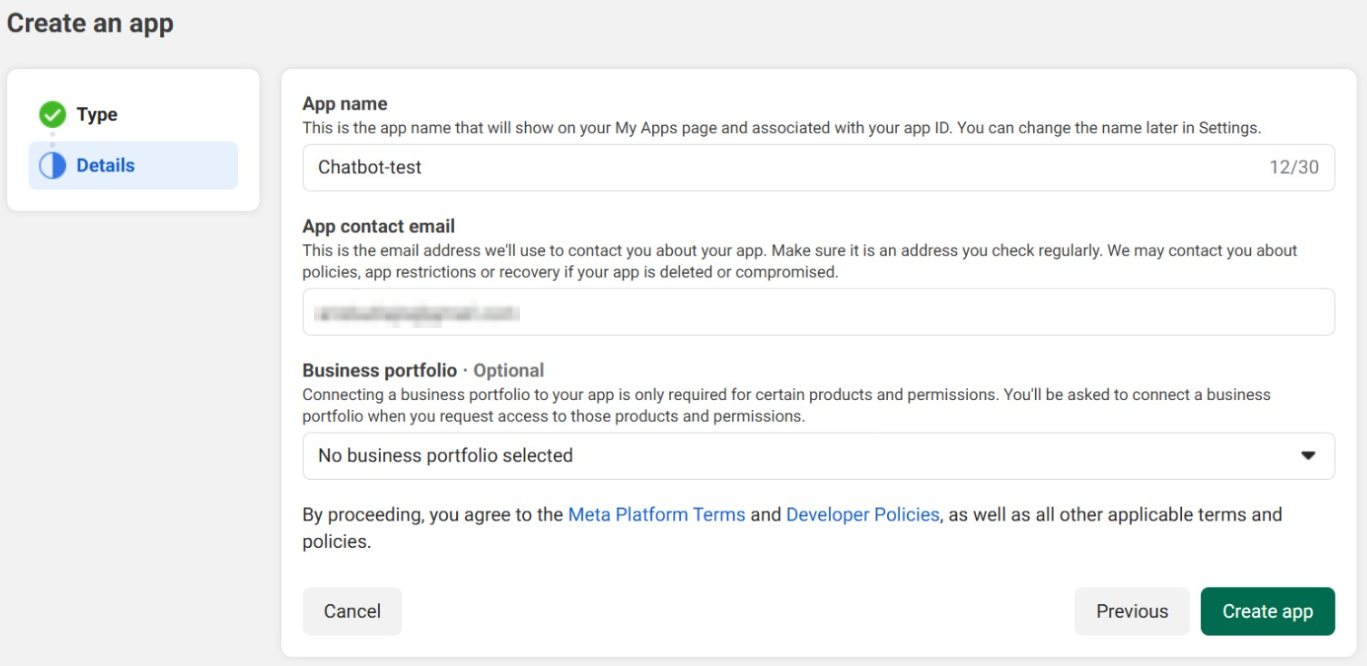
- Enter a name for your app and set a contact email address. Hit Next.
- Select Other as the use case and hit Next.

- Choose Businesses as the app type and click Next.
- Review information about your new app. Once everything is correct, hit Create app.
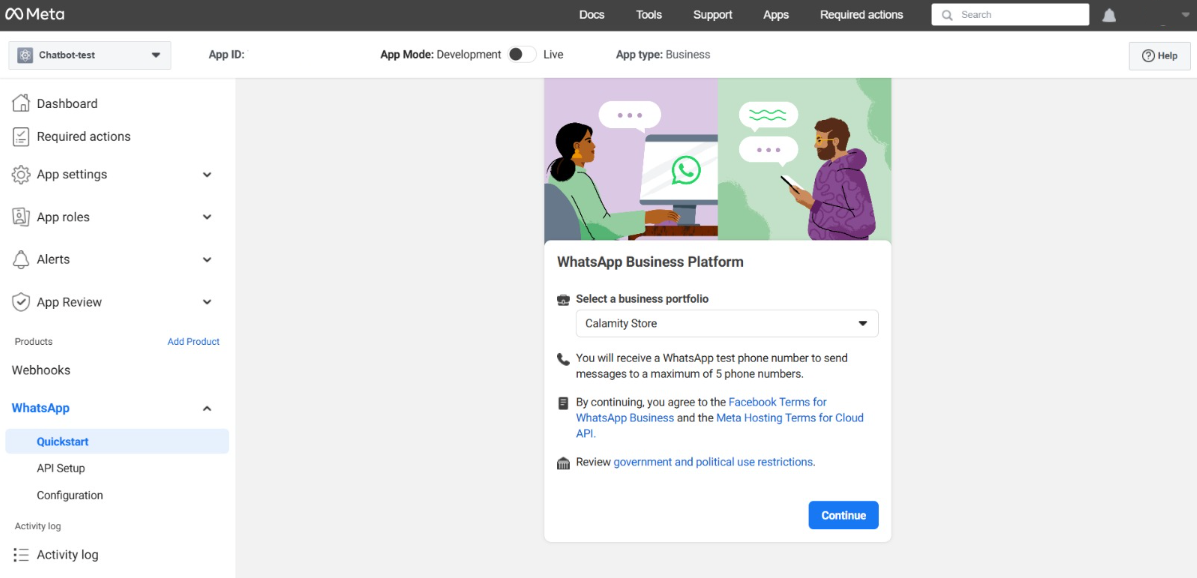
- You’ll land on the Add products to your app page. Click Set up on WhatsApp.
- Follow the instructions to set up a business profile on the Meta business tools website.
- Once you’ve finished, return to your Meta app’s dashboard on the developer portal and click Continue to integrate WhatsApp.
We are now set. In the next step, we’ll explore how to find the required credentials.
2. Generate an API token and obtain your credentials
Generating an API token and obtaining the credentials provides you with the necessary authentication information to connect WhatsApp with n8n.
To fully integrate WhatsApp with n8n, you’ll need four pieces of information: access token, business account ID, client ID, and client secret. Here’s how to obtain them:
- On your Meta app’s dashboard, go to the sidebar → WhatsApp → API setup.
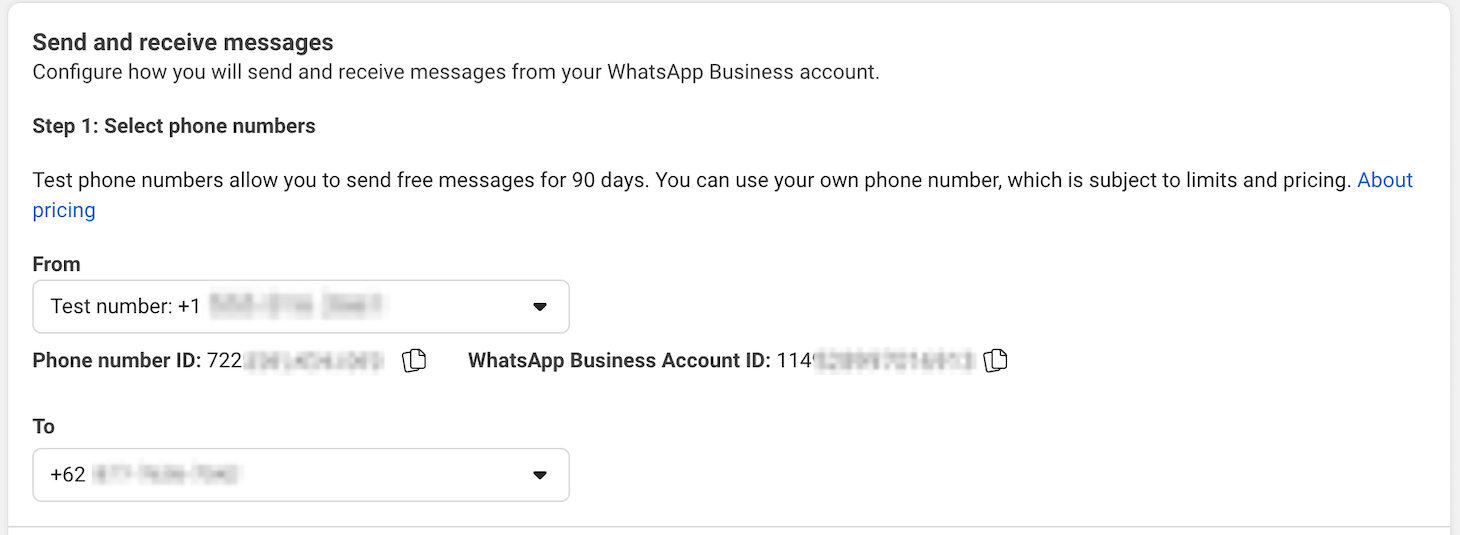
- Scroll down to the Send and receive messages section.
- Expand the From drop-down menu and generate a new test mobile number. Let’s call it the sender number.
- In the To field, enter the phone number to which you want to send the message. We’ll refer to it as the recipient number.
- Copy the WhatsApp Business Account ID and store it in a safe location.
- Scroll back up and click Generate access token.

- On the pop-up window, select the WhatsApp accounts your app wants to access. We’ll select Opt in to all current WhatsApp accounts.
- Finish the configuration process. Once done, copy the token and store it in a safe location.
- Head to the sidebar and go to App settings → Basic.
- Copy the App ID and App secret keys. Note that you must reveal the App secret and enter your Meta account’s password to obtain it.

Now that we have all the required credentials, let’s head to n8n to set up the integration.
3. Set credentials in n8n
Setting credentials in n8n enables WhatsApp to authenticate the automation platform’s connection and data exchange request.
Depending on the node, n8n uses two types of WhatsApp credentials: WhatsApp API and WhatsApp OAuth Account. The WhatsApp API is used for action nodes, while the OAuth account is reserved for triggers.
The steps to configure these credentials are the same. To begin, let’s create the WhatsApp API first:
- On the n8n’s dashboard, click the arrow button next to the Create Workflow button. Select Create Credential.
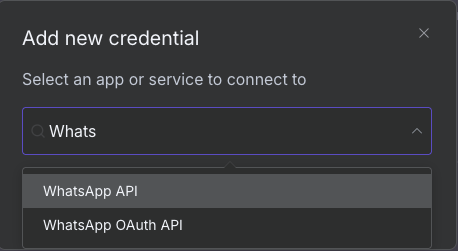
- From the drop-down menu, select WhatsApp API and hit Continue.
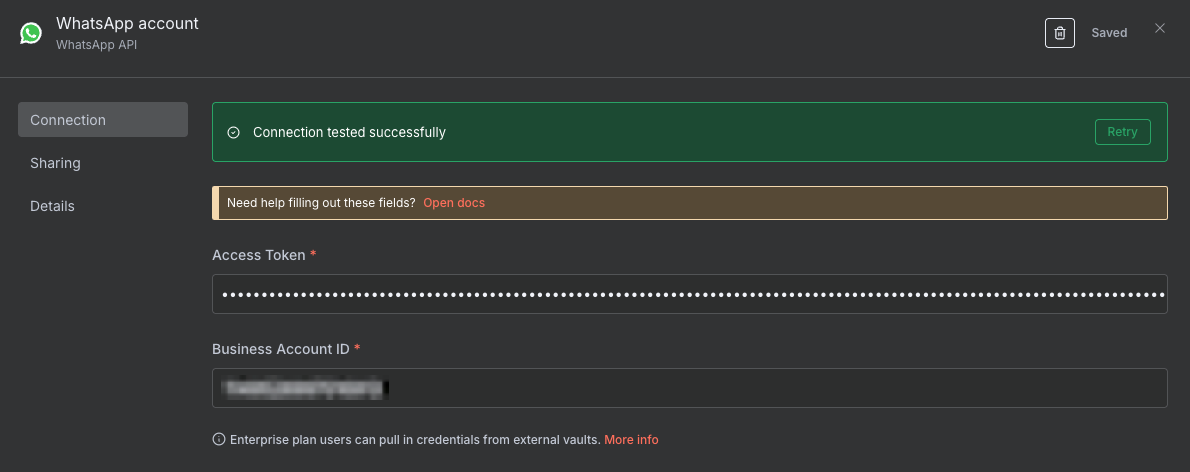
- Enter the Access token and Business Account ID from the previous steps.
- Hit Save.
Once authorized, you should see a message confirming that n8n can connect to WhatsApp successfully.
Now, repeat the same steps above, but select WhatsApp Oauth API. Then, enter App ID into the Client ID field and use App secret as the Client Secret.
4. Add and configure the WhatsApp node
Adding and configuring the WhatsApp node enables you to integrate the messaging app with your n8n workflow.
You can create a new workflow or import a ready-to-use one from a template. If you use an n8n template, the WhatsApp nodes are already in place, meaning you can simply configure the credentials and define the logic for processing the data.
We’ll discuss how to create a complete, practical workflow from scratch in the next section. For now, let’s create a simple one for testing purposes:
- On your n8n canvas, click the plus icon in the top right corner.
- Search and select WhatsApp Business Cloud.
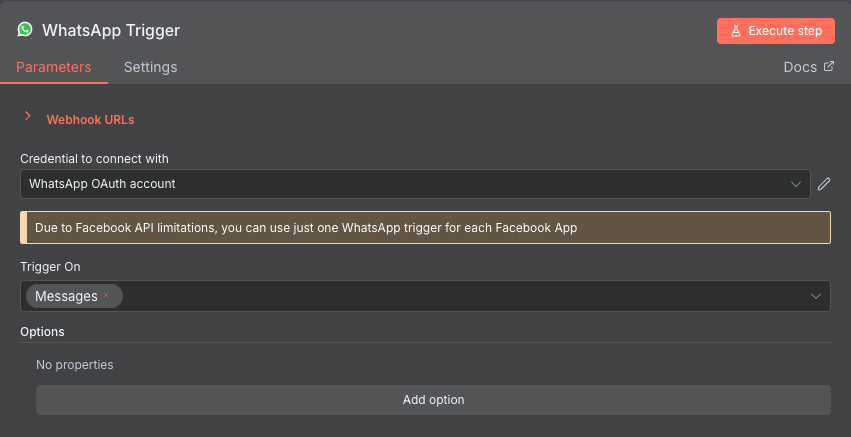
- Choose the WhatsApp On Messages trigger node.
- Expand the Credential to connect with drop-down menu and select the WhatsApp OAuth Account credential you made earlier.
- Add another WhatsApp node. Now it’s the Send Message one.
- On the Send Message node’s configuration page, select the WhatsApp API credential from the drop-down menu.
- Enter the sender number from Meta into the Sender Phone Number (or ID) field.
- Add the recipient number into the Recipient’s Phone Number field.
- Enter the response to send to the recipient in the Text Body field.
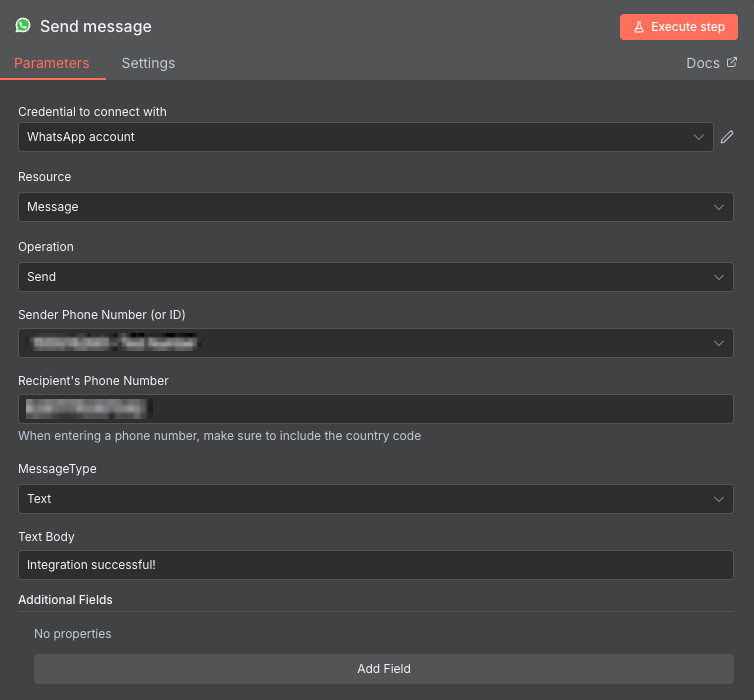
That’s it. Let’s proceed to the next step to test whether the node works correctly.
5. Send a test message
Sending a message verifies that the WhatsApp integration works properly, and n8n can exchange data with the messaging app.
Here’s how to test your workflow:
- On n8n, save your workflow and hit Execute workflow.
- Open WhatsApp and log in to the account linked to the recipient number.
- Click the New Chat button and look up the test sender number.
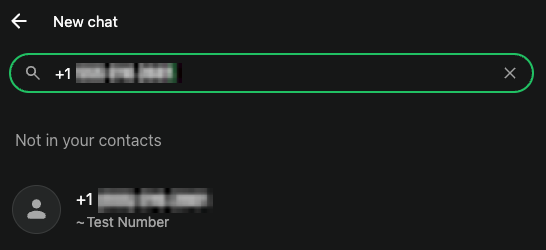
- Hit the Chat button and send a test message.
If the integration functions correctly, your n8n workflow will turn green, and you should receive the response specified in the Text Body field.

How to build a WhatsApp chatbot in n8n?
Building a WhatsApp chatbot in n8n is one of the most common real-world applications of the integration. Let’s explore how to create a simple one in three steps.
1. Plan your workflow
Planning your workflow is crucial to determine the required nodes, their arrangement, and the data flow logic.
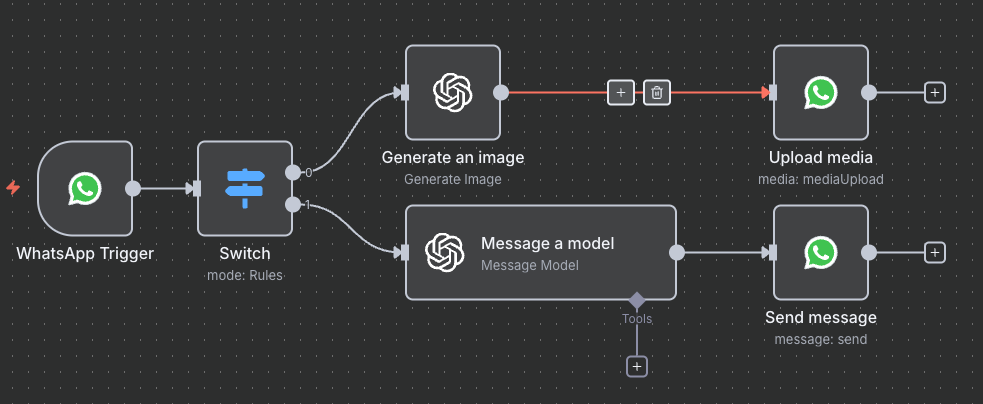
Let’s make a simple AI-powered WhatsApp chatbot that uses OpenAI’s LLMs to respond to your questions or generate an image. Here’s how the plan looks:
- The WhatsApp On Message trigger node starts the workflow whenever you send a message and forwards it to the next node.
- The Switch node receives your WhatsApp message and forwards it based on a rule. If the input contains the word image, it’s sent to the image generator. Otherwise, it’s forwarded to the chat agent.
- OpenAI’s image generator and chat agent receive your message, using it as prompt. They then send the response to WhatsApp nodes.
- The WhatsApp Upload Media node sends the image from OpenAI to the recipient. Meanwhile, the Send Message node forwards the AI’s response to the recipient.
The workflow will look like this:
2. Add and configure the nodes
After planning, add and configure the nodes to define how data will travel in your workflow.
Adding the nodes is straightforward: you can insert them into your n8n canvas by clicking on them. However, configuring them and setting up the logic can be tricky.
We’ll skip the WhatsApp trigger node configuration because we’ve explained it in the previous section and focus on other nodes.
Configuring the Switch node
Open the Switch node, and you’ll see the fields for value1 as well as value2. Hover over the value1 field and click Expression.
Then, add this code to select the WhatsApp message from the previous node as input:
{{ $json.messages[0].text.body }}Expand the drop-down menu between the value fields. Go to String and select contains. Then, enter image into the value2 field.
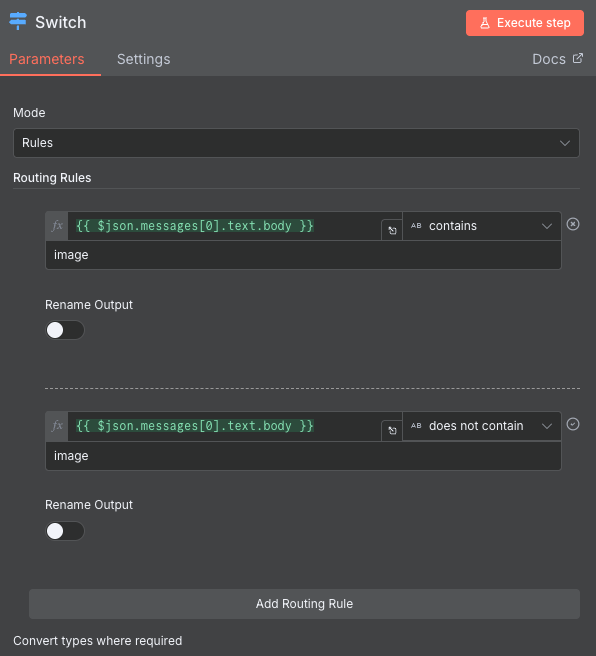
Click the Add routing button and create a new rule similar to the above. However, select does not contain instead of contains.
Configuring OpenAI nodes
Configuring OpenAI nodes requires setting up the API key to connect your OpenAI account with n8n. The steps are similar to preparing the WhatsApp credentials discussed in the previous section.
Let’s set up the image generator node by opening the configuration window and choosing the credential you made earlier. Next, set Prompt to Expression and add the following:
{{ $json.messages[0].text.body }}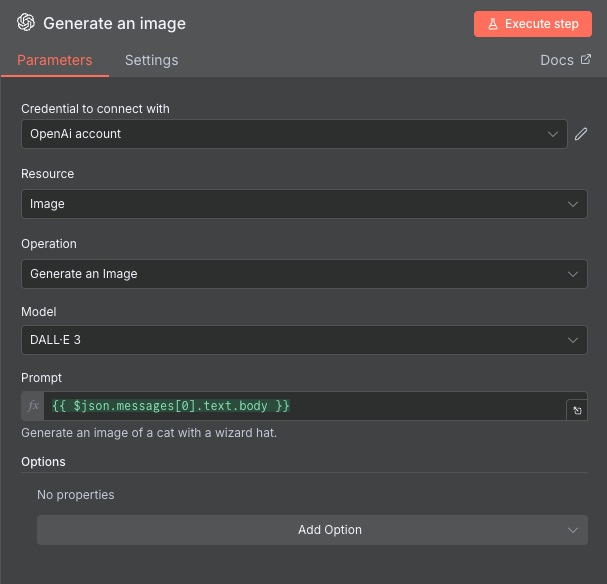
Now, repeat the same steps to configure the OpenAI chat agent node. Unlike the image generator, however, it requires you to choose the LLM model manually.
3. Output the response
Outputting the response from your workflow defines how users will receive an answer from the chatbot.
Because AI responses are dynamic, we must set the nodes to answer accordingly. Configure the WhatsApp send message node by changing Text Body to Expression and adding the following:
{{ $json.message.content }}For the WhatsApp Upload Media node, make sure you have entered the sender number and set the Property Name as data.
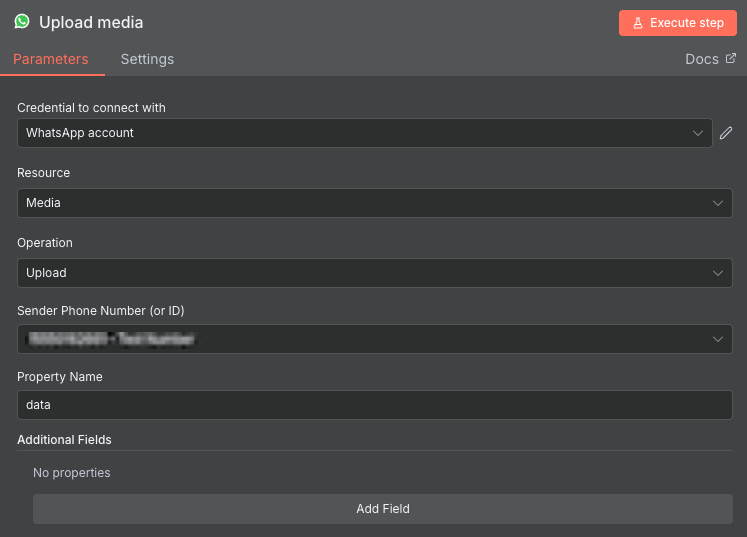
Now, check if the workflow works by entering prompts with and without the word image. If everything is set correctly, your workflow will turn green and you’ll get the corresponding answer on WhatsApp.
What are the best tips for connecting n8n to WhatsApp?
For a reliable and secure automation workflow, make sure to:
- Secure credentials. All credentials on n8n must remain secure since, if compromised, they can expose your workflow to unauthorized parties. Only store them in an encrypted location and limit their access if you collaborate with other users.
- Design an error-handling system. Error handling ensures that your workflow has a backup system that will respond to users when the main one encounters issues. For example, you can set up automated alerting that notifies users of errors.
- Format data properly. As data passes through different nodes, it may change shape. Use Set or Function nodes to structure your data into predictable formats before processing or outputting it. This reduces errors and simplifies your workflow logic.
- Implement message throttle. APIs typically limit the number of requests you can send within a specific period of time to prevent overloading. Adding a delay prevents your workflow from flooding the WhatsApp API with requests.
Why is Hostinger the best choice for hosting your n8n-WhatsApp integration?
Hosting your n8n-WhatsApp workflows with Hostinger has plenty of advantages over using a personal machine. Some of the benefits include:
- Higher control. Hostinger’s self-hosted n8n solution provides users with full root access to their server settings and data. This enables you to configure your n8n hosting environments to your specific preferences.
- Improved privacy. Hosting n8n on a server over which you have full root access gives you complete freedom to tailor its access limits and security settings to your security preferences.
- Scalability. Hostinger VPS plans are easily upgradable without downtime and offer the n8n queue mode template that offloads your workflow tasks to multiple workers.
- Streamlined setup. Our VPS template lets you install n8n in one click, making the process more streamlined and error-free. We also have a VPS template that comes with 100+ pre-built n8n templates, eliminating the need to develop them from scratch.
- Easy management. Managing a Hostinger VPS is easy with the intuitive hPanel control panel and built-in browser terminal. Beginners can also ask our AI assistant, Kodee, to perform system administration tasks via chat.
Key takeaways for integrating WhatsApp with n8n
Now that you know how to integrate WhatsApp into n8n, it’s time to put your knowledge into practice.
Note that this article only covers the basics of the integration and building a chatbot. Since n8n offers hundreds of nodes, you can experiment with them to create a larger automation system for complex tasks. For inspiration, check out our n8n workflow examples tutorial.
If you are new to n8n, Hostinger is an excellent place to start. In addition to the easy-to-set-up n8n hosting plans, we have a comprehensive catalog of n8n tutorials that will help kickstart your automation journey.
Whether you want to discover other n8n workflows for inspiration or learn how to integrate different tools into your automation system, we have the tutorials for you.

Aris is a Content Writer specializing in Linux and WordPress development. He has a passion for networking, front-end web development, and server administration. By combining his IT and writing experience, Aris creates content that helps people easily understand complex technical topics to start their online journey. Follow him on LinkedIn.

