How to connect n8n to Google Sheets + most popular integration examples
Mar 10, 2026
/
Aris S.
/
8 min Read
Integrating n8n with Google Sheets allows you to automate various tasks, streamline data processing, and create powerful workflows across multiple platforms. In this guide, we’ll show you step-by-step how to set up the integration, explore popular workflow examples, and provide tips for optimizing your n8n-Google Sheets connection.
By the end of this article, you’ll understand how to automate data imports/exports, reporting, and synchronization using n8n, along with best practices for maximizing performance and security.
How to set up n8n and integrate Google Sheets?
n8n lets you create a custom workflow to automate various tasks across different services. Among several applications you can connect with, Google Sheets is one of the most popular.
In this section, we will discuss how to prepare n8n and integrate Google Sheets into the platform.
1. Installing and configuring n8n
Let’s start by setting up n8n. Although this platform offers a subscription plan, we will self-host it on a virtual private server (VPS) – it’s a more affordable solution that provides more control.
Given n8n’s low minimum requirements, you can use an entry-level server with 4 GB of SSD and 2 GB of RAM.
If you don’t have a server, you can purchase Hostinger’s self-hosted n8n solution. Starting at CA$ 9.09/month, our plans offer powerful hardware and various features that simplify n8n installation.

Using the OS template, you can set up n8n on your server with one click. Otherwise, you must install n8n manually using commands, which can be complicated for beginners.
After installing n8n on your VPS, access it using your server’s IP address on port 5678. Alternatively, you can use n8n.hostname.com, with hostname.com being your server’s actual hostname.
Finally, complete the n8n setup by creating an admin account and a new project. To learn more about this initial configuration, watch our video tutorial below.


2. Creating Google API keys
Before configuring n8n further, let’s create the Google Sheets API authentication keys. These credentials will allow n8n to access and modify data in your sheets. Here’s how:
- Open the Google developer console and log in to your account.
- Click Create project, add a name for your project, and hit Create.
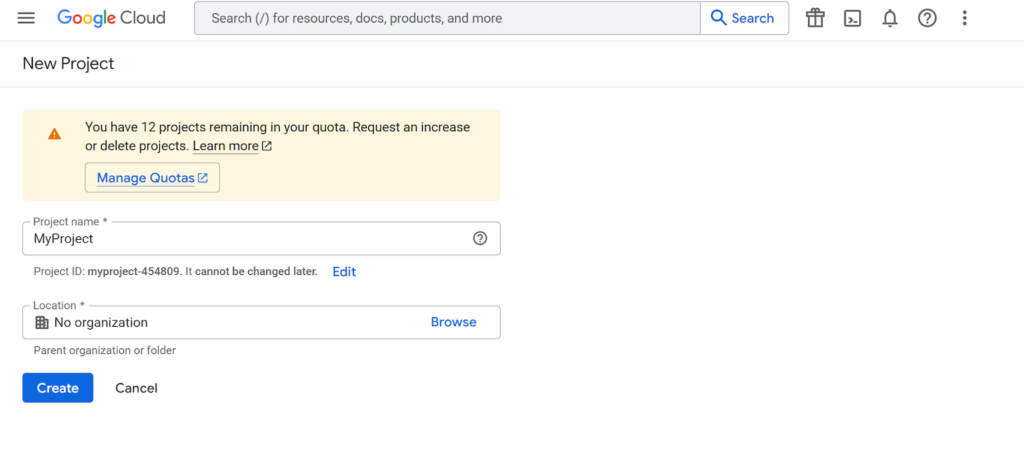
- Navigate to the sidebar → OAuth consent screen. Click Get started.
- Add a name for your application and select the User support email from the drop-down list. Hit Next.
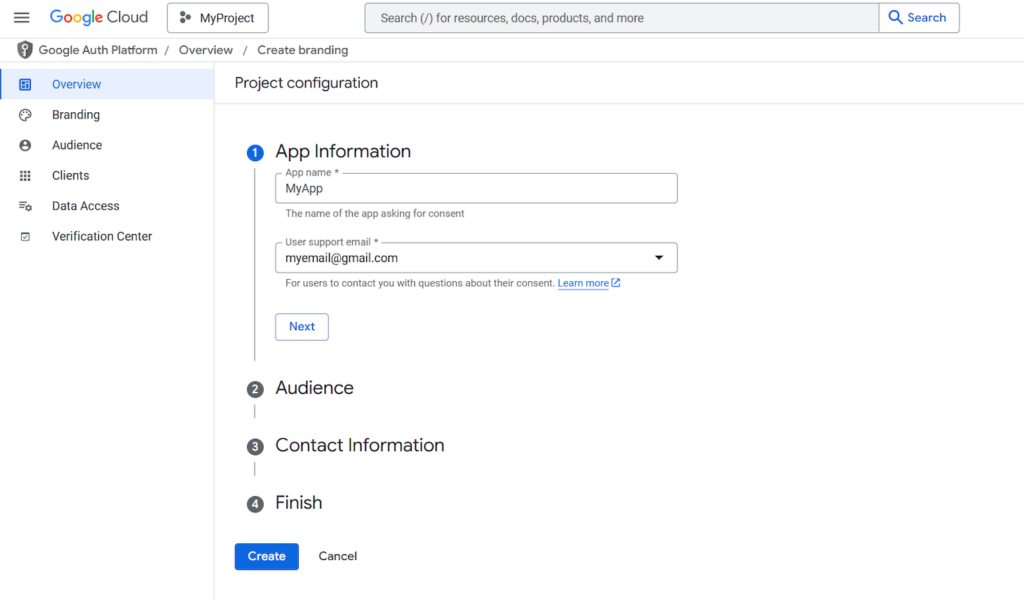
- Select Audience to use the API. If your email is not a part of Google Workspace, choose External. Click Next.
- Enter an email address for contact information. Hit Next.
- Check the policy agreement box. Hit Continue and Create.
- You will land on the OAuth Overview page. Click Create OAuth client.
- Select Web application as the Application type and enter a name for your app. Click Create.
Click your new OAuth client, and you should see the Client ID and secret key for your web application. Store these credentials in a safe location since we will use them to configure n8n’s Google Sheets node.
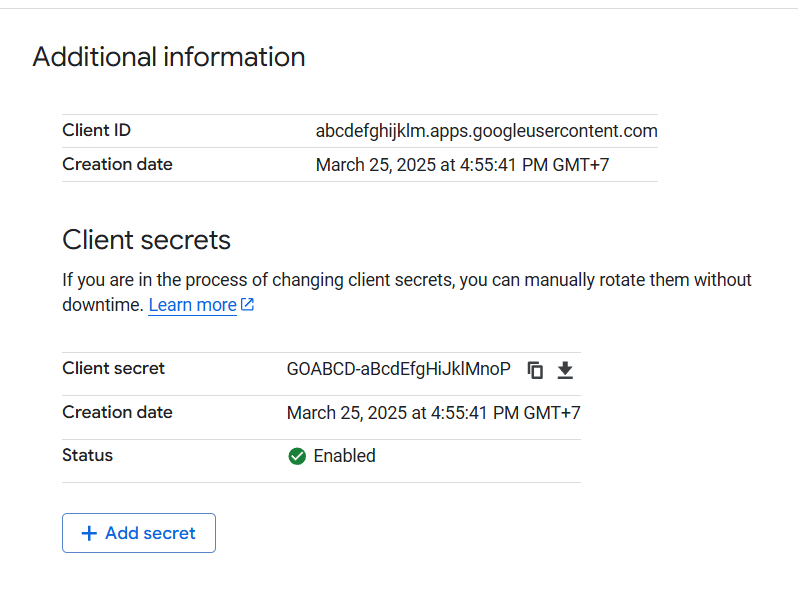
To finish, enable the Google Sheets API. Do so by searching for Library on the developer console page. Find Google Sheets API and hit ENABLE.
Keep this Google OAuth configuration page open since we still need to adjust a few settings afterward.
3. Integrating Google Sheets into n8n
To integrate Google Sheets with n8n, you need a workflow. You can create one from scratch by clicking Create Workflow on your n8n dashboard or by importing a pre-built template.
Once you have a workflow, you can integrate Google Sheets with n8n by simply adding its node into the canvas.
Google Sheets in n8n can act as an action that performs certain tasks or a trigger that starts your workflow. An action requires a trigger and input data, while a trigger doesn’t.
Here’s how to do so:
- Click the + icon and add the Google Sheets node.
- The Google Sheets node configuration menu will pop up. Here, expand the Credential to connect with drop-down menu and click Create new credential.
- Paste your Google’s Client ID and secret keys to their respective field.
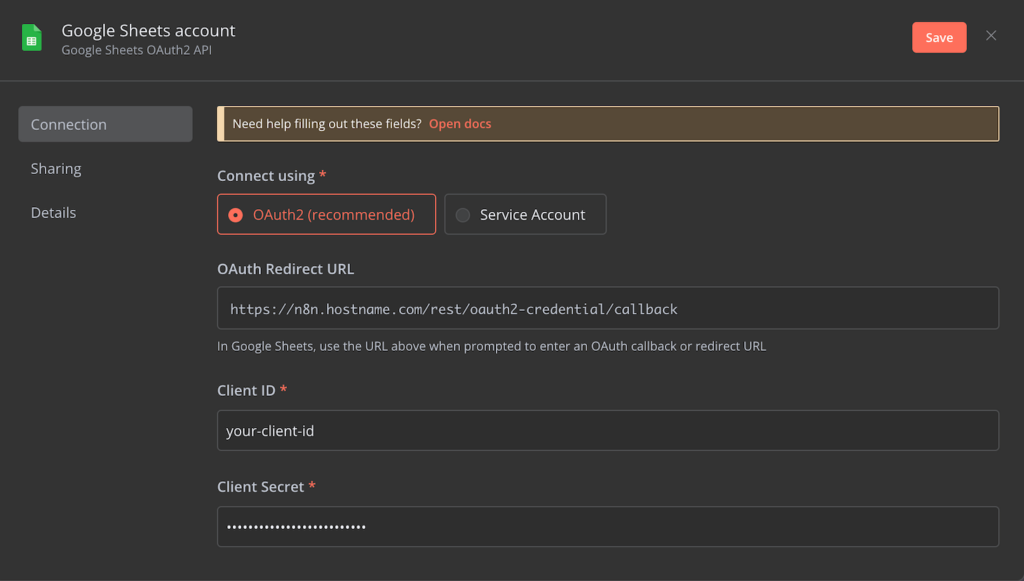
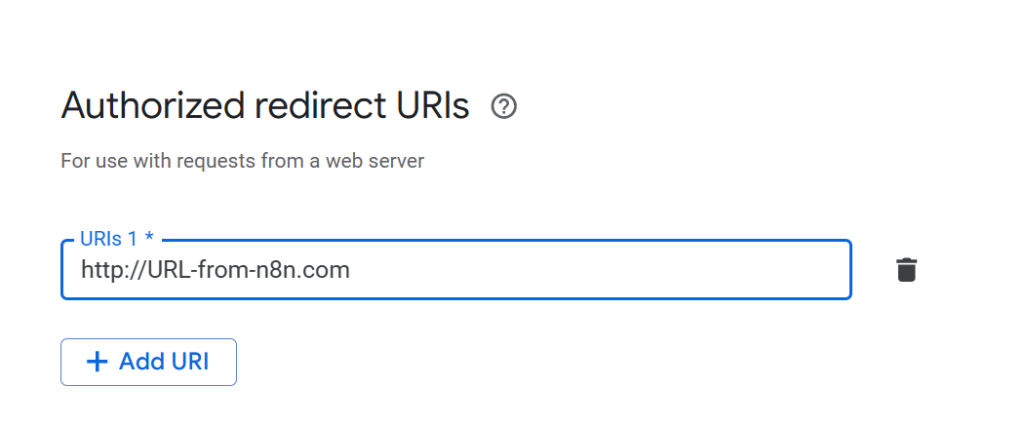
- Copy the OAuth Redirect URL and head back to the Google OAuth configuration page.
- Add a new Authorized redirects URIs and paste the URL. Hit Save.
- Head back to n8n’s Google Sheet node credential configuration page and hit Sign in with Google.
- Once connected, return to the node setting main menu and connect your spreadsheet document by selecting it from the drop-down menu.
That’s it! Google Sheets is now connected to n8n. However, your workflow is currently not yet functional and requires additional nodes. Let’s dive into the examples to learn what nodes to use for different tasks.
Important! The OAuth configuration might require a few hours to take effect. Until then, you might face an error when connecting your Google account.
If the issue persists, try assigning your Google account as the test user. To do so, open your Google API & Services developer console and navigate to the sidebar → Audience.
Click Add Users and enter the Google account that you wish to connect with n8n. Complete the configuration process, and you should be able to integrate the Google Sheets node.
4. Authorizing your n8n domain
Authorizing your n8n domain is mandatory if your platform runs on an address that contains subdomains like hostname.n8n.hstgr.cloud. A subdomain can cause Error 400: redirect_ui_mismatch because Google OAuth uses it to authorize your n8n instance when the top-level domain should be used instead.
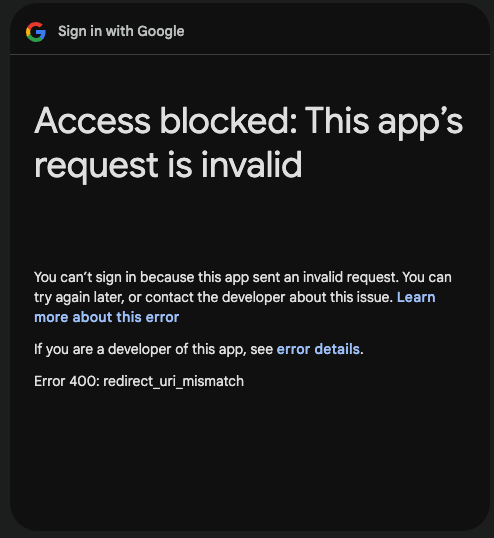
If your n8n address contains a subdomain, follow these steps to authorize your top-level domain and fix the error:
- Access your n8n project page on Google Cloud Console.
- From the sidebar, select OAuth consent screen.
- Select Branding on the sidebar.
- Scroll down to the Authorized domains section and click Add domain.
- Enter your n8n’s top-level domain, which is hstgr.cloud, if you deploy it on our VPS.
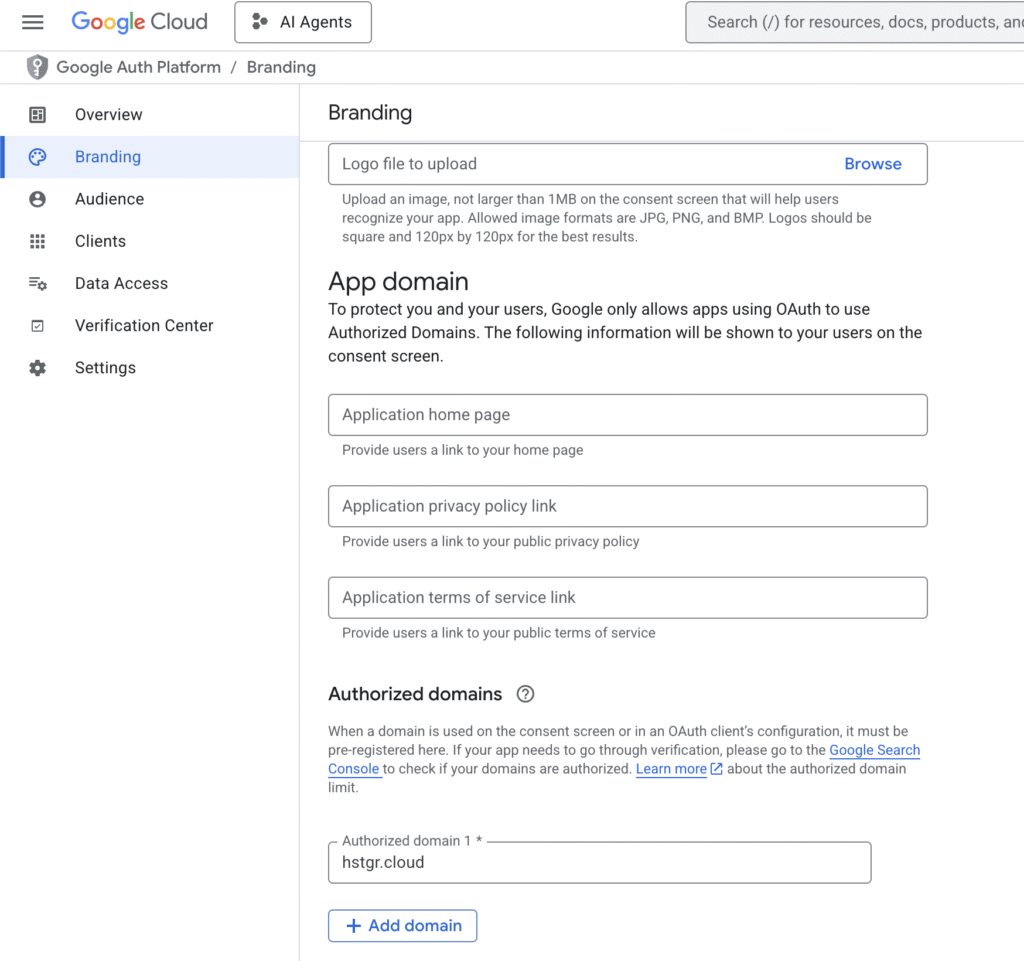
- Hit Save to apply the changes.
Now, you should be able to connect Google Sheets with n8n without errors.
n8n and Google Sheets integration examples
n8n lets you configure custom Google Sheets workflow to automate various tasks. In this section, we will cover the three most popular ones.
Data import and export
n8n enables you to automatically import data from another platform to Google Sheets and vice versa. It streamlines tasks like archiving or reporting since you don’t need to enter the records manually.
This workflow’s basic concept is to pull new data from another application, insert it into Google Sheets, and export it to another platform for further processing.
For example, here’s a basic workflow that pulls user contact information from Typeform, stores the details in Google Sheets, and adds them as a mailing list member on Mailchimp:
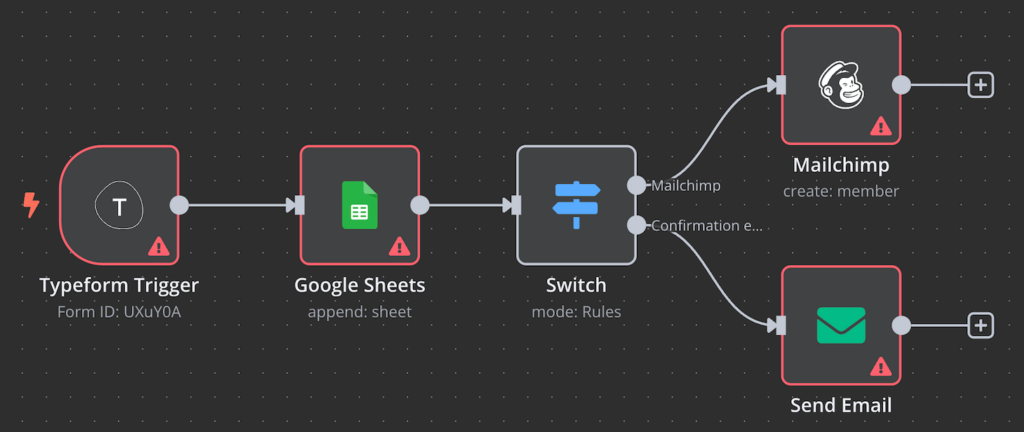
Here’s how the workflow works:
- When users enter their email address and name into the contact form, the node will forward the data to Google Sheets.
- The Google Sheets node will store the data for archive and export it to the Switch node.
- The switch splits the data to Mailchimp and email nodes for further processing.
- The Mailchimp node will create a user based on the imported data, while the email one will send a confirmation message.
Using more nodes, you can create a Google Sheets workflow for more complex tasks. For instance, consider the following business email web scraping workflow from Akram Kadri.
Automated reporting
n8n provides a Google Sheets node that can trigger your workflow whenever a new entry is added or existing records are updated. This is especially useful for automating data reporting.
To set up automated reporting with Google Sheets, you also need an OpenAI node to summarize the data. This means you must create an OpenAI API key to allow n8n to access the large language model (LLM).
For example, let’s create a workflow that regularly sends summaries of new data to Slack:
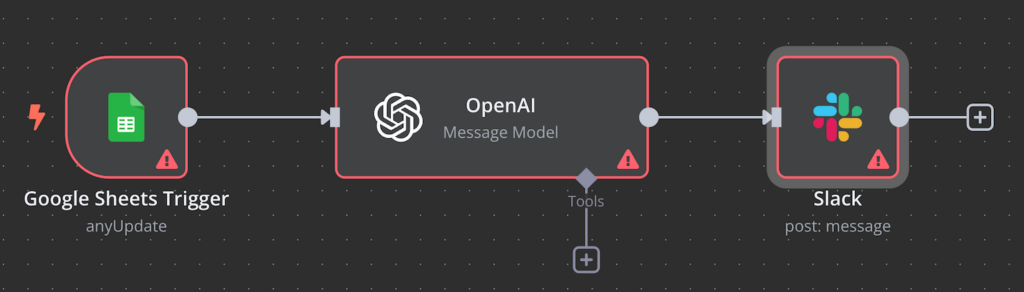
Here’s the explanation of the workflow and each node’s purpose:
- The Google Sheets trigger starts the workflow whenever data in the document is added or updated.
- The OpenAI node will pull the data and summarize it based on the predetermined prompt.
- The Slack node will retrieve the summary from OpenAI and send it to a particular channel.
You can customize this workflow according to your data reporting needs. For example, you can filter the new data before summarizing or forward it to another sheet for logging.
Data synchronization
An automated data syncing workflow ensures that information on Google Sheets remains consistent with that on another platform. This is especially useful for archiving and logging since you don’t need to update the data manually.
Let’s say we have a custom-built online store and want new order data to be automatically included in our Google Sheets document for archive. The n8n workflow looks like this.
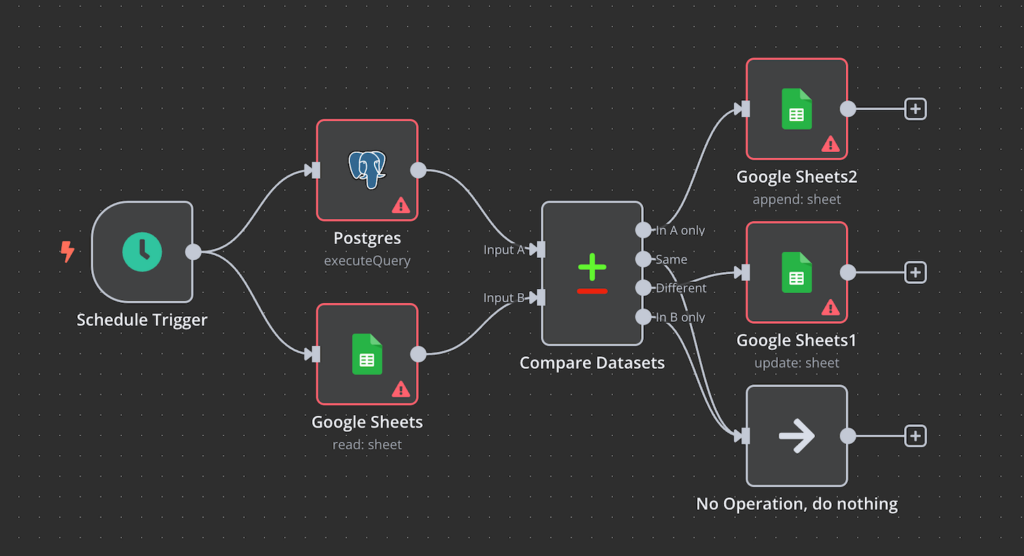
Here’s the explanation of the data pipeline:
- The Cron node sets a schedule for the workflow to trigger, which can be a specific time or an interval.
- The PostgreSQL node starts and then executes the SQL query to check for new information in the database.
- The Google Sheets node runs in parallel with the PostgreSQL one, checking for existing data in the spreadsheet.
- n8n will compare the data from the Google Sheets and PostgreSQL nodes. It will take the corresponding action based on the corresponding rule.
- If the data only exists on PostgreSQL, n8n will add a new row for it. Meanwhile, n8n will update existing records in the sheet if the data already exists on both the document and database.
This workflow will enable your Google Sheets document to automatically pull new data or update existing records if n8n detects changes in the PostgreSQL store database.
Tips for using n8n with Google Sheets
To improve your n8n and Google Sheets workflow, consider the following tips:
Error handling and debugging workflows
When creating an n8n automation workflow, whether you start from scratch or import an existing template, you might encounter errors with the data flow. For example, your node might not pull the correct data or it may display the wrong information.
To pinpoint which node faces the issue, run n8n’s built-in workflow test. You can also use mock-up data, which is easier to configure than the real one but accurate enough for testing purposes.
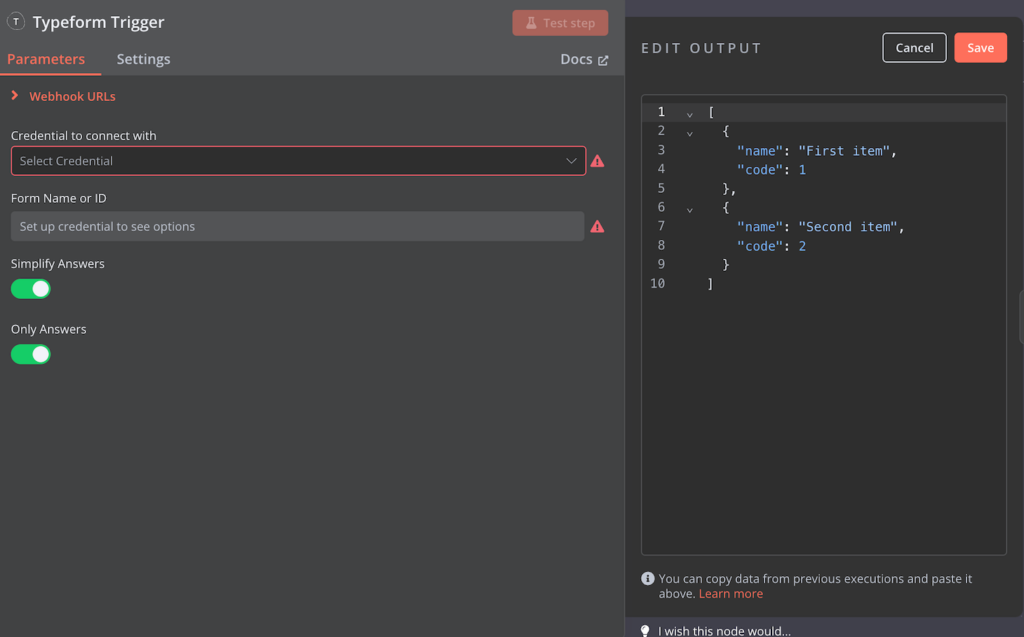
If your issues are related to third-party integration, however, connect the actual data source for more accurate troubleshooting. For other issues, n8n provides a comprehensive documentation and community forum to help you find solutions more easily.
Also, we recommend setting up additional workflows or nodes that return errors to ensure unsuccessful tasks will remain handled. You can do so by adding the Stop and Error node.
Performance optimization
As your automation workflow expands and processes more data, it will consume more computing power. To maintain the best performance and responsiveness, you’ll need to optimize your n8n instance.
The simplest way to optimize your n8n workflow is to minimize the nodes. Include only the necessary nodes and simplify your data flow by reducing the number of processes.
Also, consider implementing n8n’s queue mode. In this setup, you have multiple n8n instances running in your server, which will automatically scale up and distribute tasks based on the number of requests.
Moreover, regularly monitor resource usage to ensure that your server has enough hardware to perform optimally. You can do so by integrating tools like Prometheus or using hPanel’s built-in server monitoring feature.
Security Considerations
Integrating Google Sheets with n8n means granting the platform full access to your documents. While this can present data integrity and safety risks, you can minimize them by following the best practices:
- Use n8n internally – keep your n8n instance’s address private. Avoid exposing it online since it can make sensitive information public.
- Maintain access control – track all your API credentials so you can manage and audit access more efficiently.
- Safeguard sensitive tokens – only store API credentials in your n8n instance to avoid unauthorized access. If you want to save them up for backup, use an encrypted platform.
- Monitor your workflow – monitor events in your n8n workflow to identify potentially malicious activities and security incidents.
- Update and maintain regularly – install security patches and always use the latest n8n version to ensure optimal data safety.
Conclusion
By integrating n8n with Google Sheets, you can automate a wide range of data-related tasks, including imports, exports, reporting, and synchronization. Setting up this integration involves creating Google API keys, configuring n8n’s Google Sheets node, and building workflows tailored to your needs. Always ensure security best practices and optimize your workflows for better performance.
How to integrate n8n to Google Sheets FAQ
How do I connect n8n to Google Sheets?
To connect n8n with Google Sheets, simply add the Google Sheets node to your workflow. Open the node’s configuration menu and add your Google developer’s project Client ID and secret key.
In the Google developer’s project page, add n8n’s redirection URL from the node’s configuration page. Finish by selecting the document and sheet you want to integrate.
What can I automate with n8n and Google Sheets?
You can create virtually any workflow to automate various tasks. For example, you can set up a pipeline that enables your sheet to automatically pull data from forms and export the information to another platform.
Additionally, you can set up a workflow that tracks new data in your sheet and sends a recap to another platform, like Slack.
Are there templates available for n8n and Google Sheets?
Yes, n8n has user-shared templates for Google Sheets workflow that you can import to your project. Simply open the n8n’s Google Sheet’s integration page, select the template you want under the Popular ways to use Google Sheets integration section, and click Use workflow.

Aris is a Content Writer specializing in Linux and WordPress development. He has a passion for networking, front-end web development, and server administration. By combining his IT and writing experience, Aris creates content that helps people easily understand complex technical topics to start their online journey. Follow him on LinkedIn.

