How to change author in WordPress: 4 simple methods (including classic and block editors)
Dec 02, 2025
/
Aris S.
/
4 min Read
When multiple people write for your WordPress site, you will need to change a post’s author from time to time. You might want to use an alias for multiple authors or assign an editor to a post instead of a writer.
This article will explain four different methods of how to change author in WordPress. You will learn how to change authors for multiple and individual posts on Classic Editor and WordPress Gutenberg.
Download all-in-one WordPress cheat sheet
How to Change the Author in WordPress Using the Block Editor
Important! Note that you can only assign existing posts to registered users.
Before proceeding, add a new WordPress account and give it the Author user role and permissions.
If you use the WordPress Block Editor, change the author via the Edit Post menu. As an administrator, log in to the WordPress dashboard and follow these steps:
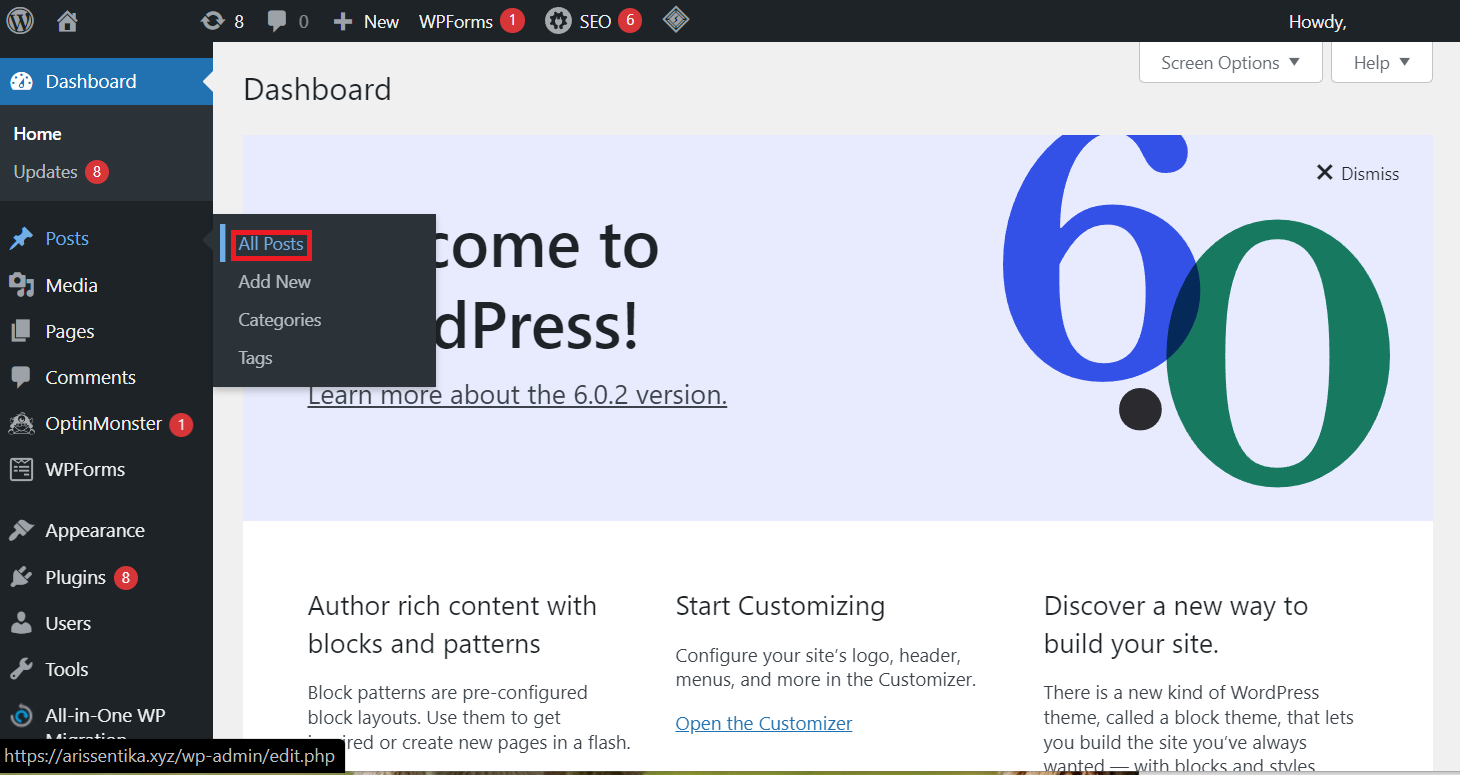
- In the dashboard, go to Posts → All Posts.
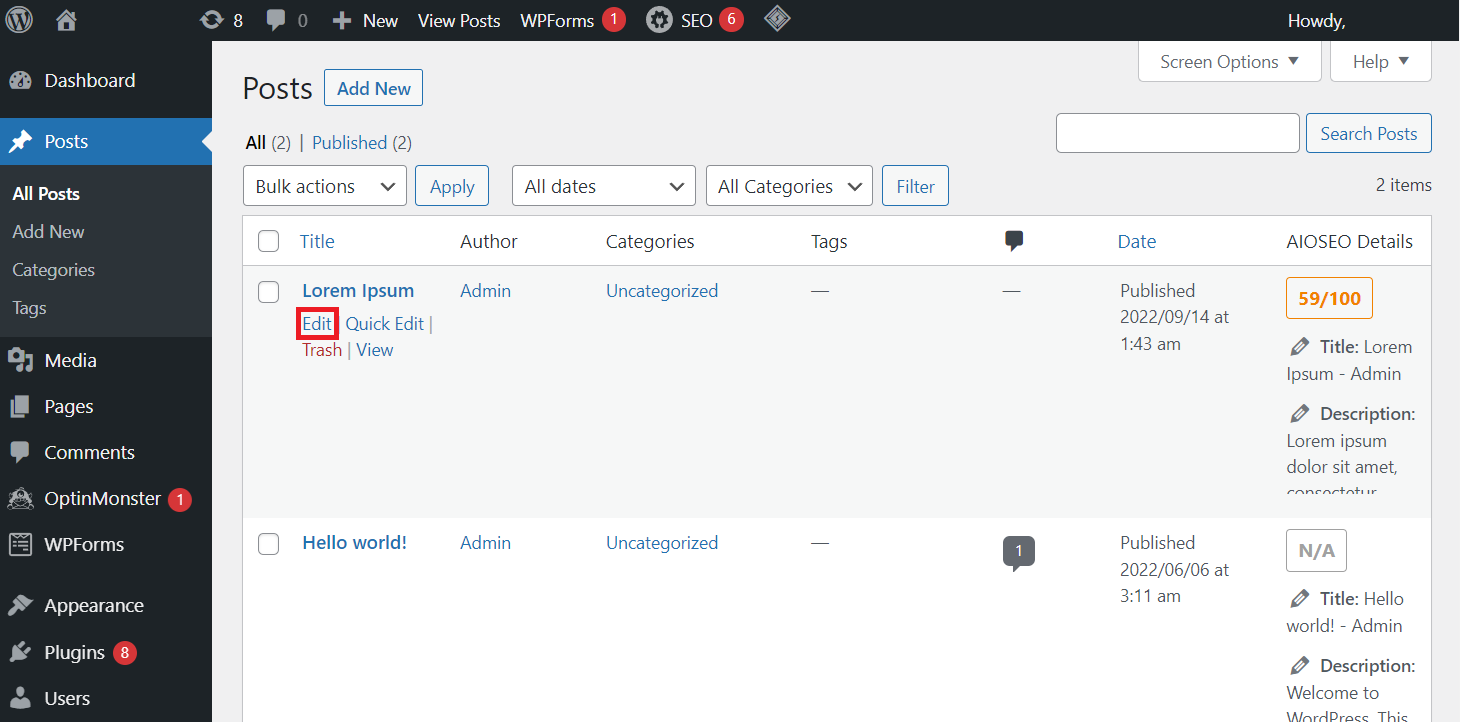
- Select the post you want to change the author of, and select Edit.
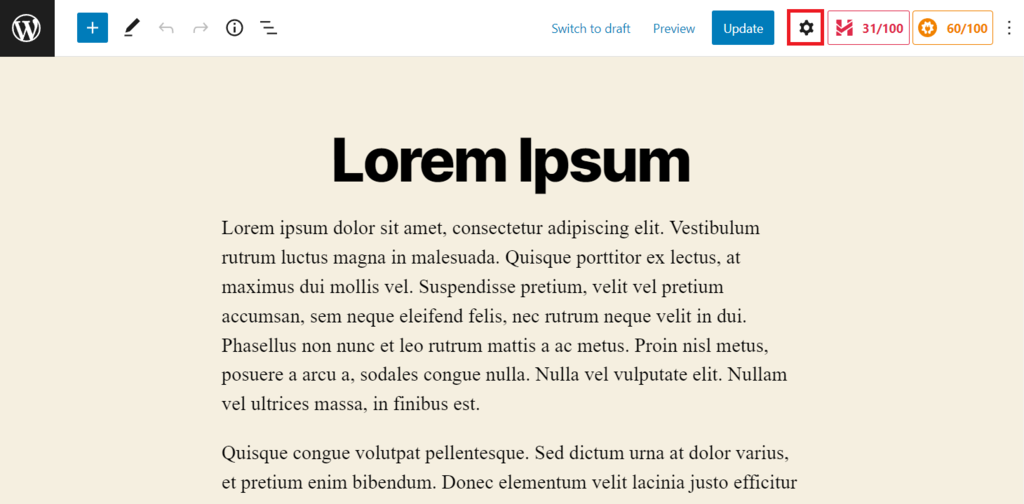
- Click the gear icon in the top right of the post editor screen.
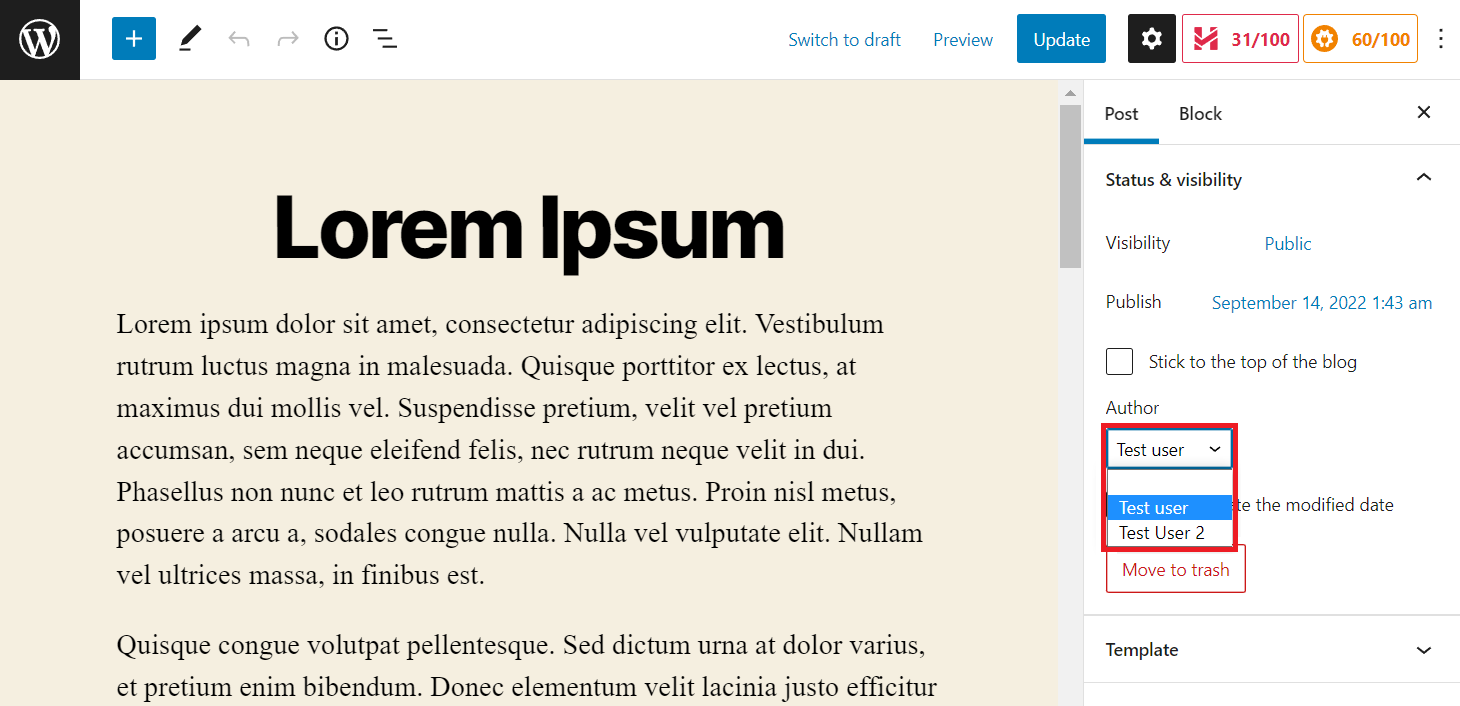
- Navigate to Post → Status and Visibility in the sidebar.
- Find Author and select a new username from the drop-down list.
- Click Update to save your changes.
Pro Tip
Instead of changing authors, you can also hide them using the WP Meta Date Remover plugin. Simply activate the plugin to hide your posts’ metadata, including authors, dates, and categories.
How to Change the Author in WordPress Using the Classic Editor
The steps to change WordPress author using the Classic Editor are similar to Gutenberg. However, you need to enable the Author configuration panel first:
- Navigate to Posts → All Posts.
- Find the post you wish to tweak and click Edit.
- In the editor, click the Screen Options menu to expand it.
- Ensure that the Author option is selected.
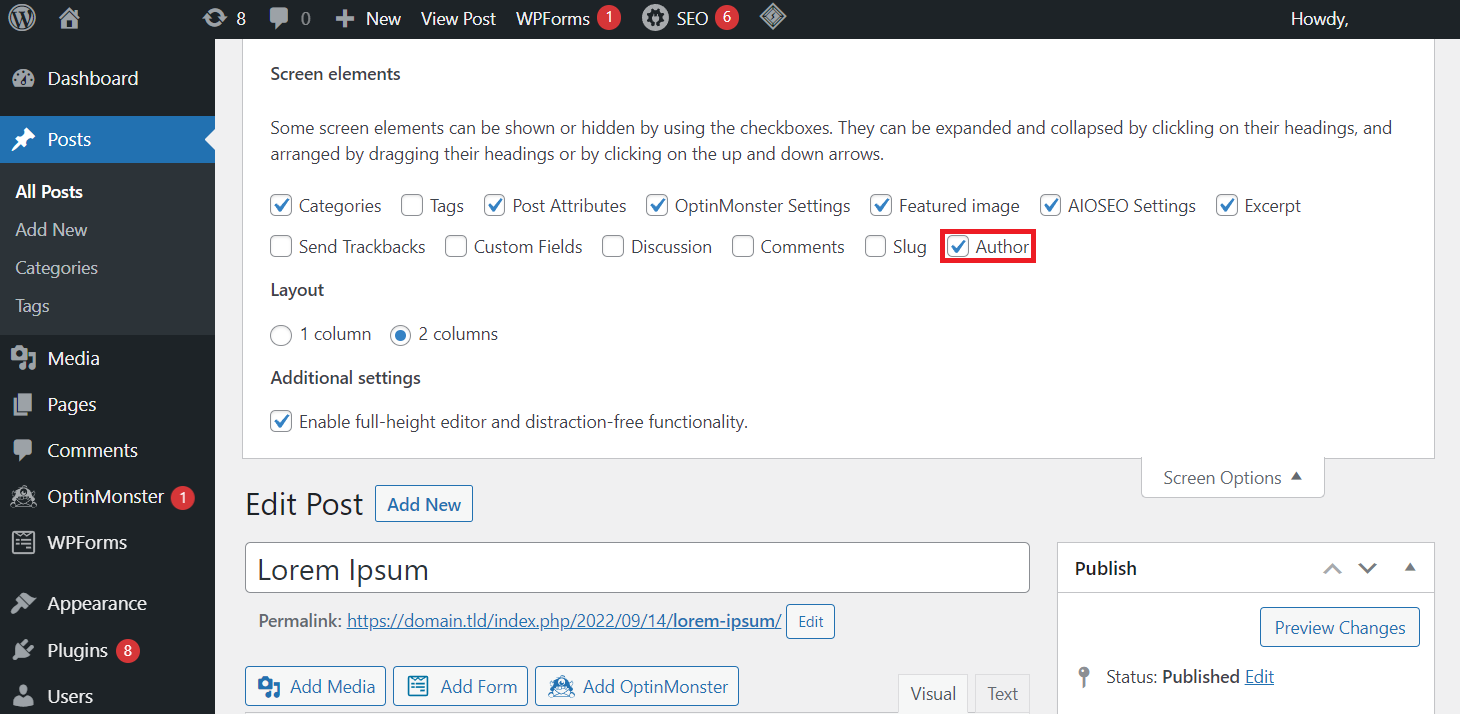
- Find the Author panel
- Click the drop-down menu and pick a new author name from the list.
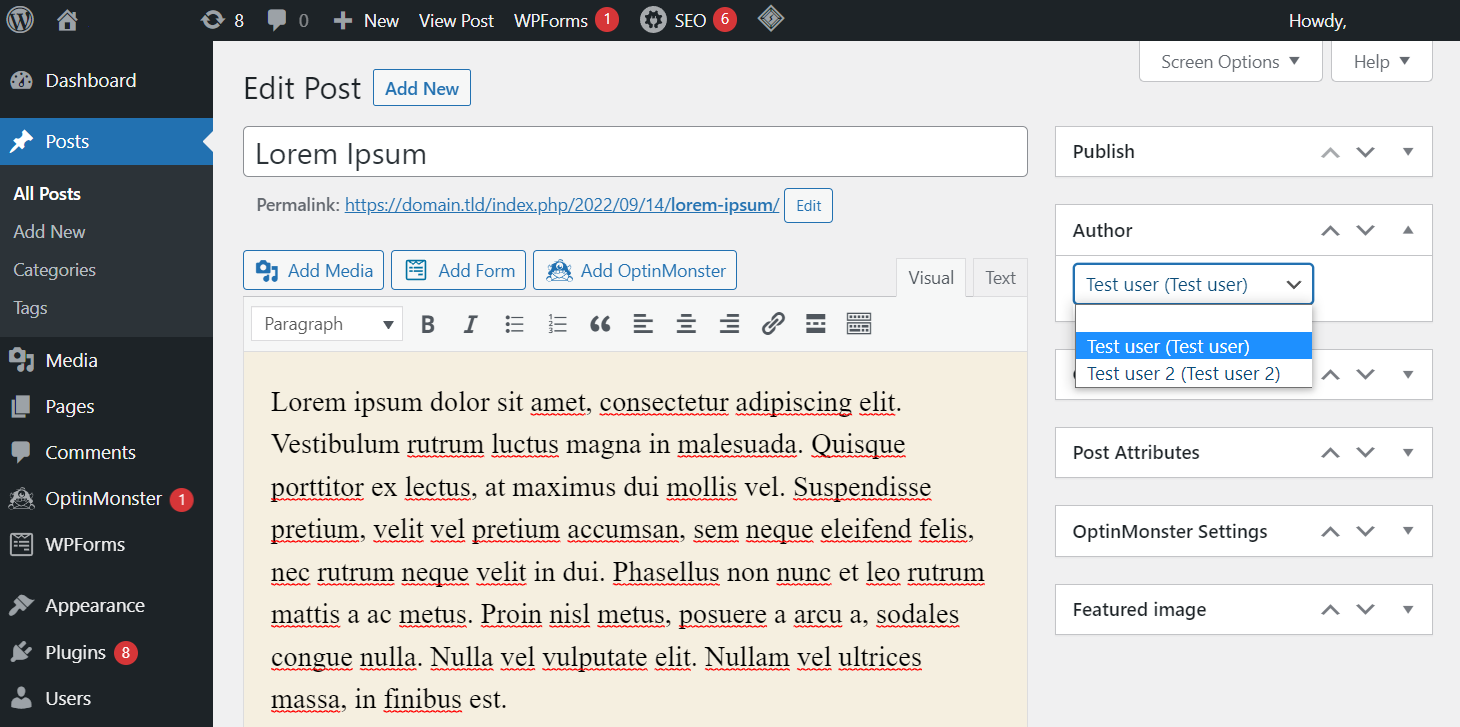
- Select the Publish tab and click Update.
How to Change the Author in WordPress Using Quick Edit
This WordPress feature makes it easy to change posts authors within a single screen. This method is ideal if you want to change multiple posts individually.
This feature is available and works similarly using the Block and Classic text editors. Here are the steps to change the author of an existing post using the Quick Edit feature:
- Navigate to Posts → All Posts.
- Hover over the post you wish to tweak and select Quick Edit.
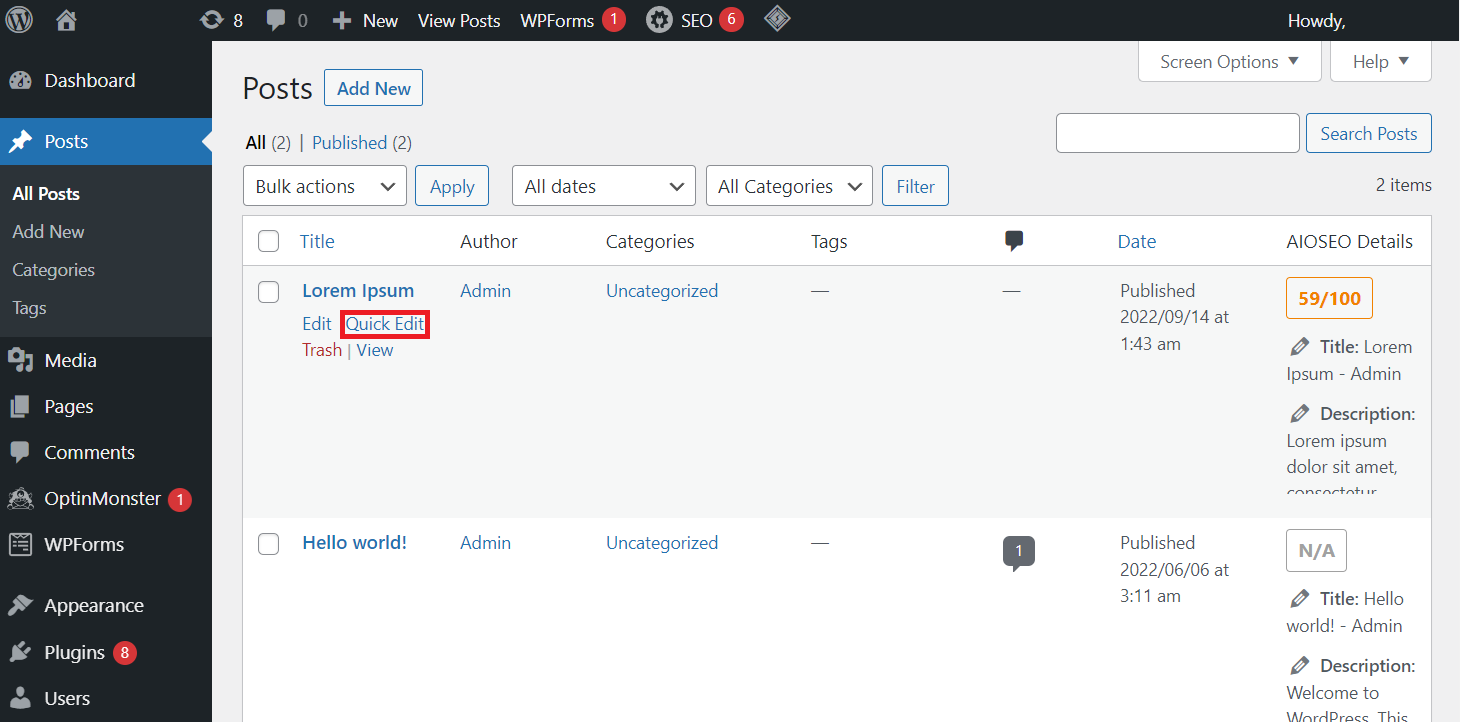
- Choose a new author name from the drop-down menu.
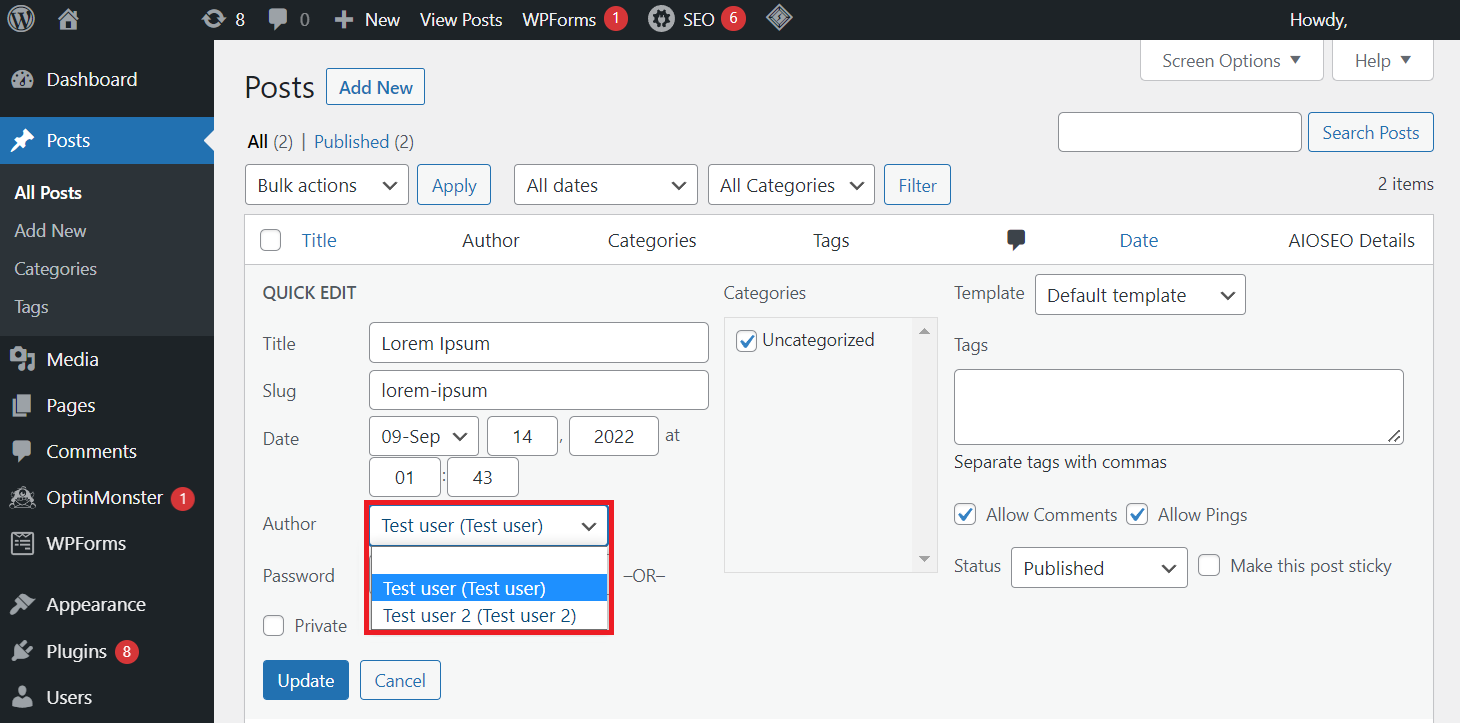
- Select Publish to apply the changes.
How to Change the Author of Multiple WordPress Posts
Changing the author of an individual post can be time-consuming if there are many posts you wish to edit. Thankfully, you can change multiple WordPress posts’ authors at once.
WordPress’ Bulk Actions feature lets you simultaneously edit multiple posts’ settings, including changing authors. Here are the steps to change multiple posts’ authors in bulk:
- Go to Posts → All Posts.
- Select the posts you want to change the authors of by selecting the check mark box.
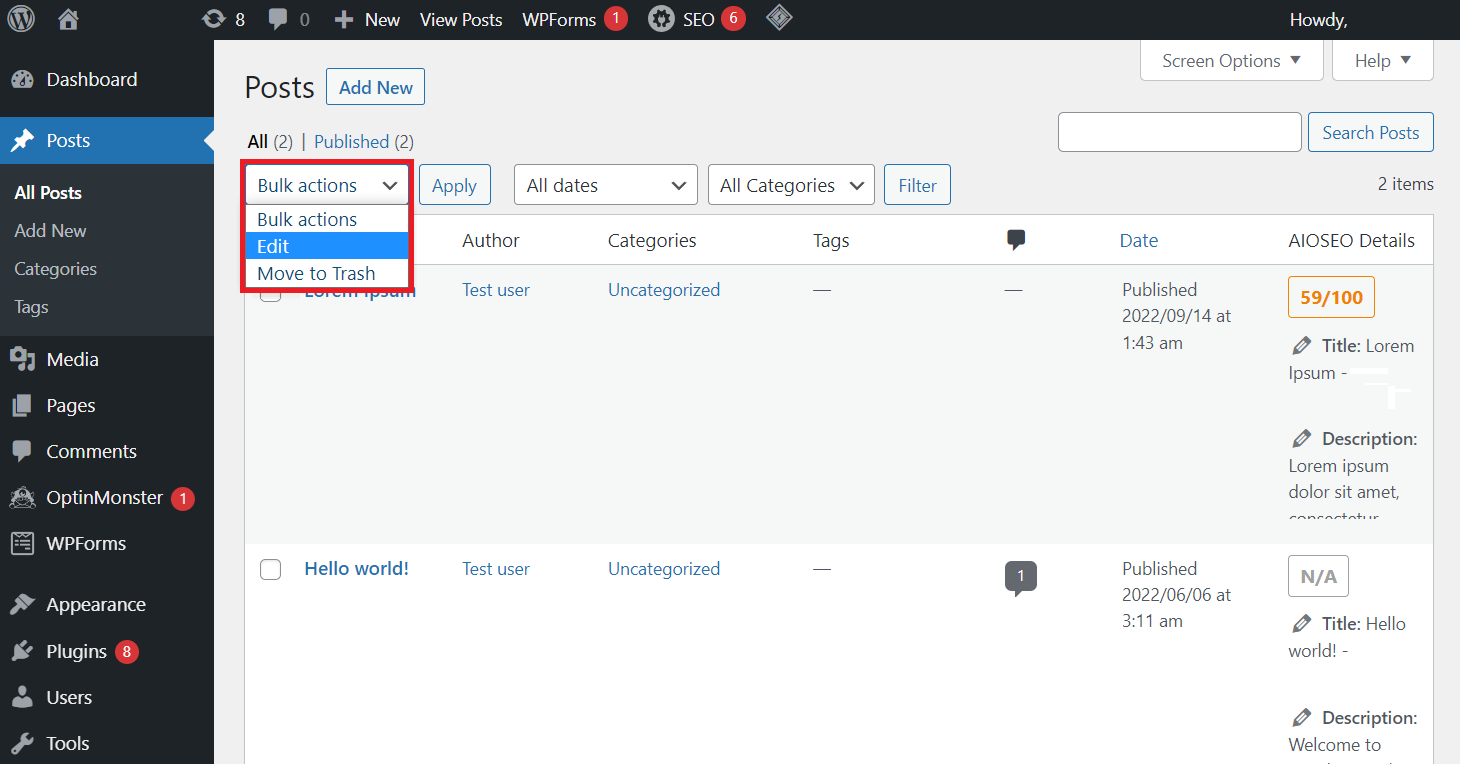
- Click Bulk Actions. From the drop-down menu, select Edit → Apply.
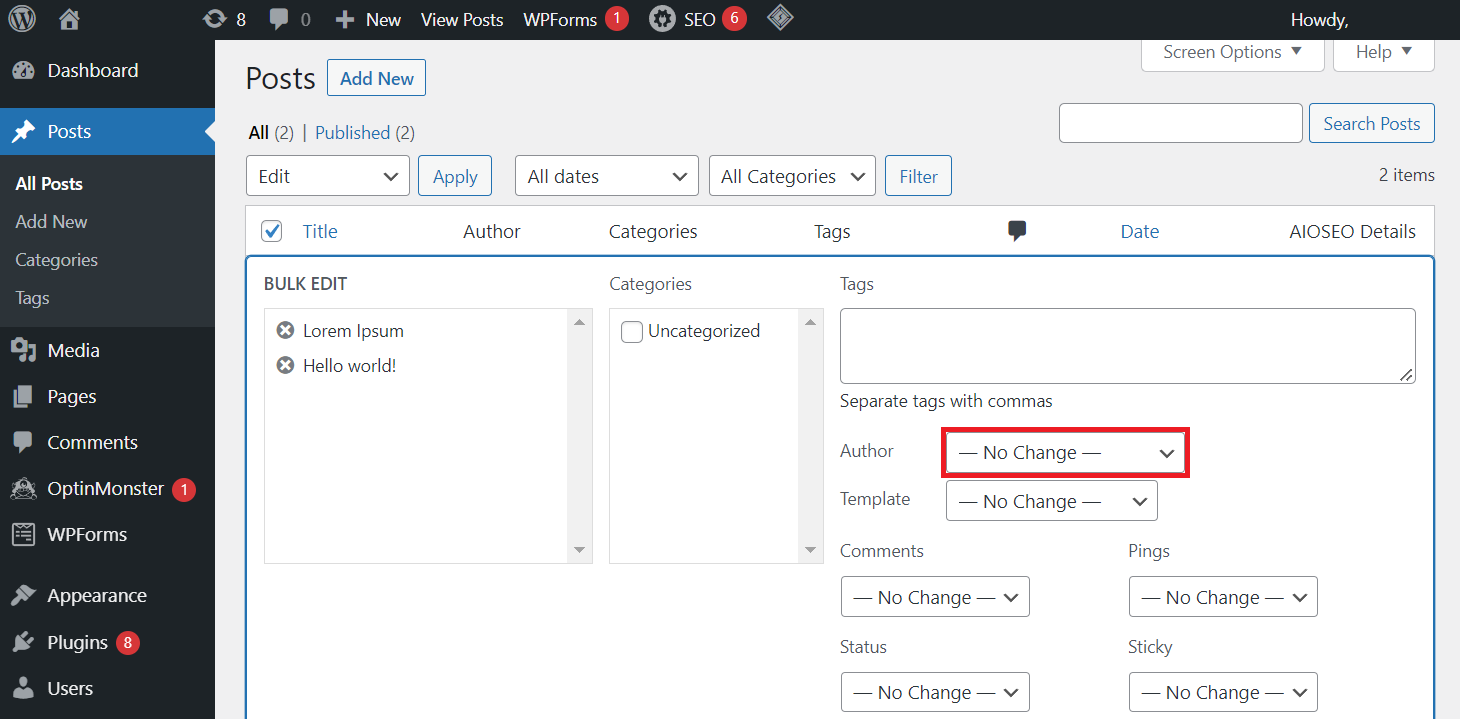
- Click the Author drop-down menu and select a new user.
- Click Update to confirm.
This feature only lets you assign one new author at a time. To assign multiple authors for different posts, repeat the previous steps.
You can also change the author of various posts attributed to the same user. However, this involves changing the author’s display name instead of assigning another existing user.
Ensure you have the administrator user’s role. Then, follow this instruction to change the author’s display name:
- Go to Users → All Users.
- Hover over the user and choose Edit.
- Find the Name section. Optionally, change the author’s name in the designated fields.
- Expand the Display name publicly as list and select a new name.
- Click Update User.
How to Change the Author Archive Slug in WordPress
Aside from changing the post’s author name, you may want to edit their archive page’s slug. In short, a slug is part of a URL that specifies your content’s information.
When you create a new post in WordPress, the slug will be automatically generated based on the permalink settings.
In the case of the archive page, WordPress names it after the author’s username and doesn’t let you edit it by default.
Thankfully, you can edit the author’s archive slug using a plugin. Here is how to do it using the Edit Author Slug WordPress plugin:
- Download and install the Edit Author Slug plugin.
- On your WordPress sidebar, go to Users → All Users.
- Hover over the user and select Edit.
- In the Edit User window, scroll down to the Edit Author Slug section.
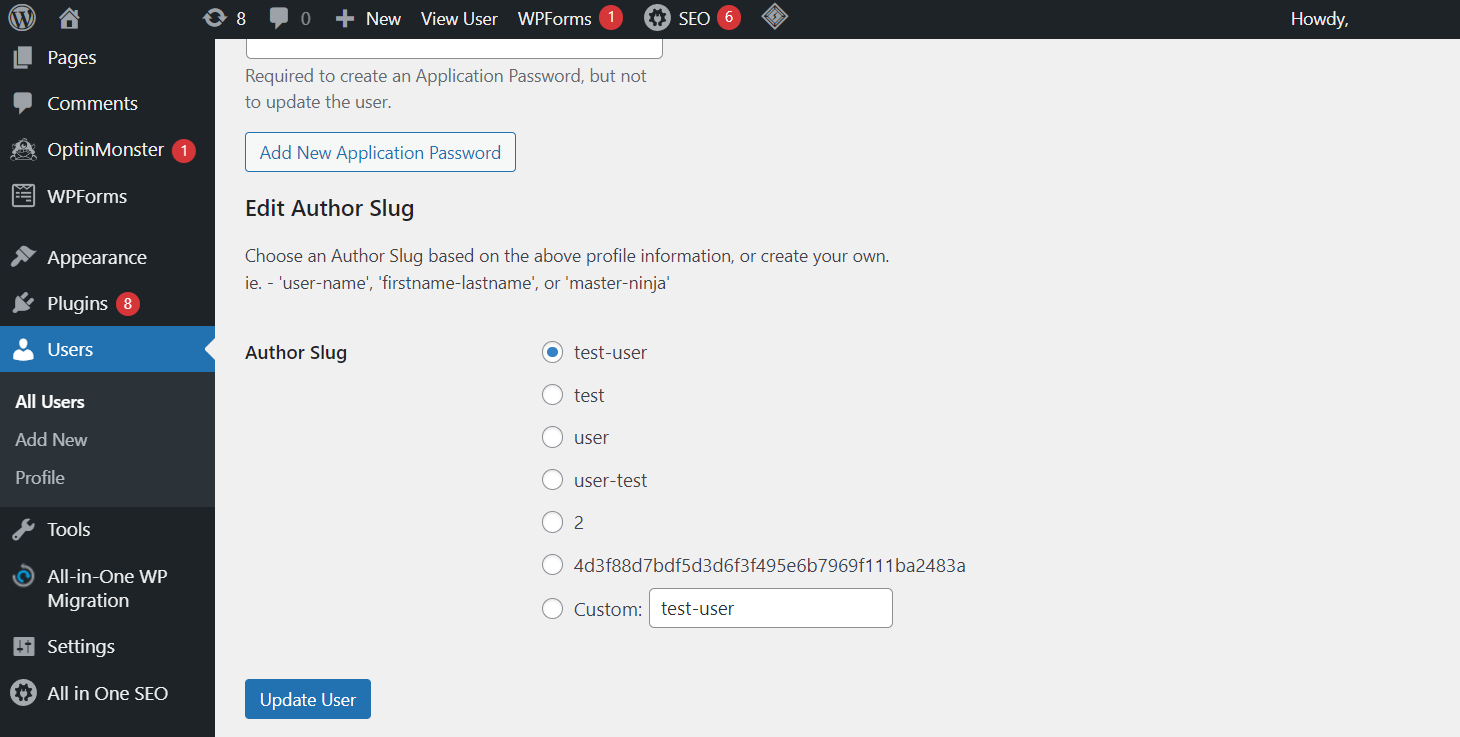
- Select one of the listed slugs or enter a custom one.
- Click the Update User button to save your changes.
After you change the author archive slug, set up a redirect link to the new URL. This allows visitors to land on the new page when visiting the old URL
Important! Changing the URL of your WordPress site may affect search engine optimization (SEO). Create a redirect to ensure the search engine crawler can access the new page, preserving site ranking.

Conclusion
If your WordPress site has multiple writers, you may want to change the author of a post for various reasons. Thankfully, there are several ways to do just that.
Note that you can only assign a WordPress post to an existing author. So, you must create a new user account first before assigning a new author.
Change the author of a single post via the editor menu or the Quick Edit feature. To change multiple posts’ authors simultaneously, use WordPress’s Bulk Edit feature.
You may also need to change the author archive page slug. For this task, use the Edit Author Slug WordPress plugin and set a redirect to the new permalink.
We hope this article helps you understand how to change a WordPress post author. If you have any questions, don’t hesitate to leave a comment below.
How to Change Author in WordPress FAQs
Here are frequently asked questions about how to change the author in WordPress posts.
Does Changing the Author of My WordPress Post Affect SEO?
No, changing the author of a WordPress post may have a minor impact on SEO if the author has a strong personal brand or following. However, it’s unlikely to have a significant effect on rankings, as search engines prioritize content quality and relevance over the author’s name.
How Do I Add Another Author to My WordPress Post?
Go to the post editor, click on the Document tab, and under the Author section, select the additional author from the drop-down menu. If the author is not listed, you can create a new user profile and assign the role of Author.
How Do I Change the Author Display Name in WordPress?
Go to Users → Your Profile in the dashboard. Then, under the Name section, update the Display name publicly as option to your preferred name. Click the Update Profile button to save the changes.

Aris is a Content Writer specializing in Linux and WordPress development. He has a passion for networking, front-end web development, and server administration. By combining his IT and writing experience, Aris creates content that helps people easily understand complex technical topics to start their online journey. Follow him on LinkedIn.


